
xTool Studio Performance Lag Issues
Updated Oct 11,2025
Updated Oct 11,2025
Issue Description
Users have reported significant lag or slowness when running xTool Studio software. In some cases, while the machine functions normally with XCS software, using xTool Studio leads to additional abnormal issues. Please refer to this guide if you encounter the problems described above.
Root Causes
- GPU driver compatibility issues on Windows computers.
- Mac users downloading xTool Studio from the XCS V3.0.0 update interface, resulting in an incorrect automatic update version.
- Specific font files present in the Mac system causing an infinite loop during the reading process.
Solution
For Windows Computers:
- Final Solution: Update xTool Studio to version V1.0.17 or higher.
The V1.0.17 version has been released. Please guide users to upgrade to this version.
Download link: https://www.xtool.com/pages/software#1
For Mac Computers:
- Final Solution: Update xTool Studio to version V1.0.17 or higher. Download link: https://www.xtool.com/pages/software#1
There are two primary reasons for lag on Macs: - V1.0.17 fixes lag caused by abnormal font reading.
- Installation of an incorrect software package version for the Mac's chipset. After updating to V1.0.17, users will be prompted to download the correct version.
- Verify if an incorrect Studio version is installed:
- Follow the instructions in FAQ https://support.xtool.com/article/844, section #6 "Computer System Information," to identify the user's Mac chip version.
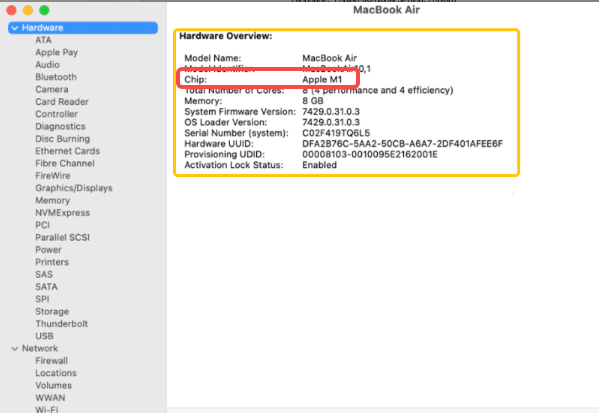
- Check the installed Studio software package to confirm the incorrect version.
.png)
- For Macs, different versions exist for Apple Silicon and Intel chips, and the correct version must match the computer's chipset.
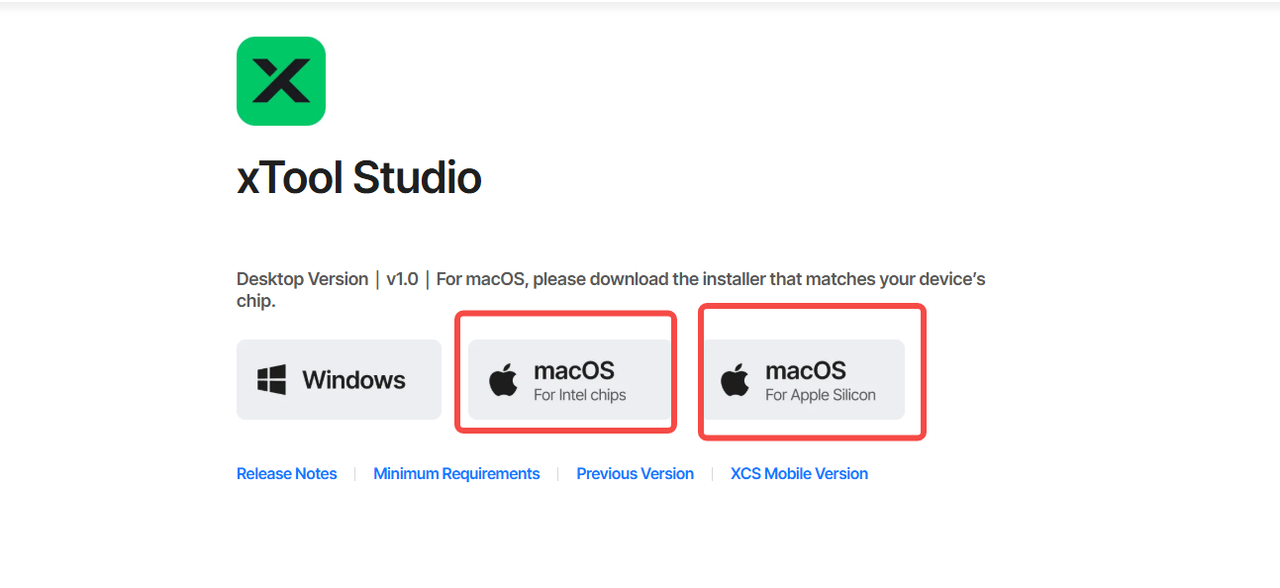
- Follow the instructions in FAQ https://support.xtool.com/article/844, section #6 "Computer System Information," to identify the user's Mac chip version.
- If an incorrect version is confirmed, guide the user to download and install the correct version.
- xTool Studio download link: https://www.xtool.com/pages/software#1
Information Collection Template (If Issue Persists)
- xTool debug Logs:
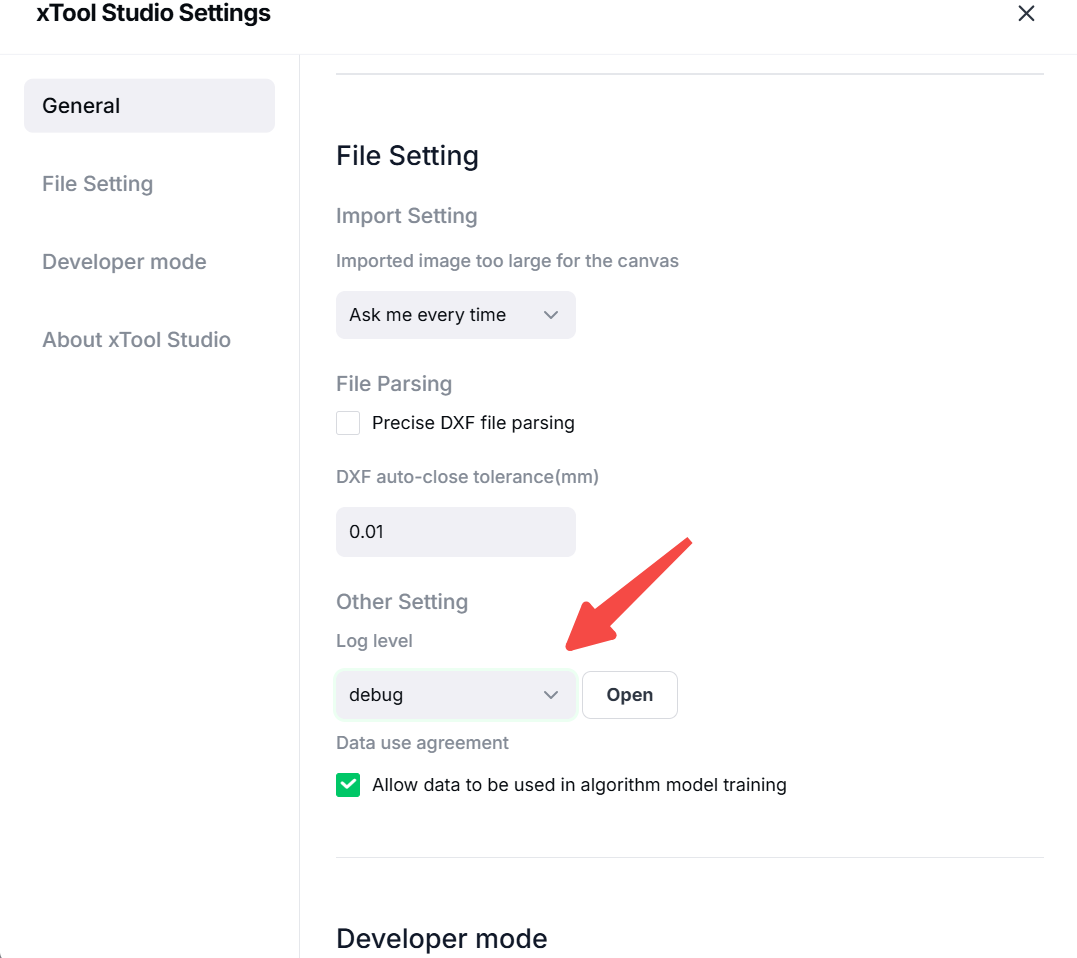
- xTool Studio Software Version
Still experiencing issues?
Should the issue persist after completing the preceding steps, submit a ticket via the "Submit a Ticket" button in the "Help Ticket" section below. The standard response time for xTool Customer Service is one business day.
For a prompt resolution, please include the following details:
- Issue description: A detailed explanation of the observed problem.
- Video evidence: Attach a video demonstrating the issue, where applicable.
- Troubleshooting performed: Any troubleshooting steps you have already attempted, along with their results.
This information is crucial for xTool technical support engineers to provide timely assistance.
Documentation feedback
Help improve this content by providing feedback. If this content did not meet your requirements, select "No" in the "Was this page helpful?" section below. Include specific details about what was unclear or missing in the pop-up suggestion box. Feedback submissions are reviewed by xTool technical writers to enhance future documentation.
Preview
Was this page helpful?
0 out of 0 found this helpful
Help Ticket
Use this help ticket to submit your issue. We will respond within 1 business day
Submit a Ticket 
