
Issue description
After power-on, the fault indicator of IF2 keeps blinking and beep sound is heard.
Possible causes
- The protective cover of IF2 is missing or improperly installed
- The fan of IF2 is blocked or unable to rotate freely
Troubleshooting procedure
Step 1: Check the protective cover magnets
- Check the presence of the two magnets on the protective cover.
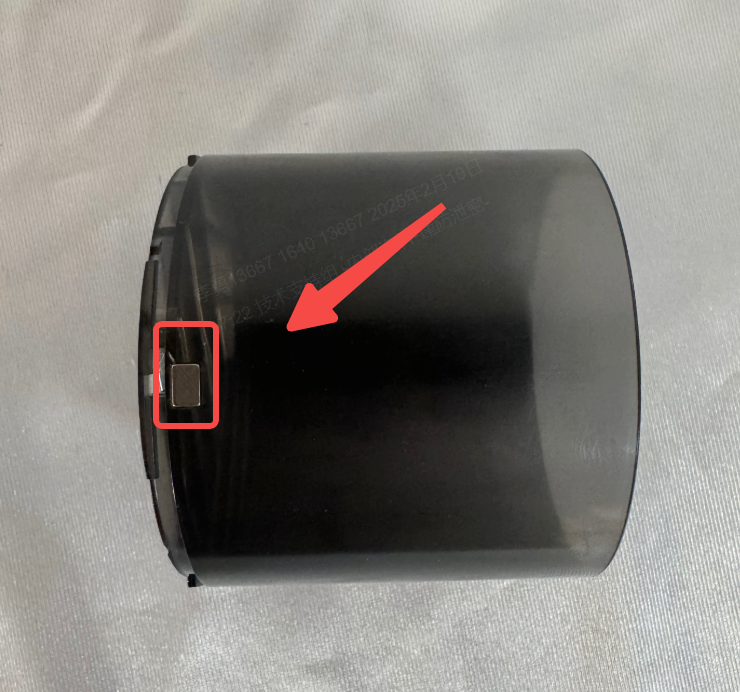
2. Test the magnets’ strength by bringing a small metal object close.
3. If a magnet is missing, misaligned, or has lost magnetism, contact customer service to request a replacement.
Step 2: Verify correct installation of the protective cover
Confirm that the protective cover is securely installed. If not, re-install it.
When installed properly:
- The power indicator is steady green.
- The fault indicator turns off and the beep sound stops.
- The fan operates normally.
Proceed to the next step if the fault indicator still blinks after the protective cover has been properly installed.
Step 3: Inspect the fan for obstructions
1. Power off IF2.
2. Manually rotate the fan blades to ensure that they can move freely. If the fan cannot rotate, check for dirt or foreign objects inside.
3. Clean the dirt or foreign objects inside the fan.
Step 4: Reconnect and restart IF2
1. Disconnect the xTool machine's exhaust pipe from IF2.
2. Power on IF2 again and check if IF2 can work properly.
If the issue persists, follow the warranty and replacement procedure and contact customer service to get a new fan.
Still experiencing issues?
Should the issue persist after completing the preceding steps, submit a ticket via the "Submit a Ticket" button in the "Help Ticket" section below. The standard response time for xTool Customer Service is one business day.
For a prompt resolution, please include the following details:
- Issue description: A detailed explanation of the observed problem.
- Video evidence: Attach a video demonstrating the issue, where applicable.
- Troubleshooting performed: Any troubleshooting steps you have already attempted, along with their results.
This information is crucial for xTool technical support engineers to provide timely assistance.
Documentation feedback
Help improve this content by providing feedback. If this content did not meet your requirements, select "No" in the "Was this page helpful?" section below. Include specific details about what was unclear or missing in the pop-up suggestion box. Feedback submissions are reviewed by xTool technical writers to enhance future documentation.

Services & Help
Learn & Education

Copyright © 2025 xTool All Rights Reserved.