
Set up xTool F2 in xTool Studio on the Computer
Updated Oct 29,2025
Updated Oct 29,2025
After connecting xTool F2 to xTool Studio, you can set up xTool F2 in xTool Studio by referring to the following steps.
1. In the top-right corner of xTool Studio, click icon and select Device settings.
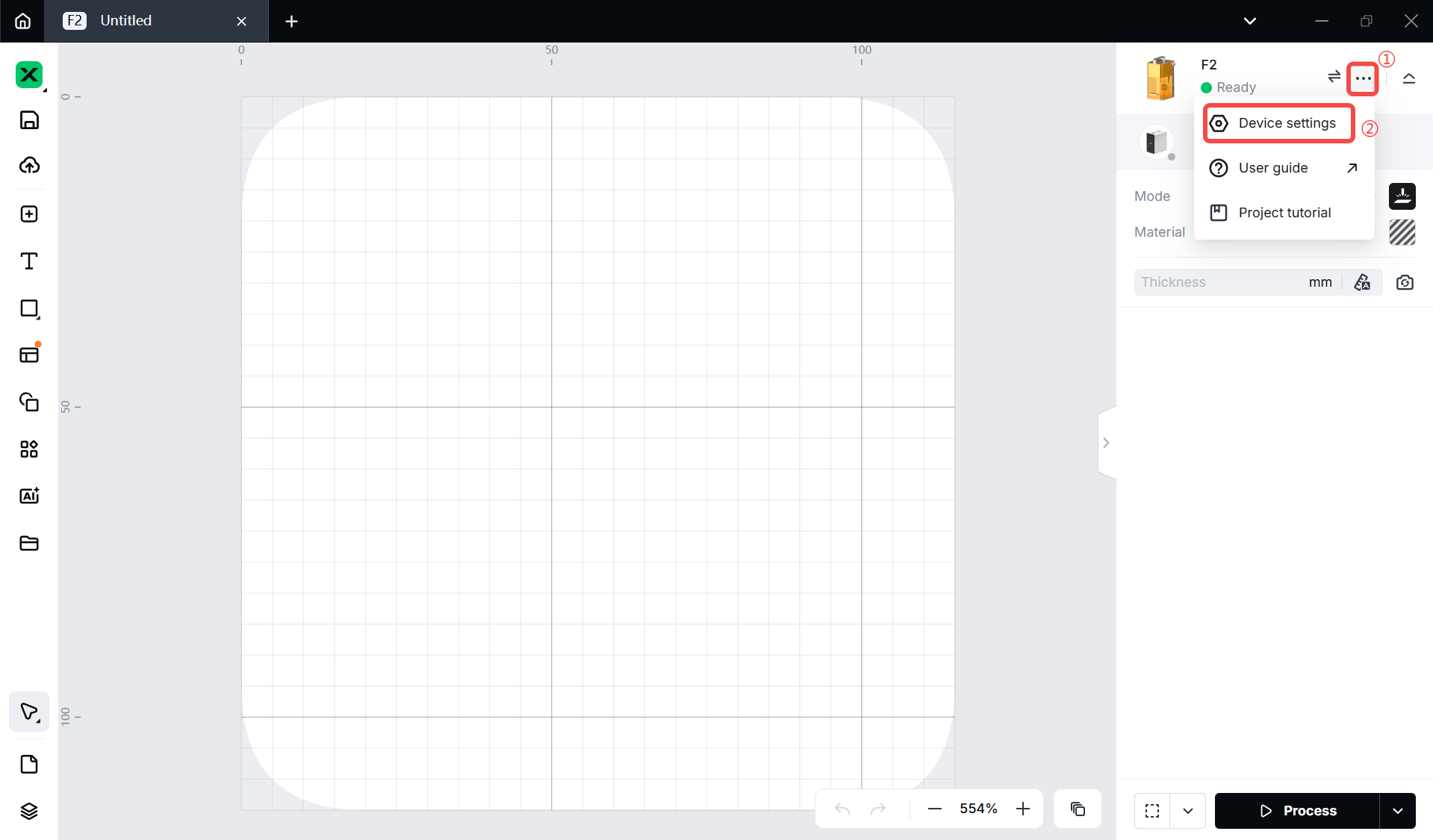
2. On the Basic info tab page, you can view the basic information of xTool F2 and modify some information.
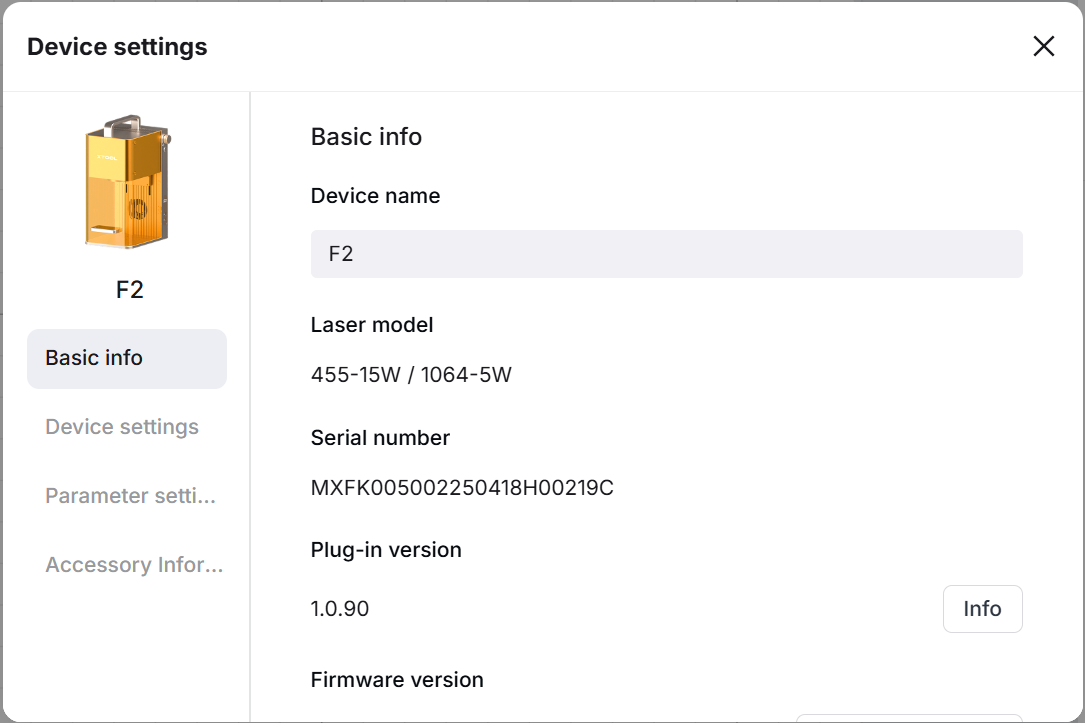
- Device name: Displays the name of your device. You can change it.
- Laser model: Displays the laser module of the device.
- Serial number: Displays the serial number of the device.
- Plug-in version: Displays the version of the plug-in.
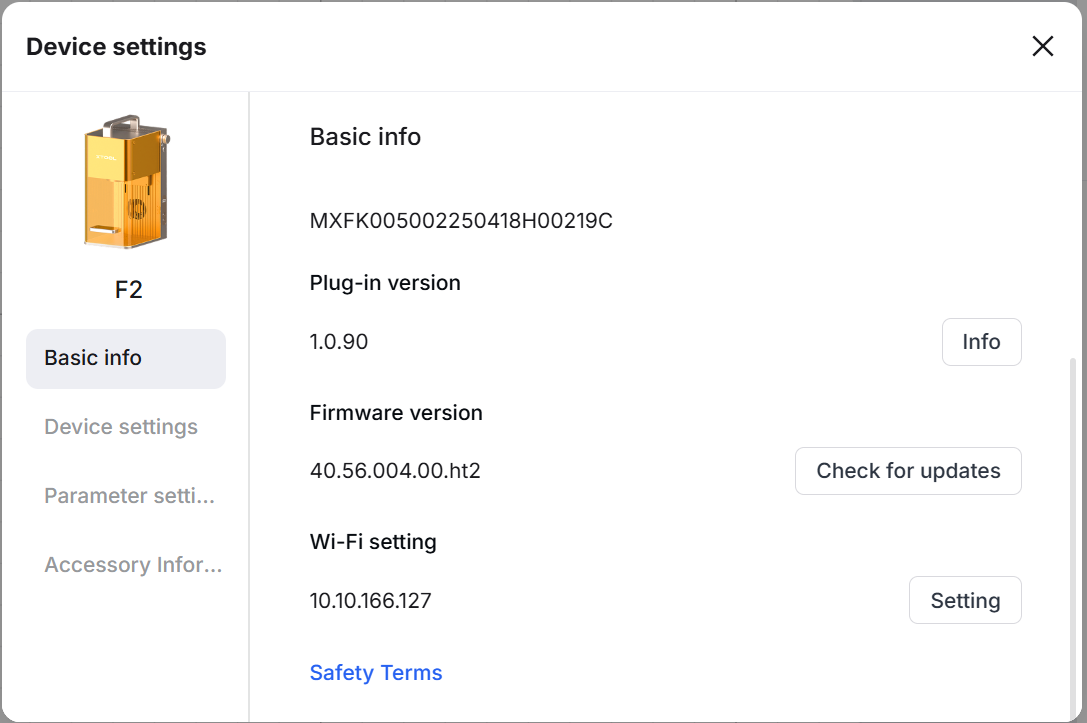
- Firmware version: Displays the version of the firmware. You can click Check for updates to check whether a new version is available; if yes, update it.
- Wi-Fi setting: You can click Setting to set a Wi-Fi name and password.
- Safety Terms: Disp;ays the safety information of the device.
3. On the Device settings tab page, you can set up your xTool F2 and export files or logs as needed.
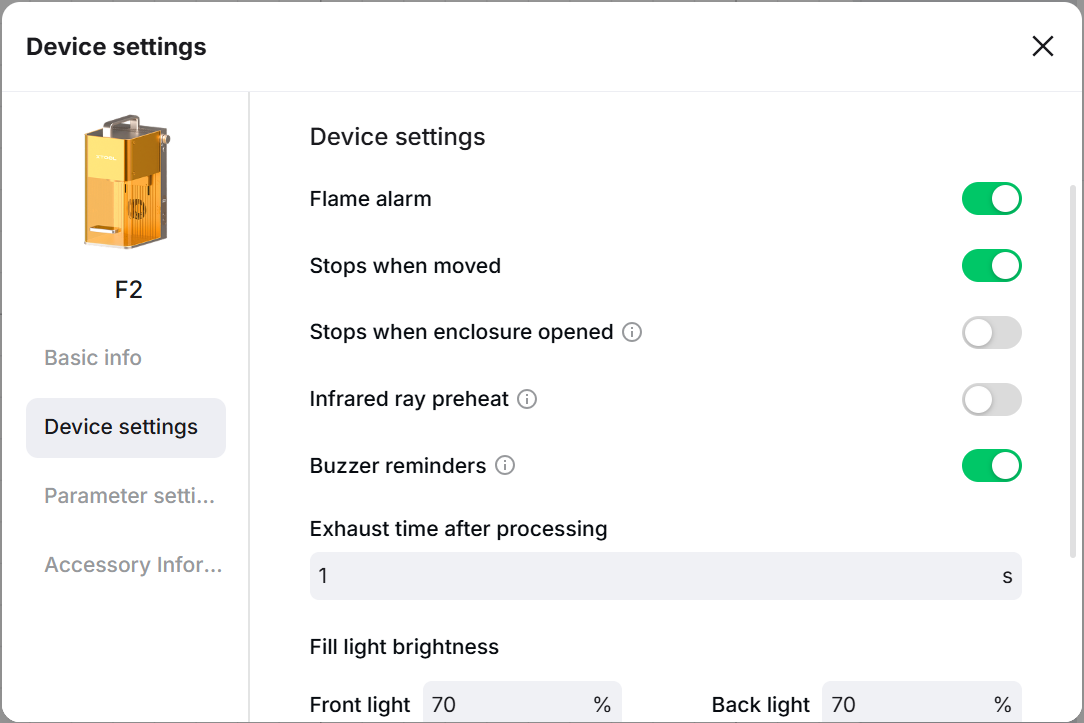
- Flame alarm: If a flame is detected in the working area, xTool F2 will pause processing and raise the alarm.
- Stops when moved: If xTool F2 is moved or tilted during processing, it will pause processing.
- Stops when enclosure opened: If the protective enclosure is opened during processing, xTool F2 will pause processing.
- Infrared ray preheat: When you process with the infrared ray under the low temperature environment, you can enable the preheat function to get better results.
- Buzzer reminders: xTool F2 makes a beeping sound in specific situations, such as when the device is connected and the task is completed.
- Exhaust time after processing: The time duration the exhaust fan continues to work after a processing task ends. By working for a longer time, the fan can exhaust the remaining smoke after processing.
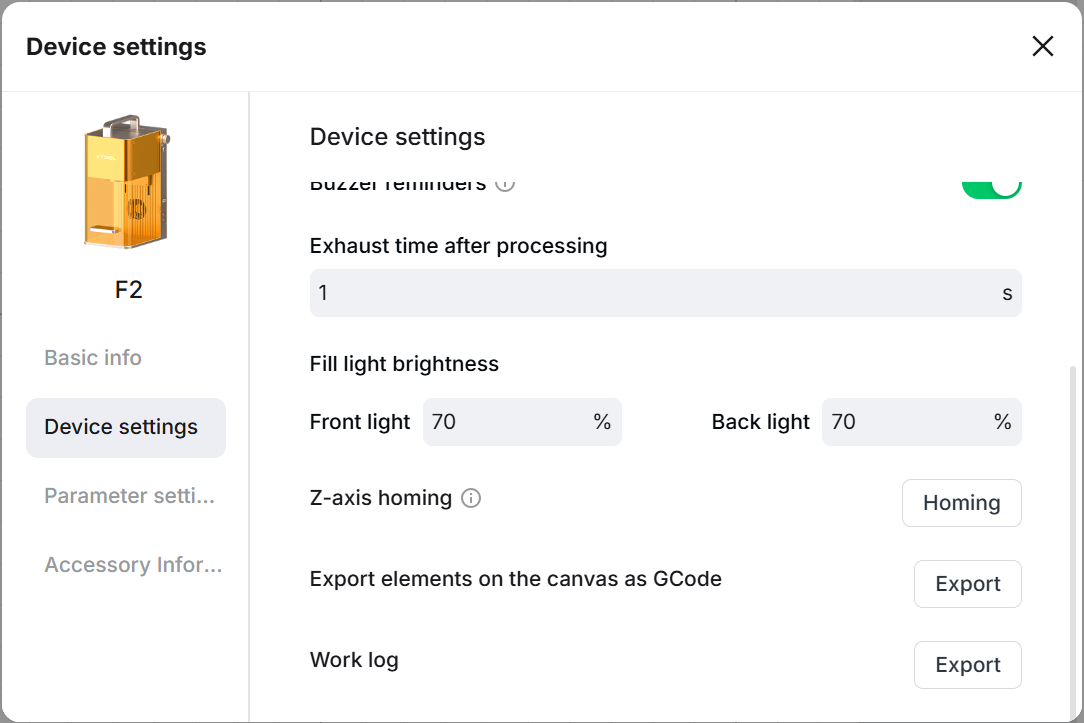
- Fill light brightness: Adjust the brightness of the fill light in the working area.
- Front light: Brightness of the front light.
- Back light: Brightness of the back light.
- Z-axis homing: Tap Homing to return the laser module to its original position.
- Export elements on the canvas as GCode: Click Export to export all the elements on the canvas to a GCode file.
- Work log: Click Export to export the work logs of the device.
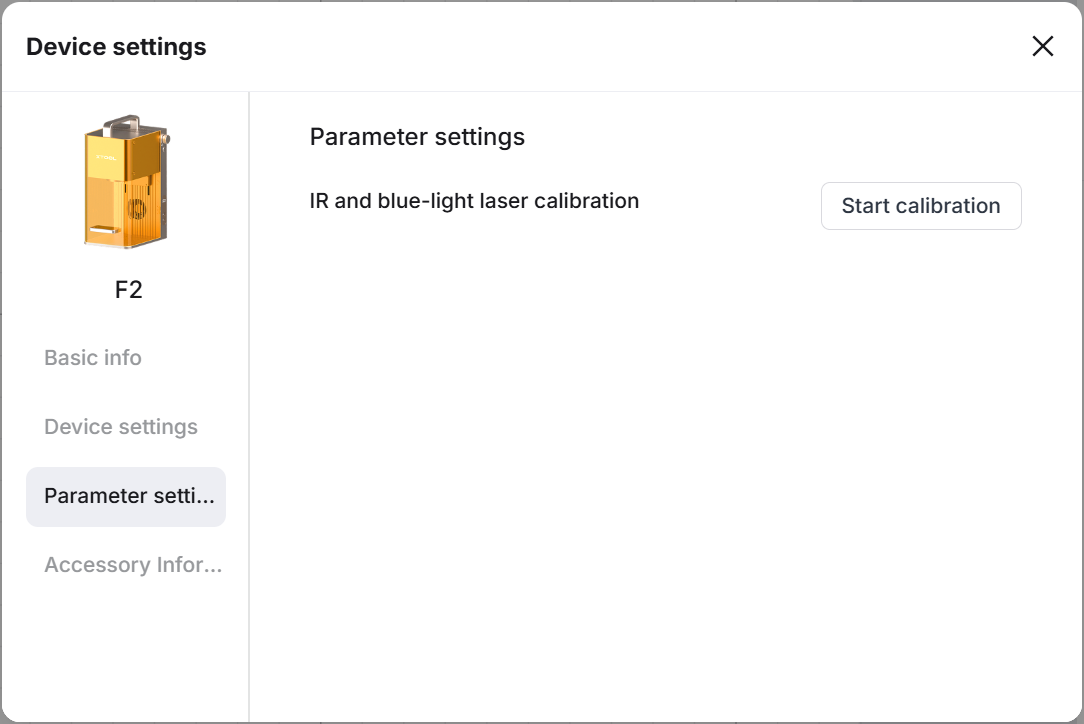
4. On the Parameter settings tab page, you can calibrate the device to compensate for some mechanical errors due to long-distance transportation or other reasons.
5. On the Accessory Information tab page, you can learn the information of the accessories connected to your xTool F2.
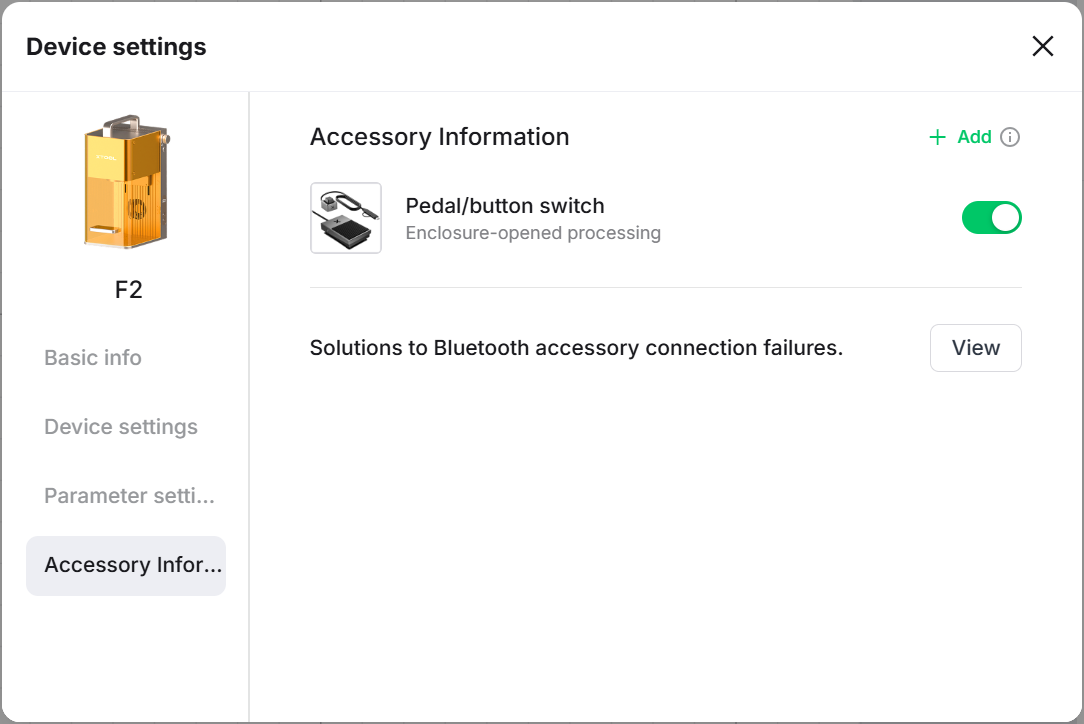
- Pedal/button switch Enclosure-opened processing: By default, a pedal or button switch cannot start processing when the device's enclosure is open. This is to avoid accidental triggering. By turning on this option, you can use a pedal or button switch to start processing with the device's enclosure open.
- Solutions to Bluetooth accessory connection failures: Click View to learn how to connect bluetooth accessories.
Preview
Was this page helpful?
209 out of 211 found this helpful
Help Ticket
Use this help ticket to submit your issue. We will respond within 1 business day
Submit a Ticket 
