
Note:
xTool F2 is NOT compatible with xTool Creative Space (XCS). It is designed to work exclusively with xTool Studio. Please ensure you have downloaded and are using the correct software before proceeding with the troubleshooting steps below. [Download xTool Studio here]
Issue description
When you connect your xTool F2 to xTool Studio using a USB cable, the device name is not found in the device list. Please consult this section for troubleshooting.
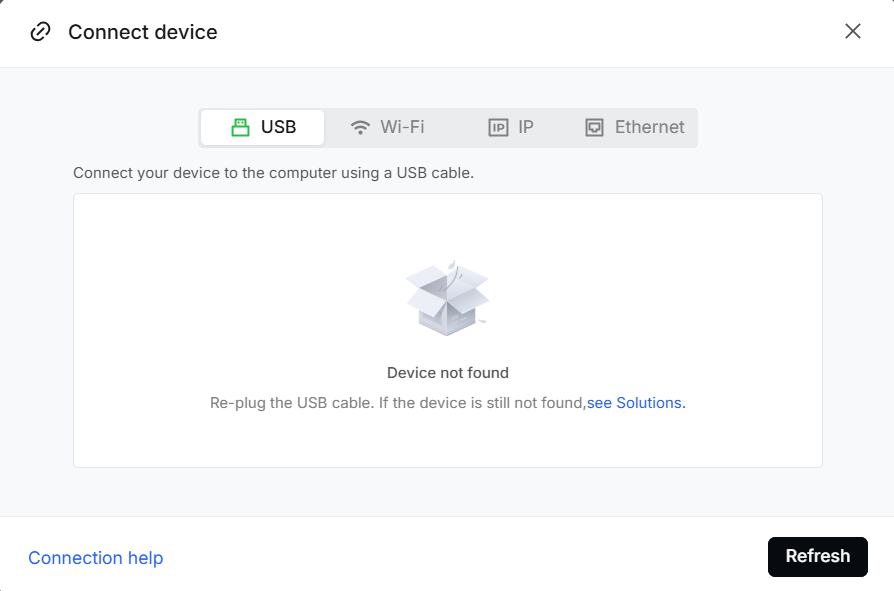
Troubleshooting
Step 1: Verify system requirements
Ensure your computer meets the minimum specifications below. If your computer meets these requirements, proceed to Step 2.
Component | Minimum | Recommended |
Processor | Intel Core i5-6200U | Intel Core i5-11600 or newer |
OS | Win 10 (64-bit) / macOS11 | Latest OS version |
RAM | 8 GB | 16 GB |
Display Resolution | 1280 × 720 | 1920 × 1080 or higher |
Storage | 8 GB | 12 GB |
xTool Studio Hardware Specification Requirement
Step 2: Verify the USB cable & connections
- Use the Original USB Cable: Ensure you're using the USB cable provided with your xTool F2. Third-party cables may not support proper data transmissio
- Inspect the Cable: Check the cable for any visible damage, such as cuts, frayed wires, or bent connectors. Also, check for dirt on the connector. If the cable is damaged, contact xTool Customer Service for replacement.
- Temporary Alternative: If you suspect the original cable is glitching, you can temporarily try using a high-quality USB data cable from a smartphone.
- DO NOT use charging-only cables; they lack the necessary wires for data transfer.
- You can test a cable by connecting your phone to your computer and checking if you can transfer files.
- Correct Port for Connection: Confirm that the USB cable is firmly connected to both the F2 and your computer on the correct ports. Loose connections can prevent recognition.
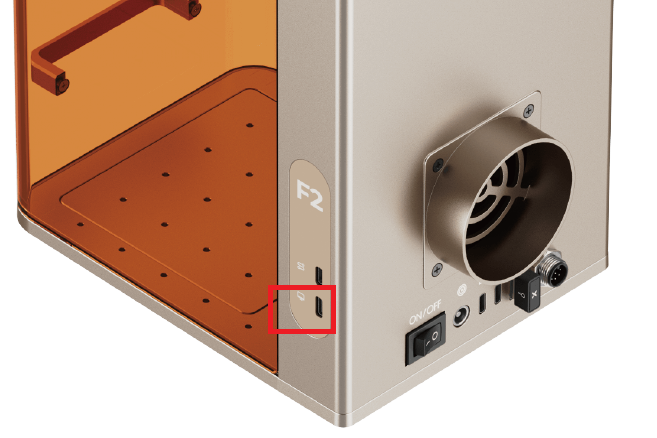
- If the issue persists, go to Step 3.
Step 3: Check for computer USB port issues
- Test with a Smartphone: Connect a smartphone to the USB port you are using for your xTool device. Verify that you can transfer files between the phone and your computer. This confirms the port is working correctly.
- Avoid Front Panel Ports (Desktop PCs): On desktop computers, avoid using the USB ports on the front panel. These ports often have less reliable connections. Use the USB ports on the back of the computer, which are directly connected to the motherboard of your computer.
- If the issue persists, proceed to Step 4.
Step 4: Check for missing driver
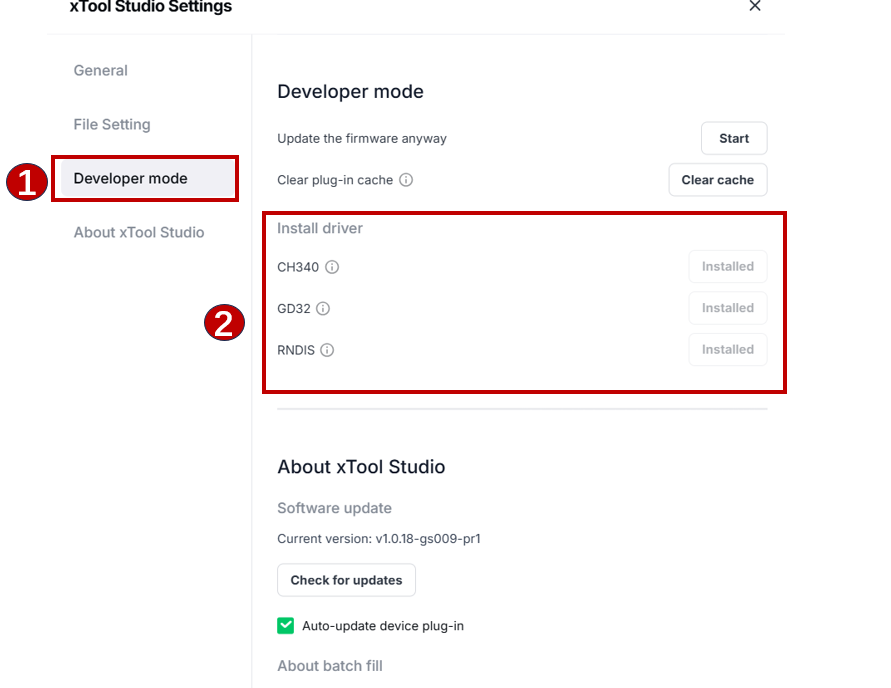
- Go to xTool Studio settings menu.
- Navigate to the Developer mode tab check if the necessary drivers are installed.
- If any drivers are missing, click the "Install" button next to the corresponding driver to install it.
- Follow the on-screen instructions to complete the installation.
- If the issue persists, proceed to Step 5.
Step 5: Delete local storage
If connection problems start after updating xTool Studio or installing a plugin, you might need to clear the software's cache.
- Exit xTool Studio: Completely close the xTool Studio software.
- Access the Local Storage Folder:
- Windows: Open File Explorer and navigate to:
C:\Users\XXXX\AppData\Roaming\xTool Studio\Local Storage(Replace "XXXX" with your Windows username). You can also type%appdata%in the File Explorer address bar and then navigate to thexTool Studio\Local Storagefolder. - macOS: Open Finder and navigate to:
/Users/XXXX/Library/Application Support/xTool Studio/Local Storage(Replace "XXXX" with your macOS username). You may need to enable viewing hidden folders to see the "Library" folder.
- Windows: Open File Explorer and navigate to:
- Delete Cache Files: Delete all files and folders within the
Local Storagefolder. - Restart xTool Studio: Re-open xTool Studio.
Step 6: Check USB Hub (if applicable)
If you are using a USB hub, it could be the source of the problem.
- Hub Compatibility: Ensure your USB hub is recognized by your computer and that the specific USB port you're using is working correctly. Test by connecting your smartphone to transfer files.
- Port Specificity: Some USB hubs require you to use specific ports for certain types of devices. Try connecting your xTool device to different ports on the hub.
- Direct Connection: Try bypassing the USB hub entirely. Connect your xTool device directly to a USB port on your computer using an original cable.
- Power Issues: Some USB hubs have unstable power delivery, especially if other devices are connected. Ensure no other devices are connected to the USB hub while troubleshooting.
Third-party USB Hub
Step 7: Allow xTool Studio through the Windows firewall
This step depicts the most common Windows system troubleshooting procedures based on xTool Lab tests and applies to the Windows operating system ONLY.
- Windows Firewall might be blocking xTool Studio's communication.
- Temporarily Disable Third-Party Antivirus: If you are using third-party antivirus software (e.g., Norton, McAfee, etc.), temporarily disable it before adjusting firewall settings. This is because antivirus programs often manage firewall rules.
- Open Control Panel: Access the Control Panel (search for it in the Windows Start menu).
- Windows Defender Firewall: Navigate steps-by-steps
- Win 11: "Control Panel" > "Windows Defender Firewall"
- Win 10: "Control Panel" > "System and Security" > “Windows Defender Firewall”
Win 11 | Win 10 |
- Allow an app...: Click "Allow an app or feature through Windows Defender Firewall" (or a similarly worded option).
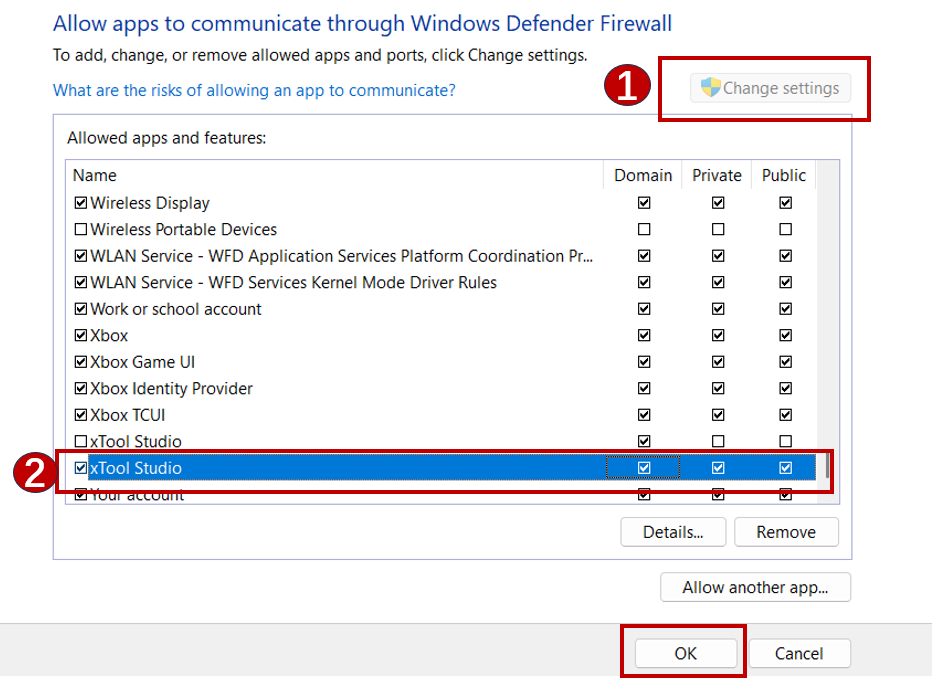
- Find and Allow xTool Studio:
- You might need to click "Change settings" first.
- Scroll through the list of applications and find "xTool Studio" (or a similar entry).
- Ensure that the checkbox next to "xTool Studio" is checked for "Domain", "Private", and "Public" networks (unless you have a specific reason not to allow Public network access).
- Click OK: Click the "OK" button to save the changes.
Step 8: Allow xTool Studio local network access
This step delineates the most common macOS system troubleshooting procedures based on xTool Lab tests and applies to the macOS operating system ONLY.
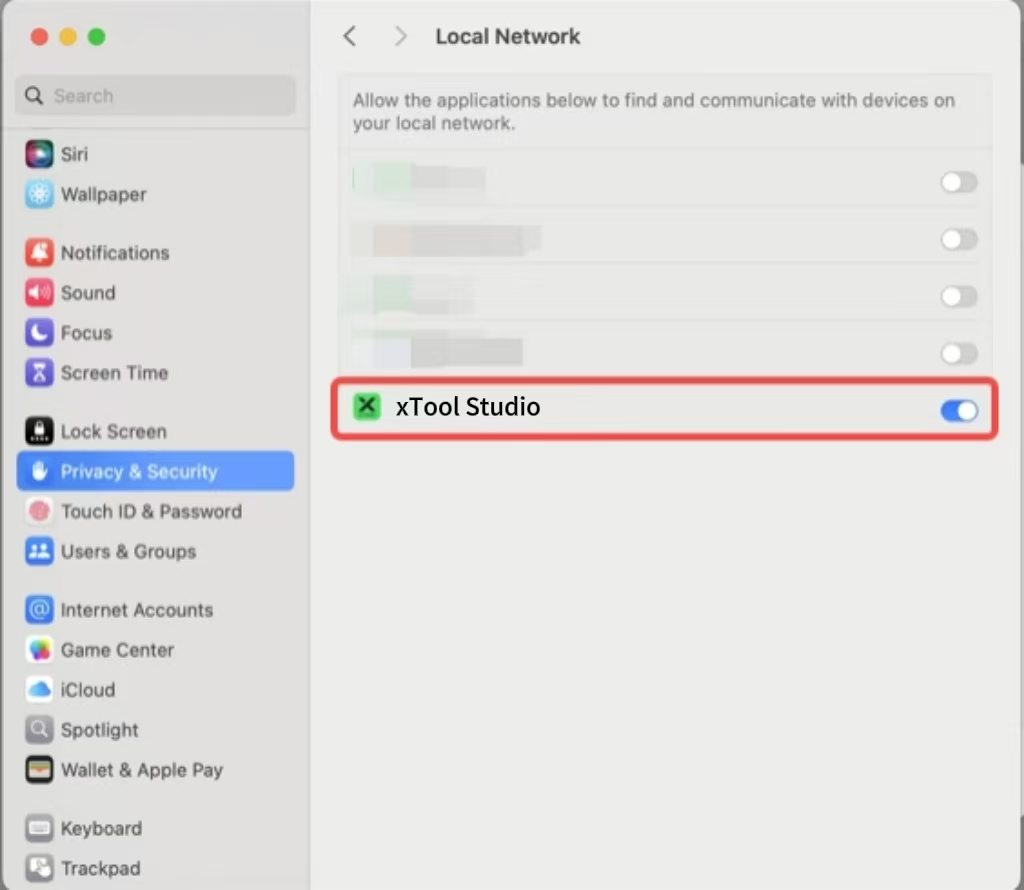
- To enable local network access for xTool Studio, navigate to the Apple menu > System Settings > Privacy & Security > Local Network.
- Locate xTool Studio in the list of applications and ensure the toggle switch is turned ON to allow local network access.
|
Still experience issues?
If the above steps don't resolve the issue, please contact xTool Customer Service. Provide the following information to assist in troubleshooting:
For detailed instructions on gleaning the following relevant information, refer to: Helpful Info to Assist Troubleshooting F2
- Serial Number (SN): Located on the back of your F2.
- Shipping Address: Confirm the device’s delivery address.
- Device Logs:
- In xTool Studio, go to Settings > File Setting > Other Setting.
- Export the debug file.
- Computer Specifications:
- OS version, CPU, RAM, and storage details.

Services & Help
Learn & Education

Copyright © 2025 xTool All Rights Reserved.