
Part1: Initial Troubleshooting Steps (Read This First)
Before diving into specific connection issues, please perform these basic steps. They can resolve most temporary software or hardware glitches.
- Reboot the Laser Device
- Turn off the device's power, wait at least 3 seconds, and then turn it back on.
- Observe the status indicator light. Make sure it is not red or purple after startup. A red or purple light typically indicates a hardware malfunction rather than a simple connection problem.
- Restart Your Computer and Check the Software Environment
- Completely shut down and restart your computer.
- Re-open the laser device software.
- Ensure that no third-party proxy software (such as a VPN or network accelerator) is running in the background. These applications can interfere with the communication between the device and the software.
Step 1. Driver Installation Check
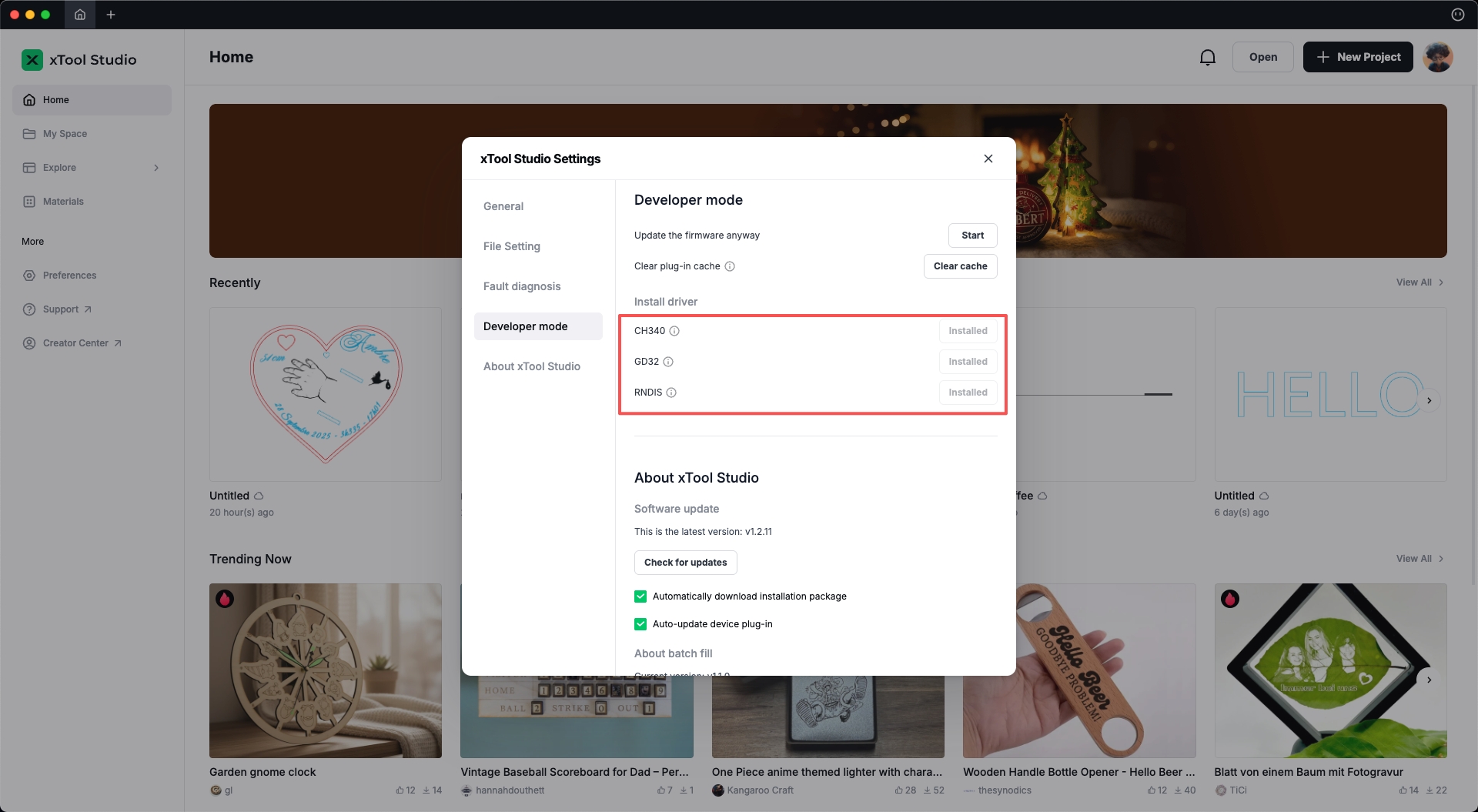
- Open xTool Studio, go to Settings, enable Developer Mode, and confirm whether all required drivers are installed.
- Install any drivers that are not yet installed.
Step2. System Permission Check (macOS Only)
Enable “Allow Accessories”
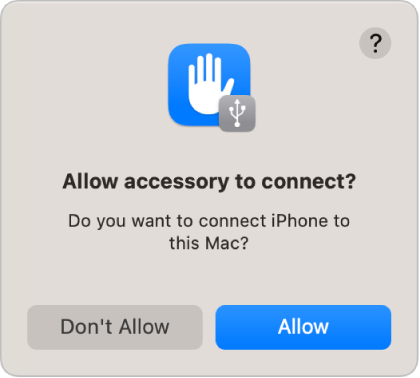
When connecting accessories to a Mac with an Apple Silicon chip, you must approve new USB/Thunderbolt devices and SD cards.
- Selecting Allow enables both power and data transfer.
- Selecting Don’t Allow means the accessory can charge but cannot transfer data.
Note: On macOS 13.3 or later, you will also receive prompts for SD card approval.
Tip:
“Allow” is recommended for personal devices/accessories.
For public charging stations (e.g., airport kiosks), select “Don’t Allow”.
Change the Approval Setting (Optional)
If you do not want to approve new devices manually every time:
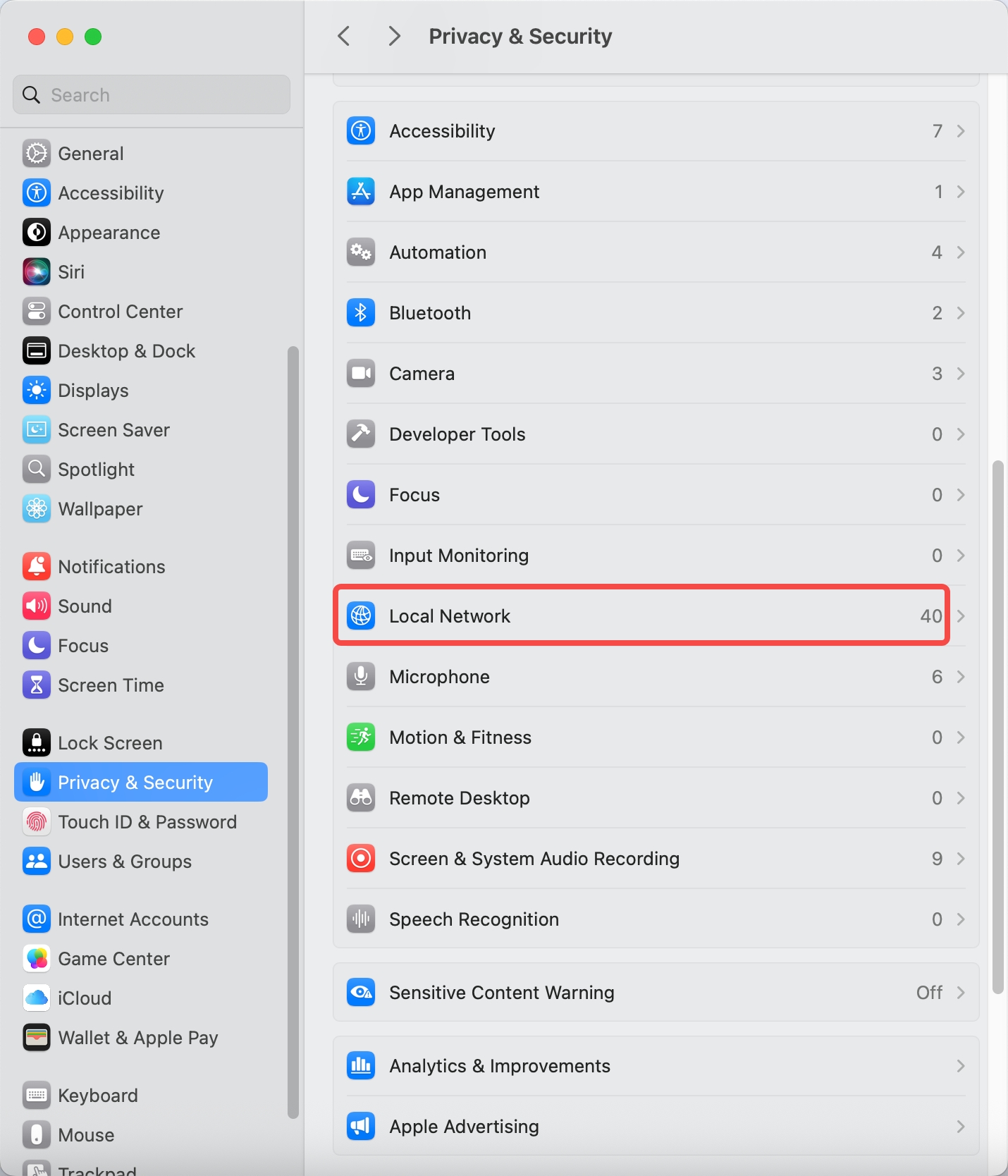
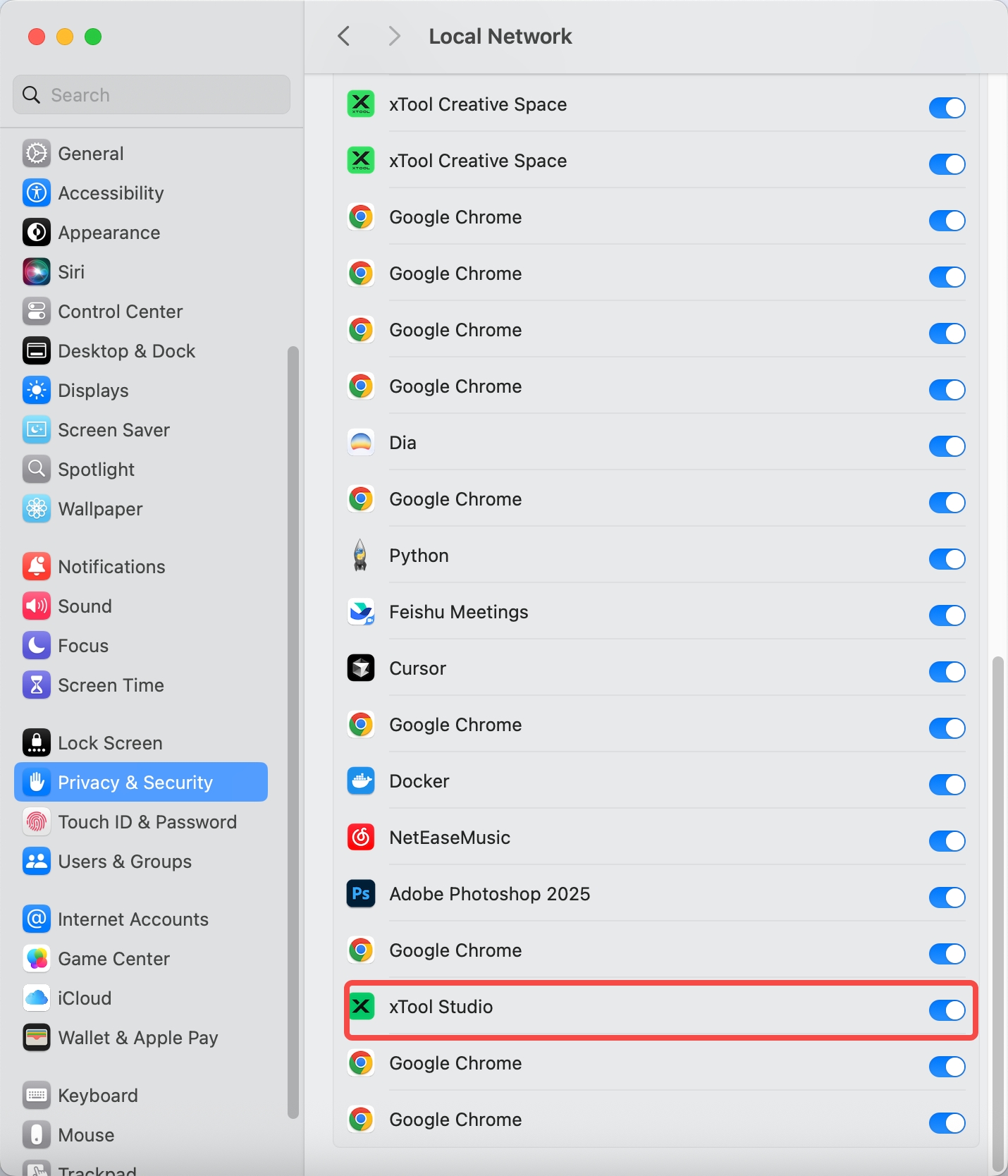
- Go to Apple Menu > System Settings and open Privacy & Security.
- Find Allow accessories to connect and set it to Automatically When Unlocked or Always.
Step 3. Reset Network Configuration (Windows Only)
Some Windows systems may fail to access devices correctly due to DNS pollution or network configuration errors.
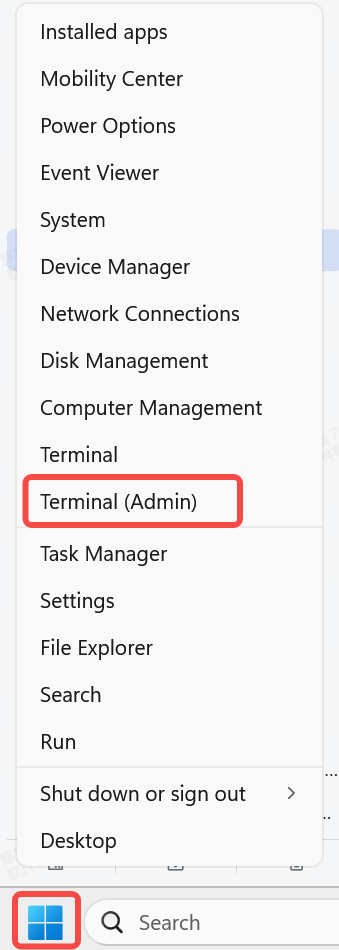
- Right‑click the Windows icon and open Command Prompt (Admin).
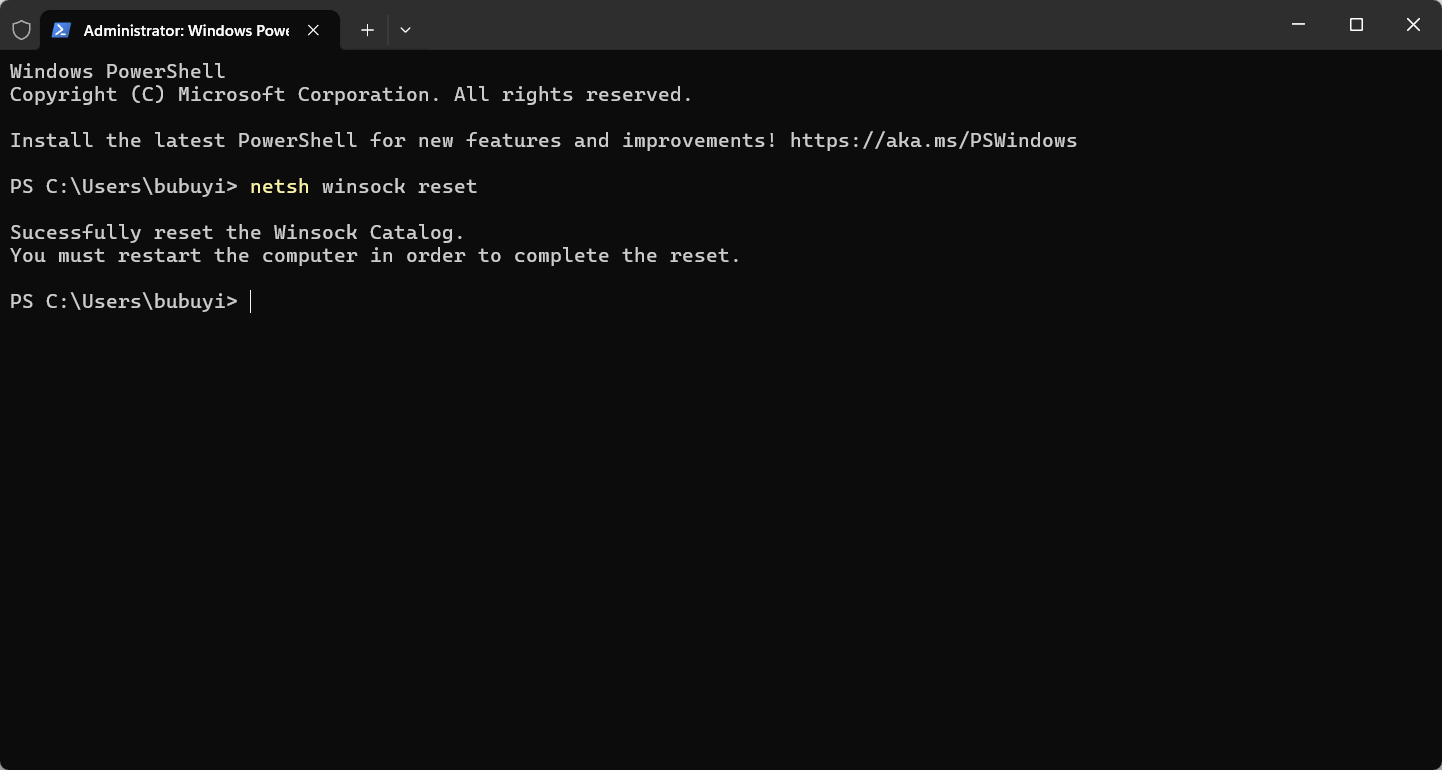
- Enter the following command and press Enter:
netsh winsock reset - Restart your computer.
Part2: Connection-Specific Solutions
If theissuepersists after completing the initial steps, please choose the solution that matches your connection method.
ScenarioA: USB Connection Failure
If you are connecting the device via a USB cable, please check the following:
- Use the Correct Cable
- Recommended: For best compatibility and stability, please use the original USB cable that came with your device.
- Alternative: If the original cable is unavailable, you may use a high-quality, original smartphone cable that is confirmed to support data transfer.
- Important: Many third-party cables are designed for charging only and cannot transfer data, which will prevent the software from recognizing the device.
ScenarioB: Wi-Fi Connection Failure
If you are using a wireless Wi-Fi connection, please check your network settings as follows:
- Ensure Both Devices Are on the Same Network
- Verify that your computer and your laser device are connected to the Wi-Fi network broadcast by the exact same router.
- For example, both the computer and the laser device must be connected to
MyHome_WiFi, not one onMyHome_WiFiand the other onMyHome_WiFi_Guest.
- Check the Wi-Fi Signal Strength
- Make sure the laser device is in a location with a strong and stable Wi-Fi signal. A weak or fluctuating signal can cause the connection to fail or drop unexpectedly.
If you have completed all the relevant steps above and still cannot connect your device, we recommend contacting official technical support for further assistance.
Please provide the following information in your reply:
- Computer specifications
- xTool Studio version
- A video showing the connection failure
- For USB issues: photos showing how your device is connected to the computer

Services & Help
Learn & Education

Copyright © 2025 xTool All Rights Reserved.