
Issue description
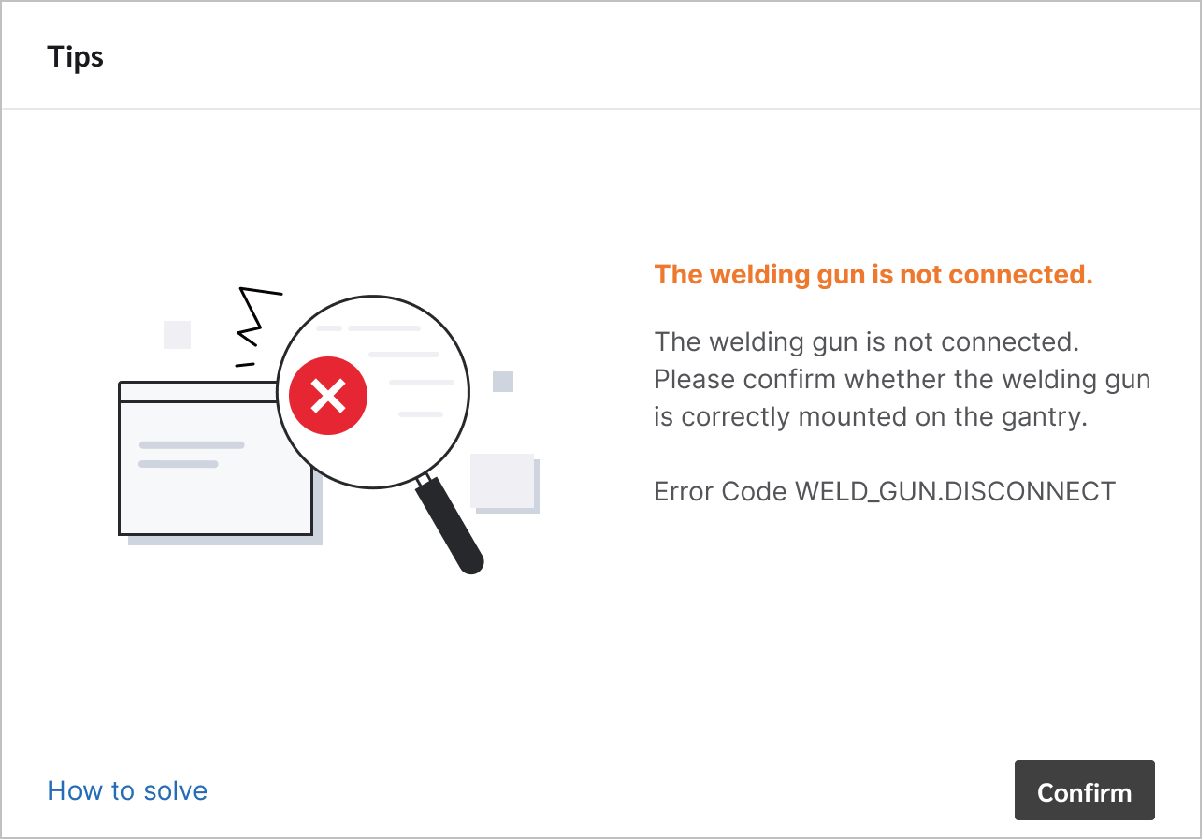
If you encounter a pop-up error message titled "The welding gun is not connected." in xTool software, please follow this troubleshooting guide to resolve this issue.
Possible causes
- Detection board malfunction: The detection board for the welding head (welding gun) on the carriage malfunctions.
- Welding head installation failure: The welding head is not secured by the toggle latch on the carriage.
Detailed procedure
Step 1: Check the detection board
- Take off the welding head from the carriage and close the pop-up message in xTool software.
- Press the black button on the carriage and check if the button can rebound and if the error message pops up again.
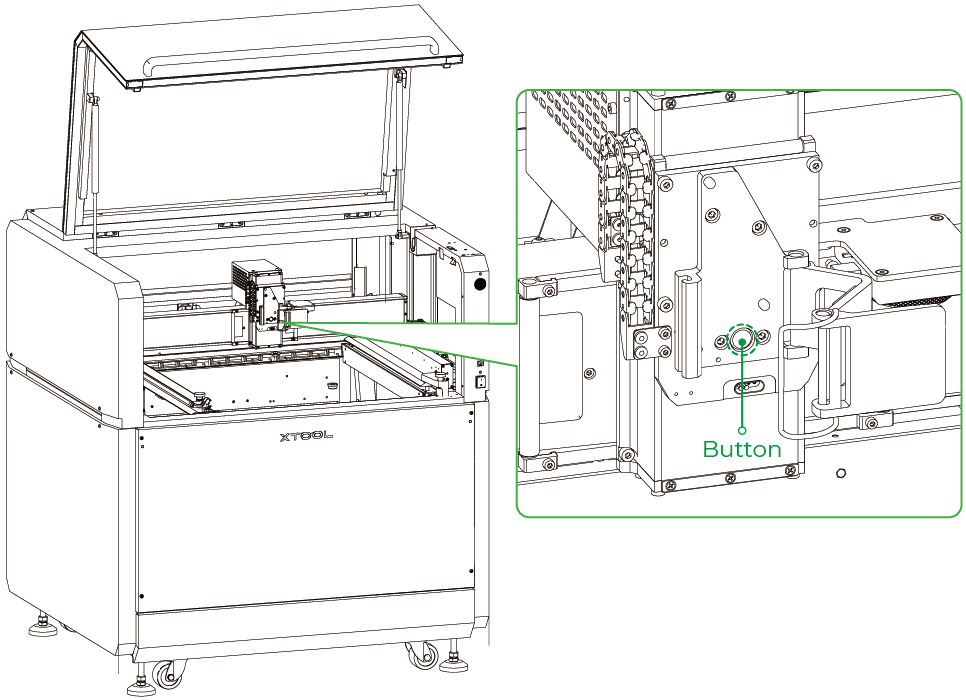
Under normal situation, - When the button is pressed down, xTool MetalFab CNC Cutter buzzes;
- When the button is released, it will rebound automatically and xTool software will pop an error message to inform you of the welding head unconnection issue.
Button status | Buzzing | Button | Error message |
|---|---|---|---|
Pressed down | √ | ||
Released | Rebounding | √ |
For more details, see this video.
- If the detection board works properly, yet the error message keeps popping up, please proceed to the next step.
Step 2: Check the welding head installation
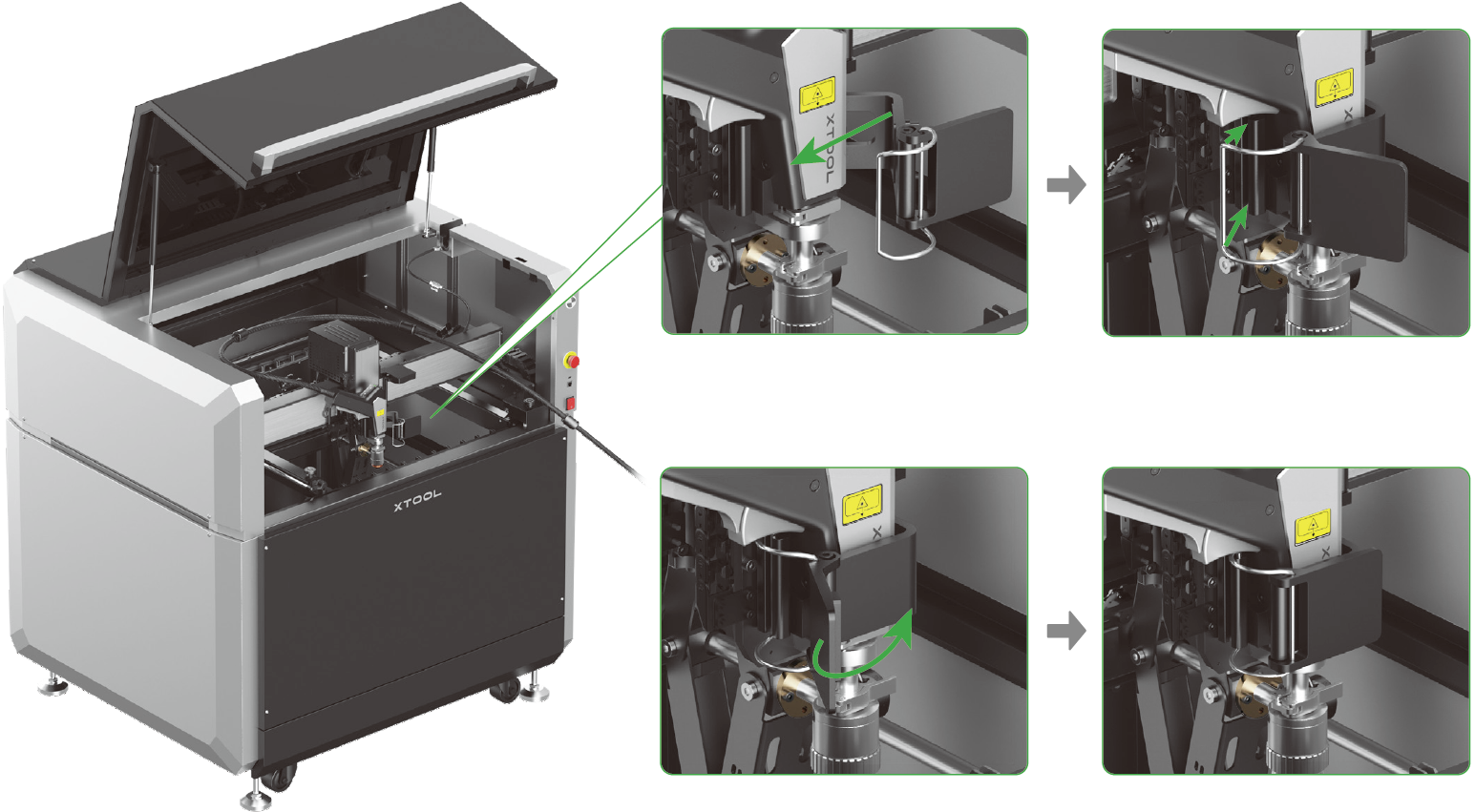
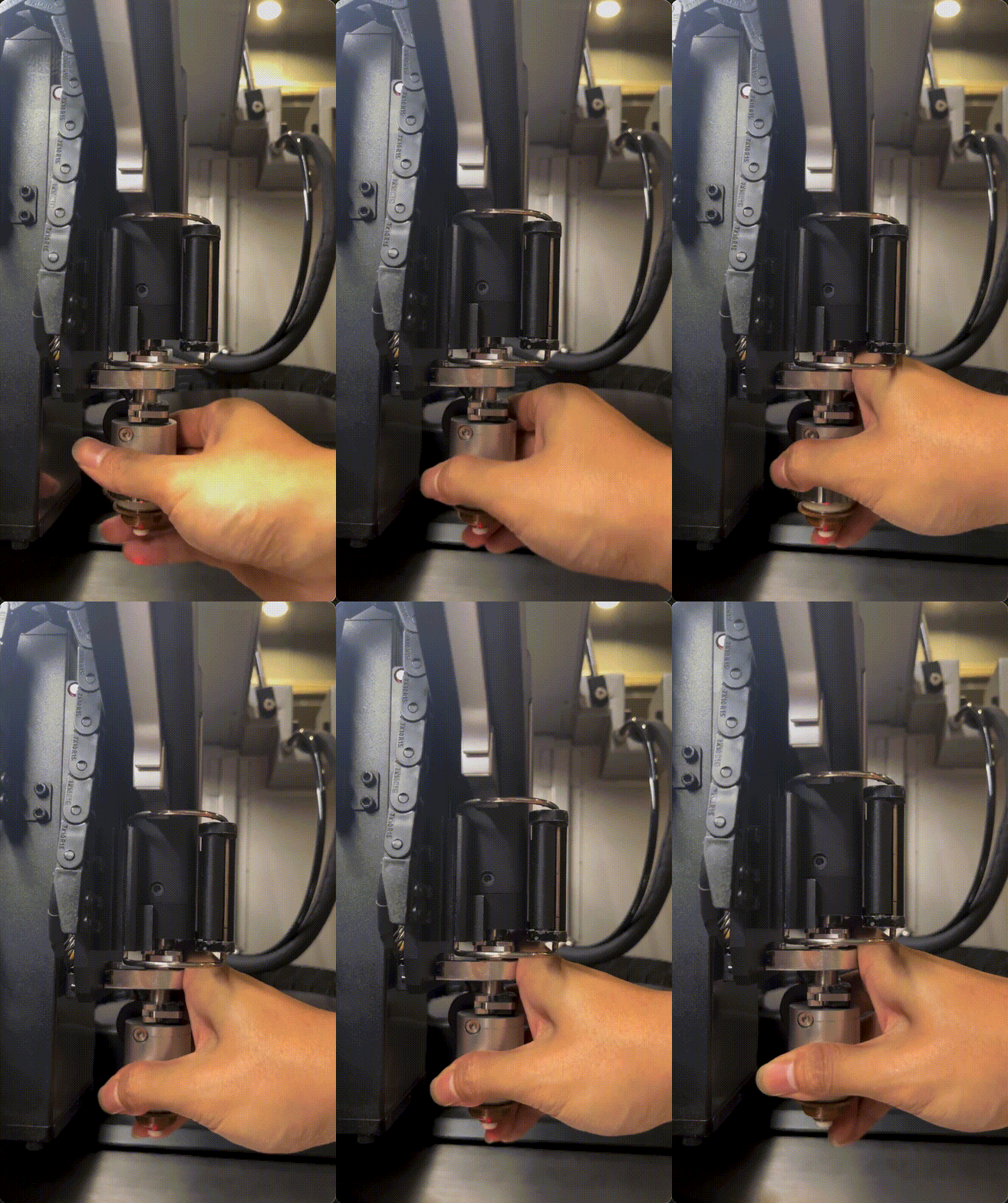
- Ensure that the welding head is firmly secured on the carriage.
- Shake the welding head to check if there is any noticeable looseness or detachment.
- If the welding head is not well secured, follow Quick Start Guide of xTool MetalFab CNC Cutter to install it again.
- If the welding head is secured yet the issue persists, please prepare the following materials and send them to xTool Customer Service for further assistance:
- A video recording your troubleshooting process and results
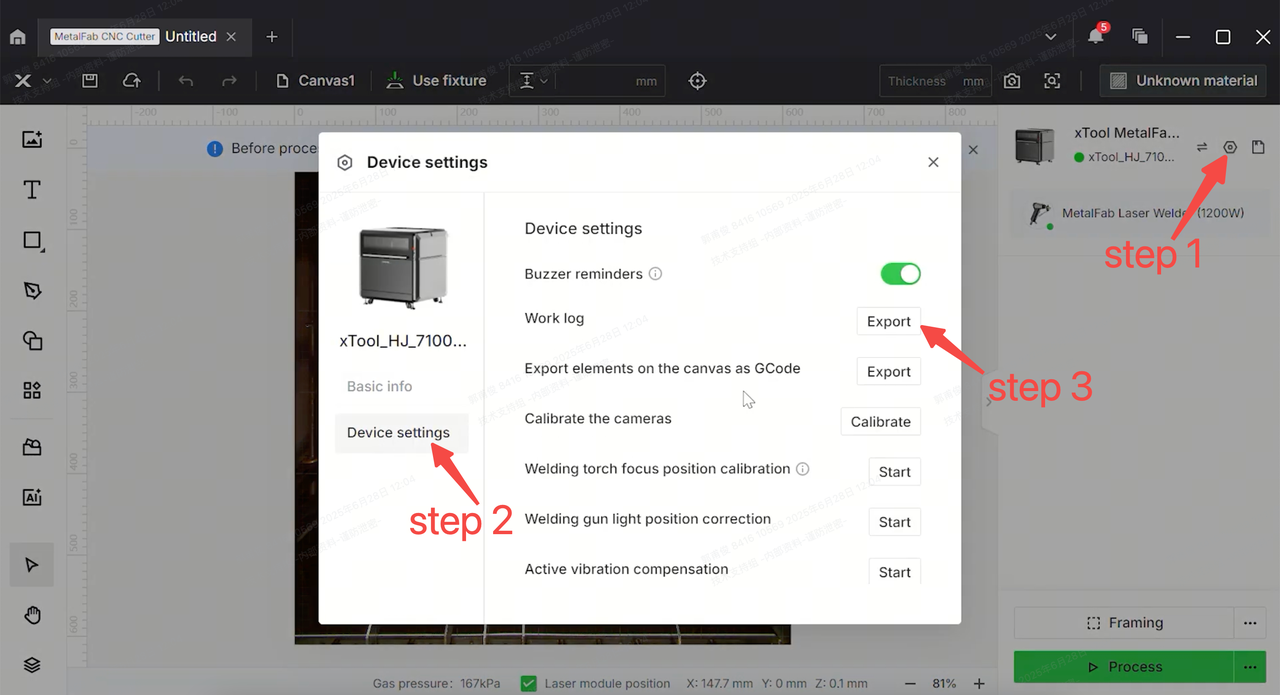
- Work log of xTool MetalFab CNC Cutter
Help us improve
If this article or video doesn't effectively assist you in resolving the issue, please let us know by clicking the “No” button in the “Was this page helpful?” section below, and leave your feedback in the pop-up suggestion box. Our knowledge base team will review it and consider it for future updates.
Still need help?
If you need any human assistance, please create a ticket by clicking the “Submit a Ticket” button in the “Help Ticket” section below. Our service team will get back to you in 1 business day via E-mail.

