
1. Materials
Brass
Aluminum
Titanium
Brushed Stainless Steel
925 Sterling Silver
2. Equipment Usage
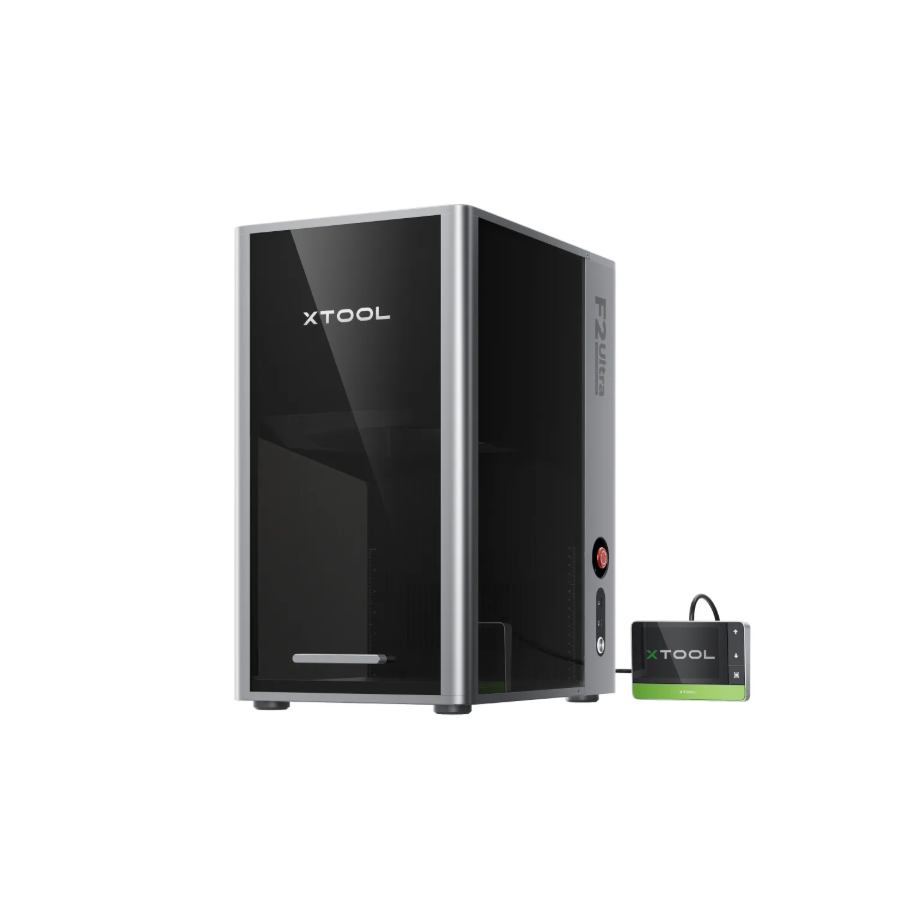
3. Processing Steps
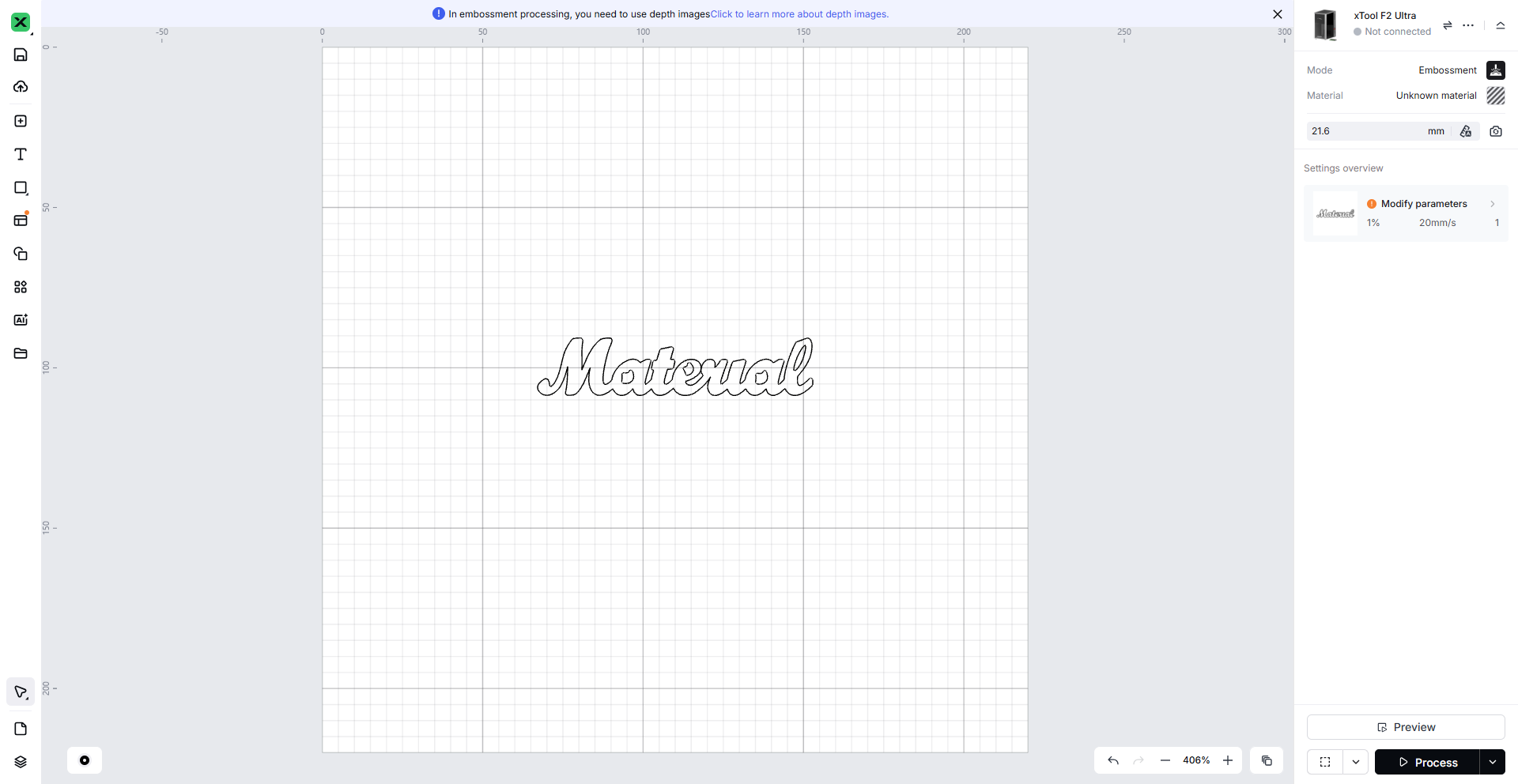
3.1 Upload the Pattern to Be Cut
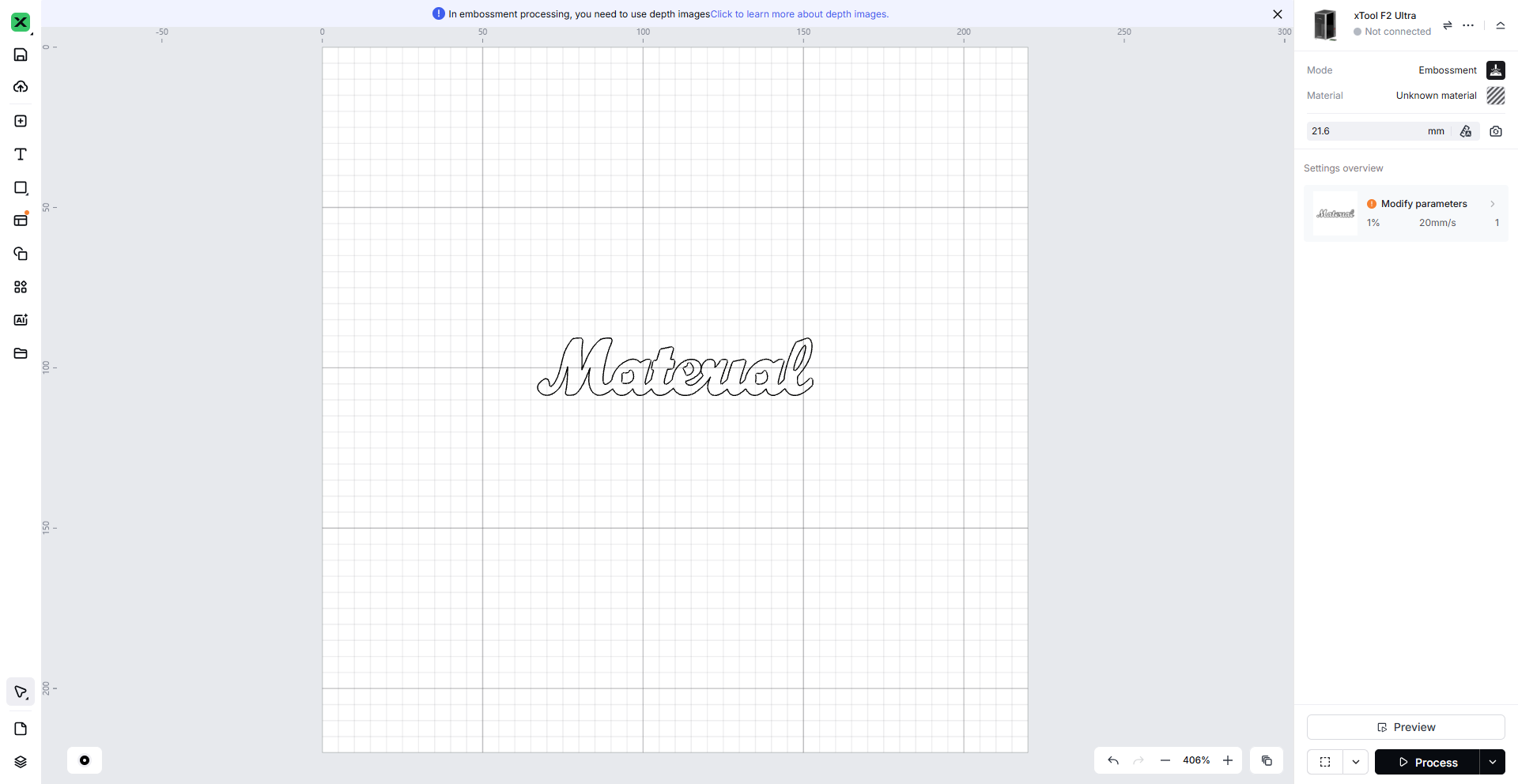
The patterns for deep engraving mode cutting must be closed-path line graphics.
3.2 Set the Pattern to a Cutting-Suitable Mode
1. Select the uploaded line graphic and click Offset to enter the Offset settings.
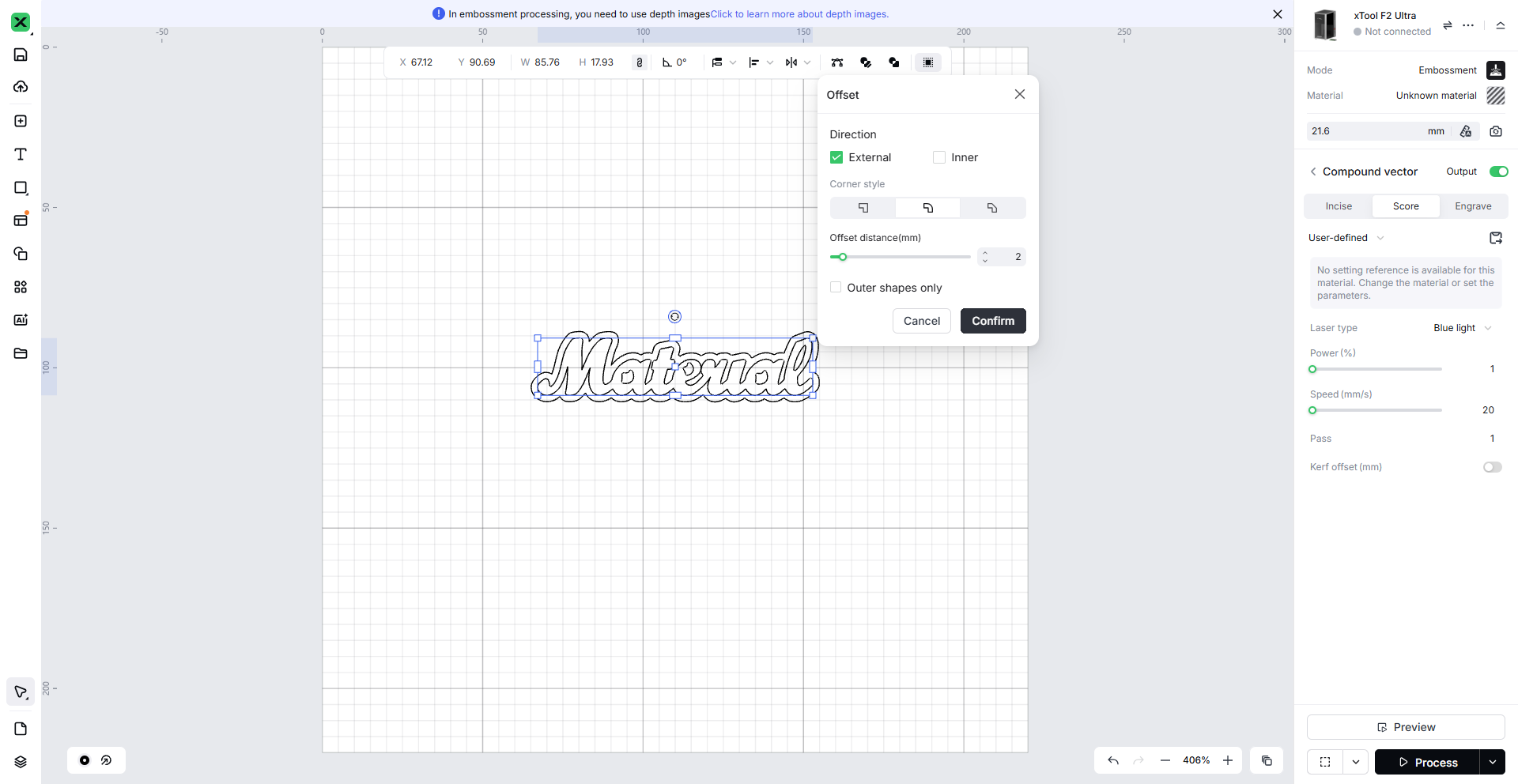 2. Choose your preferred Corner Style and click Confirm.
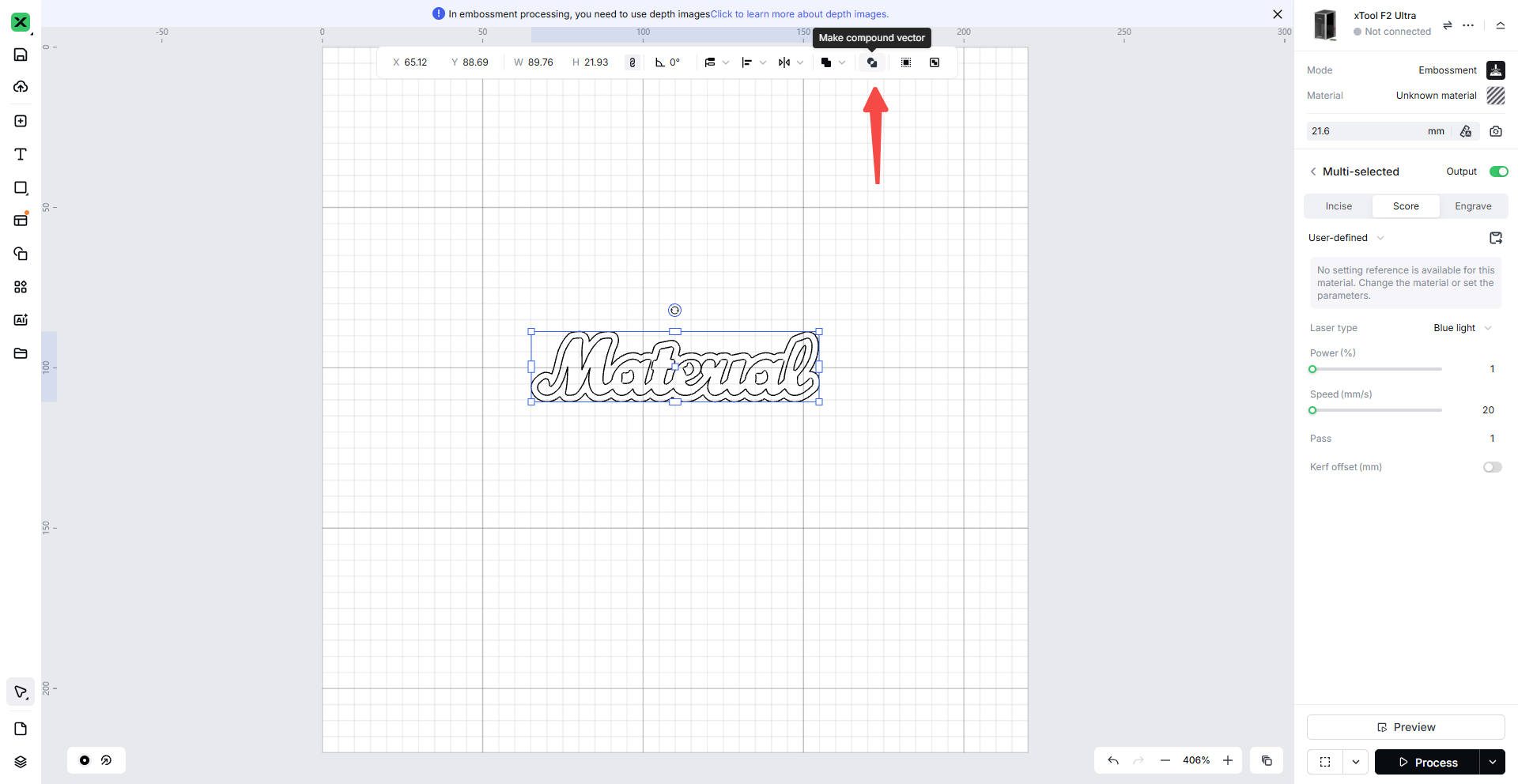 3. Select all the generated patterns and click Make Compound Vector.
3.3 Configure Parameters for Cutting
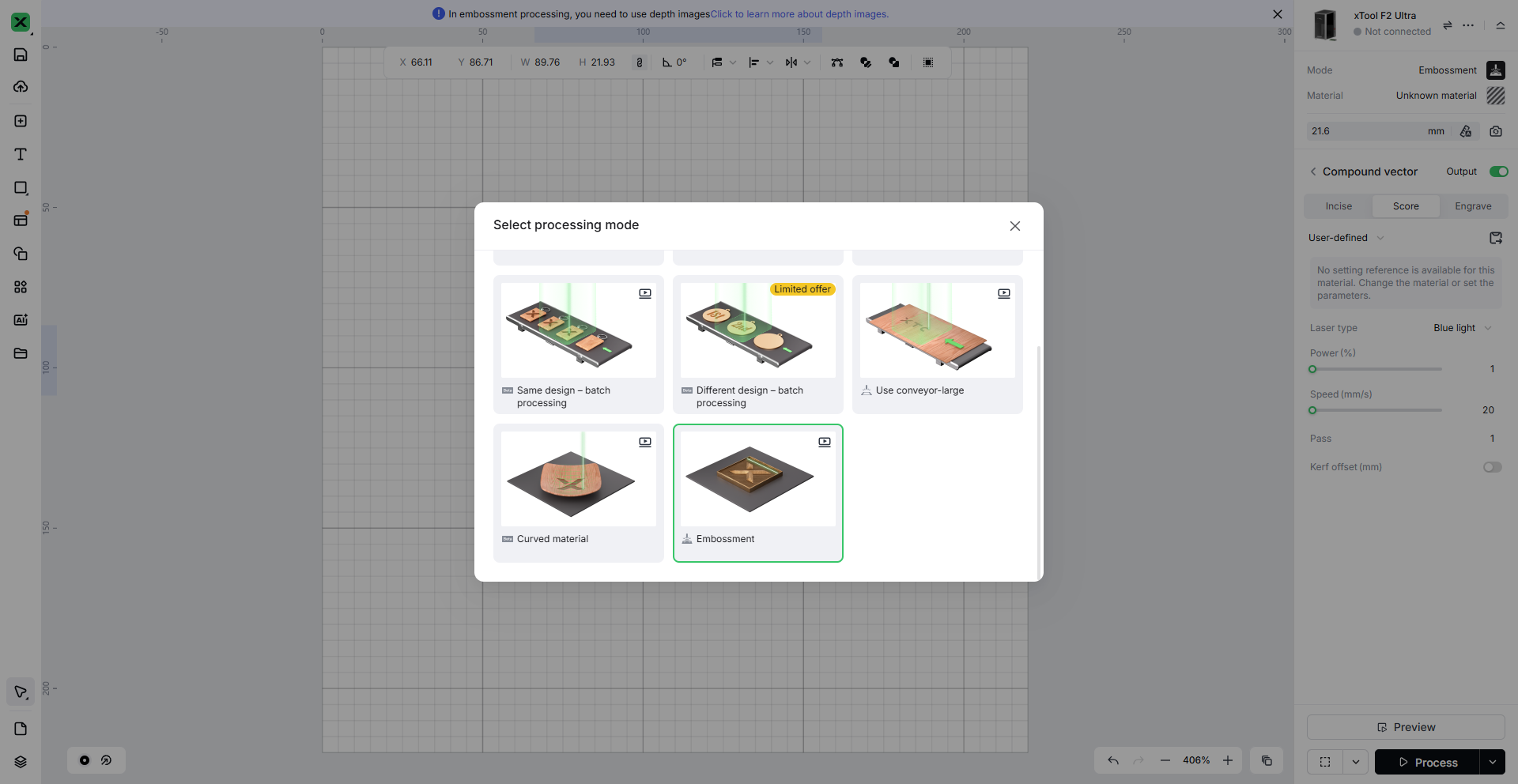 1. Select the Embossment processing mode.
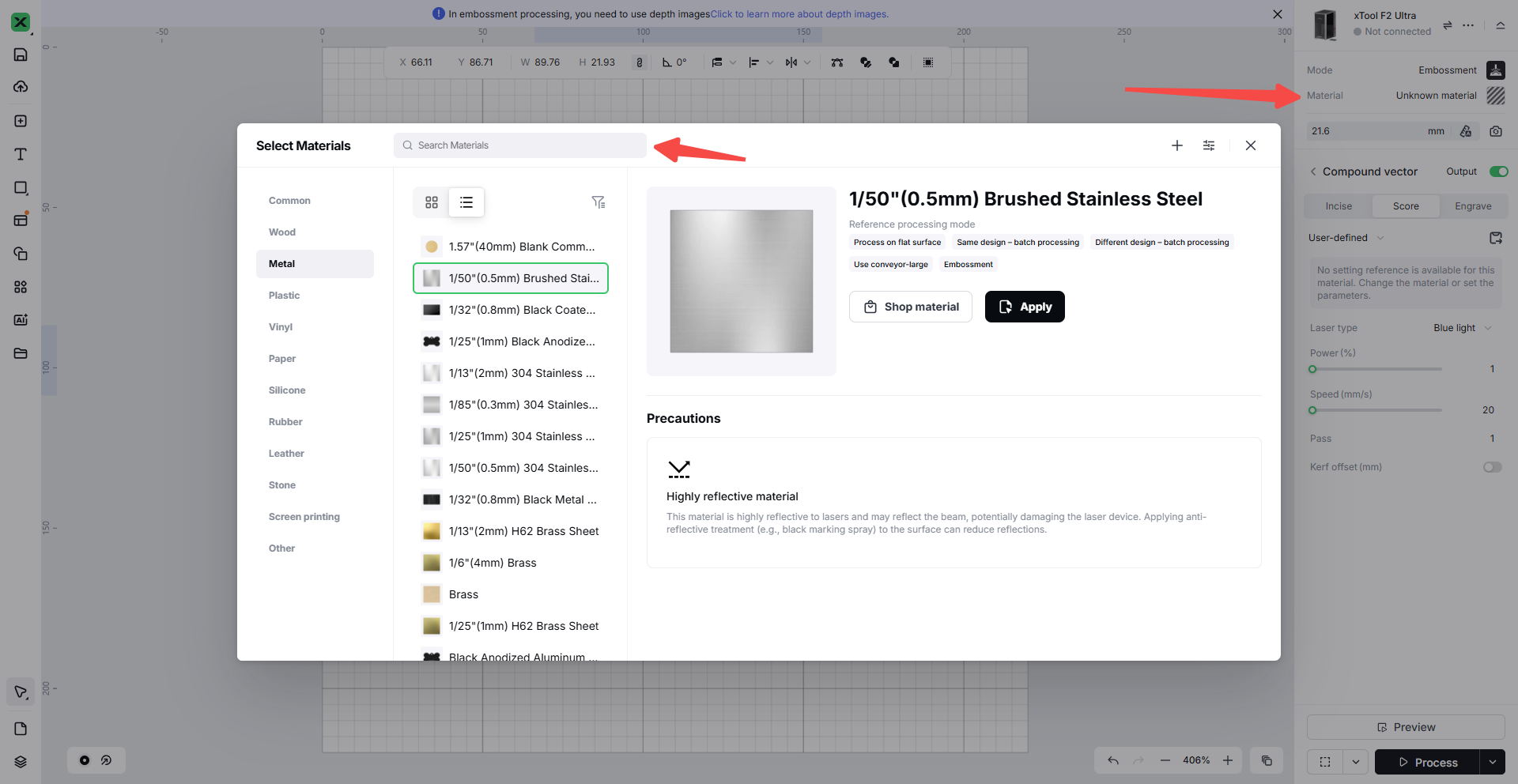 2. In the Material Selection section, choose the material you want to process and click Apply
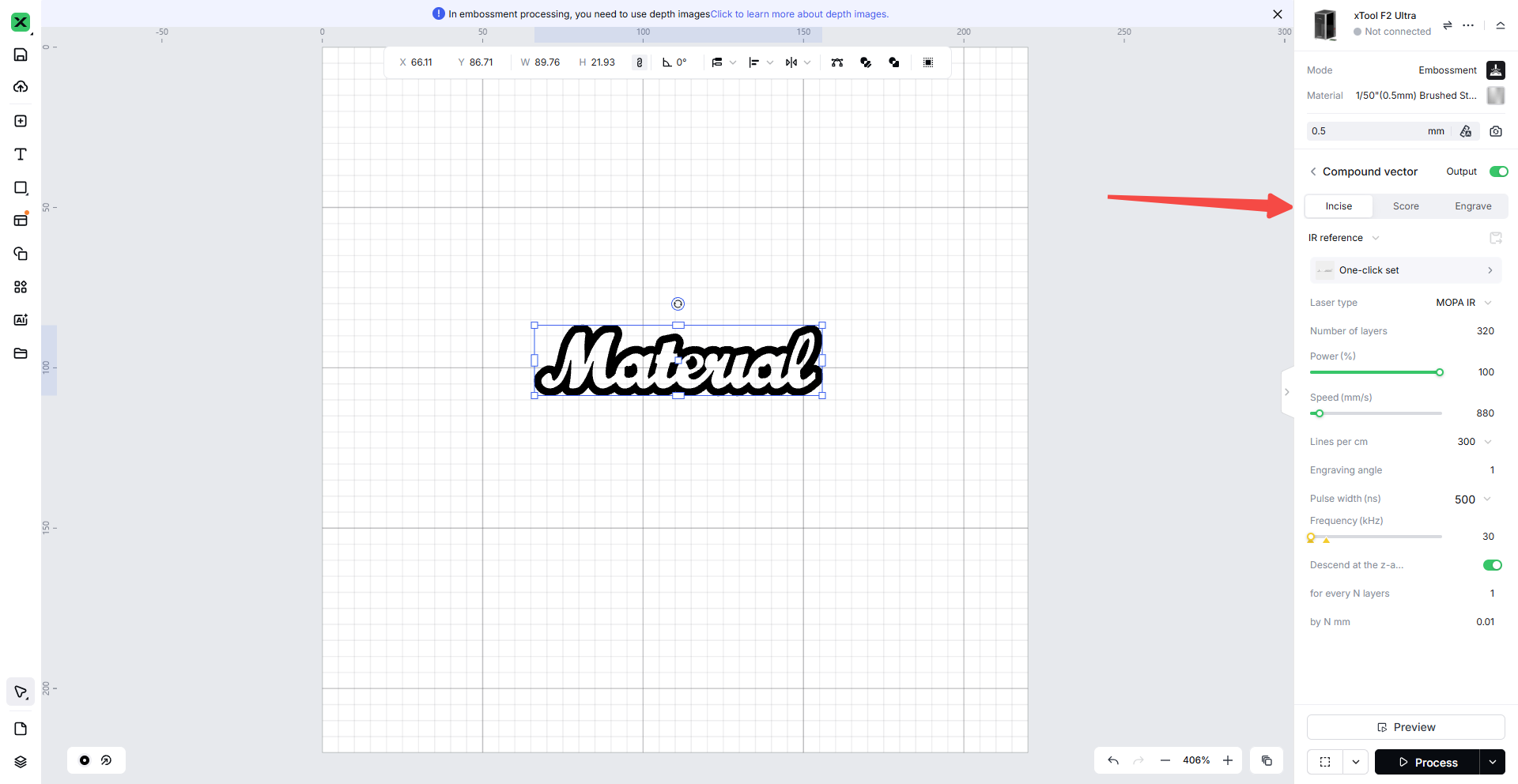 3. Select all the shapes on the canvas, then click the Incise mode on the right to start processing.
Adjust the laser focus to the proper focal position and preview the processing area. Then click the Start button and wait for the material to be processed. Note that the material should not be placed directly on the device’s flat base; it must be processed on the Slatted Panel.

Services & Help
Learn & Education

Copyright © 2025 xTool All Rights Reserved.