
About this guide
This document is designed to assist users in efficiently resolving issues with their xTool P3 by providing the essential information required for technical support. By following the instructions in this guide, you will learn how to garner critical data and information.
This information will enable our technical support team to diagnose and address problems more effectively, ensuring a smoother and faster resolution process.
How to gather
Product serial number
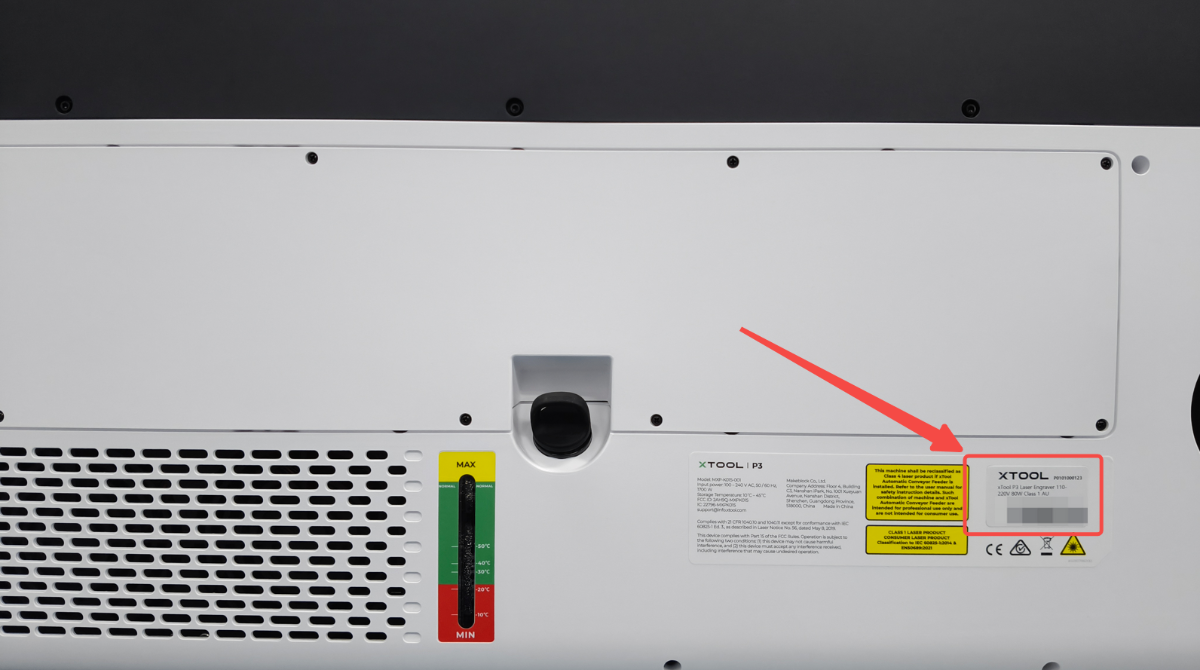
The serial number (SN) of xTool P3 is typically located on a label at the lower side in the middle of its rear casing (within the proximity of the water tank), as shown in the reference image below. Please take a clear photo of this label.
View xTool Studio software version
Access Software Version Information:
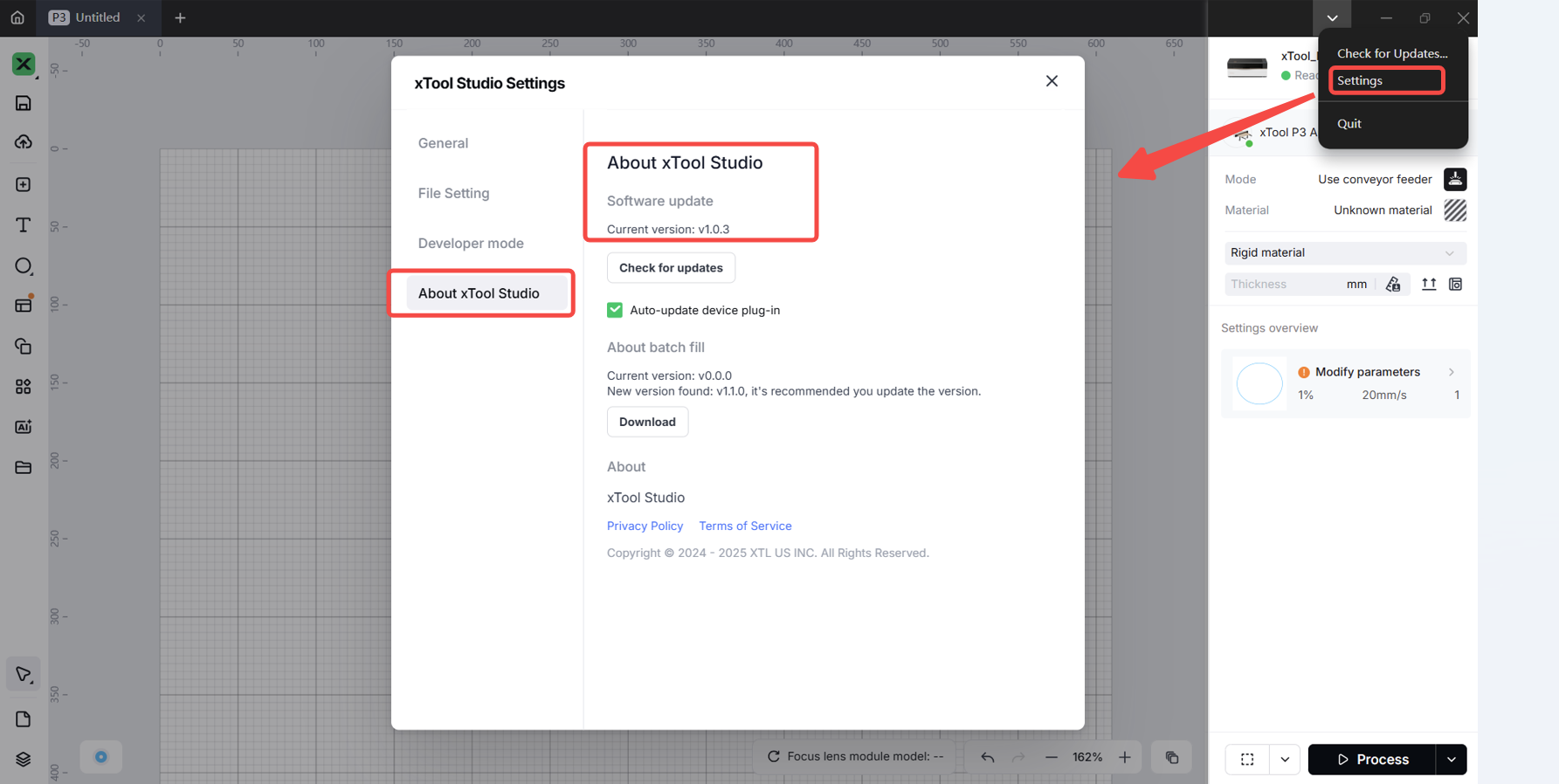
- In the xTool Studio software interface, click the down arrow in the upper right corner.
- Select "Settings" from the dropdown menu.
- In the xTool Studio Settings window, select the "About xTool Studio" tab.
- View and record the software version displayed.
View firmware version
Access Firmware Version Information:
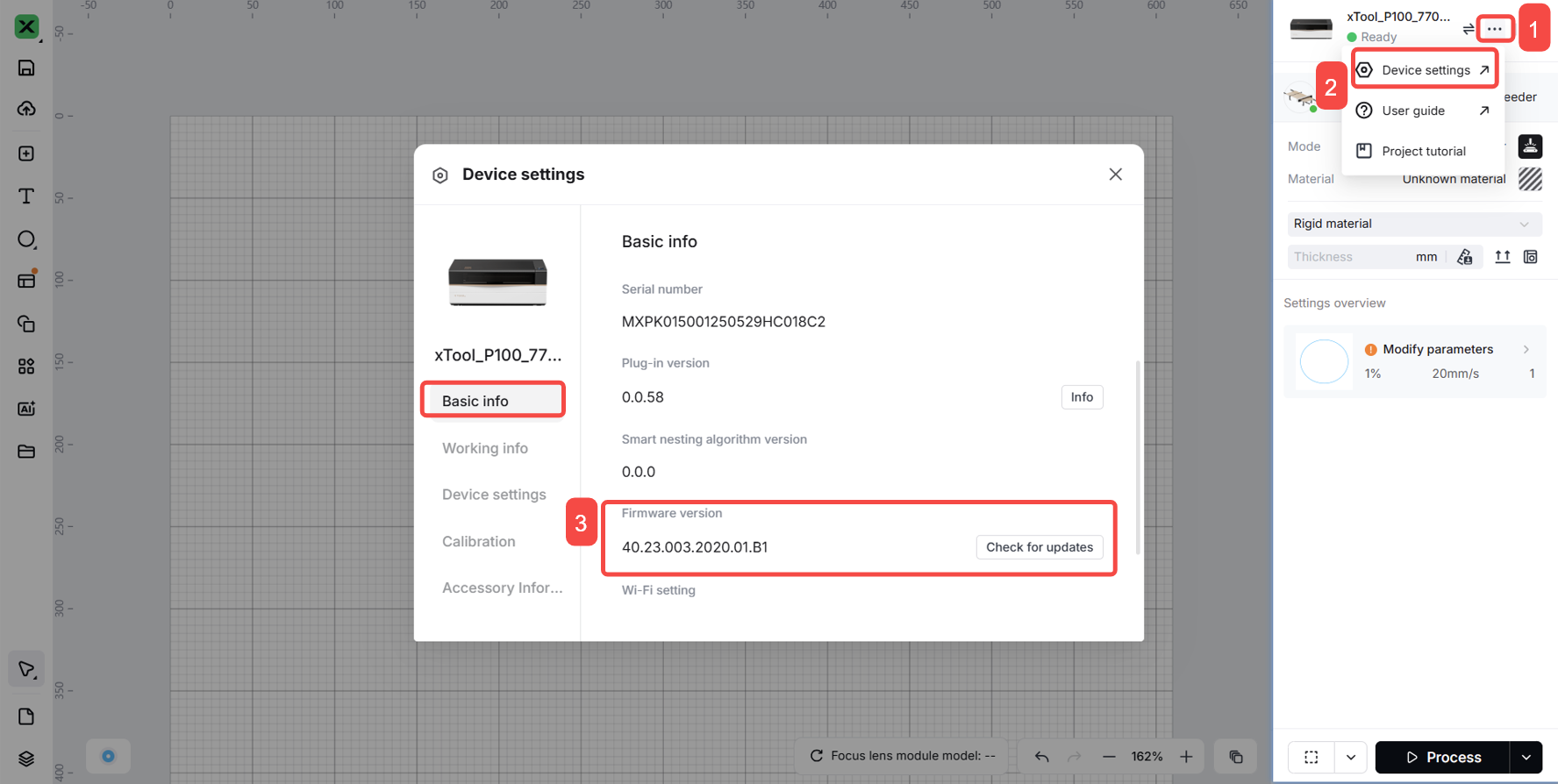
- In the xTool Studio software interface, click the three dots icon to the right of the device image.
- From the dropdown menu, select the gear icon labeled "Device settings".
- In the "Device settings" pop-up window, select the "Basic info" tab.
- Scroll down to locate and view the Firmware version.
Export debug file
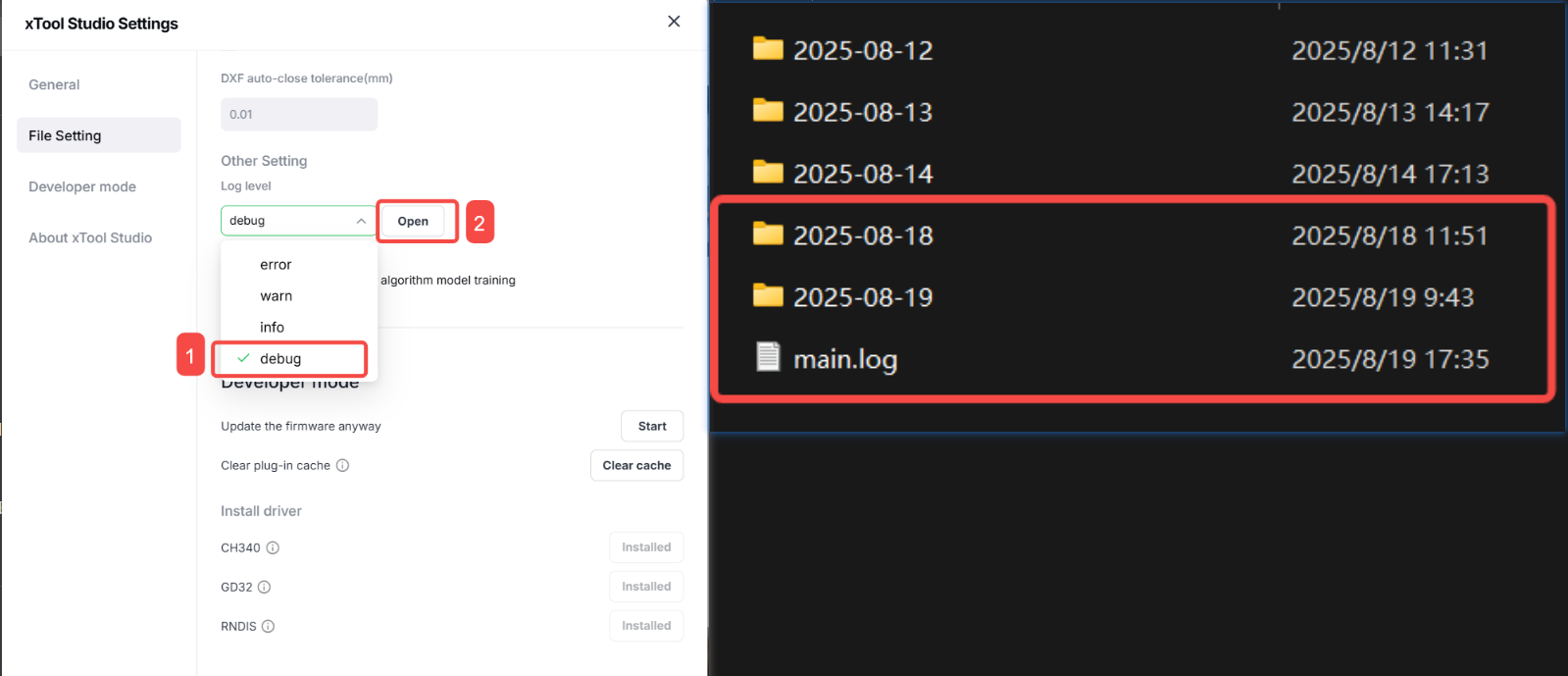
- In the xTool Studio software interface, click the down arrow in the upper right corner.
- Select "Settings" from the dropdown menu.
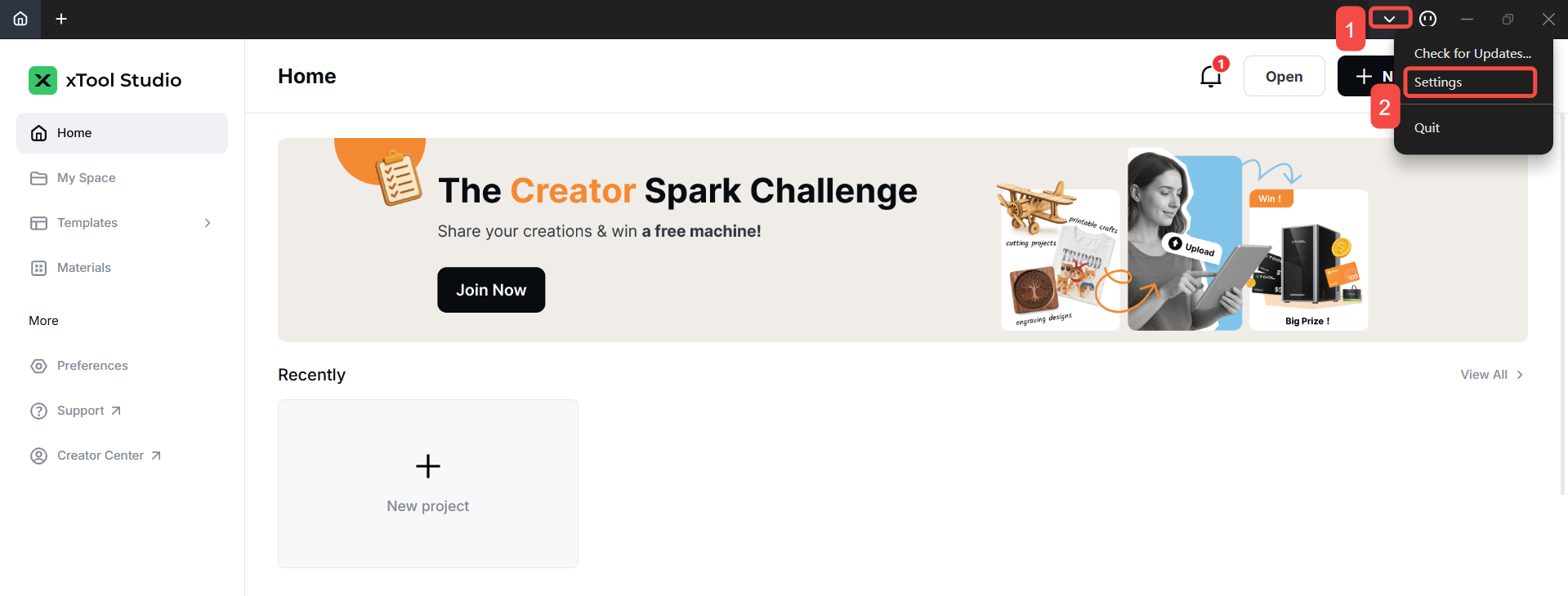
- In the xTool Studio Settings window, select the "File setting" tab.
- Scroll down to find the "Other setting" section.
- Set Log level to "debug" and click the "Open" button.
- In the opened file directory, compress the following items together:
- Folder containing files from one day before the issue occurred
- Folder containing files from one day after the issue occurred
- Main log file
- Send the compressed file to xTool support
Work log
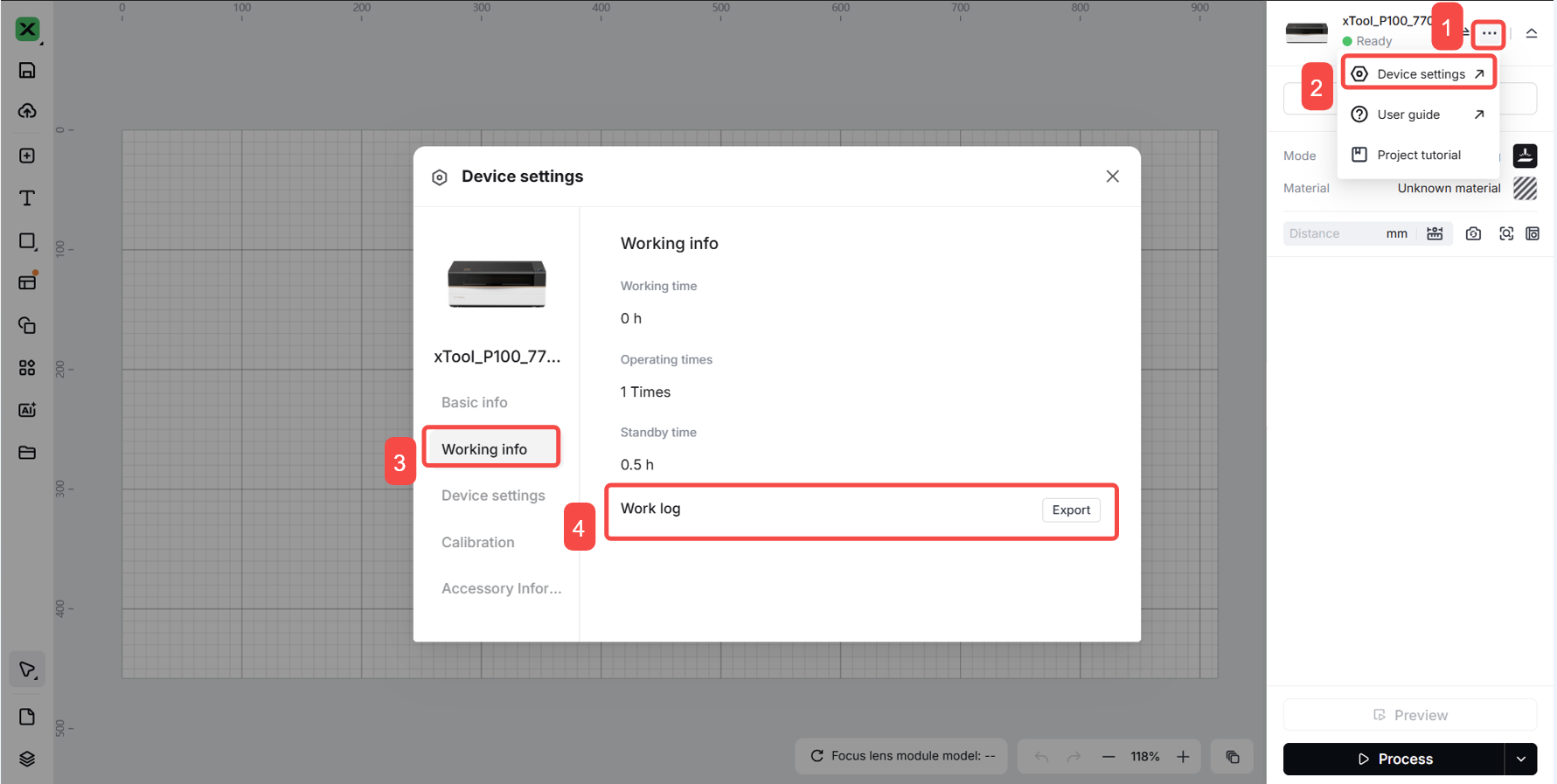
Export Work Log:
- In the xTool Studio software interface, click the three dots icon to the right of the device image.
- From the dropdown menu, select the gear icon labeled "Device settings".
- In the "Device settings" popup window, select the "Working info" tab on the left side.
- Click the "Export" button next to "Work log".
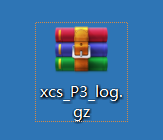
- Wait a few seconds for the compressed work log file to generate.
- Send the generated file to xTool support.
xTool Studio project file
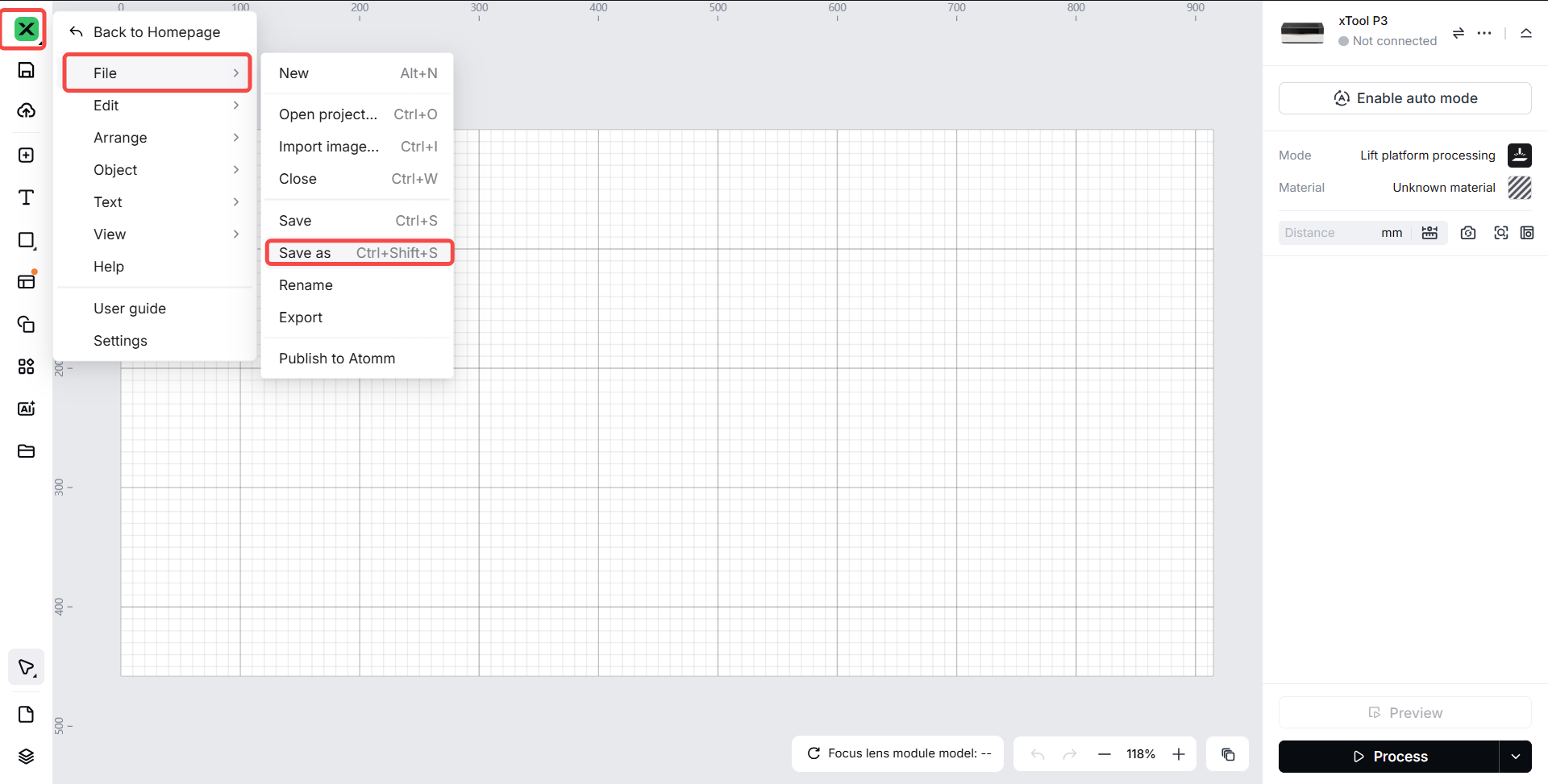
Export Project File:
- Click the X icon in the upper left corner.
- Navigate to the "File" section. Select "Save as" to save the project file.
- Choose an appropriate location and filename.
- Provide the saved project file to technical support.
Original image files
Image File Requirements: You may need to provide the images you are processing. These can include:
- Vector images: SVG or DXF format
- Bitmap images: JPG, PNG, or other standard formats
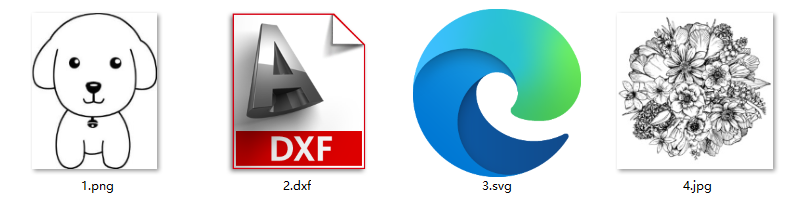
Computer system information
Please provide a screenshot of your computer's system information.
Windows OS
Access System Information:
- Press Win+R keys to access the Run command window
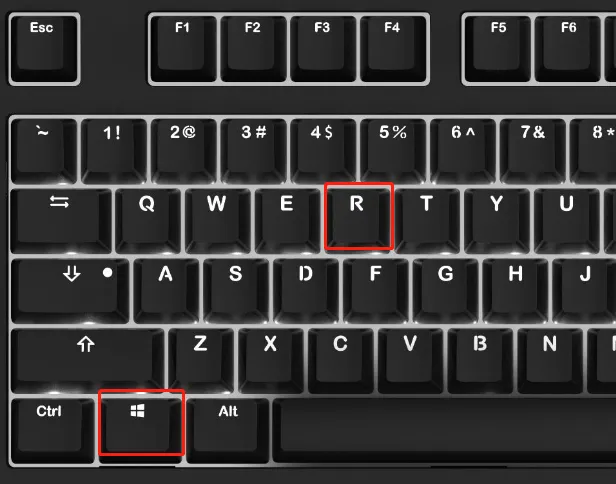
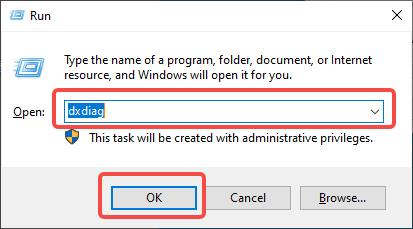
- Type "dxdiag" in the search field
- Click "OK"
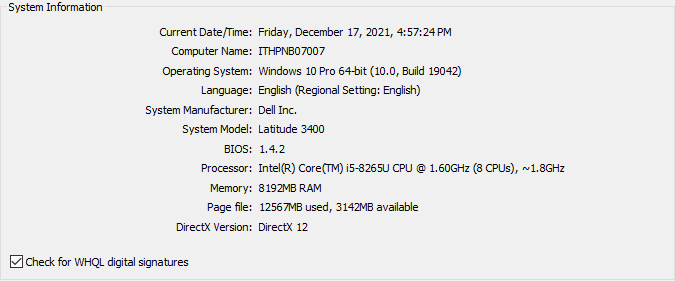
- Take a screenshot of the system information displayed in the popup window
- Save and provide the screenshot to technical support
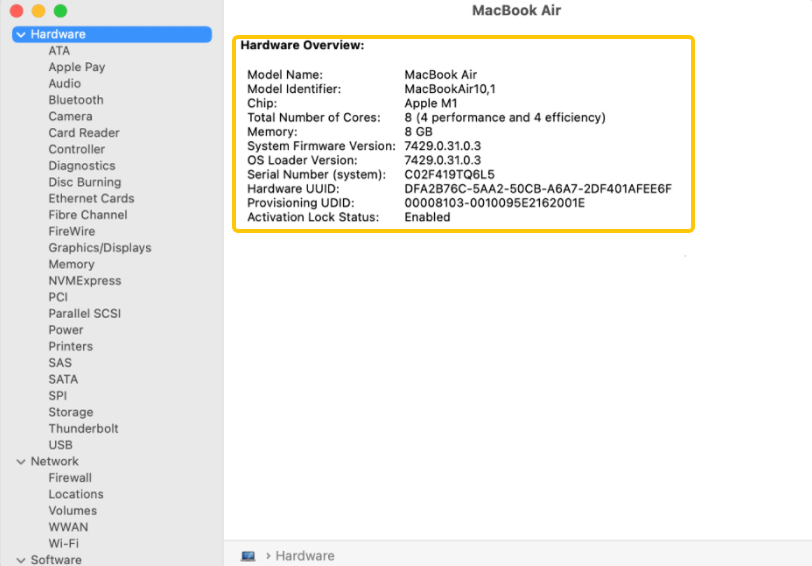
macOS
Access System Information:
- Select Apple menu > System Settings
- Click "General" in the sidebar (you may need to scroll down)
- Click "About" on the right side
- Click "System Report"
- Take a screenshot of the system information
- Save and provide the screenshot to technical support
Demonstration video/photos
Video Documentation: You may need to provide video demonstrations that include:
- Software operations: Processing mode and parameter settings in the software
- Machine operations: The actual laser processing procedure
- Issue reproduction: Clear demonstration of the problem occurring
Photo Documentation: If video is difficult to capture, provide clear photographs showing:
- Problem symptoms
- Software interface with settings visible
- Physical machine conditions
- Processing results
Important Notes:
- If the problem is difficult to reproduce or occurs randomly, provide detailed operational descriptions and additional context;
- Include timestamps when possible;
- Ensure all demonstrations are clear and well-lit;
- Document any error messages or unusual behaviors;

Services & Help
Learn & Education

Copyright © 2025 xTool All Rights Reserved.