
Issue description
The software prompts "Gantry homing exception" and the error code indicates "GO_HOME.FAILED.Z_AXIS".
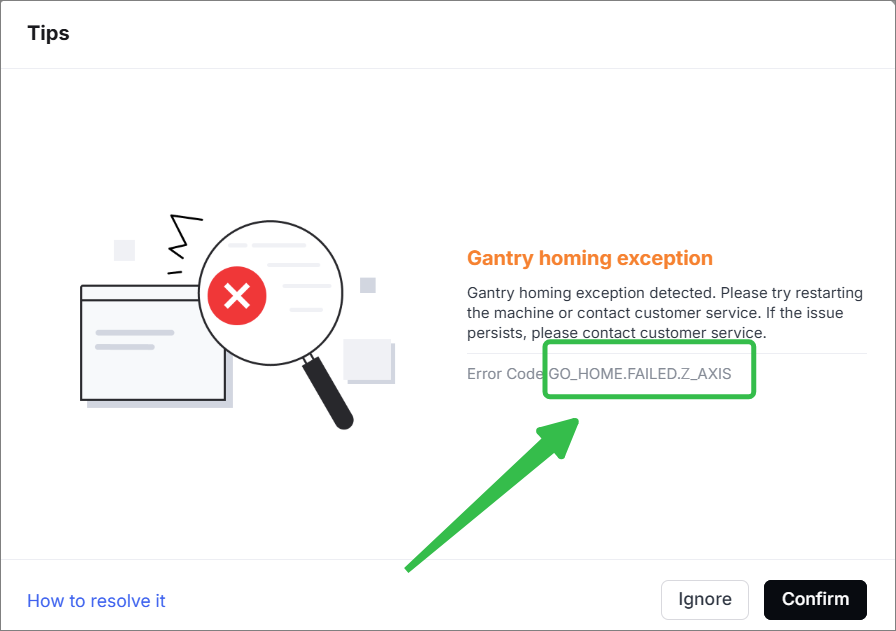
Issue 1 in the device
Whenever the device is powered on, the air nozzle lowers slowly for a short distance until it reaches the very bottom and then emits an impact noise.
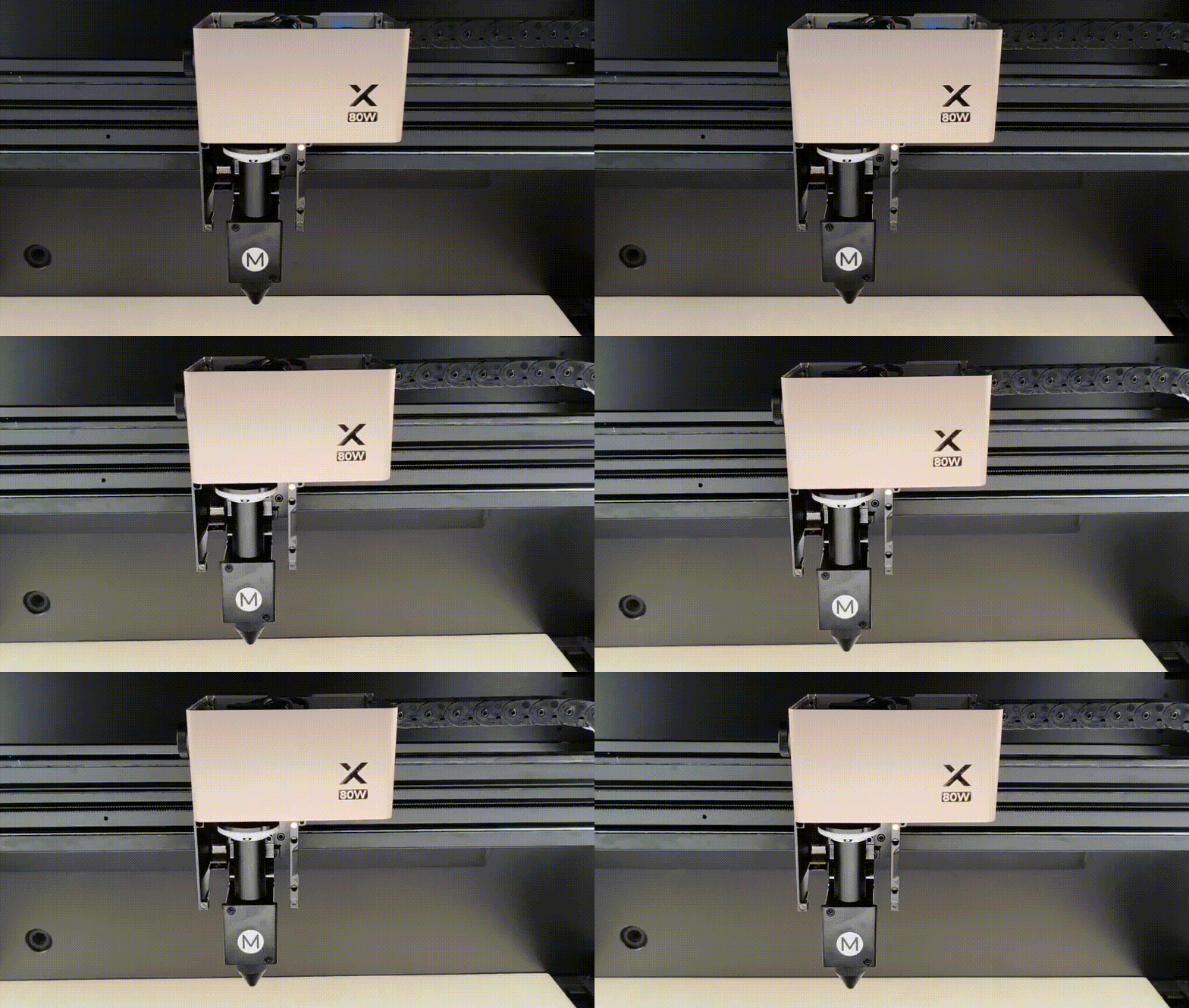
At this time, power off the device. Manually rotate the Z-axis lead screw using a slot-type screwdriver to raise the nozzle. However, this issue will repeat after powering on.
Issue 2 in the device
The air nozzle may get stuck in a certain position and emit an impact noise continuously.
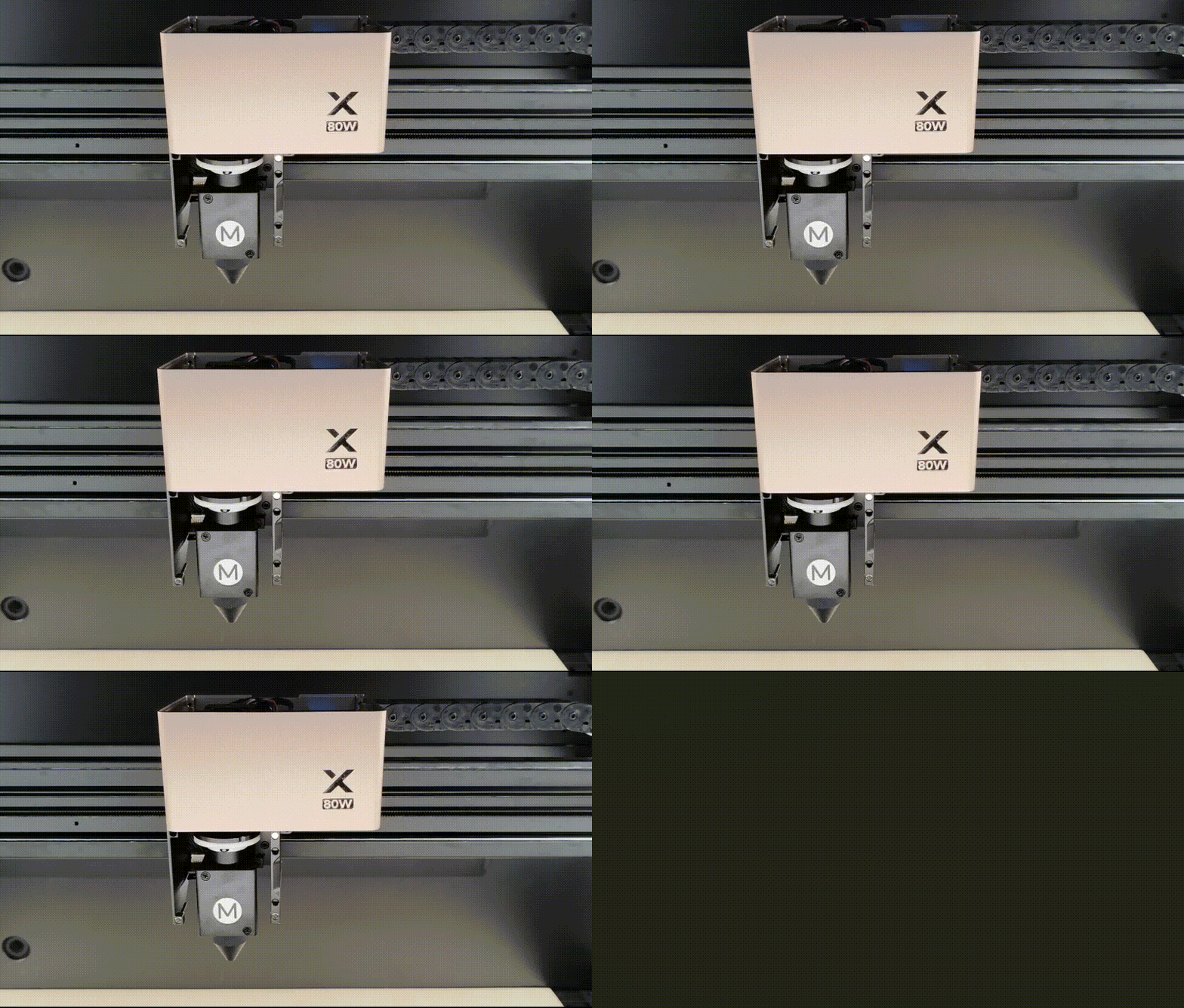
At this time, power off the device. Manually rotate the Z-axis lead screw using a slot-type screwdriver to lower the nozzle a bit. However, this issue will repeat after powering on.
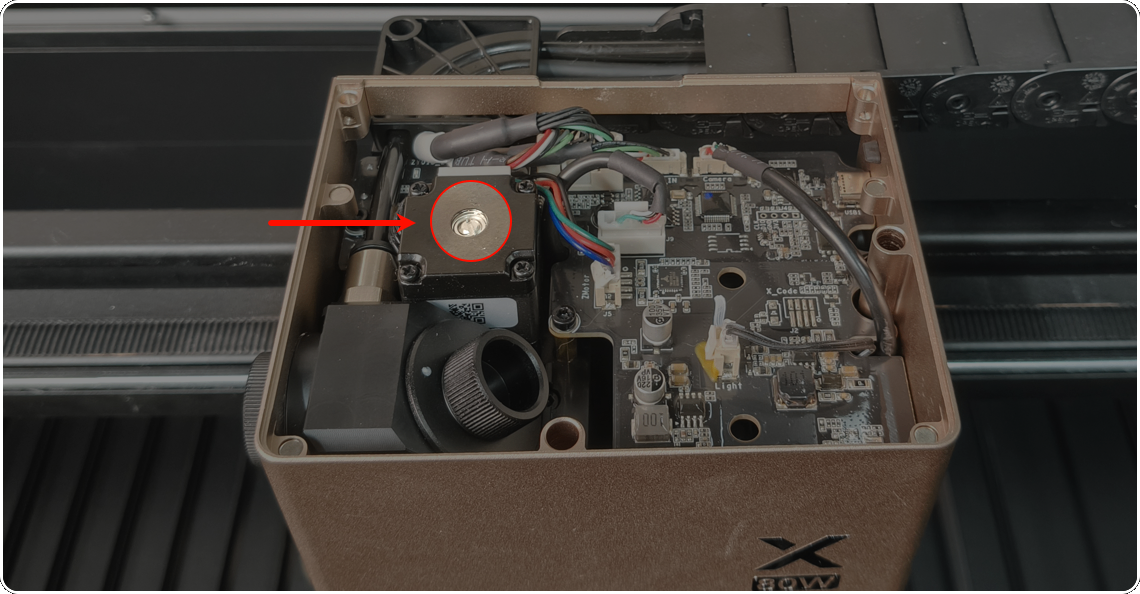
Possible causes
- The lead screw of the motor is stuck.
- The limit switch is dirty.
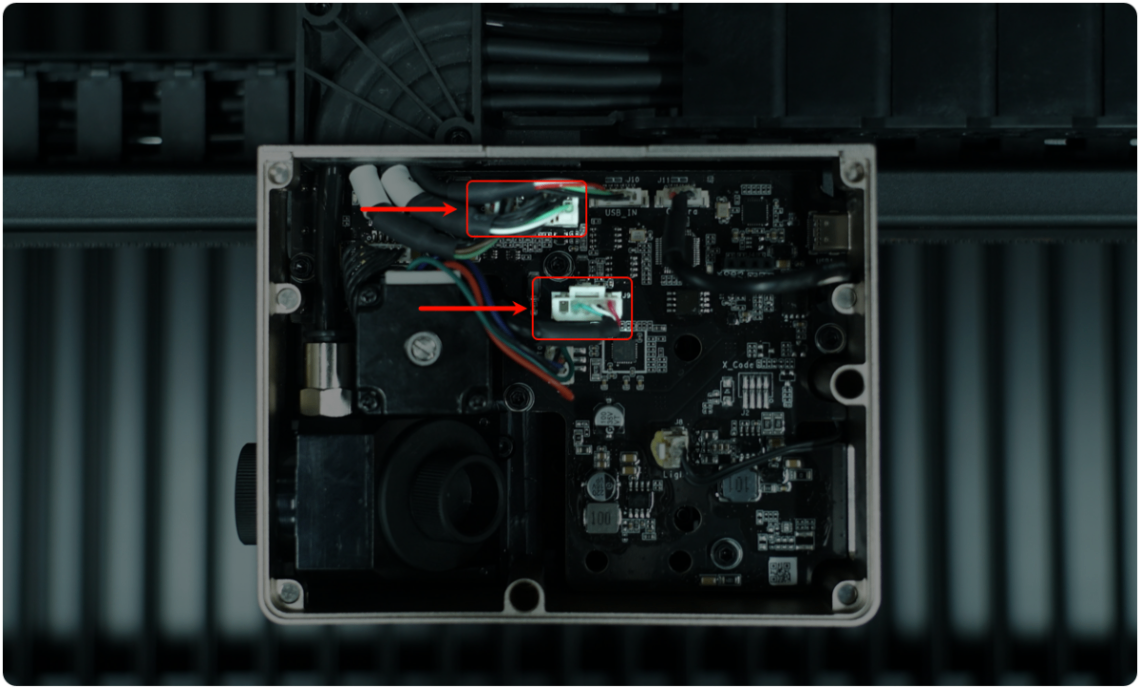
- The connection cable of the Z-axis adapter board is loose.
- The limit spacer is deformed.
- The Z-axis motor is faulty.
- The Z-axis board is faulty.
Troubleshooting procedures
⚠️ Safety First: Power off your device before performing the step.
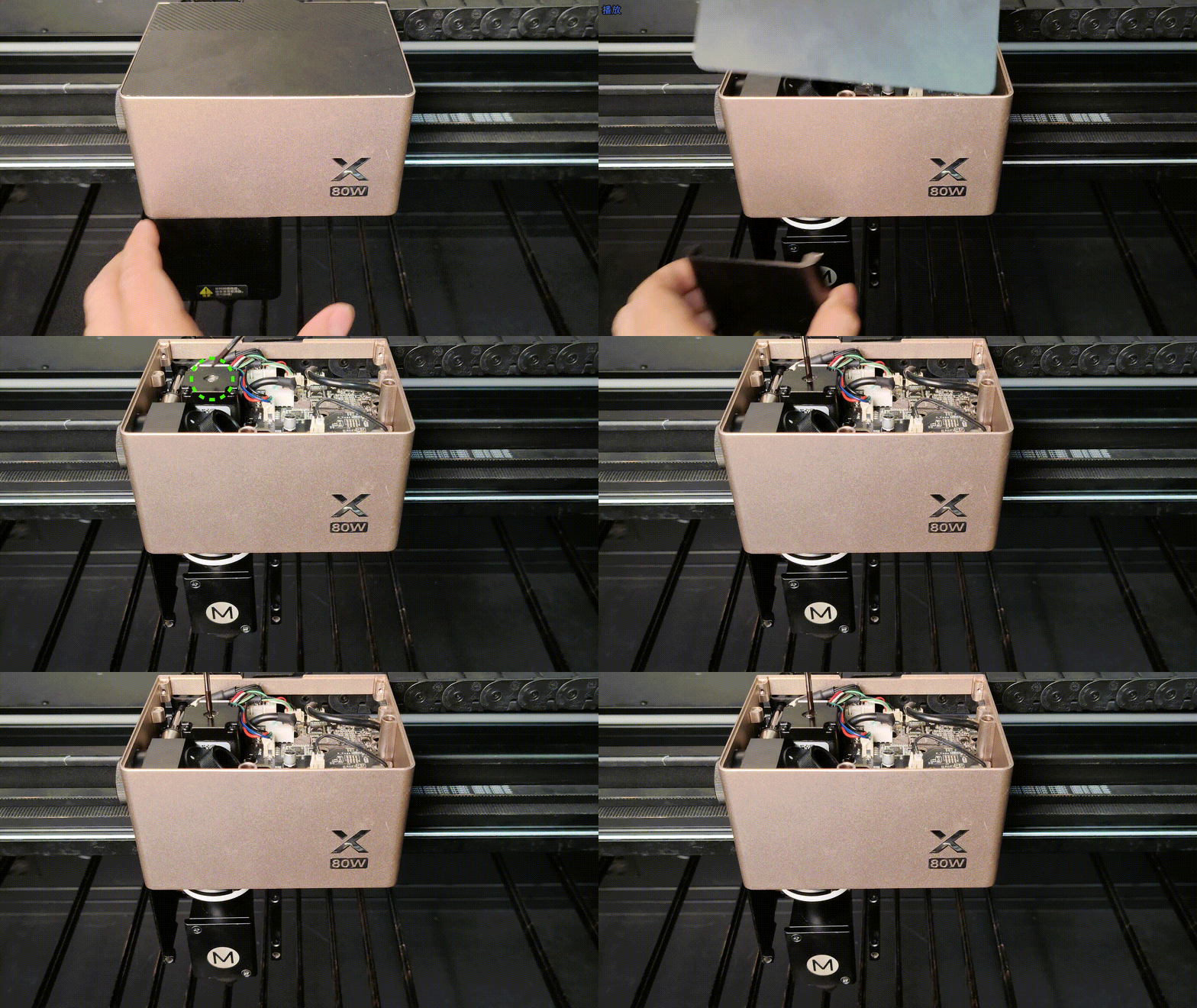
1. Manually rotate the Z-axis lead screw
(1) Power off the device.
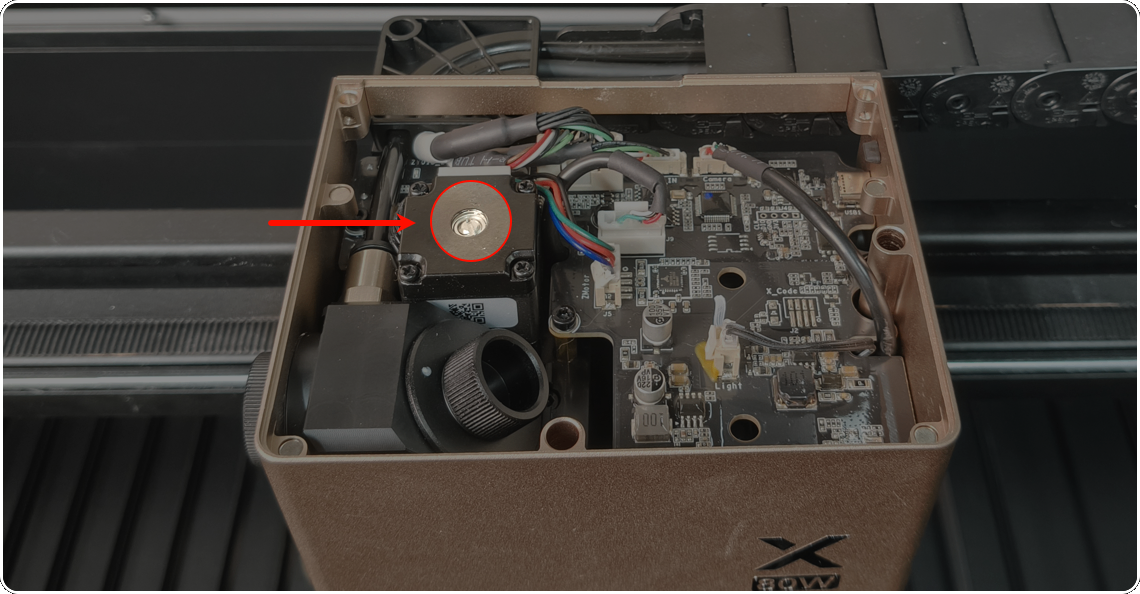
(2) Follow the tutorial to manually rotate the Z-axis lead screw using a slot-type screwdriver.
(3) Restart the device.
2. Check the connection cable of the Z-axis adapter board
(1) Power off the device.
(2) Remove the cover of the laser module.
(3) Check if the connection cables, as shown, are loose. Unplug and plug them.
(4) Restart the device.
3. Check the Z-axis limit spacer
(1) Power off the device.
(2) Remove the fixed screws and protective lens as shown.
- Use a Philips screwdriver for red circles
- Use a hex screwdriver for green circles
- The blue circle indicates the protective lens. You can unscrew it by hand.
(3) Remove the shell of the laser module (Z-axis) upwards.
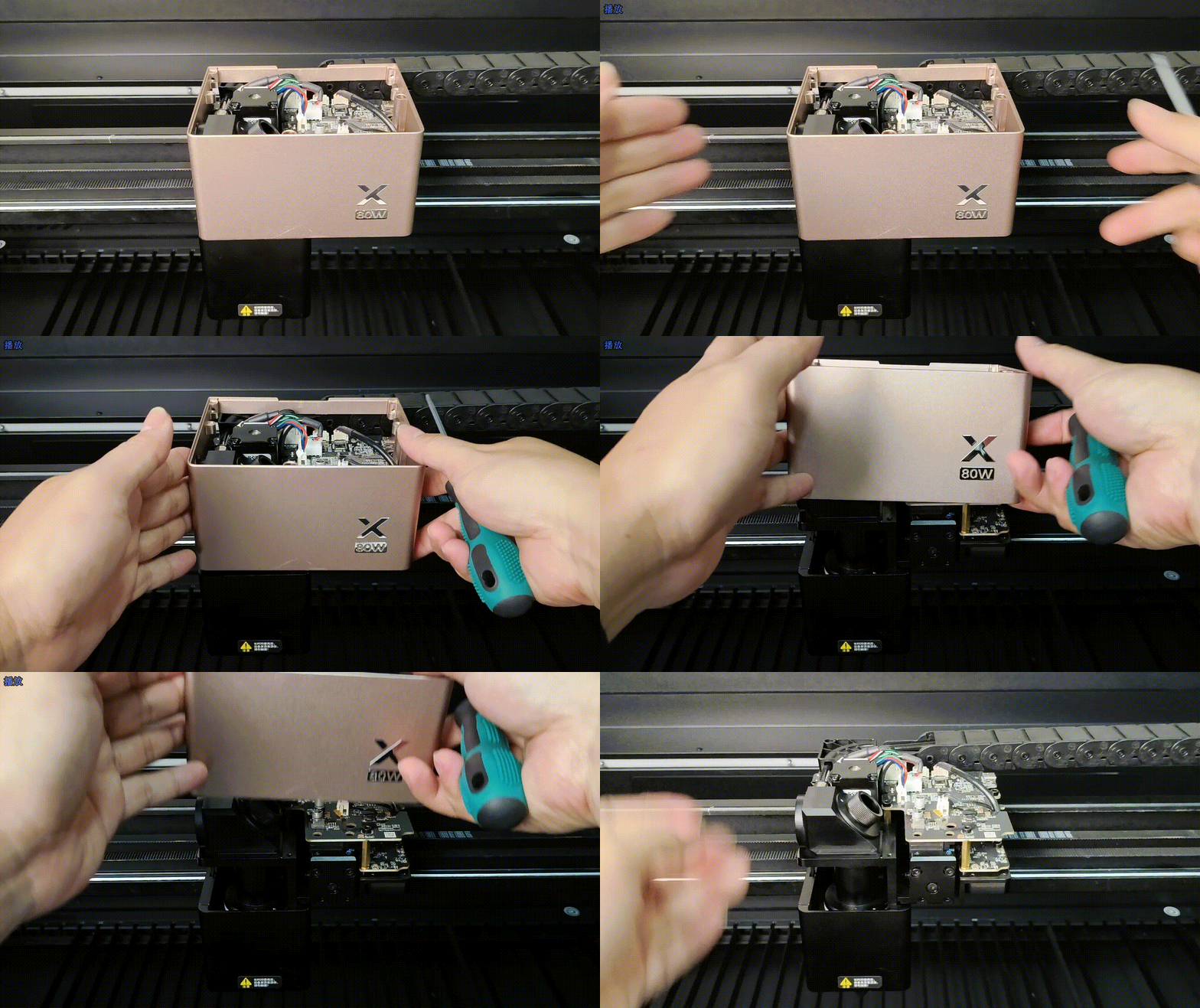
(4) Use a slot-type screwdriver to adjust the Z-axis up and down (as shown). And observe whether the limit spacer can align and fit in the middle of the limit switch's sensor probe.
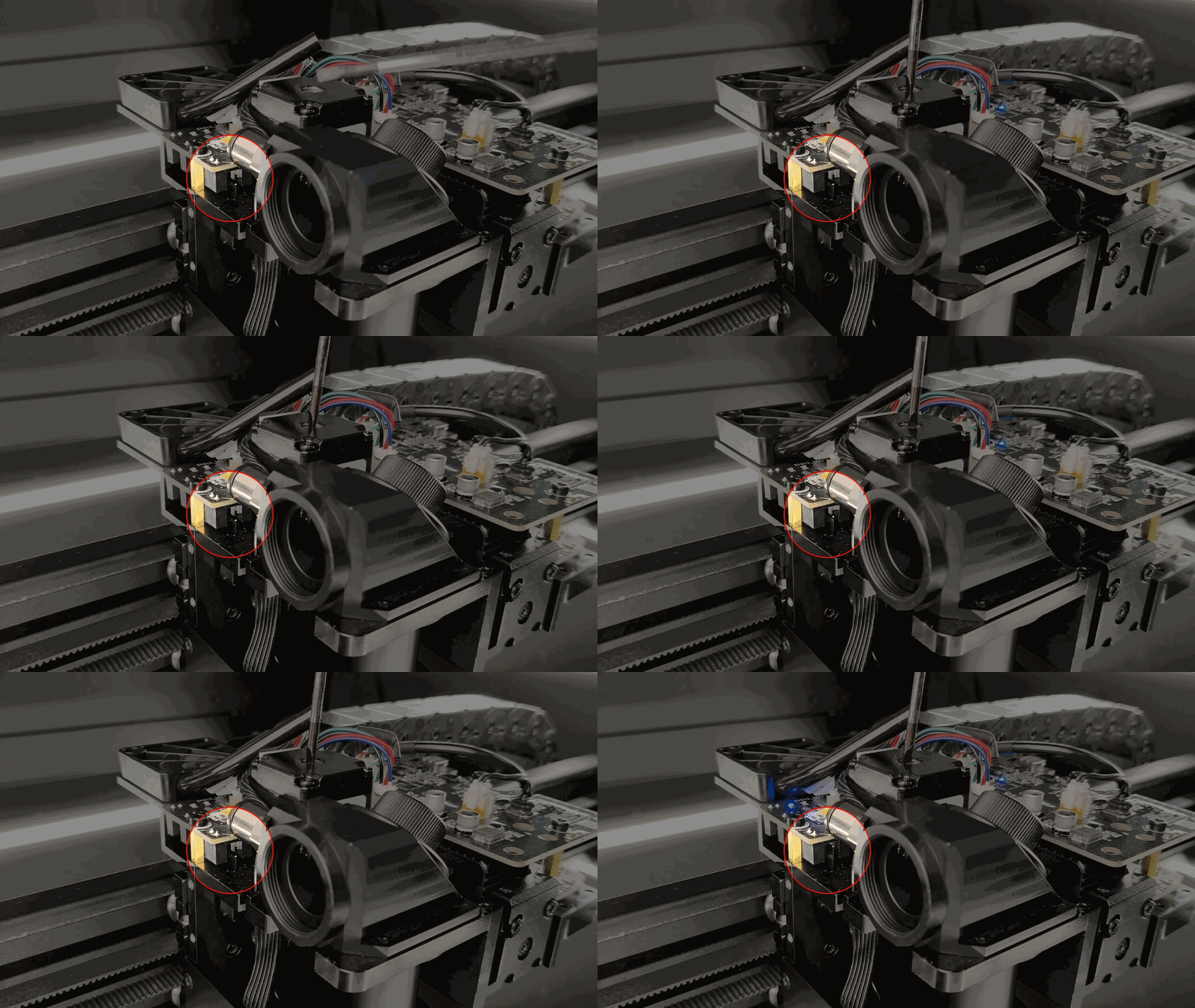
- If the limit spacer cannot align with the sensor probe, place the limit spacer in the correct position.
- If the limit spacer can align with the sensor probe, check for other issues.
4. Check the limit switch
According to the steps above, power on the device. Use a slot-type screwdriver to adjust the Z-axis up and down. And observe whether the indicator changes when the limit spacer fits the middle of the probe.
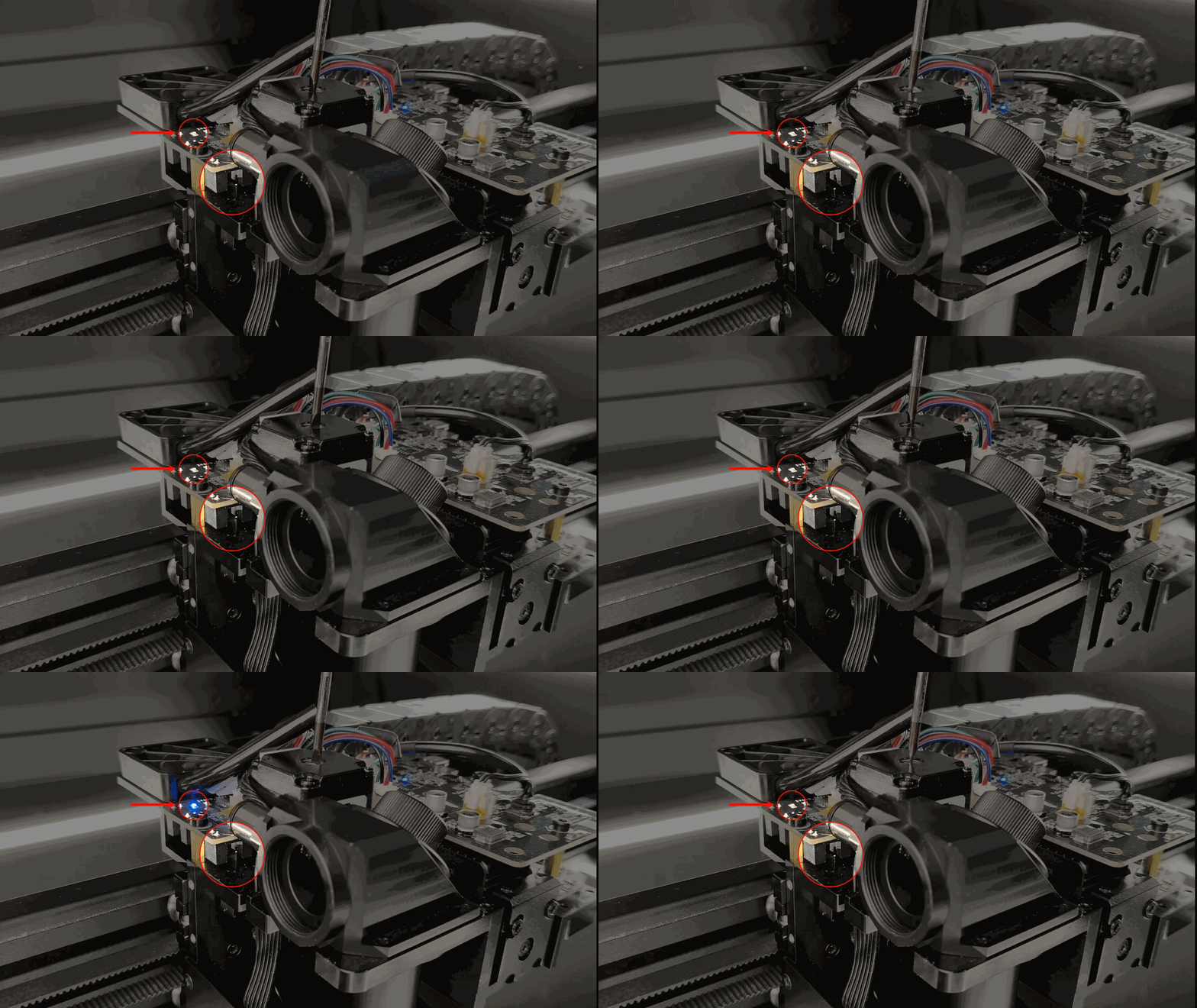
- If the indicator changes, check for other issues.
- If the indicator does not change, replace the Z-axis adapter board.
5. Check the connection cable at the main control board
(1) Power off the device and disconnect from a power supply.
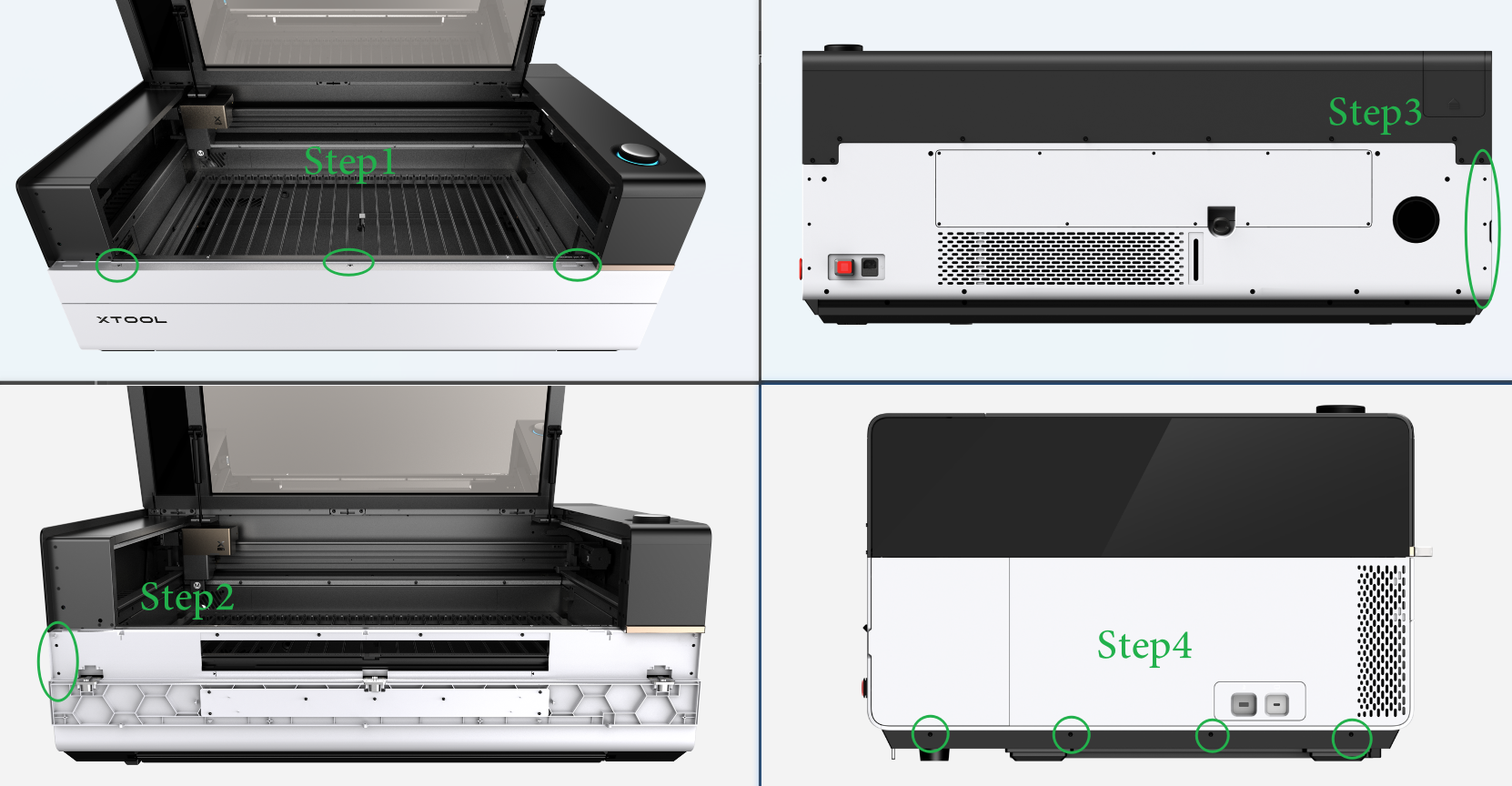
(2) Remove the left plate following the steps or the video tutorial.
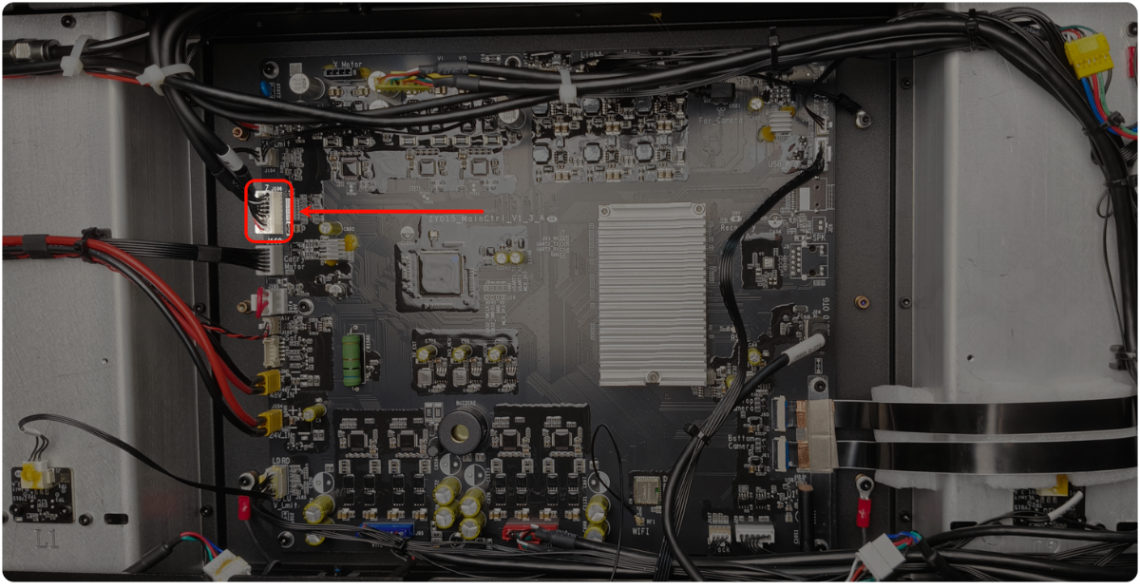
(3) Check if the connection cable is loose (as shown), and then unplug and plug the cable.
(4) Restart the device.
Still experiencing issues?
Should the issue persist after completing the preceding steps, submit a ticket via the "Submit a Ticket" button in the "Help Ticket" section below. The standard response time for xTool Customer Service is one business day.
For a prompt resolution, please include the following details:
- Issue description: A detailed explanation of the observed problem.
- Video evidence: Attach a video demonstrating the issue, where applicable.
- Troubleshooting performed: Any troubleshooting steps you have already attempted, along with their results.
This information is crucial for xTool technical support engineers to provide timely assistance.
Documentation feedback
Help improve this content by providing feedback. If this content did not meet your requirements, select "No" in the "Was this page helpful?" section below. Include specific details about what was unclear or missing in the pop-up suggestion box. Feedback submissions are reviewed by xTool technical writers to enhance future documentation.

