
Issue description
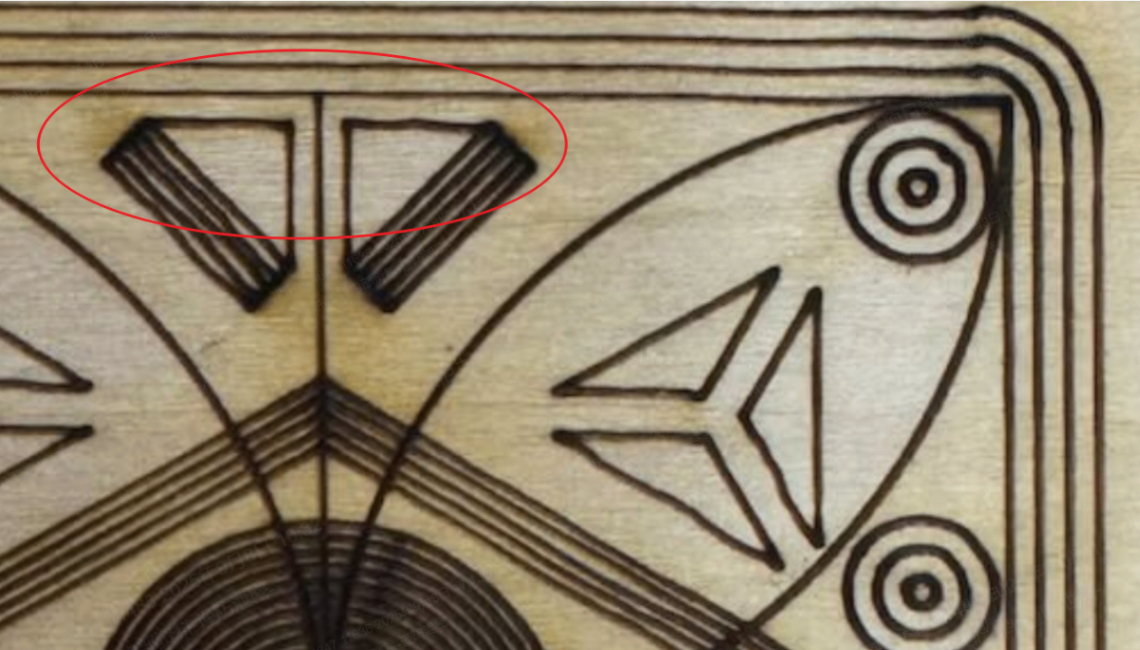
When you use laser engraving, the processed patterns or lines jitter, presenting wavy or jagged lines.
Possible causes
- There is an issue with the processing file.
- There is an issue with the processing parameters.
- The material is moved.
- The laser mirror is not secured.
- The laser lens is not secured.
- The laser module is loose.
- The X-axis is loose.
Troubleshooting procedures
1. Test other processing files
- In some files, the irregular paths or non-straight lines may occur during processing. Please test with alternative files.
- If the jittering lines occur only in a specific file, please contact xTool customer service and provide the file to them.
2. Check the parameters
If the processing speed is too fast and the processing lines are dense and fine, it may cause jittering, resulting in slight distortion of the pattern. Please decrease the processing speed.
Speed Setting Access:
- Click to select your design in the canvas.
- Locate speed settings in your xTool Studio project parameters.
3. Check the material
- Observe whether the material is shifted by vibration or airflow during processing, which is commonly found in very light or smooth materials.
- If yes, use the material clamps or tape to secure the material.
4. Check the laser mirrors
⚠️ Safety First: Power off your device before performing the inspection in this step.
- Inspect whether each of the three laser mirrors is securely installed, particularly the third-level laser mirror (a common issue is that the third-level laser mirror is not properly tightened), to avoid poor processing results caused by mirror vibration.
- If it is confirmed that the lens vibration is caused by structural damage, replace the corresponding laser mirror in time.
First-level laser mirror
Second-level laser mirror
Third-level laser mirror
5. Check the focus lens
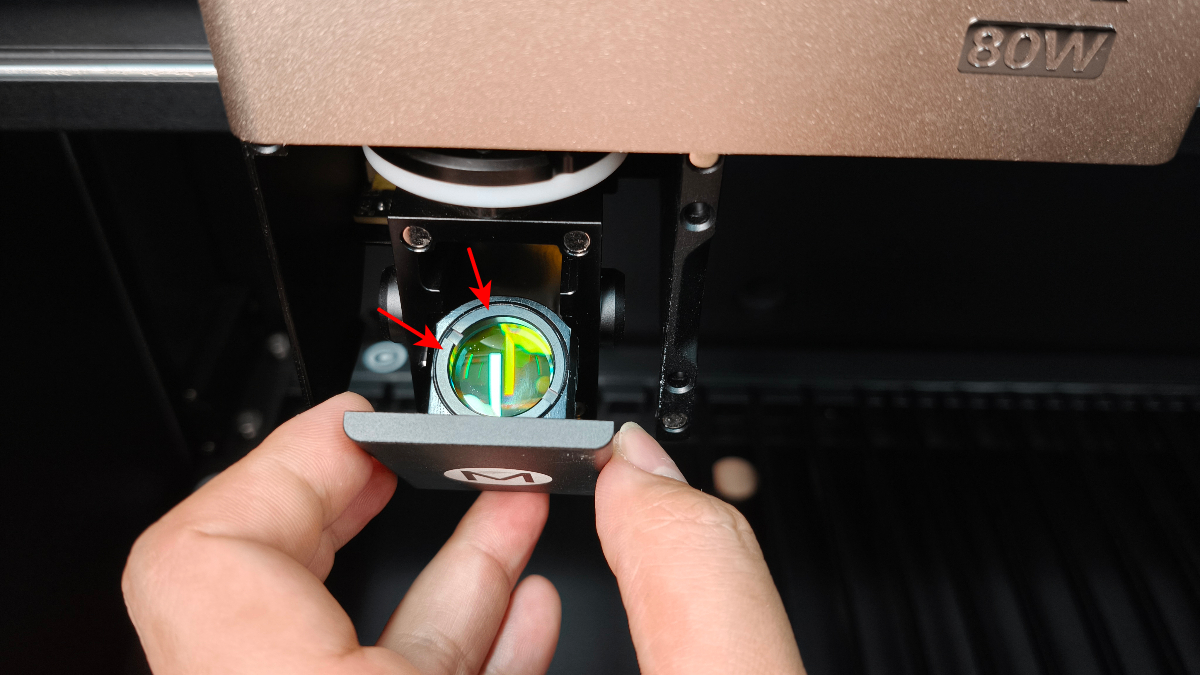
- Check whether the ring on the focus lens is properly installed.
- If not, tighten it clockwise.
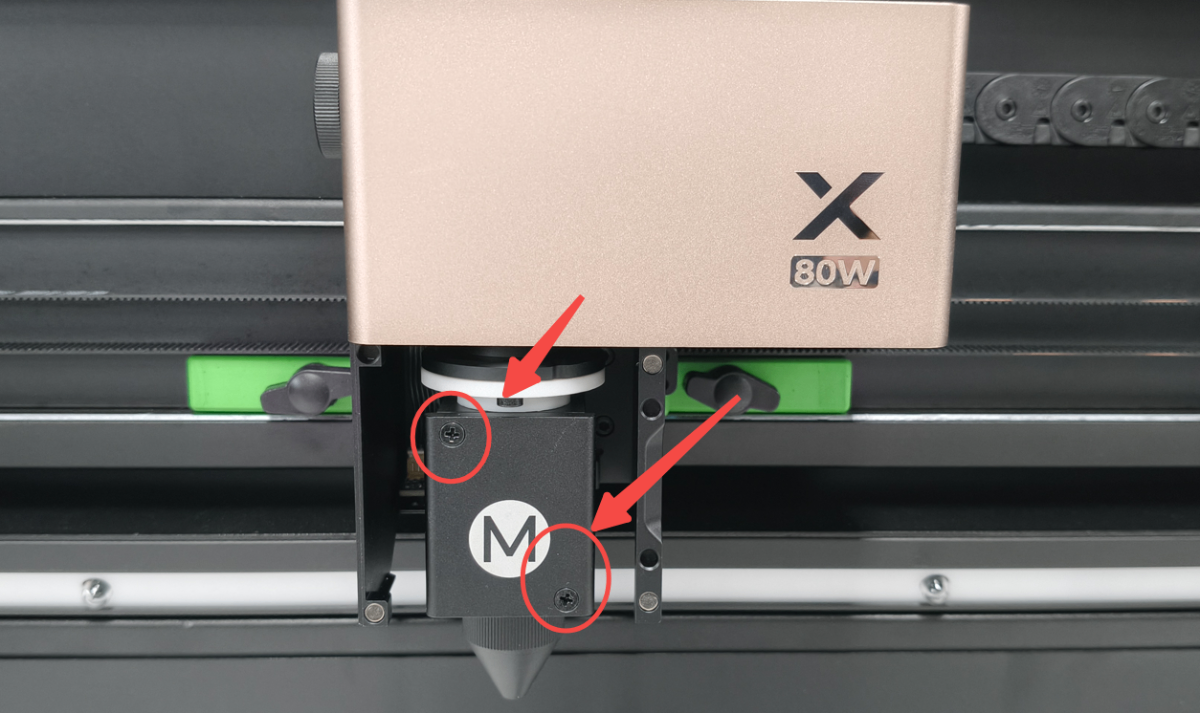
- Check whether the whole focus lens is properly installed.
- If not, tighten the screws (as illustrated) to secure it.
6. Check the laser module
⚠️ Safety First: Power off your device before performing the inspection in this step.
Gently shake the laser module to observe whether it is loose.
If yes, take a video, contact xTool customer service, and send them the video.
7. Check the X-axis rail
⚠️ Safety First: Power off your device before performing the inspection in this step.
Gently shake the X-axis rail to observe whether it is loose.
If yes, take a video, contact xTool customer service, and send them the video.
Still experiencing issues?
Should the issue persist after completing the preceding steps, submit a ticket via the "Submit a Ticket" button in the "Help Ticket" section below. The standard response time for xTool Customer Service is one business day.
For a prompt resolution, please include the following details:
- Issue description: A detailed explanation of the observed problem.
- Video evidence: Attach a video demonstrating the issue, where applicable.
- Troubleshooting performed: Any troubleshooting steps you have already attempted, along with their results.
This information is crucial for xTool technical support engineers to provide timely assistance.
Documentation feedback
Help improve this content by providing feedback. If this content did not meet your requirements, select "No" in the "Was this page helpful?" section below. Include specific details about what was unclear or missing in the pop-up suggestion box. Feedback submissions are reviewed by xTool technical writers to enhance future documentation.

Services & Help
Learn & Education

Copyright © 2025 xTool All Rights Reserved.