
Know before use
- The solution is applicable to the distant-view camera and the close-view camera.
- Camera accuracy deviation cannot be completely avoided. What's more, it is directly related to material flatness. Please first verify whether the camera positioning deviates significantly from the normal range (CO2 laser processing).
- Positioning accuracy of the close-view camera:
- The middle area of 80% of the processing area: 0.2 mm
- Edges of the processing area: 0.5 mm
- Positioning accuracy of the distant-view camera:
- The middle area of 60% of the processing area: 0.5 mm
- Edges of the processing area: 1 mm
You can measure the deviation by following the steps below.
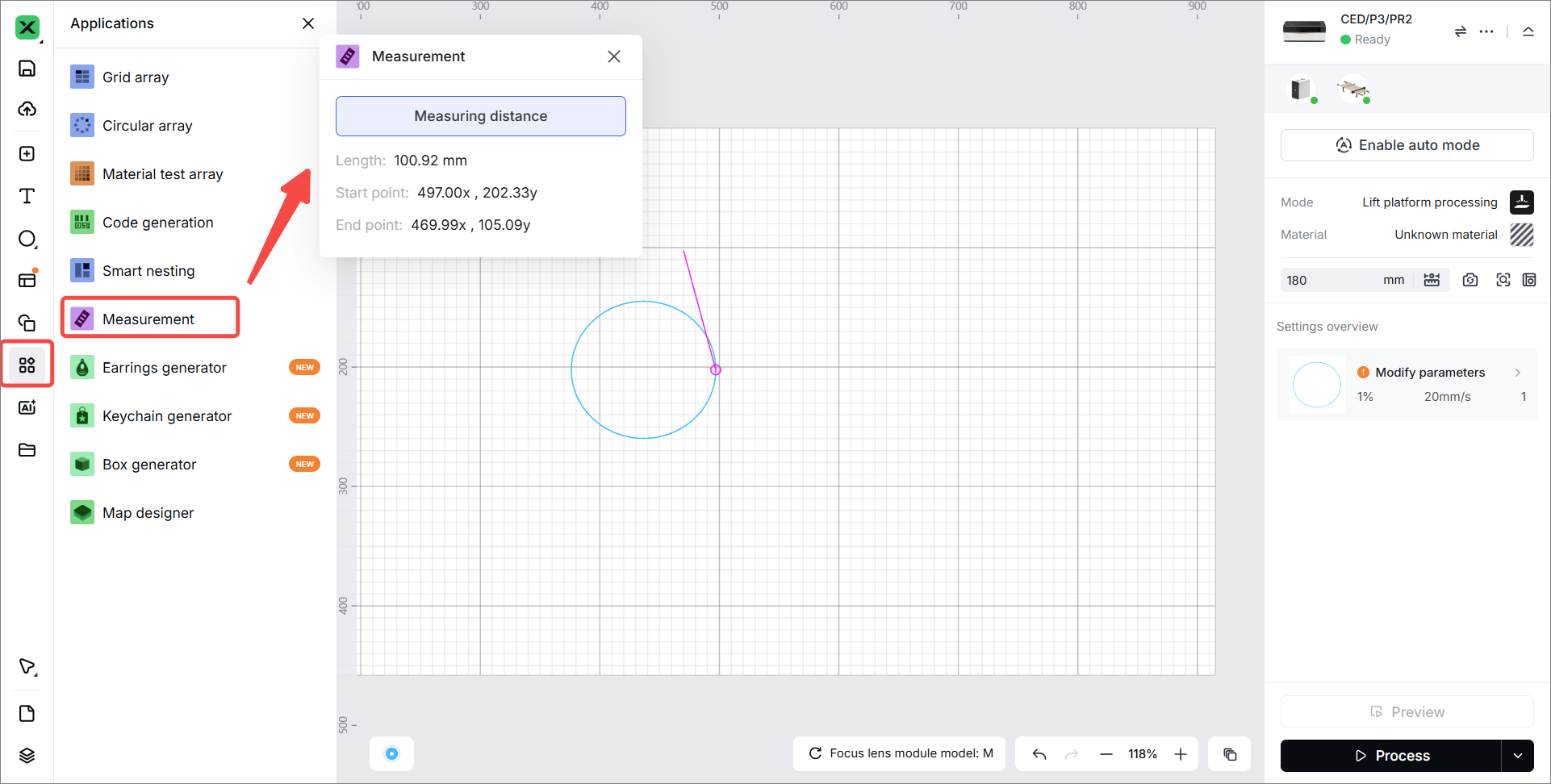
- If the accuracy is within the range, no action is required.
- If the accuracy is out of the range, you can use other materials to test. When you determine the final position and height, start the formal processing.
Issue description
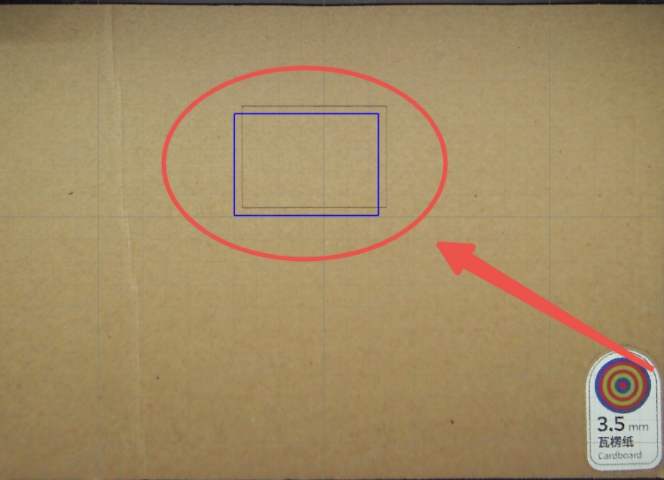
- The processing position is different from the preview in the software. (The blue frame is the preview position, while the gray frame is the processing position.)
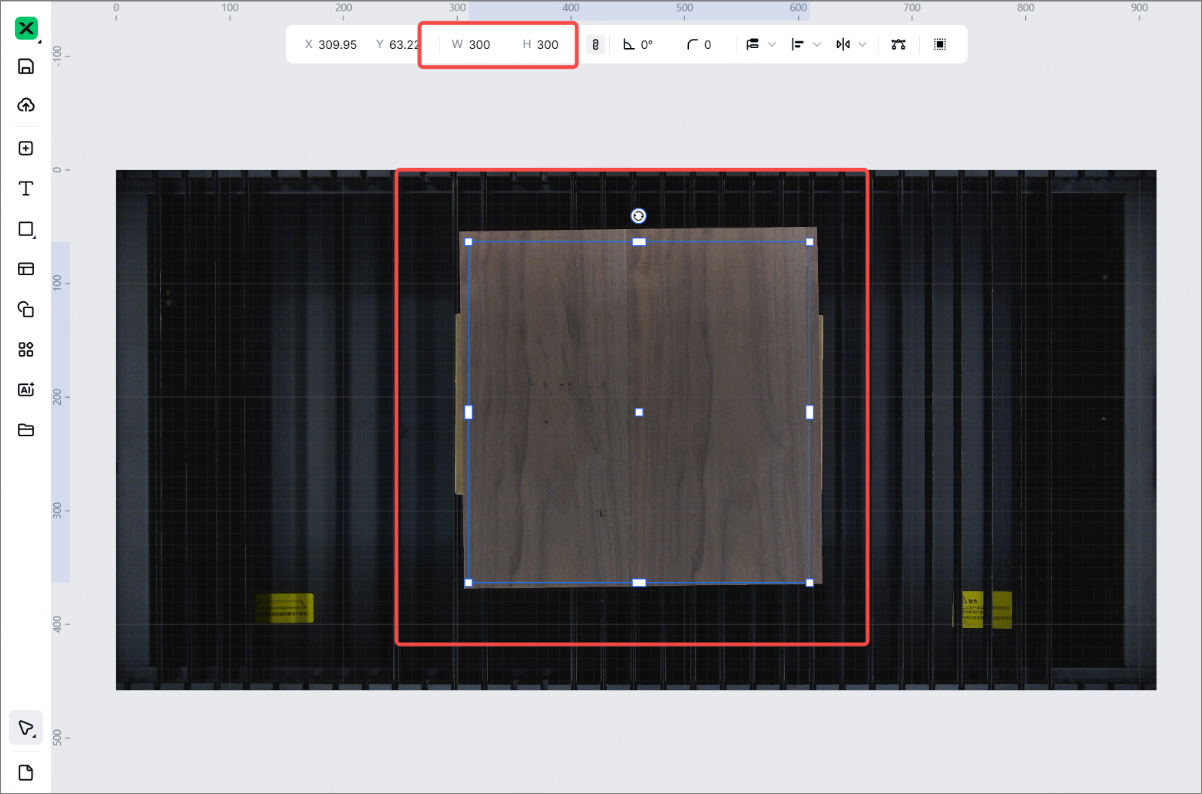
- The size of the object captured by the camera differs significantly from the actual size.
Possible causes
- Poor material flatness
- Lifting platform is not leveled.
- Inaccurate focusing
- Material displacement
- Calibration issue on cameras
Troubleshooting procedures
1. Check the flatness of materials
If the materials are uneven, greater positioning deviation may occur in the deformed area. It is recommended to change to flat and even materials.
2. Check the levelness of the lifting platform
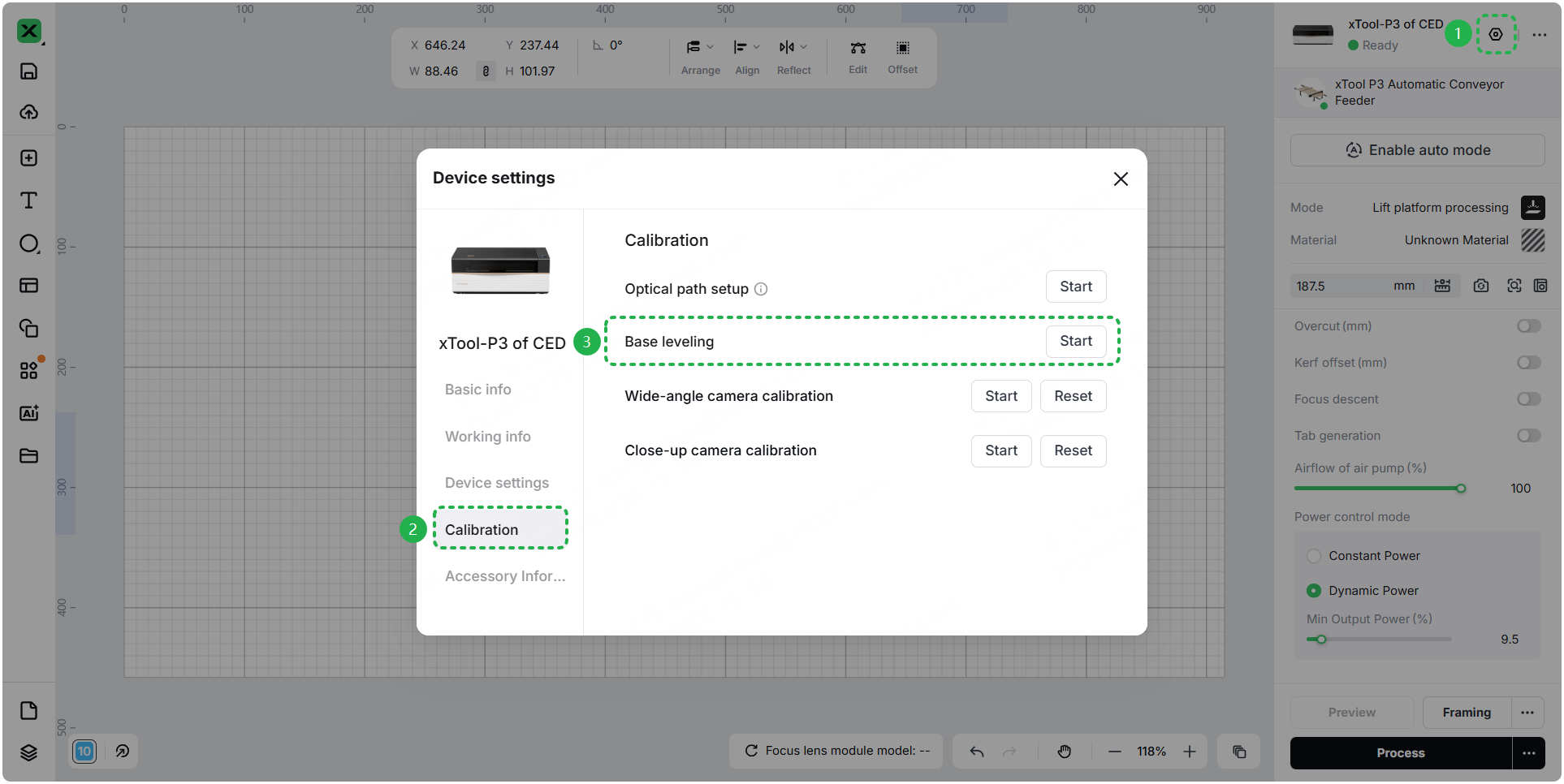
Go to Device settings > Calibration > Base leveling. Start the leveling to check the levelness of the lifting platform.
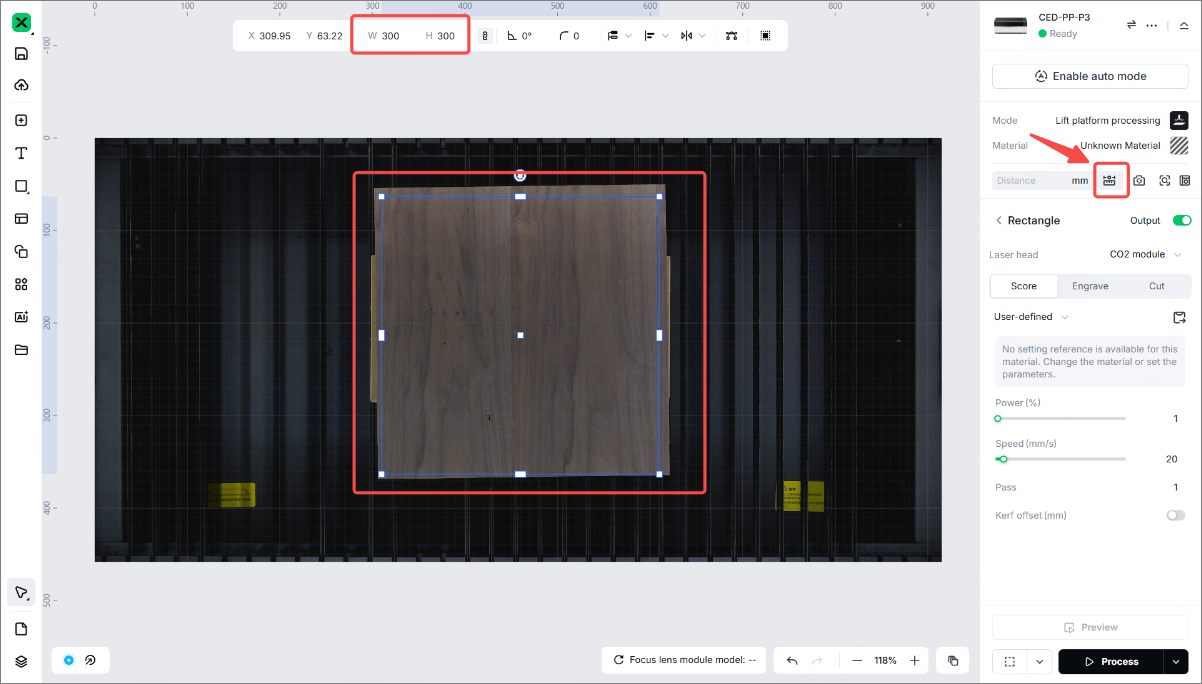
3. Check the distance measuring
Please check whether re-measuring has been performed before processing. If no measurement is executed, the software defaults to a material thickness of 3mm and applies distortion correction to the image.
If the material thickness is inconsistent, it will cause the size of the material on the picture to mismatch the actual size, resulting in inaccurate distance measurement positioning.
4. Check the material placement
- Check whether the material can be blown away by the airflow during processing.
- If yes, use the material clamps or masking tape to secure the material before processing.
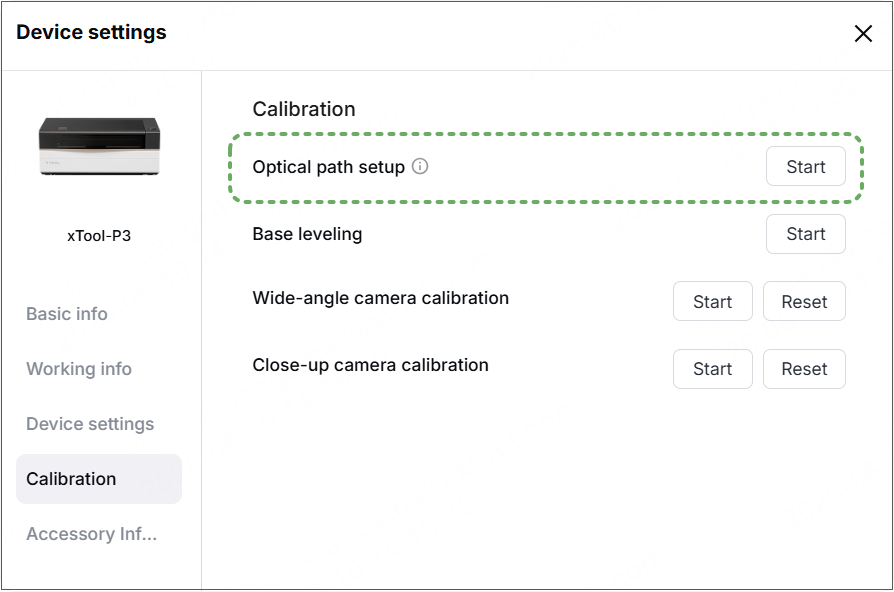
5. Calibrate the optical path (only for 5W infrared module)
Due to assembly variations, the theoretical positioning error of the 5W infrared module camera is ±2mm, which exceeds the positioning error during CO2 laser processing.
Adjust the optical path so that the coaxial red light and the CO₂ laser beam align more closely and vertically onto the material surface.
Camera alignment for the 5W infrared laser module is achieved using a coaxial red light from a CO₂ laser. The more precise optical path helps improve the alignment accuracy of the 5W infrared laser module.
6. Start the calibration compensation (only for 5W infrared module)
Due to assembly variations, the theoretical positioning error of the 5W infrared module camera is ±2mm, which exceeds the positioning error during CO2 laser processing.
(1) Use the 5W infrared module for processing and record the camera positioning deviation values along the X and Y axis during processing.
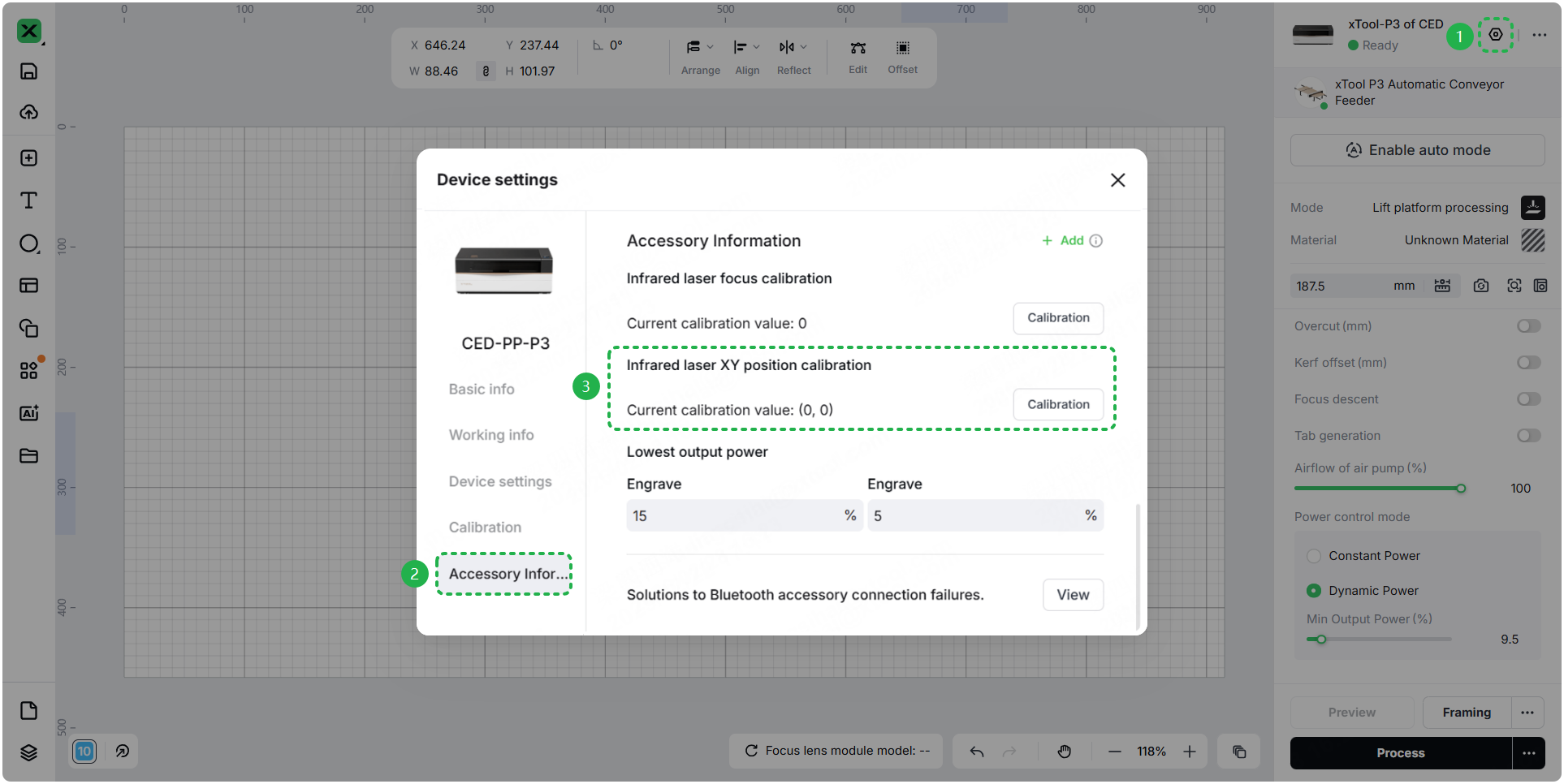
(2) Go to Device settings > Accessory information, and recalibrate the XY positions.
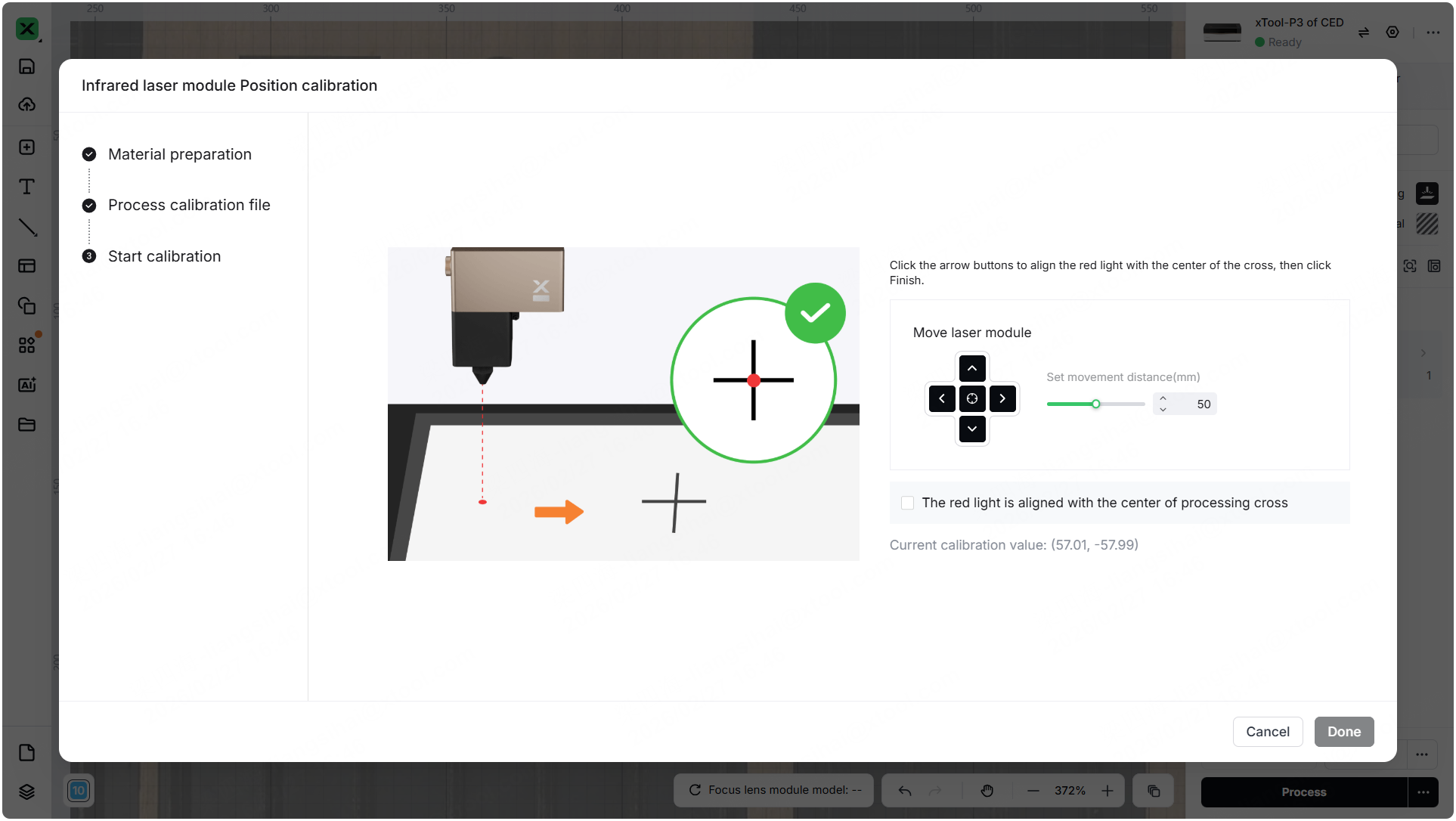
(3) After the red dot and the cross are aligned, complete the calibration by moving the red dot in the opposite direction by the same distance as the positioning error.
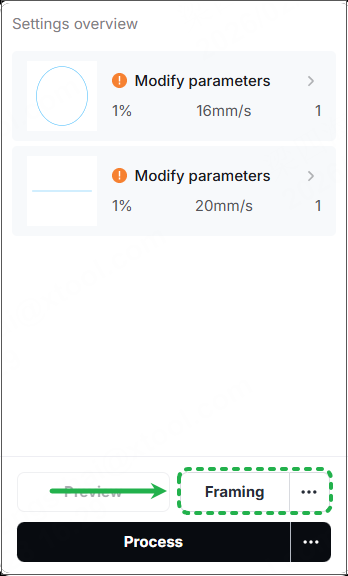
7. Perform Framing
Perform Framing to assist you in positioning before processing.
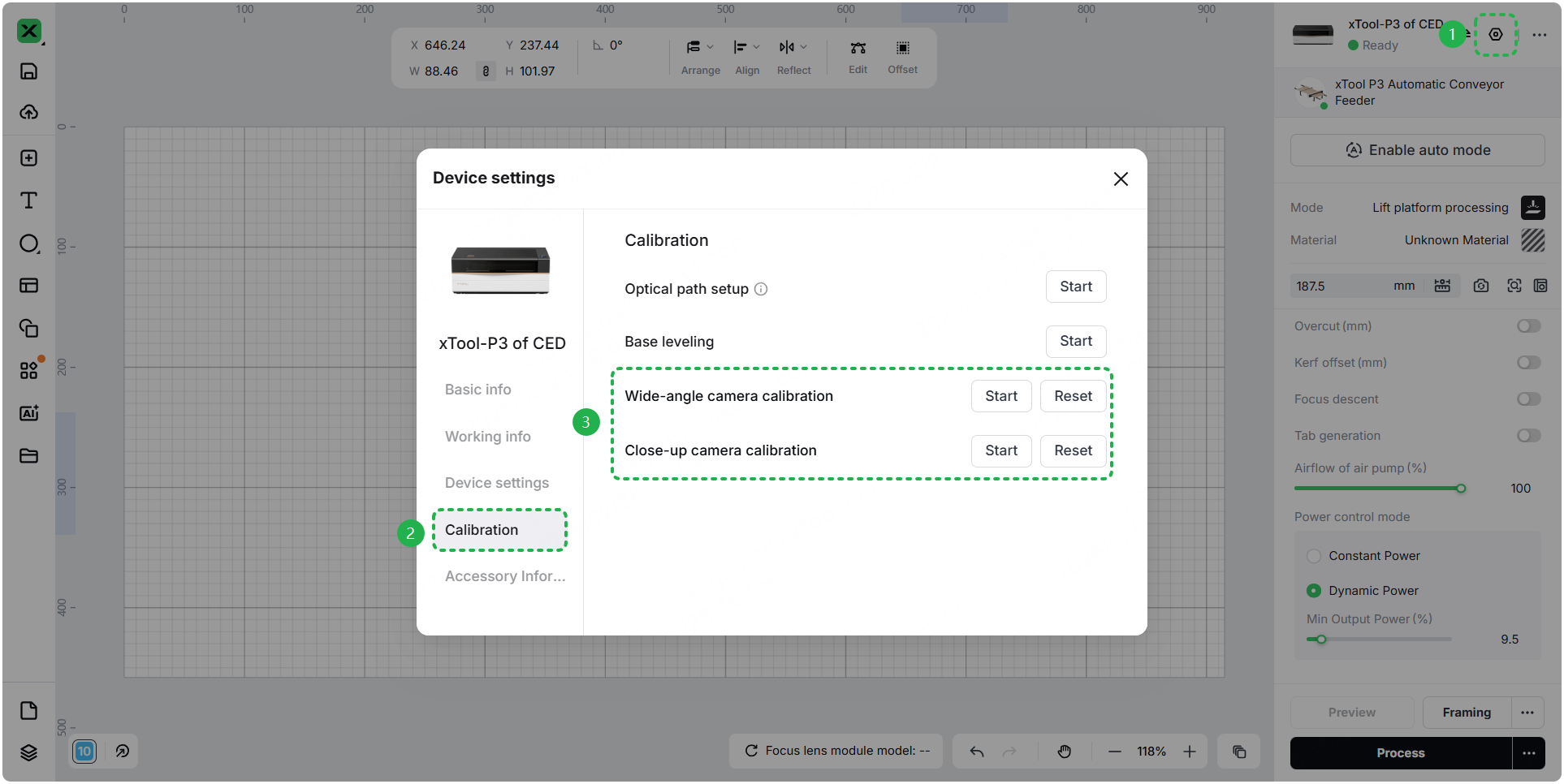
8. Recalibrate the camera
Go to Device settings > Calibration. Select the camera to calibrate again.
Still experiencing issues?
Should the issue persist after completing the preceding steps, submit a ticket via the "Submit a Ticket" button in the "Help Ticket" section below. The standard response time for xTool Customer Service is one business day.
For a prompt resolution, please include the following details:
- Issue description: A detailed explanation of the observed problem.
- Video evidence: Attach a video demonstrating the issue, where applicable.
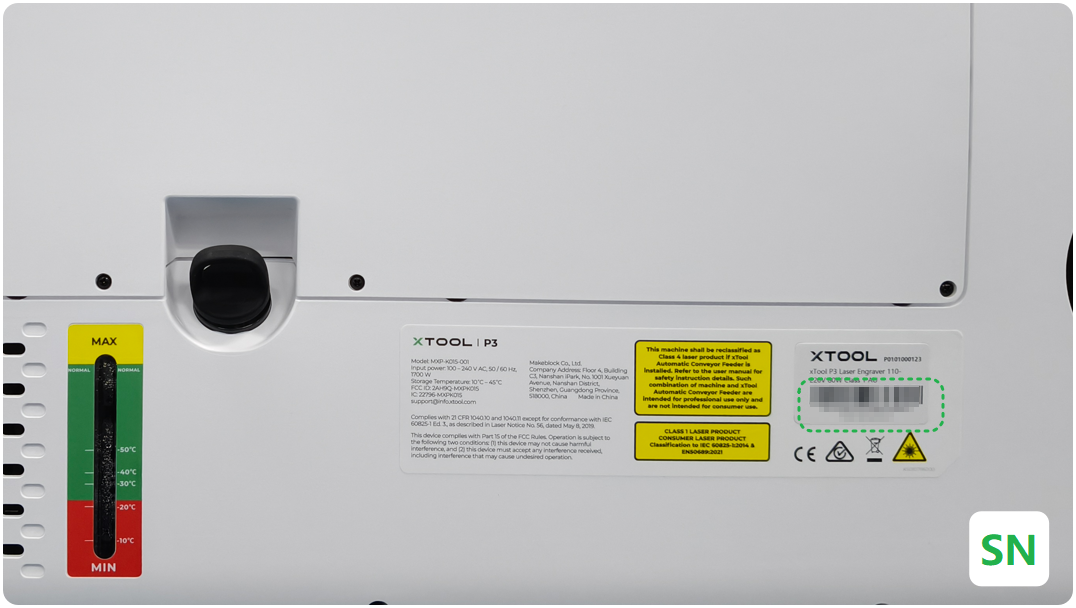
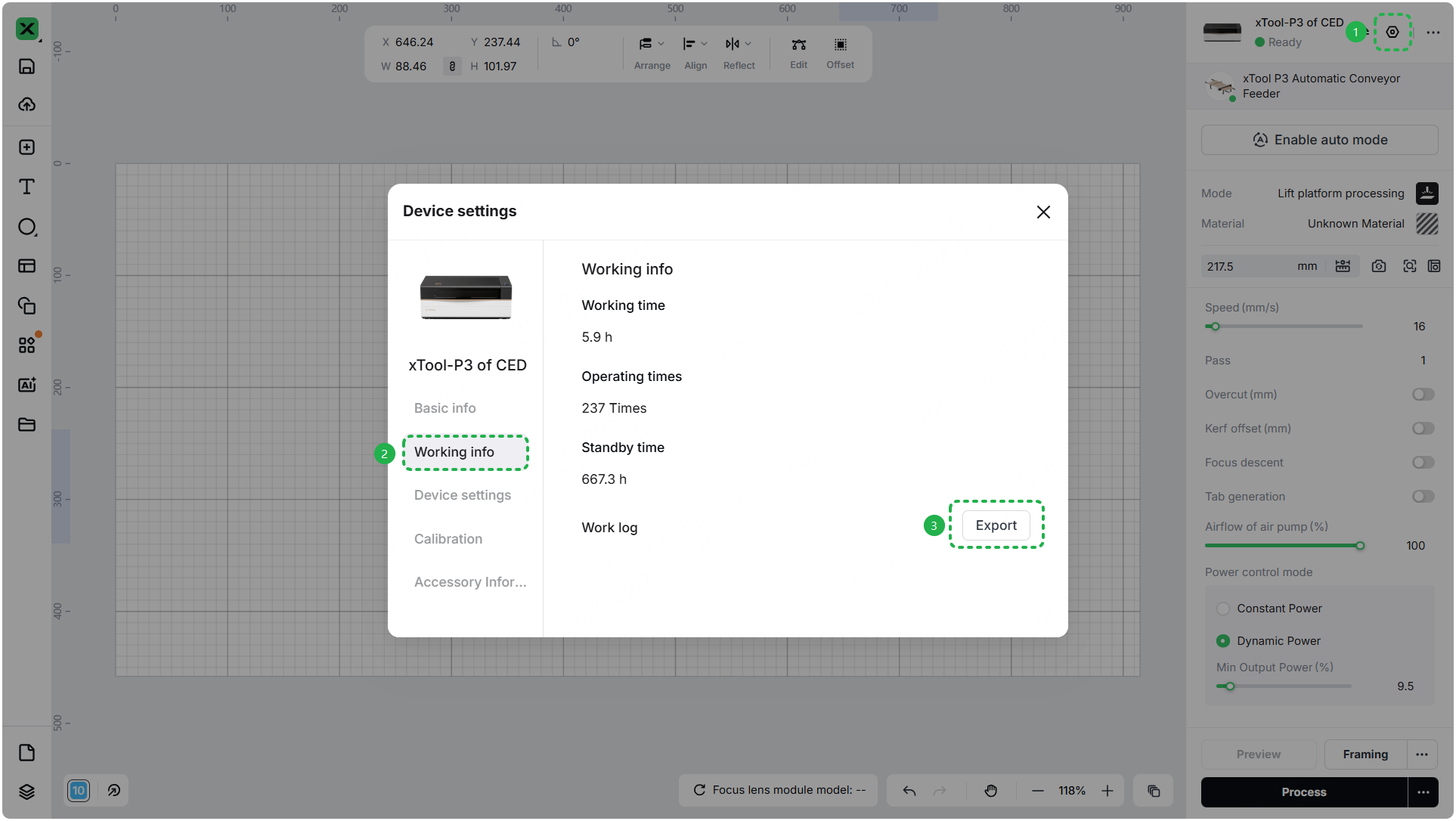
- Device information: Follow the steps to find the SN and export the work log.
- Troubleshooting performed: Any troubleshooting steps you have already attempted, along with their results.
This information is crucial for xTool technical support engineers to provide timely assistance.
Documentation feedback
Help improve this content by providing feedback. If this content did not meet your requirements, select "No" in the "Was this page helpful?" section below. Include specific details about what was unclear or missing in the pop-up suggestion box. Feedback submissions are reviewed by xTool technical writers to enhance future documentation.

Services & Help
Learn & Education

Copyright © 2025 xTool All Rights Reserved.