
Issue description
When opening the lid to capture images in Auto mode, or when clicking the camera Refresh button in Manual mode, if the distant-view camera fails to capture an image successfully, the software will display one of the following messages:
- "Lid not in position. Please push lid to maximum height." (The door panel angle detection relies on the gyroscope in the camera module. If the camera module malfunctions or is disconnected, this issue may occur.)
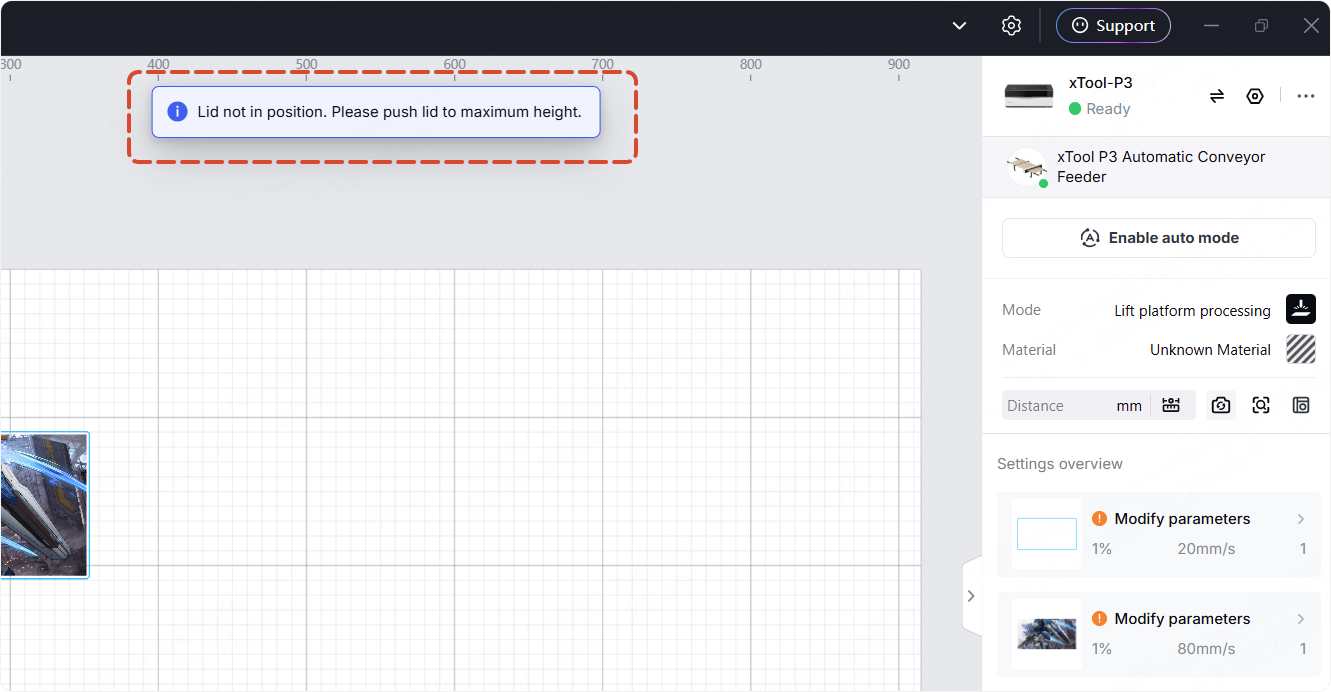
- "Refresh failed"

If the image capture issue you're experiencing is that the camera fails to recognize concentric circles, it means the camera is capturing images, but it cannot identify concentric circles in the images. Go to Concentric Circles are Not Detected for more details.
Possible causes
- The camera module is faulty.
- Issues occur in the connection cables of the camera.
Troubleshooting procedures
1. Check the camera
(1) Click  to turn off Auto mode before one processing.
(2) Open the processing monitor at the front view. Observe whether the camera can capture normally.
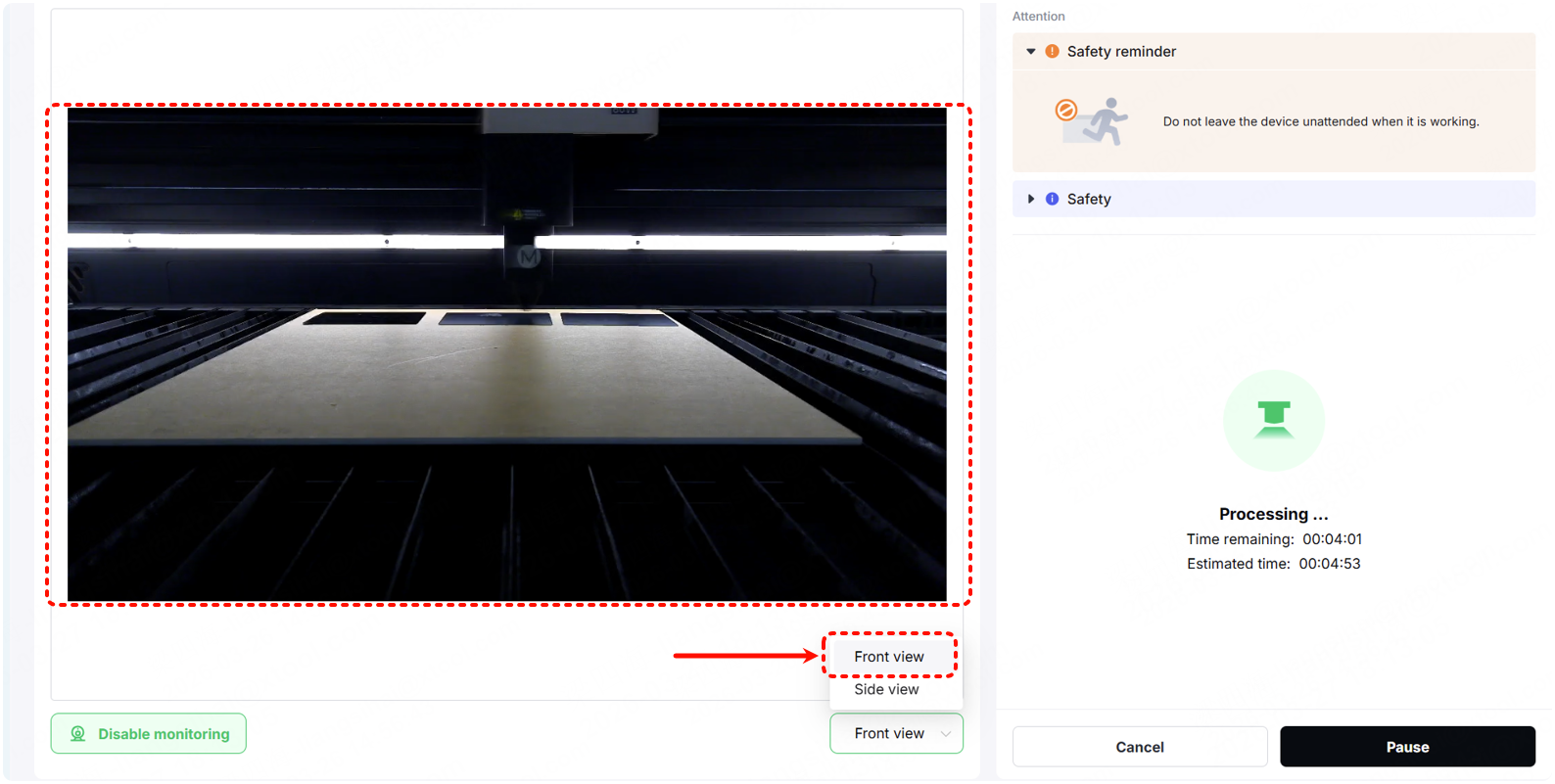
- If the camera cannot capture normally, troubleshoot the next step.
- If the camera can capture normally, follow the tutorial to recalibrate the camera.
2. Check the ground wire of the camera connection cable
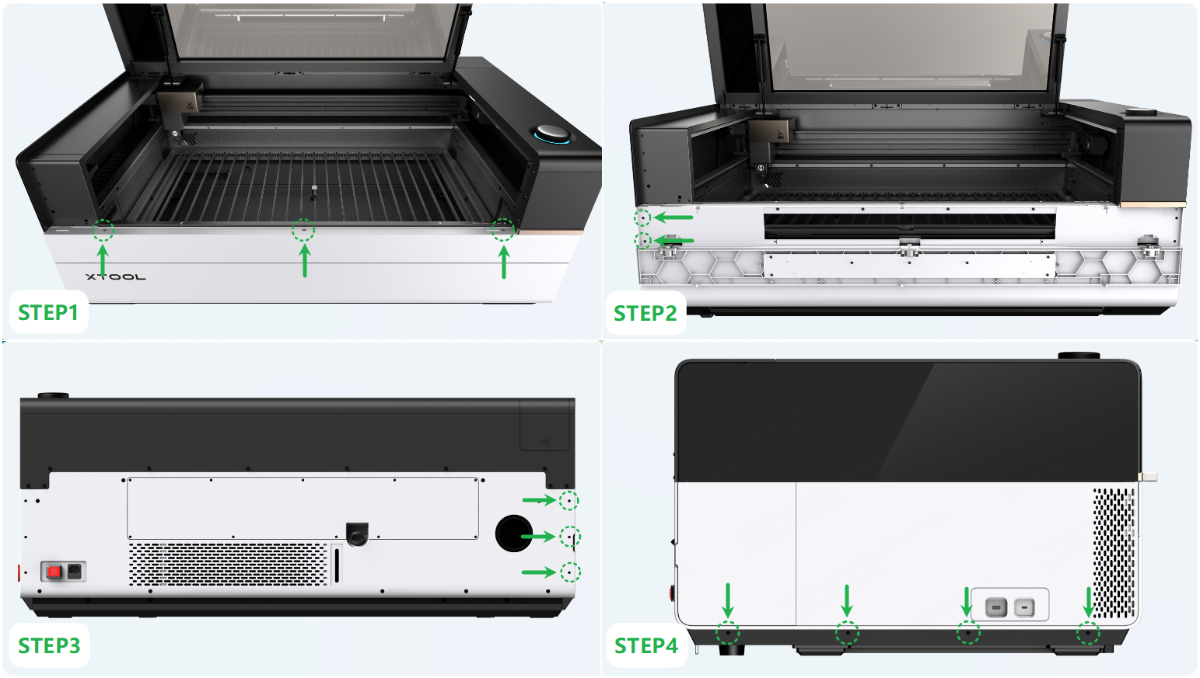
(1) Disconnect the device from a power supply. Follow the instructions below or the video tutorial to remove the left panel.
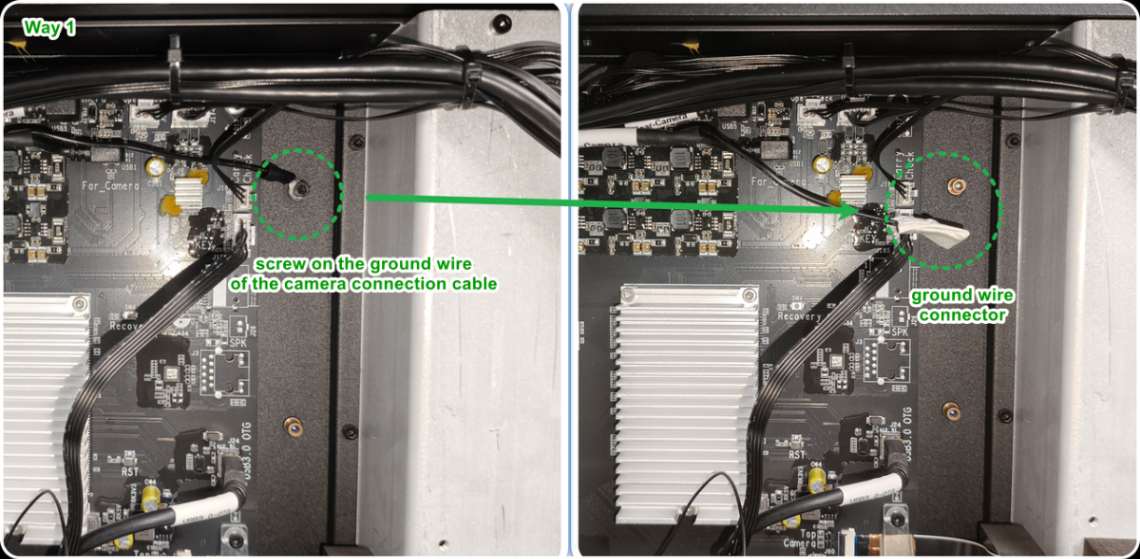
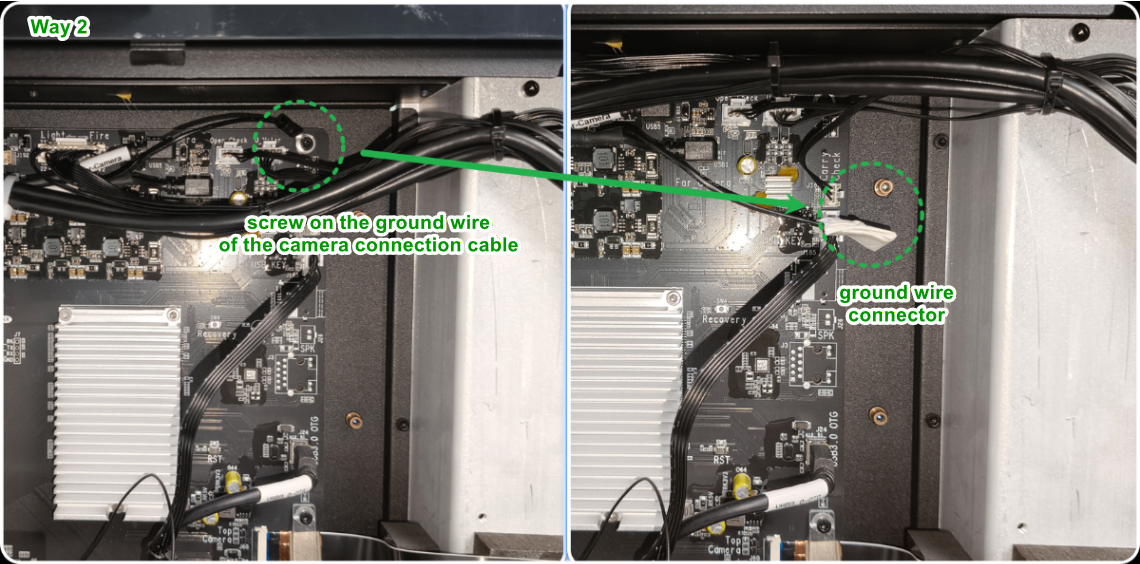
(2) Remove the screw securing the ground wire of the camera connection cable. Wrap the ground wire connector with tape and suspend it in mid-air.
There are 2 ways to secure the ground wire (as shown). Their disassembly methods and functions are exactly the same.
- If the camera functions normally after disconnecting the ground wire, it means you can use the device in the same way.
- If the camera still cannot work normally, please go to the next step.
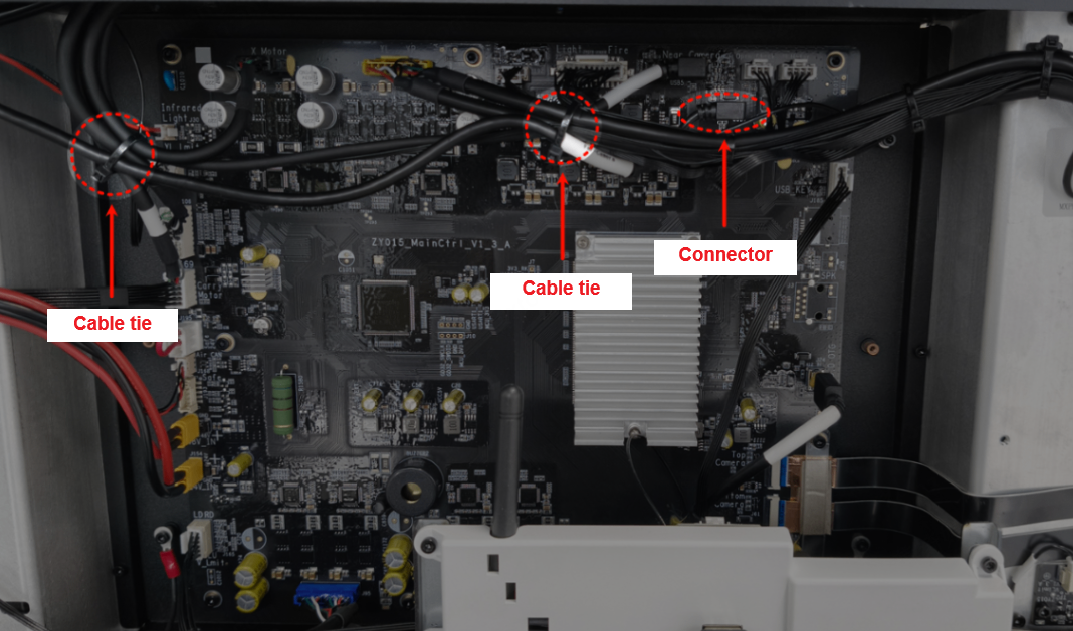
3. Check the connector on the main control board
Note: There may be some soft rubber on the connector. If the connector is plugged too tightly, you can gently scrape the rubber before plugging or unplugging.
Cut two cable ties on the connection cables, then replug the connector.
If the image is still not captured, check for other issues.
4. Check the connectors on the camera module
Note: There may be some soft rubber on the connector. If the connector is plugged too tightly, you can gently scrape the rubber before plugging or unplugging.
(1) Disconnect the device from a power supply.
(2) Follow the video tutorial to remove the camera's holder.
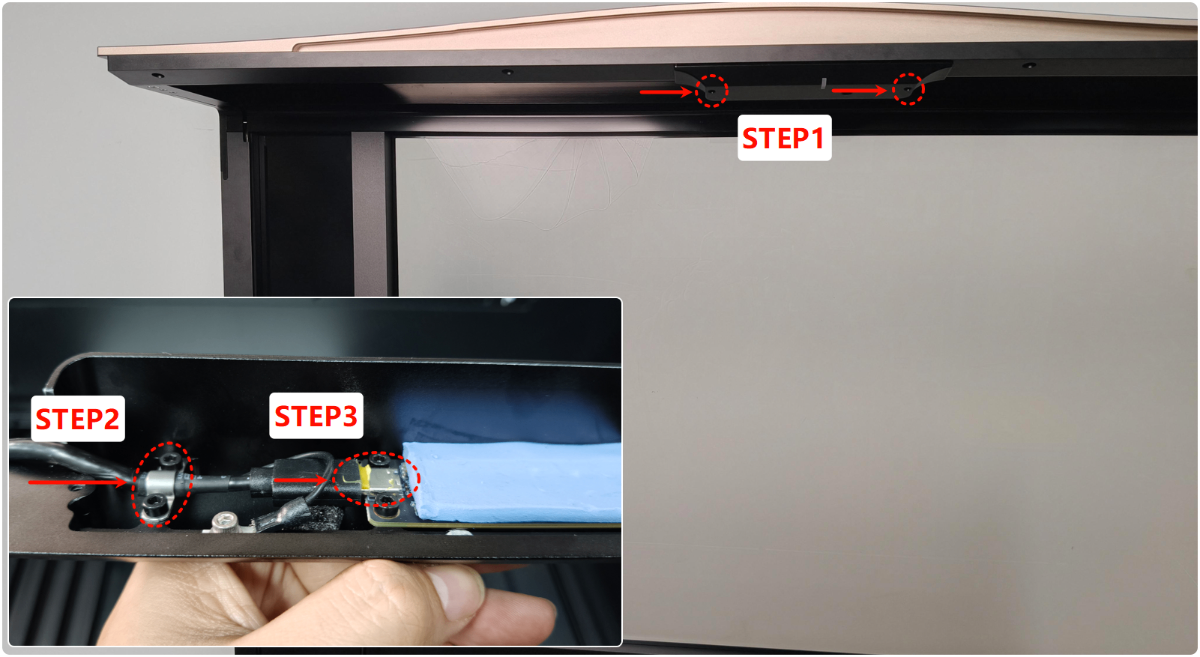
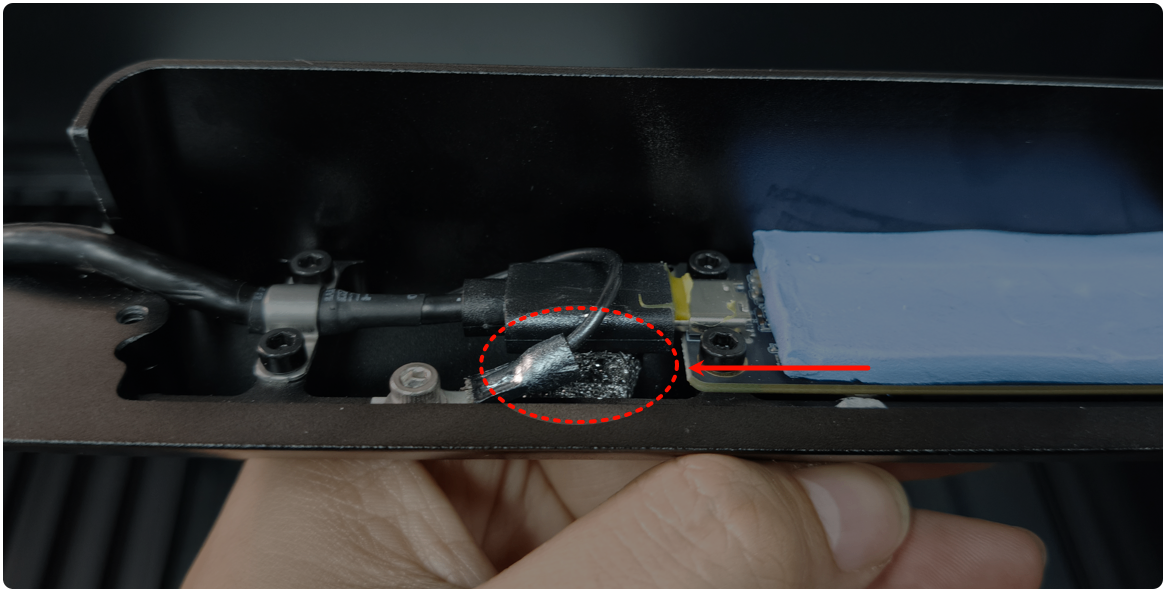
(3) Unplug and plug the connector of the camera as shown.
(4) Restart the device.
- If the camera resumes normally, you can place a 6.2mm-thick insulating material, such as foam or rubber, beneath the connector to reduce Type-C connector poor contact.
- If the camera still cannot work normally, please check for other issues.
5. Check the connection cables of the camera
Check whether the connection cables of the camera are damaged. Pay more attention to the fragile areas (as shown).
- If the cables are damaged, replace them with new ones.
- If there is no obvious damage, check for other issues.
Still experiencing issues?
Should the issue persist after completing the preceding steps, submit a ticket via the "Submit a Ticket" button in the "Help Ticket" section below. The standard response time for xTool Customer Service is one business day.
For a prompt resolution, please include the following details:
- Issue description: A detailed explanation of the observed problem.
- Video evidence: Attach a video demonstrating the issue, where applicable.
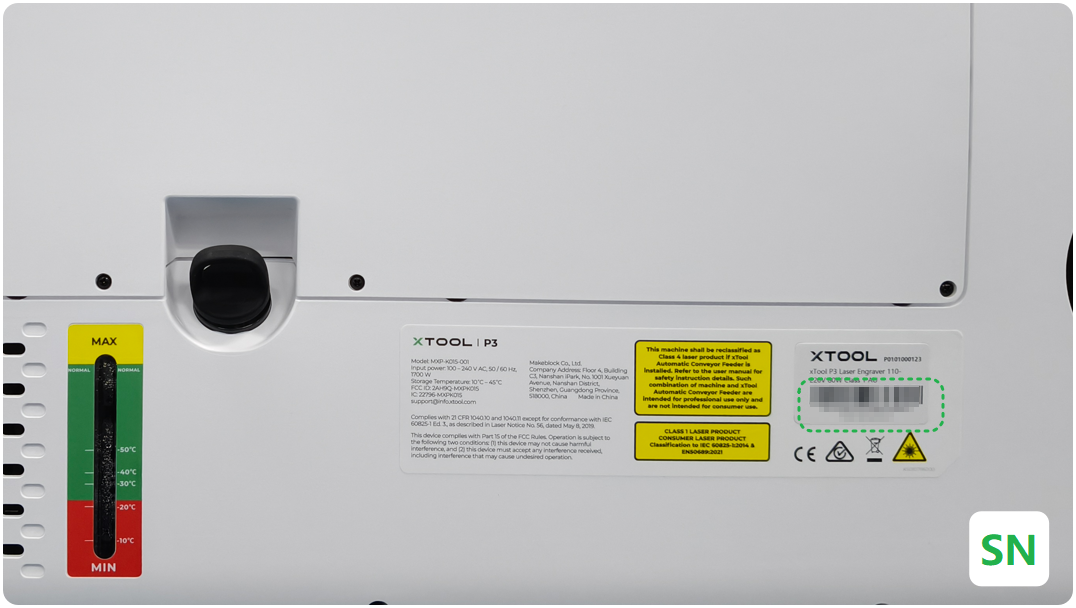
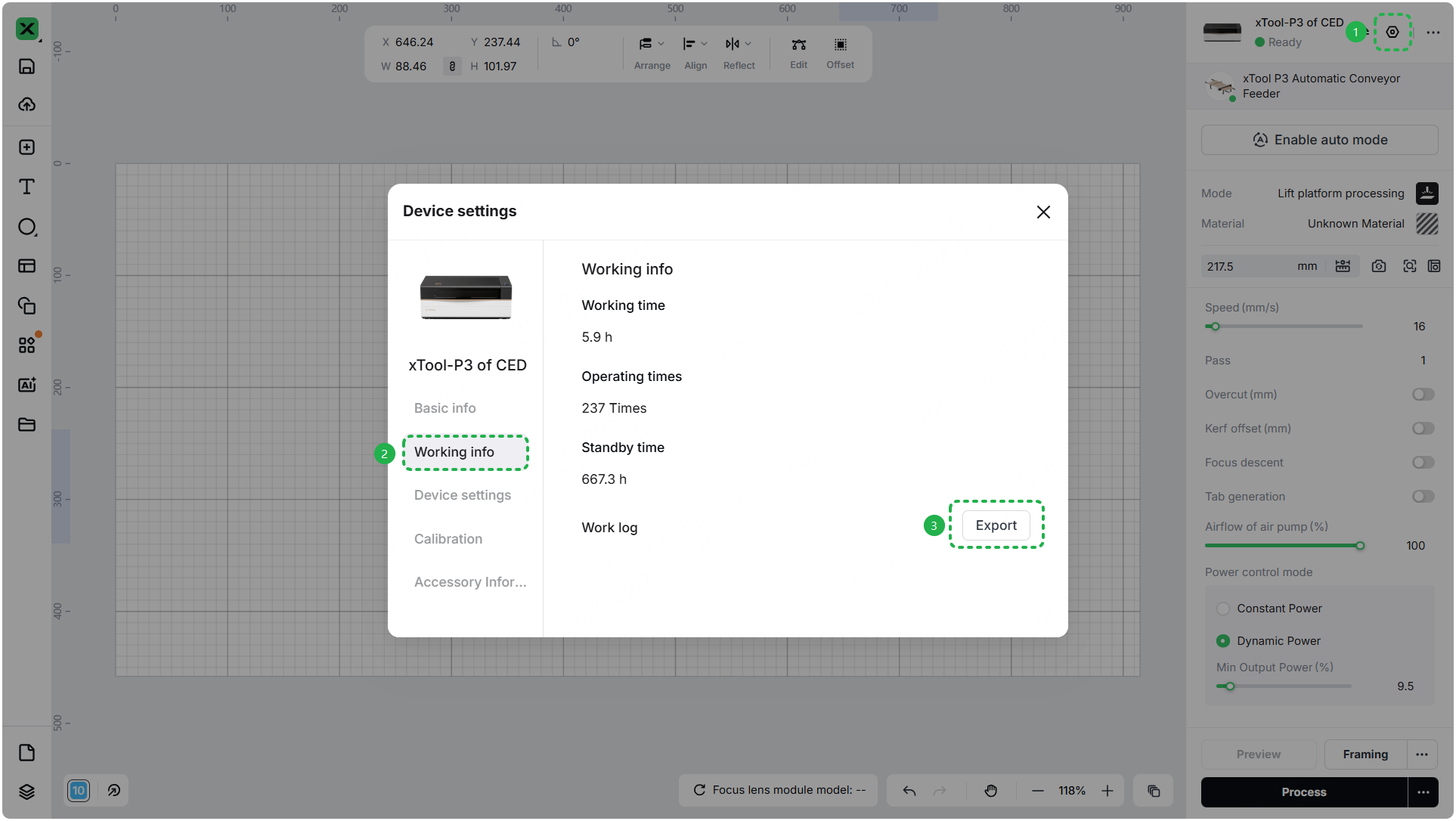
- Device information: Follow the steps to find the SN and export the work log.
- Troubleshooting performed: Any troubleshooting steps you have already attempted, along with their results.
This information is crucial for xTool technical support engineers to provide timely assistance.
Documentation feedback
Help improve this content by providing feedback. If this content did not meet your requirements, select "No" in the "Was this page helpful?" section below. Include specific details about what was unclear or missing in the pop-up suggestion box. Feedback submissions are reviewed by xTool technical writers to enhance future documentation.

