
Issue description
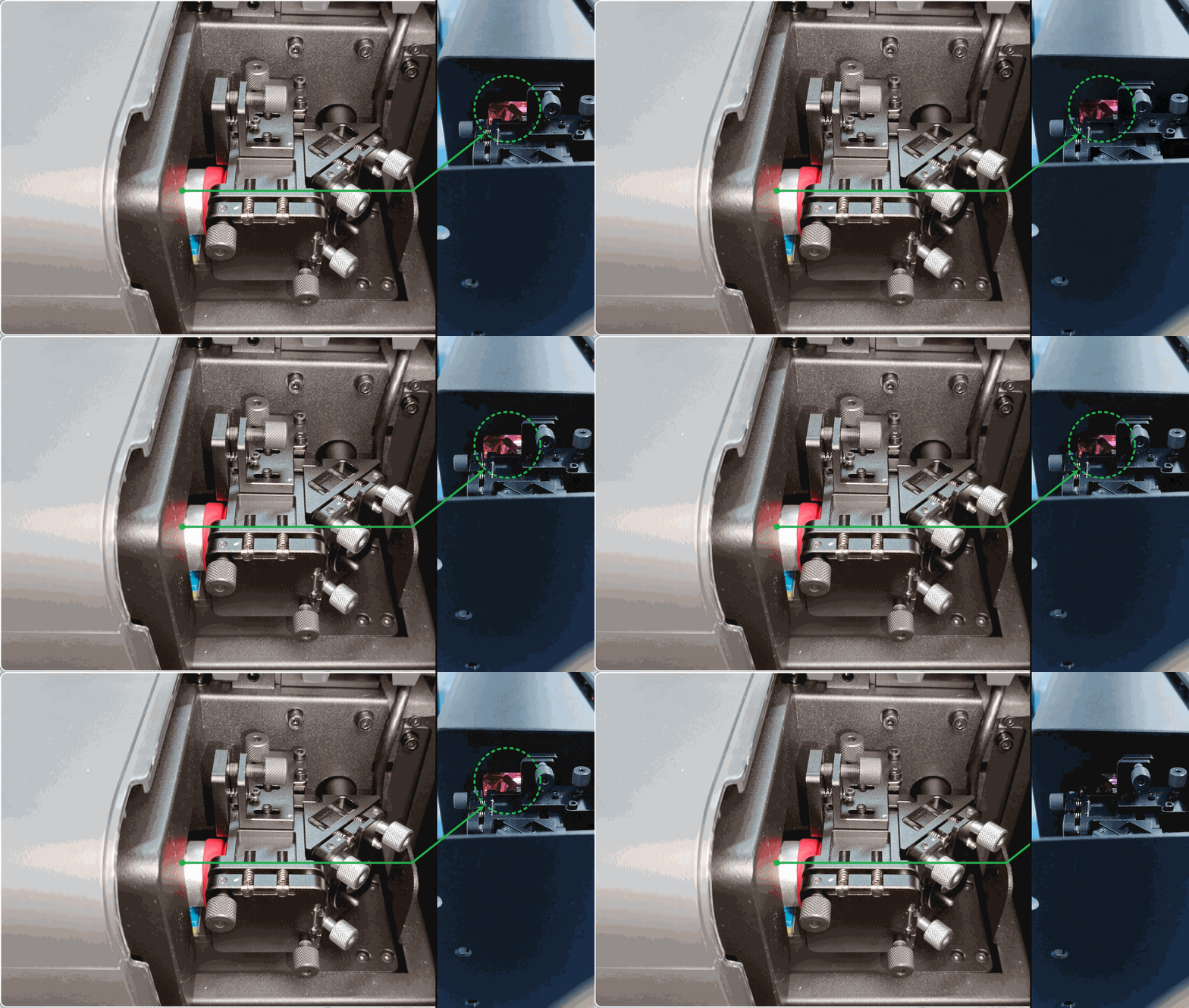
When you use laser processing, the laser module does not emit a laser. At this point, if you observe the laser tube from the primary mirror, it does not illuminate during processing.
The image below shows the laser tube in its normal illuminated state during processing.
If the laser tube lights up during processing but without emitting a laser, go to Troubleshoot No Laser Output for xTool P3 for troubleshooting procedures.
Possible causes
- Power is set too low.
- Laser tube is faulty.
- Connection cable of the laser power supply is loose.
- Power supply of the laser tube is faulty.
Special Cases
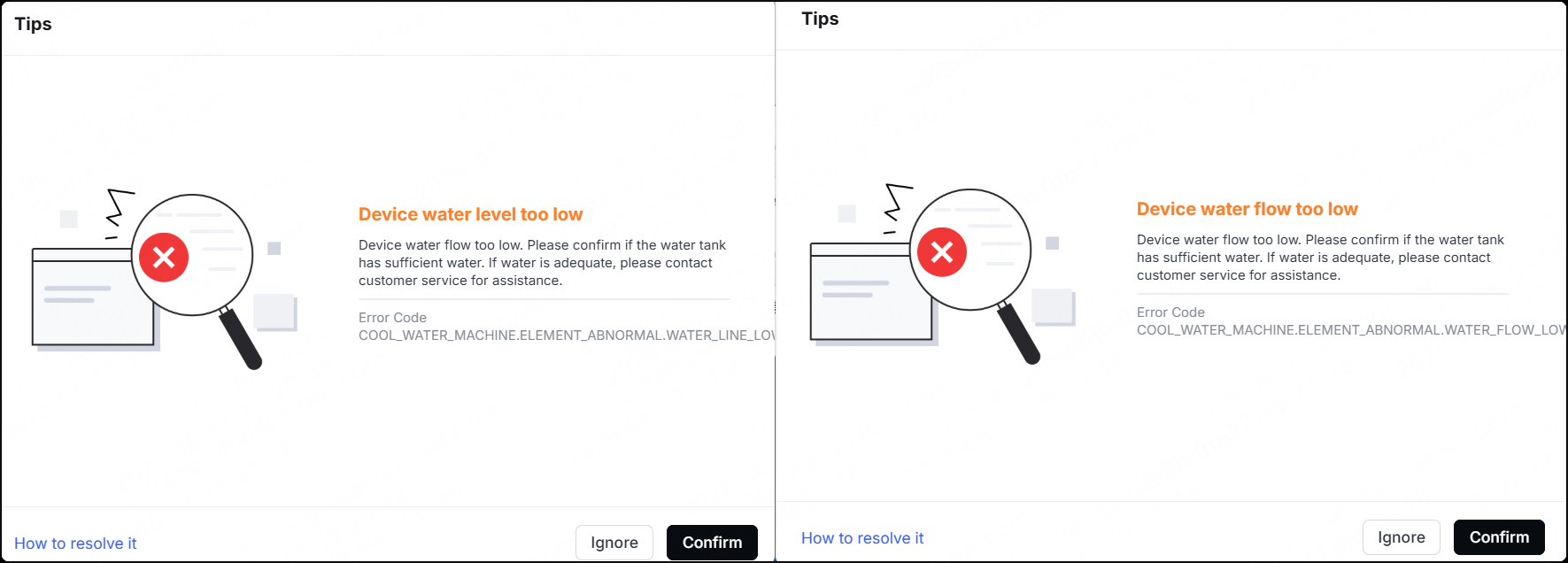
If the device detects a critical fault or safety risk, such as low water level, insufficient water flow, or excessive water temperature, it automatically blocks all laser emission commands. As a result, laser-related operations, such as optical path calibration and laser processing, cannot be performed. A corresponding fault message also displays in the software.
This is a normal safety protection mechanism and does not indicate a fault in the laser system. Resolve the reported issue according to the fault message first, then retry the operation.
Troubleshooting procedure
1. Check the laser power setting
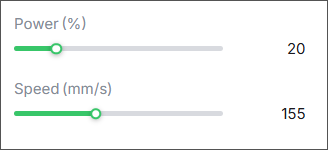
Check whether the processing power is too low. If it is too low, the laser tube can't emit the laser. As the laser tube ages, more power will be needed for the same level of laser activation as before (normally, the power is within 20%). Please try to process the material by increasing the power by over 20%.
2. Check the laser tube
(1) Disconnect the power supply of the device.
(2) Remove the rear upper cover by referring to the video tutorial. The laser tube is not required to be removed.
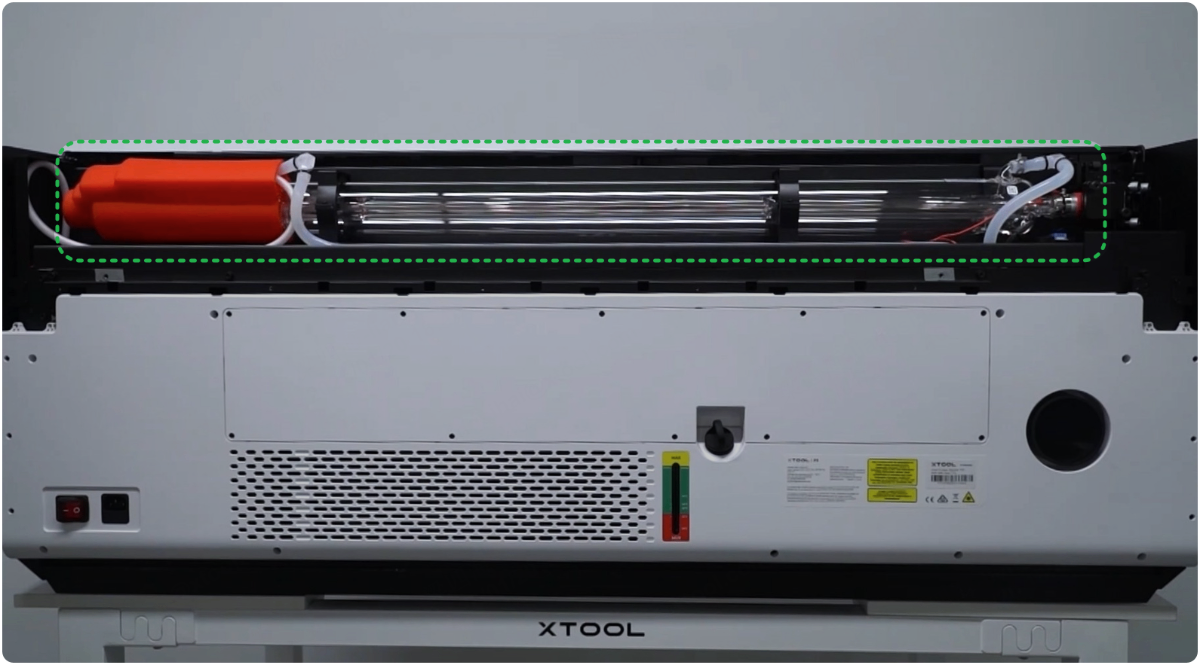
(3) Inspect the laser tube for any cracks, both inside and outside.
- If any cracks are found, replace the tube.
- If no crack is found, check for other issues.
3. Check the connector of the main control board
(1) Disconnect the power supply of the device and remove the left plate. See the video or follow the tutorial below.
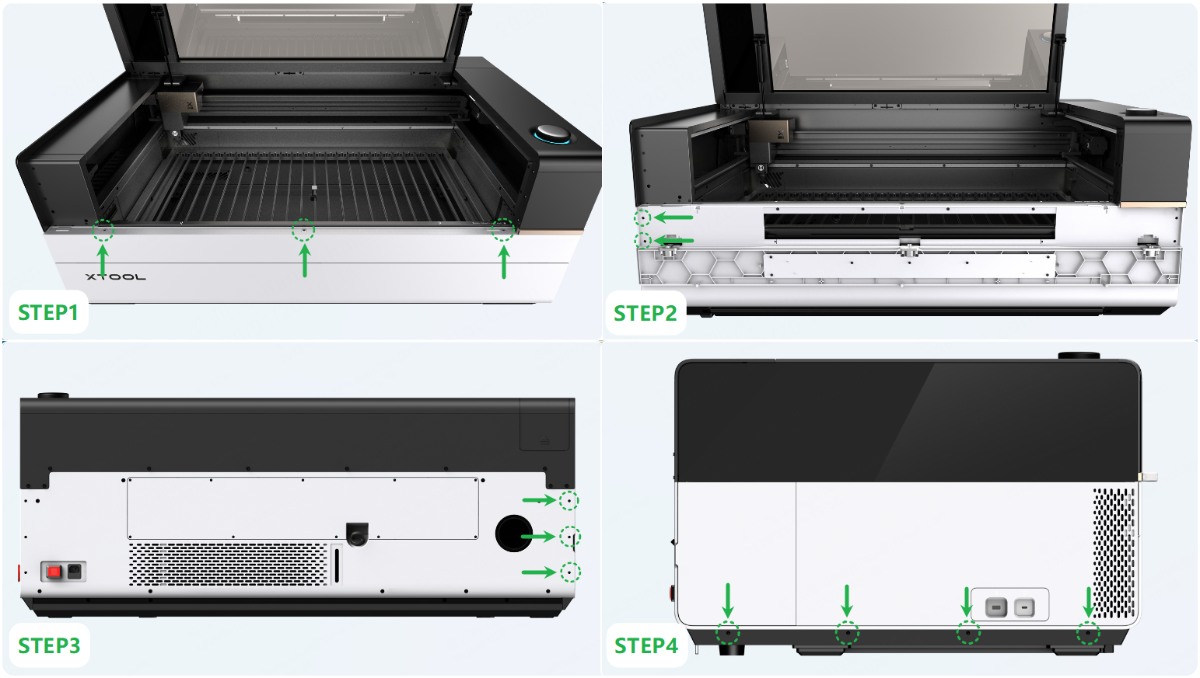
(2) Check whether there is any looseness in the cable connector as shown.
- If it is loose, plug it snugly.
- If it is not loose, check for other issues.
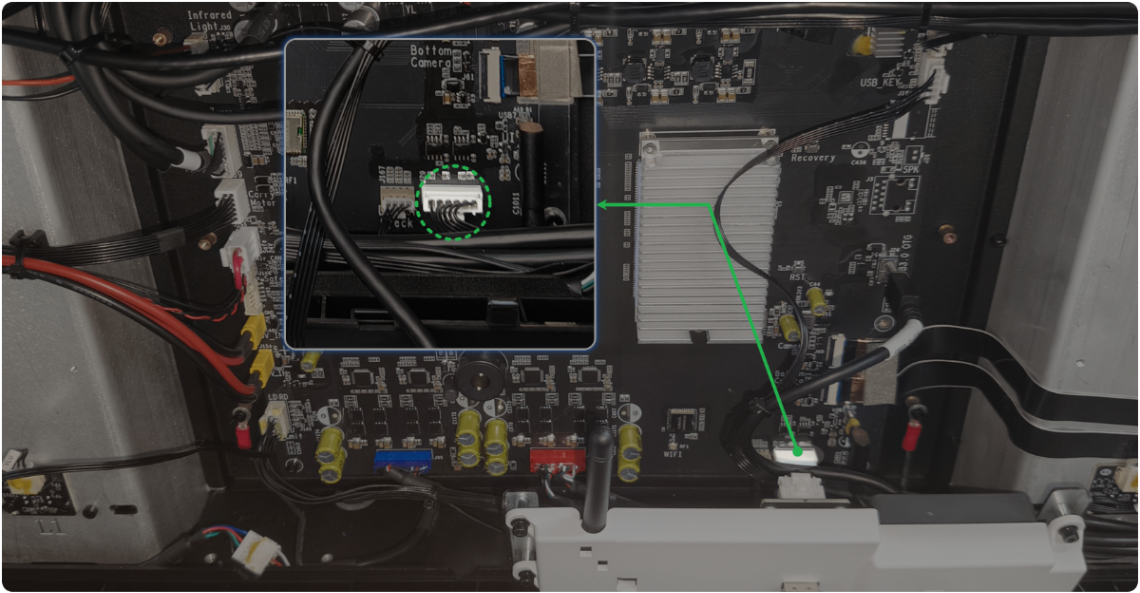
4. Check the connector of the laser power supply
(1) Disconnect the power supply of the device and remove the right plate. See the video or follow the tutorial below.
(2) Check whether there is any looseness in the cable connectors as shown.
Note: Plug or replug only the green connector. Do not pull the cables directly.
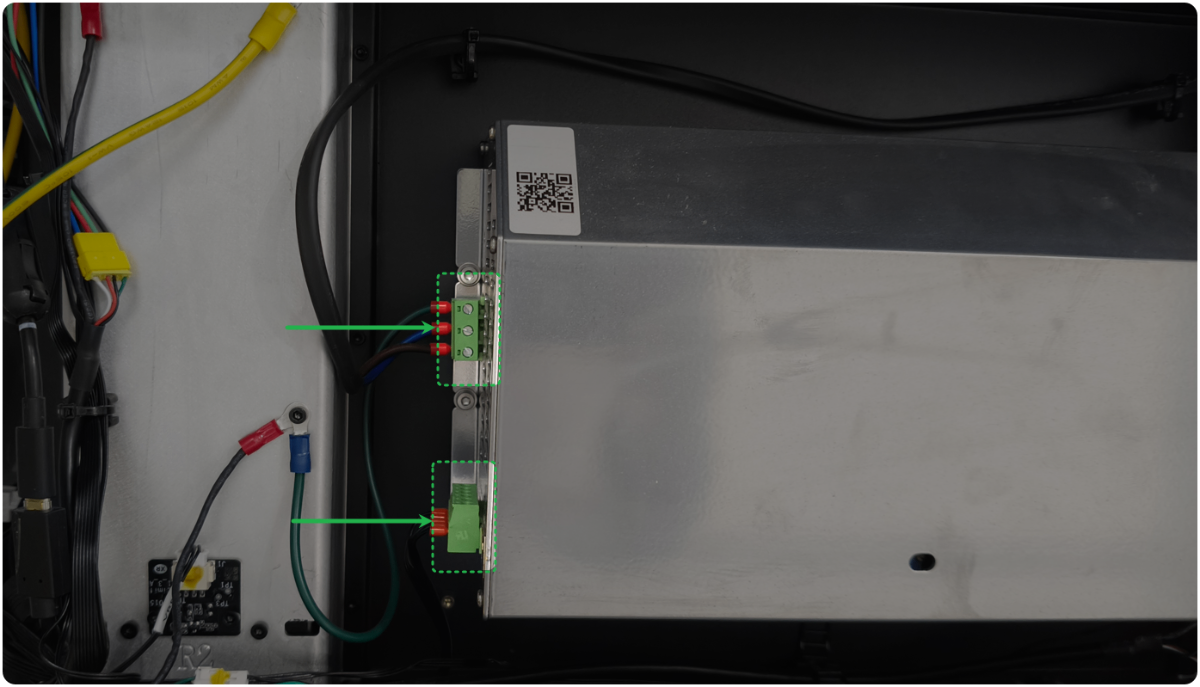
- If they are loose, plug them snugly.
- If they are not loose, check for other issues.
5. Check the laser power supply
(1) Based on Step 4, power on the device and process at 50% power (a file lasting several seconds will suffice).
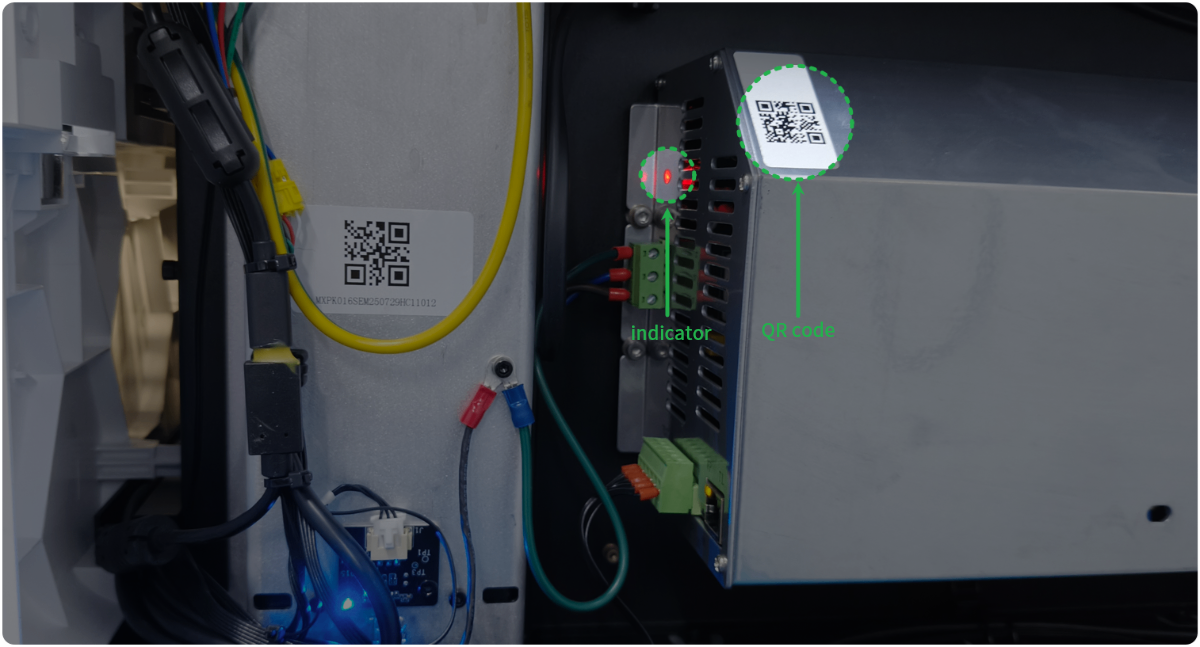
(2) Observe whether the indicator (as shown) on the laser power supply lights up normally during processing.
⚠️ When the device is connected to a power supply, do not touch the laser power supply and internal device components. When the test is finished, power off the device and wait 1 minute before operating.
- If the indicator lights up, replace the laser tube.
- If the indicator won't light up, replace the power supply of the laser tube. And take a picture of the QR code on the laser power supply and send it to xTool customer service team.
Still experiencing issues?
Should the issue persist after completing the preceding steps, submit a ticket via the "Submit a Ticket" button in the "Help Ticket" section below. The standard response time for xTool Customer Service is one business day.
For a prompt resolution, please include the following details:
- Issue description: A detailed explanation of the observed problem.
- Video evidence: Attach a video demonstrating the issue, where applicable.
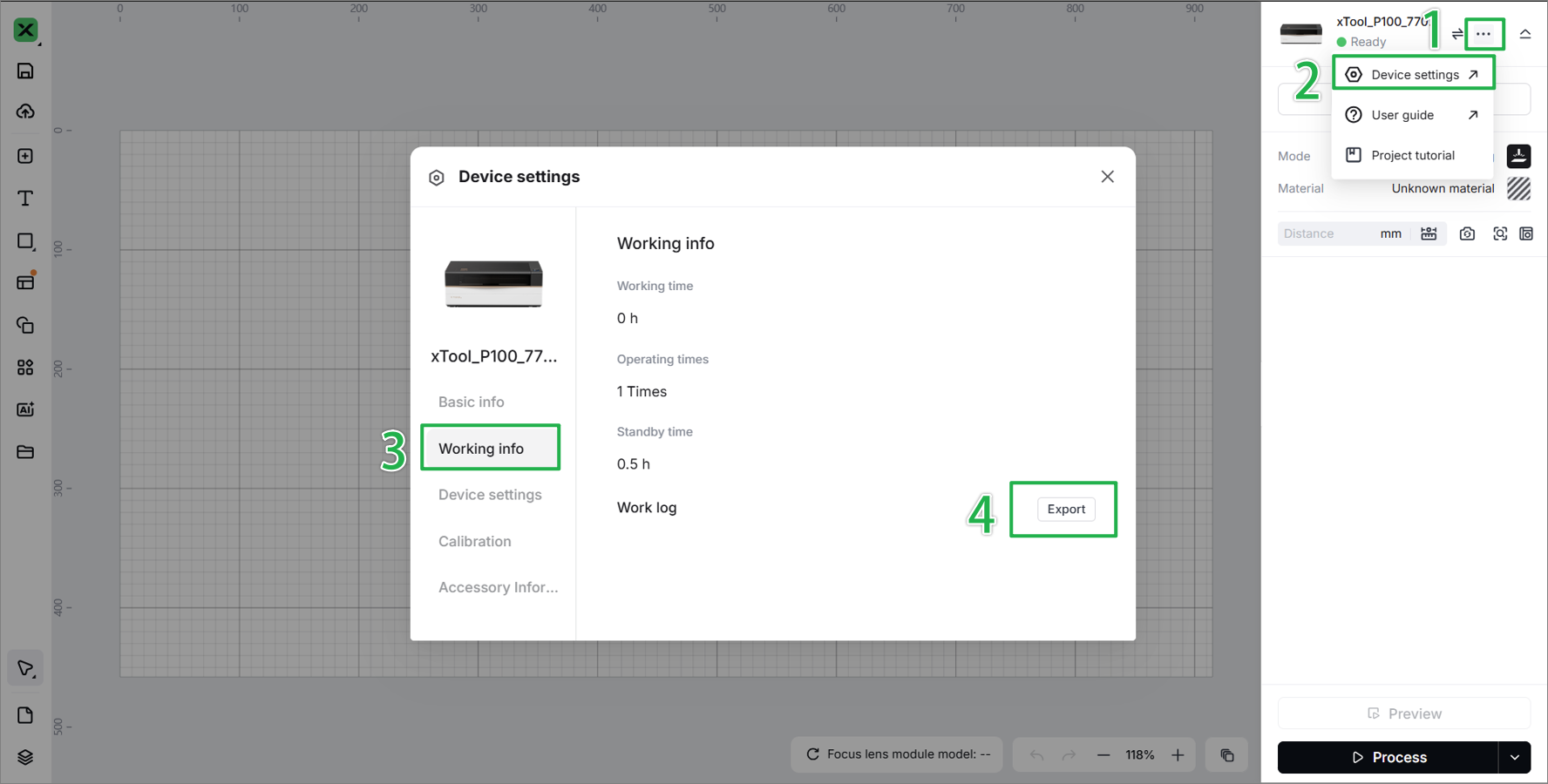
- Device information: Follow the steps to find the SN and export the work log.
- Troubleshooting performed: Any troubleshooting steps you have already attempted, along with their results.
This information is crucial for xTool technical support engineers to provide timely assistance.
Documentation feedback
Help improve this content by providing feedback. If this content did not meet your requirements, select "No" in the "Was this page helpful?" section below. Include specific details about what was unclear or missing in the pop-up suggestion box. Feedback submissions are reviewed by xTool technical writers to enhance future documentation.

