
Overview
This guide addresses three common Wi-Fi connection problems with your xTool P3 laser engraver:
Issue 1: Wi-Fi is not found
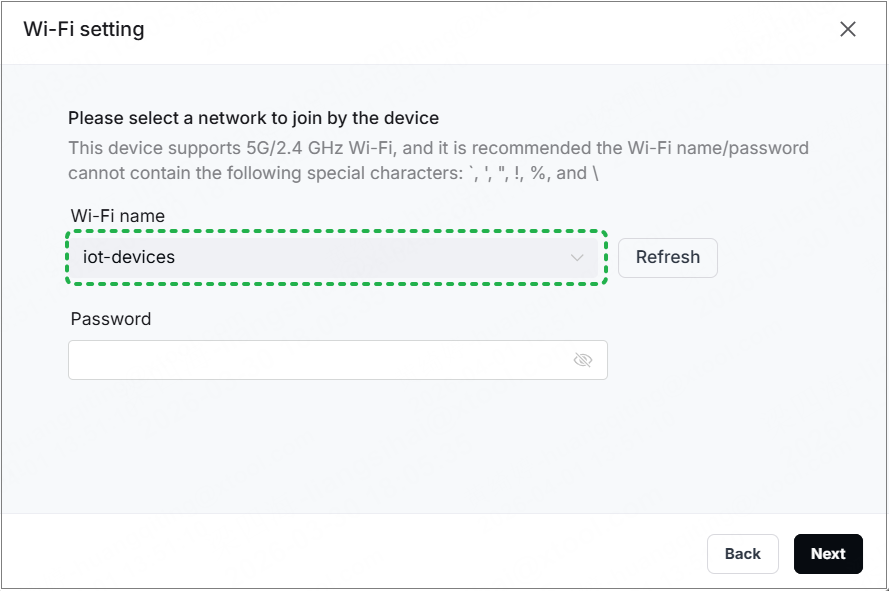
When attempting to connect Wi-Fi to xTool P3 in xTool Studio, you cannot find the Wi-Fi network name in the list.
Issue 2: Wi-Fi configuration is failed
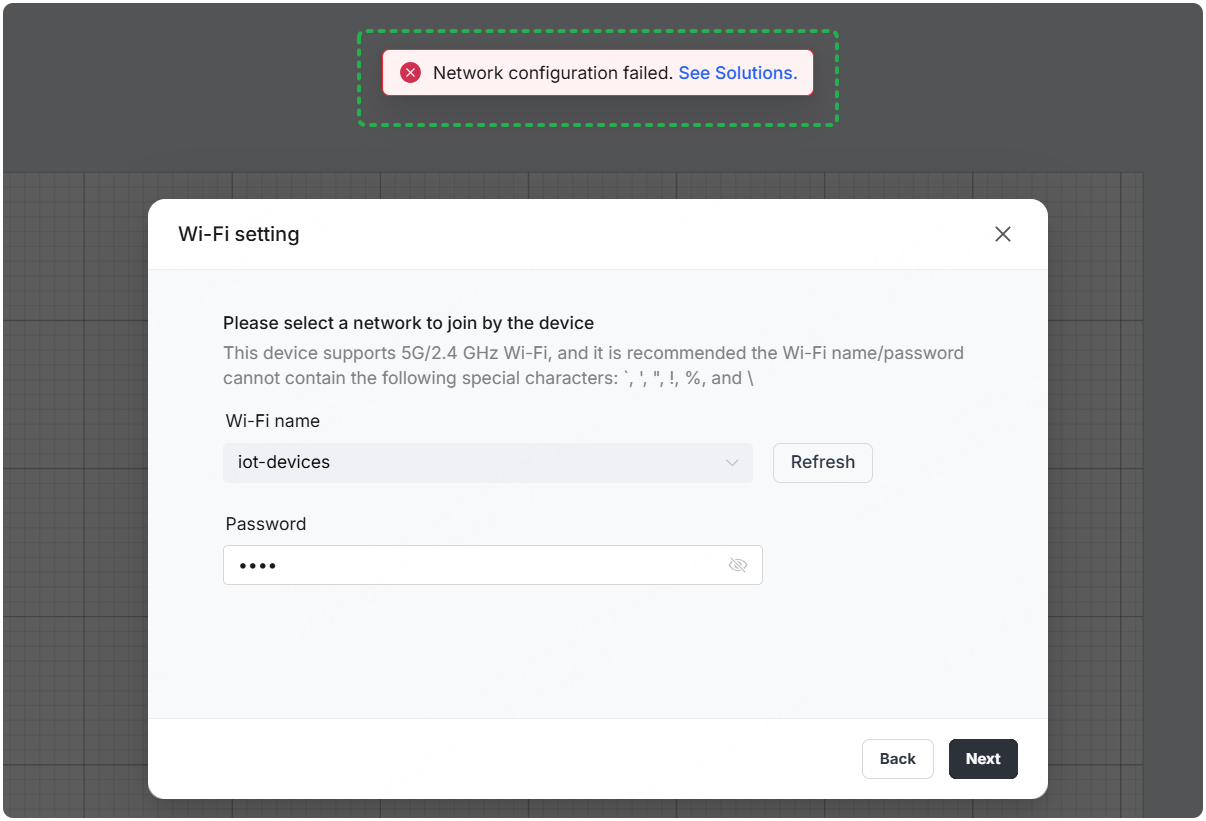
You can find the Wi-Fi network name in the list, but the Wi-Fi configuration still fails.
Potential causes
- Issues occur in the software.
- Weak or unstable Wi-Fi signal.
- The computer's Wi-Fi functionality is disabled or malfunctioning.
- The Wi-Fi network is hidden (not broadcasting its SSID).
- The Wi-Fi name or password contains unsupported special characters or is too long.
Pre-checklist
Before troubleshooting, ensure you check the connection.
- Connect the device to the software via USB cable.
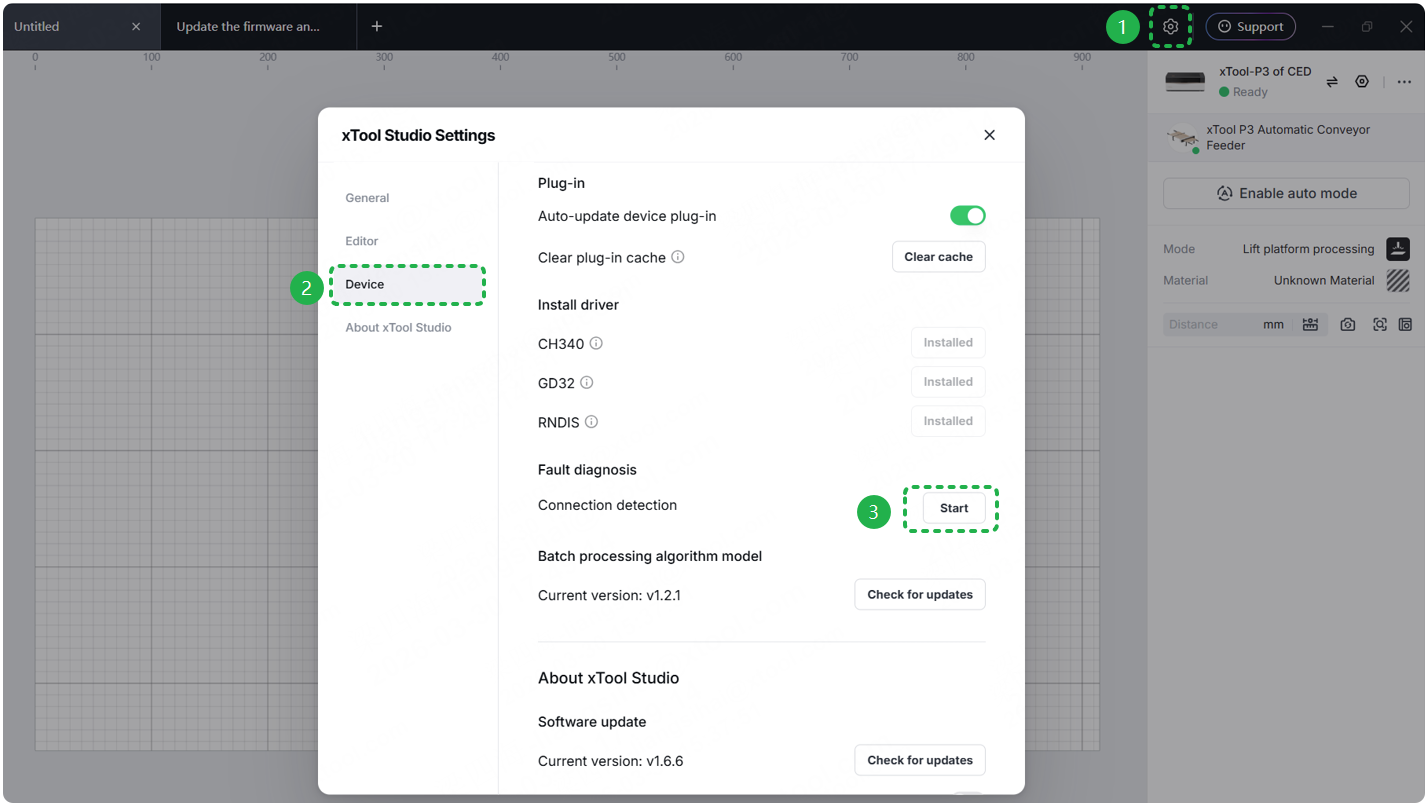
- Go to Gear icon > Device > Connection detection > Start. Follow the instructions to complete the connection inspection.
During the process, you may see pop-up windows asking for permission to run the software. Please click Allow.
Troubleshoot issue 1: Wi-Fi is not found
Step 1: Check for hidden Wi-Fi
If your Wi-Fi network is set to be "hidden" (not broadcasting its name), it may not be connected reliably.
Router Backend Check:
- Log in to your router's admin panel.
- Check if the Wi-Fi network is set to "Hidden" or "Not Visible".
- If hidden: Change the setting to "Visible" or "Broadcast SSID".
Alternative Test:
- Use a smartphone or other device that has never connected to this Wi-Fi.
- Search for available networks.
- If the network doesn't appear: The Wi-Fi is likely in hidden/invisible mode.
Step 2: Check Wi-Fi name (SSID) & password
Certain characters and lengths can cause the configuration to fail.
- Wi-Fi Name: Ensure the name does not contain special characters like
',",!, or\. If it does, please rename your Wi-Fi network in your router's settings. - Password:
- Double-check that you have entered the password correctly.
- Ensure the password does not exceed 32 characters. If it does, you will need to shorten it in your router's settings.
Step 3: Check your computer's Wi-Fi functionality
Wi-Fi Function Verification:
- Check if Wi-Fi is enabled: Ensure your computer's Wi-Fi function is turned on.
- Verify Wi-Fi capability: Some desktop computers may not have built-in Wi-Fi functionality. Replace the computer with one that supports Wi-Fi
Troubleshoot issue 2: Wi-Fi configuration is failed
Step 1: Verify Wi-Fi network consistency
Ensure that your computer and your xTool P3 are both attempting to connect to the exact same Wi-Fi network.
- If your computer is on a different network (e.g., a 5GHz network while xTool P3 is on a 2.4GHz one), switch your computer's Wi-Fi to match the one you are configuring for xTool P3.
- If it is the same network, proceed to the next step.
Step 2: Check Wi-Fi name
Certain characters and lengths can cause the configuration to fail.
- Wi-Fi Name: Ensure the name does not contain special characters like
',",!, or\. If it does, please rename your Wi-Fi network in your router's settings.
Step 3: Check Wi-Fi's password
Certain characters and lengths can cause the configuration to fail.
- Double-check that you have entered the password correctly.
- Ensure the password does not exceed 32 characters. If it does, you will need to shorten it in your router's settings.
If everything above is working properly, please check for other issues.
Step 4: Check for proxy settings
Ensure your computer is not using a proxy, as this can interfere with device detection.
- If a proxy is enabled, turn it off and try connecting again.
- Windows: Go to Settings > Network & internet > Proxy to check and adjust settings if needed.
- macOS: Go to Settings > Network > Wi-Fi > Details > Proxies to check and adjust settings if needed.
Windows
macOS
Step 5: Try connecting via IP address
If the device is connected to the network but not appearing, you can try a direct IP connection.
(1) Locate Device IP Address
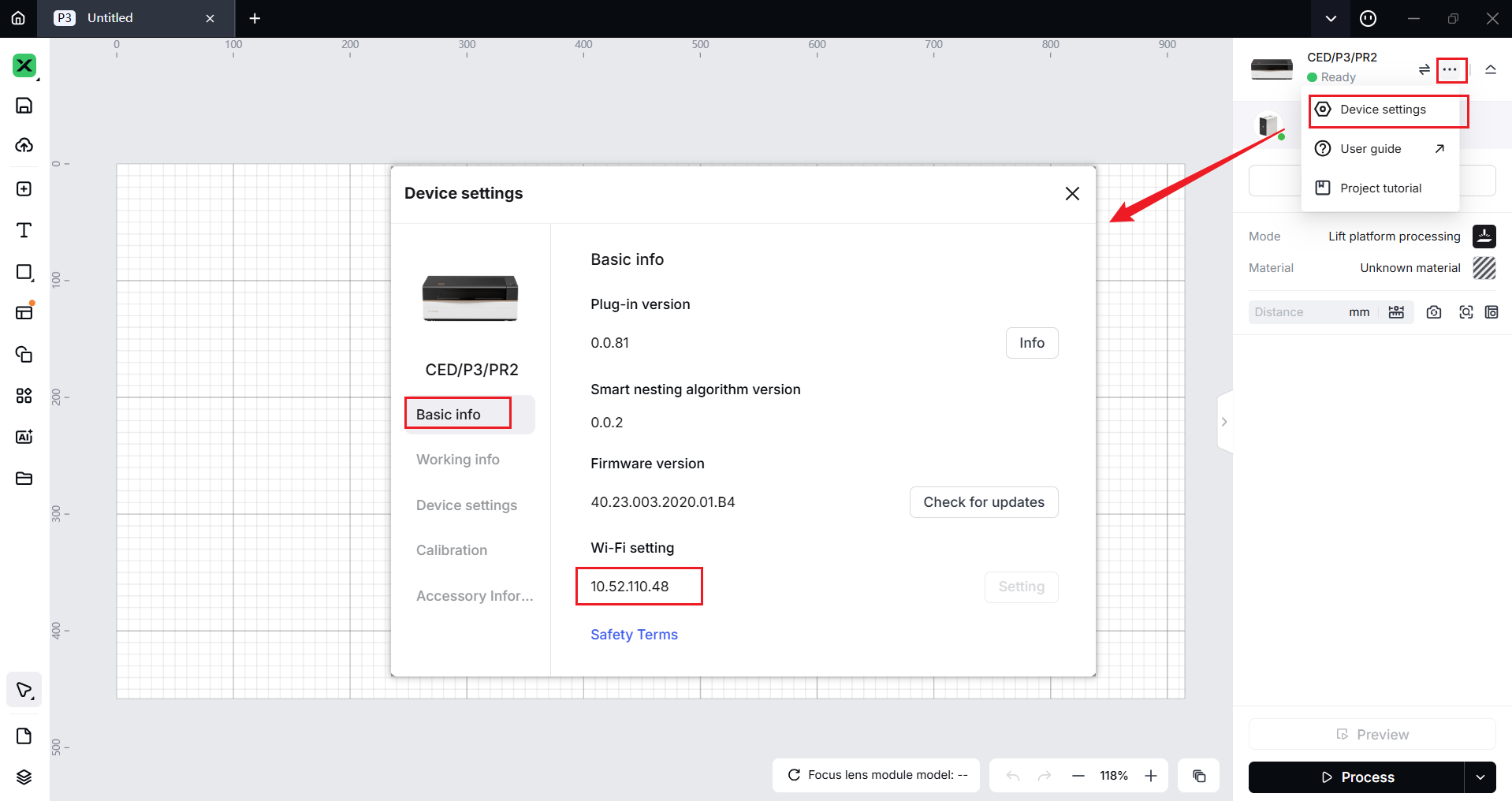
- In xTool Studio, click the three dots icon to the right of the device image.
- Select the gear icon labeled "Device settings".
- In the "Device settings" pop-up, select the "Basic info" tab.
- Scroll down to the Wi-Fi setting section.
- Copy the IP address displayed.
- If no IP address is shown: Re-configure the network connection first.
(2) Establish IP Connection
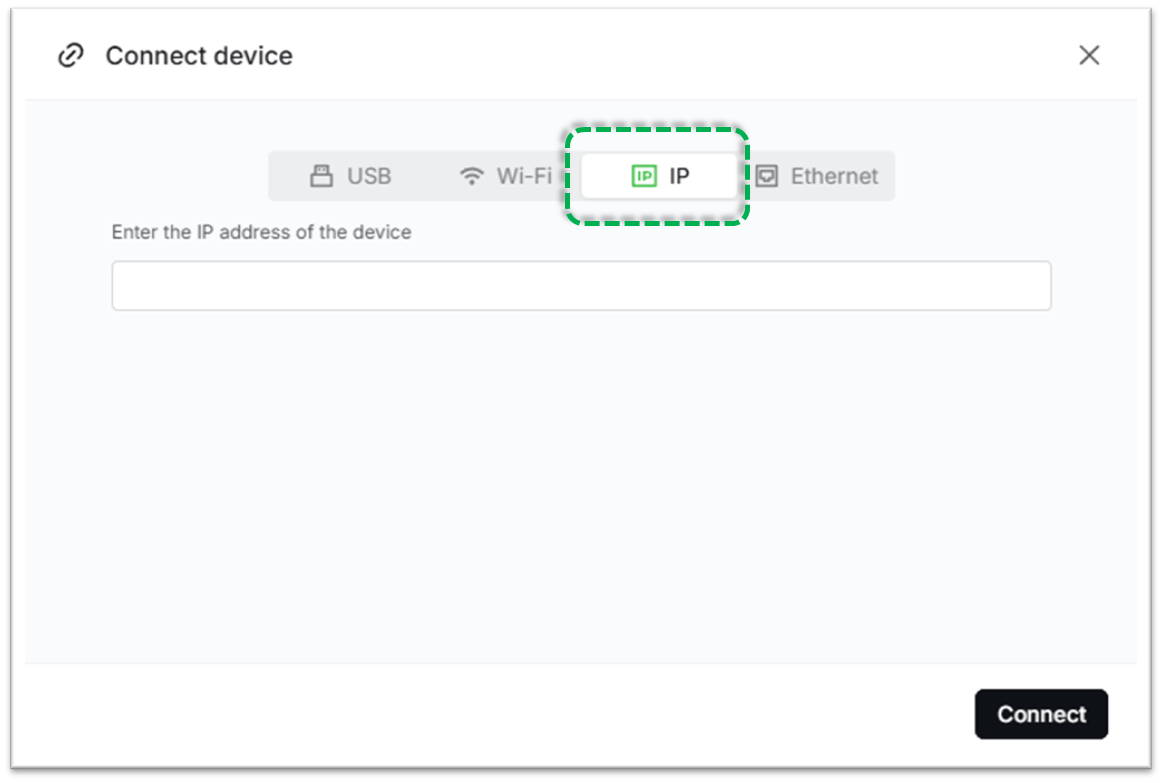
- Go to the "Connect device" window.
- Select the "IP" tab.
- Paste the IP address you copied.
- Click "Connect".
- Test if the connection is successful.
Step 6: Reset your router
As a last resort, you can try resetting your Wi-Fi router.
⚠️ Warning: Resetting the router will disconnect all devices currently connected to this network. All devices will need to be reconfigured. Confirm this is acceptable before proceeding.
Router Reset Procedure:
- Access your router's admin panel.
- Perform a factory reset or restart.
- Reconfigure your Wi-Fi network settings.
- Attempt to connect your xTool P3 again.
Still experiencing issues?
Should the issue persist after completing the preceding steps, submit a ticket via the "Submit a Ticket" button in the "Help Ticket" section below. The standard response time for xTool Customer Service is one business day.
For a prompt resolution, please include the following details:
- Issue description: A detailed explanation of the observed problem.
- Video evidence: Attach a video demonstrating the issue, where applicable.
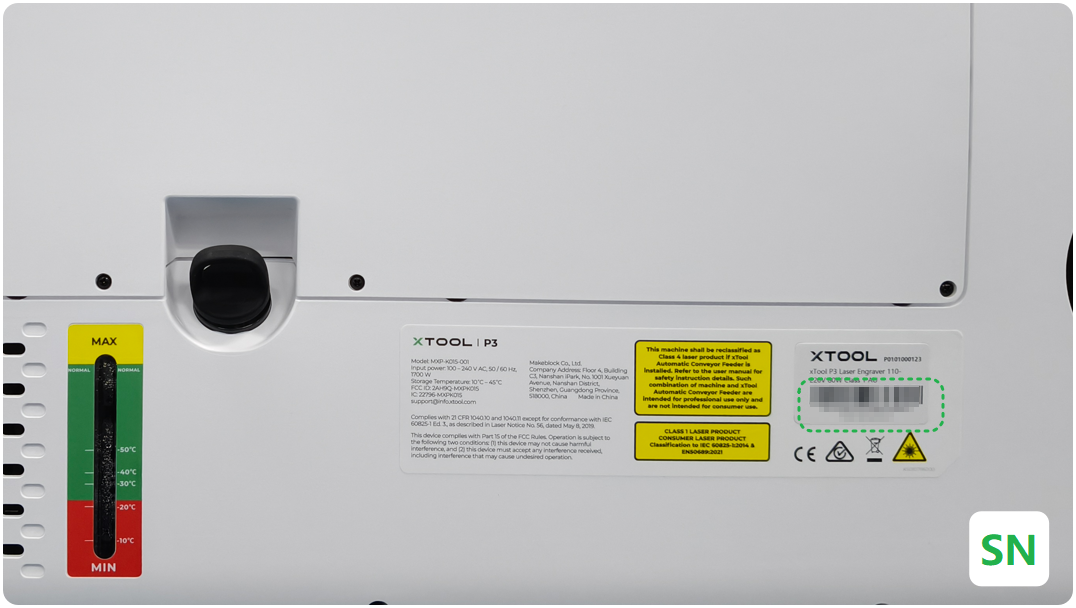
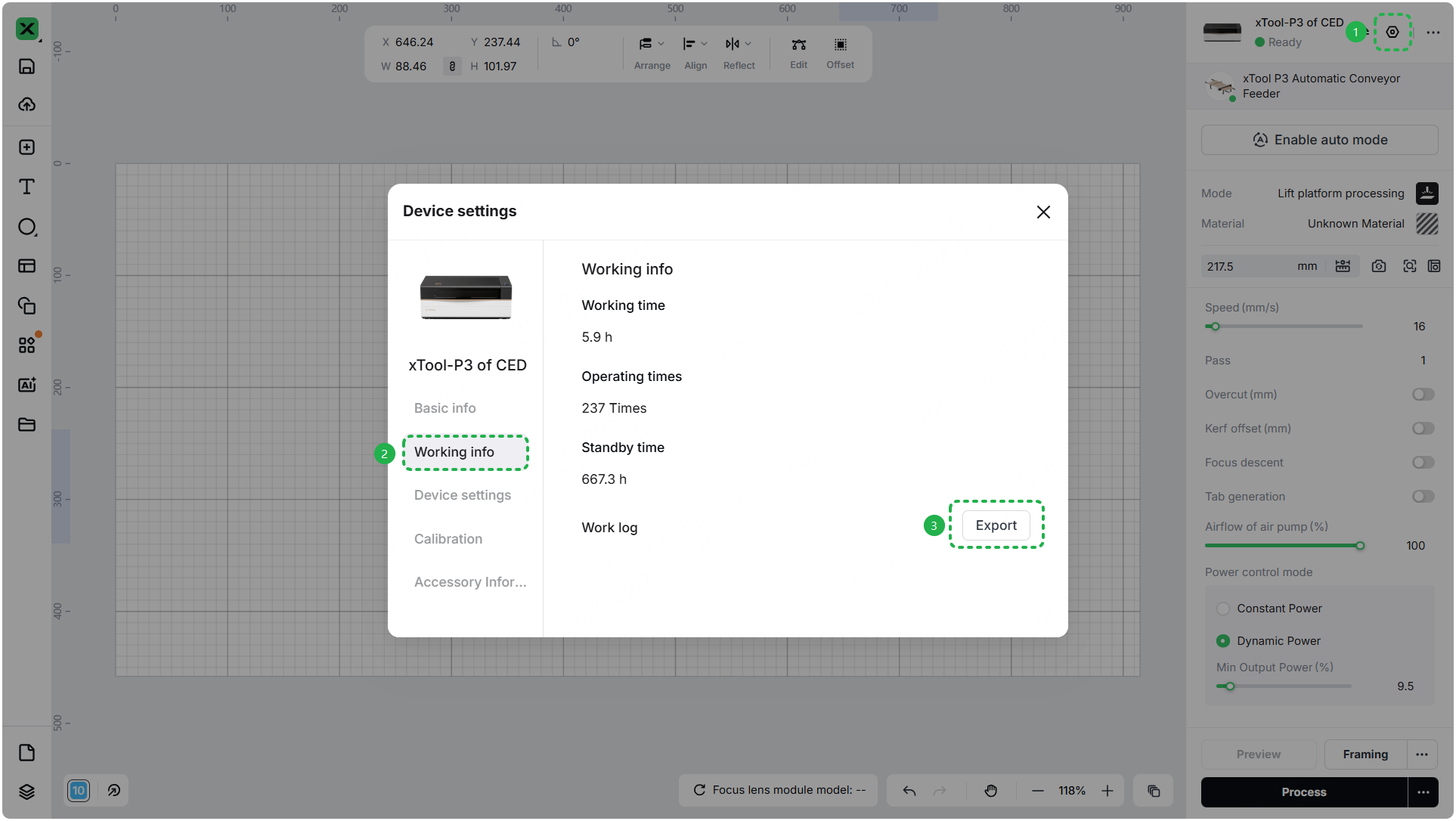
- Device information: Follow the steps to find the SN and export the work log.
- Troubleshooting performed: Any troubleshooting steps you have already attempted, along with their results.
This information is crucial for xTool technical support engineers to provide timely assistance.
Documentation feedback
Help improve this content by providing feedback. If this content did not meet your requirements, select "No" in the "Was this page helpful?" section below. Include specific details about what was unclear or missing in the pop-up suggestion box. Feedback submissions are reviewed by xTool technical writers to enhance future documentation.

Services & Help
Learn & Education

Copyright © 2025 xTool All Rights Reserved.