
Issue description
After you have connected xTool P3 to your computer via USB cable,
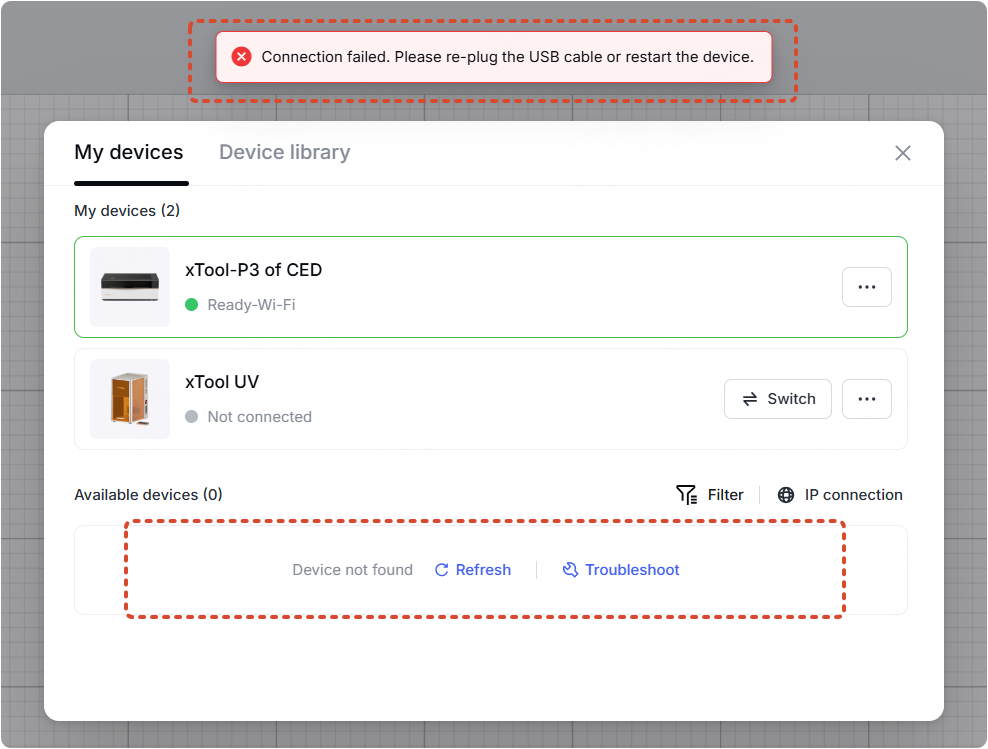
- For the first time connection: The device name does not appear in the device list under the USB connection option in xTool Studio. Even after you click the Refresh button multiple times, the system continues to display "Device not found".
- For the connected device: The software displays "Connection failed".
Potential causes
- The software version is not the latest one.
- A temporary glitch with the device or computer.
- The USB cable is glitching or not original
- The USB cable is connected to the wrong port.
- The computer does not meet the minimum system requirements.
- A firewall is blocking the USB device detection.
- A VPN is enabled.
- Local network permissions are not granted on a MacBook.
- There is an issue with the USB adapter cable.
- Communication is being disrupted.
Troubleshooting procedures
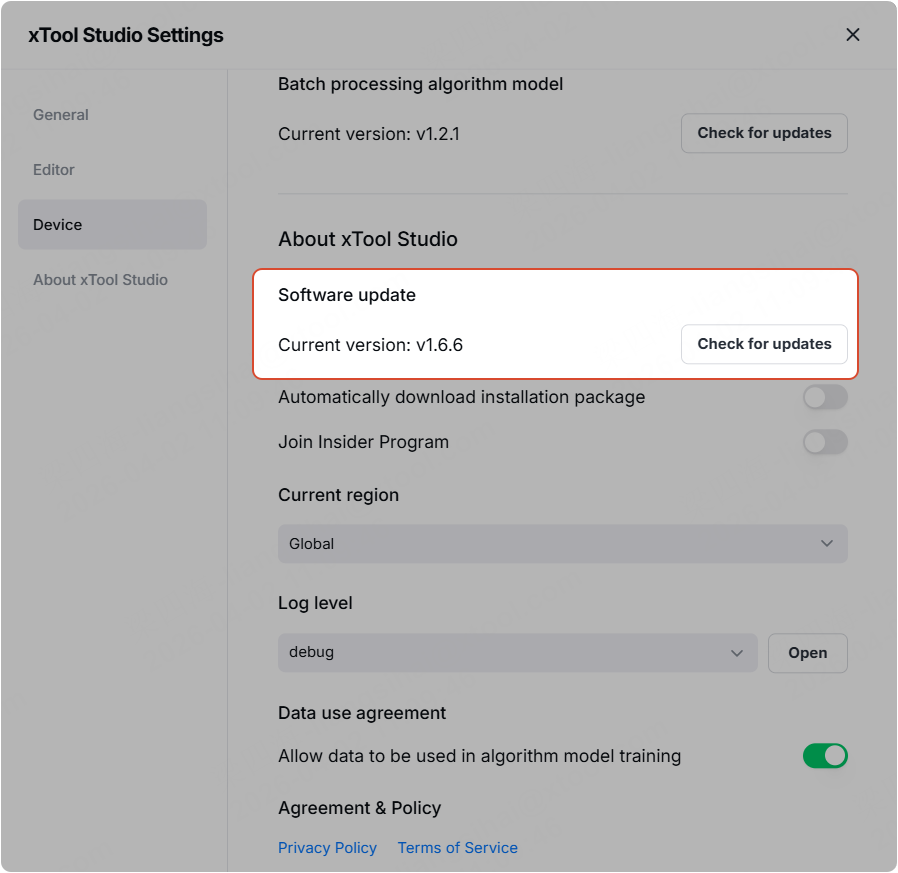
1. Check the software version
- xTool P3 does not support xTool Creative Space. To download the correct software, visit the official xTool Studio page: xTool Studio
- After updating to firmware version 007, xTool P3 supports only software version 1.58 or later.
Therefore, you need to upgrade to or download xTool Studio version 1.58 or later before processing.
2. Check the connection port
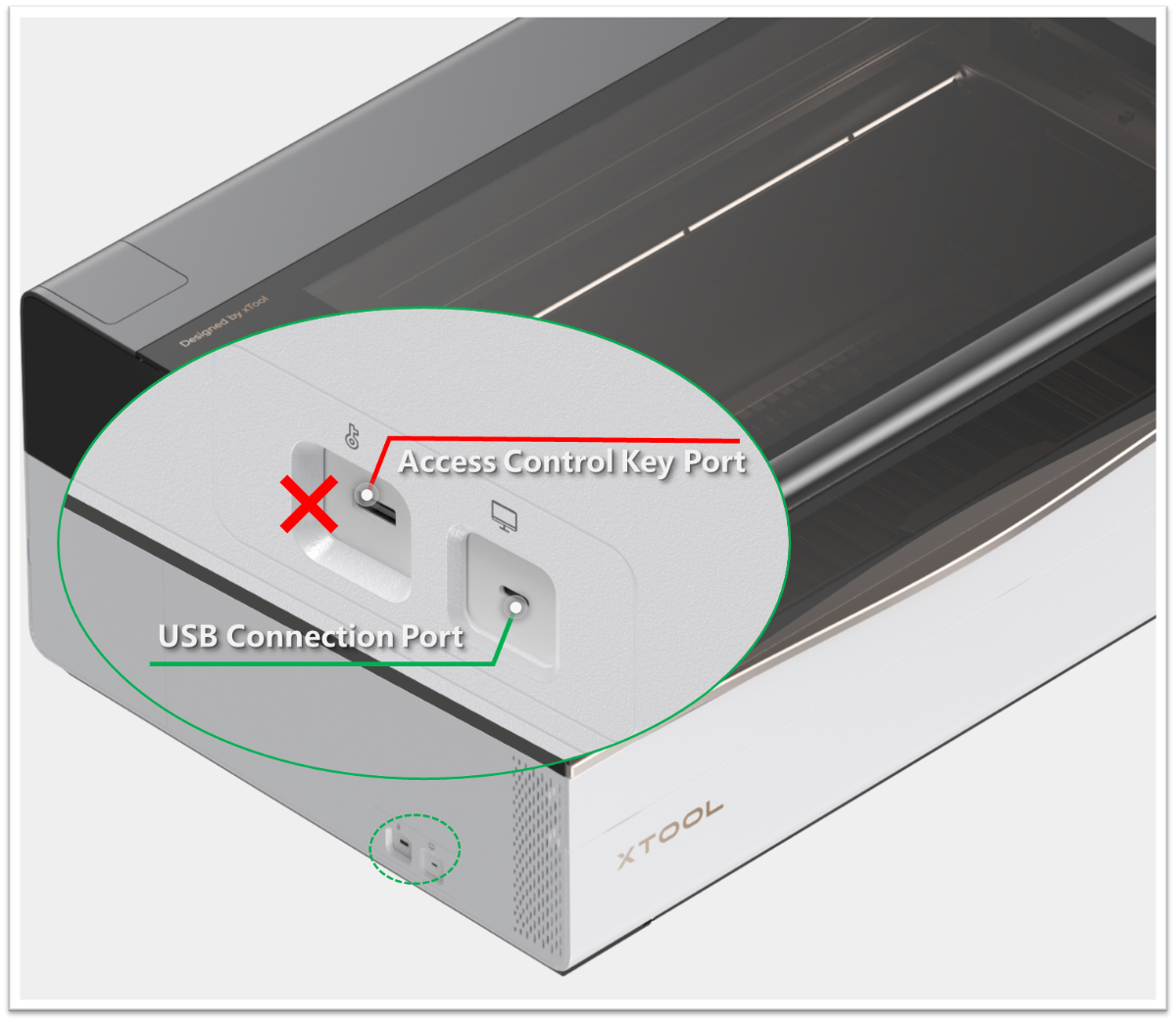
Ensure the USB cable is connected to the "USB Connection Port" and not the "Access Control Key Port".
3. Verify computer specifications
- Check if your device meets the minimum configuration requirements.
- If not, test with a different computer that meets the specifications.
💡 Note: Newly released operating system versions may occasionally have unknown compatibility issues. If you're using the latest OS version and experiencing problems, test with a different computer running a more established OS version.
System Requirements:
Item | Minimum configuration | Recommended configuration |
Processor | Intel Core i5-6200U | Intel Core i5-11600 or higher |
Operating system | Windows 10 (64-bit) | |
macOS 10.14 | macOS 10.15 or later | |
RAM | 8 GB | 16 GB or larger |
Display resolution | 1280 × 720 (pixels) | 1920 × 1080 (pixels) or higher |
Hard drive | 8 GB | 12 GB or larger |
4. Check the driver
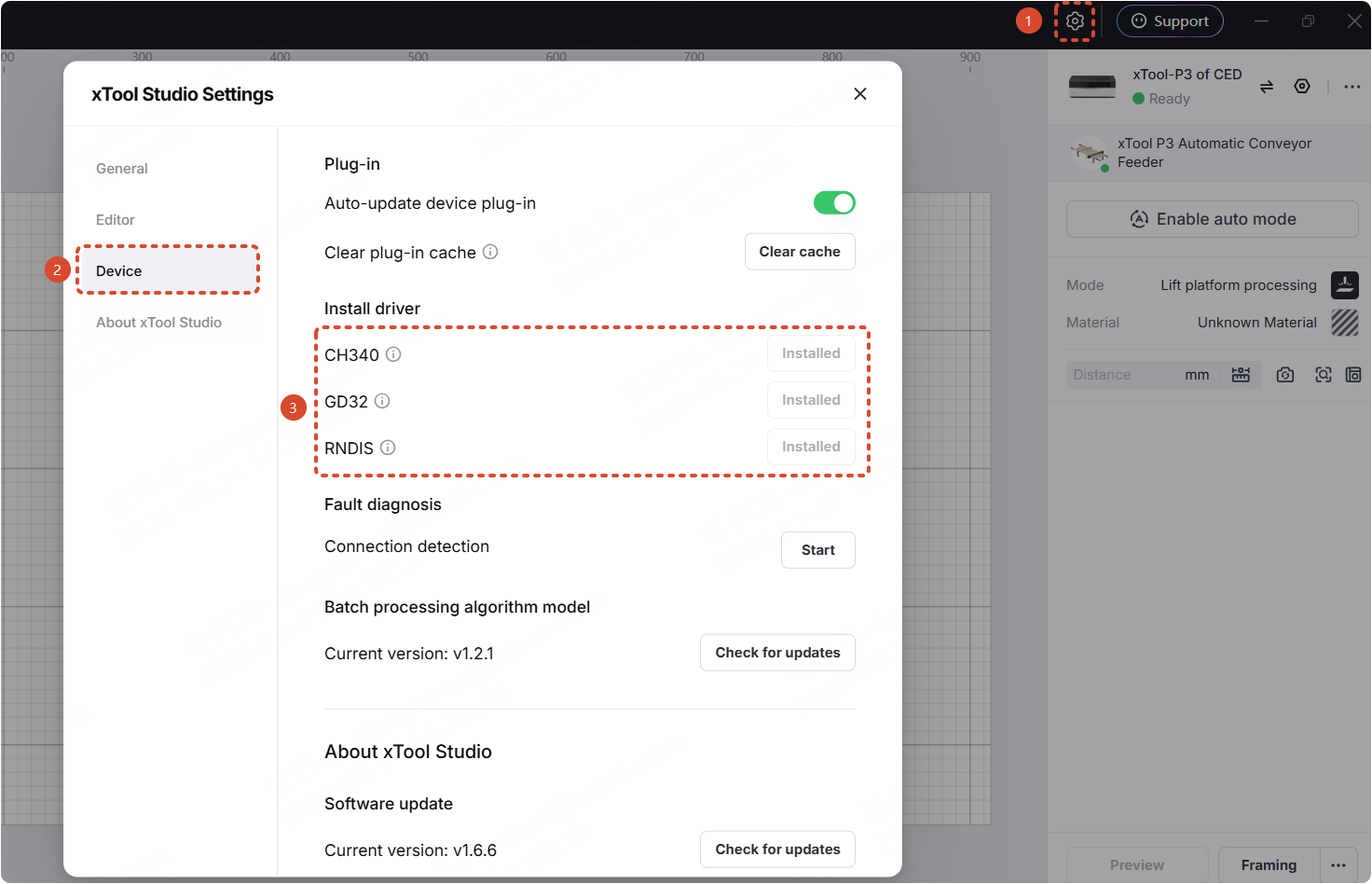
Go to the gear icon > Device > Install driver, and ensure the driver is already installed.
5. Try replugging the USB cable
Restart xTool P3 and replug the USB cable.
6. Check the length of the USB cable
It is recommended to use the original USB cable to connect the device, or a USB 3.0 communication protocol cable within 2 meters in length.
If your USB cable is too long, the cable's impedance will increase, affecting communication and causing connection failures. You can switch to a shorter cable.
7. Check the USB cable
- Connect your xTool device directly to the computer using the original data cable.
- Inspect the cable, especially the connectors, for any damage. See the image below.
- Replace if damaged, or try another cable if issues persist.
8. Perform the connection detection
(1) Connect the device to the computer via a USB cable.
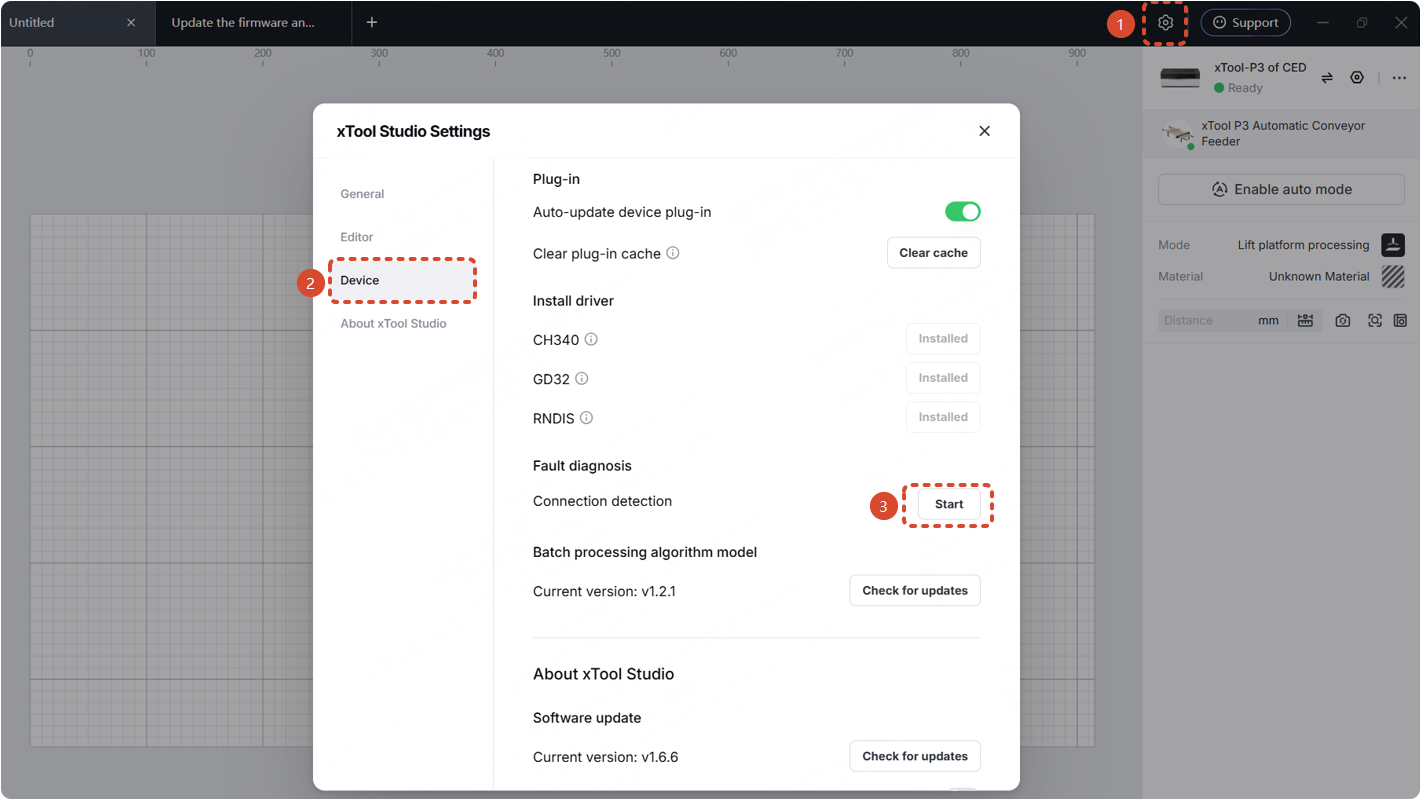
(2) Go to the gear icon > Device > Connection detection > Start. Follow the steps in the software to complete the connection detection.
9. macOS Specific: Check the local network access
- To enable local network access for xTool Studio, navigate to the Apple menu > System Settings > Privacy & Security > Local Network.
- Locate xTool Studio in the list of applications and ensure the toggle switch is turned ON to allow local network access.
10. macOS Specific: Remove network caches
The network cache is automatically created when the device reconnects to the computer.
On your macOS device, choose Apple menu > System Settings, before clicking Network in the left sidebar.
Select one network, click Delete Service to remove the network caches.
11. Connect to the main control board
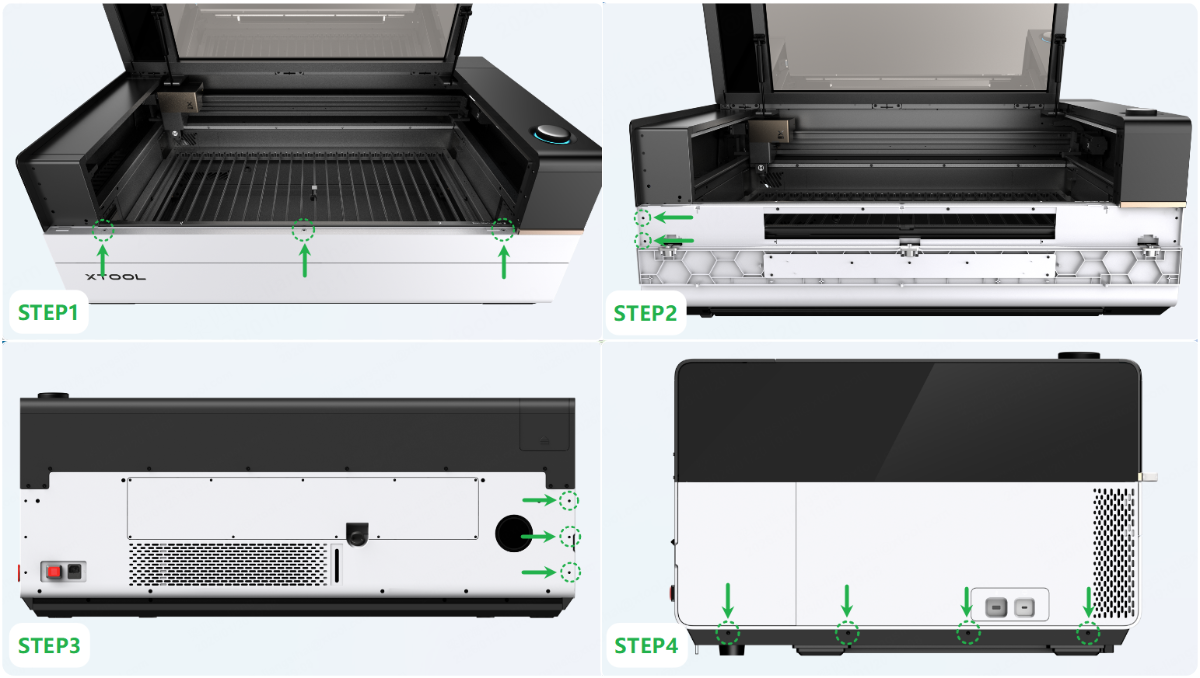
(1) Power off the device. Follow the instructions below or the tutorial to remove the left panel.
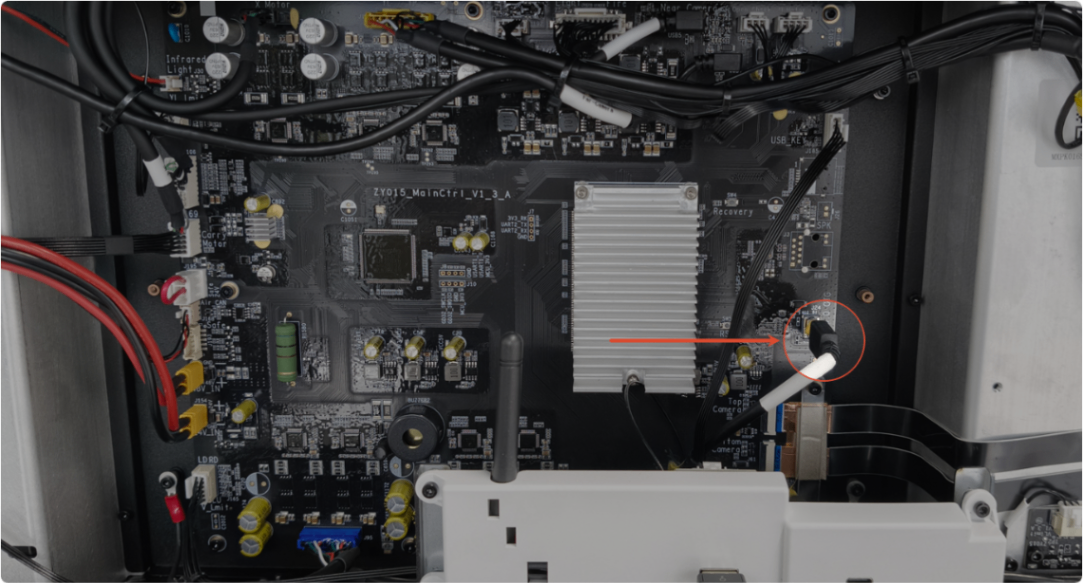
(2) Unplug the USB adapter cable and connect the main control board directly using a Type-C cable (as shown).
There may be some yellow rubber on the plug. If the connector plugs too tightly, you can use a tool to gently scrape it off before unplugging it.
12. Elevate the flex cables on the side camera
If the camera flex cable on your device has already been elevated, please check for other issues.
If you are still unable to connect the USB cable or experience frequent disconnections after plugging it directly into the main control board, please follow the video tutorial to raise the side camera flex cables.
13. Firmware occurs issues in the device
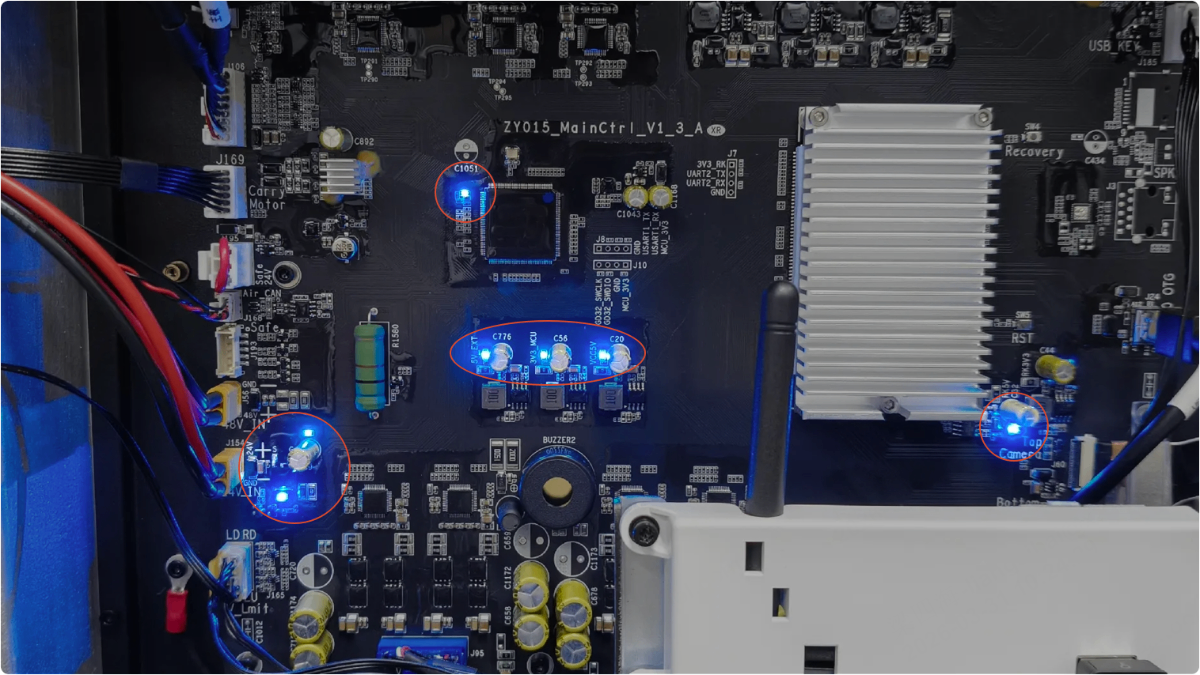
Check whether the powering on process of xTool P3 is normal, such as the laser module reset and touchscreen display. If any abnormalities occur, it may be due to a firmware issue.
Please record a video showing the issue and the main control board indicator in action, and send it to the xTool customer service team for analysis.
Still experiencing issues?
Should the issue persist after completing the preceding steps, submit a ticket via the "Submit a Ticket" button in the "Help Ticket" section below. The standard response time for xTool Customer Service is one business day.
For a prompt resolution, please include the following details:
- Issue description: A detailed explanation of the observed problem.
- Video evidence: Attach a video demonstrating the issue, where applicable.
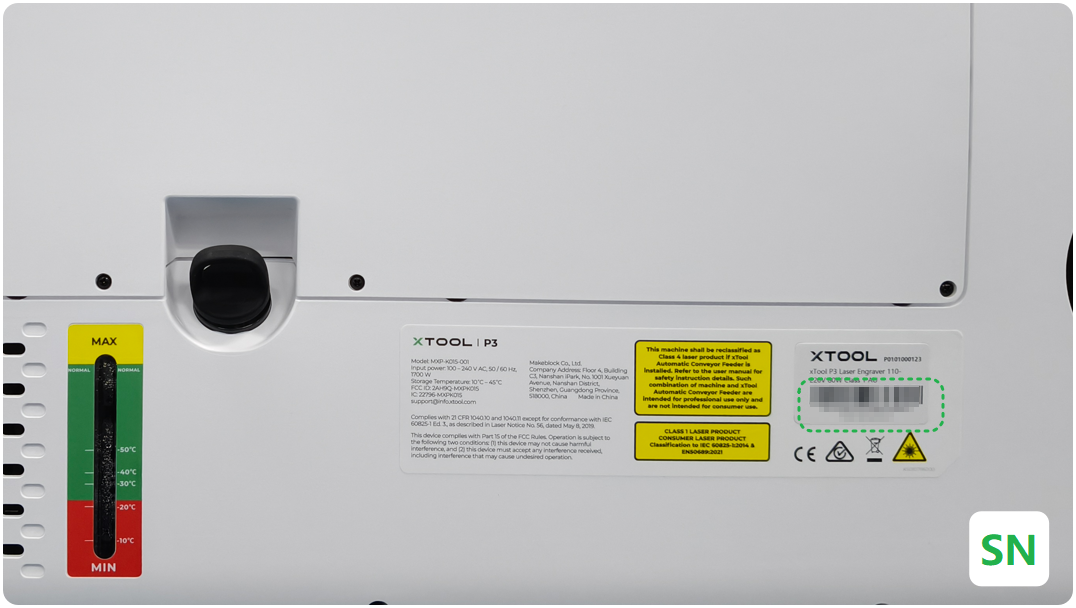
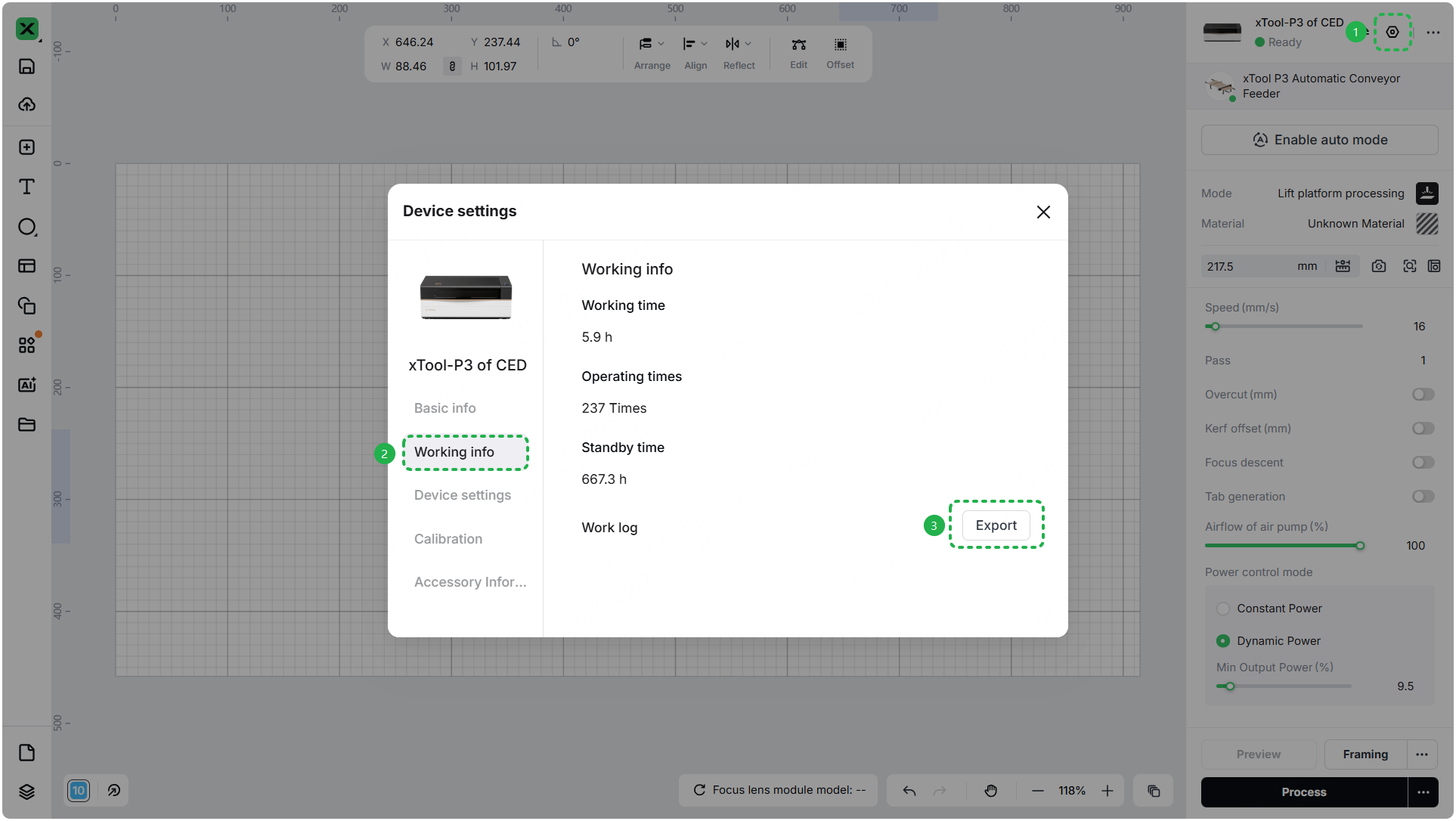
- Device information: Follow the steps to find the SN and export the work log.
- Troubleshooting performed: Any troubleshooting steps you have already attempted, along with their results.
This information is crucial for xTool technical support engineers to provide timely assistance.
Documentation feedback
Help improve this content by providing feedback. If this content did not meet your requirements, select "No" in the "Was this page helpful?" section below. Include specific details about what was unclear or missing in the pop-up suggestion box. Feedback submissions are reviewed by xTool technical writers to enhance future documentation.

