
This tutorial is about using the Material Test Array function in xTool Studio. This efficient feature enables you to generate an automatic test array for your design patterns (available for both bitmap and vector files). This way, you can improve your material testing efficiency and have a more intuitive understanding of the effects of different parameters on your final product.
To begin, make sure your machine is connected before running the material test array. This is important to validate the results for your specific device.
Step 1
Create an element or import a design file (Both vector and bitmap files are supported for testing).
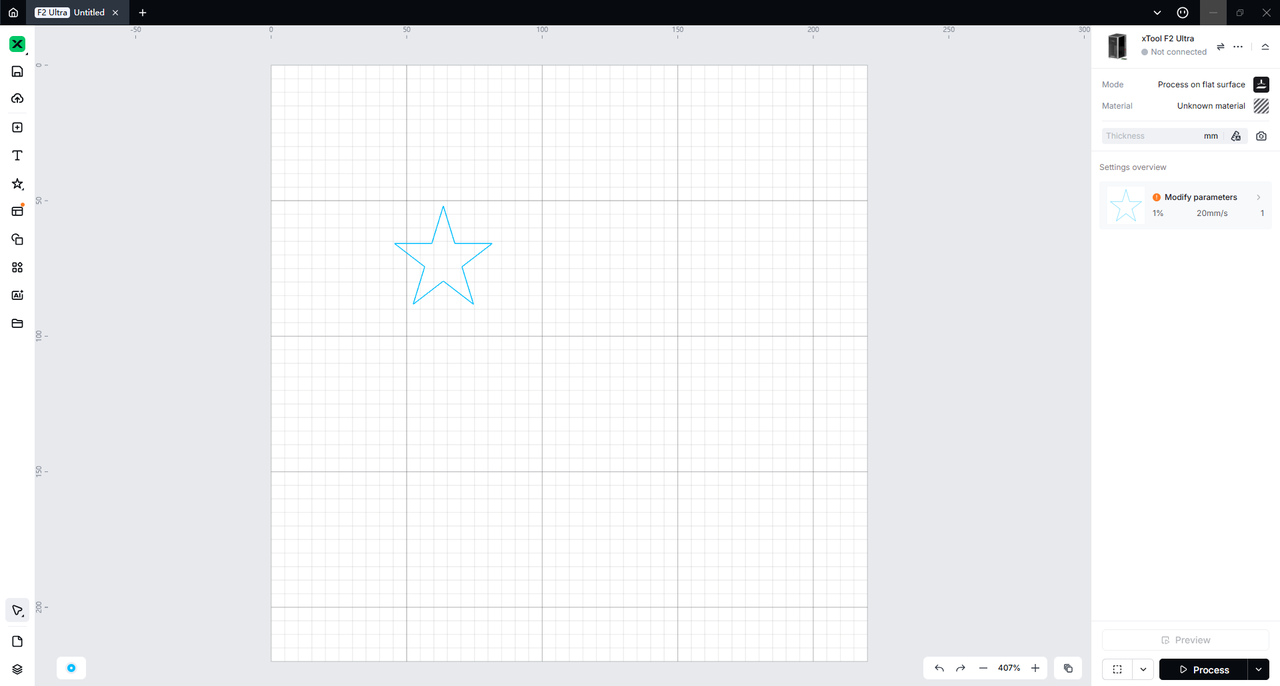
Step 2
Set the processing type and all the related parameters. These settings will become the default value of the material test array.
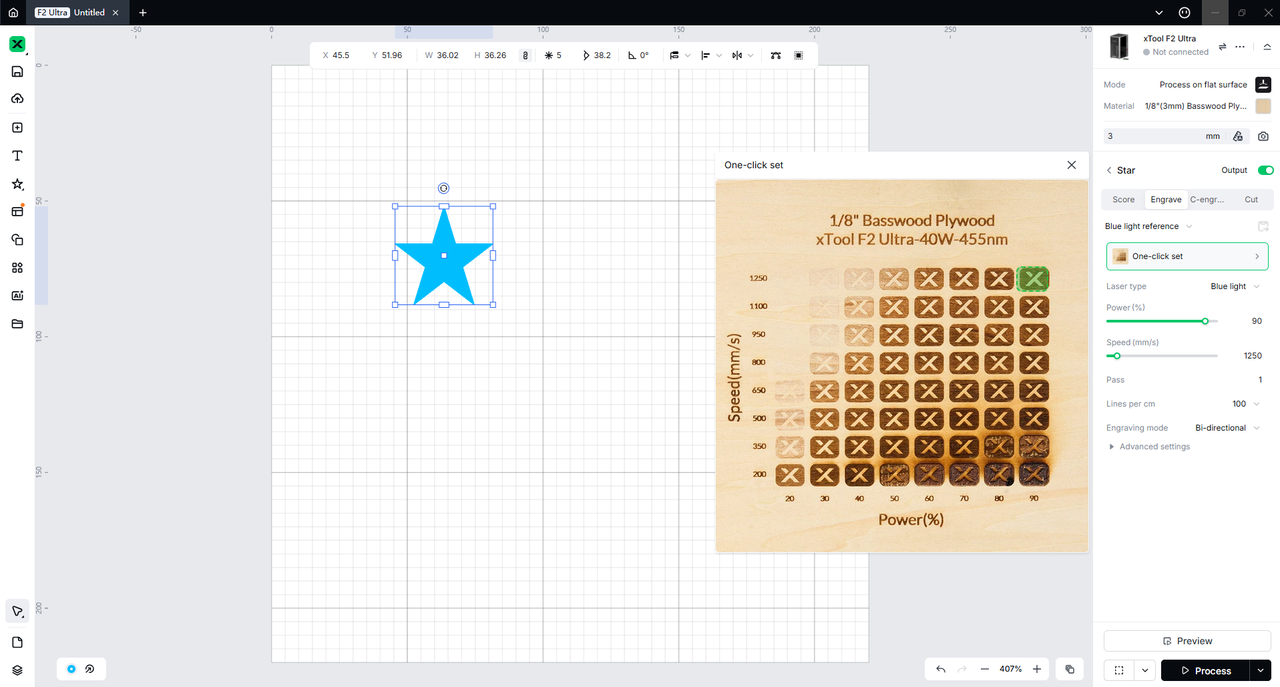
Step 3
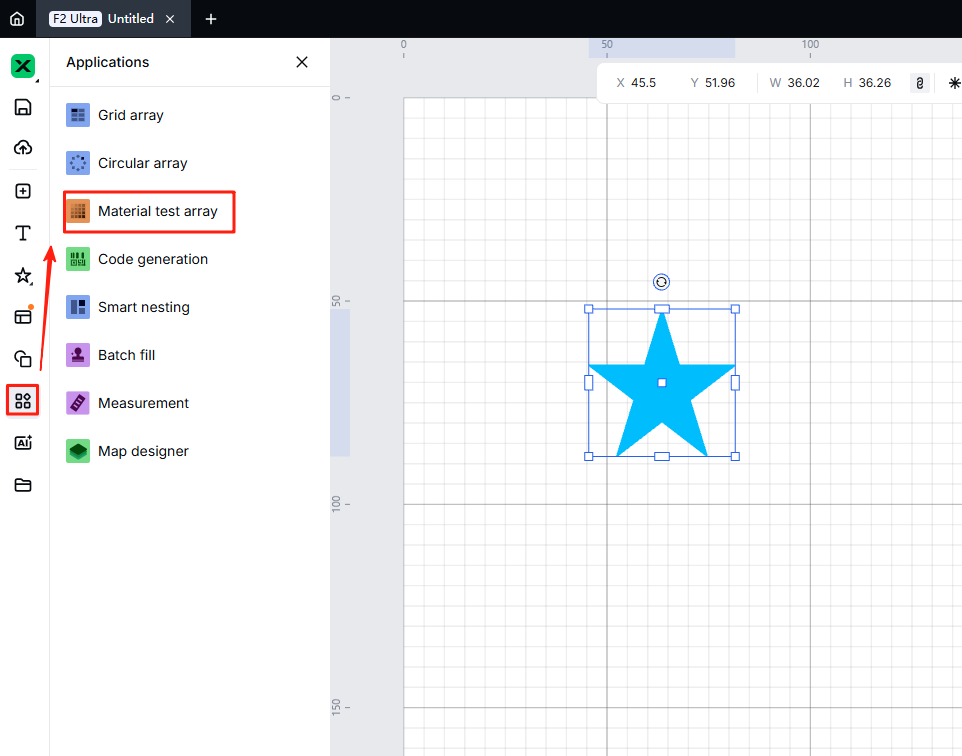
Select the element, navigate to the left bar, click “Applications”, and select "Material Test Array".
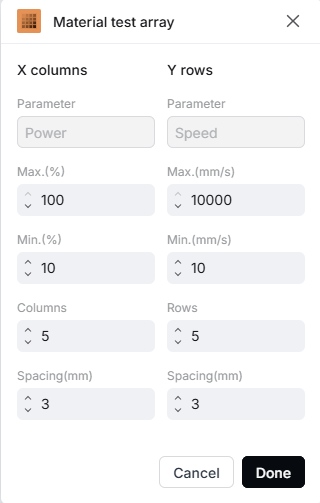
Next, you will see a pop-up setting panel as shown below. While the current table carries default values, feel free to change power and speed according to your project's needs.
- The X columns represent power; here, you can set the maximum and minimum power, the number of columns in the array, and the spacing between columns.
- The Y rows represent speed, and similarly, you can set the maximum and minimum values, number of rows, and spacing between rows.
Step 4
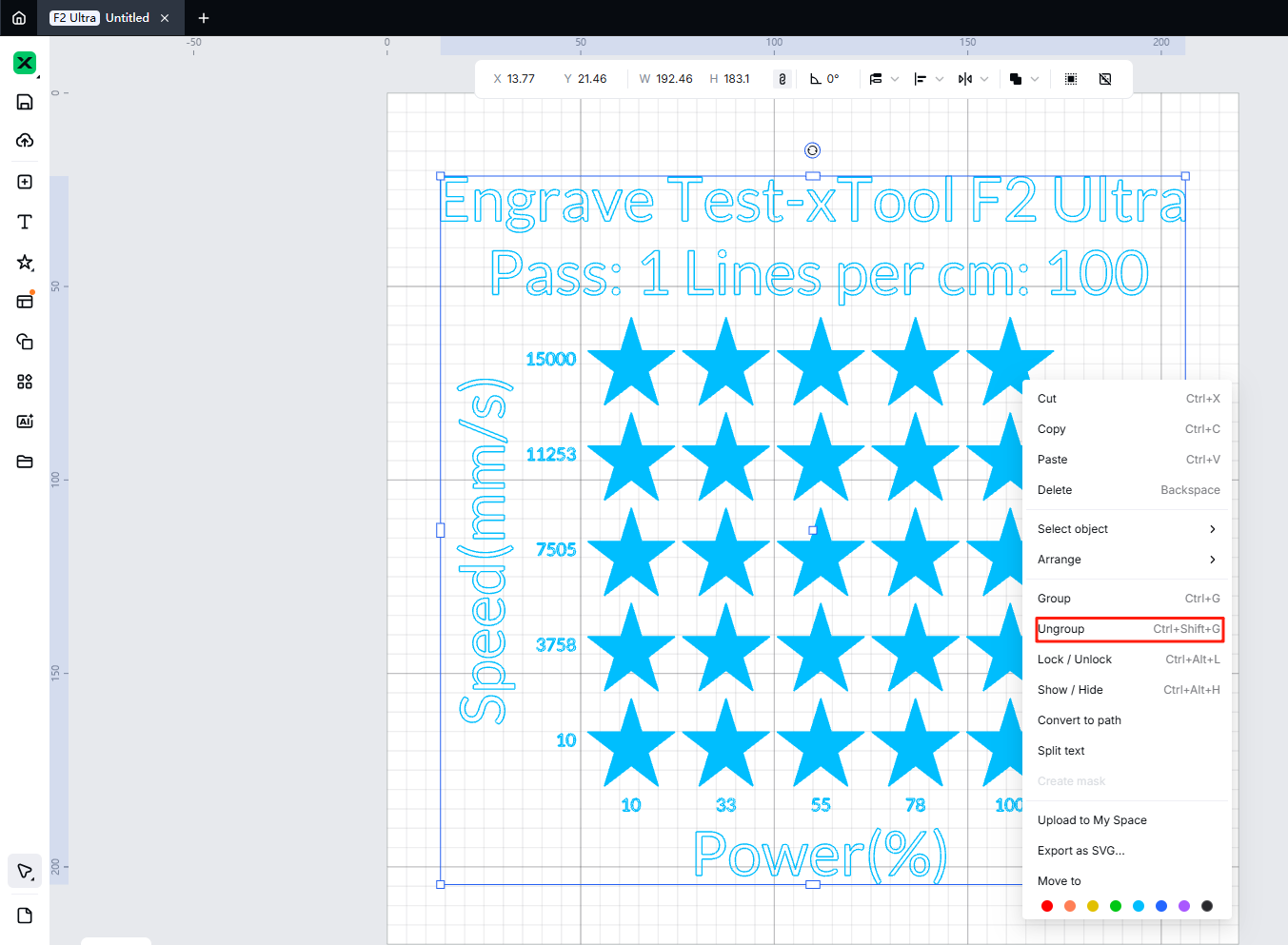
Click 'Done' to generate a test array on the canvas. This array is based on your parameter settings with an equal difference value for each element. The testing array is grouped automatically, but you can adjust each element individually by ungrouping it.
Reminders:
Please be aware that if there are too few elements, the coordinate number or title might overlap. To resolve this issue, simply adjust the size or change the title.
When setting parameters, referring to the recommended parameters for your machine and specific material is important. If the parameters are extremely high or low, you may cause fire when processing. Also, Please watch the machine when processing.

