
Issue description
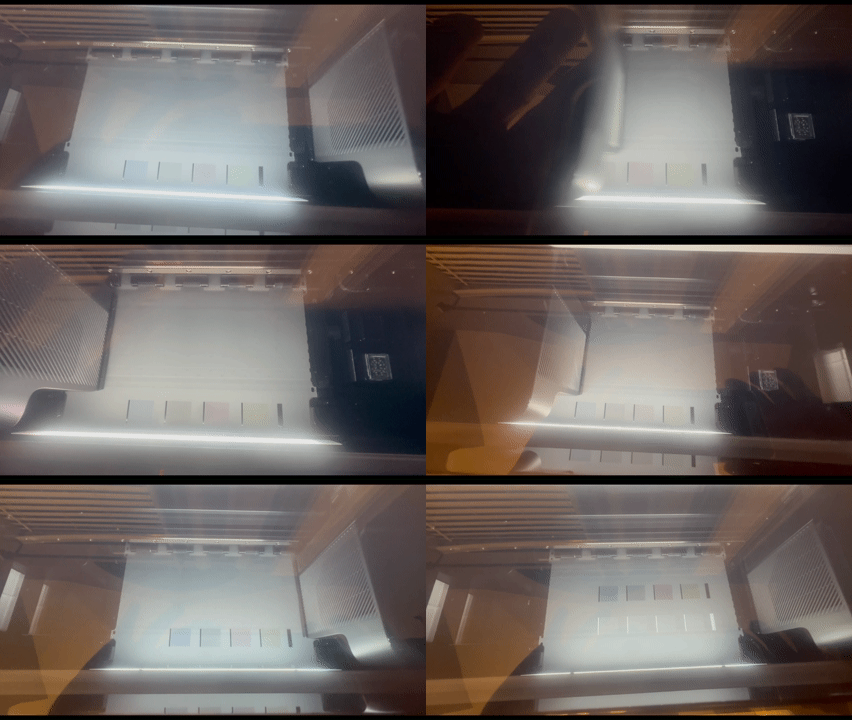
When the printer performs a cutting operation, the mechanism moves as expected, but it fails to cut completely through the PET film. Instead, it only leaves a score mark or a partial cut on the film. Refer to the image below for more details.
Possible causes
- Damaged blade module (most common cause);
- Blade not extending properly during the cutting operation;
- Blade wear from extended use after thousands of cutting cycles;
Diagnostic approach
- For recently purchased printers: Focus on hardware issues (damaged blade module housing or blade extension issues).
- For printers with extensive use: Consider blade wear as the primary cause, especially if cutting was previously normal.
Troubleshooting steps
Step 1: Check cutting cycle count
Skip this step if your printer is newly purchased.
If your machine has been in service for a significant amount of time, the blade may be dull.
Access cutting statistics:
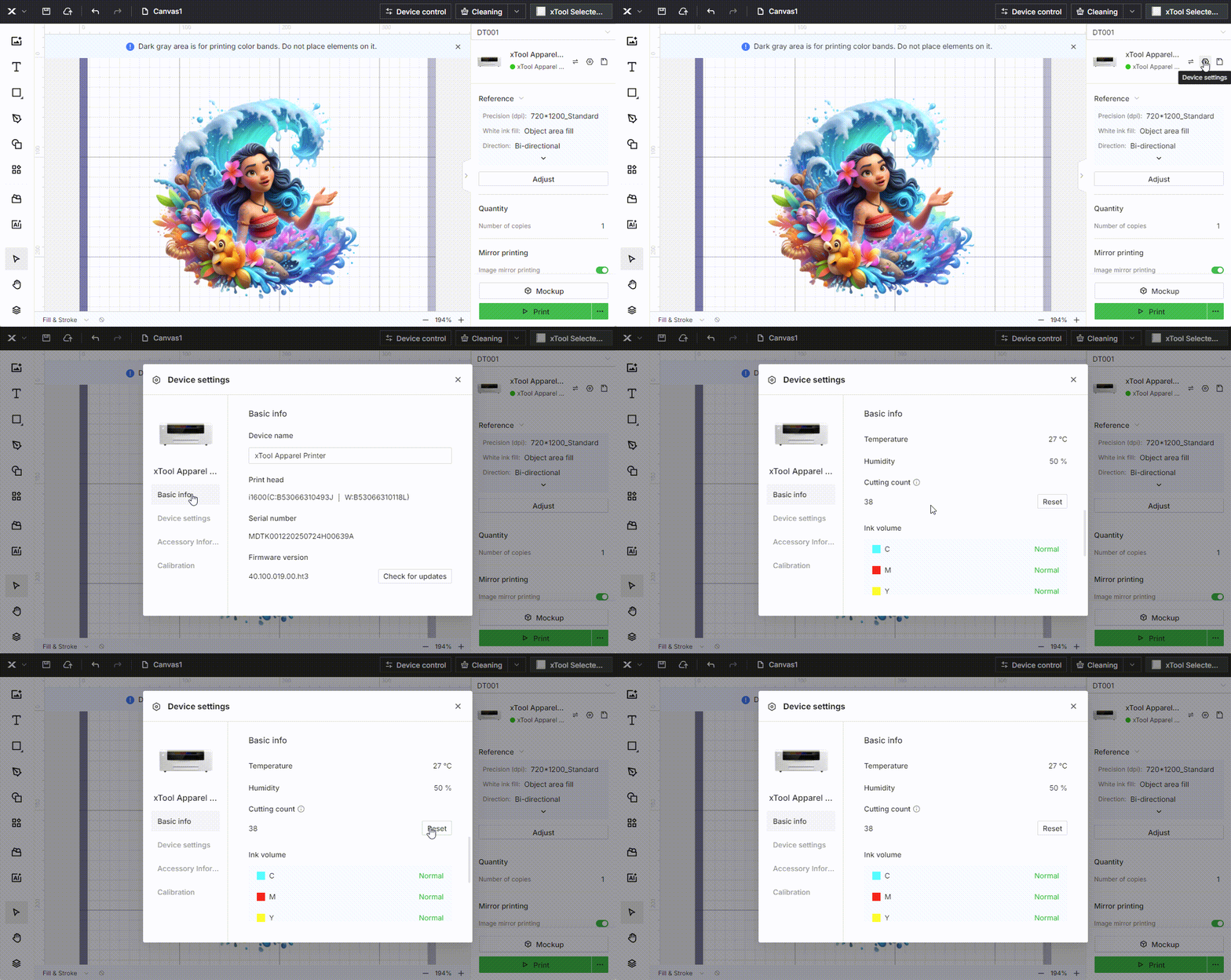
- Navigate to Device settings in xTool Creative Space (XCS).
- Select "Basic info".
- Scroll down to view the total Cutting count.
Interpretation:
- 10,000+ cutting cycles: Blade replacement is likely needed due to normal wear.
- If the blade module replacement is needed: Contact xTool Customer Service for a replacement and installation guidance.
- Fewer cycles with recent purchase: Continue to Step 2 for hardware inspection.
Step 2: Inspect blade module
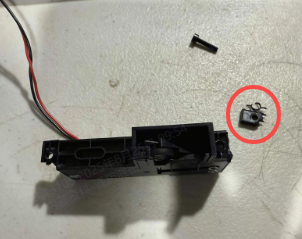
A crack or damage to the blade module's housing can prevent the blade from applying the correct pressure.
- Carefully remove the cutting module from the printer. For detailed instructions, please refer to the video guide: Replace the Cutting Blade for xTool Apparel Printer
- Visual inspection checklist:
- Housing integrity: Look for cracks or breaks in the blade module housing.
- Common damage area: Screw mounting points are particularly susceptible to cracking.
- Overall assembly condition: Check for any visible deformation or damage.
- If housing damage is found:
- Contact xTool Customer Service immediately for a replacement.
- Include photos of the damage when contacting support.
- If there is no visible damage: Continue to Step 3.
Step 3: Test cutting performance
This step helps determine if the issue is consistent, which may indicate a problem with the internal spring mechanism.
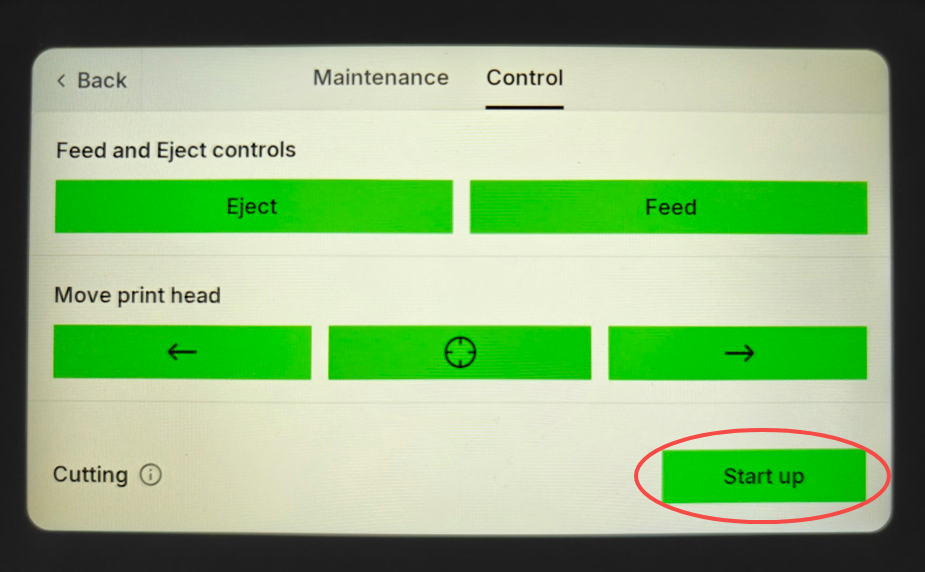
- From the printer's control panel, run the cutting function multiple times.
- Menu Path: Maintenance > Control > Cutting.
- If the blade consistently fails to cut through the film, this could be due to a spring failure inside the blade module. Please contact xTool Customer Service to request a replacement module.
- If the issue is intermittent (it cuts correctly sometimes but fails at other times), continue to monitor its performance. However, if the problem reappears, it is still recommended to contact xTool Customer Service for a replacement module to ensure reliable operation.
Still experiencing issues?
Should the issue persist after completing the preceding steps, submit a ticket via the "Submit a Ticket" button in the "Help Ticket" section below. The standard response time for xTool Customer Service is one business day.
For a prompt resolution, please include the following details:
- Issue description: A detailed explanation of the observed problem.
- Video evidence: Attach a video demonstrating the issue, where applicable.
- Troubleshooting performed: Any troubleshooting steps you have already attempted, along with their results.
This information is crucial for xTool technical support engineers to provide timely assistance.
Documentation feedback
Help improve this content by providing feedback. If this content did not meet your requirements, select "No" in the "Was this page helpful?" section below. Include specific details about what was unclear or missing in the pop-up suggestion box. Feedback submissions are reviewed by xTool technical writers to enhance future documentation.

Services & Help
Learn & Education

Copyright © 2025 xTool All Rights Reserved.