
1. Materials and Equipment
1.1 Materials Used
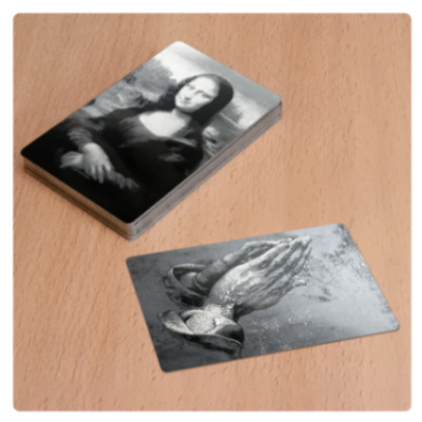
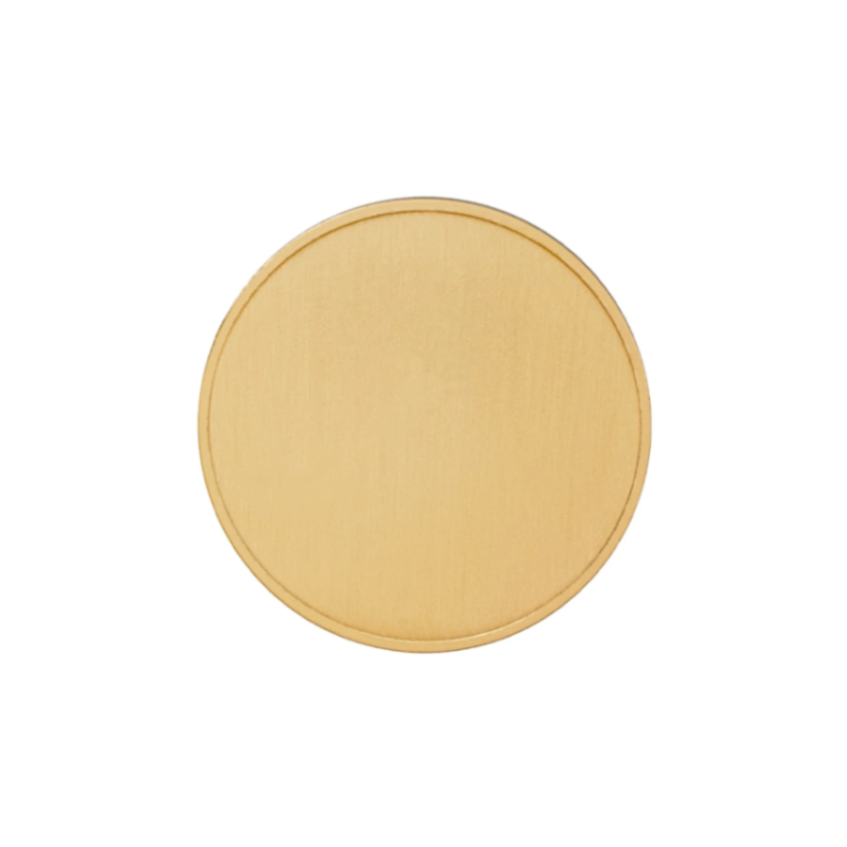
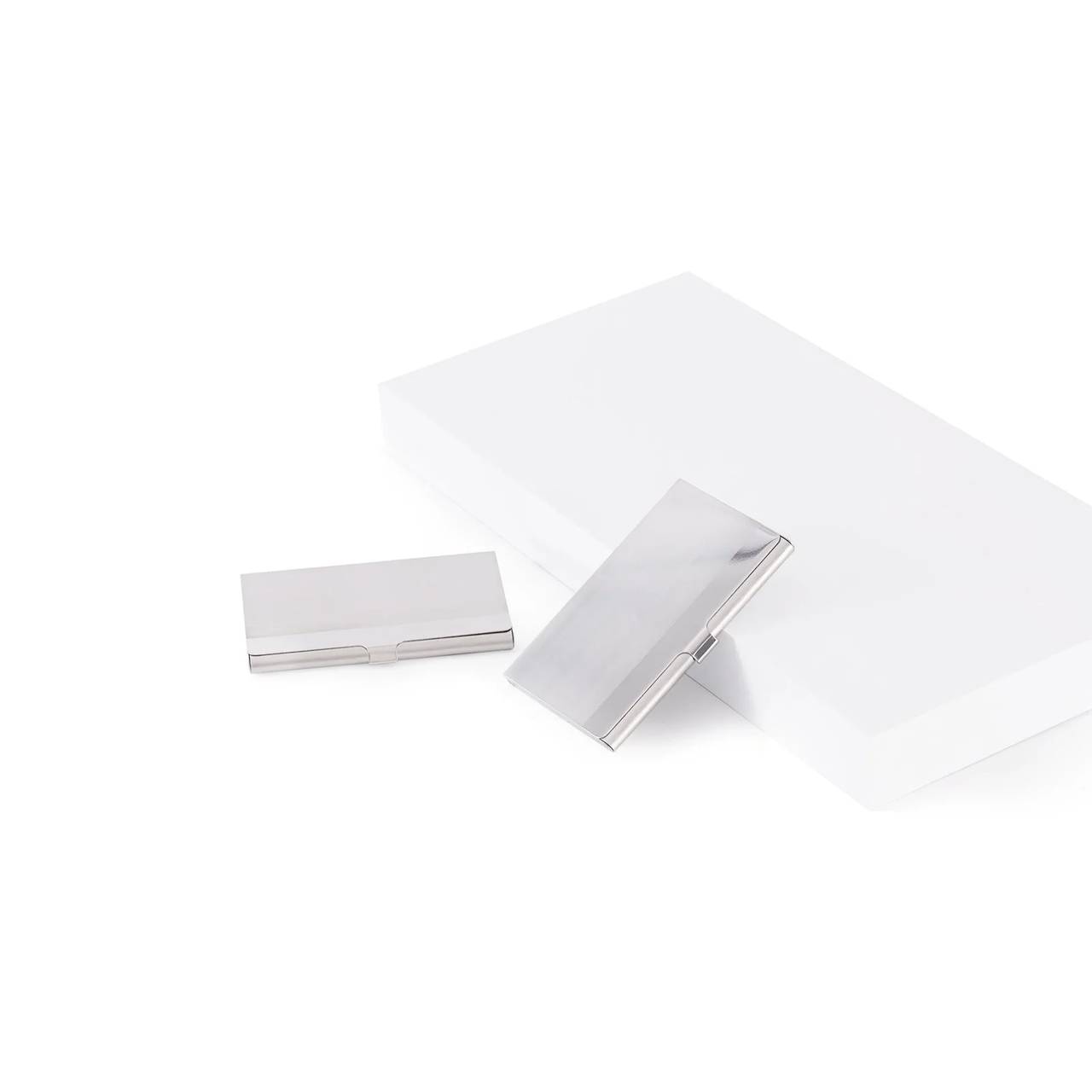
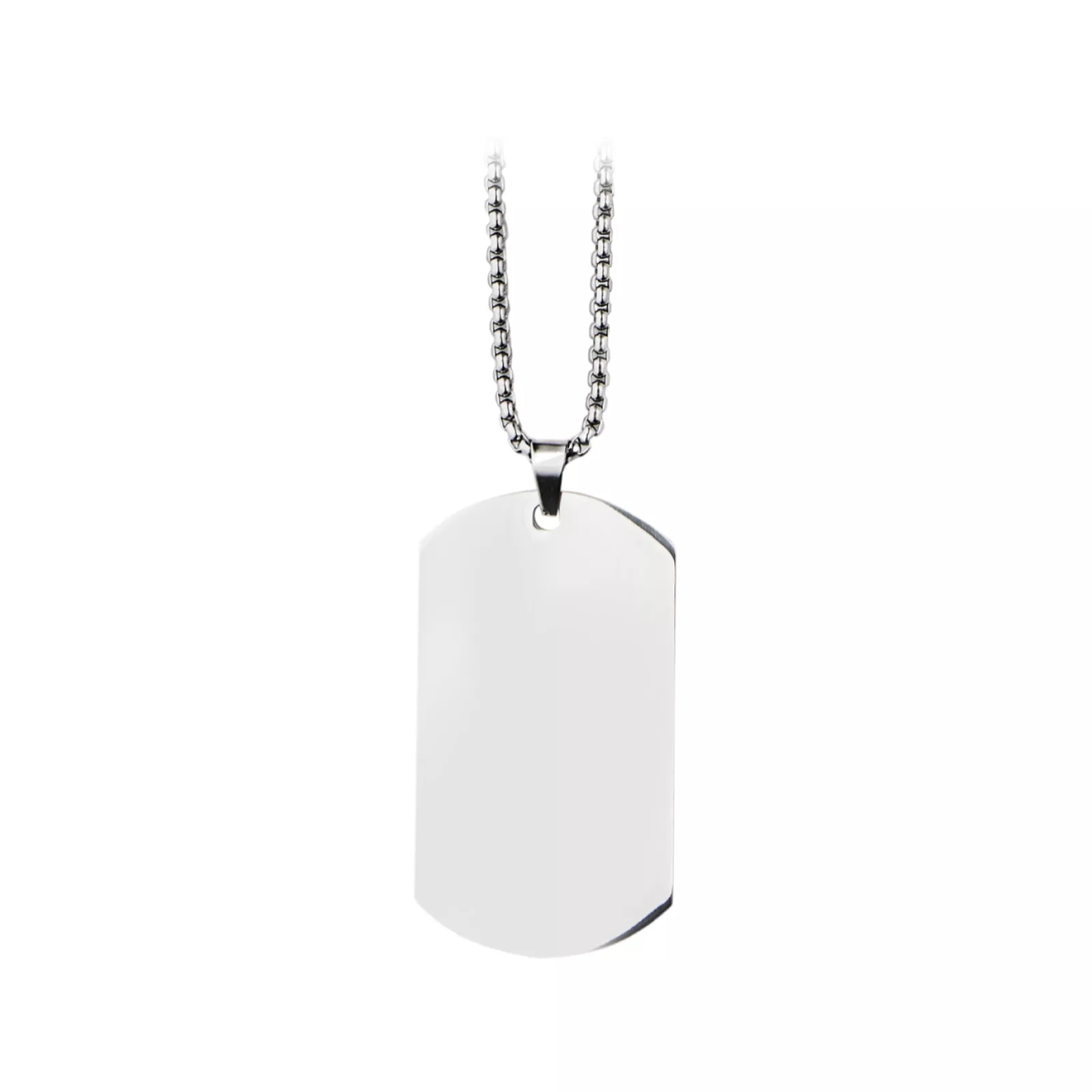
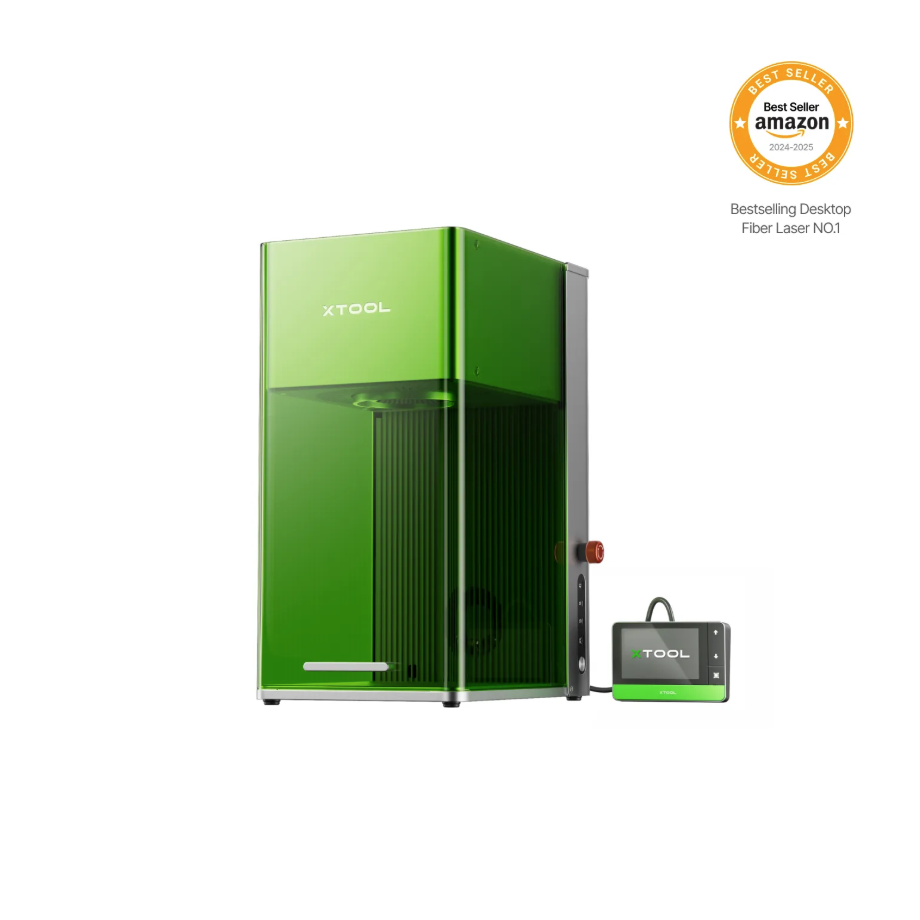
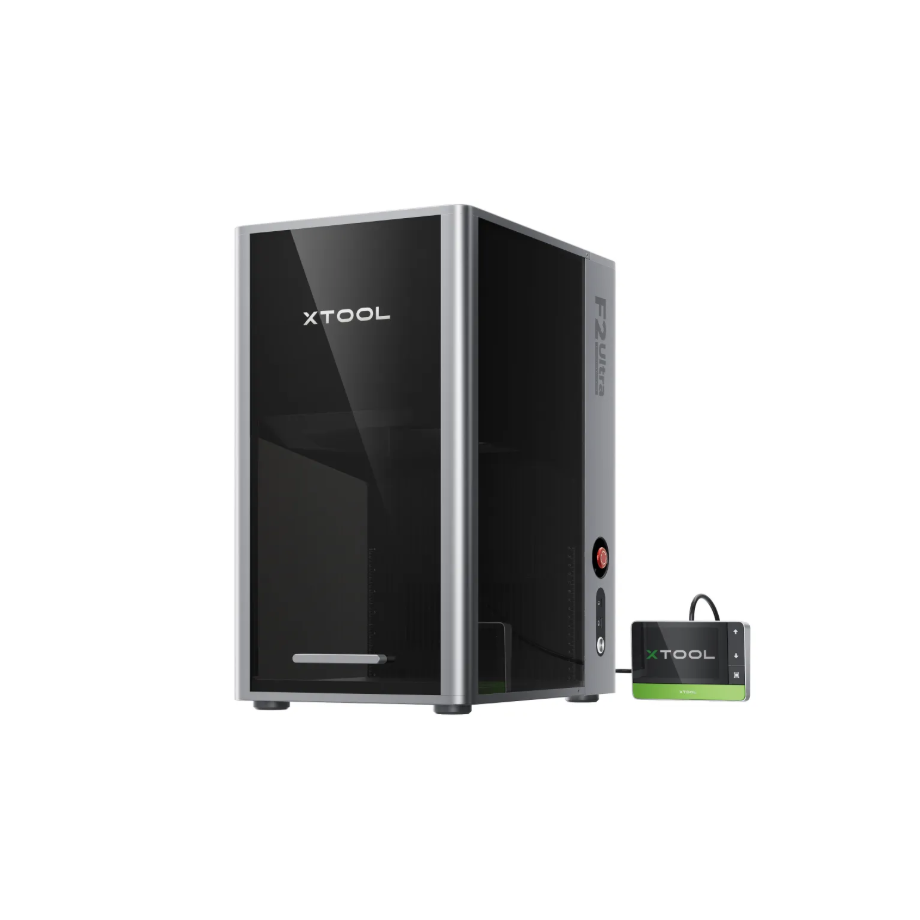
1.2 Adaptation of Processing Equipment
Adapted Processing Mode: batch processing
1.3 Use of Accessories

2. Preparation Before Processing
2.1 Glossy Reflective Material
Glossy reflective materials can interfere with the camera’s capture of the material, thereby affecting the software’s ability to recognize its contours. Therefore, when placing glossy reflective materials, attention should be paid to the impact of lighting on the material. If, after shooting, the material’s contours are unclear, please move the material to another location and shoot again.
2.2 Wearing Protective Equipment
Protective mask: filters dust and odors.
Laser Safety Goggles: Appropriate laser wavelength safety goggles must be worn to prevent laser-induced injury to the human body.
Protective gloves: Prevent scratches when handling metal materials, and also avoid burns when picking up materials after metal processing.
Smoke Air Purifier: Handles dust and exhaust gases generated during processing.
2.3 Prepare the Test Environment
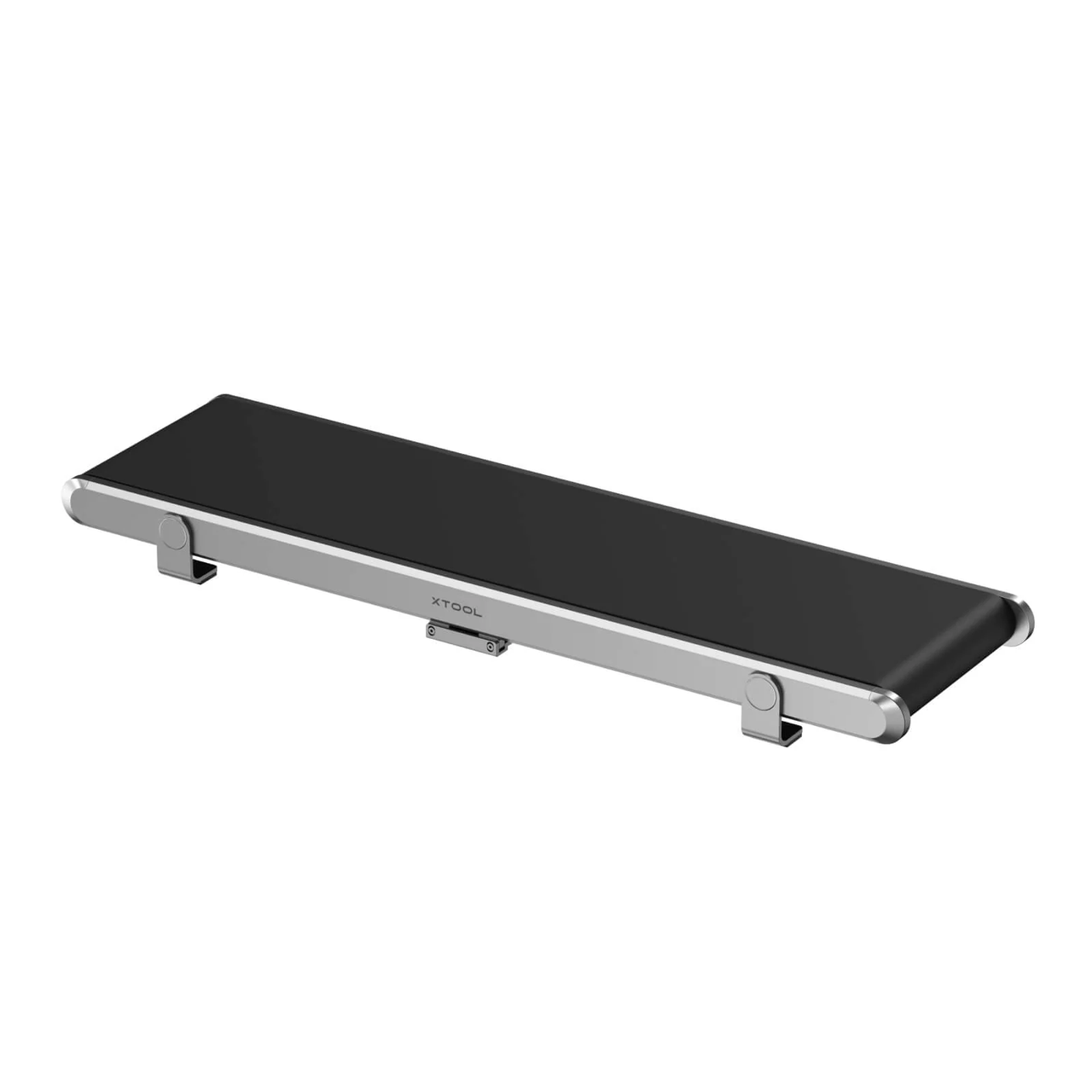
To install the Auto Streamline™ Conveyor, refer to the Equipment Guide.
2.4 Use batch processing
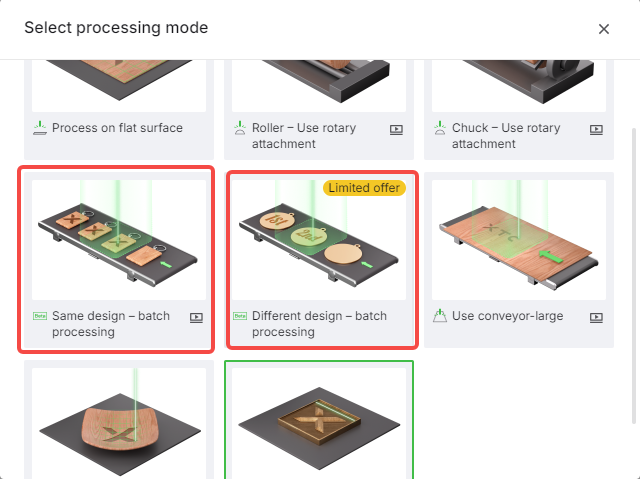
Batch processing
3. Common Issues and Solutions
3.1 Auto Streamline™ Conveyor Placement and Installation Orientation
For the placement and installation of the corresponding Auto Streamline™ Conveyor models, please refer to the equipment User Instruction Manual.
3.2 Material transportation beyond the processing area
The Auto Streamline™ Conveyor moves a fixed distance each time, so you need to place the material as close to the center as possible to prevent it from going beyond the processing area.
3.3 Graphic processing position error on the material
The material position is detected from the captured image of the processing area by the camera device, based on the material's outer contour you select. Please do not stack materials to avoid affecting automatic recognition.
3.4 Material Unidentifiable
Please use flat materials, as non-flat materials may interfere with the software's ability to detect the outer contour.
Reflective materials can interfere with camera shooting, so pay attention to positioning when using reflective materials.
Please ensure that the selected material size does not exceed the equipment's processing range. If it exceeds the range, the software will be unable to detect the material's outer contour and processing will not be possible.
3.5 Placement of Materials
When placing materials, do not stack them. Leave a certain distance between materials to avoid errors in detecting outer contours.
When placing materials, try to position them in the central area as much as possible to avoid poor processing results on the edges.

Services & Help
Learn & Education

Copyright © 2025 xTool All Rights Reserved.