This page describes how to operate an xTool device with the new version of xTool Studio(Studio).
UI navigation
Homepage
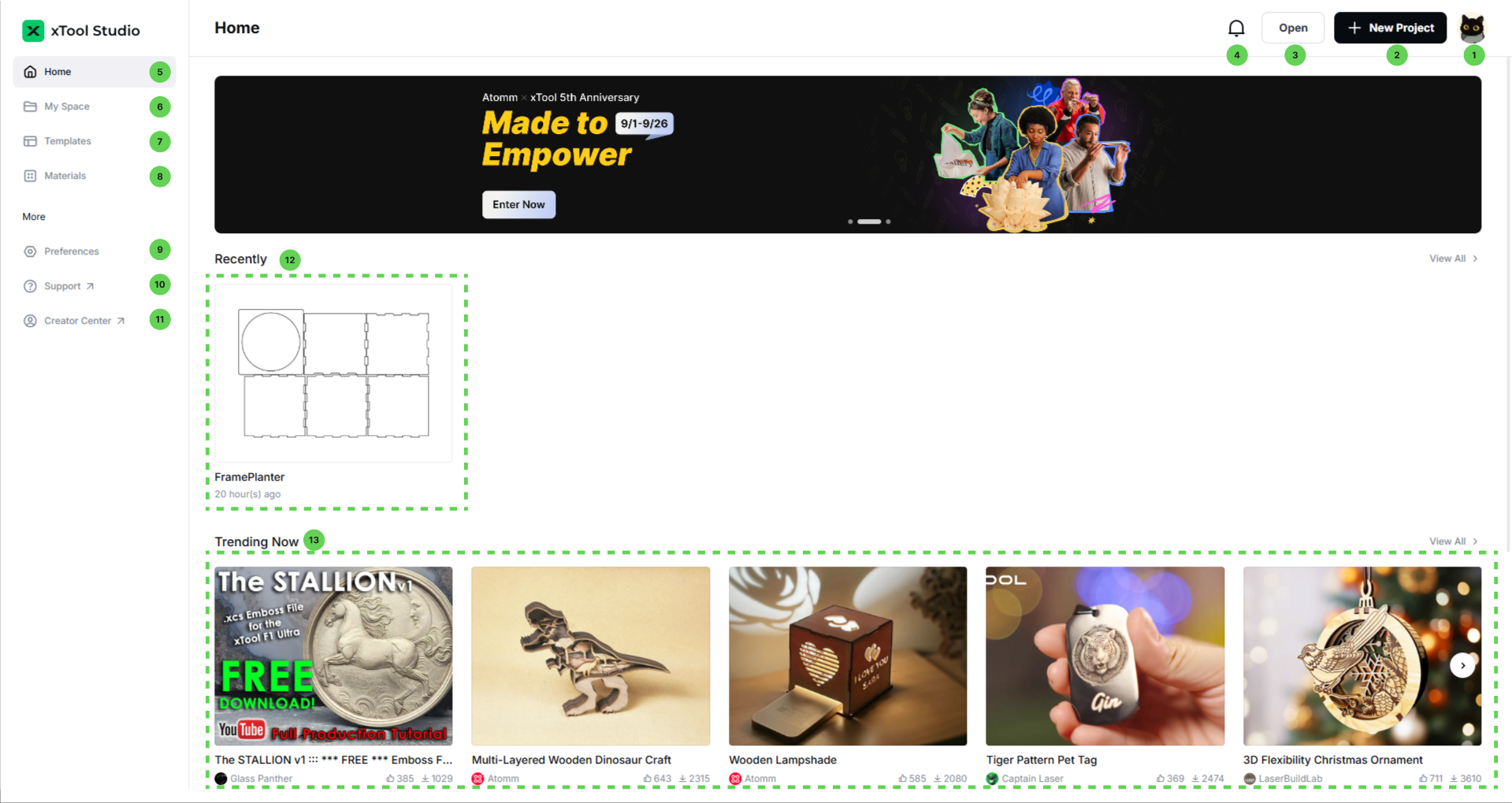
Double-click to open the Studio. On the homepage, you can:
- Log in to your xTool account. Some functions, such as AImake and Cloud services, may require you to log in.
- Click to create a project.
- Open a project from a local disk of your computer. Only XCS files are supported.
- Click to view the latest updates.
- Go to the homepage. To find recently used projects, click to return to the homepage.
- Open My Space to manage your folders and projects. Login is required to use Cloud Space.
- Click Templates to browse Atomm for more creative inspiration.
- Click to manage your commonly used materials or access additional official materials.
- Open Preferences to manage your recommendation and notification settings for better service.
- Click to access user support.
- Click to view the status of your creative works.
- Click to open recently accessed files.
- Click to open a project that interests you on Atomm.
Main toolbar
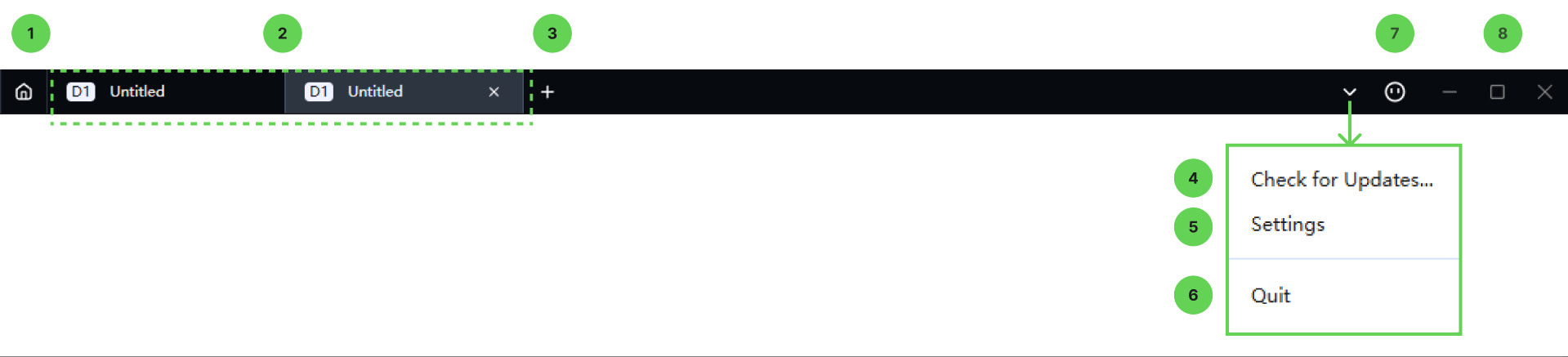
The main toolbar appears on all pages, allowing you to:
- Go to the homepage
- See all the opened tabs, including the projects and xTool Projects page. You can create or close projects here. You can open a maximum of six projects at the same time.
- Create a project
- Check for software updates
- Set the software functions
- Close Studio
- Studio AI assistant
- Minimize/resize/close the window

- Minimize/resize/close the window
- Go to the homepage
- See all the opened tabs, including the projects and xTool Projects page. You can create or close projects here. You can open a maximum of six projects at the same time.
- Create a project
- Studio AI assistant
Project page
Main menu
Click the xTool icon to open the main menu.
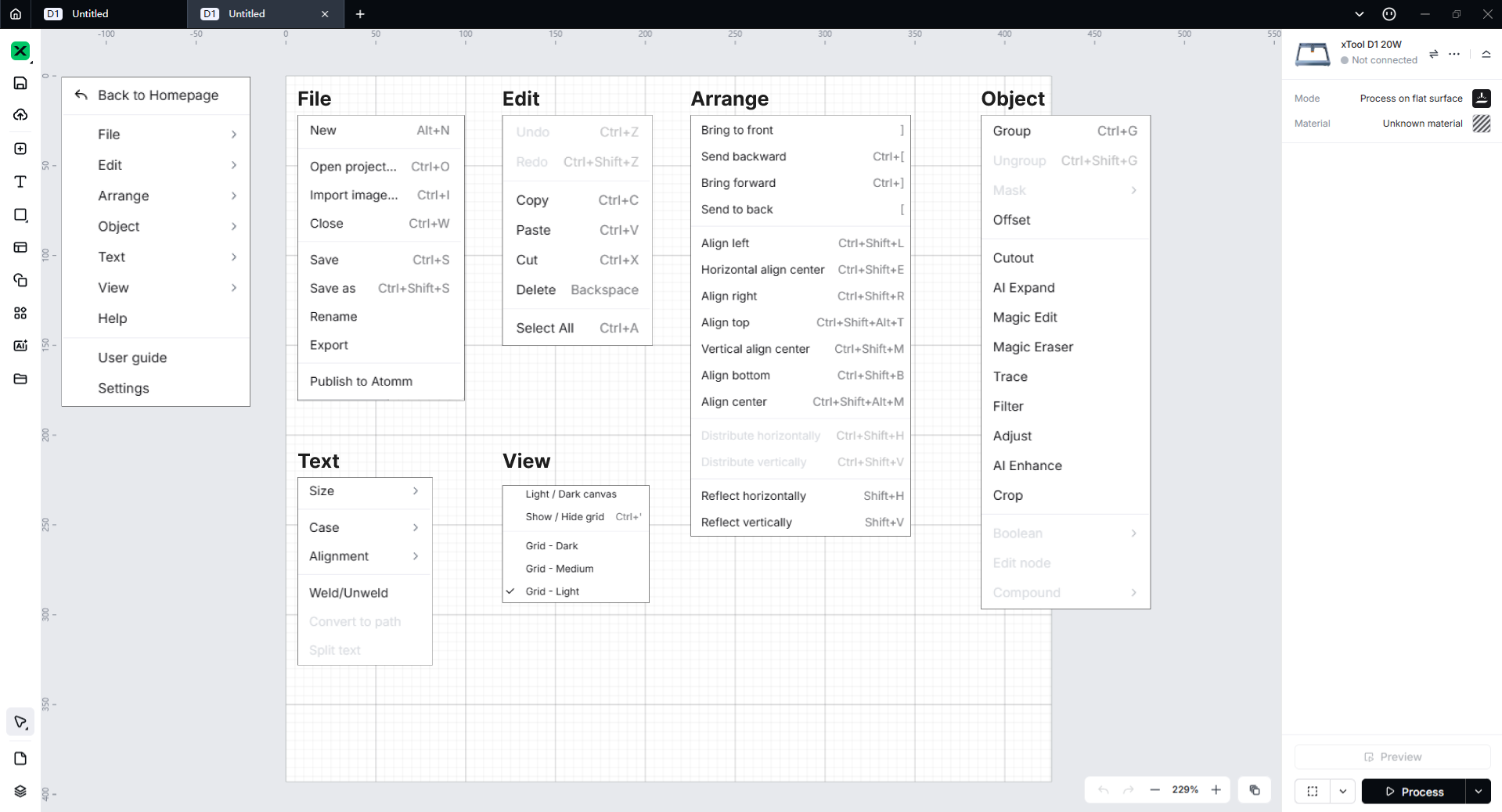
File
- New: creates a new project file
- Open project: opens a project file for a local drive, supporting only XCS files
- Import image: imports an image file. Currently, Studio supports the importing of only JPG, JPEG, GIF, PNG, BMP, SVG, DXF, and WEBP files.
- Close: closes the current project tab
- Save: saves all the changes to the project
- Save as: saves the project as another file
- Rename: names the project
- Export as SVG: exports all the objects on the canvas as an SVG file
- Publish to Atomm: Upload the current XCS file to Atomm.
Edit
- Undo: cancels the last action
- Redo: performs the last canceled action again
- Copy: copies the selected object(s) on the canvas
- Paste: pastes the copied object(s) on the canvas
- Cut: cuts the selected object(s) on the canvas
- Delete:deletes the selected object(s) on the canvas
- Select All: selects all the objects on the canvas
Arrange
- Bring to front: Moves the selected object to the front of all other objects in the workspace.
- Send backward: Moves the selected object one step backward in layering, placing it behind the object directly in front of it.
- Bring forward: Moves the selected object one step forward in layering, placing it in front of the object directly behind it.
- Send to back: Moves the selected object to the back, behind all other objects.
- Align left: Aligns the selected object(s) to the leftmost edge of the workspace or other objects.
- Horizontal align center: Centers the selected object(s) horizontally within the workspace or relative to other objects.
- Align right: Aligns the selected object(s) to the rightmost edge of the workspace or other objects.
- Align top: Aligns the selected object(s) to the topmost edge of the workspace or other objects.
- Vertical align center: Centers the selected object(s) vertically within the workspace or relative to other objects.
- Align bottom: Aligns the selected object(s) to the bottommost edge of the workspace or other objects.
- Align center: Centers the selected object(s) both horizontally and vertically within the workspace or relative to other objects.
- Reflect horizontally: Flips the selected object(s) along the horizontal axis.
- Reflect vertically: Flips the selected object(s) along the vertical axis.
Object
- Group: Combine multiple selected objects into one for easier manipulation.
- Ungroup: Split a grouped object into individual elements for independent editing.
- Mask: Apply a mask to hide or reveal parts of an object.
- Offset: Create a border around the object at a specified distance.
- Cutout: Remove part of the object using AI or manual editing.
- AI Expand: Use AI to extend the object’s boundaries or proportions.
- AI Replace: Replace part of the object with AI-driven transformations.
- Magic Eraser: Automatically remove areas with similar color or texture.
- Trace: Convert a raster image to a vector by tracing its outline.
- Filter: Apply visual effects like blur, sharpen, or other adjustments.
- Adjust: Modify the object’s properties like color, contrast, and brightness.
- Enhance: Improve the object’s quality, such as sharpening or color correction.
- Crop: Remove unwanted parts of the object or image, focusing on the desired area.
- Boolean: Perform logical operations (union, difference, intersection) on overlapping objects.
- Edit Node: Directly manipulate the nodes of a vector object to adjust its shape or path.
- Compound: Combine multiple shapes into one unified path for easier manipulation.
Text
- Size: Adjust the font size of the selected text.
- Case: Change the text to Original Case or Uppercase.
- Alignment: Align the text in different ways (left, center, right, etc.).
- Weld/Unweld: Combine or separate text characters to form a unified or individual shape.
- Convert to Path: Convert the text into a vector path for further editing.
- Split Text: Break the text into individual parts or characters for separate editing.
View
- Light / Dark Canvas: Toggle between a light or dark background for the canvas to suit your preferences.
- Show / Hide Grid: Toggle the visibility of the grid on the canvas for easier alignment and positioning.
- Grid - Dark: Display the grid in a dark color for better contrast with lighter objects.
- Grid - Medium: Display the grid in a medium color, balancing visibility with the canvas content.
- Grid - Light: Display the grid in a light color, providing minimal distraction for design work.
Help
Goes to the software learning center.
User Guide
Opens the beginners' guide
Settings
Opens the xTool Studio settings window
Left side bar
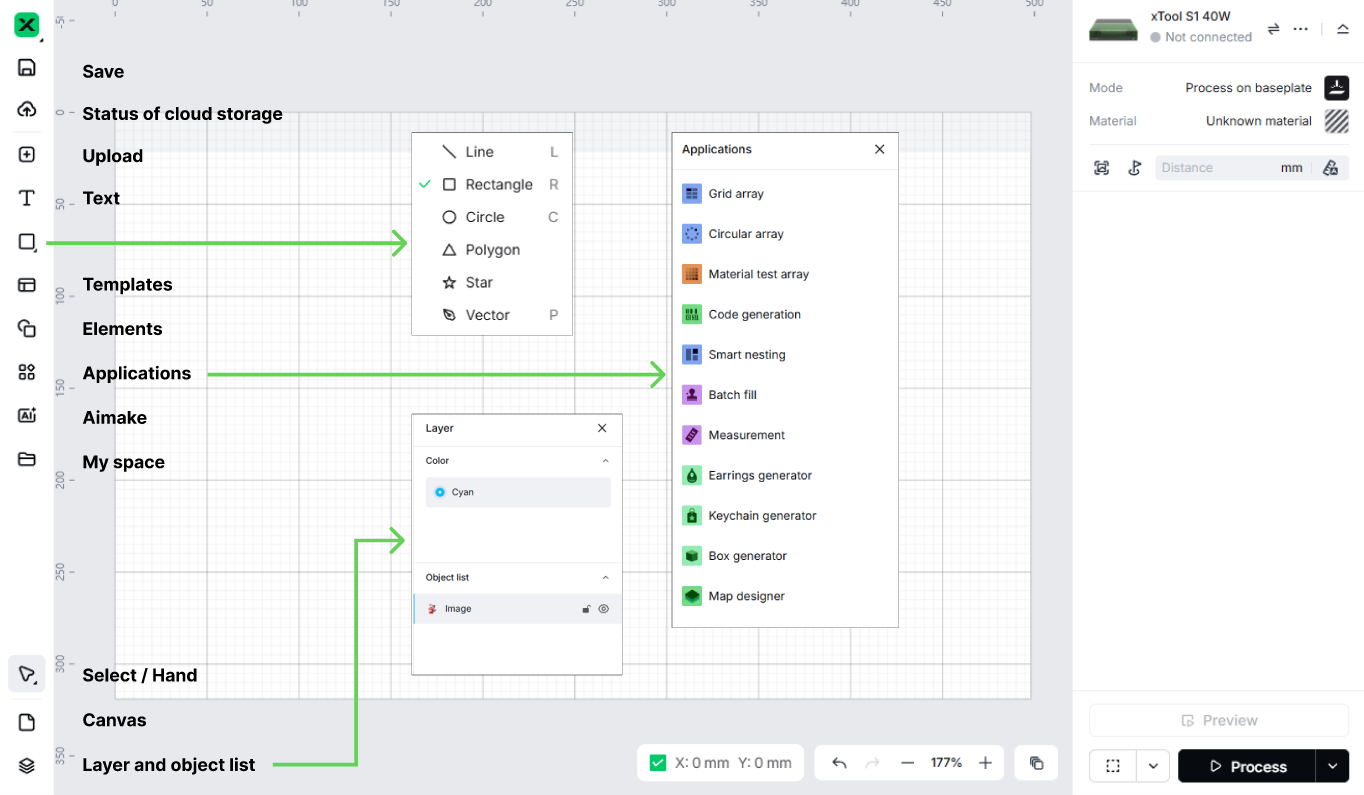
Save: Saves all content on the canvas as an .xcs file.
- Upload: Click to import an image. Currently, supports the importing of only JPG, JPEG, GIF, PNG, BMP, SVG, DXF, and WEBP files.
- Text: Click to enter a text.
- Shapes & Vector: Click this icon to expand a toolset for drawing various graphics:
- Line: Click to draw a line.
- Rectangle: Click to draw a rectangle.
- Circle: Click to draw a circle.
- Polygon: Click to draw a polygon.
- Star: Click to draw a star.
- Vector: Click to draw a vector path.
- Templates: Opens a library of preset design templates that you can use to start a project quickly.
- Elements: Click to open the shape material panel, and click to insert a shape.
- Applications: Applications such as grid array, circular array, material test array, code generation, and batch fill are collected here.
- AImake: Click to generate an image by text or image. Login to your xTool account is required.
- My space: View your Assets and Projects.
- Select / Hand Tool:
- Select: Click to select objects or click options.
- Hand: Click to drag the canvas.
- Layer and object list: Click to manage layers and objects on the layer and object list panel.
Canvas panel
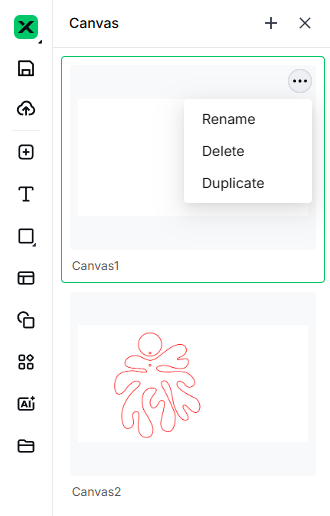
You can add, rename, or delete canvases on the canvas panel.
Right settings panel
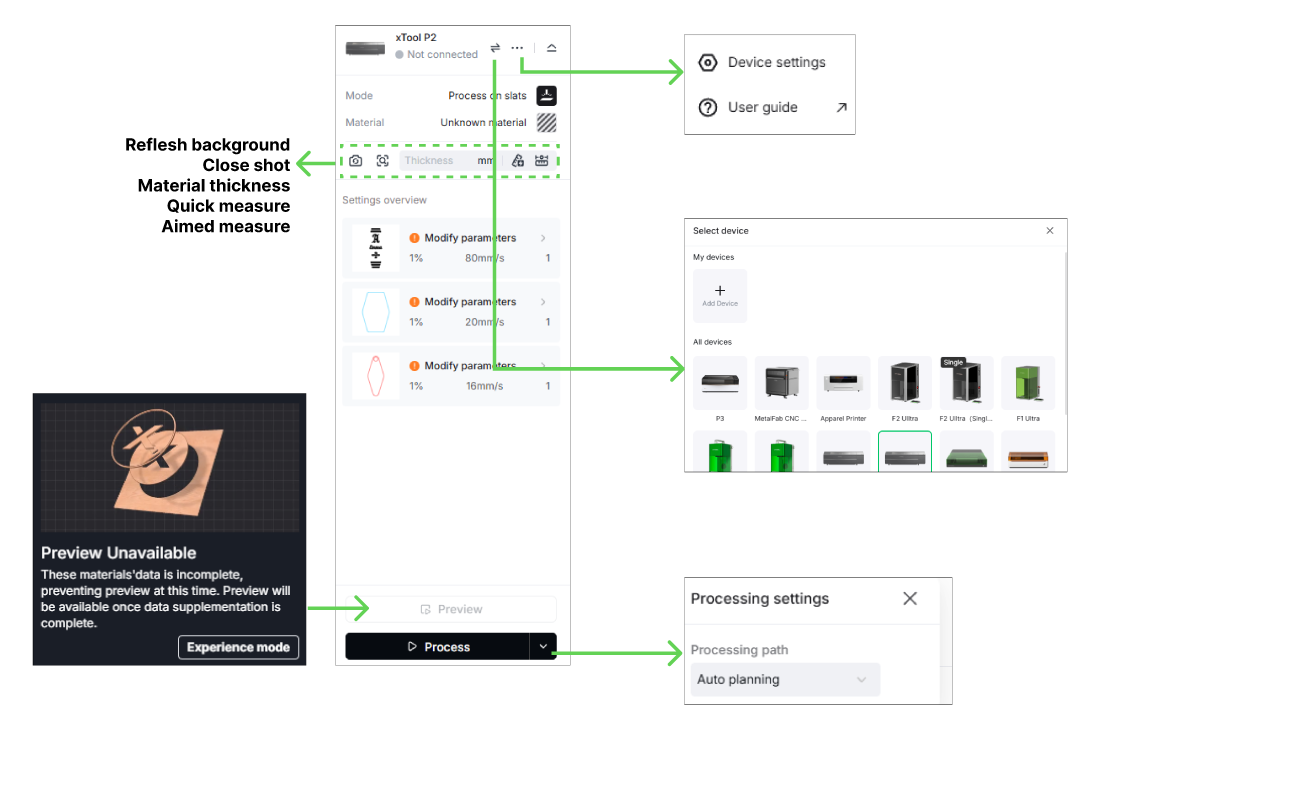
On the right settings panel, you can switch or connect devices, change device settings, open the support page of the connected device on support.xtool.com, and preview or modify processing settings. You can also refresh the background, take a close shot, measure material thickness (via quick or aimed measurement), and view or adjust processing parameters such as power and speed. In addition, you can set framing and processing parameters in this panel.
Additionally, you can access other features such as device guides, experience mode, and alternative processing path options to further customize your workflow.
Bottom bar
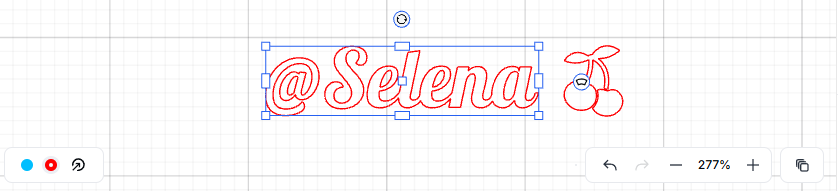
You can move objects to the target layer, zoom in or out the canvas, and give feedback or access the user guide in the bottom bar.
Processing preview page
On the processing preview page, you can play the whole processing process as a video clip. You can include the trajectory of the laser module in the preview and set the play speed. Alternatively, you can drag the progress bar to view the process.
Besides, you can set the movement distance and speed of your laser module, laser spot, and the start point of the whole processing for the D Series. If you are not satisfied with the framing parameters, you can also reset it on this page.
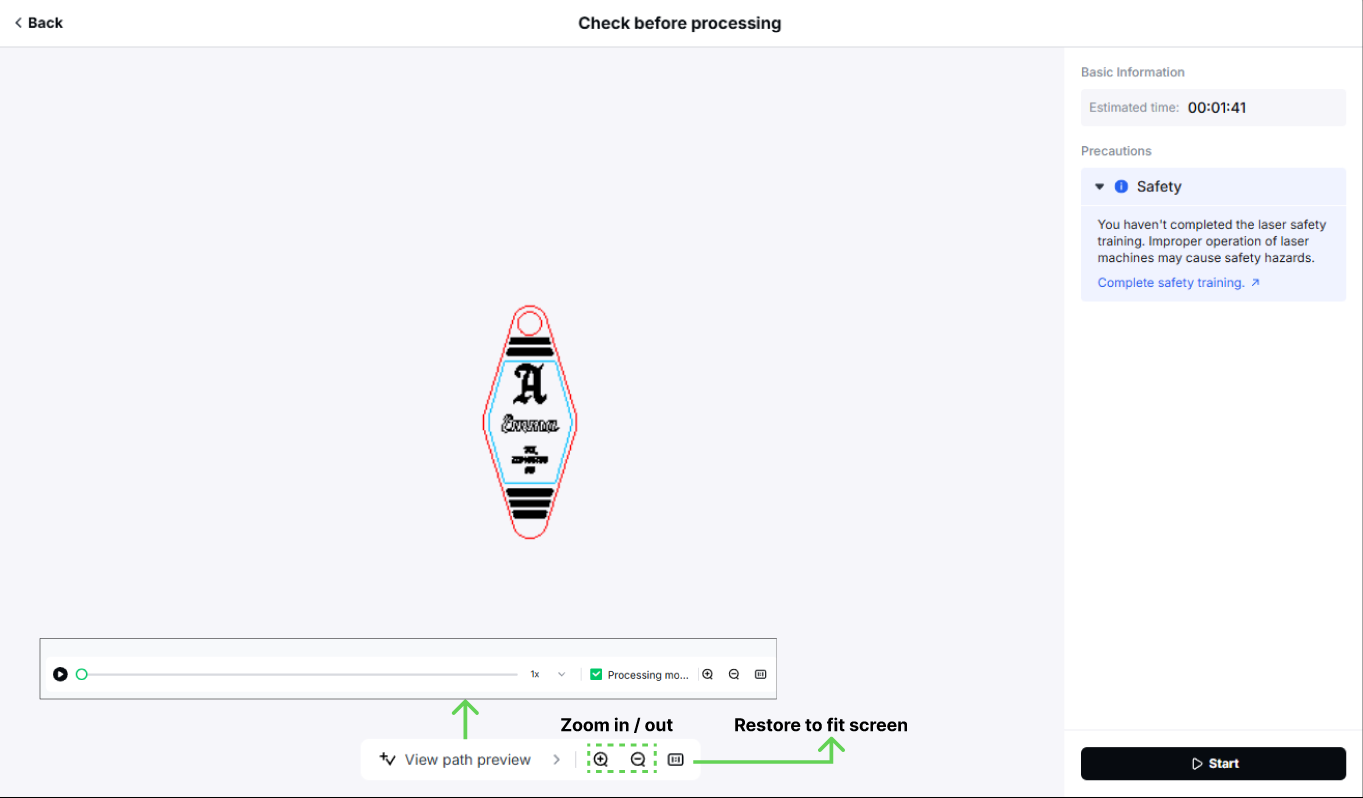
On the Check before processing page, you can view the estimated time and the safety checklist to ensure a secure workflow. Use View path preview to simulate the job before starting.
In the preview toolbar, you can play or pause the process, adjust playback speed, show or hide the processing module trajectory, and use zoom in/out or restore to fit screen for detailed inspection. This allows you to clearly confirm the processing path and preview the result.
Once everything is confirmed, click Start to begin processing.
Function description
You can open the software settings window in either of the following ways:
- On the homepage, choose Settings on the main toolbar.
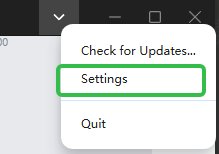
- On the project page, choose Settings from the main menu.
General settings
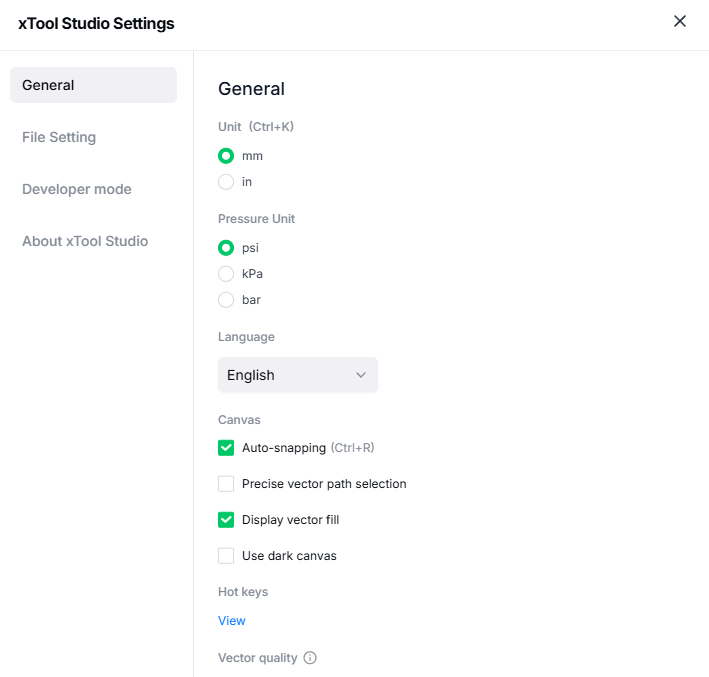
Unit: Sets the unit for displaying the size and position of design elements (mm or inches).
Pressure Unit: Choose the unit for pressure measurement (psi, kPa, or bar).
Language: Selects the language for the user interface.
Auto-snapping: Enables or disables the auto-snapping feature on the canvas, which helps align objects automatically.
Precise vector path selection: Enables more accurate selection of vector paths. By default, this function is disabled.
Display vector fill: Displays the fill color of vector objects on the canvas.
Use dark canvas: Switches the canvas background to a dark theme for easier visibility in certain environments.
Hot Keys: Provides access to the list of customizable keyboard shortcuts.
Vector Quality: Sets the rendering quality for vectors (High, Medium, or Low).
Smart Detect: Enables smart detection of processing paths, helping optimize the workflow during processing.
File settings
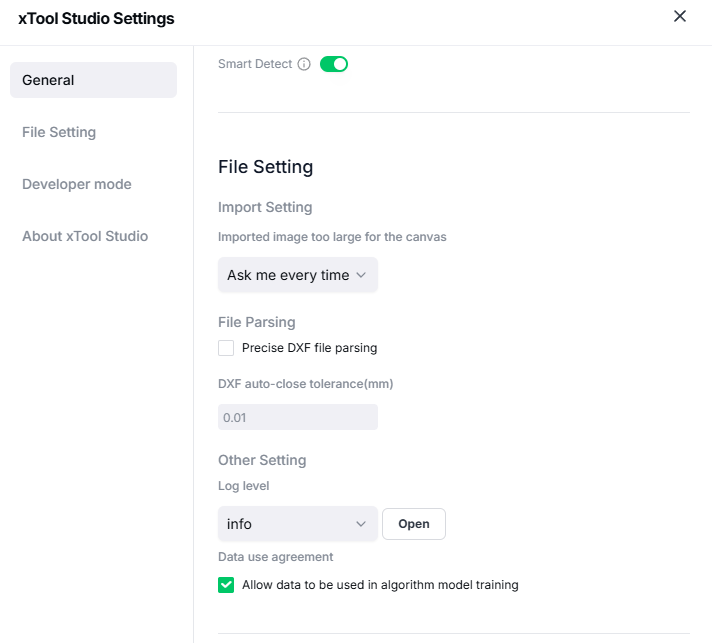
Imported images too large for the canvas: Defines how Studio handles images that exceed the canvas size during import. You can choose from the following options:
- Ask me every time: Studio will prompt you each time you import an image that is too large for the canvas.
- Auto-scale it: Studio will automatically scale down images that are too large for the canvas when importing them.
- Keep its size: Studio will display images at their original size even if they exceed the canvas size.
Precise DXF file parsing: Enables or disables the use of new algorithms for parsing DXF files. These algorithms ensure better accuracy by preventing missing lines or deformation, though they require more system resources. This function is disabled by default. It is recommended not to enable this option if your DXF files are already parsed correctly in Studio.
DXF auto-close tolerance (mm): Automatically closes paths imported from DXF files that contain split points, ensuring smoother path continuity.
Log Level: Select the type of logs to view. Options include:
- Error: View the error log.
- Warn: View the warning log.
- Info: View the info log.
- Debug: View the debug log.
Data use agreement: When enabled, this allows Studio to use your data for algorithm model training.
Custom parameter settings: Allows you to export saved processing parameters or import processing parameter settings into Studio from your local storage.
Developer mode
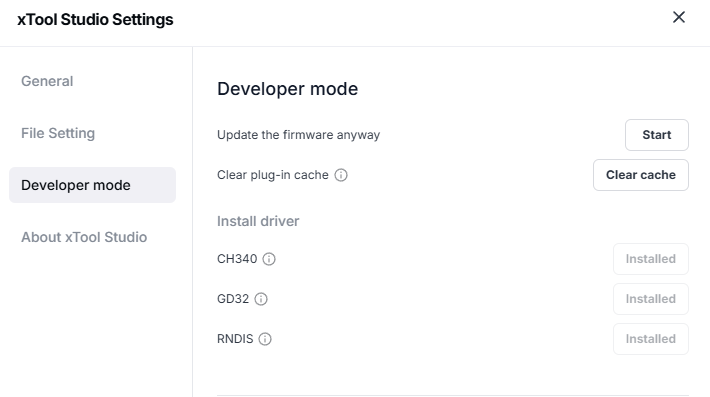
You can enter developer mode to update the firmware of a machine forcibly. Currently, the function is available only for xTool D1, D1 Pro, D1 Pro 2.0, and S1.
About xTool Studio
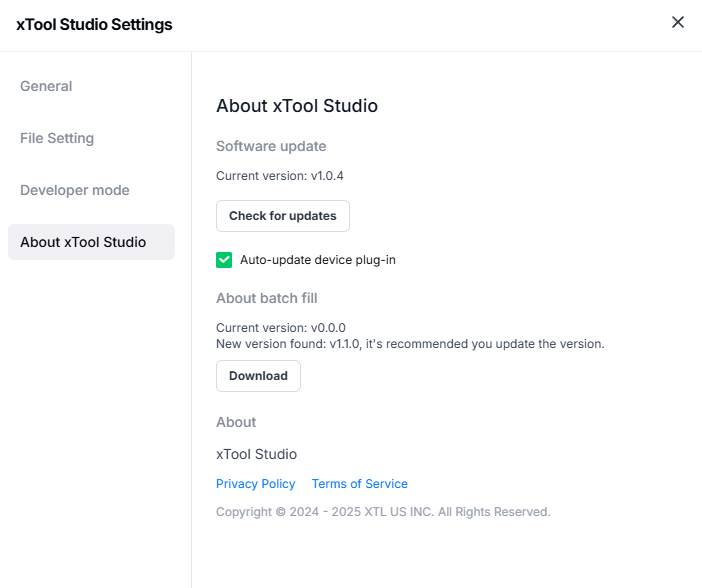
You can find information about your Studio version, check for software, plug-in and algorithm package updates, and read the privacy policy and terms of service.
Object editing
Using the left side bar, you can add an image, text, shape, vector path, image generated by Artimind, array, and duplicate object to a canvas. After adding objects, you can edit them by using the upper panel.
General editing
The general object editing functions are available for all types of objects.
Arrange the stacking order
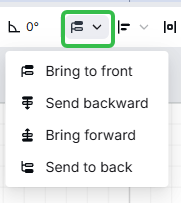
- Bring to front: moves the selected object, group, or layer to the top of the stacking order
- Send backward: moves the selected object, group, or layer backward one position in the stacking order
- Bring forward: moves the selected object, group, or layer forward one position in the stacking order
- Send to back: moves the selected object, group, or layer to the bottom of the stacking order
Align objects
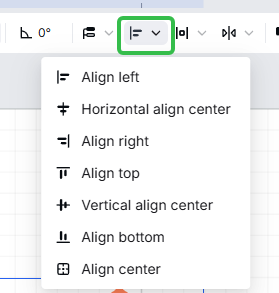
- Align left: aligns the left edges of the selected objects
- Horizontal align center: aligns the horizontal centers of the selected objects
- Align right: aligns the right edges of the selected objects
- Align top: aligns the tops of the selected objects
- Vertical align center: aligns the vertical centers of the selected objects
- Align bottom: aligns the bottoms of the selected objects
- Align center: aligns the centers of the selected objects
Distribute objects
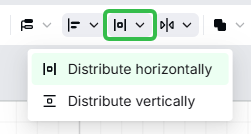
Distribute horizontally: spaces the selected objects evenly between the leftmost and rightmost edges of the objects in the selection area in the horizontal direction.
Distribute vertically: spaces the selected objects evenly between the leftmost and rightmost edges of the objects in the selection area in the vertical direction.
Reflect an object
You can reflect an object as required.
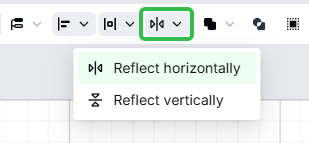
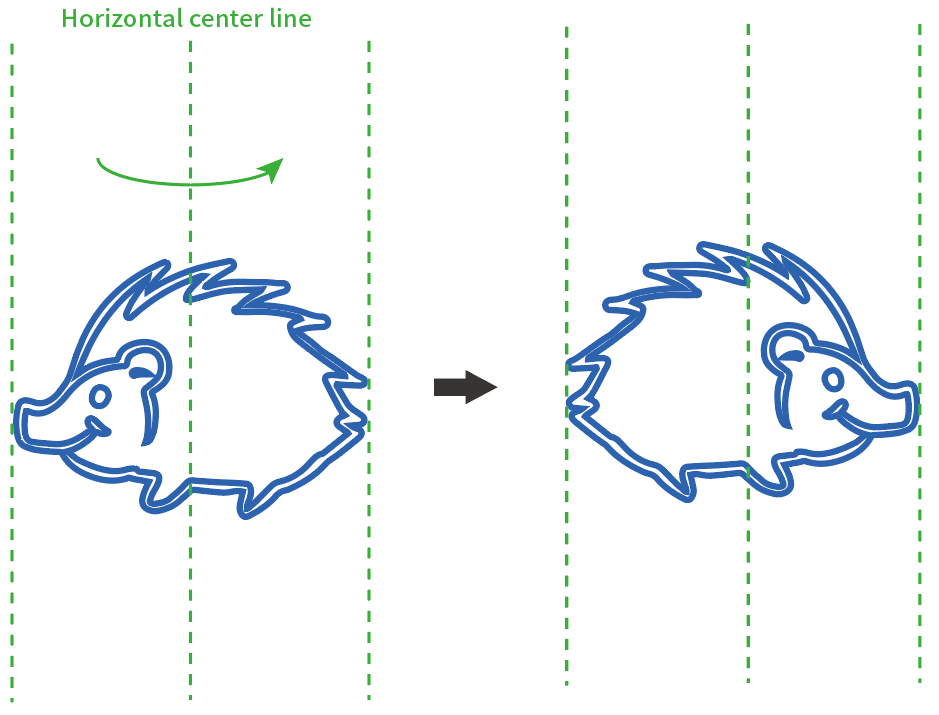
Reflect horizontally: reflects the selected object using the horizontal center line as the axis.
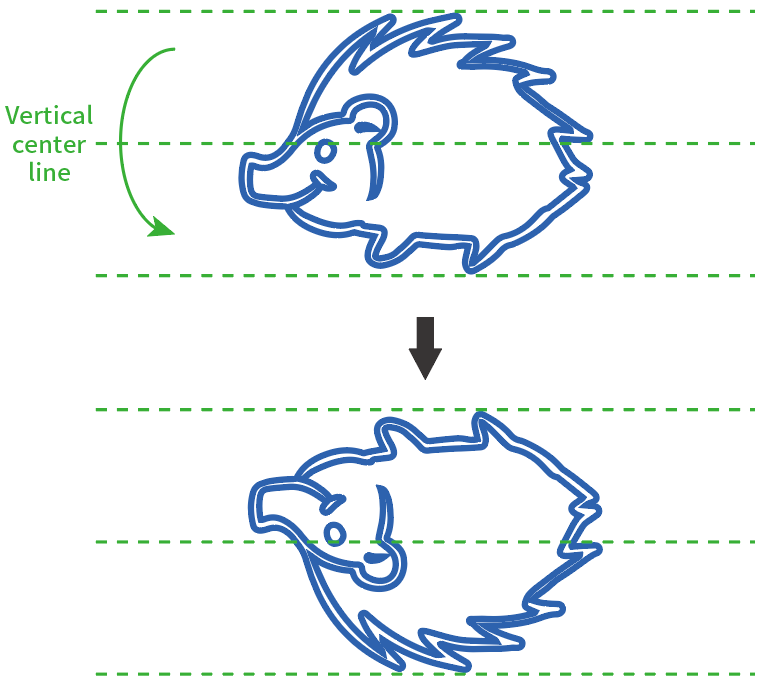
Reflect vertically: reflects the selected object using the vertical center line as the axis.
Set the position of an object
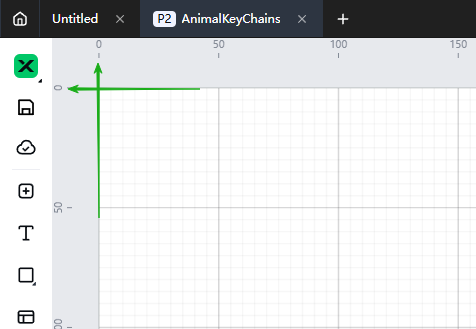
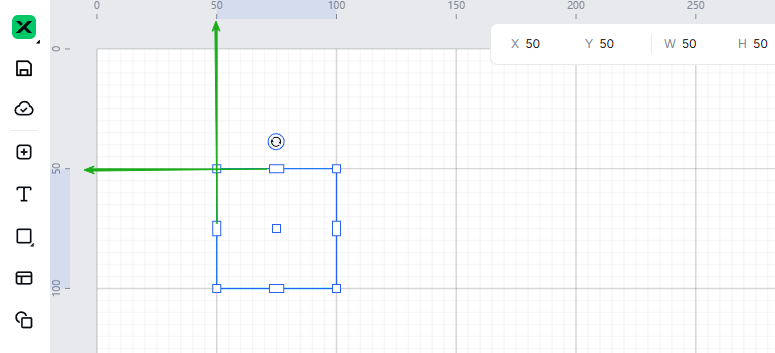
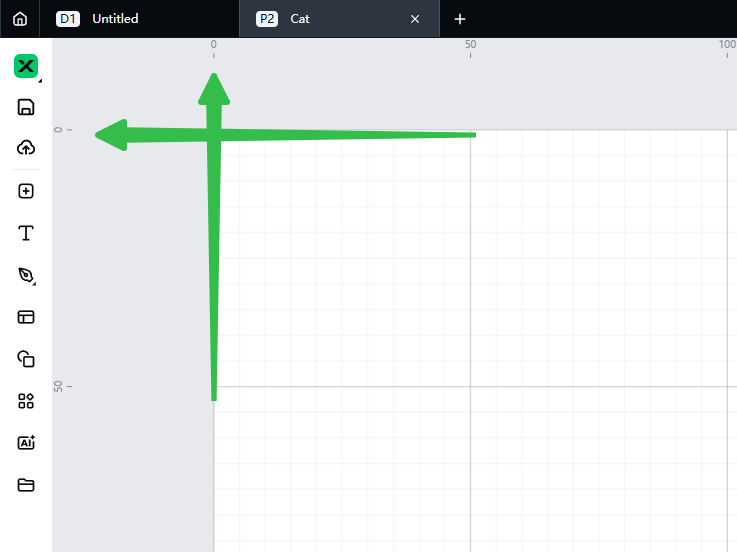
You can set the position of an object precisely by entering the x and y coordinates of its upper-left edge.
The unit can be set in Settings.
The position (0, 0) is in the upper-left corner of the canvas.
Set the size of an object
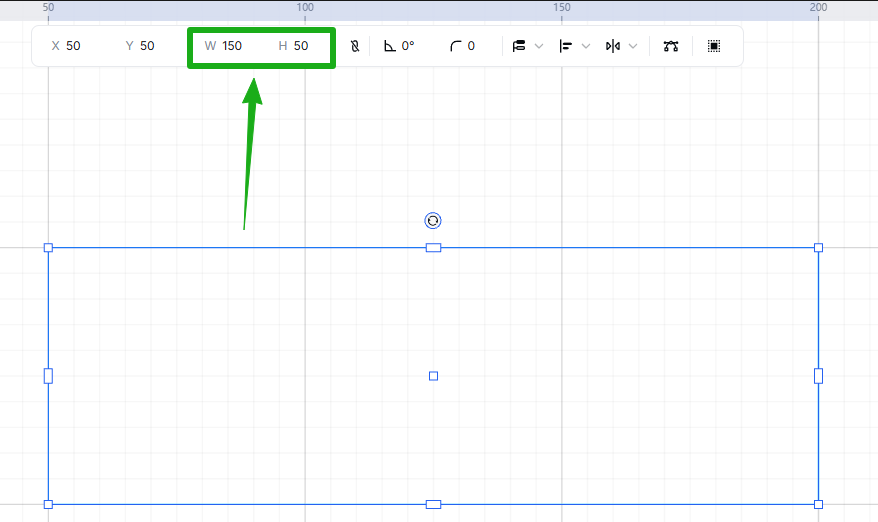
You can set the size of an object by entering its width and height. The aspect ratio is locked when you insert or import an object into the canvas. You can click the Lock aspect ratio icon to unlock the ratio.
Rotate an object
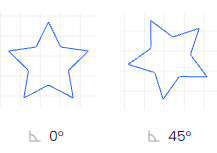
You can rotate an object by entering an angle. A positive value indicates rotating clockwise, and a negative one indicates rotating counterclockwise.
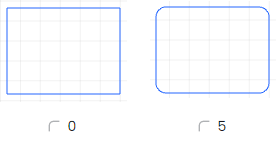
Set the corner radius
You can modify a rectangle to a rounded one by entering a corner radius.
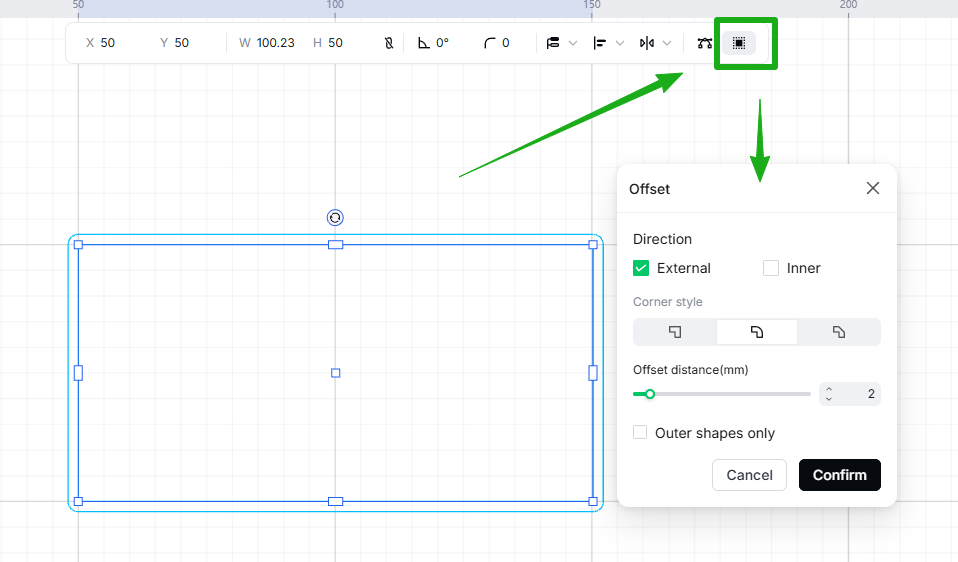
Create an outline of an object
You can create an outline for a bitmap, vector path, or text. In addition, you can add an inner outline for a bitmap with a transparent background.
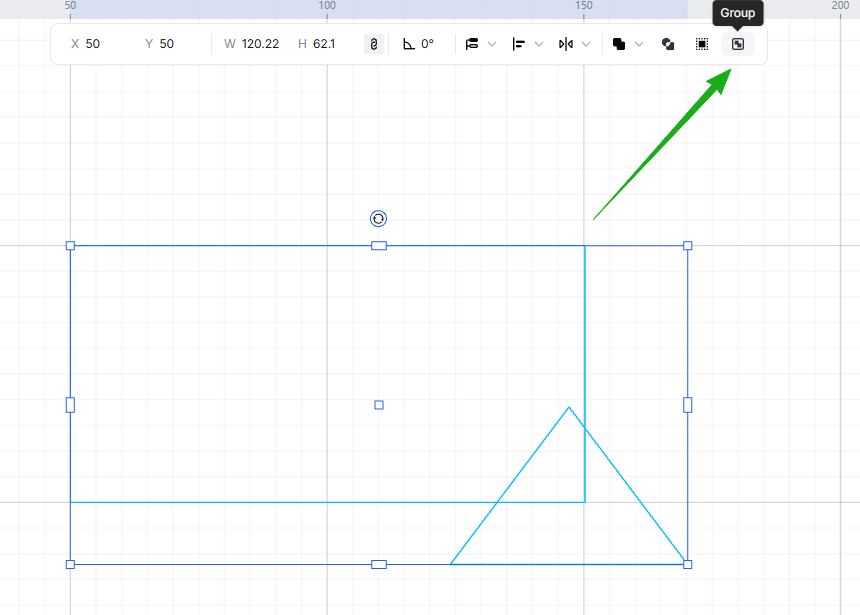
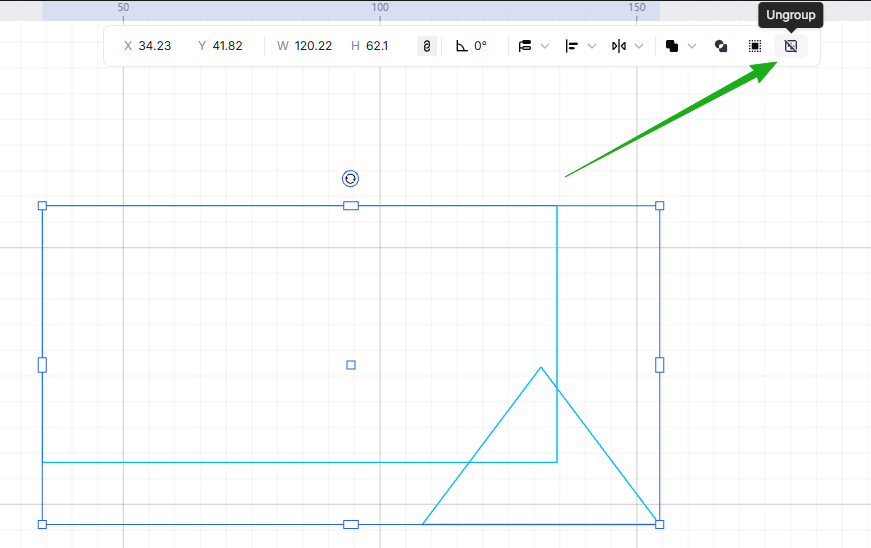
Group and ungroup objects
You can group two or more objects or ungroup them.
Bitmap image editing
Besides the general editing functions, there are design functions available only for bitmap images. You can select an image to activate these functions.
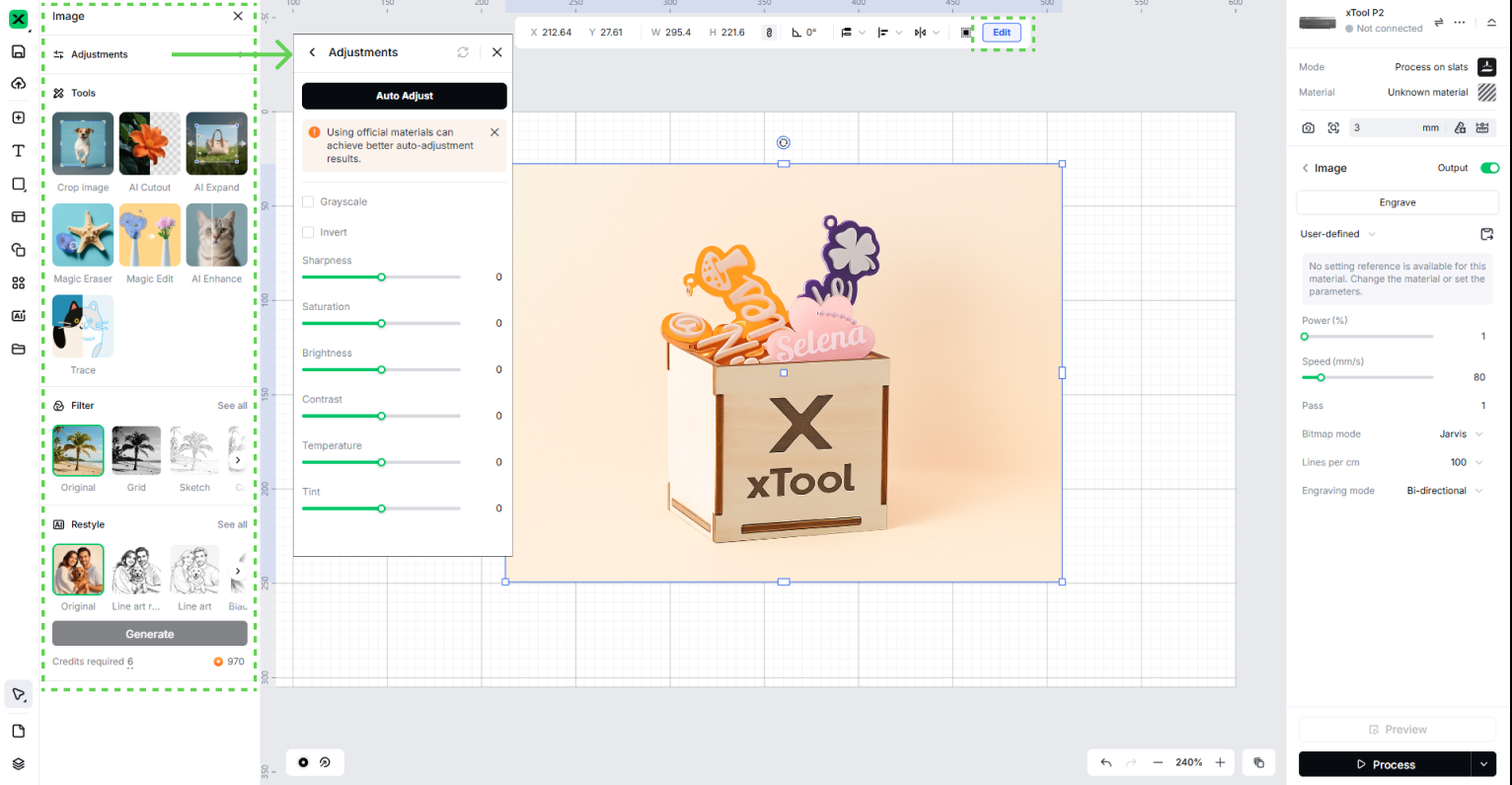
Adjustments
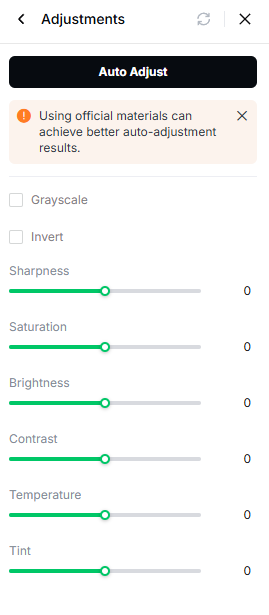
- Auto Adjust: Automatically adjusts the image's settings for improved quality. (Note: Using official materials can achieve better auto-adjustment results.)
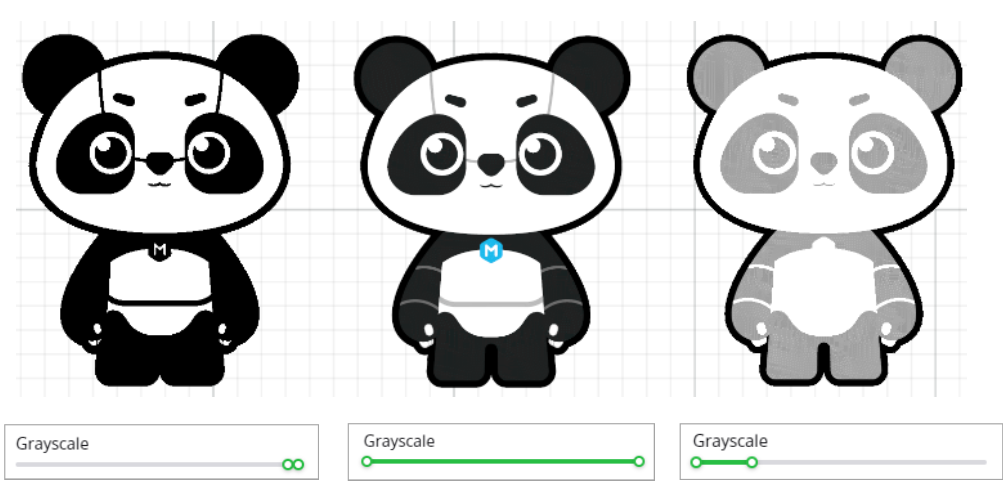
- Grayscale: Converts the image into black and white by removing all color information.
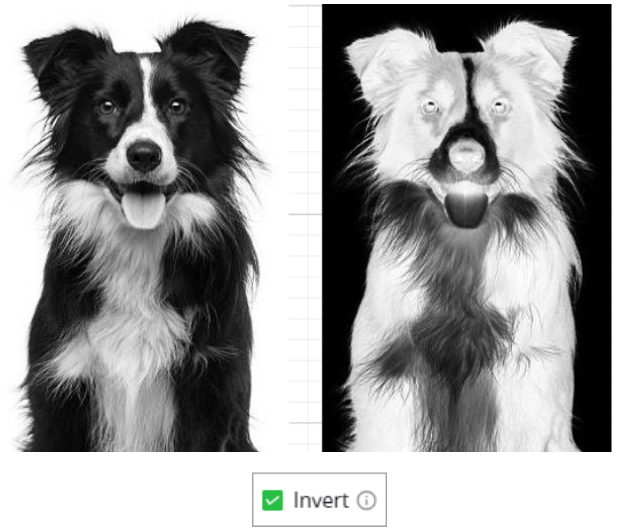
- Invert: Inverts the colors of the image, turning all light colors dark and vice versa.
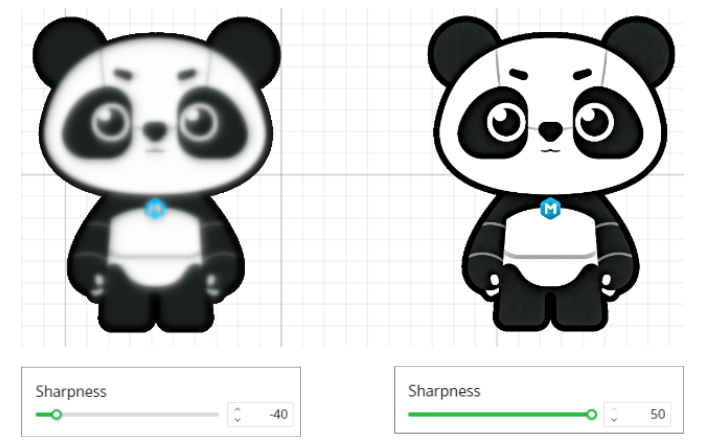
- Sharpness: Adjusts the clarity and definition of the image. Increasing the sharpness makes the image appear clearer.
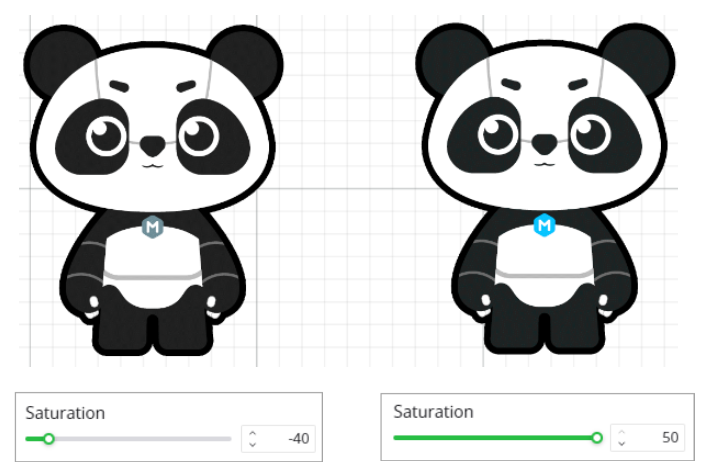
- Saturation: Controls the intensity of the colors in the image. Increasing saturation makes the colors more vibrant, while decreasing it makes them more muted.
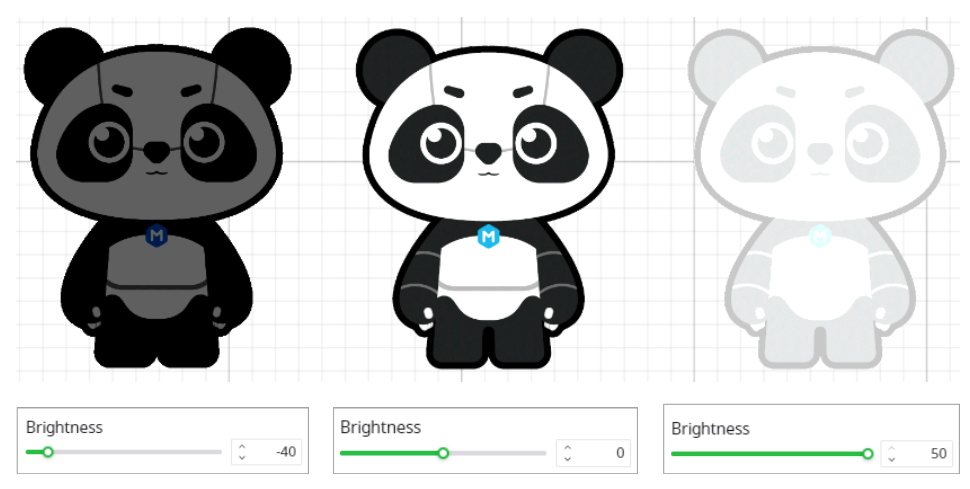
- Brightness: Adjusts the overall lightness or darkness of the image. Increasing brightness makes the image lighter, and decreasing it darkens the image.
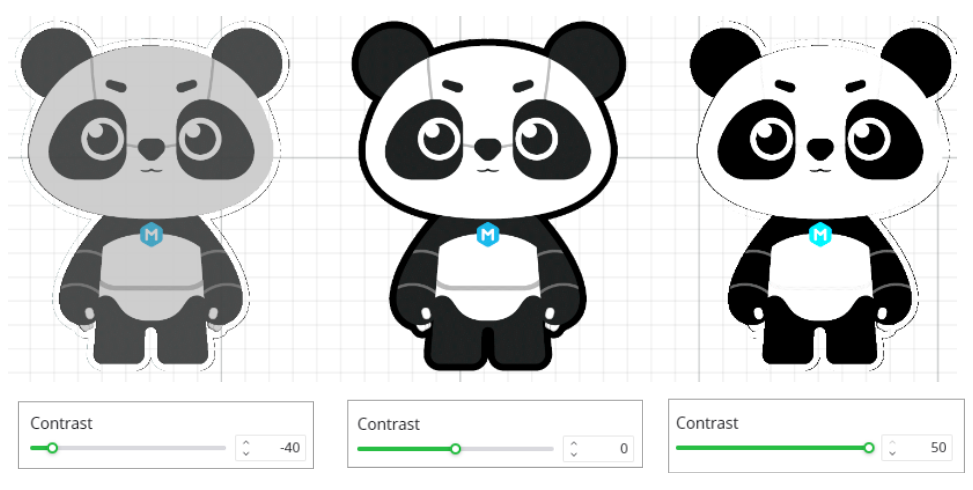
- Contrast: Controls the difference between the light and dark areas of the image. Increasing contrast makes the light areas lighter and the dark areas darker.
- Temperature: Adjusts the warmth or coolness of the image. Moving the slider to the right makes the image warmer (more orange), while to the left makes it cooler (more blue).
- Tint: Adjusts the color balance of the image, giving it a slight color cast (e.g., greenish or purplish) depending on the tint level.
Tools
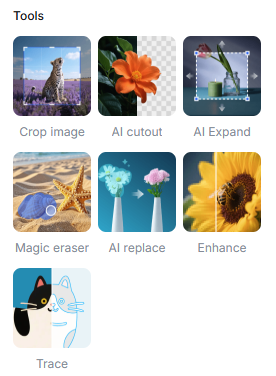
Crop Image: Allows you to select and crop a portion of the image, removing unwanted areas and keeping only the selected part.
AI Cutout: Uses artificial intelligence to automatically identify the subject in the image and remove the background, ideal for quickly processing images with background removal.
AI Expand: Expands the edges or background of the image, generating more background areas and enhancing the image's overall composition.
Magic Eraser: Lets you erase specific areas of the image. Adjust the Fuzziness parameter to delete pixels with similar colors in the selected area.
AI Replace: Uses AI to replace specified parts of the image, replacing them with different backgrounds or content as needed.
Enhance: Enhances the image by adjusting its brightness, contrast, and details, making it clearer and brighter.
Trace: Converts a bitmap image into a vector by automatically generating vector outlines, with options for Auto-trace and Center tracing for different image types.
Filter
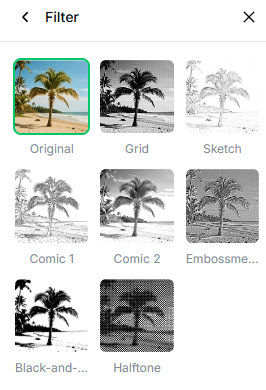
Original: Displays the image in its original form without any filters applied.
Grid: Applies a grid overlay effect to the image, often used to create a structured or technical look.
Sketch: Converts the image into a pencil sketch style, giving it a hand-drawn appearance.
Comic 1: Applies a comic-style effect to the image, typically with bold outlines and simplified shading.
Comic 2: Another comic-style filter that gives the image a more stylized, graphic novel look with different patterns.
Embossment: Creates a raised effect on the image, giving it a 3D appearance by simulating light and shadow.
Black-and-white: Converts the image to a black-and-white version, removing all color for a classic monochrome effect.
Halftone: Applies a halftone effect to the image, creating a pattern of dots that mimics old printing styles or comic book art.
Restyle
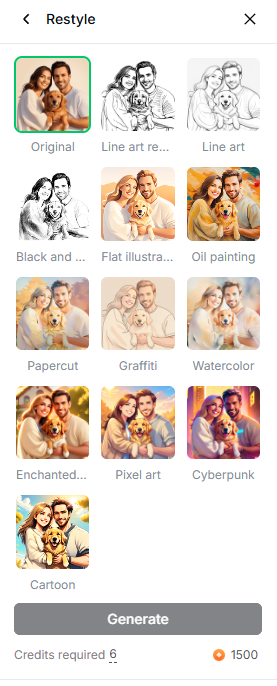
- Original: Displays the image in its original form without any style changes.
- Line art realistic: Converts the image into a realistic line art version, emphasizing the subject with detailed lines and shading for a more lifelike appearance.
- Line art: Similar to the "Line art re..." option, but with a more simplified line drawing, highlighting the basic structure of the image.
- Black and white: Converts the image to black and white, turning it into a monochrome version with varying shades of gray.
- Flat illustration: Applies a flat, 2D illustration style to the image, with bold colors and minimal shading, similar to digital illustrations.
- Oil painting: Transforms the image into an oil painting style, giving it a textured and brushstroke-like appearance.
- Papercut: Applies a paper-cutout effect to the image, making it appear as though it is made of layered paper.
- Graffiti: Adds a street art or graffiti-style effect to the image, giving it an urban, spray-painted look.
- Watercolor: Converts the image into a watercolor painting style, featuring soft, blended colors and brushstroke effects.
- Enchanted: Applies a magical or fantasy-like filter, often with soft glows and dream-like colors.
- Pixel art: Transforms the image into pixelated artwork, mimicking retro 8-bit or 16-bit video game graphics.
- Cyberpunk: Gives the image a futuristic, cyberpunk aesthetic, often incorporating neon colors and high-tech, dystopian elements.
- Cartoon: Transforms the image into a cartoon-style version with simplified features and bold outlines.
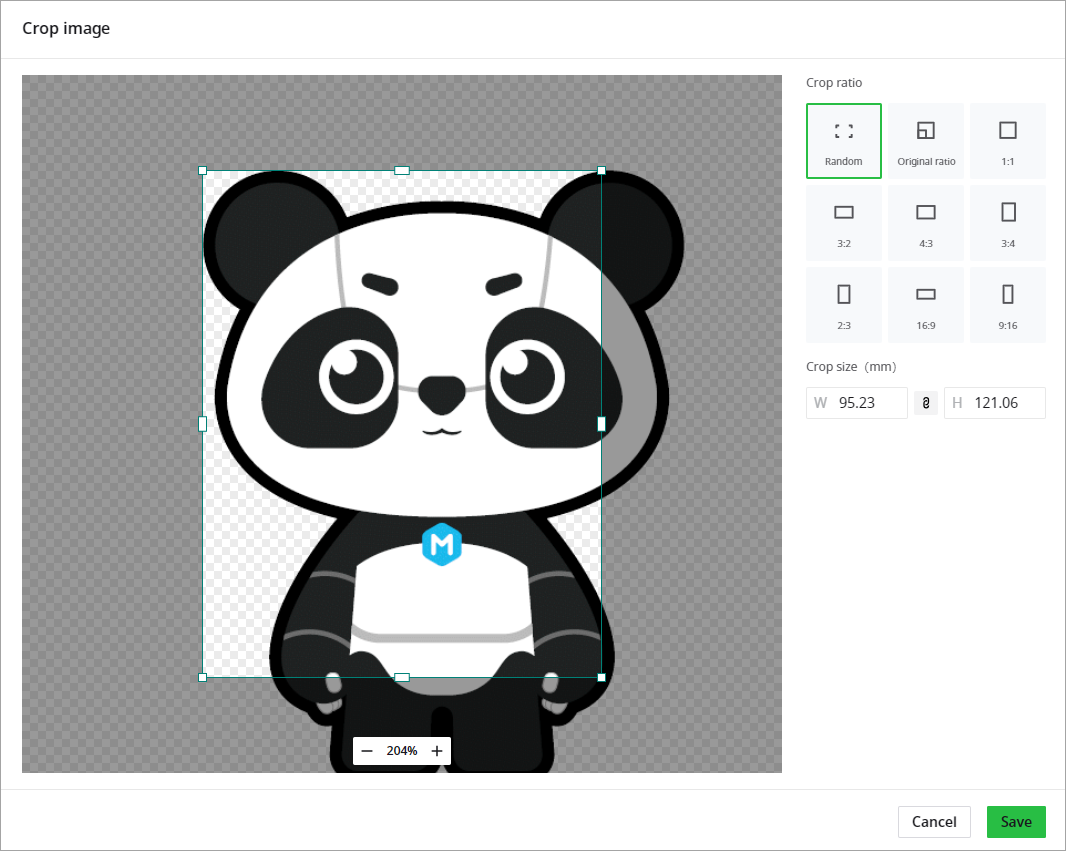
Crop
In the Crop image dialog box, you can keep an area and discard those not selected.
Night crop ratios are provided, including random ratio, original ratio, 1:1, 3:2, 4:3, 3:4, 2:3, 16:9, 9:16. You can also set the crop size and click the Lock aspect ratio icon to lock or unlock the ratio.
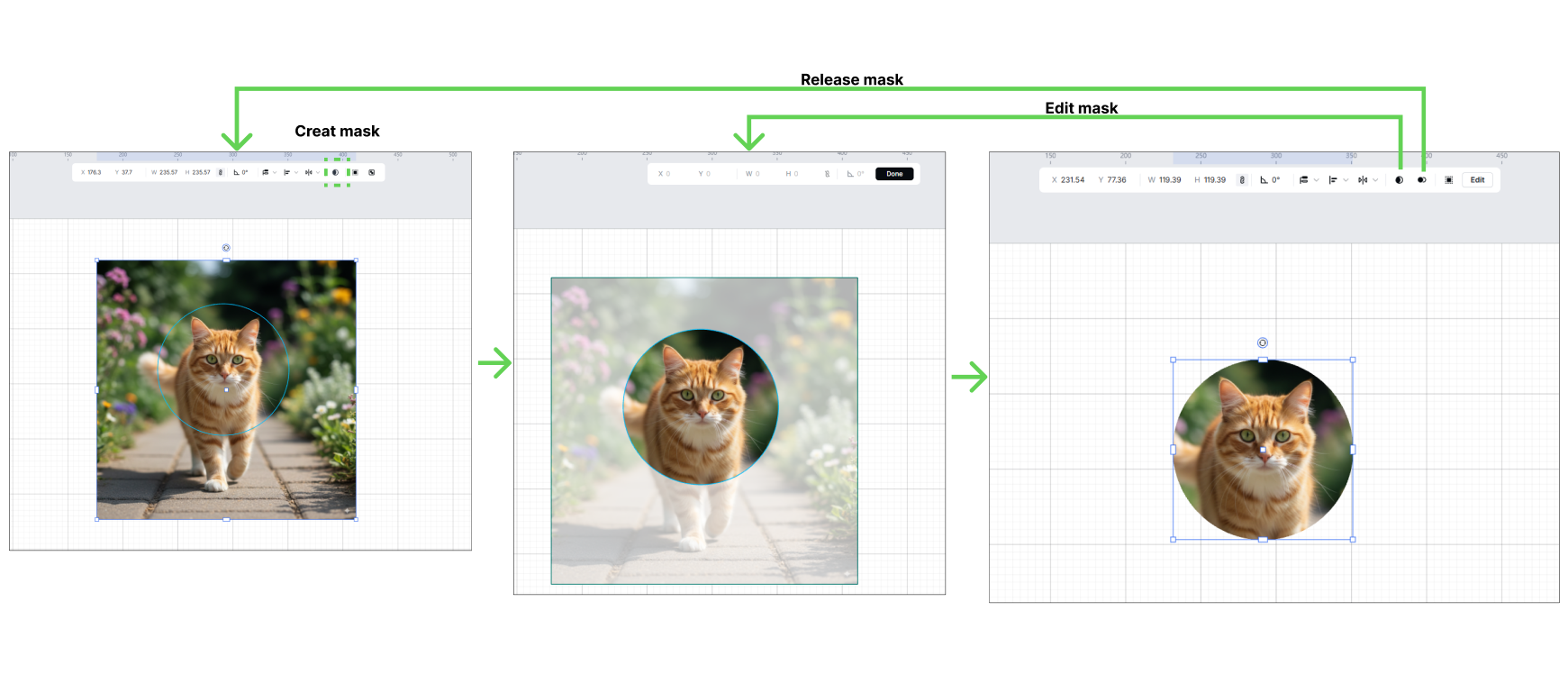
Create a clipping mask
You can shape a bitmap image with a vector path by making a clipping mask.
(1) Select the bitmap image and vector path.
(2) Click Create mask.
(3) Move the image to the mask.
(4) Click Done.
Text editing
Besides the general editing functions, there are design functions available only for texts. You can enter and select a text to activate these functions.
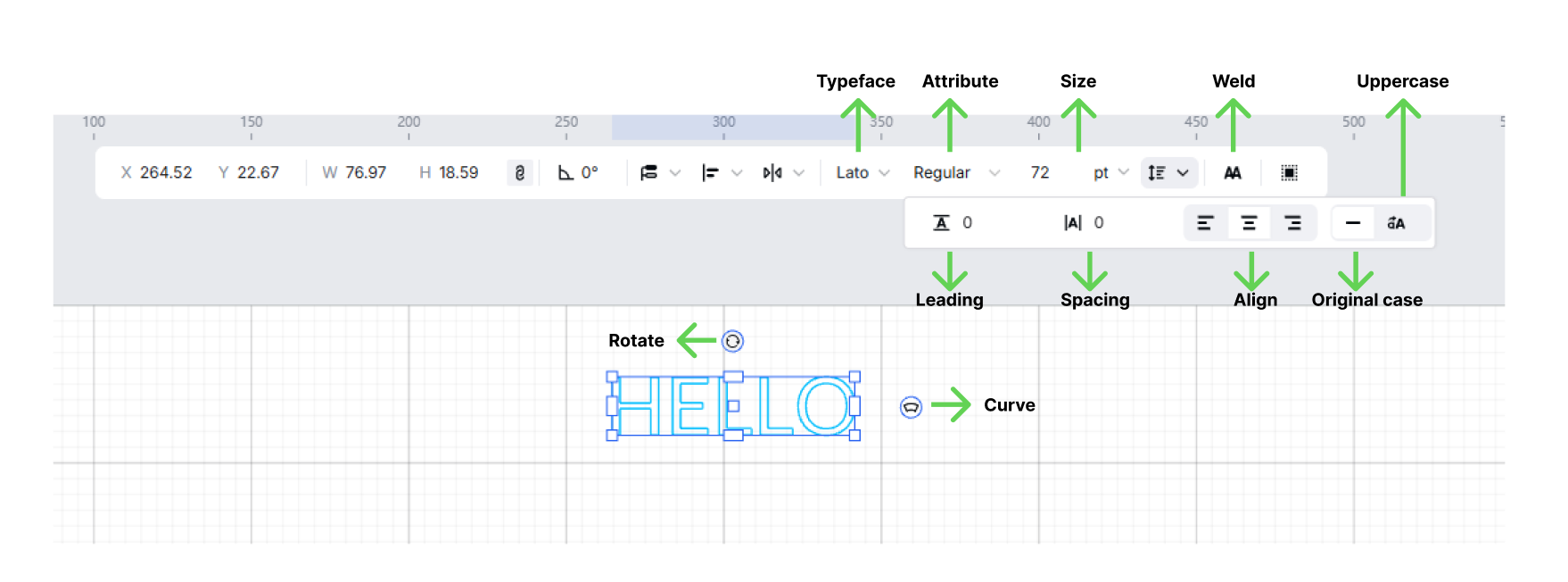
- Typeface: Select the font style for the text.
- Attribute: Set font properties like weight (e.g., Regular, Bold).
- Size: Adjust the text size (measured in points).
- Weld: Merge multiple texts into one entity (applies to text - based shapes).
- Rotate: Rotate the selected text.
- Curve: Add a curved effect to modify the text’s shape.
- Leading: Adjust the distance between lines of text.
- Spacing: Adjust the spacing between individual characters.
- Align: Set text alignment (left, center, right, etc.).
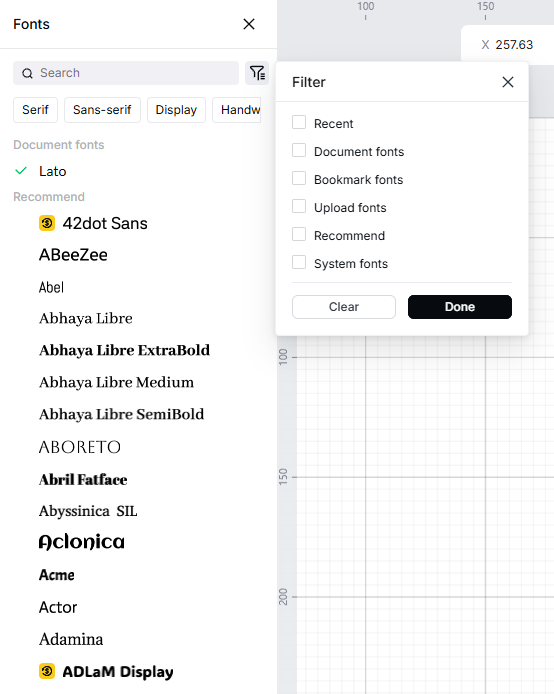
Typeface
You can select a typeface from the xTool selected or system typefaces.
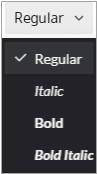
Attribute
You can set the style or weight of a text.
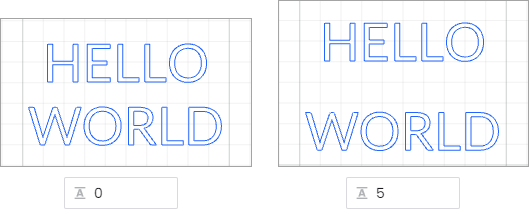
Leading
You can set the amount of space between lines of text.
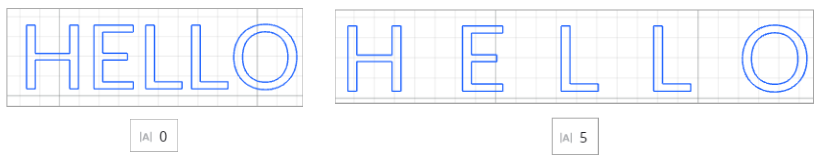
Spacing
You can set the amount of space between letters.
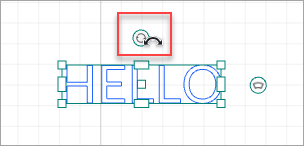
Rotate
You can rotate the text after you move the mouse pointer close to the Rotate icon and the pointer changes to a double-arrow curve.
Size
You can set the size of a text by entering a value. The following is a reference.

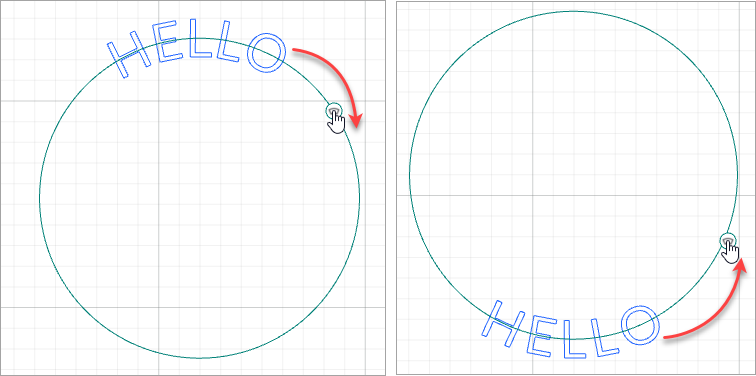
Curve
You can curve the text by dragging the control on the right.
Weld
This function is used to unite the character strings that overlap one another partially in a text. After being welded, the text becomes vector paths and the text setting panel is not displayed after you select it.
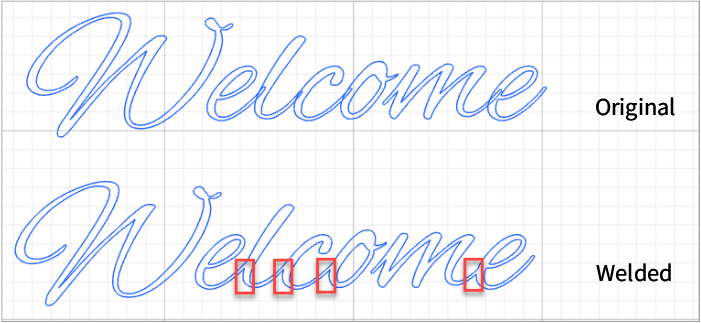
If no character strings overlap one another partially in the text, the text looks the same but becomes vector paths after you weld it, and the text setting panel is not displayed after you select it.
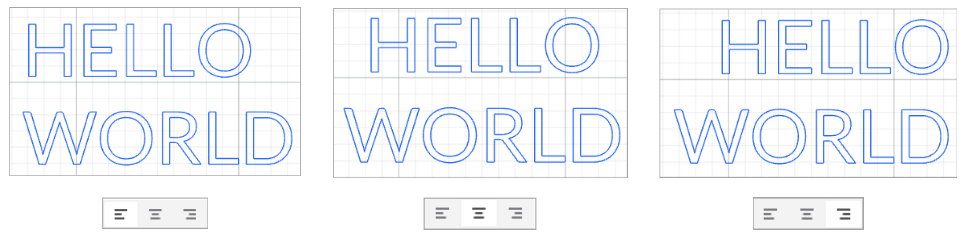
Align
You can align the left edge of a text with the left margin, the right edge with the right margin, or center a text.
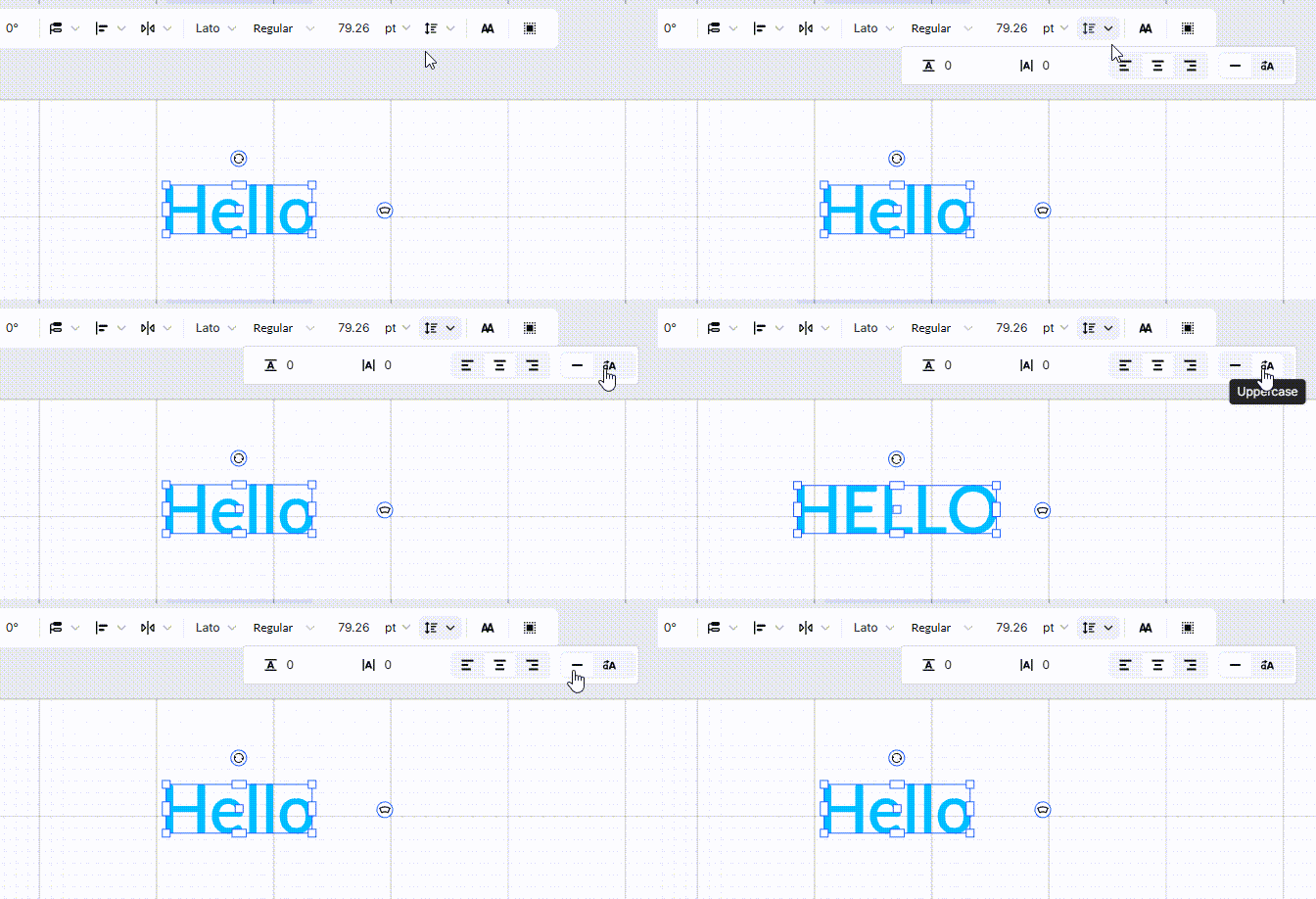
Original case
Retain the text’s original uppercase/lowercase status.
Uppercase:
Convert the text to all uppercase letters.
Vector editing
Besides the general editing functions, there are design functions available only for vectors. You can draw or insert and select a vector to activate these functions.
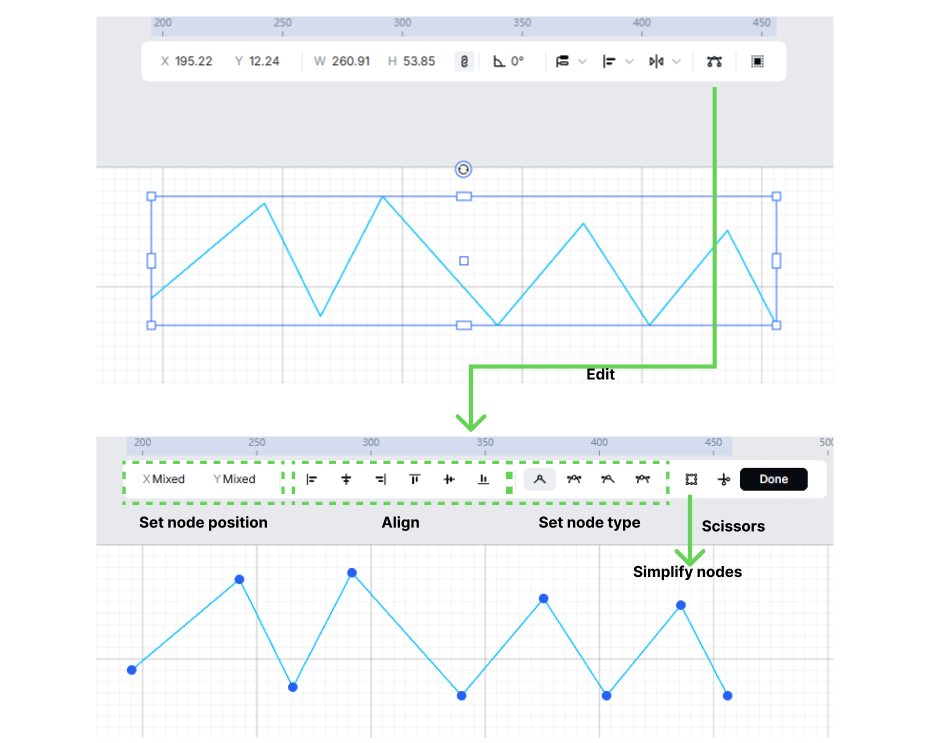
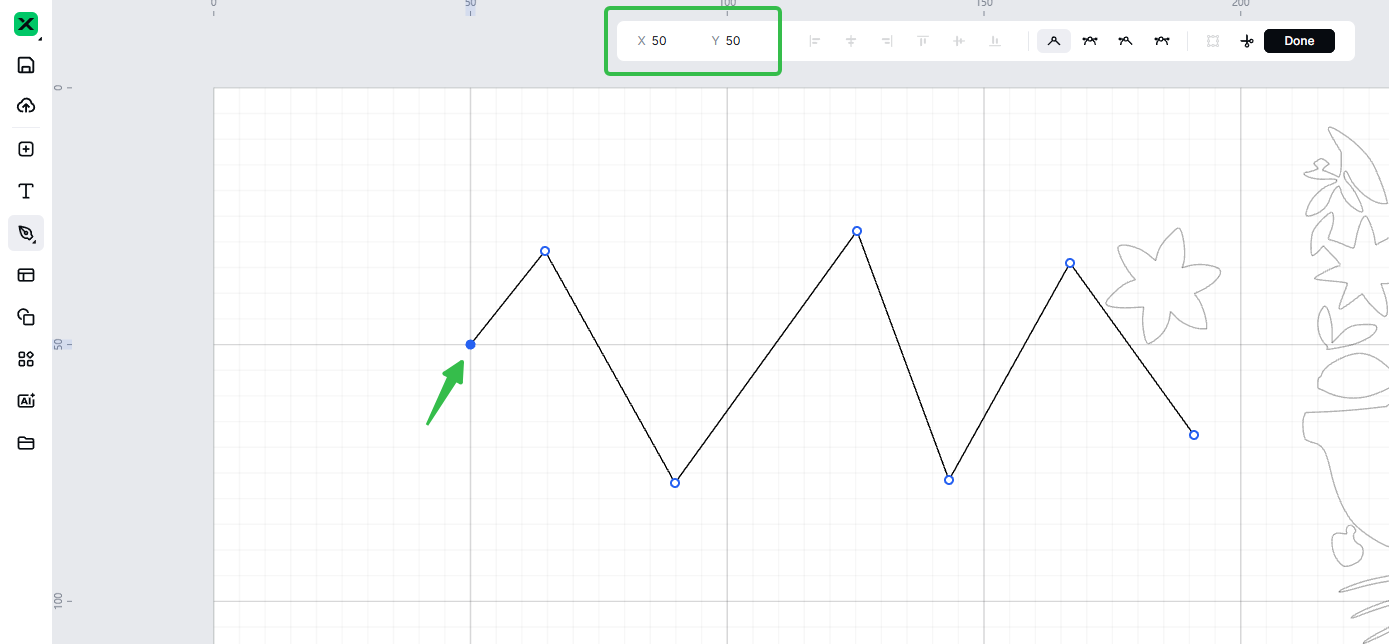
Set node position
You can set the position of a node precisely by entering the x and y coordinates. The unit can be set in Settings.
The position (0, 0) is in the upper-left corner of the canvas.
Align
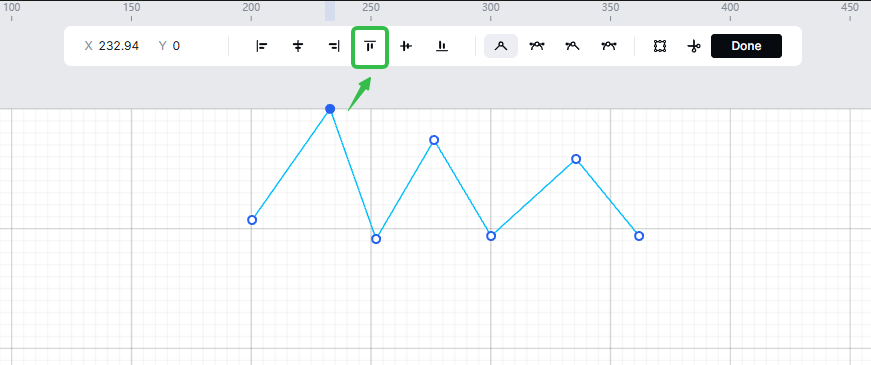
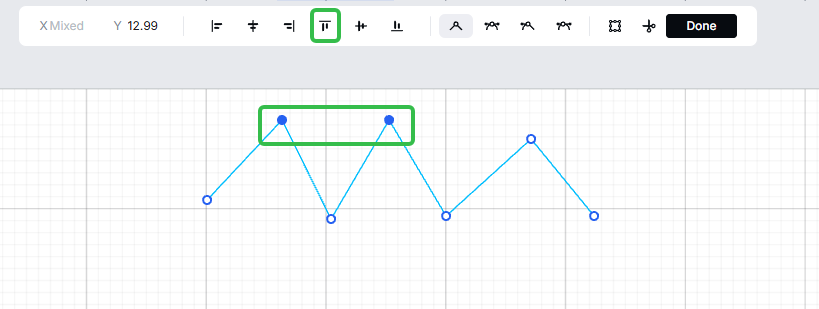
You can select a node to align it with the canvas, or select two or more nodes to align them.
- Align a node with the canvas.
For example:
- Select two or more nodes to align them.
Set node type
You can select one or more nodes and set their node types.
Sharp corner
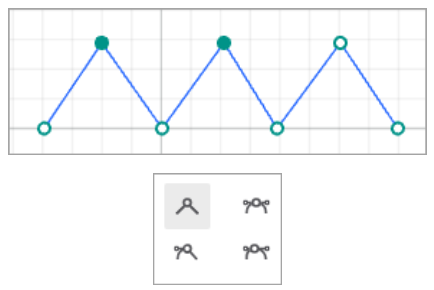
Perfect symmetry
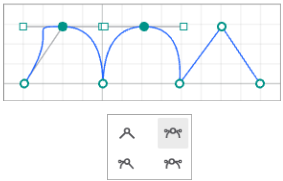
Total asymmetry
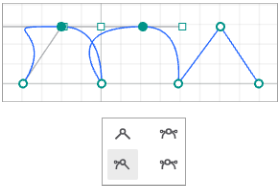
Angled symmetry
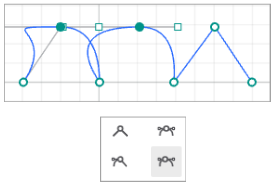
After editing the nodes, click Done.
Simplify nodes
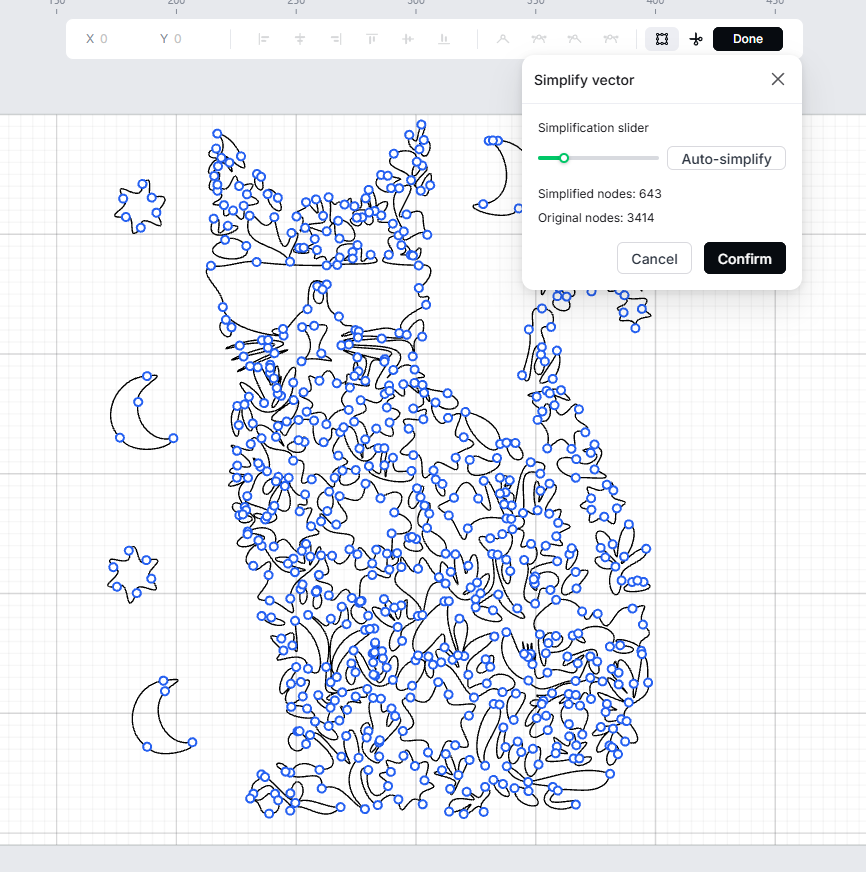
For complex vectors, you can click Simplify to reduce the number of nodes.
(1) Select the target vector pattern.
(2) Click Edit.
(3) Click Simplify. In the Simplify vector dialog box, you can adopt the auto-simplification result or use the Simplification slider to reduce the number of nodes.
(4) Click Done.
Split path
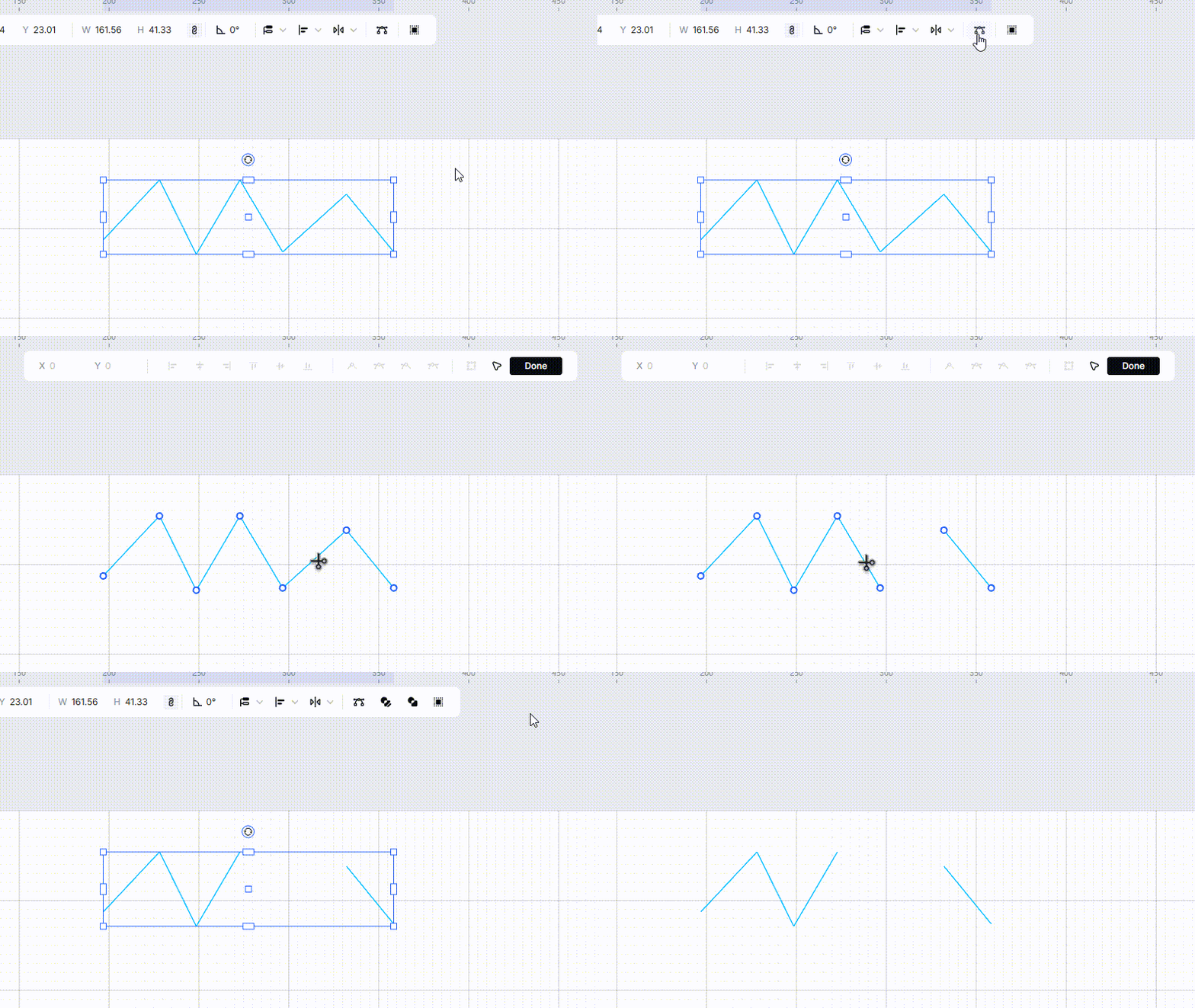
You can split a path between nodes.
(1) Select the target vector path.
(2) Click Edit.
(3) Click Scissors on the upper panel.
(4) Move the cursor onto the path segment you want to split and click the target path segment. You can also click Select to go back to the previous step.
(5) Click Done in the upper right corner.
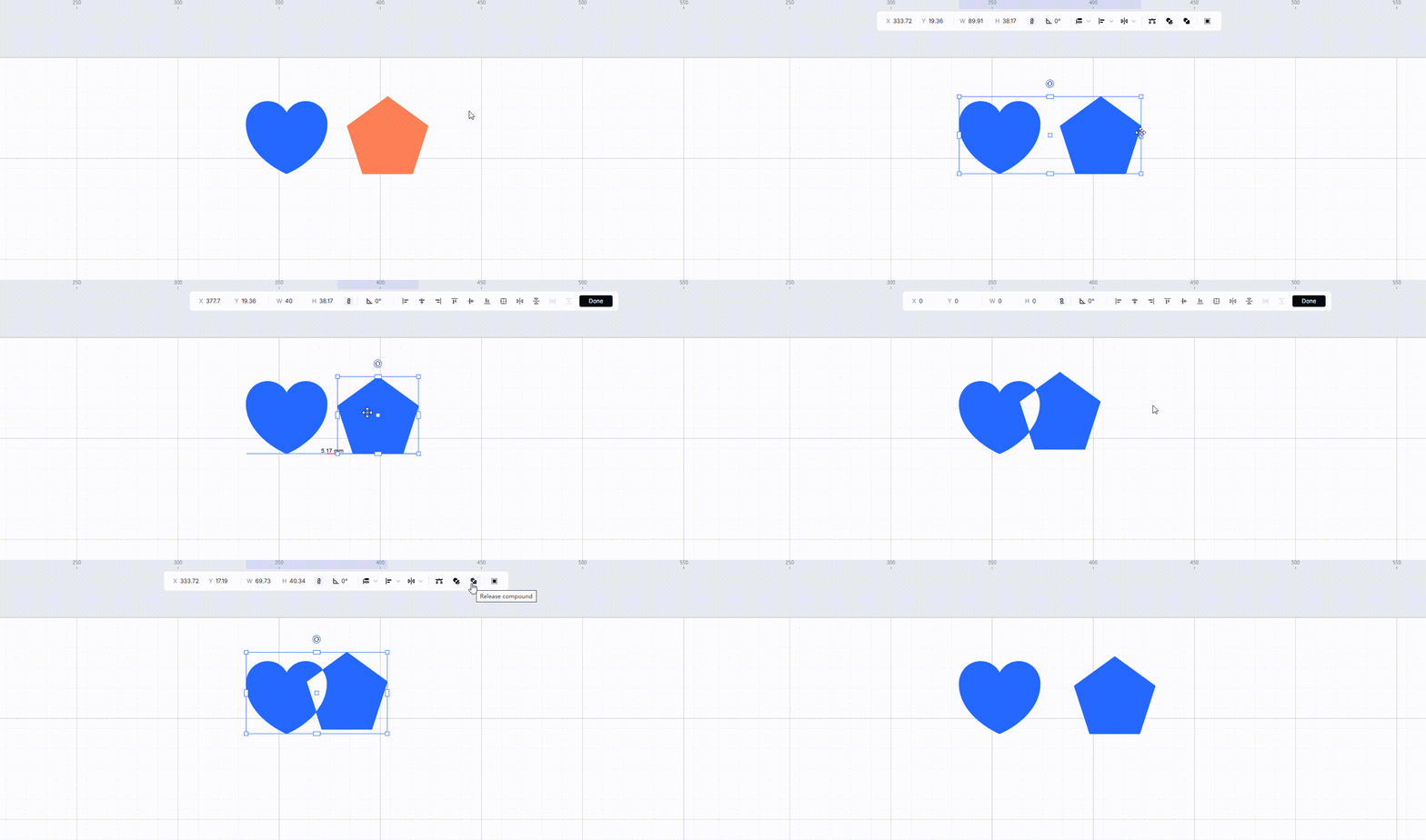
Set compound
Edit compound
You can click Edit compound to set the position, align, and reflect one or more vectors.
Release or make compound vectors
You can release or make a compound vector.
Set pathfinder
By selecting two or more vectors, you can set pathfinder.
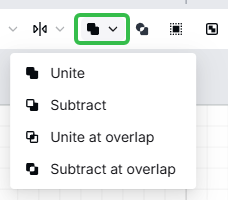
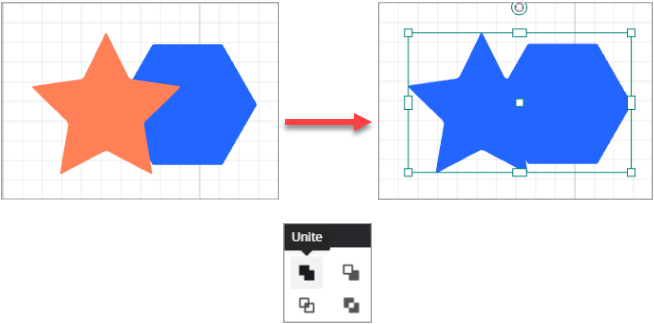
Unite
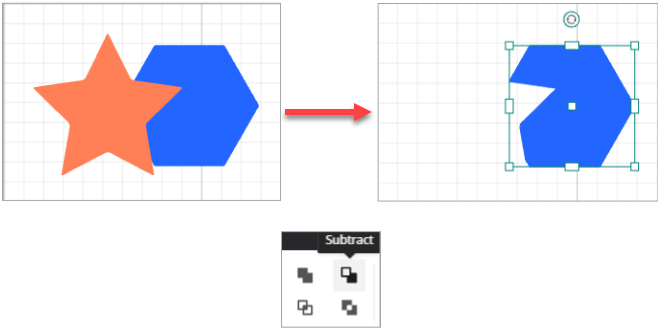
Substract
Unite at overtap
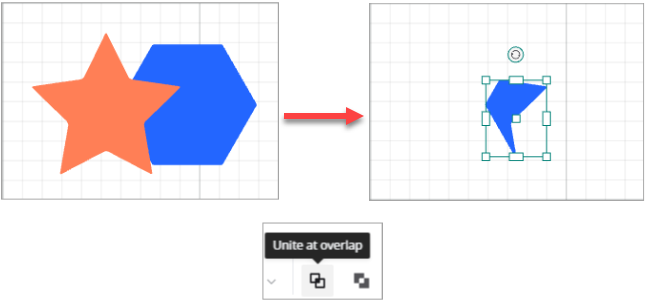
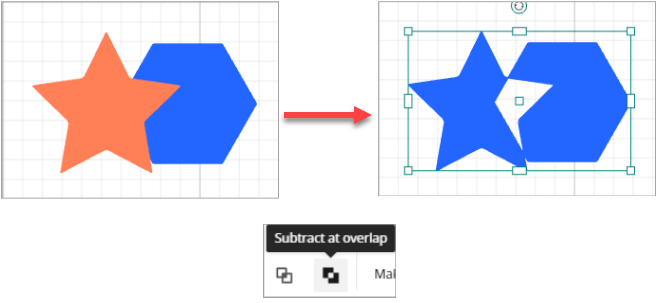
Substract at overtap