
NOTE: Below are the firmware upgrade instructions for xTool D1 Pro, NOT for D1. Please make sure it is a D1 Pro of yours and proceed.
(For D1, see How to Upgrade the xTool D1 Firmware?)
Video of troubleshooting D1 Pro firmware upgrade failure:
Method 1: Upgrade D1 Pro firmware with XCS (Recommended)
NOTE: DO NOT upgrade D1 Pro firmware with Laserbox basic or LightBurn.

- Make sure your network is in good condition.
- Make sure your computer stays on, and do not enter Sleep mode during the process.
- Do not power off D1 Pro during the process.
- Make sure the Upload Switch is "ON".
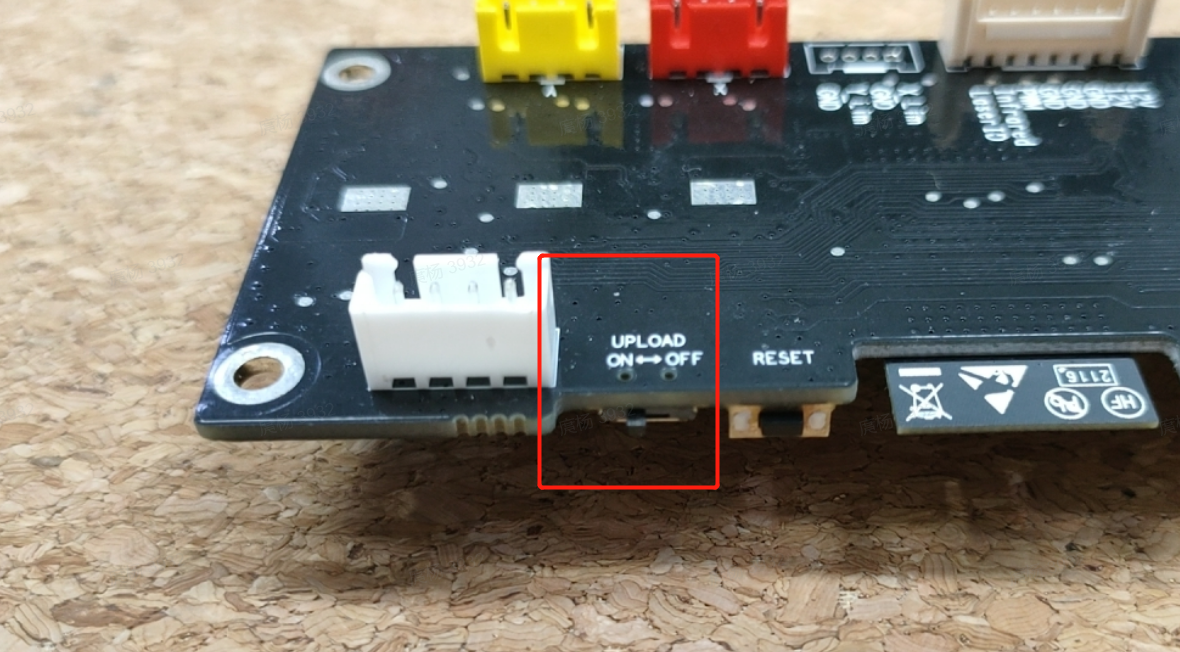
Step 1. Power on and connect D1 Pro to your computer via the original USB cable.
Step 2. Launch XCS, click on Connect Device, and select your device from the Device list. 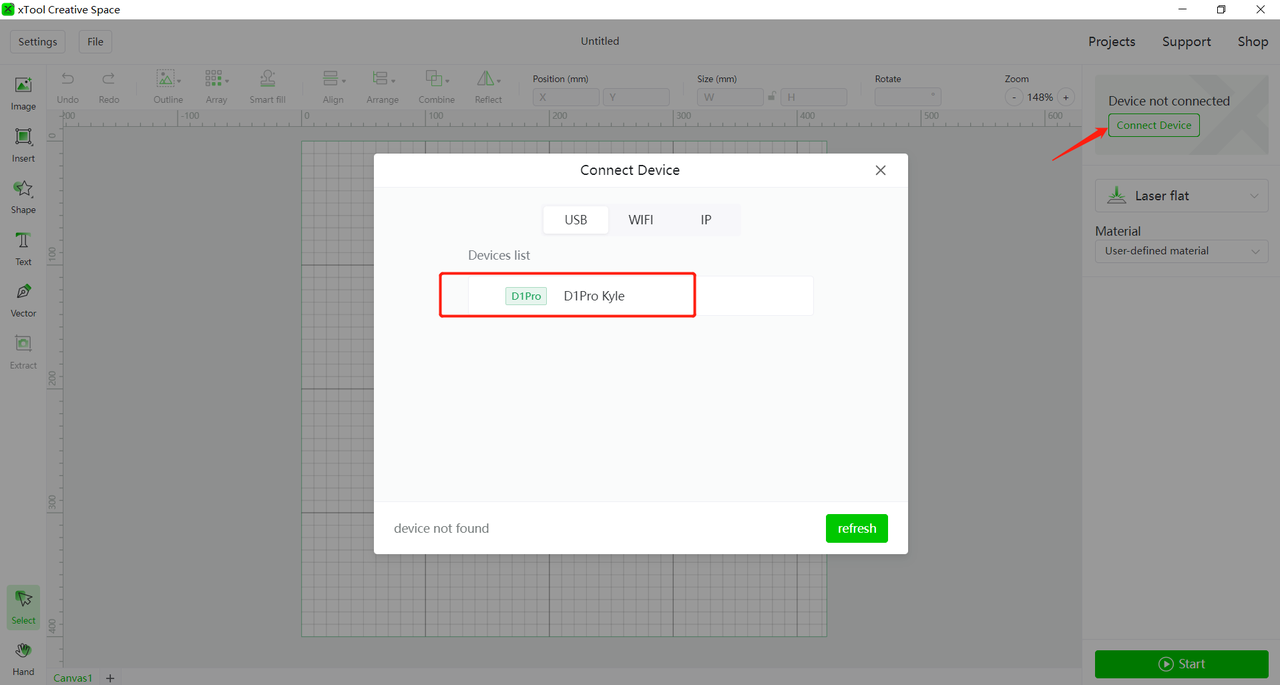
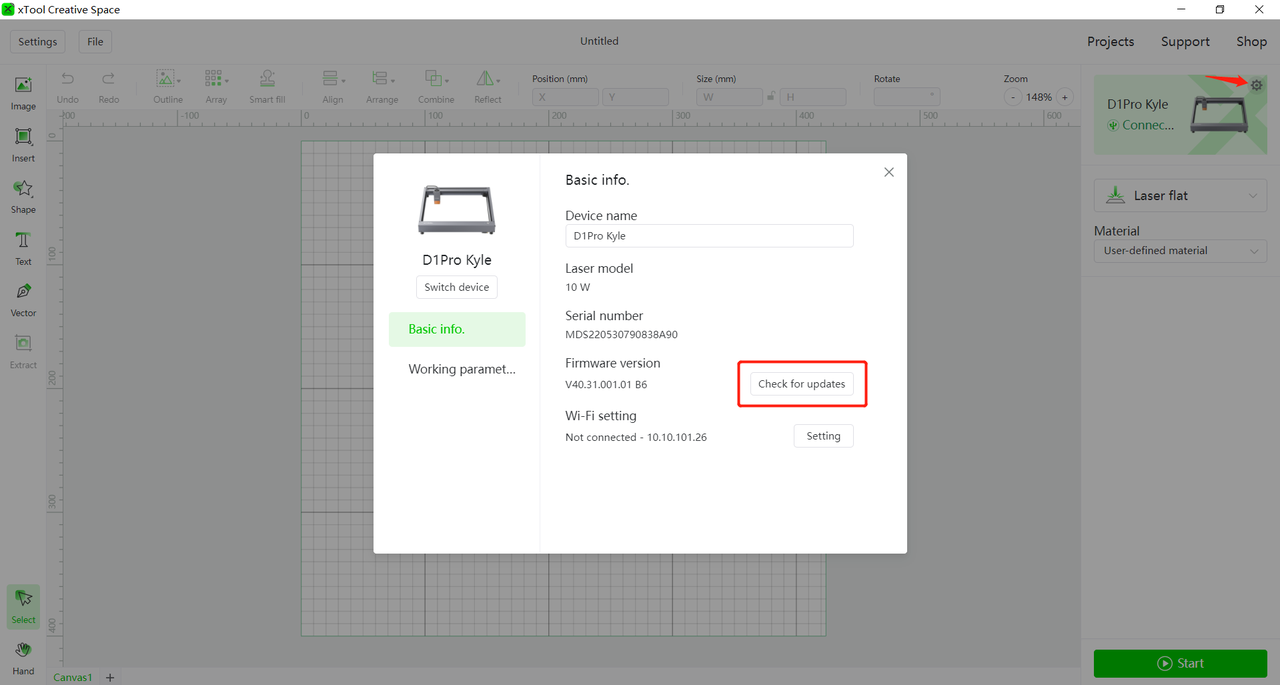
Step 3. Click on the gear icon and then click on Check for updates.
Step 4. If a new firmware version is available, click on Update.
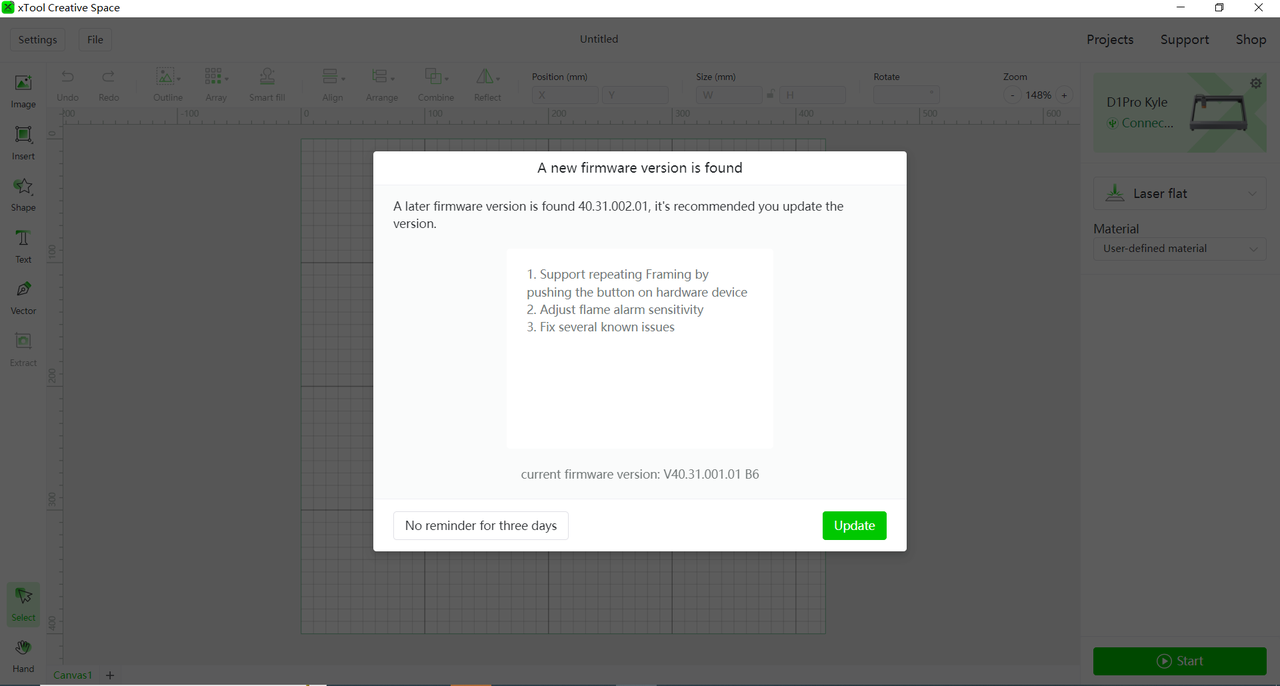
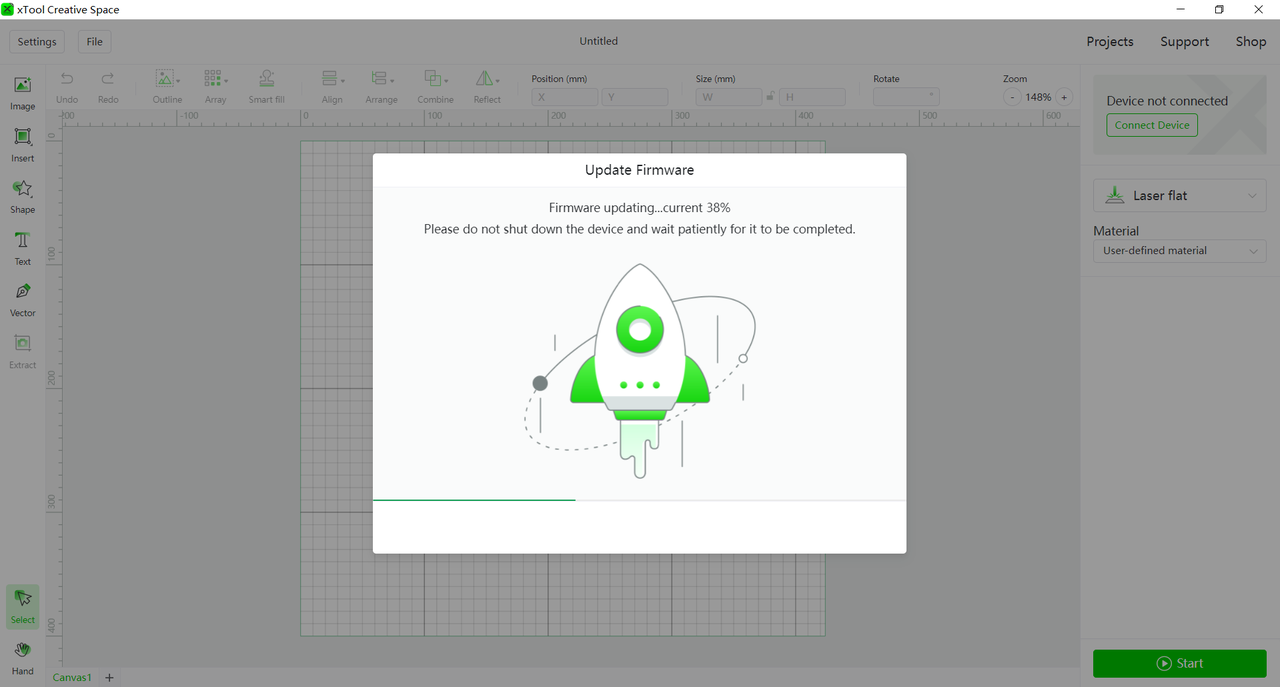
And the firmware update starts.
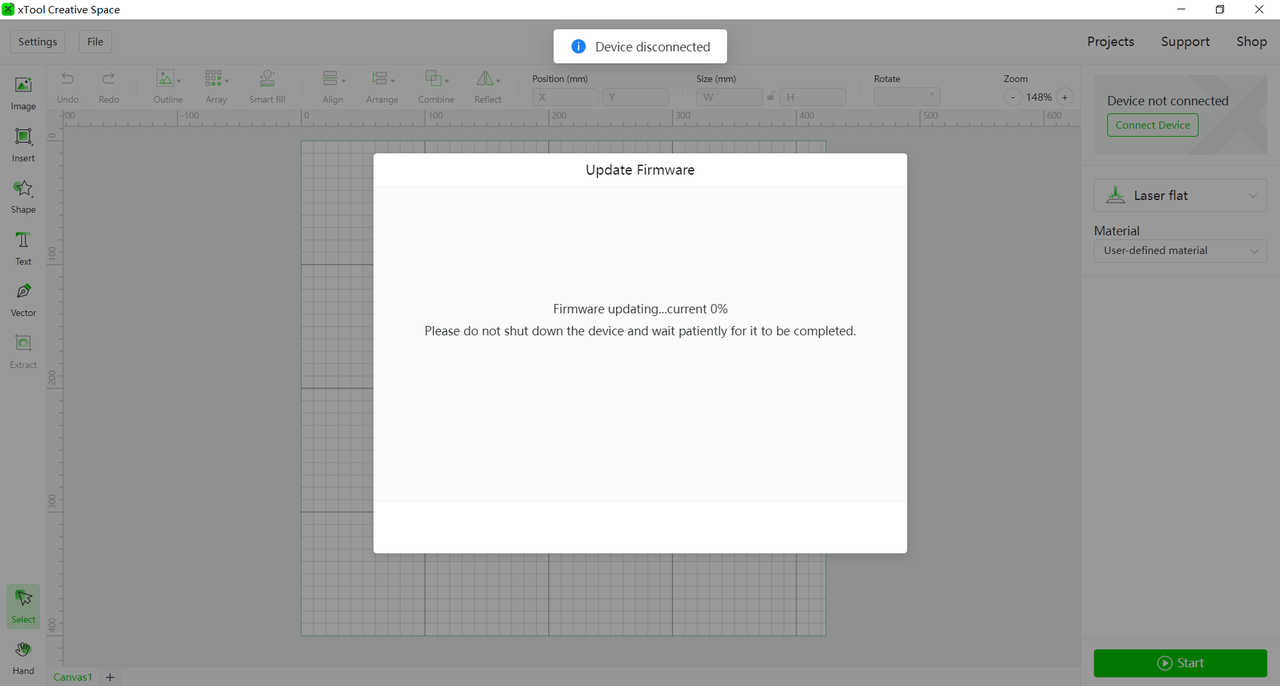
In progress.
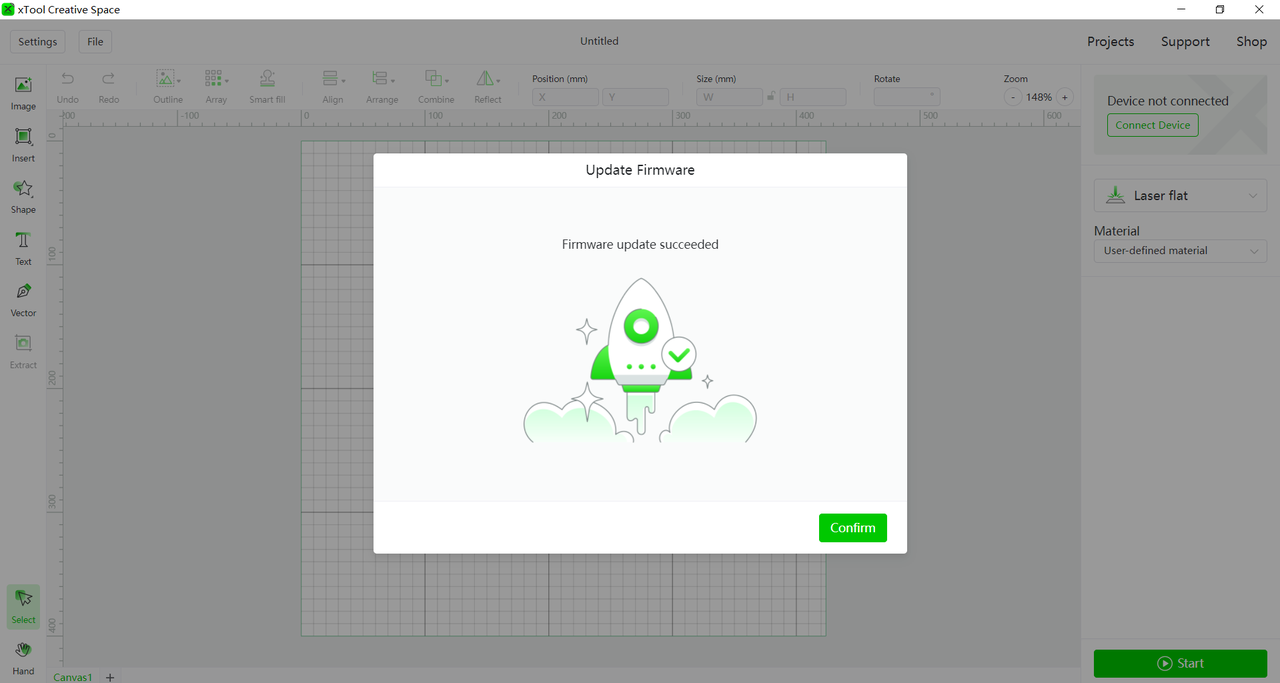
Completes.
Method 2: Upgrade D1 Pro firmware in XCS Developer Mode
Note:
Your XCS version should be V1.0 or above so that Developer Mode is available.
Step 1. Power on and connect the D1 Pro to your computer via the original USB cable.
Step 2. Launch XCS, normally the device will connect to XCS automatically. If not, click on Connect Device, and select your device from the Device list.
Step 3. Click Settings> Developer mode> Start.
Method 3: Upgrade the firmware by xTool D1 Pro Firmware Tool for Windows
NOTE:
- Make sure your network is in good condition.
- Make sure your computer stays on and it does not enter Sleep mode during the upgrade process.
- Do not power off D1 Pro during the process.
- Make sure the Upload Switch is "ON".
Step 1. Download the xTool D1 Pro Firmware Tool and unzip it on your local disk.
Step 2. Open the folder and double-click the "xTool D1 Pro Firmware Tool.exe" to launch the program.
Step 3. Connect the D1 Pro to your computer. Do not switch on the power, keep it powered off.
Step 4. Press and hold the RESET button on the motherboard and switch on D1 Pro. D1 Pro will automatically enter Compulsory firmware upgrade mode.
Step 5. Click on the three dots marked in the image below.
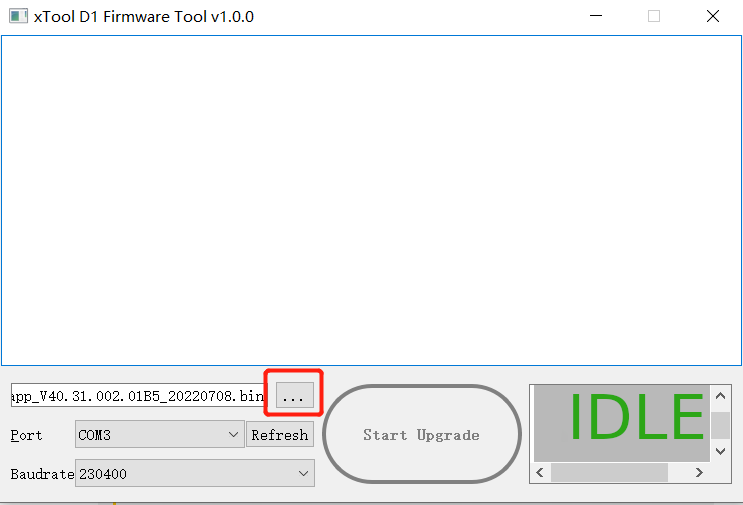
Step 6. Import the bin file (select the latest one or the specific one you had in mind), "D1S_app_V40.31.003.01B4_20220829.bin" for example as below.
Step 7. Click Start Upgrade.
When it finishes successfully, a PASS notification will show in the lower right corner.

