
Install xTool Studio on the Computer
Updated Jan 15,2026
Updated Jan 15,2026
For Windows or macOS Computers
Item | Minimum Configuration | Recommended Configuration |
|---|---|---|
Processor | Intel Core i5-6200U | Intel Core i5-11600 or higher |
Operating System | Windows 10 (64-bit) or later | macOS 10.15 (Catalina) or later |
RAM | 8 GB | 16 GB or larger |
Display Resolution | 1280 × 720 pixels | 1920 × 1080 pixels or higher |
Hard Drive Space | 8 GB | 12 GB or larger |
Notes:
- Minimum configurations allow all functions to work properly, but editing or importing complex images may cause lag or slow performance.
- Systems below minimum requirements may experience lagging or crashes, and technical support may be limited.
- Recommended configurations improve smoothness and reduce delays, though very complex images might still cause some lag.
- When using a laptop, connect to a power supply and disable energy-saving mode.
- Linux and ChromeOS are not supported.
- Computers powered by Snapdragon X series processors are not supported.
Windows Installation
Download link: https://www.xtool.com/pages/software
1.Double-click the software you've downloaded to install it.

Note: Click Yes when you are asked "Do you want to allow this app to make changes to your device?" and then continue the installation as prompted.
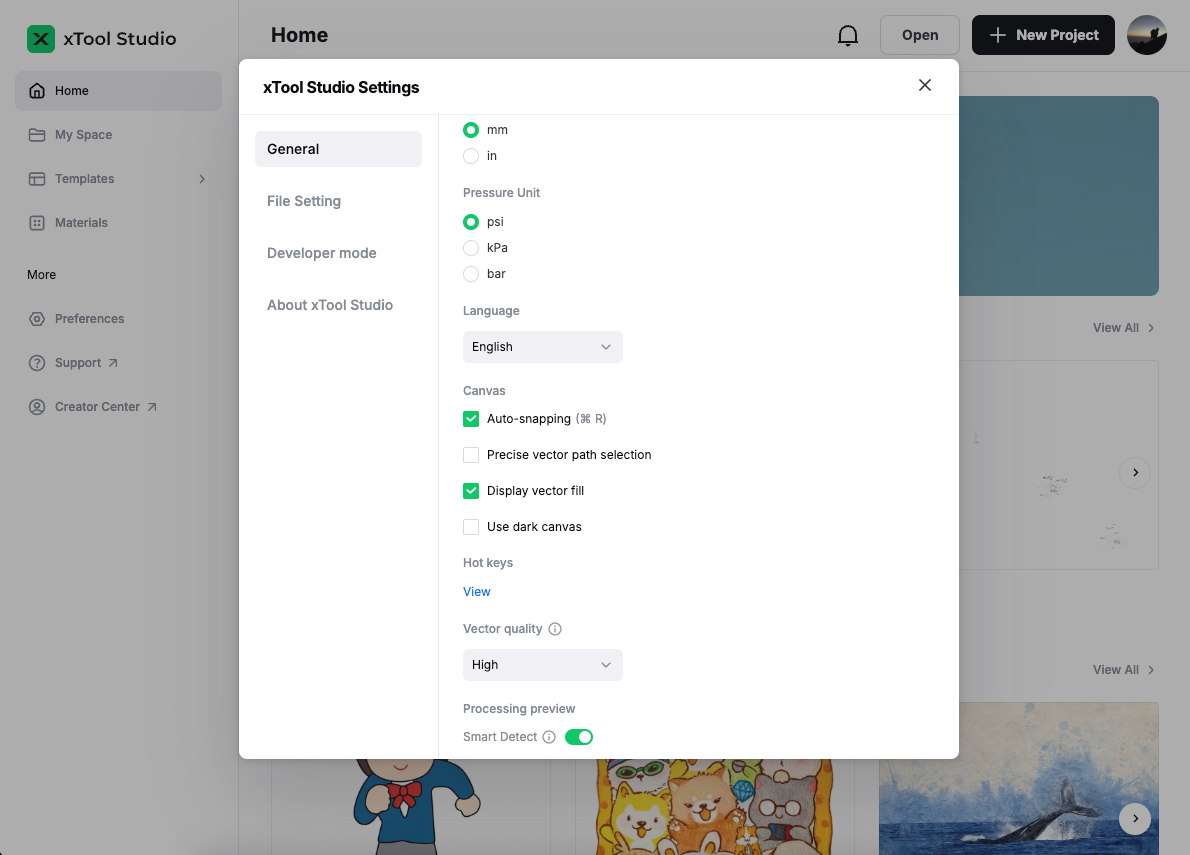
2.Open xTool Studio. On the top-right corner, click the

icon > Settings, and set the display language for xTool Studio.
macOS Installation
Drag the xTool Studio software into the Application folder to install it.

Note: When you install xTool Studio for Mac, you may see a prompt: "xTool Creative Space can't be opened because it was not downloaded from the App Store." If so, please follow the instructions below to install the app.
Preview
Was this page helpful?
137 out of 183 found this helpful
Help Ticket
Use this help ticket to submit your issue. We will respond within 1 business day
Submit a Ticket 
