
Import XCS Parameter Settings into xTool Studio
Updated Jun 5,2026
Updated Jun 5,2026
This guide explains how to move your saved parameter presets (speed, power, passes, kerf offset, etc.) from xTool Creative Space (XCS) into the new xTool Studio.
- Method 1 — Cloud Sync (Recommended): Upload from XCS (v2.3 or later) to your xTool cloud, then use them in xTool Studio on any device.
- Method 2 — Local Import: Export files from XCS and import them into xTool Studio.
Before you start
- Use the same xTool Account in both XCS and xTool Studio.
- Update to the latest versions of both software.
- Ensure you have a stable internet connection (required for Method 1).
Method 1 — Cloud Sync (XCS 2.3+, Recommended)
Upload presets to the cloud
- Open XCS (v2.3 or later).
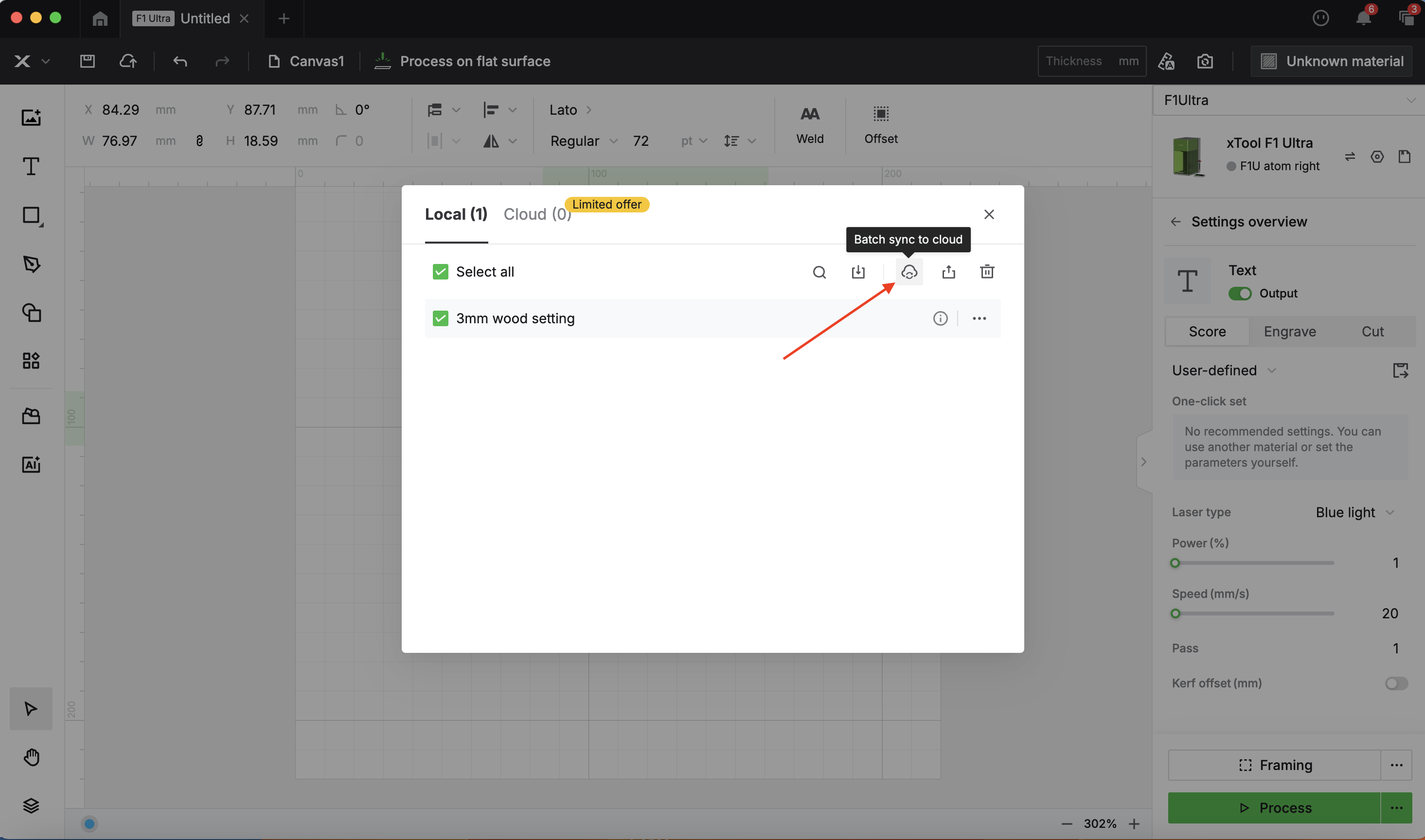
- Go to Parameter Settings Manager.
- Select the presets you want to upload.
- Click Sync to Cloud.
- If you aren’t signed in, XCS will prompt you to log in first.
- Wait for the confirmation that your presets have been uploaded.

Use cloud presets in xTool Studio
- Open xTool Studio and sign in with the same xTool ID.
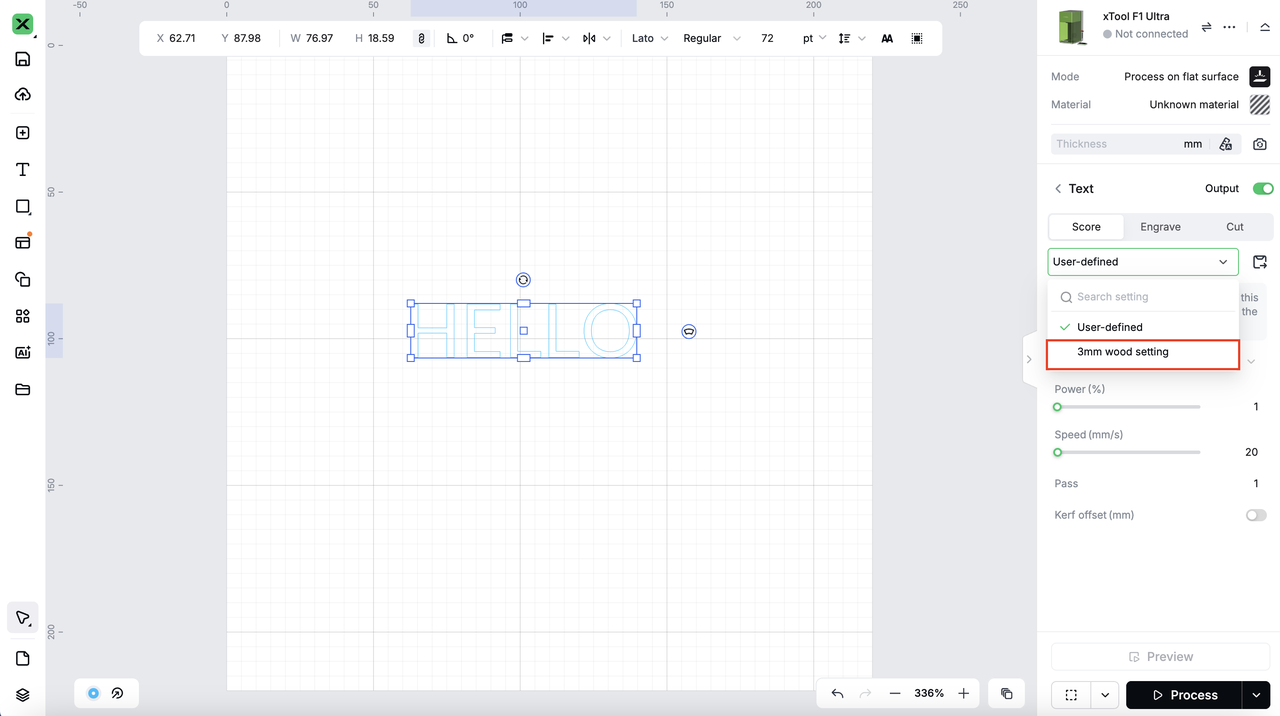
- Open a project. In the right-hand Process panel, choose your material (e.g., Unknown material or a specific material).
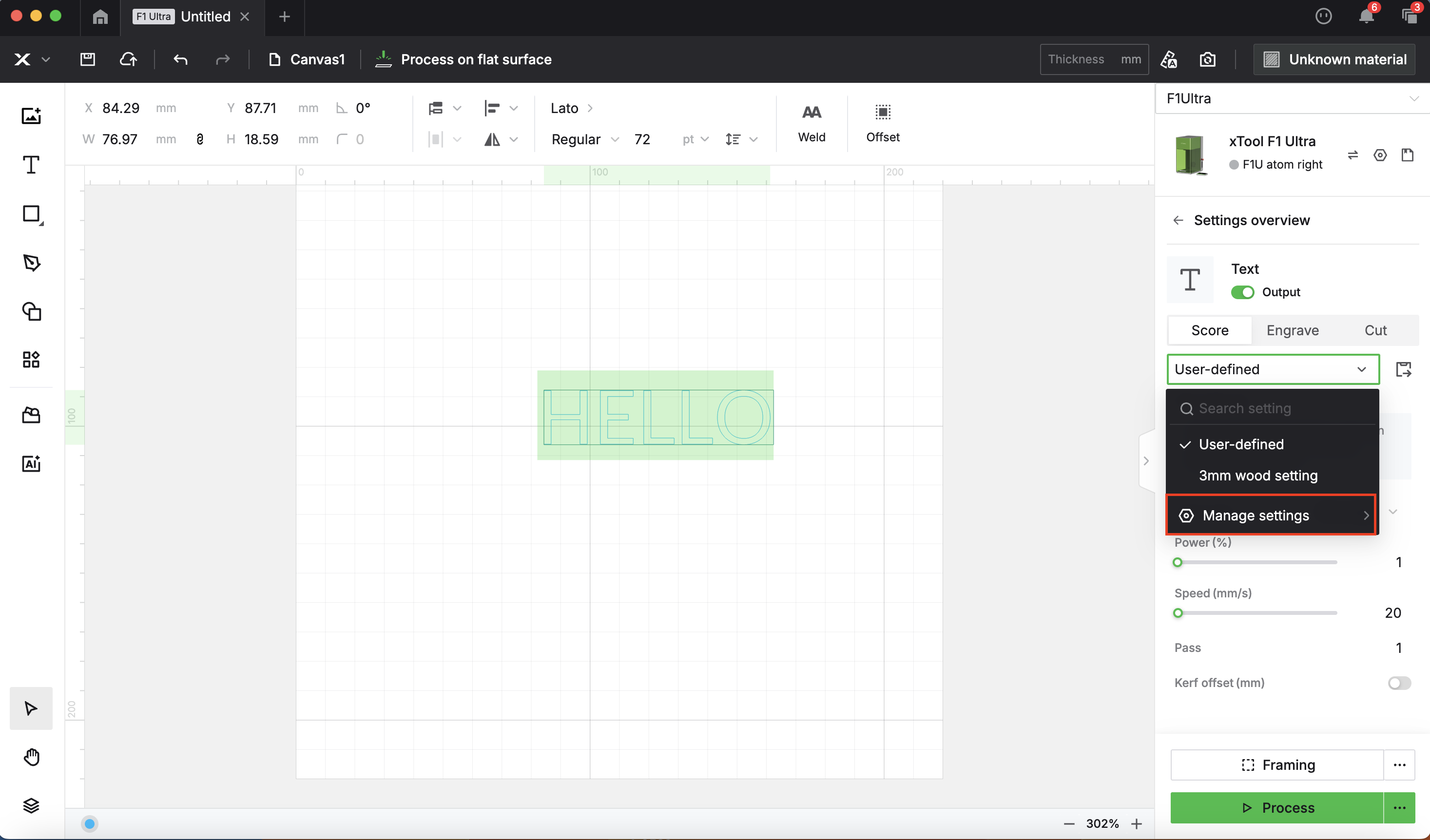
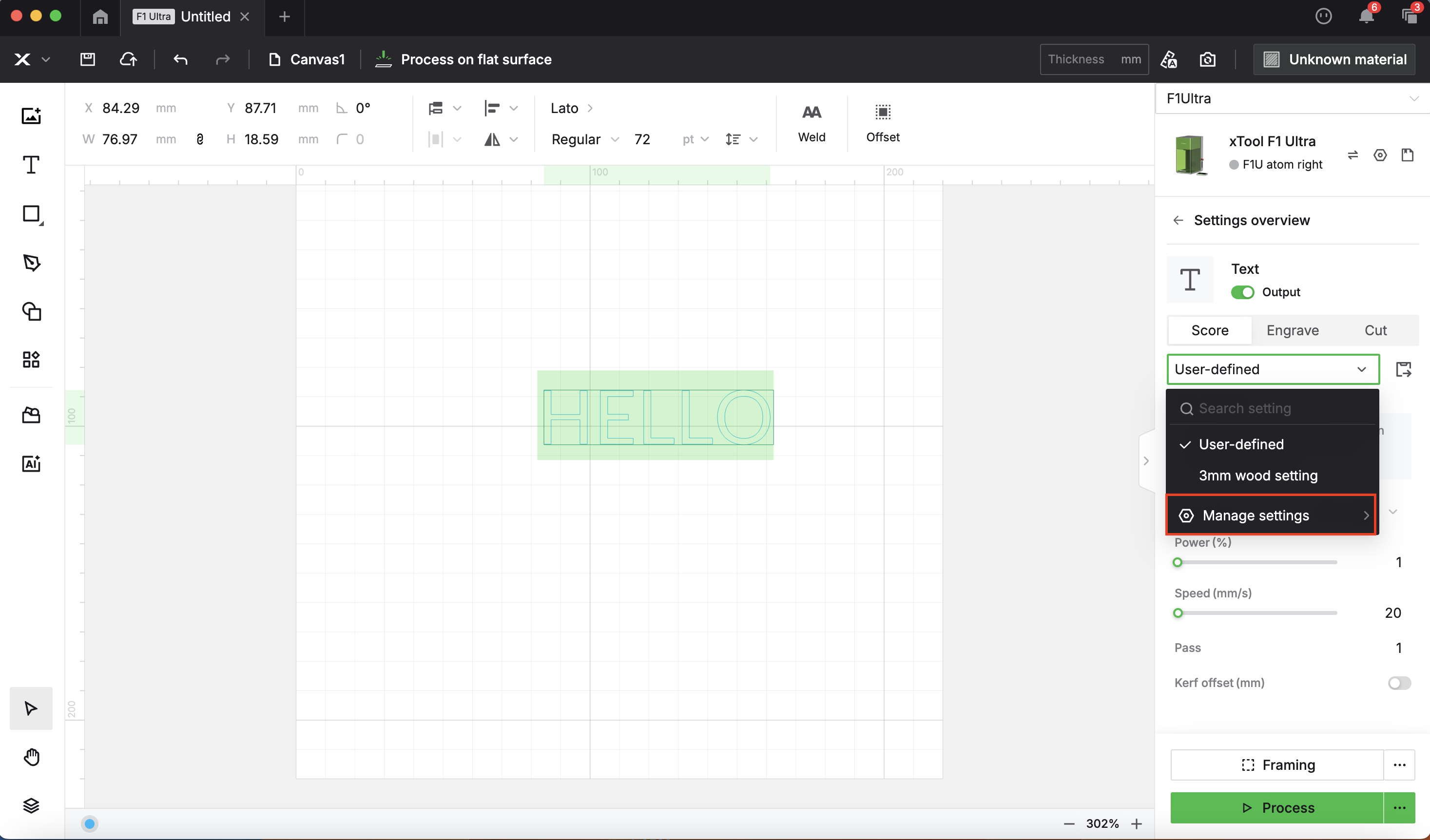
- Open the settings menu (e.g., User-defined, Manage settings, or similar).
- Select and apply your cloud-synced preset.
Tip: If you don’t see the presets immediately, refresh xTool Studio or sign out and back in.
Method 2 — Local Export (All XCS versions)
Export presets from XCS
- In XCS → Parameter Settings Manager, select the preset(s) you want to move.
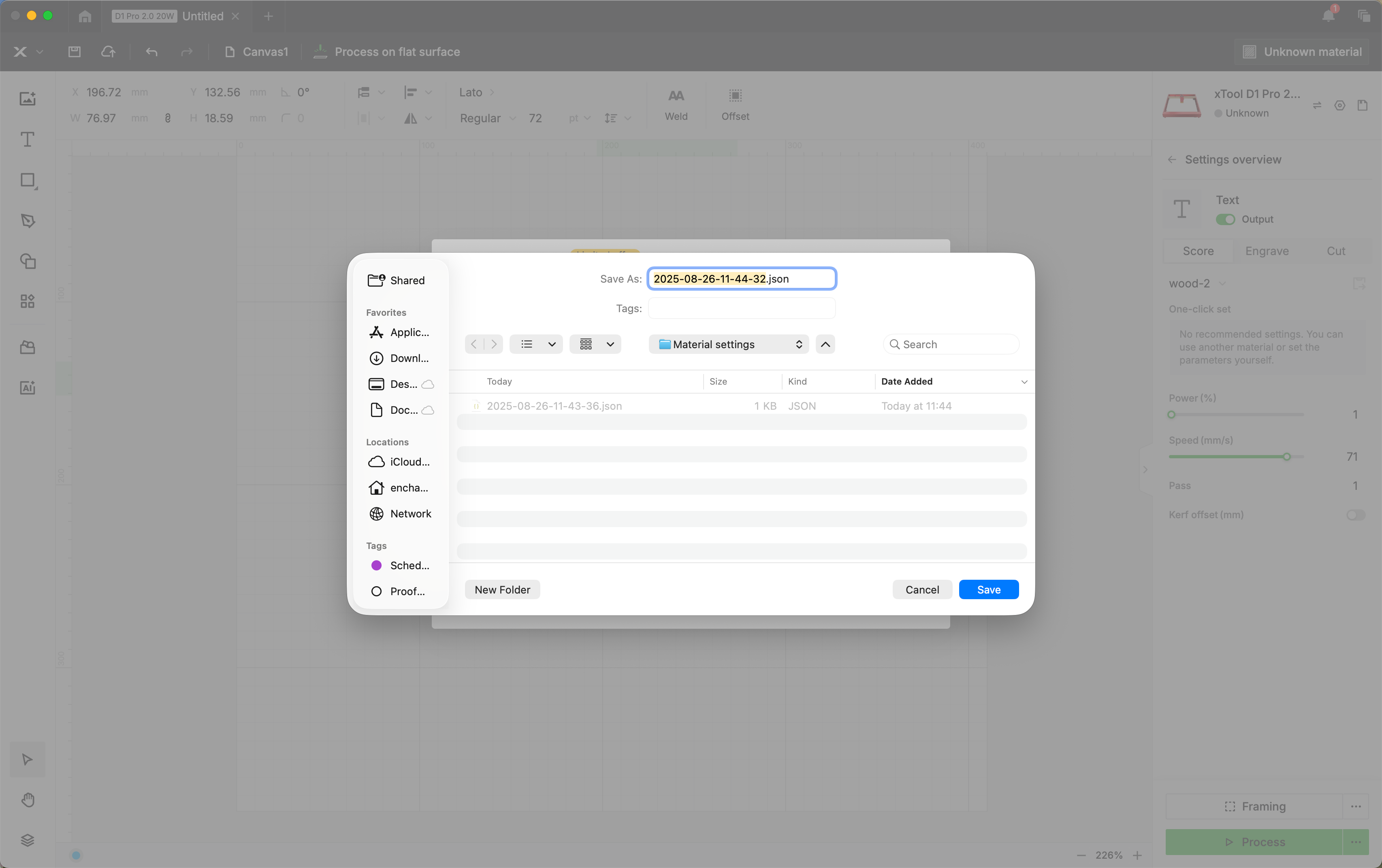
- Click Export.
- Save the exported file(s) to your computer.

Import presets to xTool Studio---Method 1
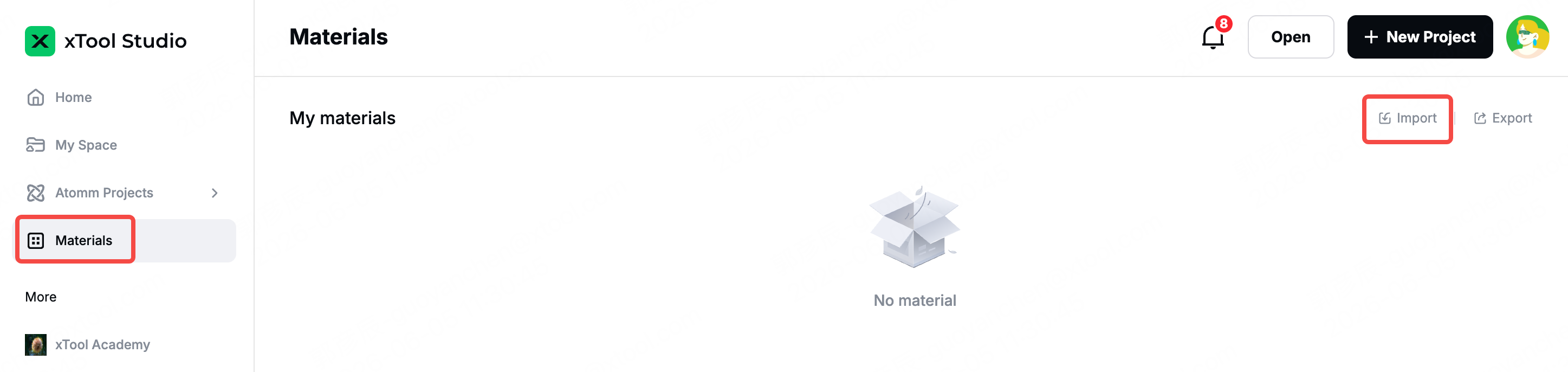
- Open xTool Studio → Home.
- In the left sidebar, click Materials.
- Click Import (top toolbar) and choose the file(s) you exported from XCS.
Import presets to xTool Studio---Method 2
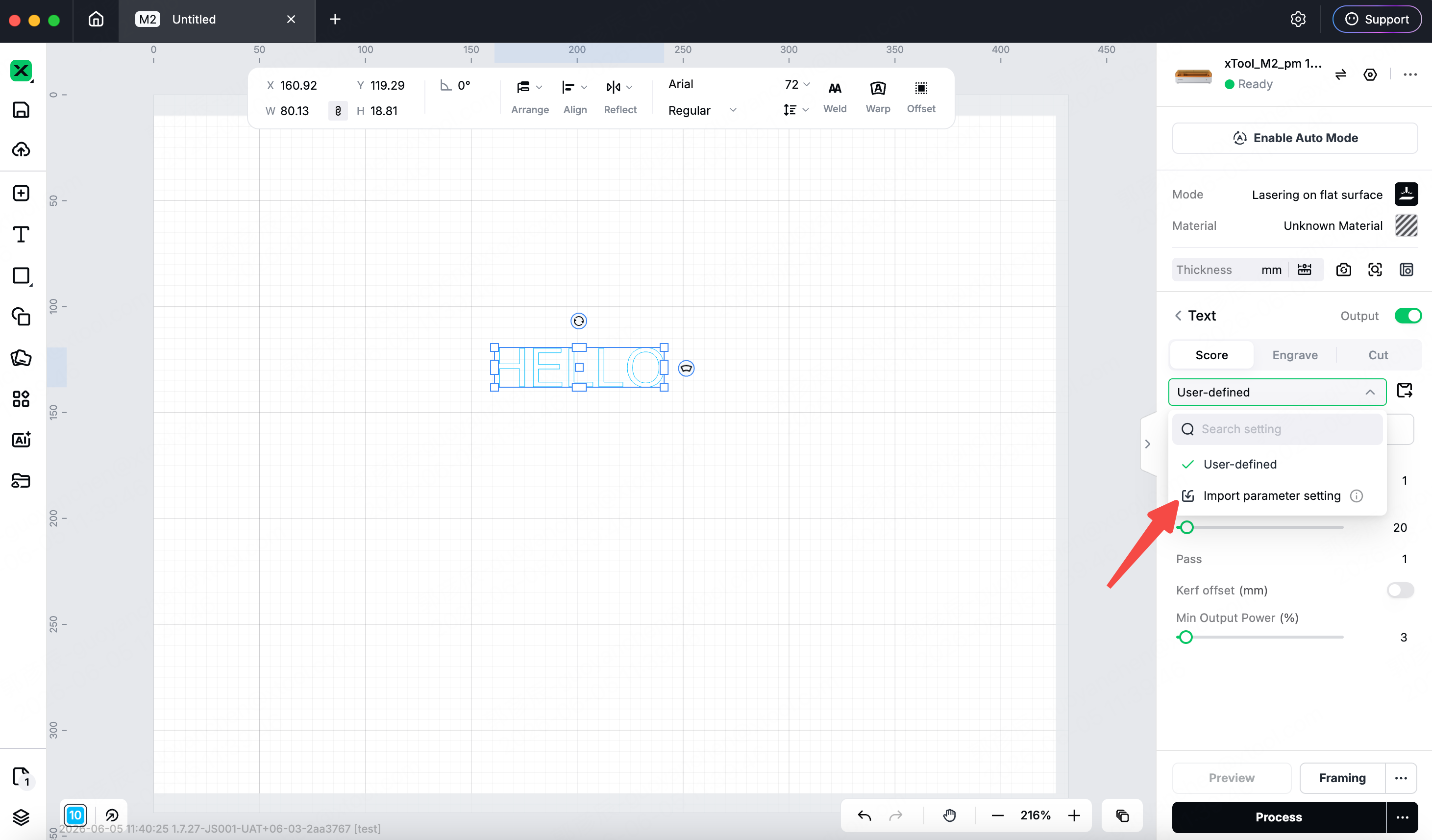
- Open the parameter panel and import it through the import option in the parameter preset list.
What gets moved
- Saved process/material parameter presets including speed, power, passes, kerf offset, and related fields.
- Preset names and grouping are preserved.
Troubleshooting
- Presets not visible in xTool Studio:
Confirm you’re signed in with the same xTool ID. For cloud sync, refresh Studio after uploading. - Imported presets don’t show in “My Materials”:
Presets imported from XCS will only appear under Unknown Materials inside a project.
To use them, open a project in xTool Studio, select Unknown material, and then find your imported parameter in the settings menu. - Using older XCS (<V2.3):
You must use Method 2 (Local Import). - Wrong values:
Try re-syncing (Method 1) or re-importing (Method 2).
Choosing a method
- Use Cloud Sync if you want the simplest, always-available setup across devices.
- Use Local Import if your machine is offline or if company policy requires file-based transfer.
Preview
Was this page helpful?
88 out of 103 found this helpful
Help Ticket
Use this help ticket to submit your issue. We will respond within 1 business day
Submit a Ticket 
