
Troubleshoot "Laser Module Exception" for xTool MetalFab CNC Cutter
Updated Mar 12,2026
Updated Mar 12,2026
For a faster troubleshooting experience, use the interactive troubleshooting guide.
If a more detailed explanation of each step is preferred, you may continue reading the article below.
Issue description
If you encounter a pop-up error message entitled "Laser module exception" in XCS, please follow this troubleshooting guide to resolve this issue.
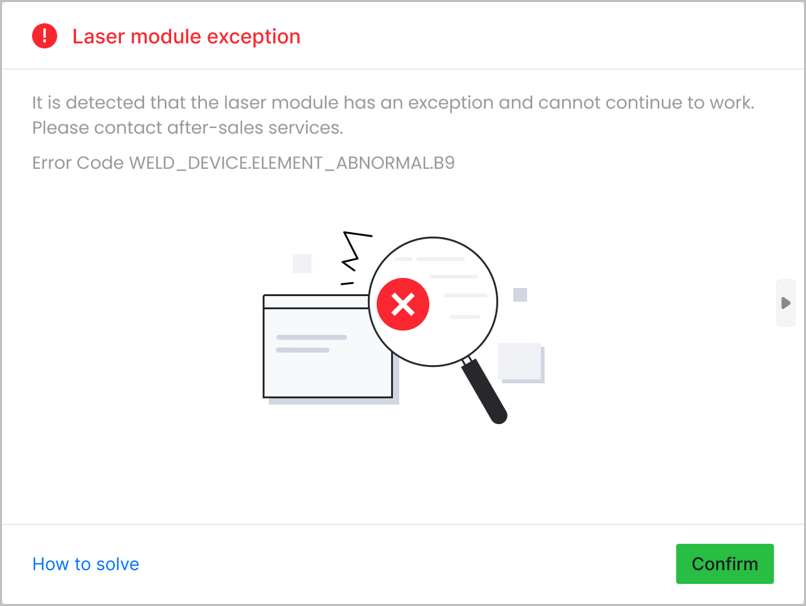
Possible causes
- Power supply: The power supply for xTool MetalFab Laser Welder doesn't meet the requirements.
- Laser module: The laser module of xTool MetalFab Laser Welder malfunctions.
- Firmware version: The firmware version of xTool MetalFab CNC Cutter is out of date.
Detailed procedure
Step 1: Check xTool MetalFab Laser Welder
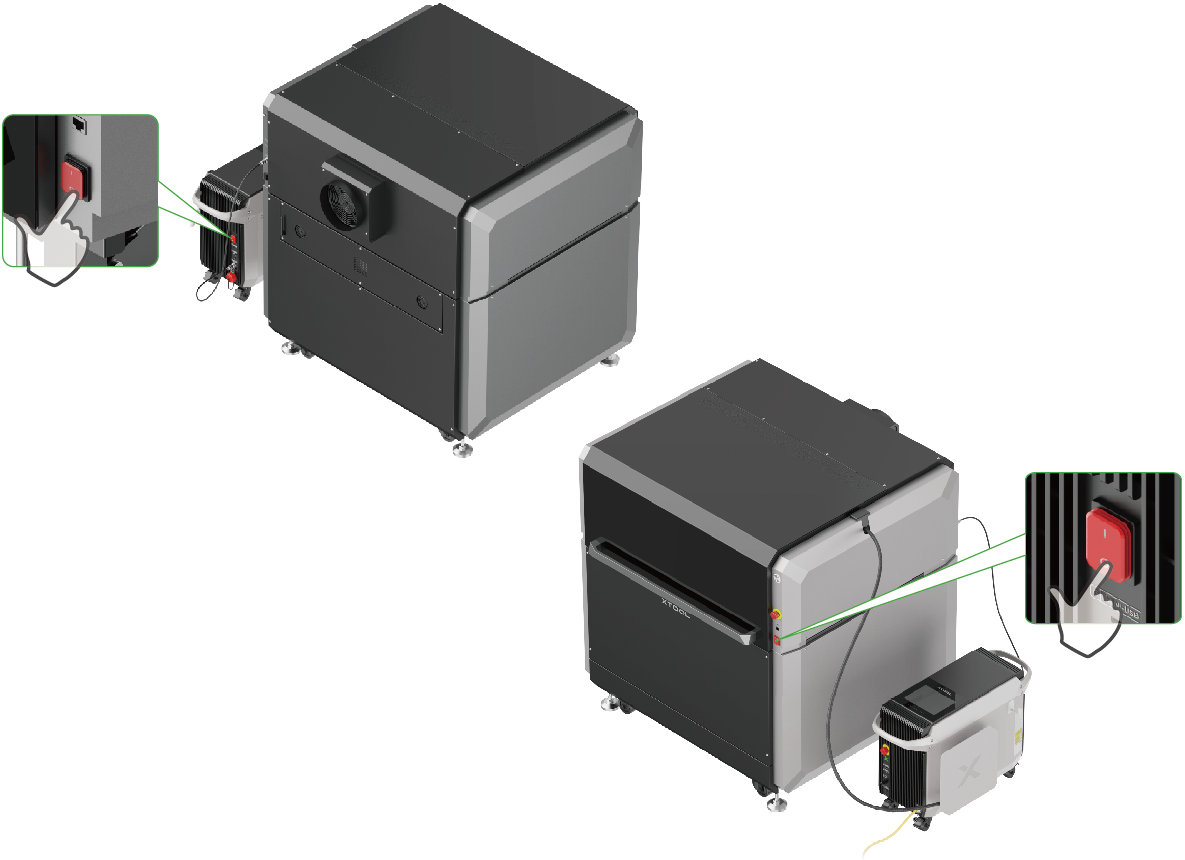
- Power off both xTool MetalFab CNC Cutter and xTool MetalFab Laser Welder.
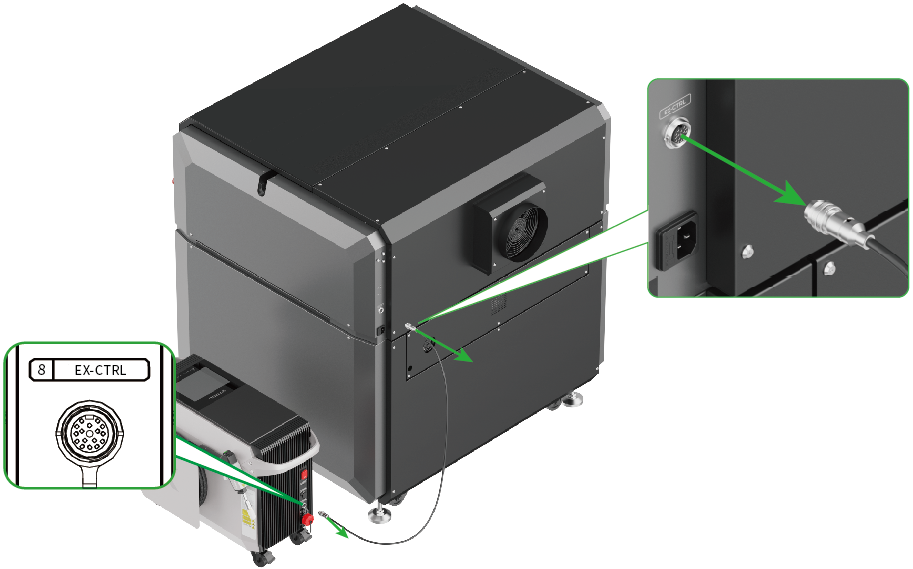
- Remove the communication cable.
- Turn on xTool MetalFab Laser Welder. Then, follow its Quick Start Guide to weld or cut a metal by holding the welding head and see if its touchscreen indicates abnormal laser module.
- If yes, refer to another guide to resolve the issue.
- If not, and handheld welding and cutting functions are normal, proceed to the next step.
Step 2: Check the firmware version of xTool MetalFab CNC Cutter
- Connect xTool MetalFab CNC Cutter with xTool MetalFab Laser Welder.
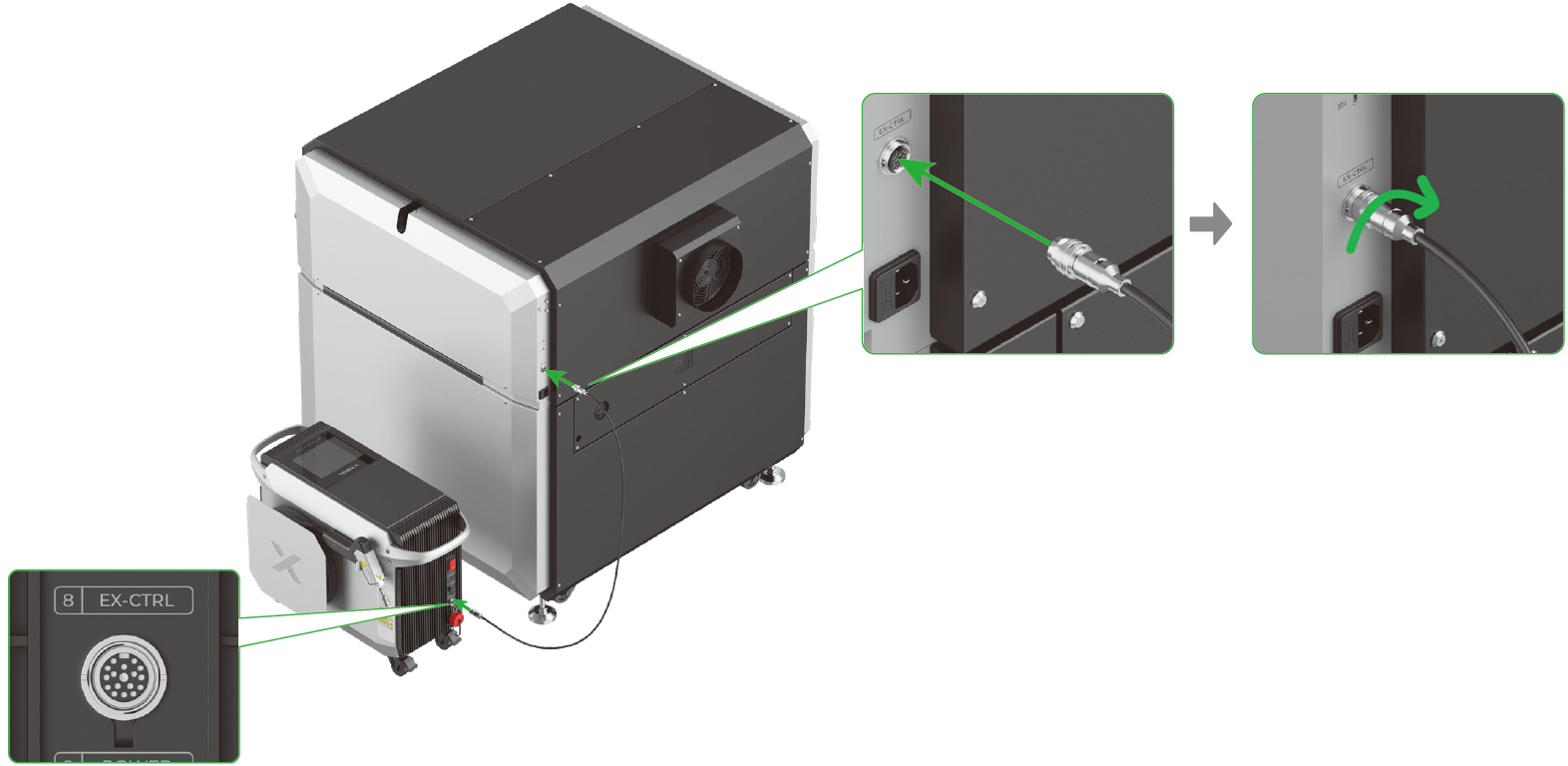
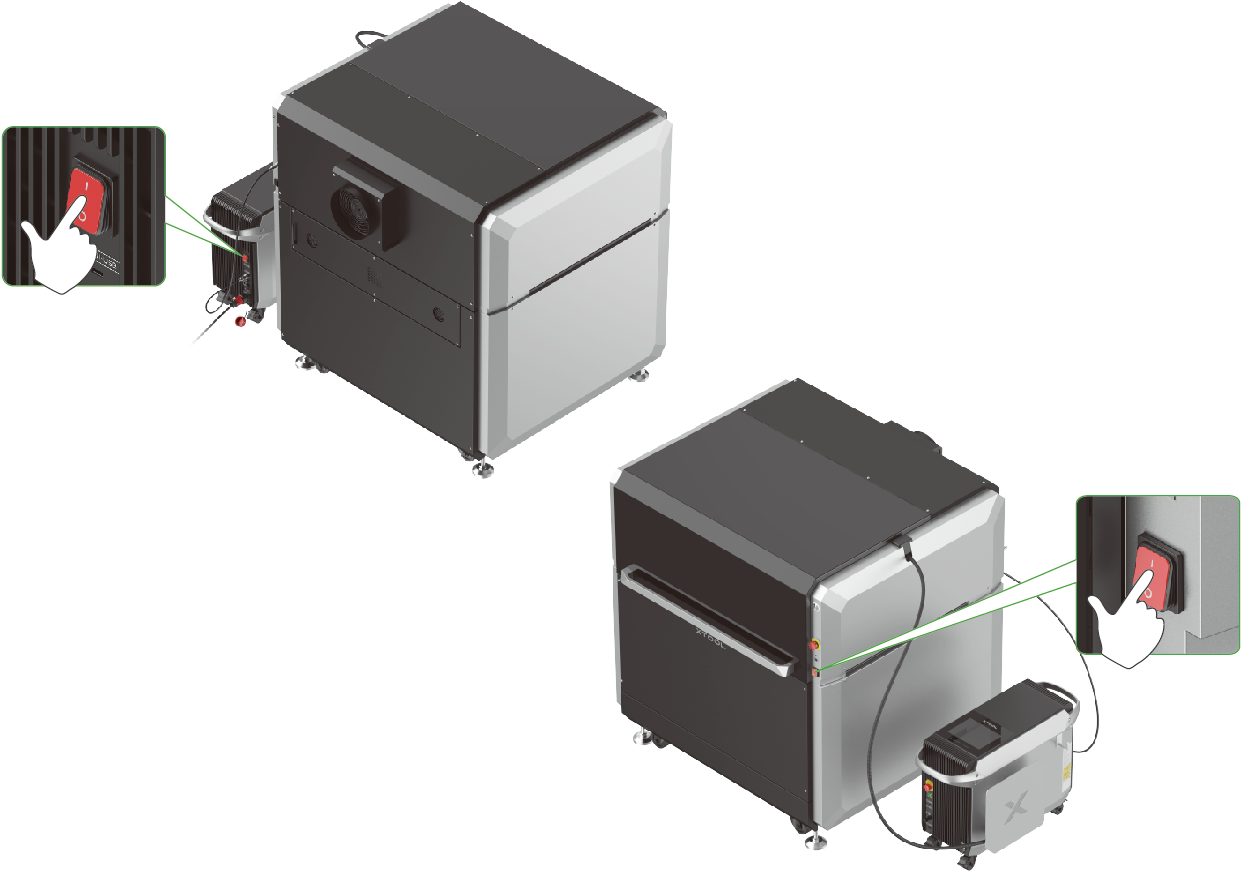
- Turn on both machines and connect xTool MetalFab CNC Cutter to XCS.
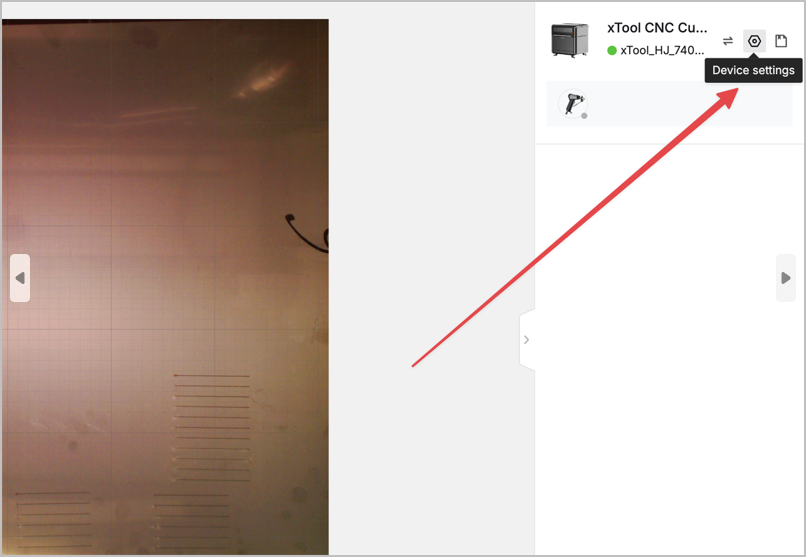
- Click the Device settings icon.
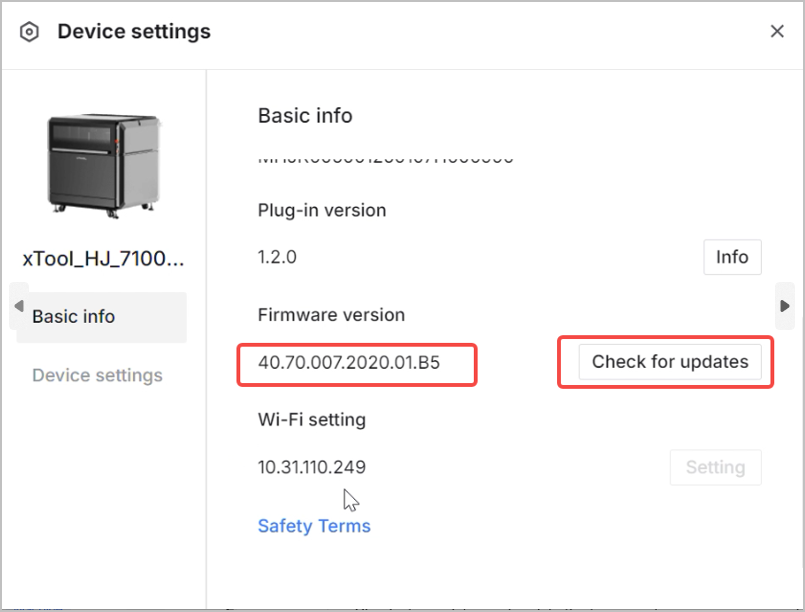
- On the Basic info tab, click Check for updates under Firmware version. Ensure that the current version is later than 40.70.009.00.ht1.
- If the issue persists, please prepare the following materials and send them to xTool Customer Service for further assistance:
- Screenshot of the error message in XCS
- Screenshots of firmware versions of both machines
- Work log of xTool MetalFab CNC Cutter
- A video recording your troubleshooting process and results
Still experiencing issues?
Should the issue persist after completing the preceding steps, submit a ticket via the "Submit a Ticket" button in the "Help Ticket" section below. The standard response time for xTool Customer Service is one business day.
For a prompt resolution, please include the following details:
- Issue description: A detailed explanation of the observed problem.
- Video evidence: Attach a video demonstrating the issue, where applicable.
- Troubleshooting performed: Any troubleshooting steps you have already attempted, along with their results.
This information is crucial for xTool technical support engineers to provide timely assistance.
Documentation feedback
Help improve this content by providing feedback. If this content did not meet your requirements, select "No" in the "Was this page helpful?" section below. Include specific details about what was unclear or missing in the pop-up suggestion box. Feedback submissions are reviewed by xTool technical writers to enhance future documentation.
Preview
Was this page helpful?
0 out of 0 found this helpful
Help Ticket
Use this help ticket to submit your issue. We will respond within 1 business day
Submit a Ticket 
