
Download PDF files (multi-language)
Português_xTool SafetyPro™ AP2 Max_Manual de referência rápida | ||
|
Unboxing and first use
List of items
xTool SafetyPro™ AP2 Max | ||
Remote control | Charging cable for the remote control | |
Power cable | Bluetooth dongle | Airflow inlet connector |
Pipe connector 1 | Pipe connector 2 | Smoke exhaust pipe |
Pipe clamp | NFC baseplate | Quick start guide |
Safety instructions |
Note:
■ The power cable varies according to the region in which the product is delivered.
■ Pipe connector 1 is compatible with xTool machines' rigid, shape-adjustable exhaust pipes with a diameter of 80 mm.
■ Pipe connector 2 is compatible with xTool machines' rigid, shape-adjustable exhaust pipes with a diameter of 65 mm.
Meet xTool SafetyPro™ AP2 Max
This device is designed to work with industrial-grade laser cutters and welding machines (e.g., xTool P3, MetalFab), and desktop laser machines. It can satisfy users' ultimate demands for extreme air purity.
Product specifications
Product model | MXA-S400-P00 |
|---|---|
Input power | AC 100-240V~ 50/60Hz 900W |
Airflow volume | 700 m3/h |
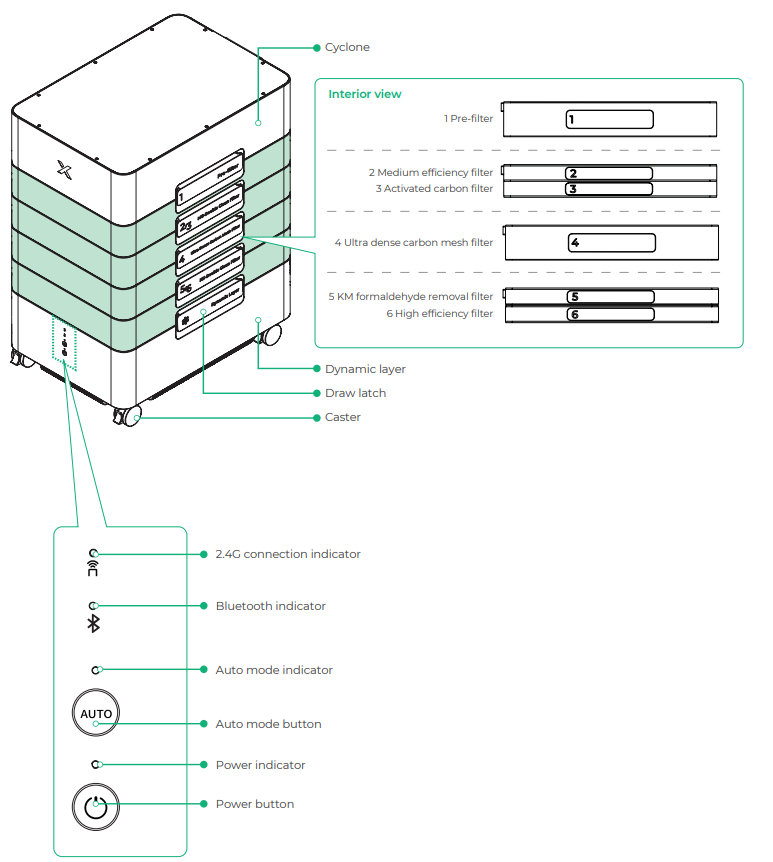
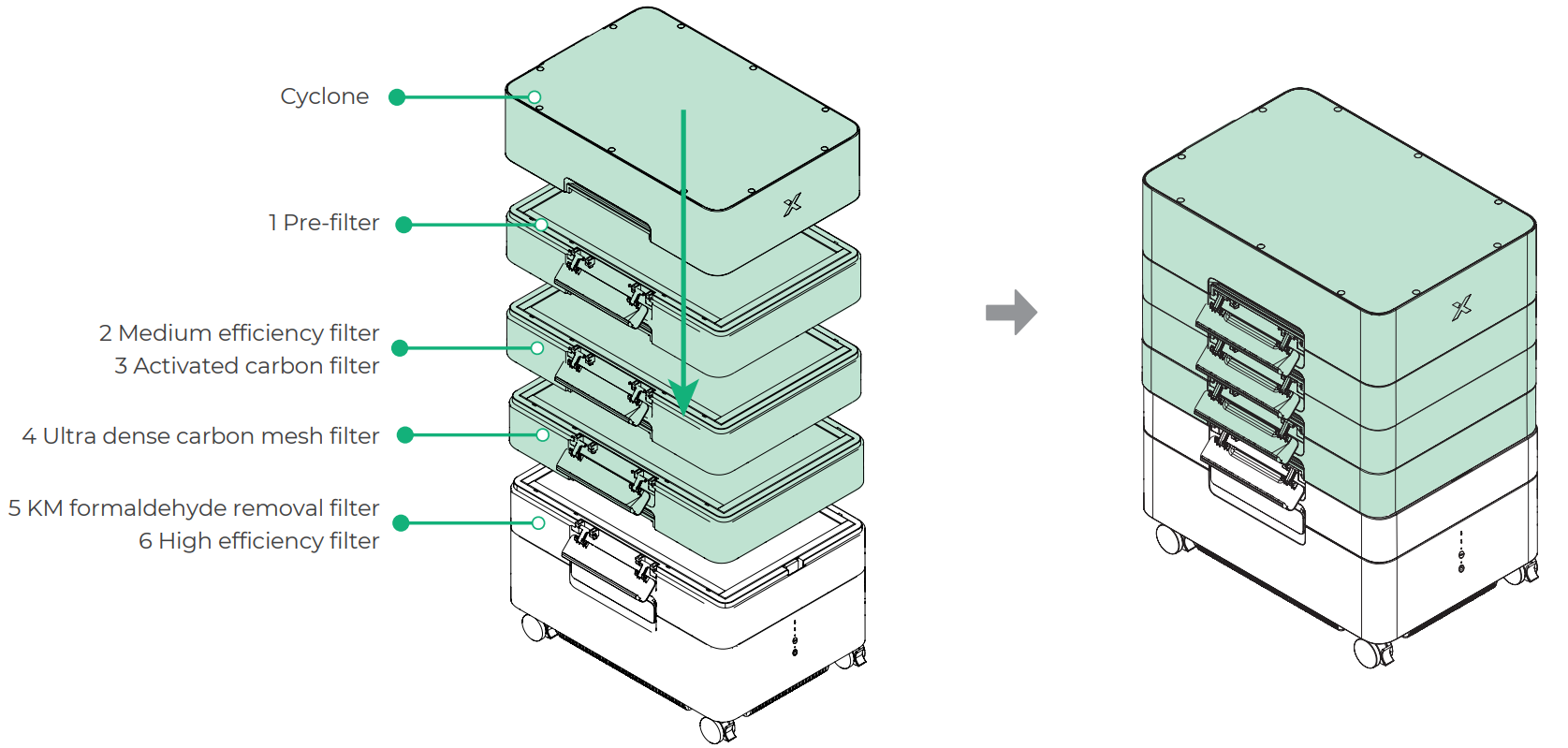
Filter system | 1 Pre-filter 2 Medium efficiency filter 3 Activated carbon filter 4 Ultra dense carbon mesh filter 5 KM formaldehyde removal filter 6 High efficiency filter 7 Dynamic layer |
Cyclone quantity | 72 |
Airflow control | 1-100% |
Noise | 65 dB |
Dimensions | 662 × 452 × 845 mm |
Compatibility | xTool P3, MetalFab & all other xTool laser machines |
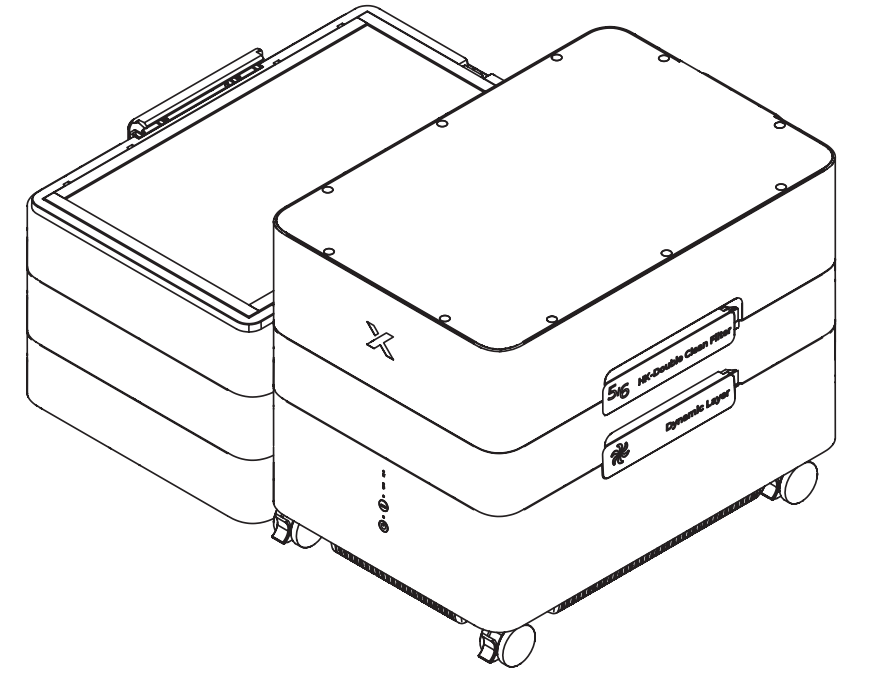
AP2 Max
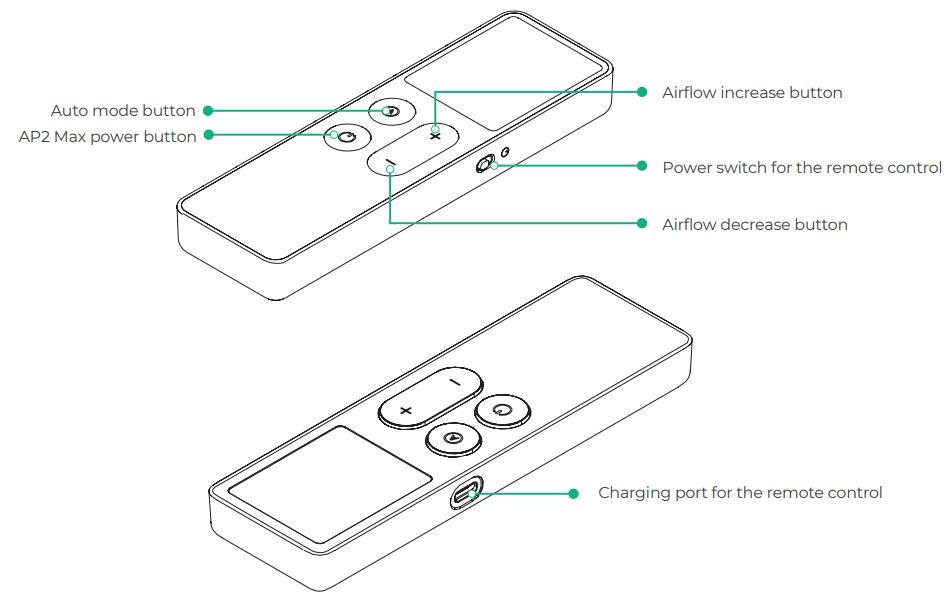
Remote control
AP2 Max indicators description
Indicator | Indicator status | Description |
|---|---|---|
| Blinking blue | The remote control enters pairing mode. |
Solid blue | The remote control has been connected to AP2 Max. | |
| Blinking blue | AP2 Max is waiting to connect to the laser machine. |
Solid blue | AP2 Max has been connected to the laser machine. | |
| Solid blue | AP2 Max is working in auto mode. |
Off | AP2 Max is working in manual mode. | |
| Solid blue | AP2 Max has been powered on. |



Remote control screen indicator icon
Indicator icon | Indicator status | Description |
|---|---|---|
| Solid green | Screen on/Power sufficient |
Blinking green | Charging | |
Solid red | Battery power below 25% | |
Off | Power depleted/Screen off | |
| Blinking green | AP2 Max is waiting to connect to the laser machine. |
Solid green | AP2 Max has been connected to the laser machine. | |
Off | AP2 Max is not connected to the laser machine. | |
| Blinking green | The remote control is pairing with AP2 Max. |
Solid green | The remote control has been connected to AP2 Max. | |
Off | The remote control is not connected to AP2 Max. | |
| Solid green | AP2 Max has been powered on. |
Off | AP2 Max is not powered on. | |
| Solid red | AP2 Max malfunctions. |
Off | AP2 Max is working properly. | |
| Solid green | AP2 Max is working in auto mode. |
Off | AP2 Max is working in manual mode. | |
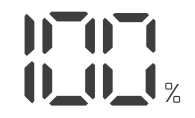
| Solid green (value range: 1-100) | AP2 Max is in manual mode, and the value is the current airflow volume. |
Filter indicator | Solid green | The corresponding filter is normal. |
Blinking green | The corresponding filter's life is low (≤30%) and needs to be replaced. | |
Off | The corresponding filter is missing. |






Install xTool SafetyPro™ AP2 Max
1. Install the filters
(1) Release the draw latches.
Caution: When releasing the draw latches, do not place your hand in the gap to avoid injury.
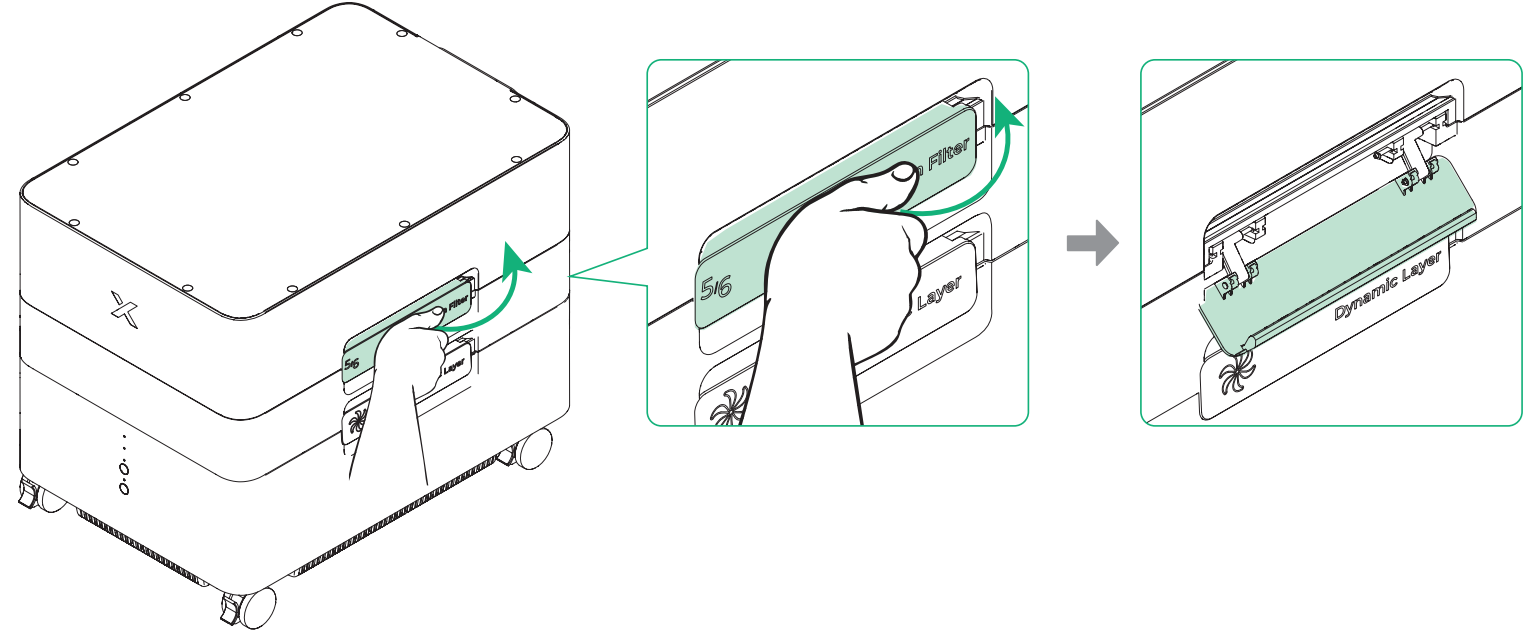
(2) Take the cyclone down.
(3) Take the filters out.
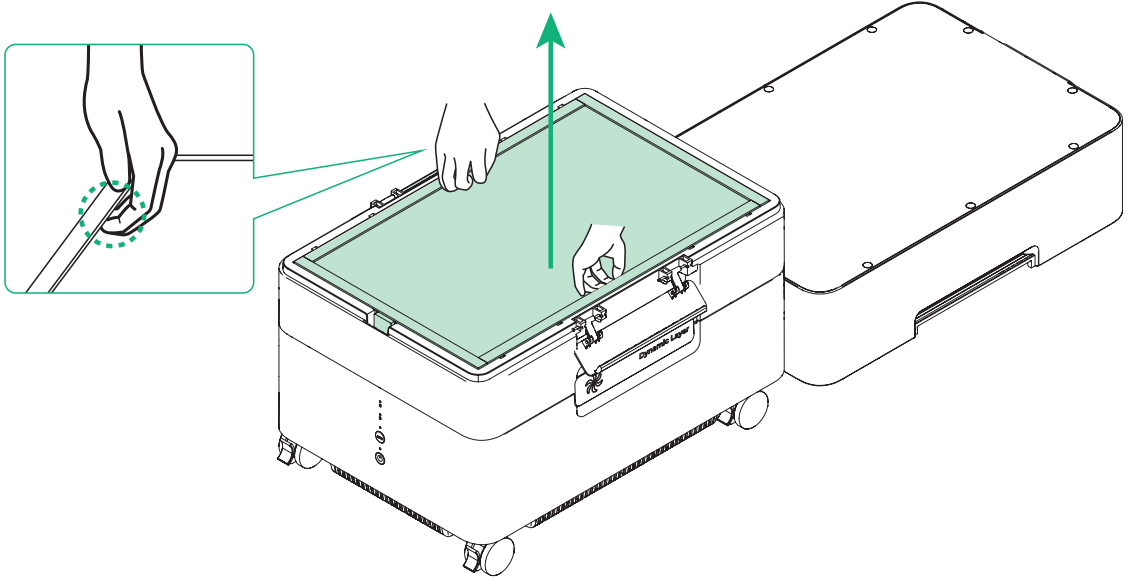
(4) Remove the plastic bags from the filters.
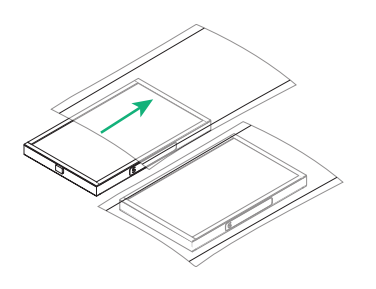
(5) Put the filters back.
Caution: Install the filters with texts upright and NFC label facing the rear access (power/air inlet/outlet side).
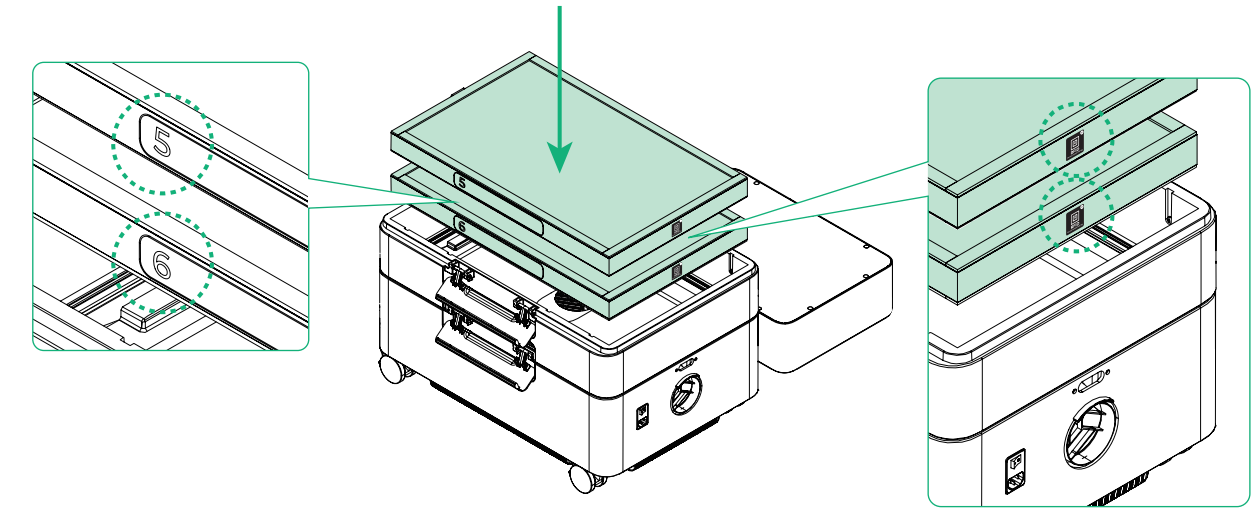
(6) Repeat steps 1 to 5 to prepare the other four filters.
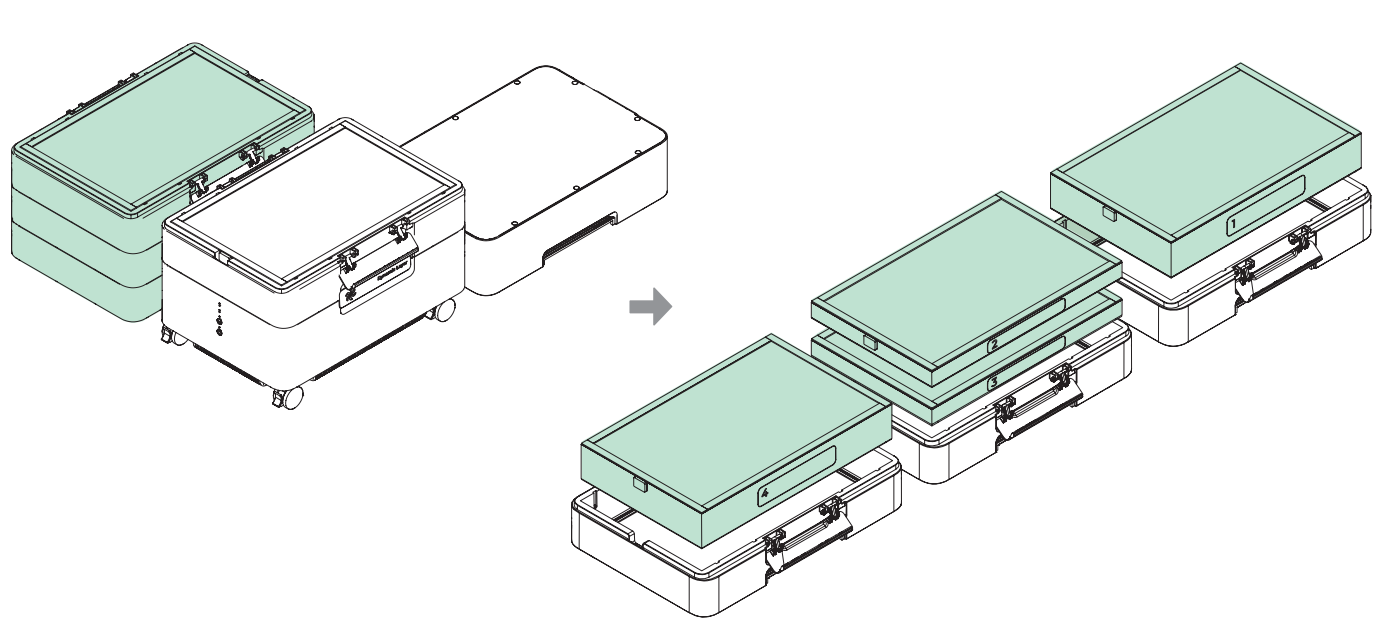
(7) Stack the cyclone and filters according to the illustrated sequence.
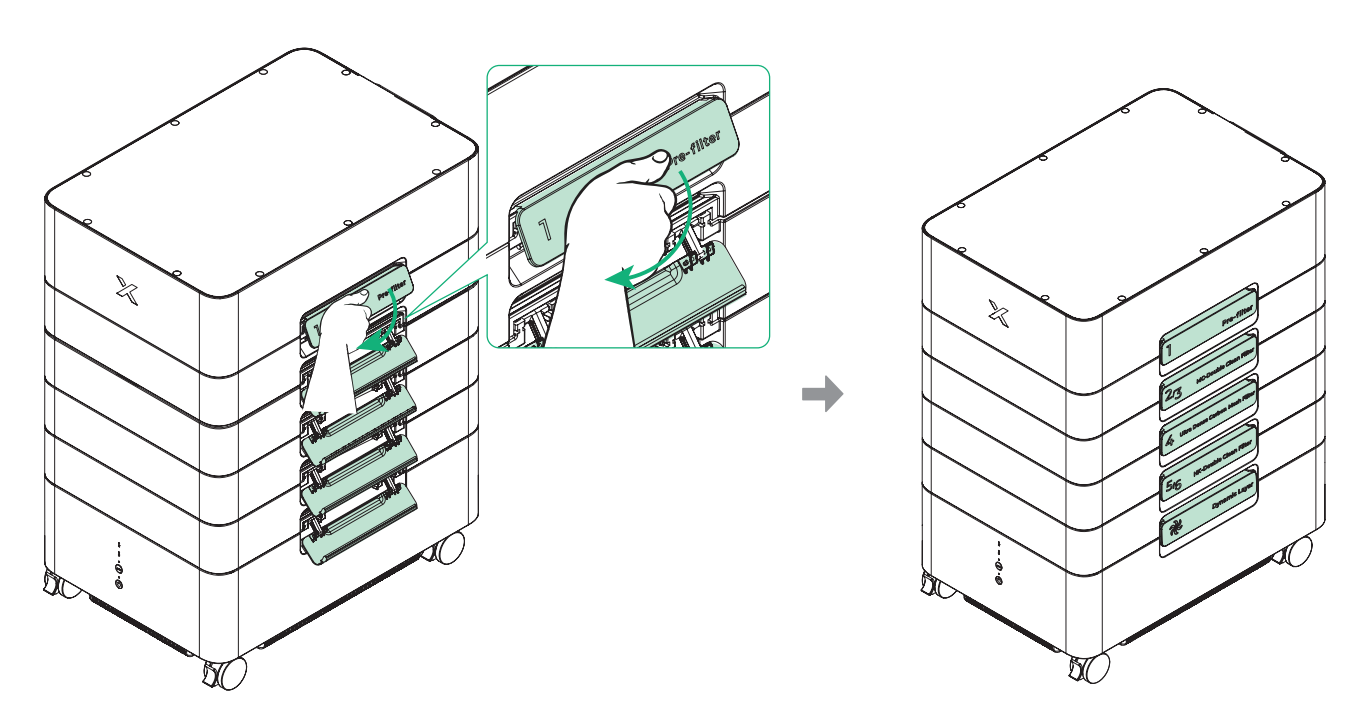
(8) Lock all draw latches.
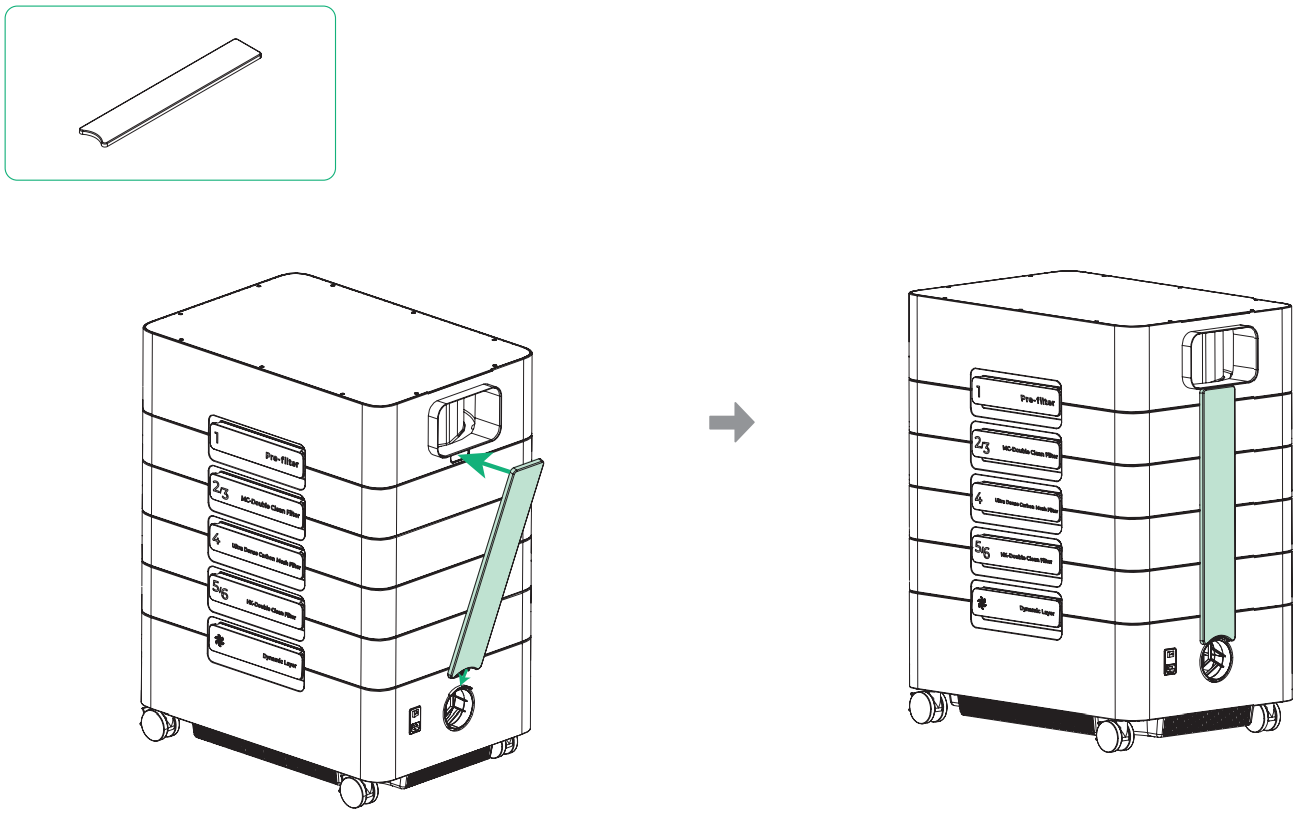
2. Install the NFC baseplate
3. Place AP2 Max at the desired location
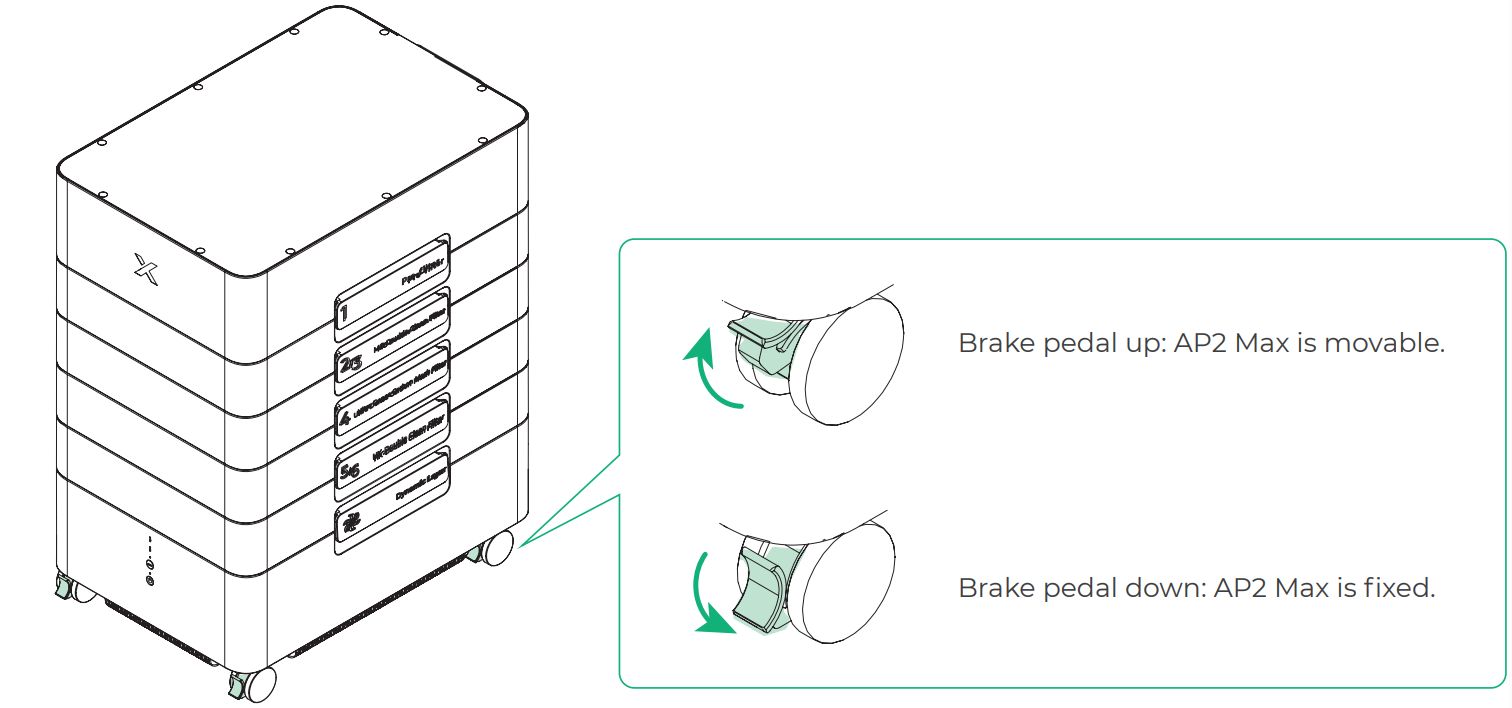
Unlock the casters, move AP2 Max to the desired location, and then lock the casters.
4. Connect the exhaust pipe of the laser machine
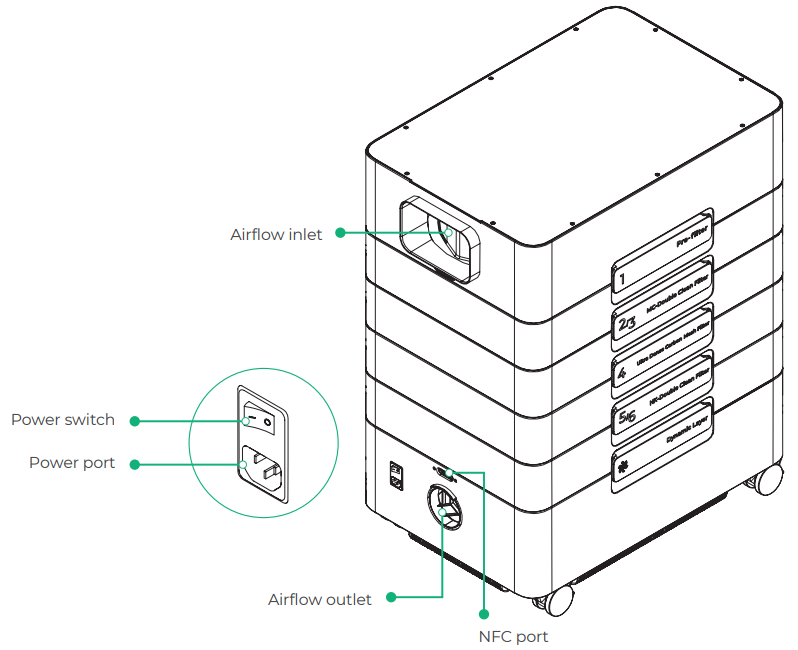
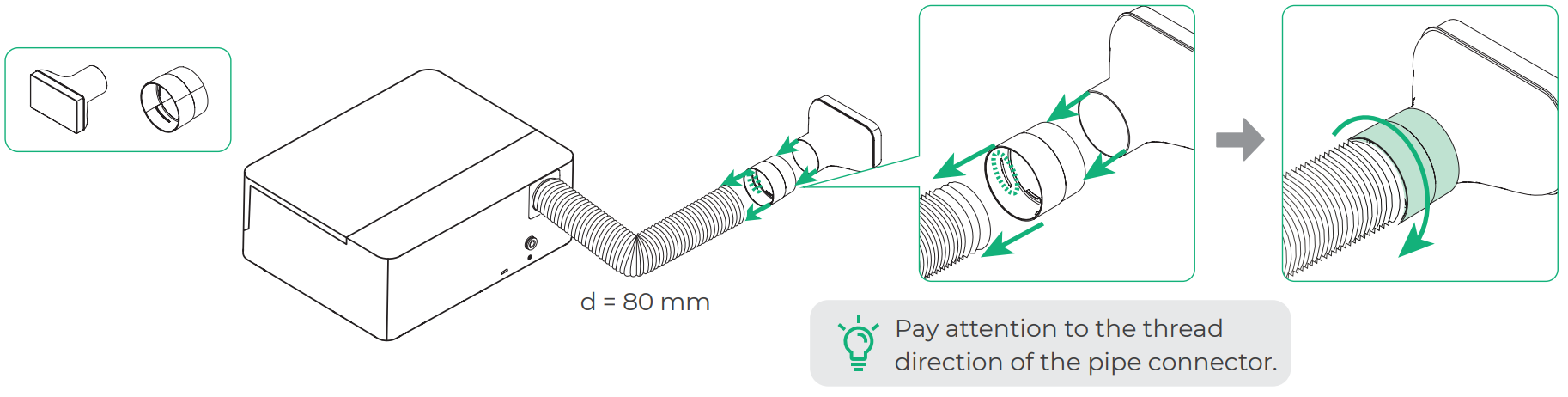
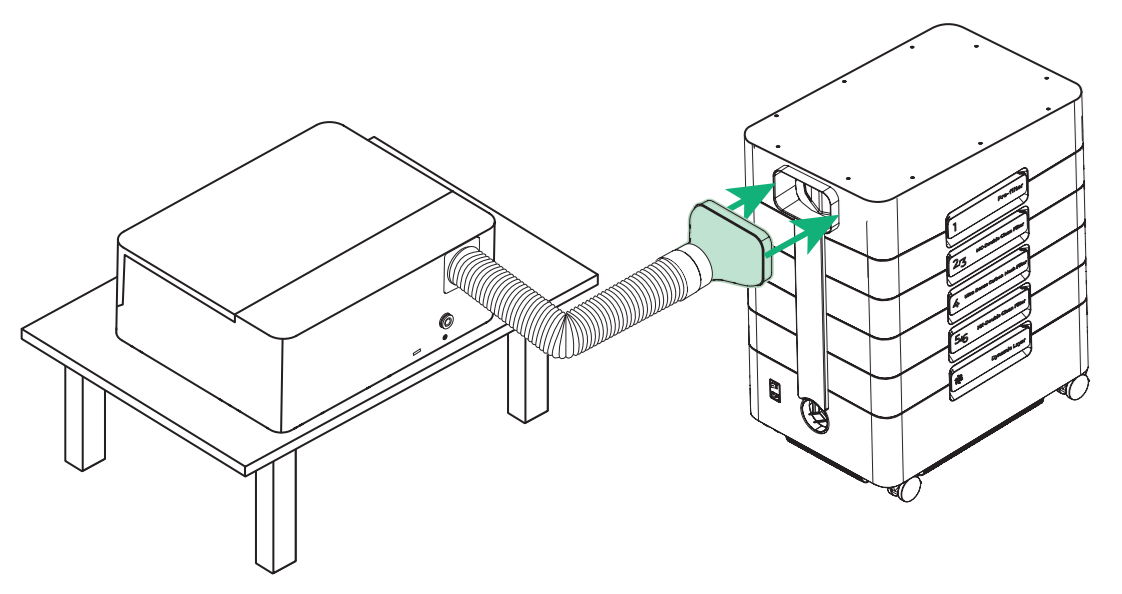
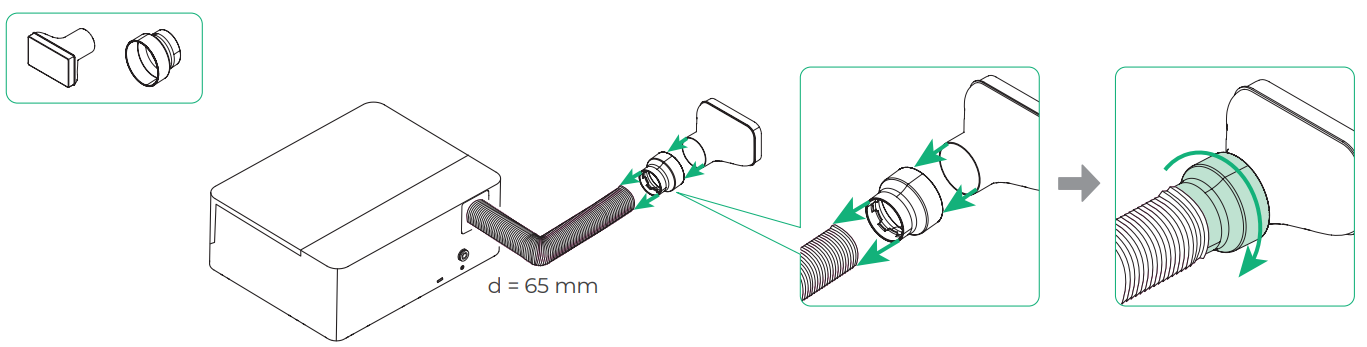
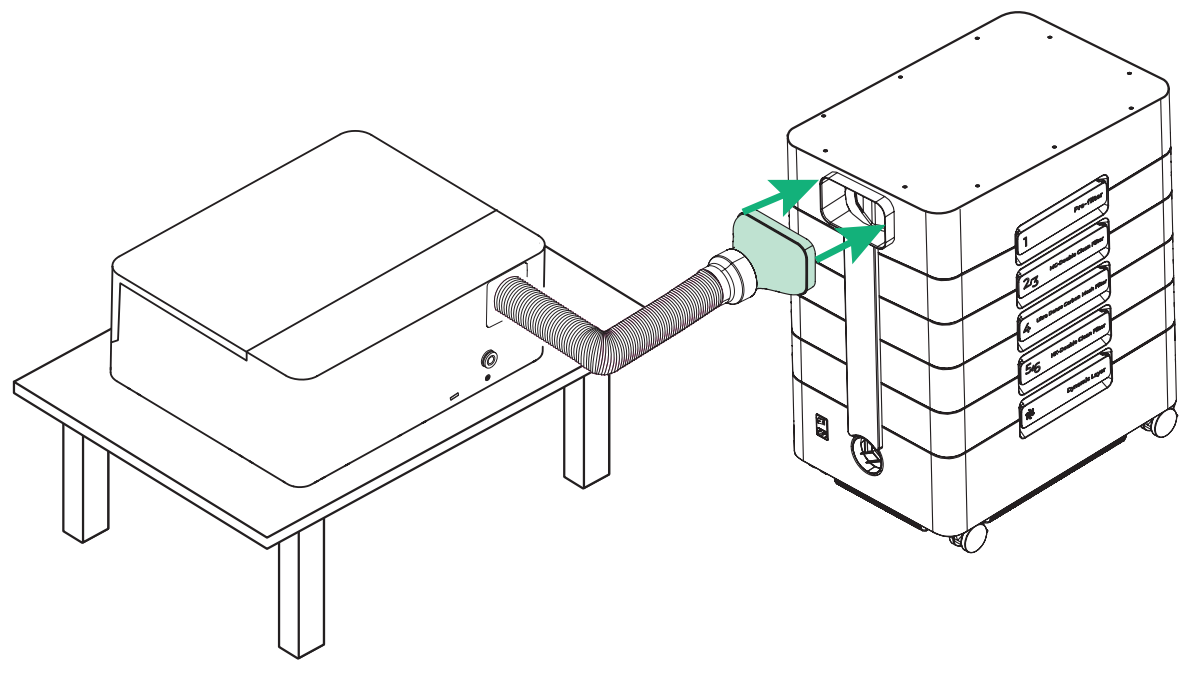
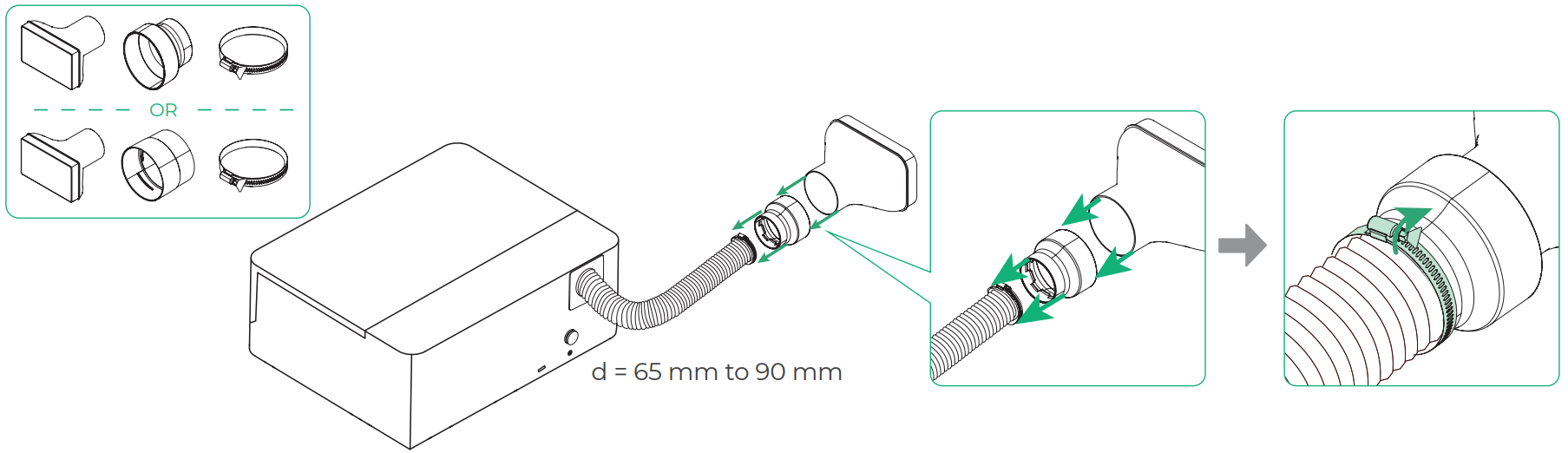
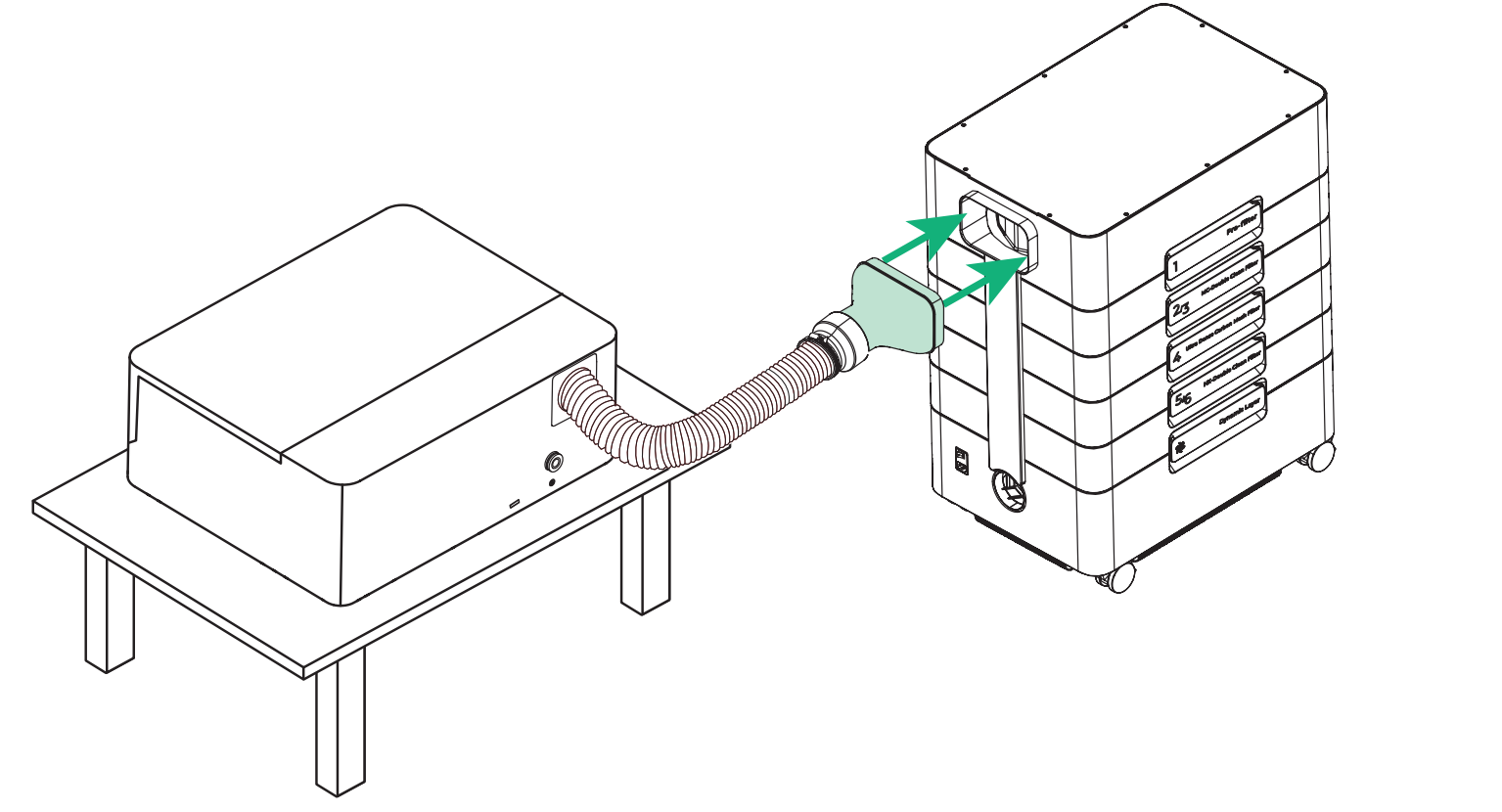
Use the exhaust pipe connector to connect the airflow inlet connector and the machine's exhaust pipe.
Scenario 1: Diameter of the machine's exhaust pipe = 80 mm, applicable to xTool P3, S1, F1 Ultra, and F2 Ultra

Scenario 2: Diameter of the machine's exhaust pipe = 65 mm, applicable to M1 Ultra
Scenario 3: Diameter of the machine's exhaust pipe = 65 to 90 mm, applicable to xTool P2, P2S, D1, and D1 Pro
Scenario 4: Diameter of the machine's exhaust pipe = 200 mm
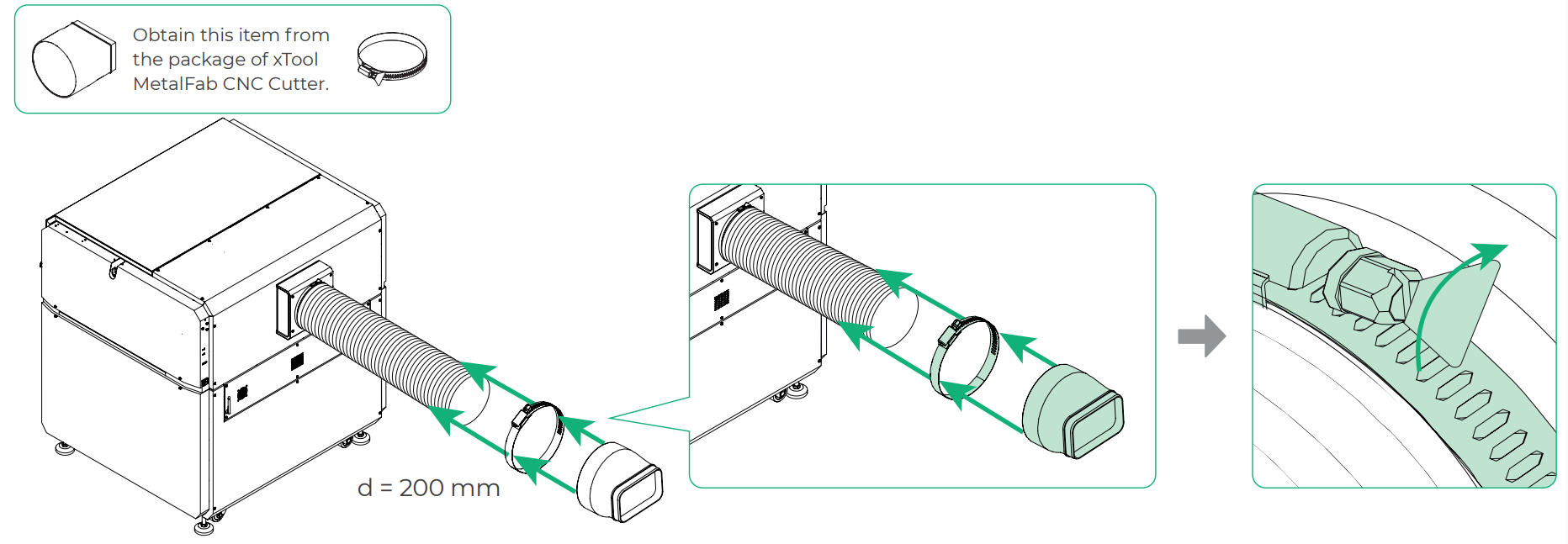
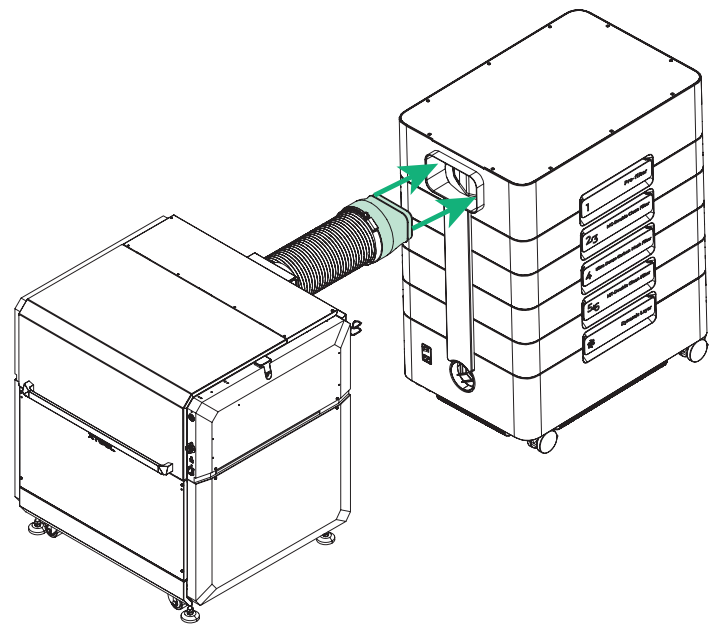
Subsequent steps: The operating steps are the same for different accessory combinations. This manual uses exhaust pipe connector 1 as an example.
5. Connect the exhaust pipe of AP2 Max
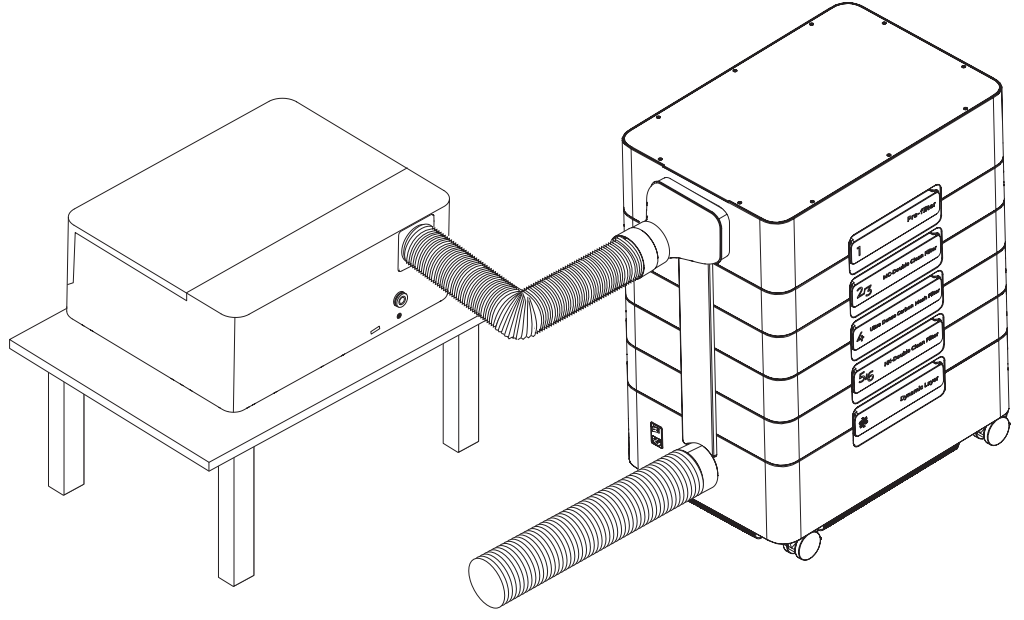
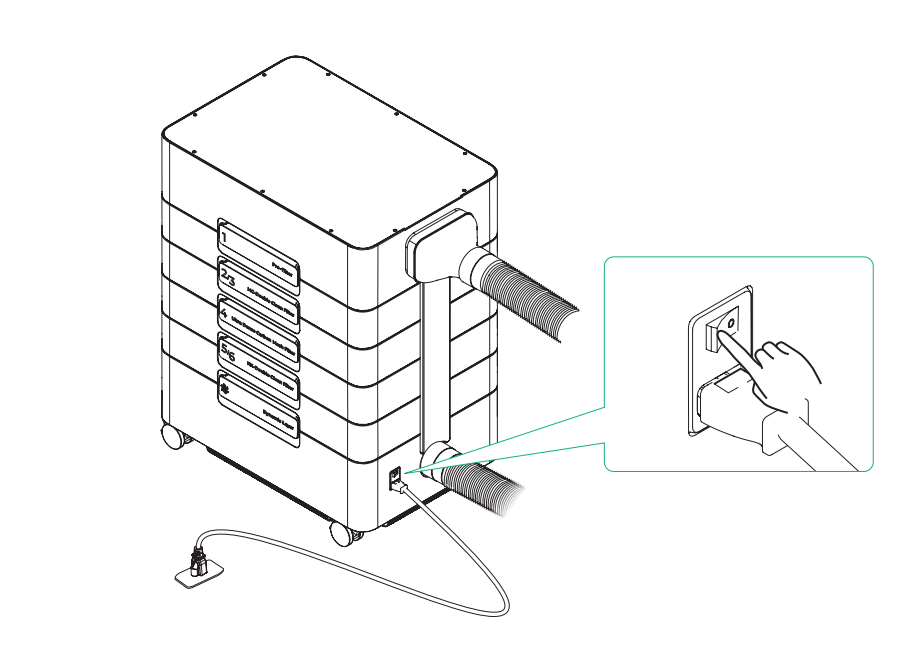
6. Connect AP2 Max to the power supply
7. Set up wireless connection
AP2 Max can establish a wireless connection ONLY with xTool laser machines that support Bluetooth.
Scenario 1: Bluetooth dongle not required
Applicable to xTool P3 and F2 Ultra series
Step 1: Long press AP2 Max's power button for at least 5 seconds until the Bluetooth status indicator blinks white. At this time, AP2 Max enters pairing mode.
Step 2: Connect AP2 Max in the xTool software.
Choose Device settings > Accessory Information. Click Add in the upper-right corner. After AP2 Max appears, click Connect.
Scenario 2: Bluetooth dongle required
Applicable to xTool M1 Ultra, P2S, F1 Ultra, S1, and MetalFab CNC Cutter
Insert the Bluetooth dongle to the extension port of the xTool machine. After the Bluetooth dongle is connected, AP2 Max automatically establishes a connection with the xTool machine, and its information is displayed on the machine's device settings page on the xTool software. For more details, see "Use with xTool software."
- xTool P2S:
- xTool M1 Ultra
- xTool F1 Ultra
- xTool S1
- xTool MetalFab CNC Cutter
(Optional) If another Bluetooth dongle has been inserted to the machine or you need to pair again, press and hold the AP2 Max's power button for at least five seconds. The Bluetooth status indicator will blink white, indicating that AP2 Max is in pairing mode.
Use xTool SafetyPro™ AP2 Max
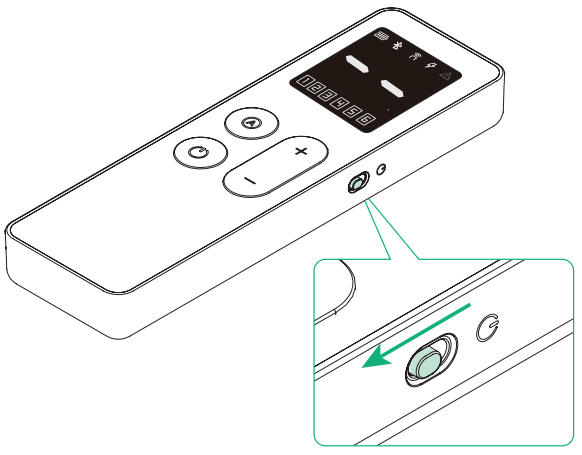
1. Turn on the remote control.
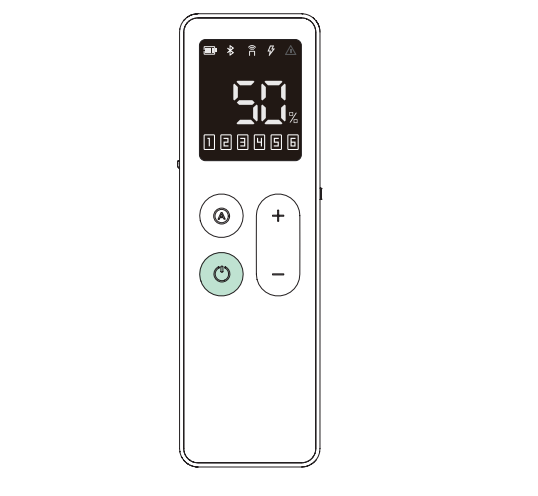
2. Turn on AP2 Max.
3. Select a mode.
Auto mode
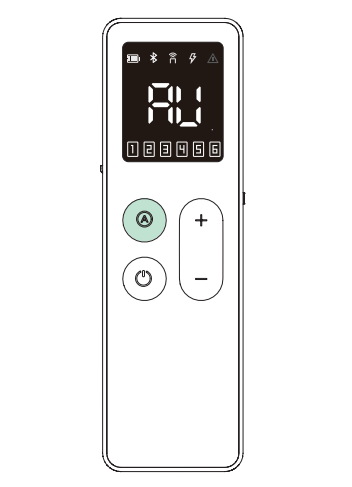
This mode is applicable only to xTool laser machines with Bluetooth functionality. In this mode, AP2 Max automatically adjusts the airflow volume based on the material being processed.
Manual mode
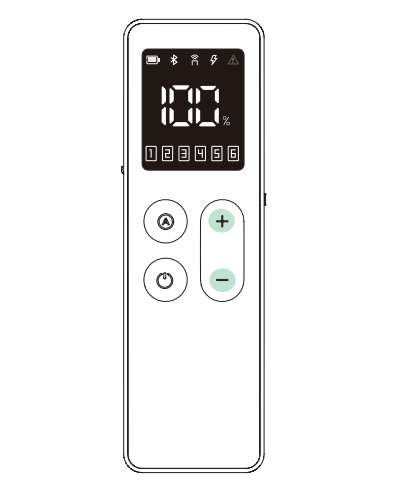
Press the airflow increase button or airflow decrease button to manually adjust the airflow.
 Each press increases the airflow by 1%. Pressing and holding for at least 1 second can increase continuously.
 Each press reduces the airflow by 1%. Pressing and holding for at least 1 second can reduce continuously
Reconnect the remote control
You need to reconnect the remote control if the remote control disconnects from AP2 Max, or another remote control or AP2 Max needs to be connected.
Procedure: Concurrently press the auto mode button of both the remote control and AP2 Max for at least 5s until the 2.4G connection indicator blinks, and ensure that the remote control is close to AP2 Max. The remote control will connect to AP2 Max automatically
Use with xTool software
1. Get xTool software
Visit s.xtool.com/software to get xTool software.
Maintenance
Caution: You must disconnect the power cable before performing maintenance.
Replace the filters
When a filter is reaching its end of life, the xTool software prompts you to purchase a new one for replacement. For steps about how to replace a filter, see “Install the filters.”
Clean the cyclone
Generally, you need to clean the cyclone every 3 to 6 months. For steps about how to clean the cyclone, see "Clean the Cyclone."

