
Issue description
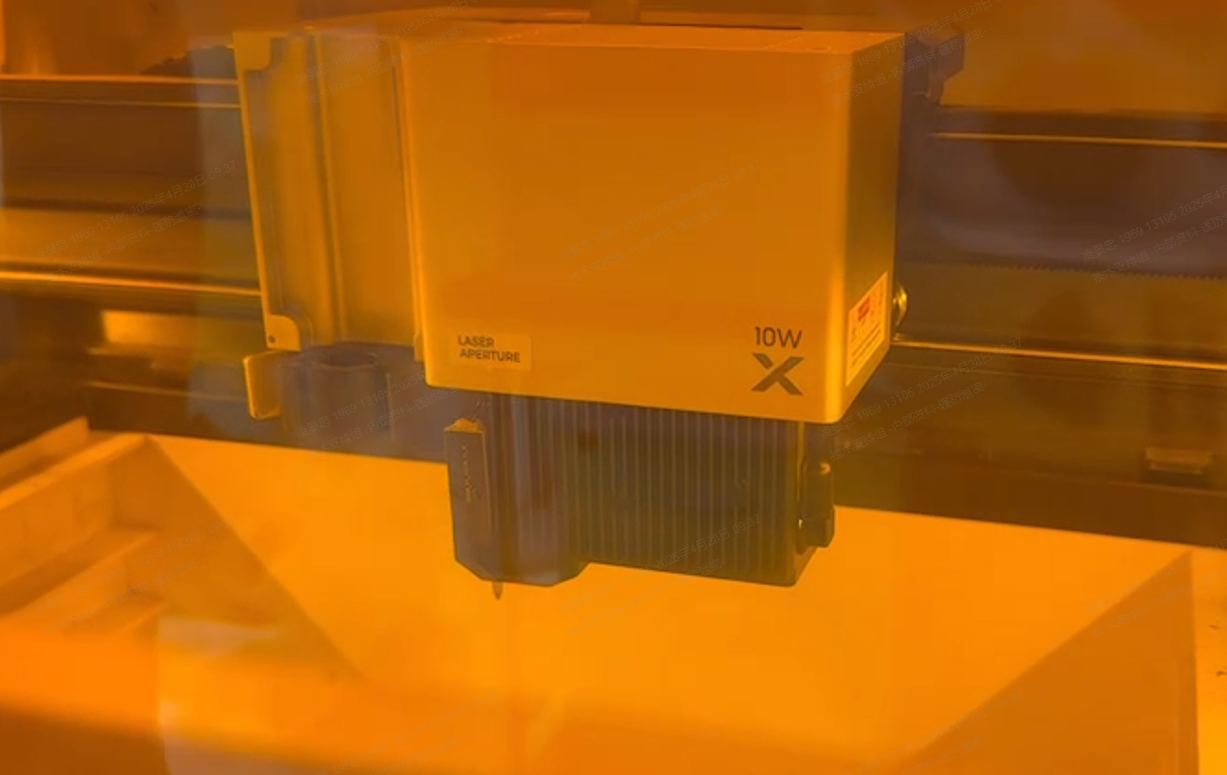
When the device turns on, the laser generator falls down and the software indicates "Z-Axis Homing Failed (Multi-function carriage)". After multiple power cycles, the laser module's Touch probe will contact the base plate, or the laser generator will fall off.
Possible causes
- Light blocking plate jammed in the guide slot
- The limit switch malfunctioned
- Hit by an external force
Troubleshooting
- Confirm whether there is a hit by an external force. If the probe or sensor shield deforms (as pictures show), it may be caused by external force.
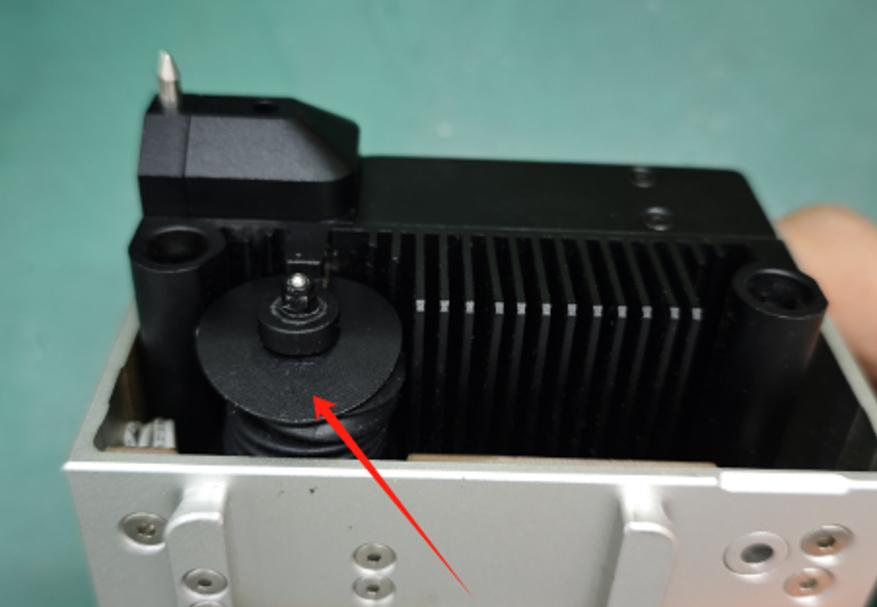
Sensor shield deforms
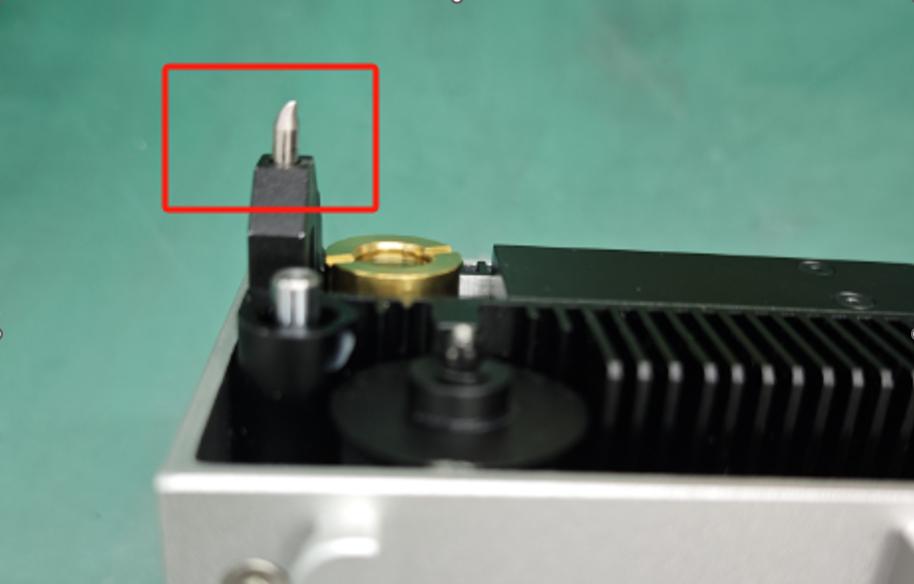
Probe deforms
- Evaluate which occasions you meet.
Occasion 1: I don't use the riser base. The probe contacts the baseplate and gets stuck.
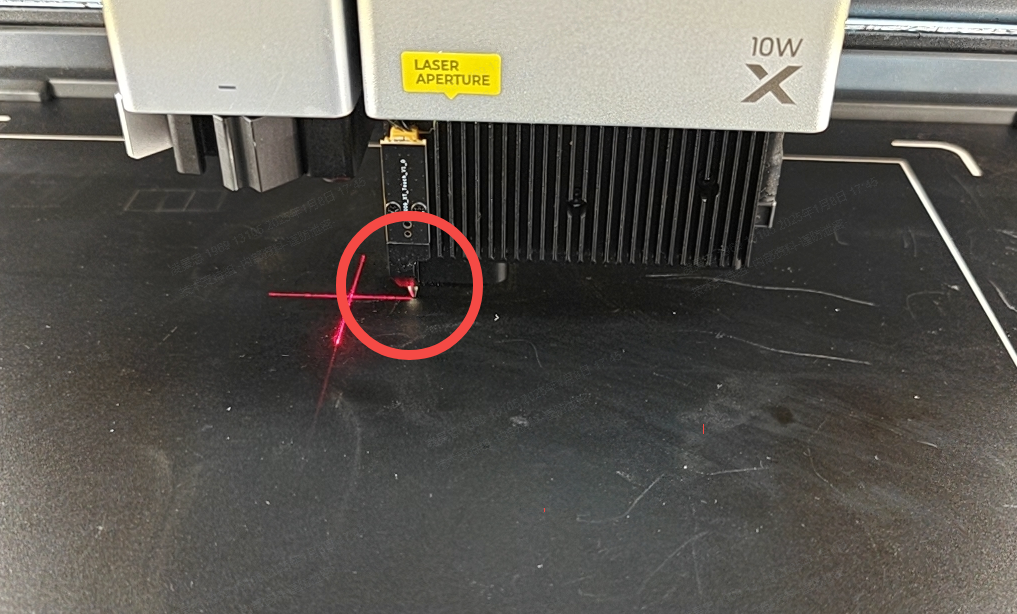
(1) Turn off the power switch. Remove the laser module and the accessories from the basic carriage, close the lid, and then restart the device.
(2) Remove the probe of the laser module. See the tutorial: https://support.xtool.com/article/1664#e7ce3a219395990112bf9e89d838880cd.
(3) Install the laser module back into the device, and keep the USB connected to the device.
(4) Copy the link http://201.234.3.1:8080/cnc/cmd?cmd=M204S1V0 and open it in the browser.
(5) Copy the link http://201.234.3.1:8080/cmd?cmd=G91Z50F9600&dest=33&wait=true and open it in the browser. At this time, the laser module will contact the baseplate, making some noise, which is a normal situation.
(6) Copy the link http://201.234.3.1:8080/cmd?cmd=G91Z-50F9600&dest=33&wait=true and open it in the browser. At this time, the laser module will contact the baseplate, making some noise, which is a normal situation.
(7) Remove the laser module, and install the probe back into the module.
(8) Install the laser module (with the probe) back into the device.
(9) Turn off the power switch.
(10) Remove the top board of the laser module, and check the limit switch. See the video: https://drive.google.com/file/d/1OkUhN0XgV81uF4DfD_-1ADhn3CUZ1Bab/view?usp=sharing
- Remove and check the spring module.
- Use a cotton swab to clean the photopelectric sensor.
- Install all the components back to their position.
Occasion 2: I use the riser base. The laser generator fell down and separated from the motor gear.
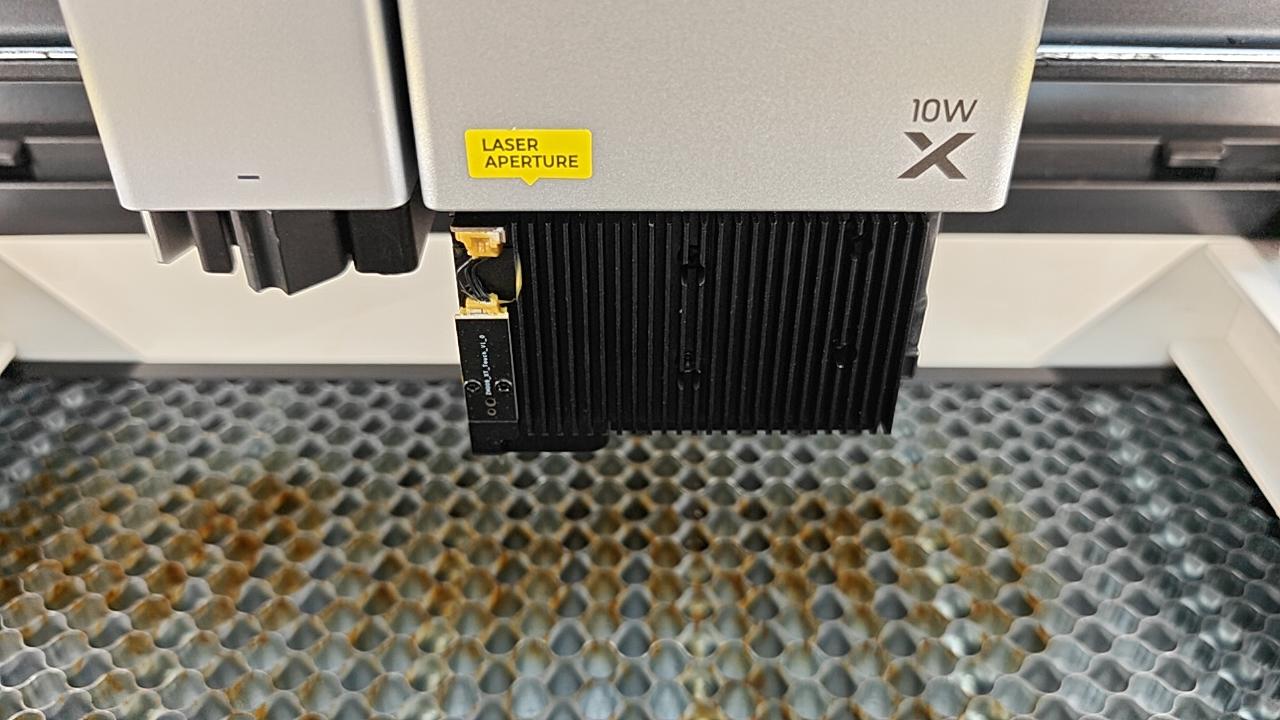
(1) Turn off the power switch. Remove the laser module and the accessories from the basic carriage, close the lid, and then restart the device.
(2) Install the laser module back into the device, and keep the USB connected to the device.
(3) Copy the link http://201.234.3.1:8080/cnc/cmd?cmd=M204S1V0 and open it in the browser.
(4) Copy the link http://201.234.3.1:8080/cmd?cmd=G91Z80F9600&dest=33&wait=true and open it in the browser. At this time, the motor will work and make some noise, which is a normal situation.
(5) Open the lid. Hold and push the laser module upwards with slight force, making it align to the motor gear. Note that your hand should not be placed under the laser generator.
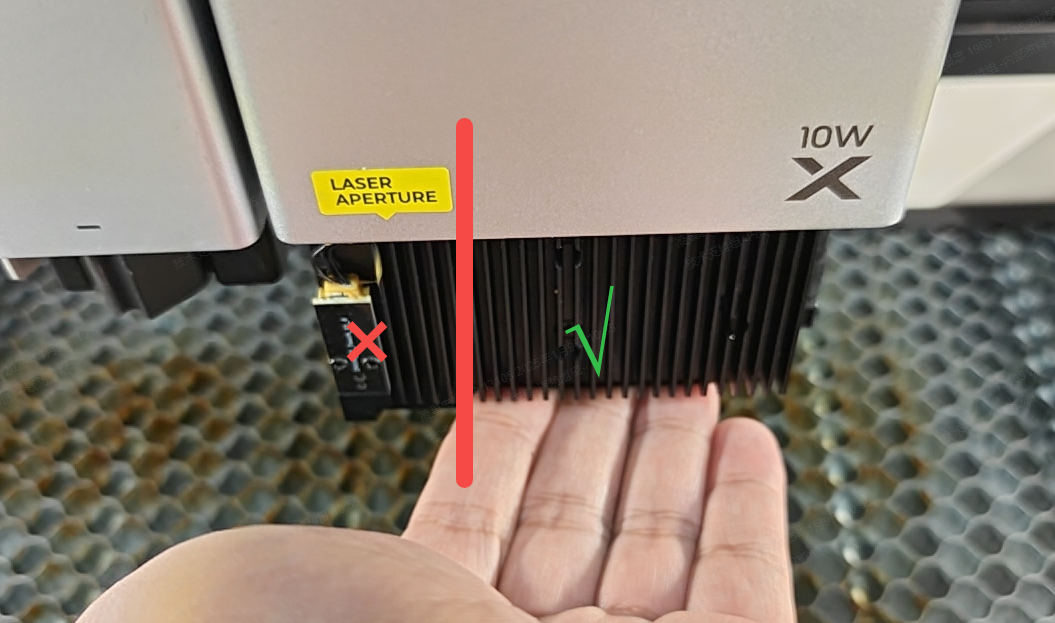
(6) Copy the link http://201.234.3.1:8080/cmd?cmd=G91Z-80F9600&dest=33&wait=true and open it in the browser. At this time, the laser module will return to its original position.
(7) Turn off the power switch.
(8) Remove the top board of the laser module, and check the limit switch. See the video: https://drive.google.com/file/d/1OkUhN0XgV81uF4DfD_-1ADhn3CUZ1Bab/view?usp=sharing
- Remove and check the spring module.
- Use a cotton swab to clean the photpelectric sensor.
- Install all the components back to their position.
(9) Turn on the power switch. Check whether the device resets normally and reports an error or not.
(10) If the problem persists, contact customer service at support@xtool.com.
Help us improve
If this article or video doesn't effectively assist you in resolving the issue, please let us know by clicking the “No” button in the “Was this page helpful?” section below, and leave your feedback in the pop-up suggestion box. Our knowledge base team will review it and consider it for future updates.
Still need help?
If you need any human assistance, please create a ticket by clicking the “Submit a Ticket” button in the “Help Ticket” section below. Our service team will get back to you in 1 business day via E-mail.

Services & Help
Learn & Education

Copyright © 2025 xTool All Rights Reserved.