
Issue description
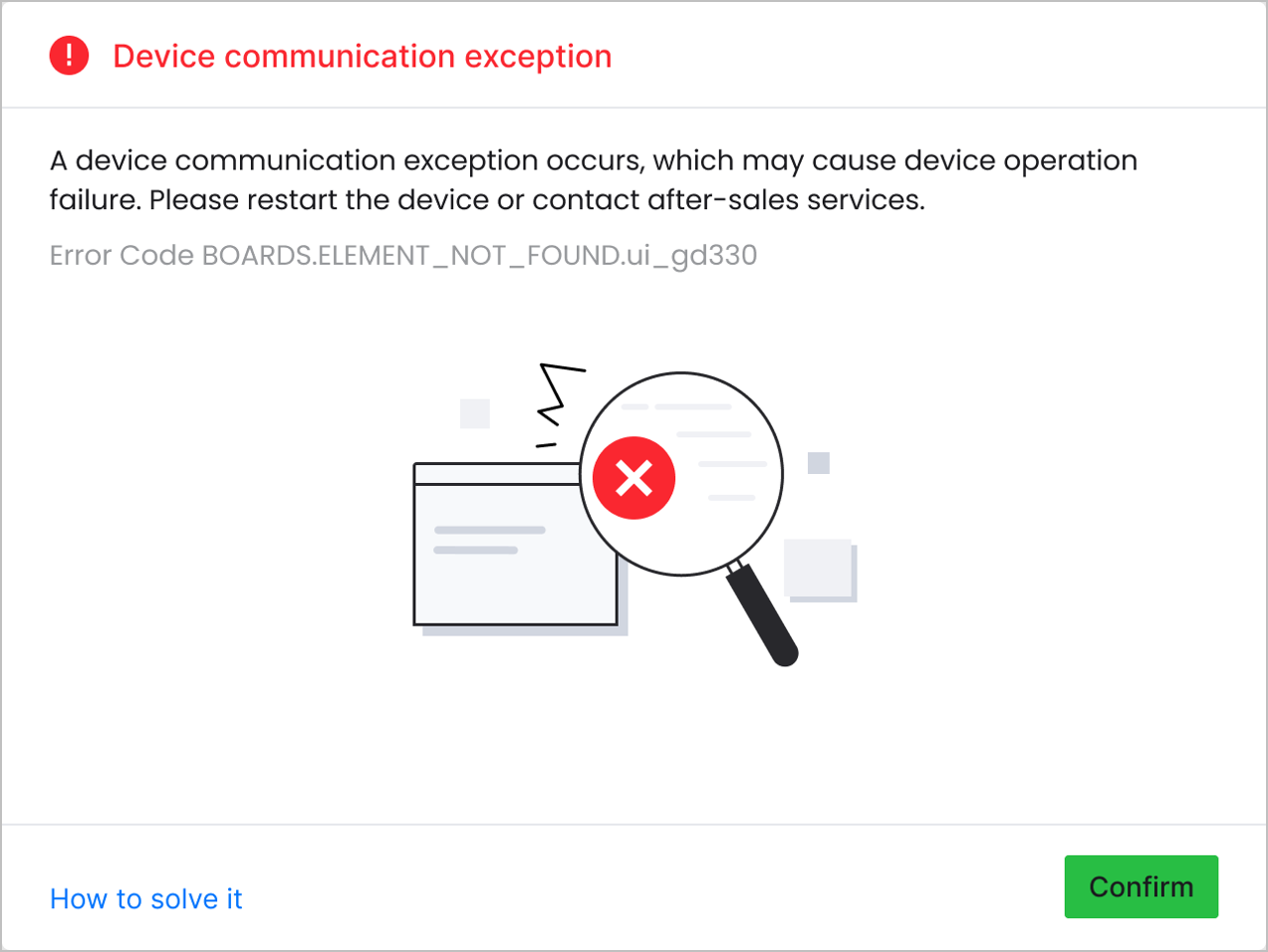
If an error message entitled "Device communication exception" in XCS pops up, please follow this troubleshooting guide to resolve this issue.
Possible causes
During processing, real-time communication between the main control board and the controller board of different modules may be interrupted due to the following reasons.
- Damaged or loose cables: The cables between the main control board and a module controller board are either damaged or improperly seated.
- Malfunction of a certain module controller board: A specific module controller board malfunctions.
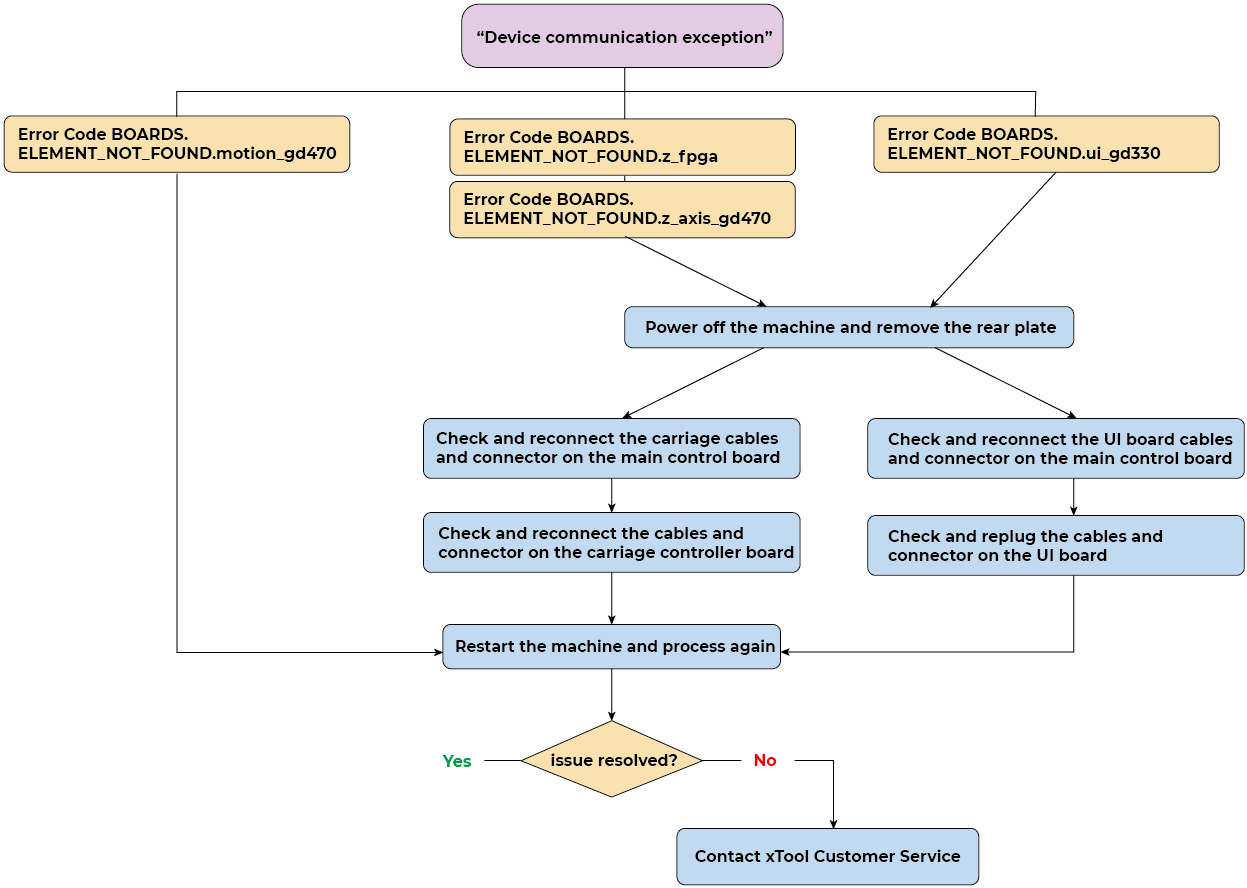
Troubleshooting flowchart
Detailed procedure
Troubleshoot the issue based on the error code in the dialog box, which relates to a certain module.
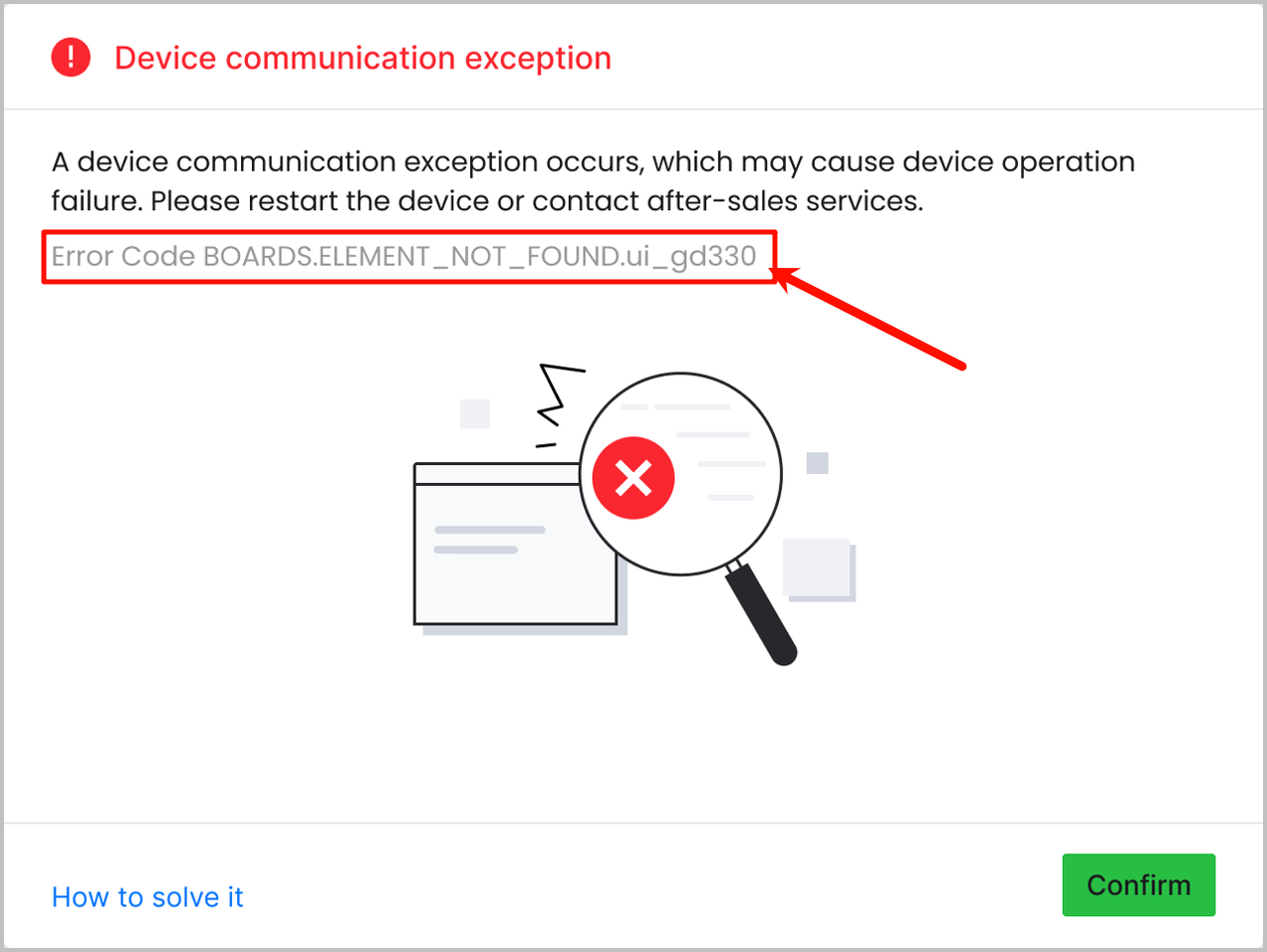
Error code 1: Error Code BOARDS.ELEMENT_NOT_FOUND.motion_gd470
Restart the machine and process the material again. See if the issue is resolved.
Error code 2: Error Code BOARDS.ELEMENT_NOT_FOUND.z_fpga/Error Code BOARDS.ELEMENT_NOT_FOUND.z_axis_gd470
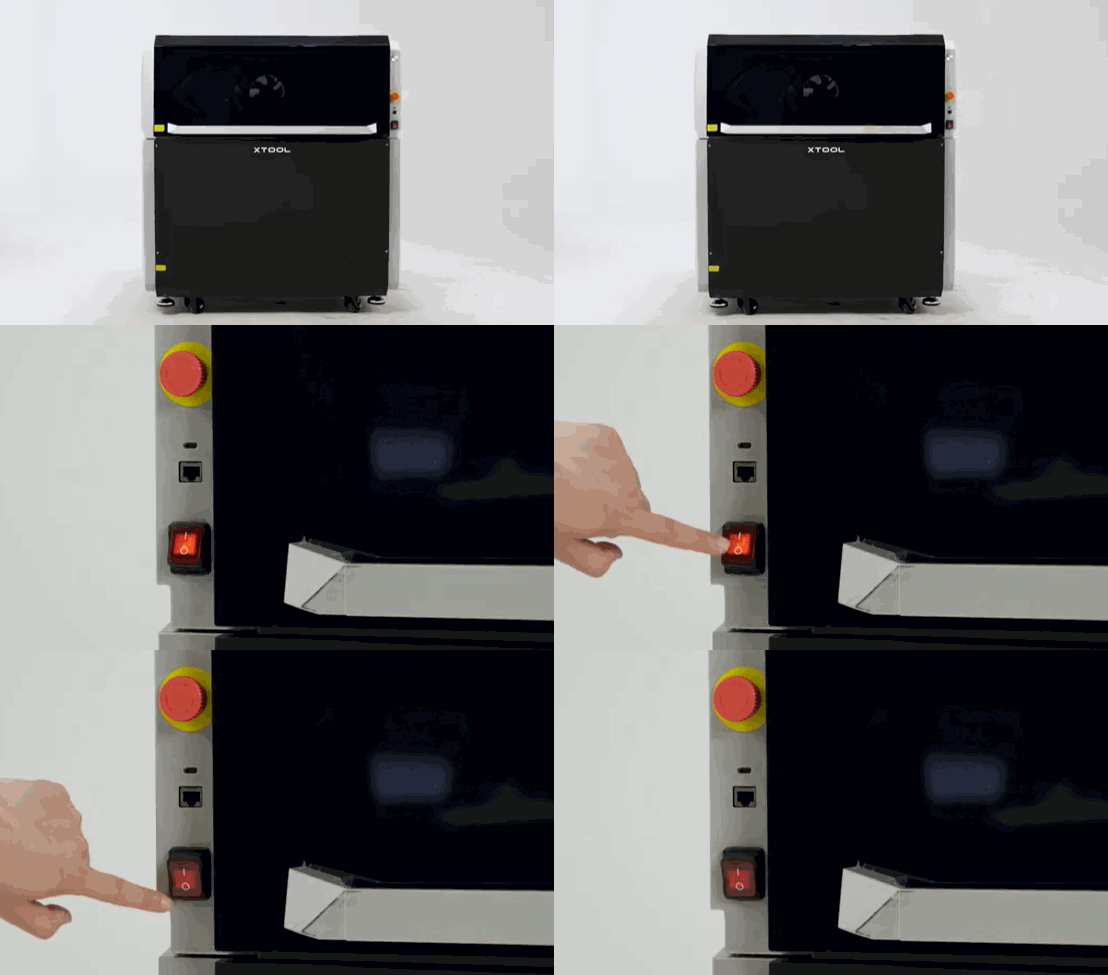
- Power off the machine.
- Gently open the rear plate and disconnect the two fan connectors.
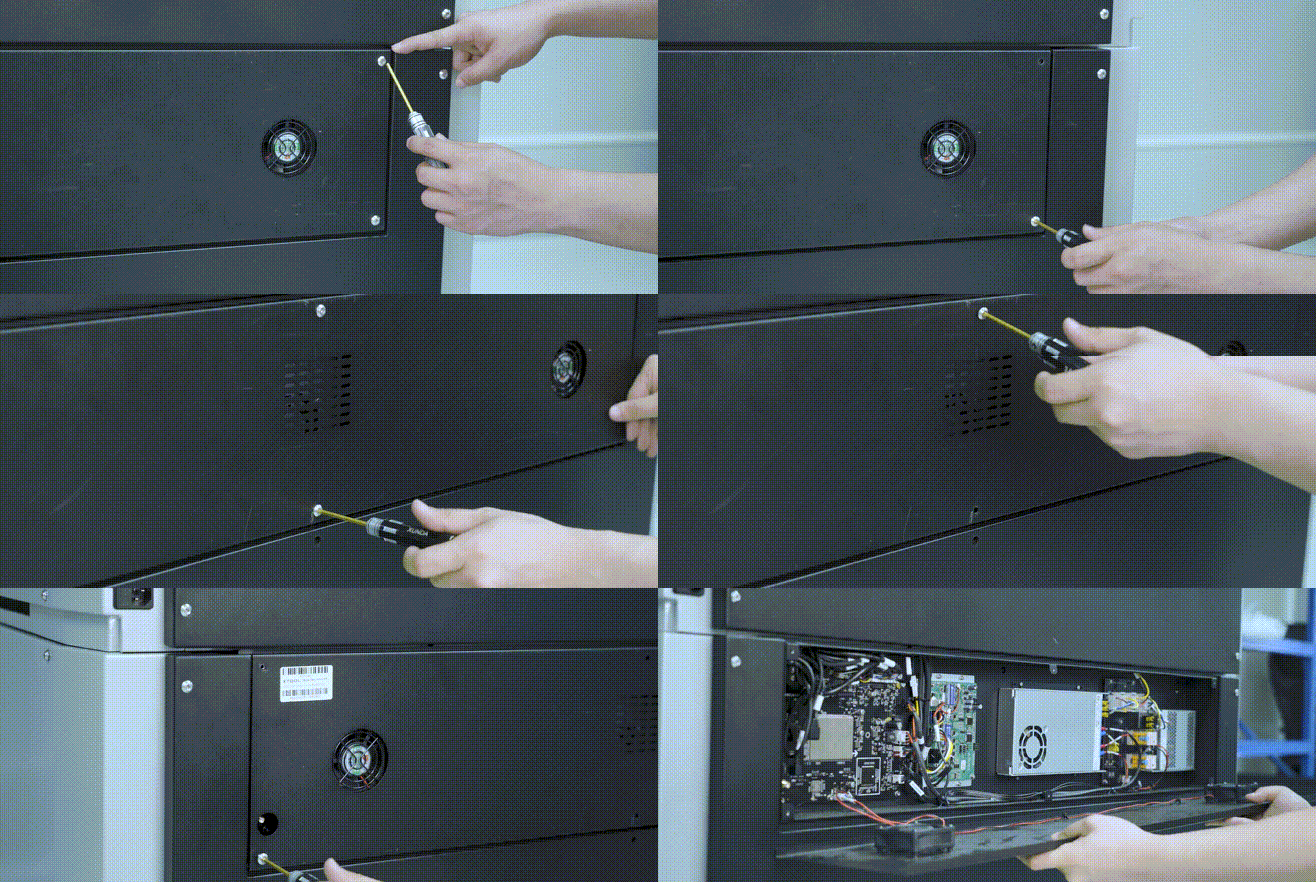
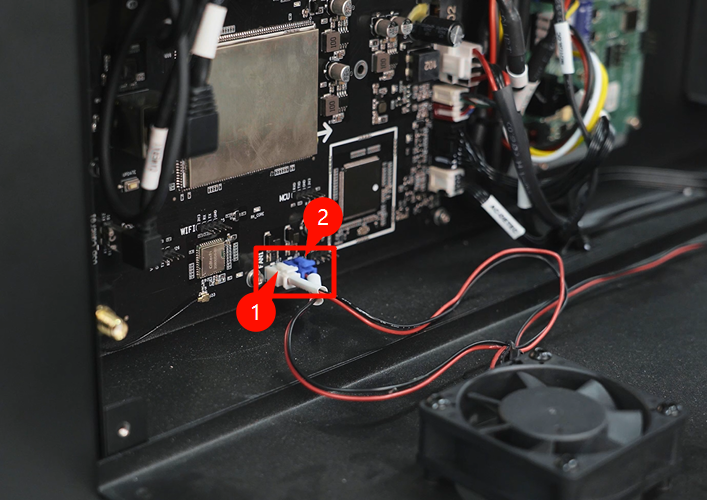
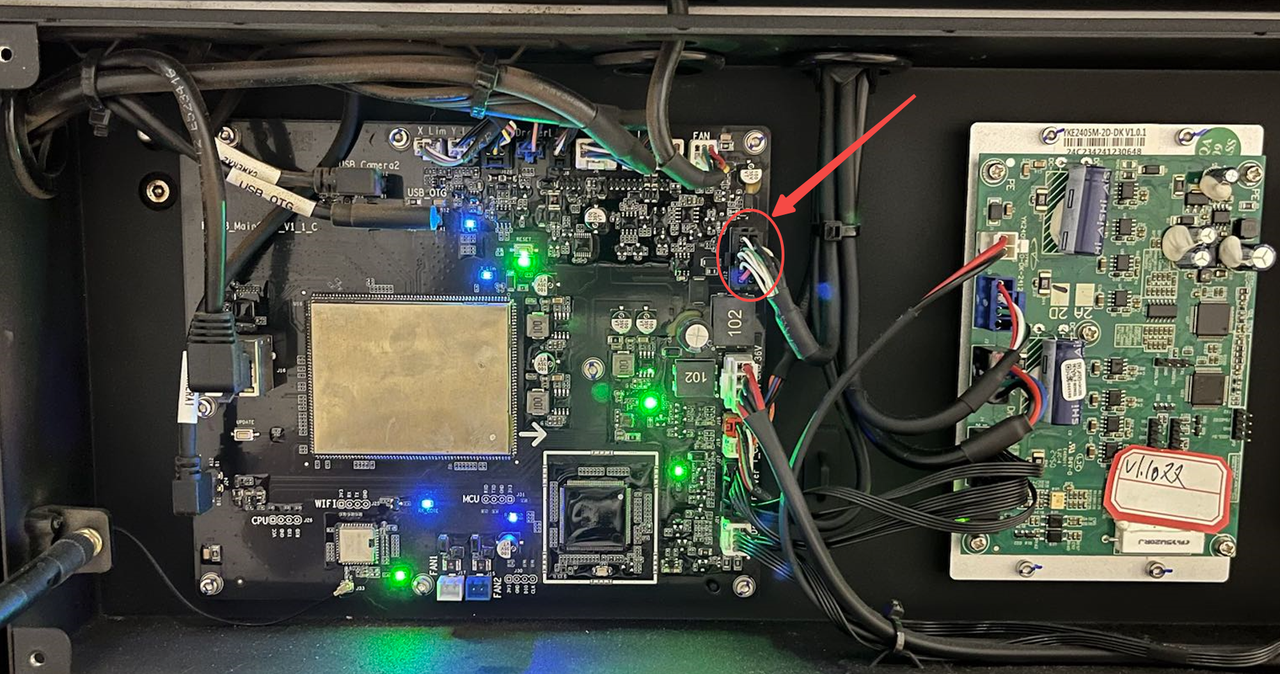
- Disconnect the carriage connector from the main control board (marked by the red circle), check if the cables are damaged, then securely reconnect the connector.
- Follow the video tutorial below to remove the carriage cover.
- Disconnect the carriage connector from the carriage controller board (marked by the red arrow), check if the cables are damaged, then securely reconnect the connector.
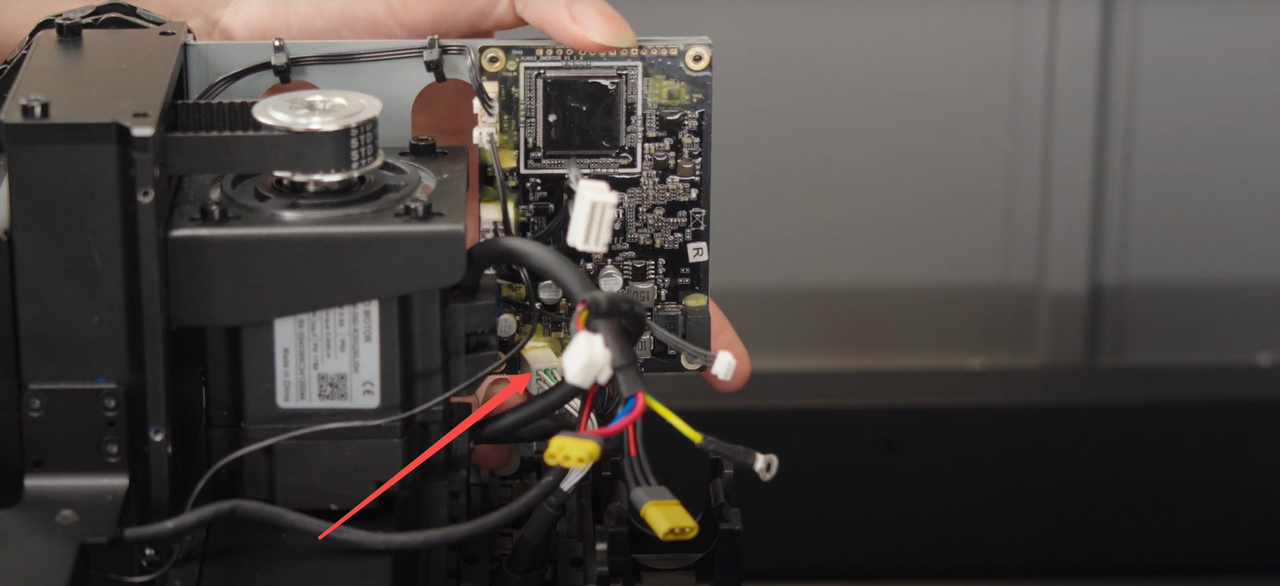
- Restart the machine and process the material again. See if the issue is resolved.
Error code 3: Error Code BOARDS.ELEMENT_NOT_FOUND.ui_gd330
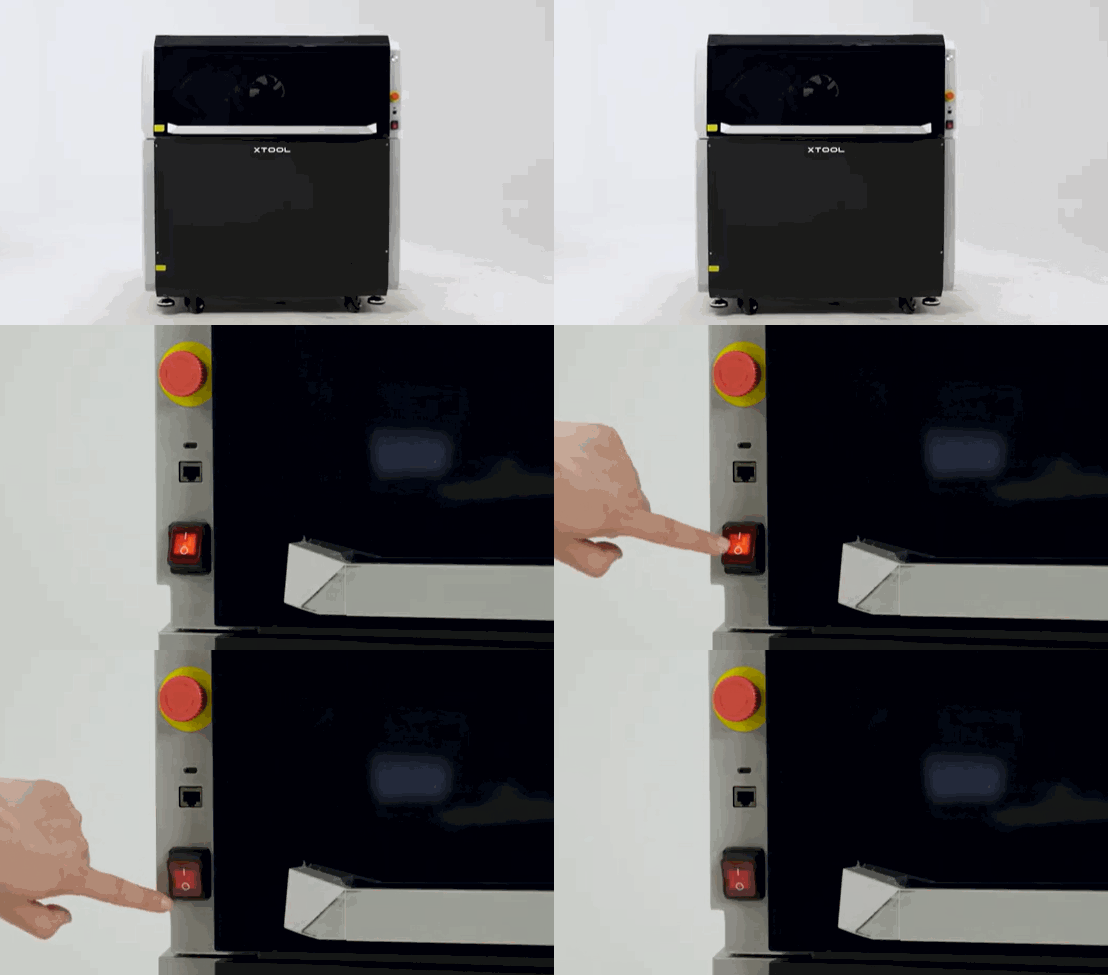
- Power off the machine.
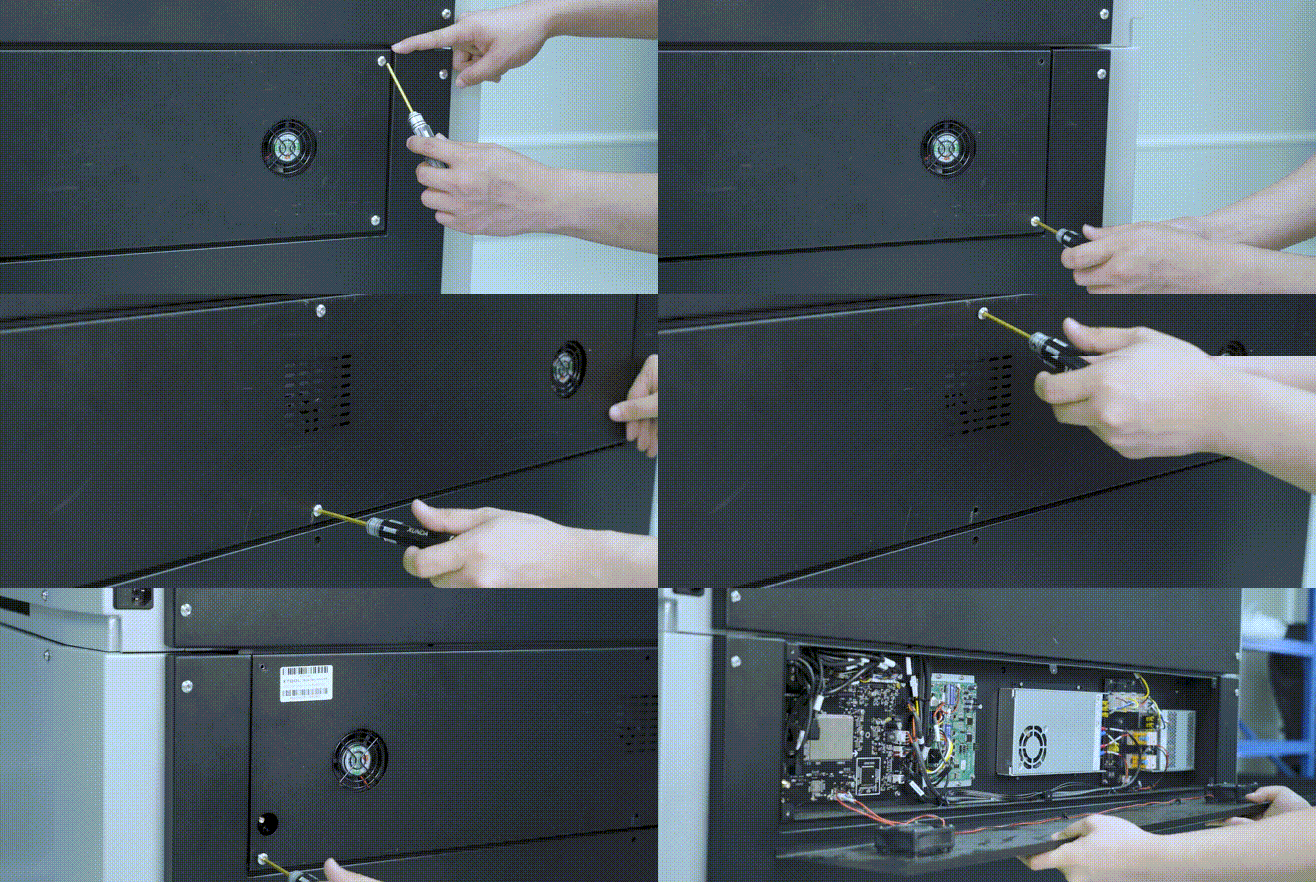
- Gently open the rear plate and disconnect the two fan connectors.
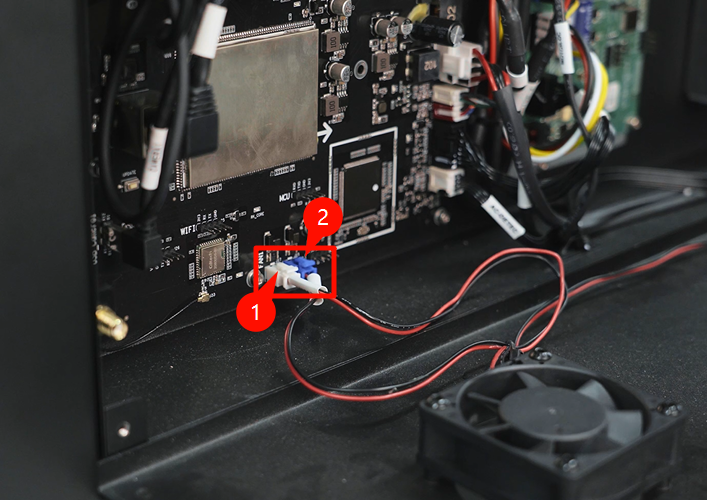
- Disconnect the UI board connector from the main control board (marked by the red circle and arrow), check if the cables are damaged, then securely reconnect the connector.
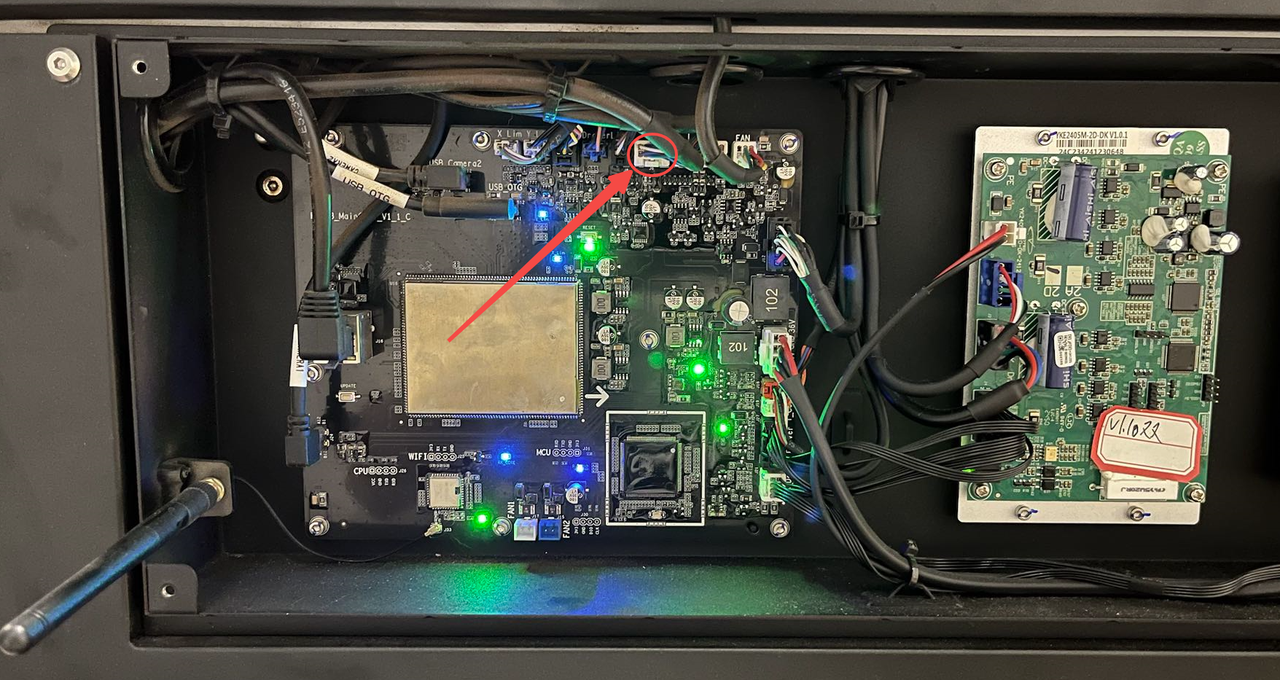
- Follow the video tutorial below to remove the plate covering the UI board.
- Disconnect the connector from the UI board (marked by the red circle and arrow), check if the cables are damaged, then securely reconnect the connector.
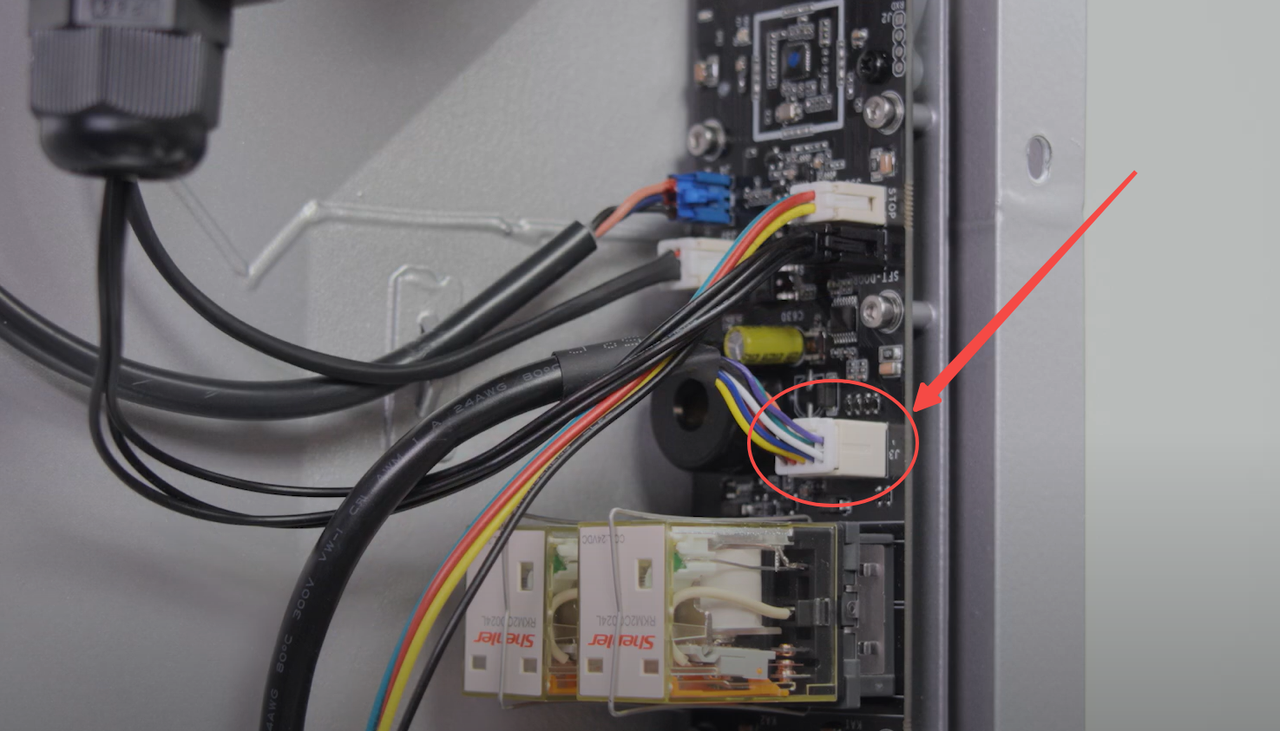
- Restart the machine and process the material again. See if the issue is resolved.
If the issue persists...
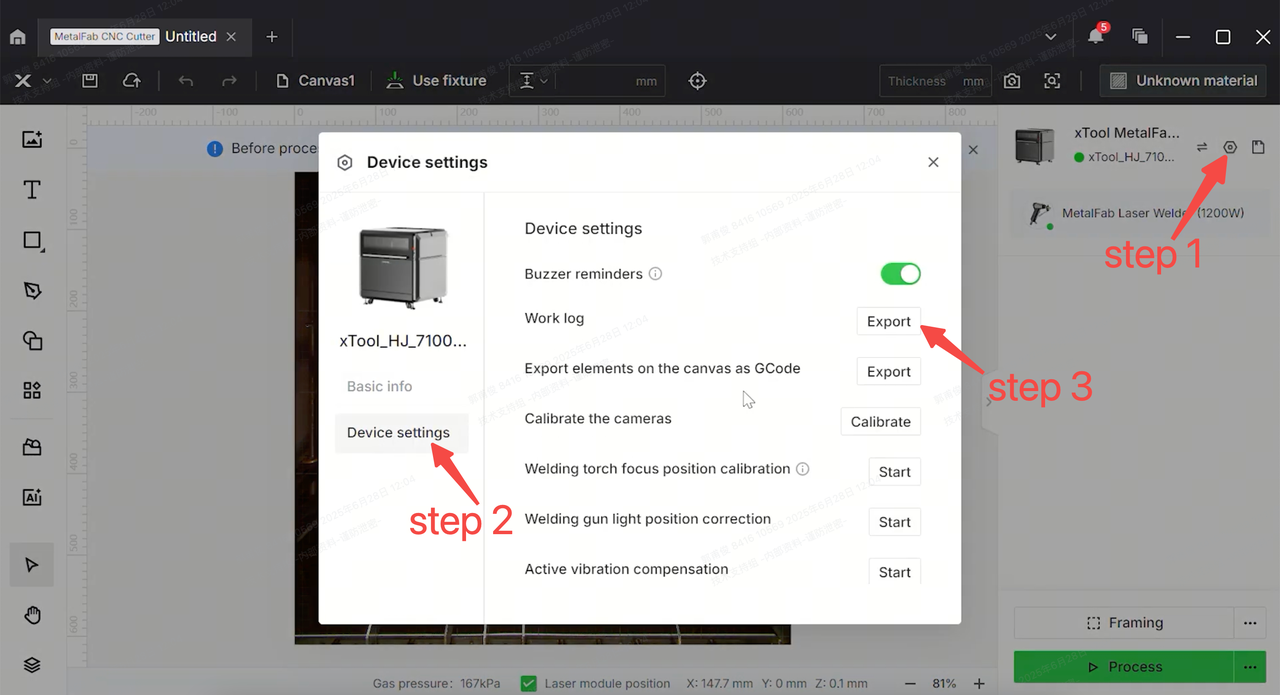
If none of the methods mentioned above resolve the issue, please prepare a video recording your troubleshooting process and results, follow the figure below to extract the log from XCS, then send these materials to xTool Customer Service for further assistance.
Help us improve
If this article or video doesn't effectively assist you in resolving the issue, please let us know by clicking the “No” button in the “Was this page helpful?” section below, and leave your feedback in the pop-up suggestion box. Our knowledge base team will review it and consider it for future updates.
Still need help?
If you need any human assistance, please create a ticket by clicking the “Submit a Ticket” button in the “Help Ticket” section below. Our service team will get back to you in 1 business day via E-mail.

