Troubleshoot "Exhaust fan installation abnormal" for xTool F2 Ultra series
Updated Jun 9,2026
Updated Jun 9,2026
Issue Description
During processing, if xTool software(XCS or xTool Studio) displays an error message like the figure below, try the steps below to troubleshoot the issue.
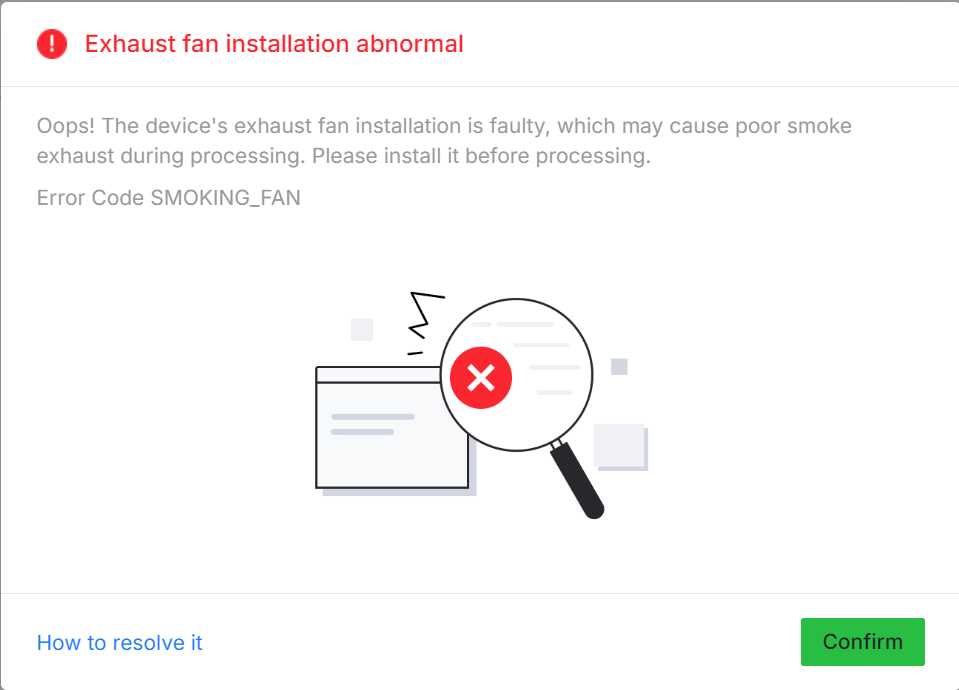
Possible cause
This error typically results from one of the following hardware conditions:
- Exhaust fan module is not properly installed
- Device failed to detect the exhaust fan module
Troubleshooting
Step 1: Reinstall the Exhaust Fan Module
- Power off the machine.
- Disconnect and then reconnect the exhaust fan module, ensuring it is firmly seated and aligned with the mounting slot.
Step 2: Reboot and Recheck
- After reinstalling the fan module, restart the device and try again to see if the error persists.
If the error remains after proper reinstallation:
- Record a short video showing the fan module reinstallation process.
- Submit a technical support ticket with the video and device SN attached for deeper hardware-level inspection.
More information
Troubleshoot "Access-control key" for xTool F2 Ultra UV
Preview
Was this page helpful?
1 out of 4 found this helpful
Help Ticket
Use this help ticket to submit your issue. We will respond within 1 business day
Submit a Ticket