
Issue description
During the curing cycle, you observe that the powder circulation belt inside your xTool OS1 Shaker Oven is not moving. As a result, the oven fails to apply adhesive powder to the printed PET film, and the powder level in the powder compartment (under the magnetic cover) gradually depletes until nearly empty, even if the powder bin contains powder.
- Normal Operation: The powder circulation belt should move continuously during operation to ensure adequate powder distribution onto the printed film for proper adhesion, as shown in the image below.
Consult this section for troubleshooting advice.
.gif)
Normal Operation 1
.gif)
Normal Operation 2
Potential cause
- Your xTool OS1 Shaker Oven is not powered on.
- There is a connection failure between the oven and the printer.
- The powder circulation motor is jammed, often due to clumped or caked powder.
Troubleshooting
Please follow these steps systematically to diagnose and resolve the issue.
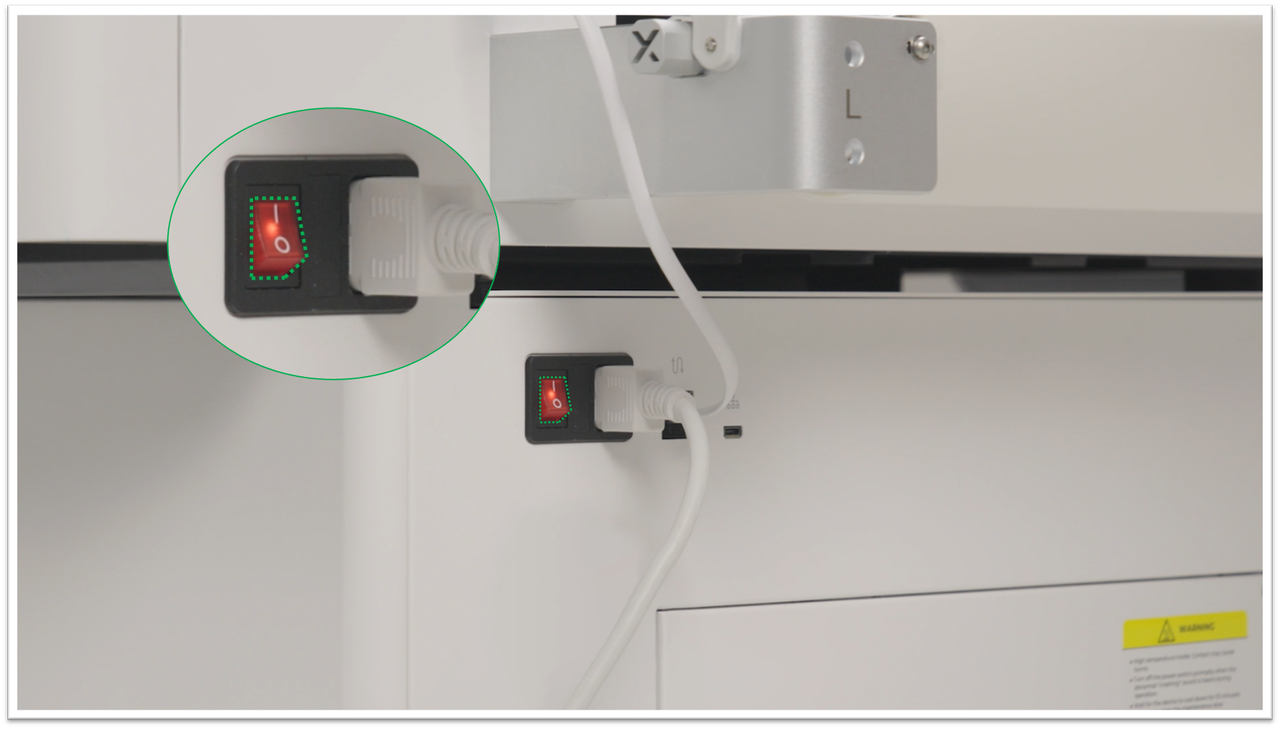
Step 1: Check oven power status
Verify power connection:
- Ensure your xTool OS1 Shaker Oven is connected to power.
- Check that the power indicator light is illuminated.
- Confirm the oven is turned on.
Power troubleshooting:
- If the oven is not powered, connect it to a working power outlet and turn it on.
- If the oven is already powered on, proceed to Step 2.
Step 2: Check printer-oven connection
A proper data connection is required for the printer to control the oven's functions.
Verify successful connection:
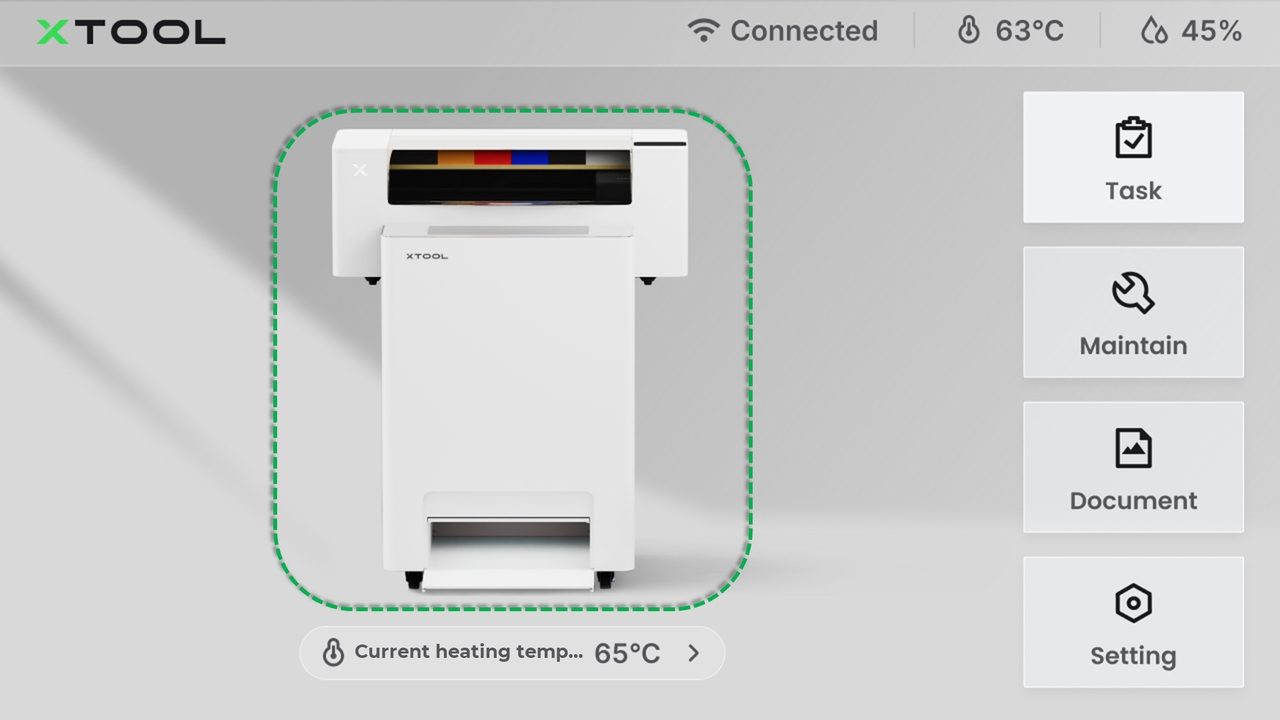
- When the printer and oven are properly assembled and communicating normally, the LCD control panel should display the printer-oven combination installation complete icon.
Connection troubleshooting:
- If only the printer is displayed: This indicates a failed installation/connection
- Disconnect and reconnect the data cable between the printer and oven.
- Wait for the system to recognize the connection.
If reconnection fails:
- Still showing only the printer: The connection cable or interface board may need be experiencing failure, thus necessitating replacement.
- Contact xTool Customer Service for a replacement connection cable or interface board.
If the connection is normal, proceed to Step 3.
Step 3: Check for powder clumps & a jammed motor
If the power and data connections factors are ruled out from previous steps, the issue is likely a physical jam in the powder circulation system.
Inspect the powder circulation system:
- Observe the powder circulation belt during operation.
- Check the powder level in the powder compartment under the magnetic cover.
Identify powder blockage:
- If you observe that the powder circulation belt is not moving and the powder level in the compartment is very low, this may indicate:
- Powder clumping or caking;
- Powder circulation motor blockage due to hardened powder.
Resolution steps:
- Download powder clearing tool: Contact xTool Customer Service to obtain and download the powder clearing tool.
- Professional assistance: Contact xTool Customer Service for guidance on using the powder clearing tool and resolving the blockage.
Still experiencing issues?
Should the issue persist after completing the preceding steps, submit a ticket via the "Submit a Ticket" button in the "Help Ticket" section below. The standard response time for xTool Customer Service is one business day.
For a prompt resolution, please include the following details:
- Issue description: A detailed explanation of the observed problem.
- Video evidence: Attach a video demonstrating the issue, where applicable.
- Troubleshooting performed: Any troubleshooting steps you have already attempted, along with their results.
This information is crucial for xTool technical support engineers to provide timely assistance.
Documentation feedback
Help improve this content by providing feedback. If this content did not meet your requirements, select "No" in the "Was this page helpful?" section below. Include specific details about what was unclear or missing in the pop-up suggestion box. Feedback submissions are reviewed by xTool technical writers to enhance future documentation.

