
Issue description
After the PET film has been cured in xTool OS1 Shaker Oven, you notice distinct white dots on the surface of the printed pattern. This issue is often most noticeable on dark or black-colored designs.
- Consult this section for troubleshooting advice.

Possible causes
- Residual Adhesive Powder: Loose adhesive powder may have settled on the surface of the PET film before or during the curing process.
- Oven Temperature is Too High: An excessively high temperature in the oven can cause a premature separation between the PET film and the ink layer in small areas, resulting in white spots.
Troubleshooting
Step 1: Inspect for & clean residual powder
Inspect the Film:
- Examine the back side of the PET film design for any remaining adhesive powder residue.
- Look for powder particles that may have accumulated on the film surface.
- If powder residue is present, clean the film thoroughly.
Clean the Film & Equipment:
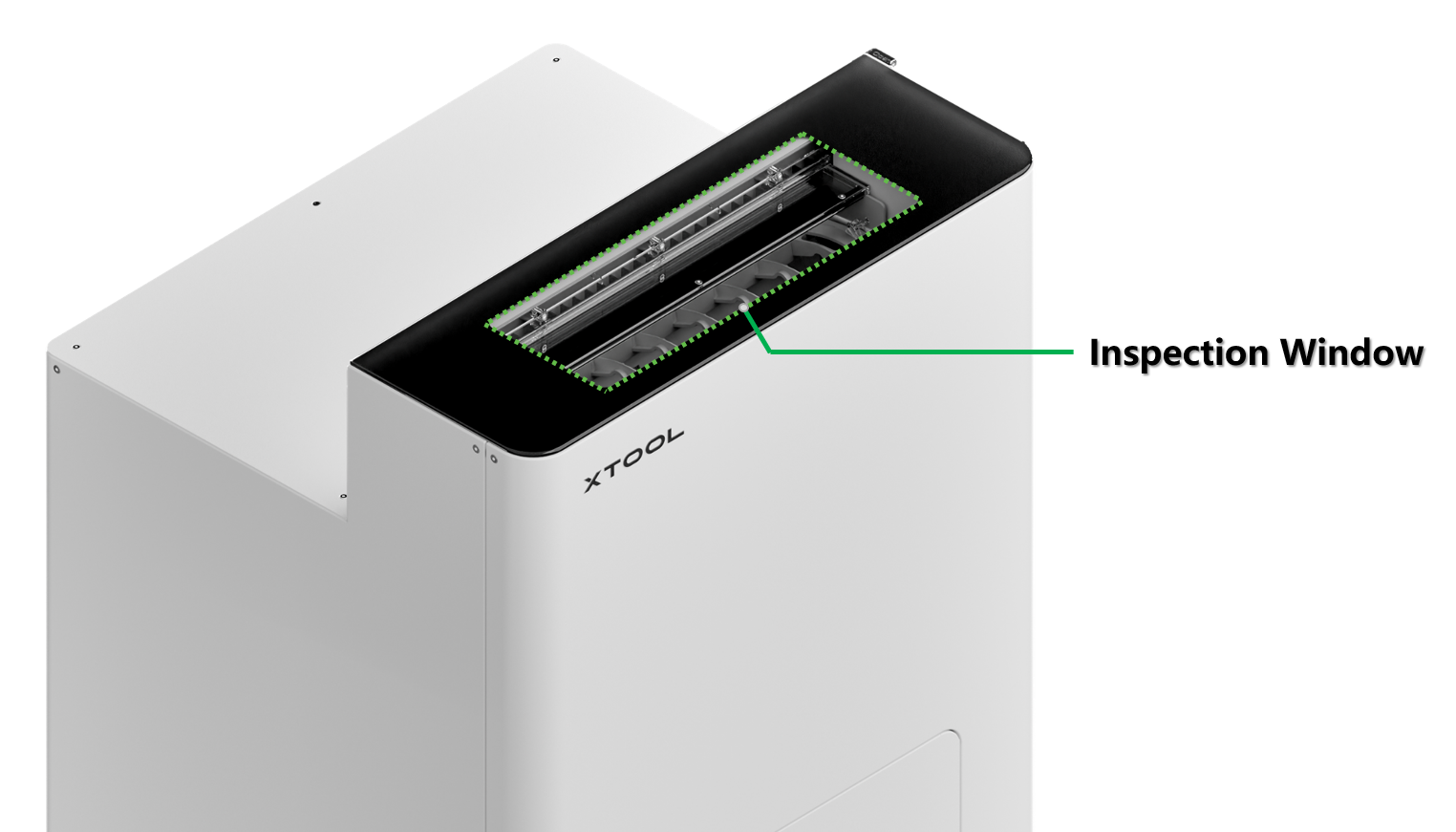
- Clean the area below the inspection window to remove any accumulated powder.
- Video Guide: For detailed instructions on cleaning the oven, please refer: Routine Cleaning & Care for xTool OS1 Shaker Oven
If no powder residue is found, proceed to Step 2.
Step 2: Adjust oven temperature
Root Cause: The white spots may be caused by excessive oven temperature, which causes premature separation between the PET film and the design in certain areas.
Temperature Adjustment Process:
- Gradual temperature reduction:
- Reduce the oven temperature by 5°C (9°F) increments.
- Test the curing results after each temperature adjustment.
- Continue this process until the white spot issue is resolved.
- Monitor for under-curing:
- If lowering the temperature results in unfused adhesive powder, the temperature is too low.
- Gradually increase the temperature to find the optimal setting.
- Prioritize heat press results:
- Focus on achieving optimal heat press transfer results.
- White spots caused by premature design separation typically do not affect the final heat press quality.
Still experiencing issues?
Should the issue persist after completing the preceding steps, submit a ticket via the "Submit a Ticket" button in the "Help Ticket" section below. The standard response time for xTool Customer Service is one business day.
For a prompt resolution, please include the following details:
- Issue description: A detailed explanation of the observed problem.
- Video evidence: Attach a video demonstrating the issue, where applicable.
- Troubleshooting performed: Any troubleshooting steps you have already attempted, along with their results.
This information is crucial for xTool technical support engineers to provide timely assistance.
Documentation feedback
Help improve this content by providing feedback. If this content did not meet your requirements, select "No" in the "Was this page helpful?" section below. Include specific details about what was unclear or missing in the pop-up suggestion box. Feedback submissions are reviewed by xTool technical writers to enhance future documentation.

Services & Help
Learn & Education

Copyright © 2025 xTool All Rights Reserved.