
Issue description
When the machine is powered on, the carriage is supposed to rest in the upper right corner after completing the homing in the order of z-, y-, and x-axis.
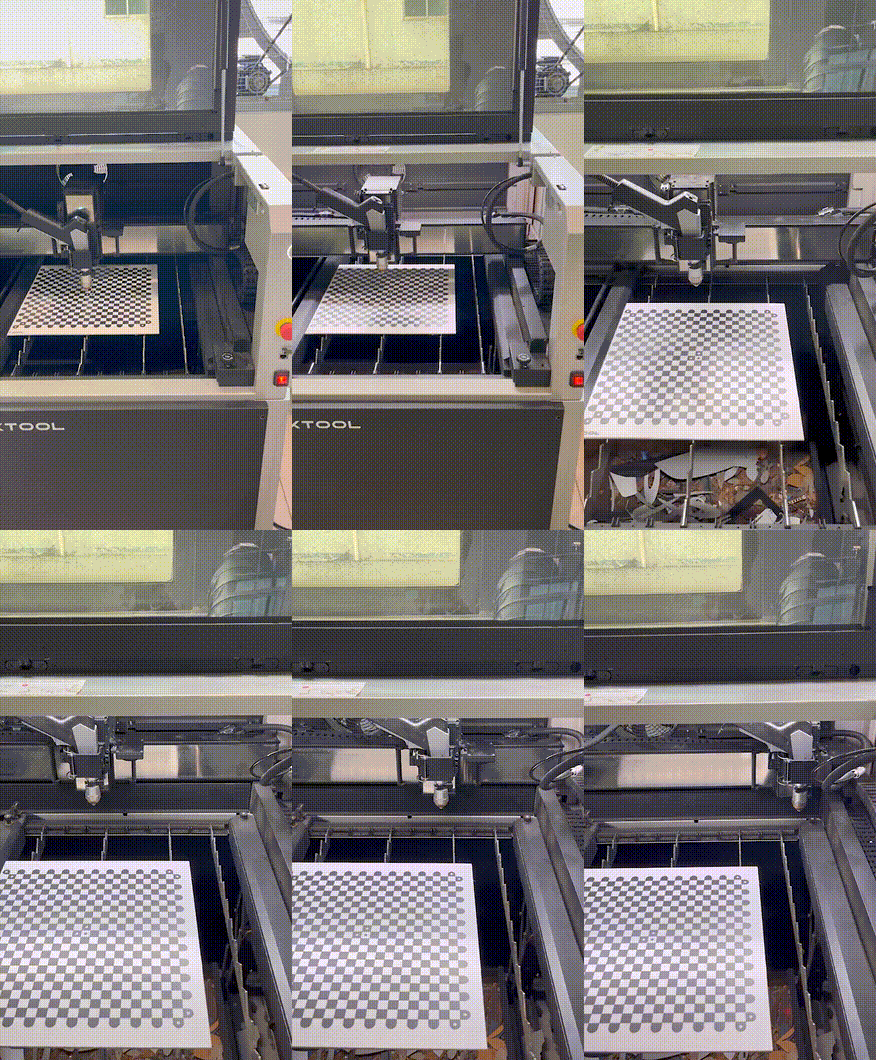
Please follow this troubleshooting guide to resolve the issue if:
- The carriage cannot return to the innermost side of the machine (the beginning of the y-axis) or keep moving to the outer side.
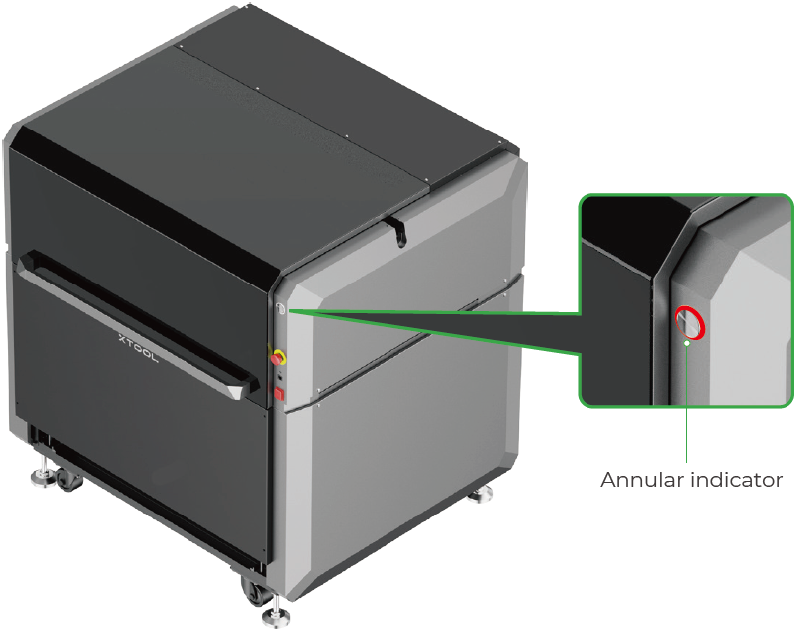
- The annular indicator is solid red.
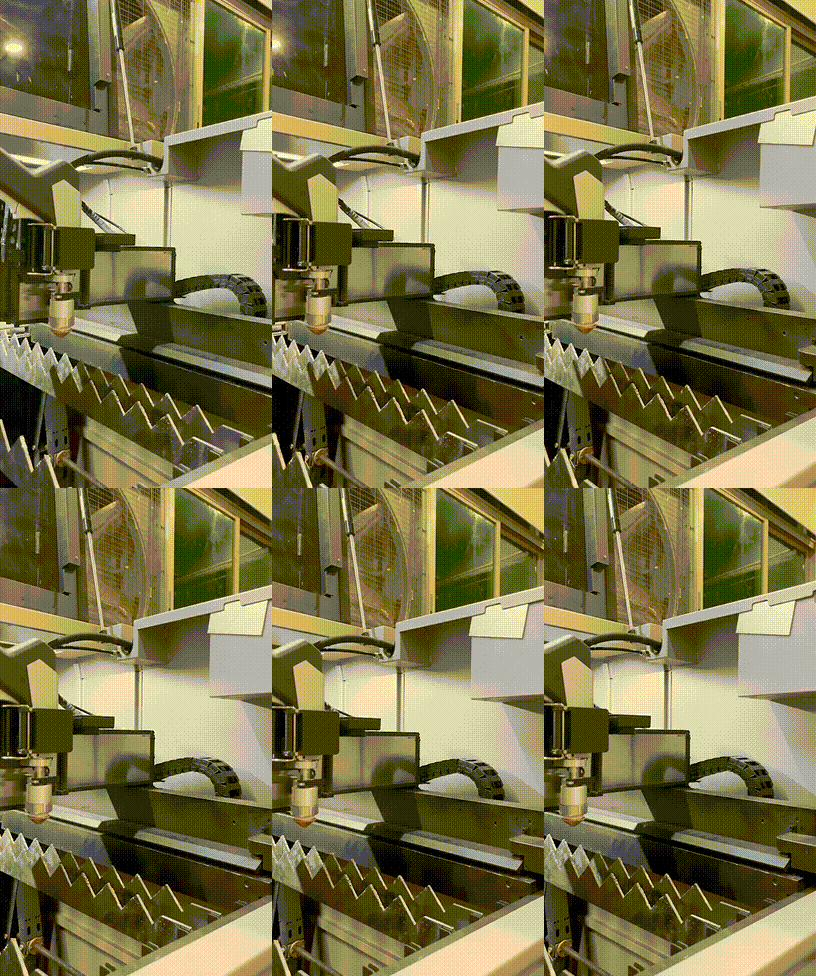
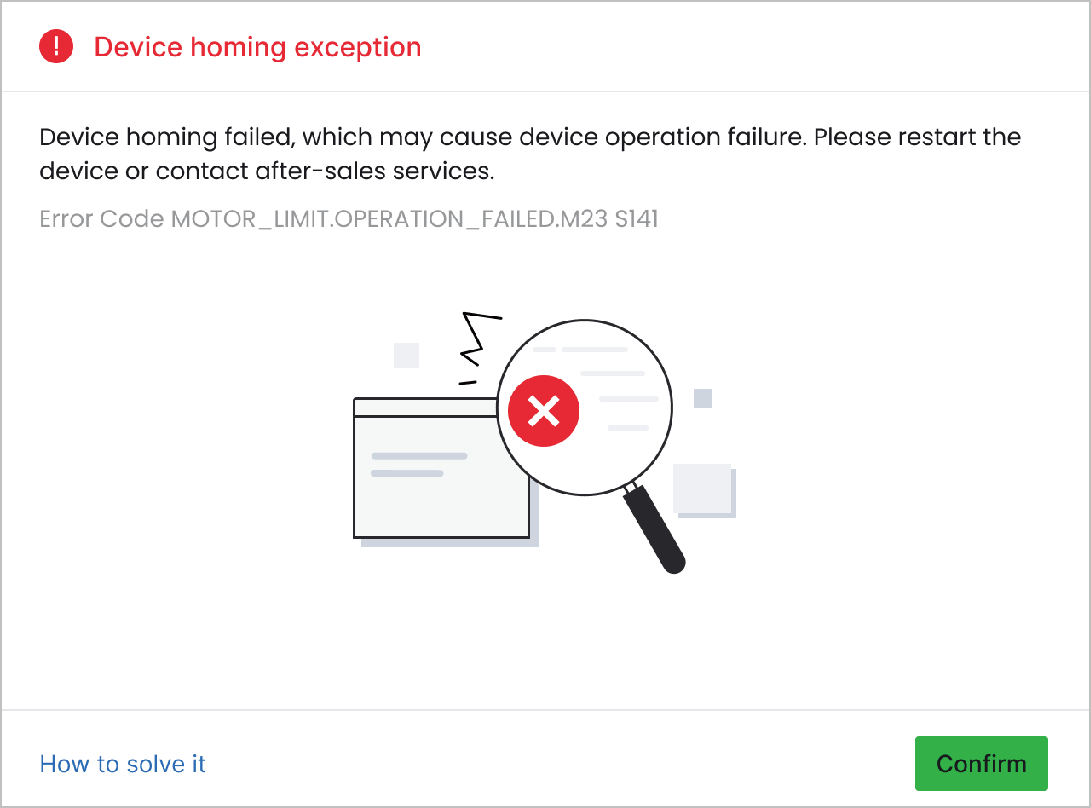
- Or an error message entitled "Device homing exception" in XCS pops up, please follow this troubleshooting guide to resolve this issue.
Possible causes
- Obstacles exist: There is an obstacle inside the machine, preventing the carriage from normal homing.
- Abnormal limit switch: The limit switch, its cable, or its circuit on the main control board is not functioning properly.
- Abnormal motor: The motor, its cable, its driver board, or its circuit on the main control board malfunctions.
Detailed procedure
Step 1: Pre-check
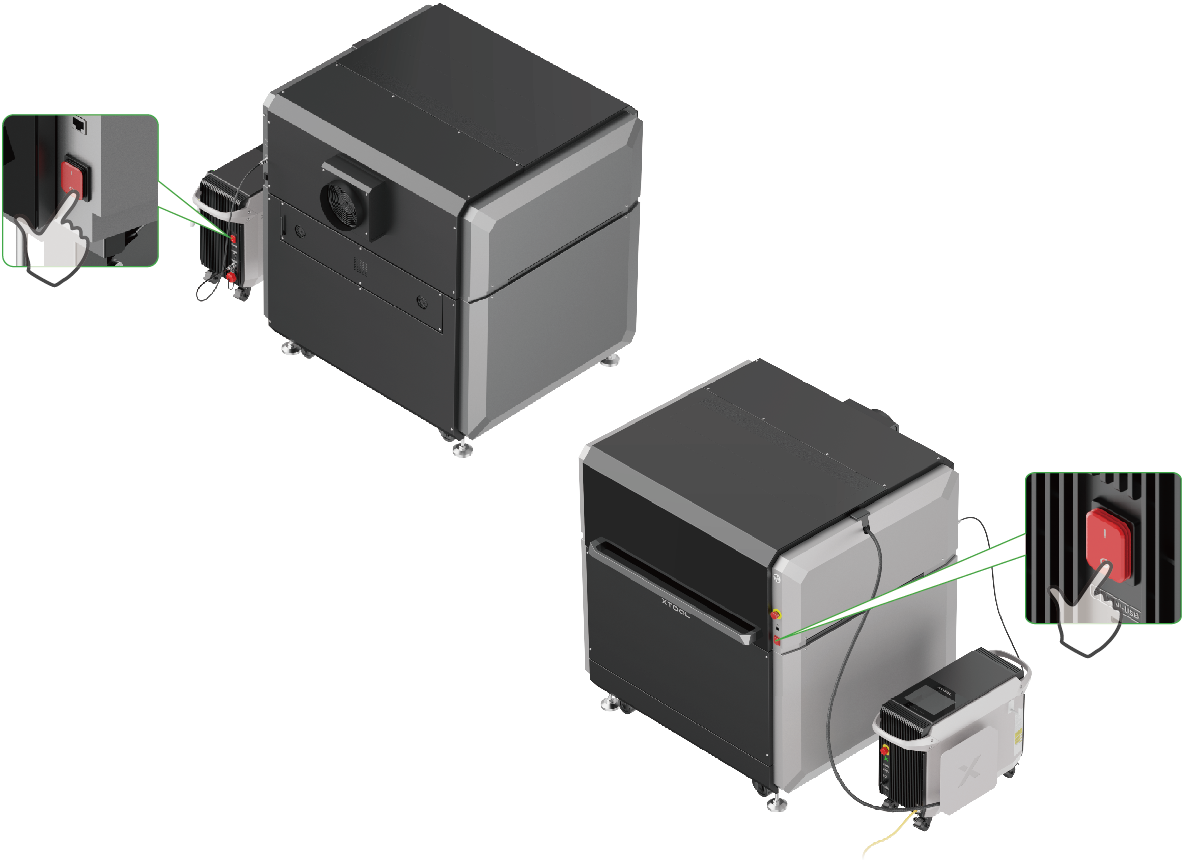
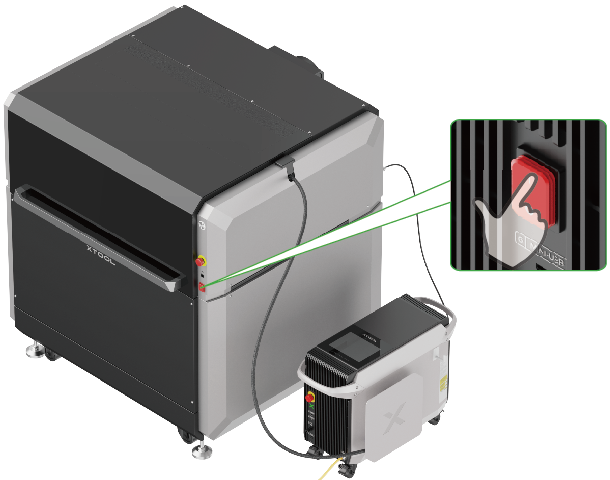
- Power off your xTool MetalFab Laser Welder and xTool MetalFab CNC Cutter.
When xTool MetalFab CNC Cutter is off, the carriage can be moved manually.
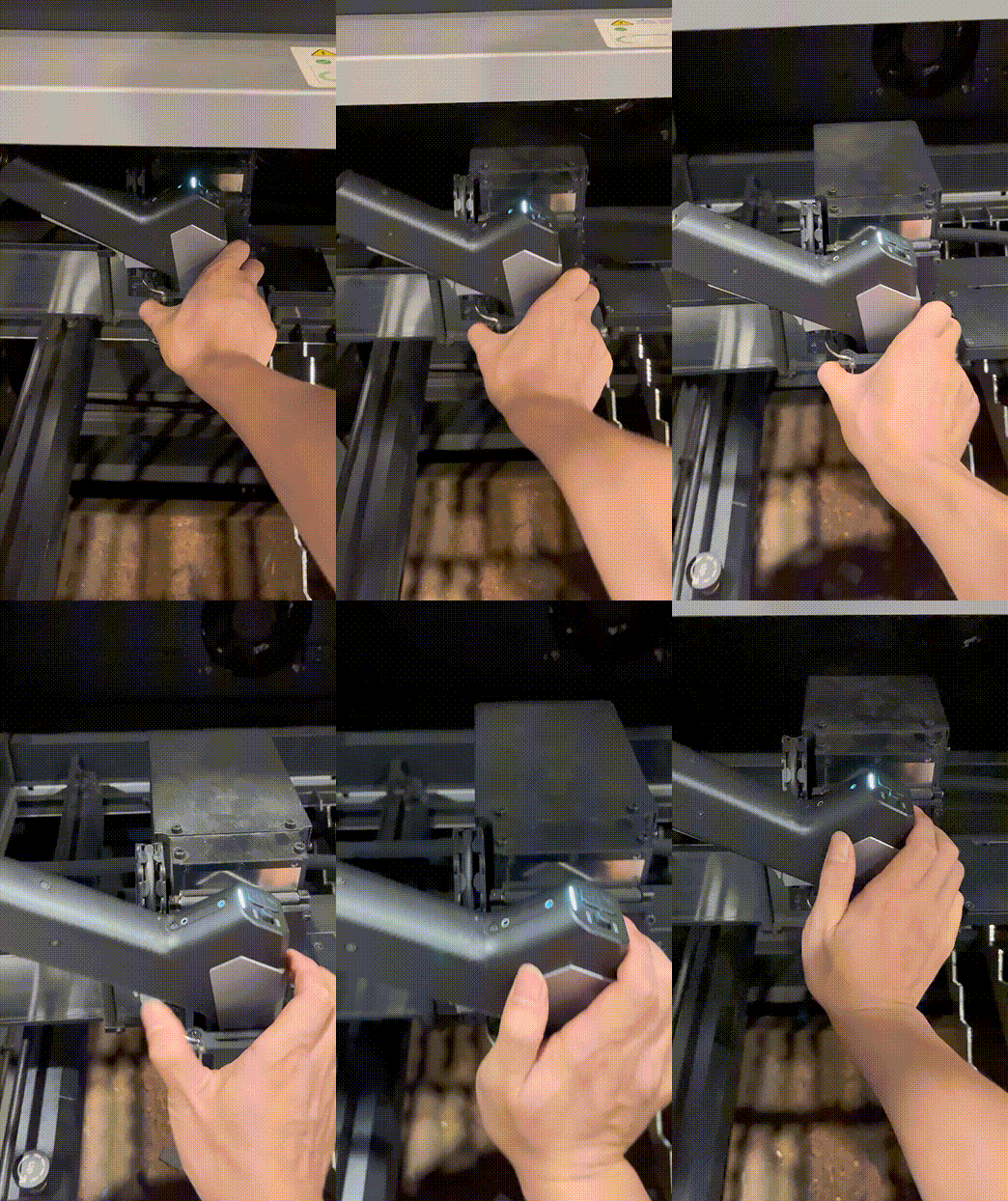
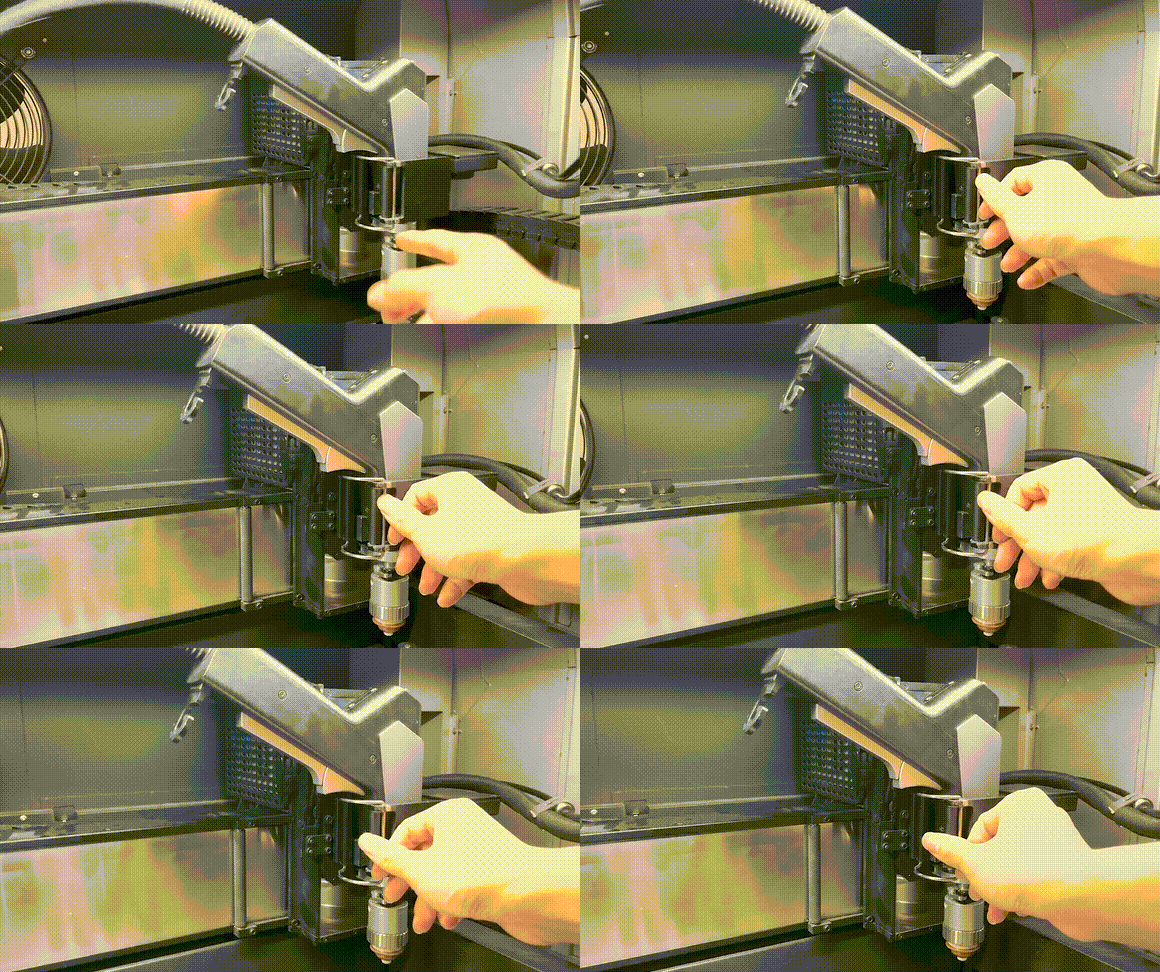
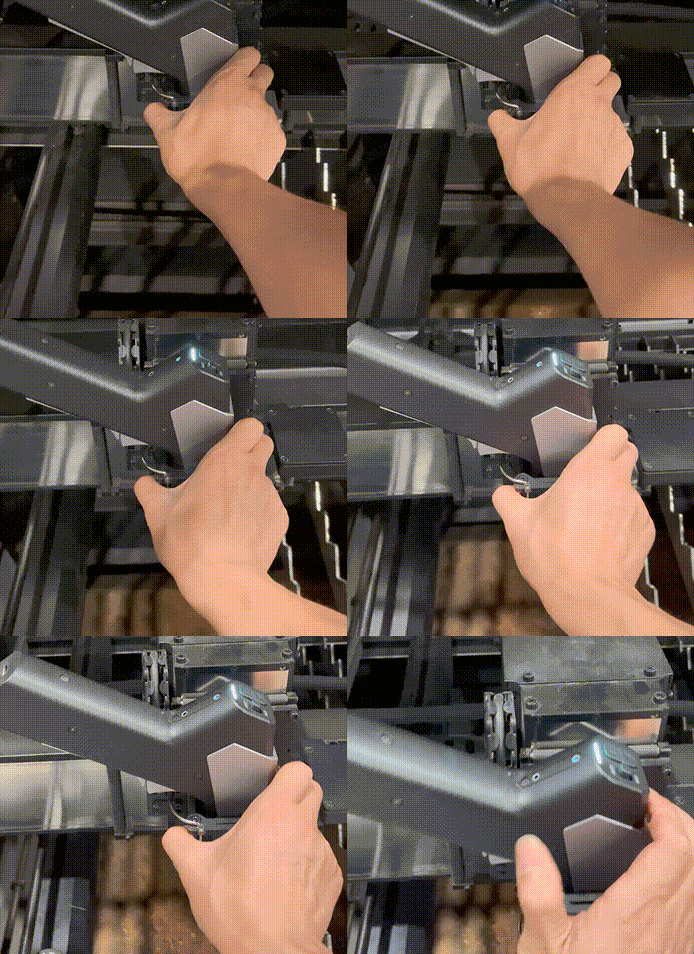
- Ensure that the carriage can be moved to the innermost and outermost sides of the machine manually.
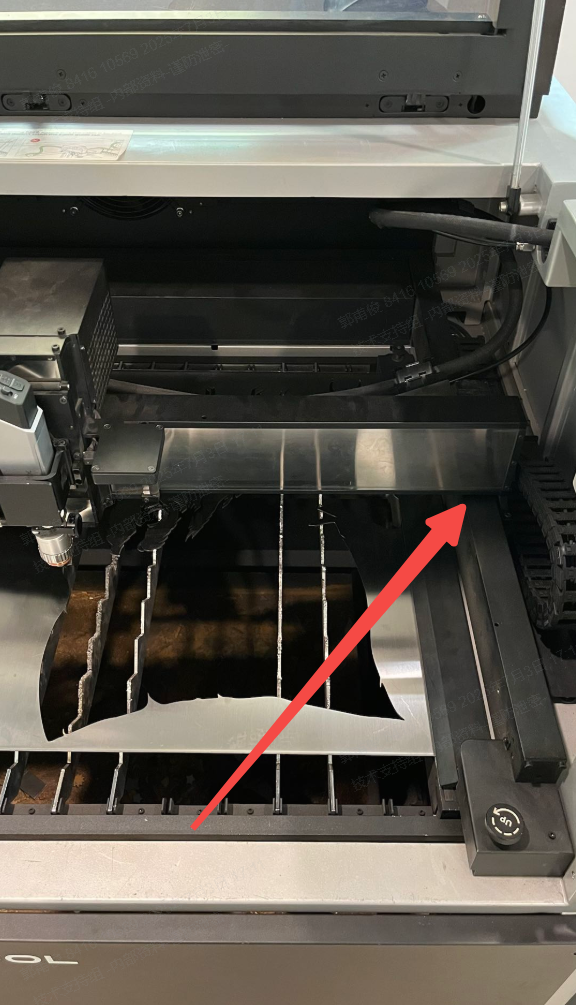
- Move the carriage to the center of the y-axis.
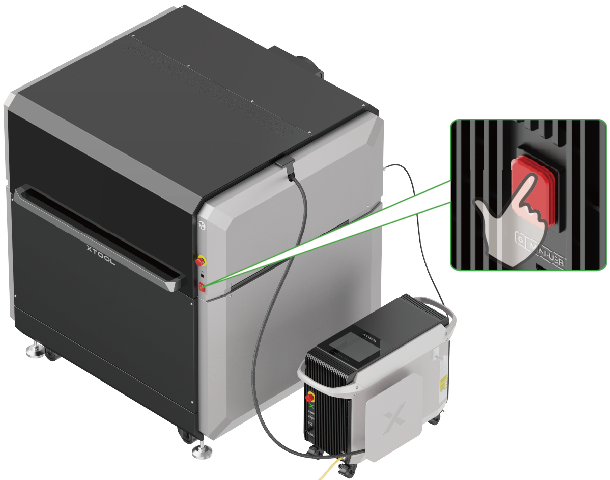
- Plug in the power cable and turn on the machine to check whether the carriage can move automatically along the y-axis.
- Then, resolve the issue according to different scenarios.
Step 2: Troubleshoot based on a specific scenario
Scenario 1: Carriage moving along the y-axis
If the carriage moves along the y-axis but in the wrong direction or does not stop at the target position, refer to the following troubleshooting steps.
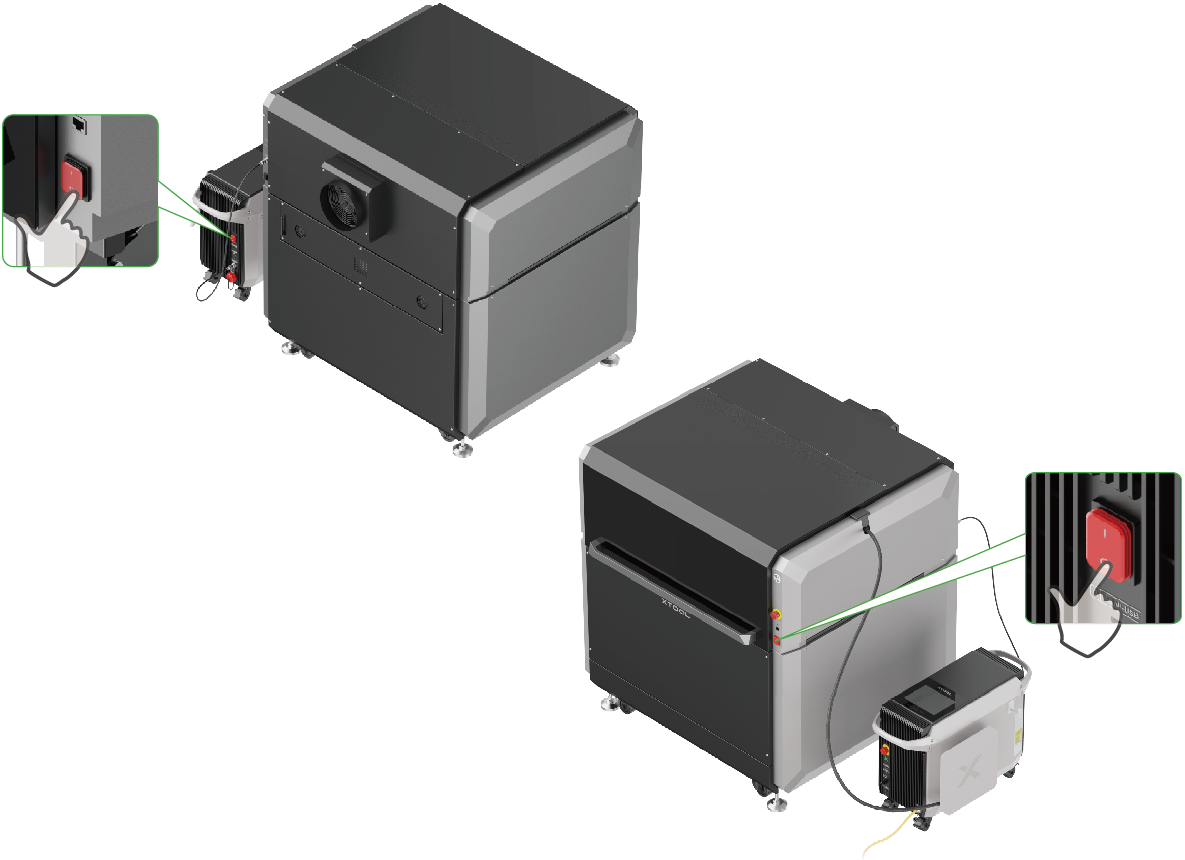
- Power off your xTool MetalFab Laser Welder and xTool MetalFab CNC Cutter.
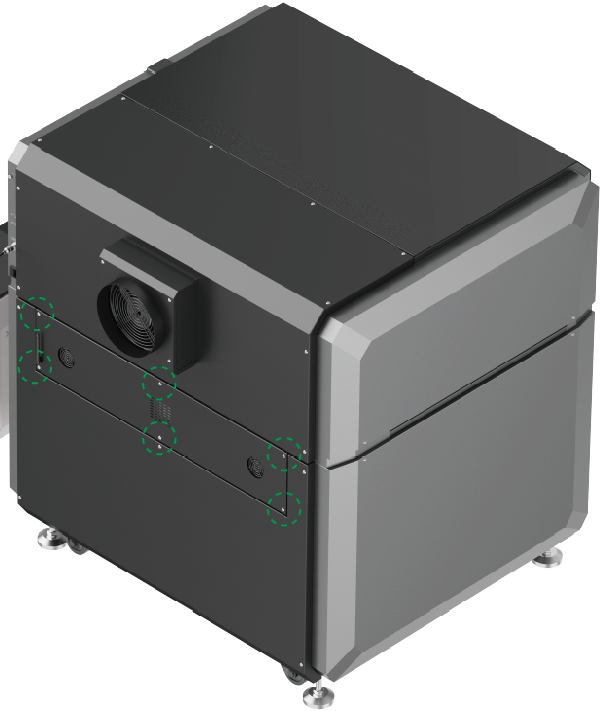
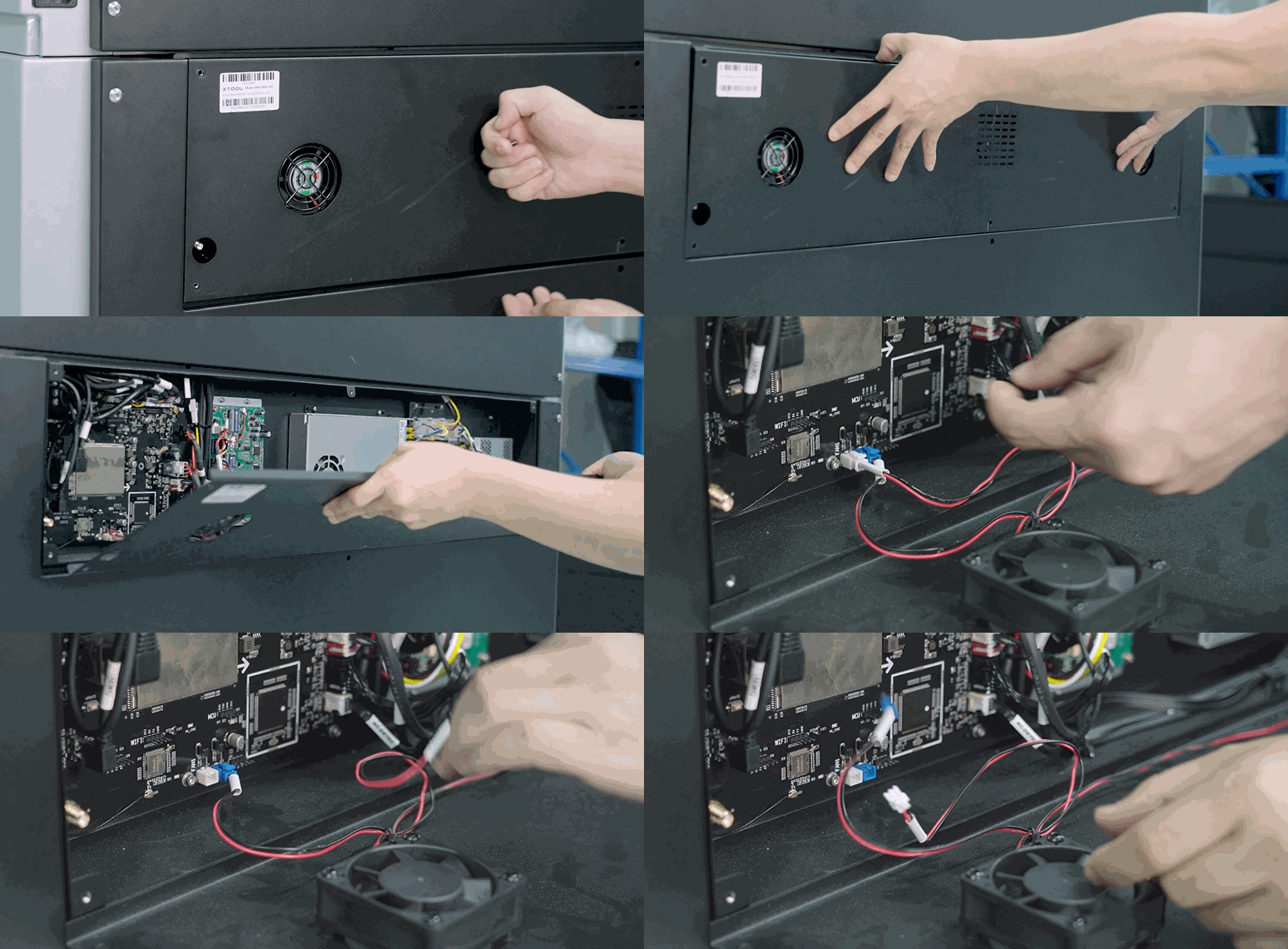
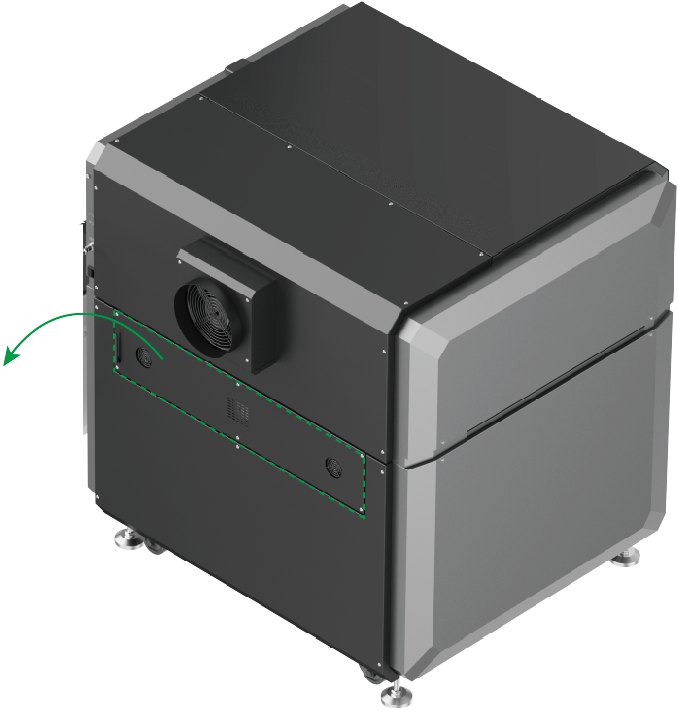
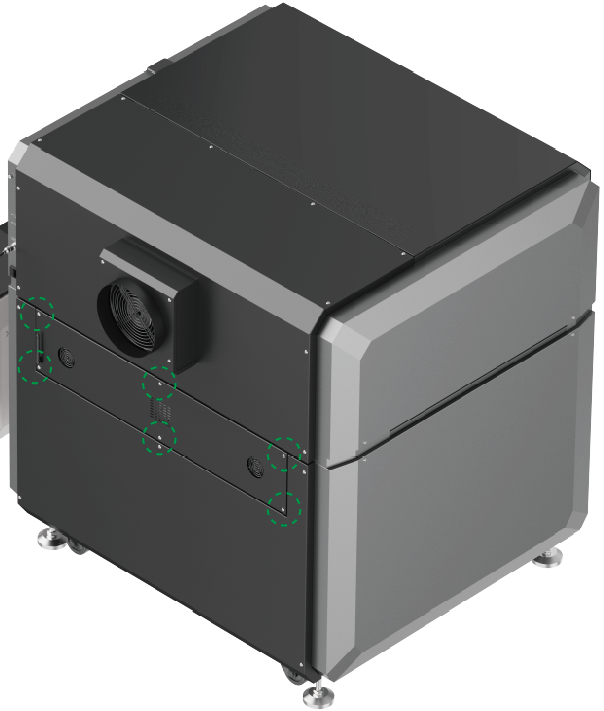
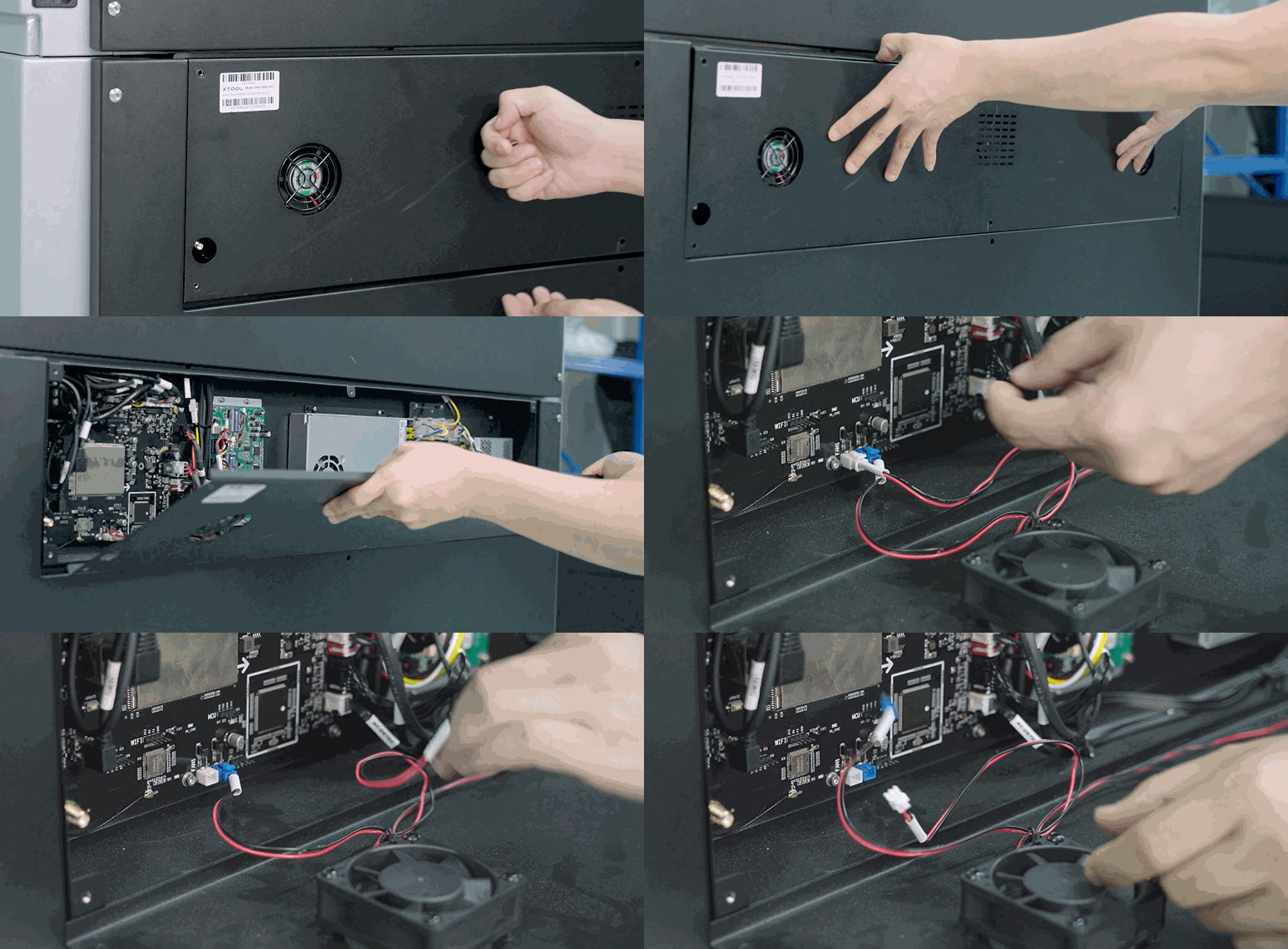
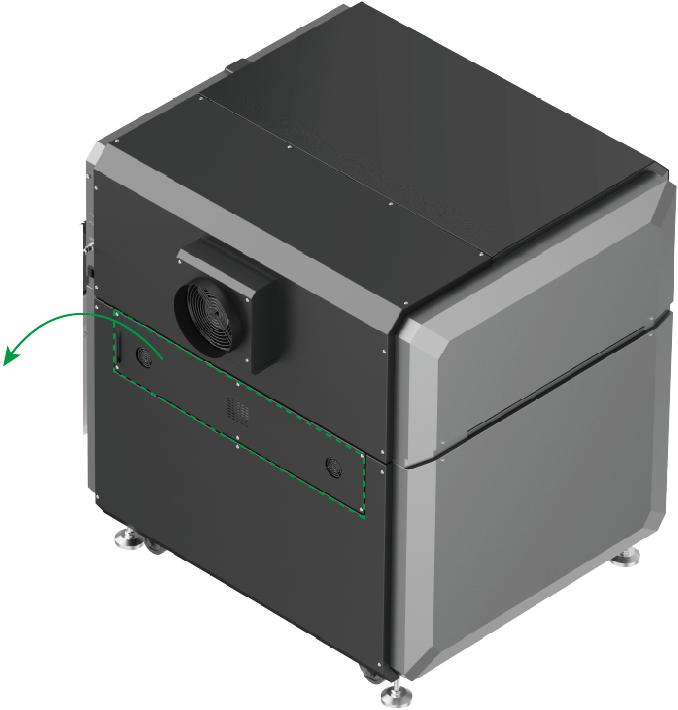
- Remove the rear plate.
|
|
|
Remove six screws. | Gently open the rear plate and disconnect the two connectors. | Remove the rear plate |
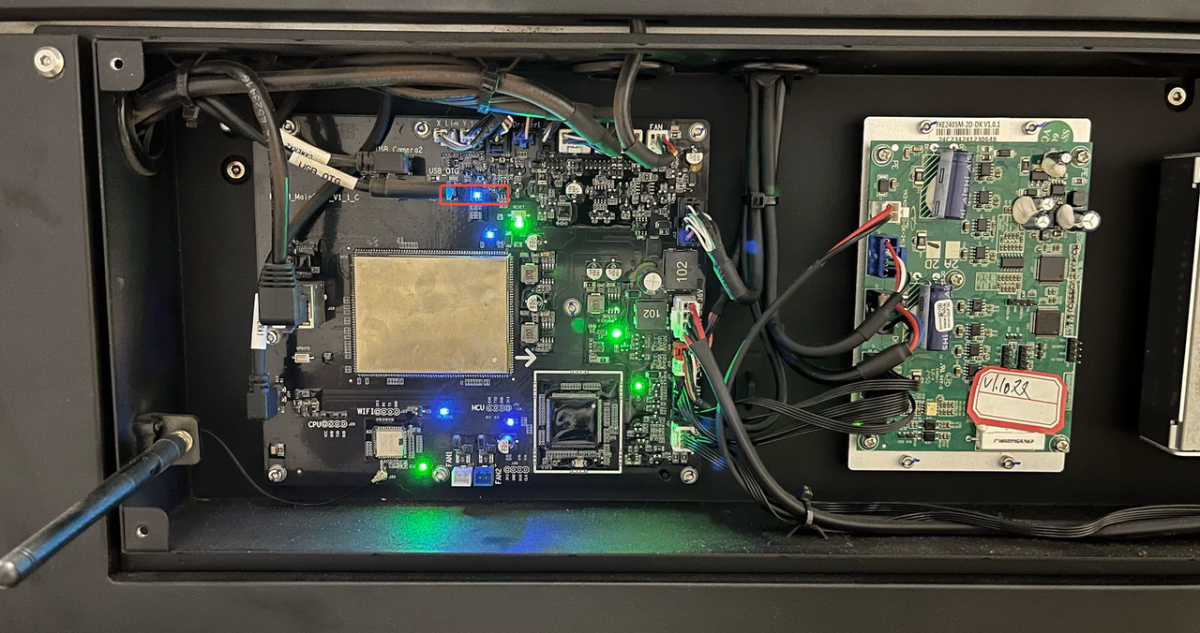
- Turn on the xTool MetalFab CNC Cutter.
- Check the Y_Lim indicator while manually moving the carriage to the innermost and outermost sides of the y-axis.
- Under normal conditions, the indicator light should illuminate when the carriage reaches the innermost position and extinguish when it moves away.
Manual operation | Y_Lim indicator status | |
|---|---|---|
Carriage on the innermost side |
|
|
Carriage on the outermost side |
|
|
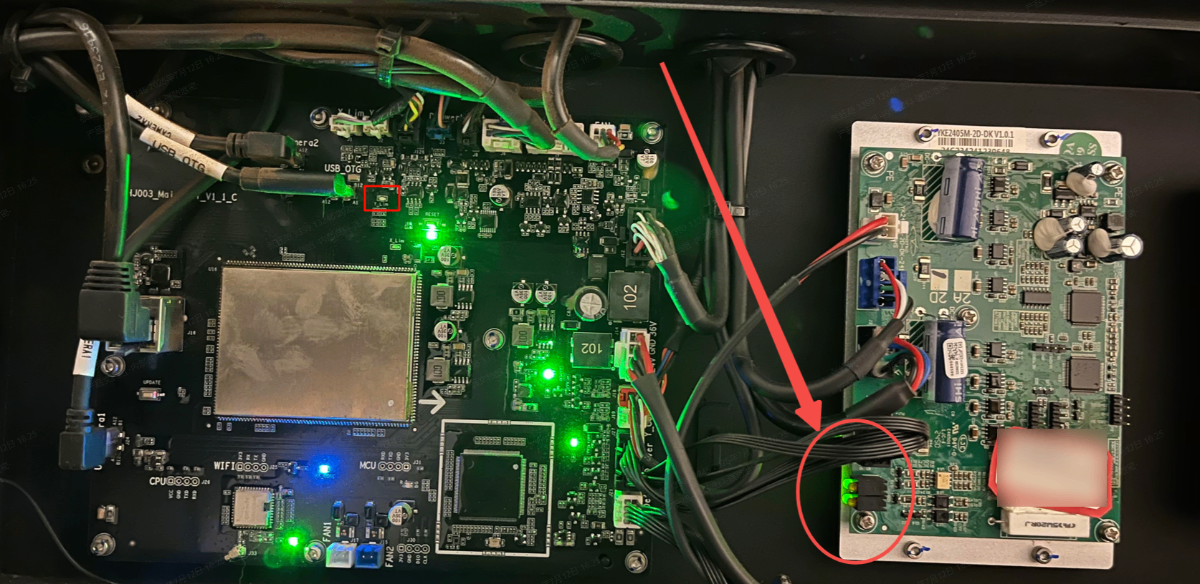
- If the indicator behaves abnormally, power off the machine and reconnect the disconnector labeled Y_Lim.
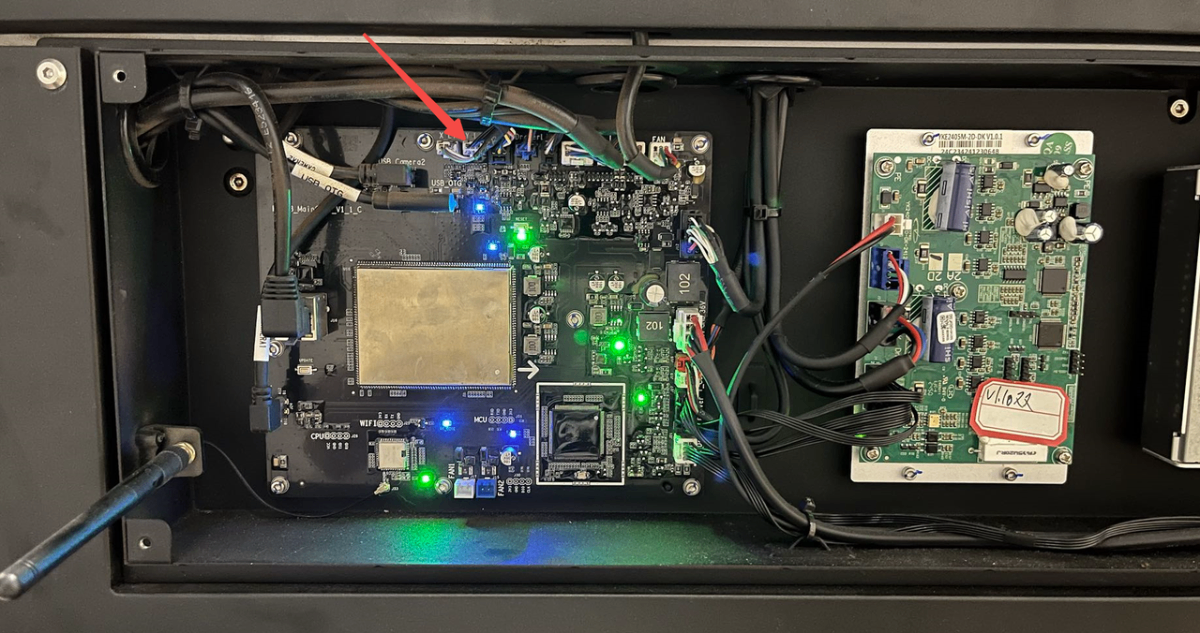
- Restart the machine.
- If the issue persists, please prepare a video recording your troubleshooting process and results and contact xTool Customer Service for further assistance.
Scenario 2: Carriage NOT moving along the y-axis
If the carriage does not move along the y-axis when the machine is on, refer to the following troubleshooting steps.
- Power off your xTool MetalFab Laser Welder and xTool MetalFab CNC Cutter.
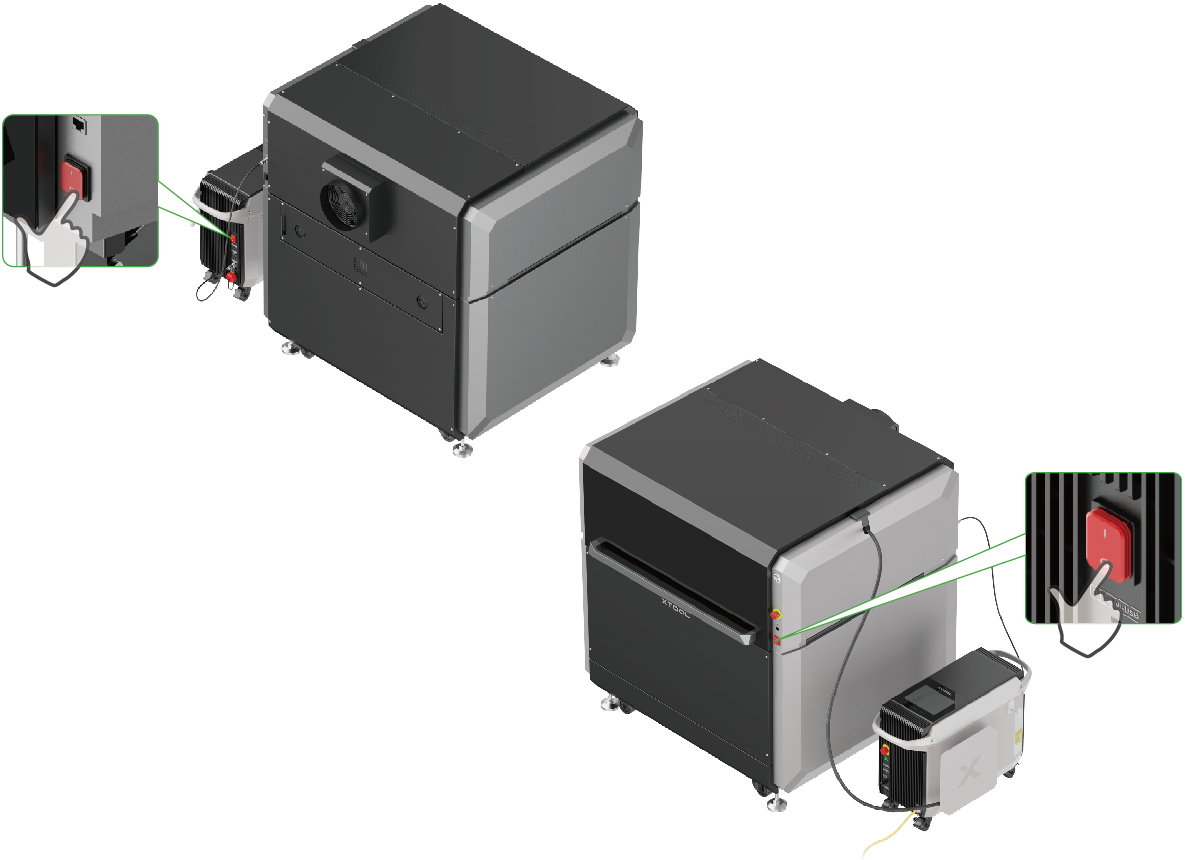
- Remove the rear plate.
|
|
|
Remove six screws. | Gently open the rear plate and disconnect the two connectors. | Remove the rear plate |
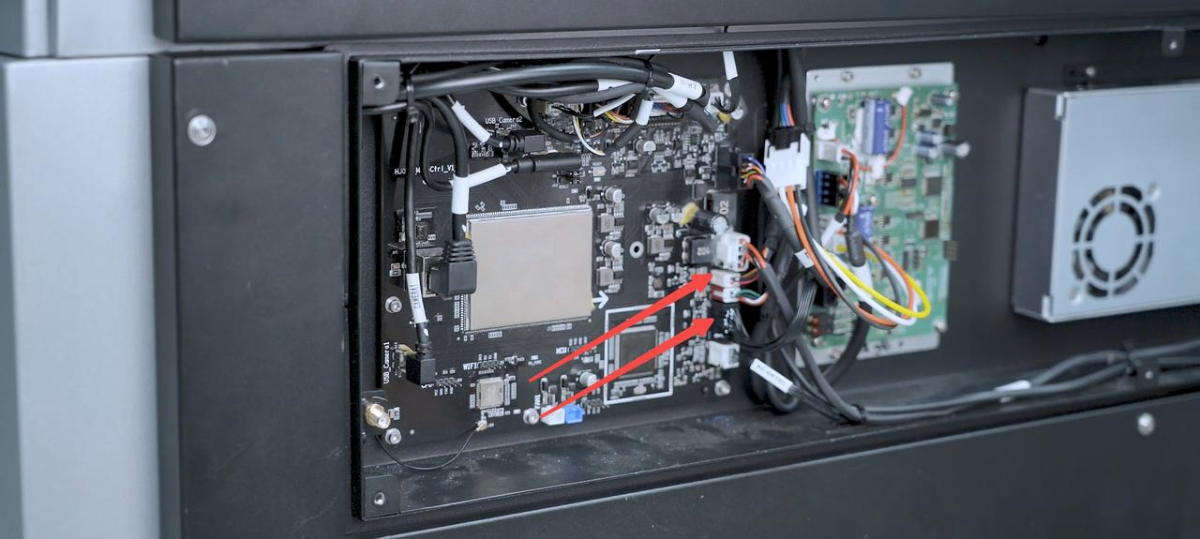
- Unplug and replug in the five disconnectors of the main control board and motor drive board.
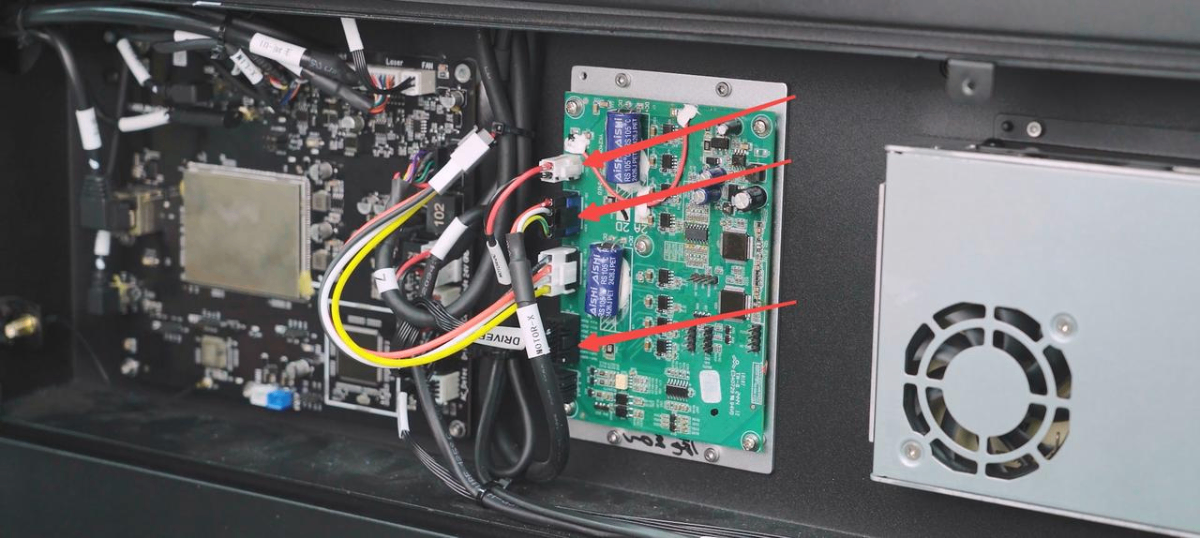
- Leave the rear plate uninstalled and turn on xTool MetalFab CNC Cutter.
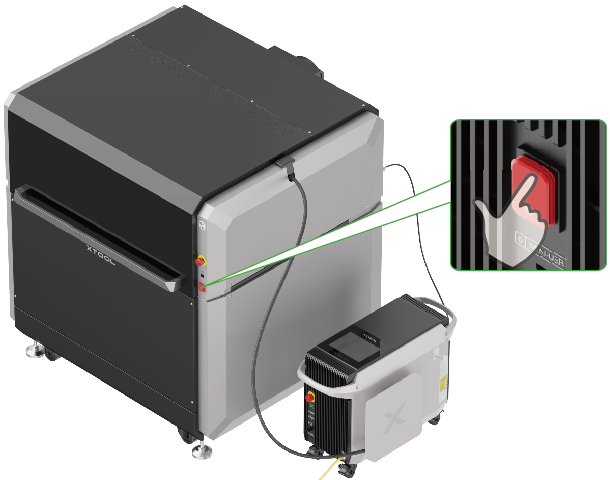
- Check whether the indicators on the motor drive board and that on the DC power supply illuminate.
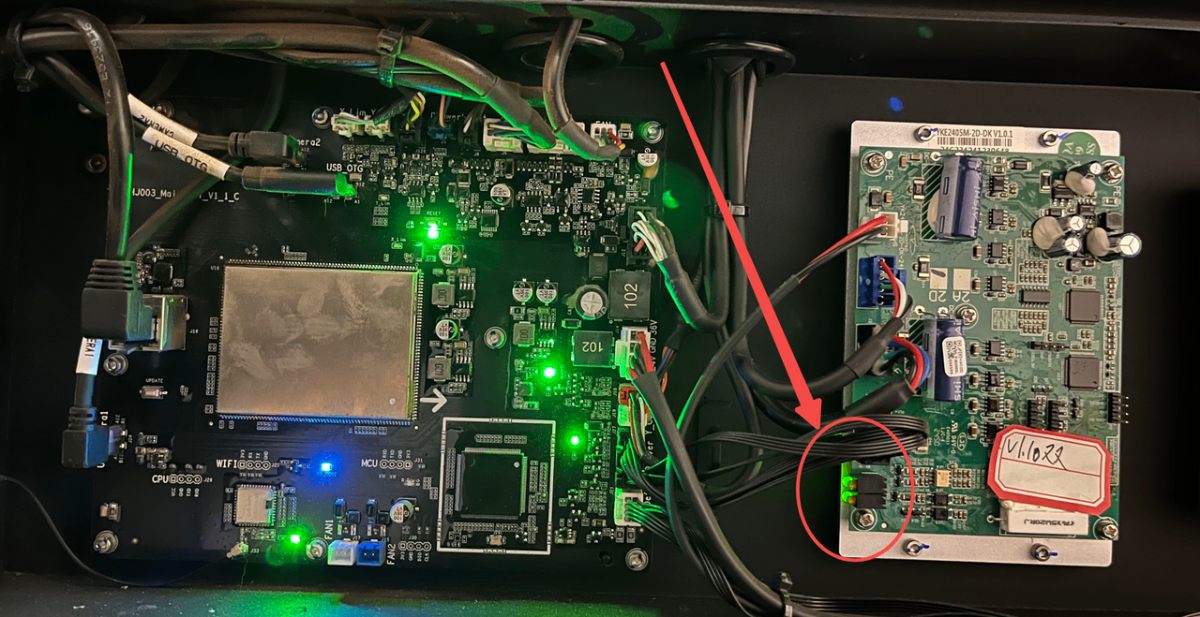
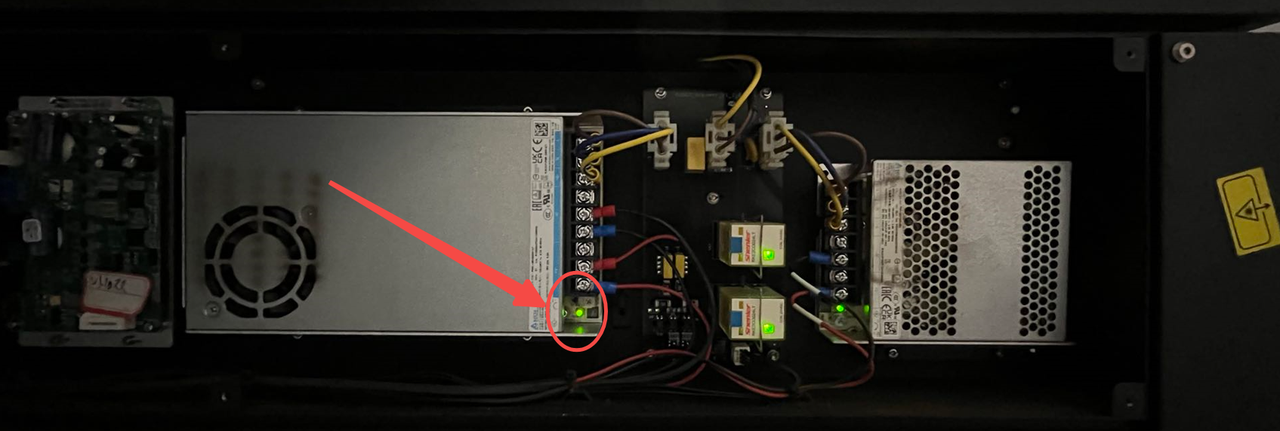
- If the issue persists, please prepare a video recording your troubleshooting process and results and contact xTool Customer Service for further assistance.
Help us improve
If this article or video doesn't effectively assist you in resolving the issue, please let us know by clicking the “No” button in the “Was this page helpful?” section below, and leave your feedback in the pop-up suggestion box. Our knowledge base team will review it and consider it for future updates.
Still need help?
If you need any human assistance, please create a ticket by clicking the “Submit a Ticket” button in the “Help Ticket” section below. Our service team will get back to you in 1 business day via E-mail.

