
Issue description
After laser cleaning, the metal surface did not become bright and clean. Instead, the cleaned surface remains dirty, becomes black, or changes color.
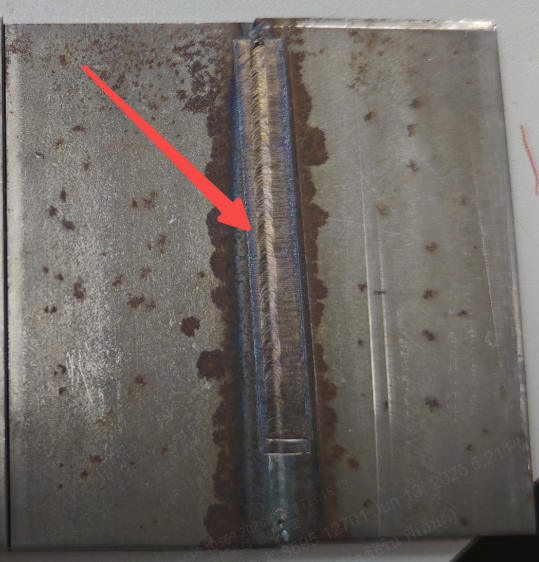 Unsatisfying cleaning | 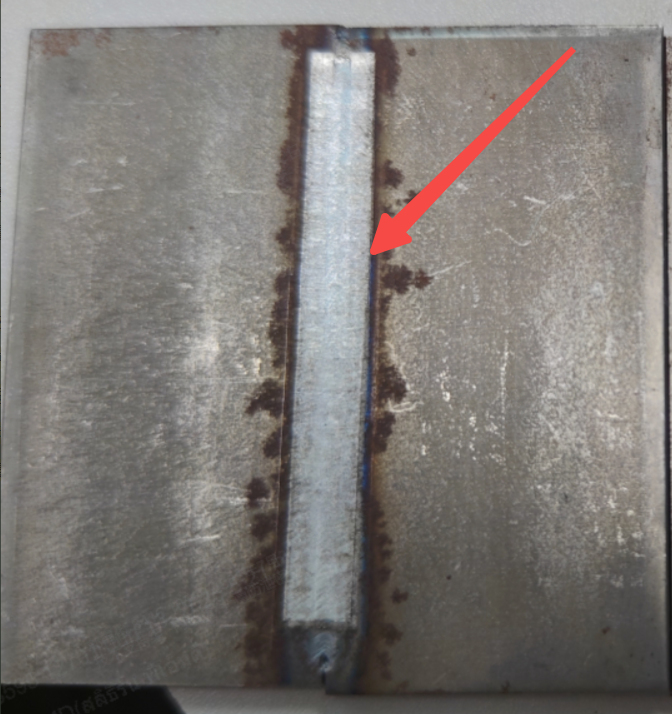 Well-done cleaning |
Possible causes
- Incorrect focus position: The welding head fails to focus the laser beams on the cleaning surface, causing the metal to receive insufficient or excessive energy. For example, the focal point falls in the inner side of the metal, thus burning the metal.
- Inappropriate type or flow of shielding gas: Without a proper shielding gas supply, the metal may react with oxygen or nitrogen in the air at a high temperature, forming oxide or nitride layers that cause discoloration.
- Contaminated or damaged lens protector: The lens protector is dirty or burned, covered with grease, dust, spatter, or burn marks, which causes the laser beams to diffuse and scatter, resulting in uneven energy distribution on the metal surface.
- Improper welding parameters: The welding parameters are not properly set, for example, the wire feeding speed is too slow or the laser power is too high, causing the workpiece to receive excessive heat and thus melt or oxidize.
Troubleshooting procedure
Please follow these steps in order.
STEP 1: Check the laser focus
Refer to the following tutorial to check and calibrate the laser focus for the welding head:
Note: If the problem persists, go to the next step.
STEP 2: Check the shielding gas supply
(1) Check the gas type.
It is recommended to use nitrogen or argon with a purity of over 99.99%.
If you use compressed air, the cleaning result may be inferior. The following picture offers a comparison between using nitrogen and compressed air as the shielding gas for dust removal.
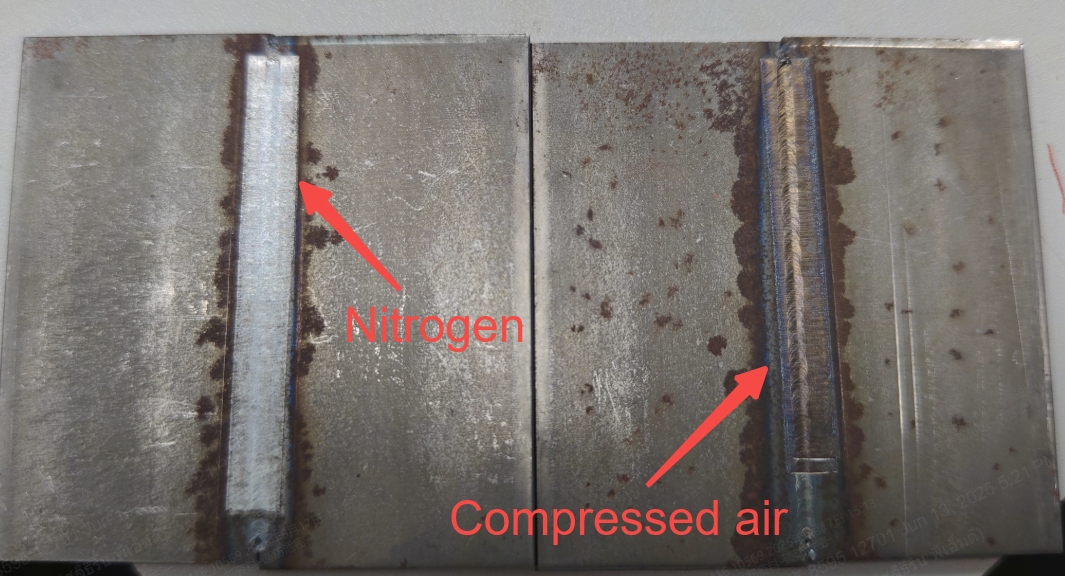
(2) Check the gas flow rate.
For laser cleaning, it is recommended to set the gas flow rate to 15 L/min – 30 L/min.
If the gas flow rate is set as recommended, but the cleaning result is still unsatisfactory, you can increase the gas flow rate a bit and try again.
Note: If the problem persists, go to the next step.
STEP 3: Check the lens protector
1. Turn off the machine and move it to a relatively dust-free environment.
2. Wear lint-free gloves. Then, remove the cover and take out the lens protector closest to the nozzle.
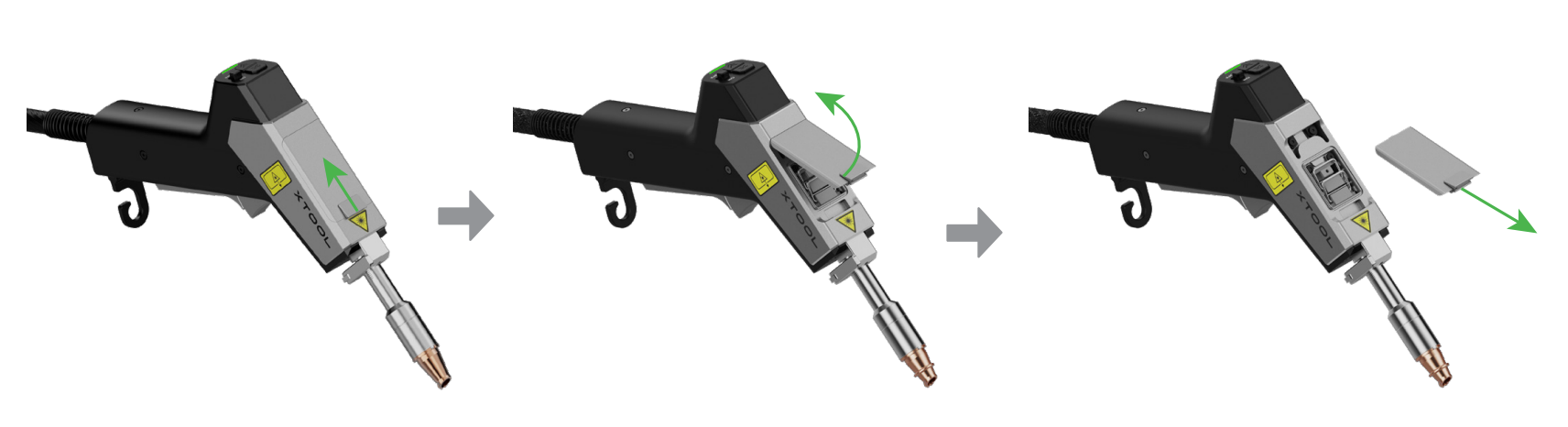
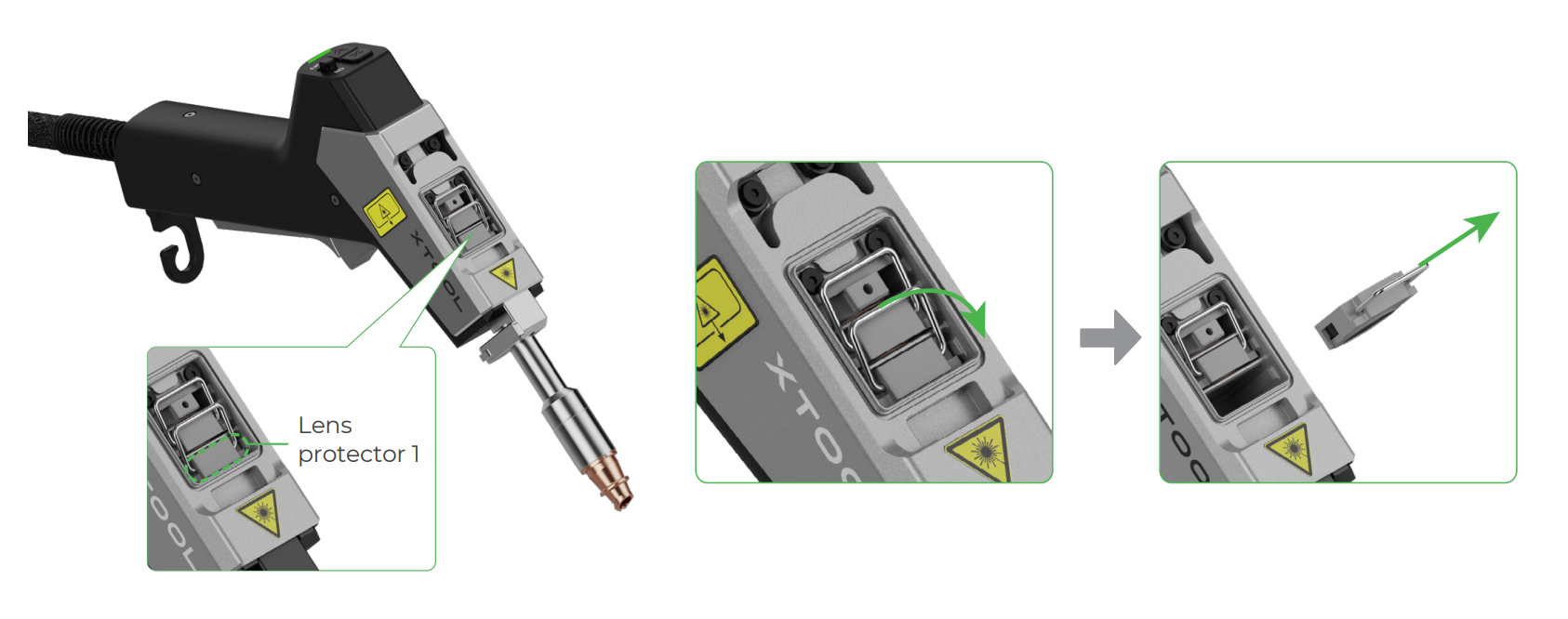
3. Check the lens protector.
■ If the lens protector is slightly dirty, use a cotton swab dipped with alcohol to clean it. Then, install it back to the welding head.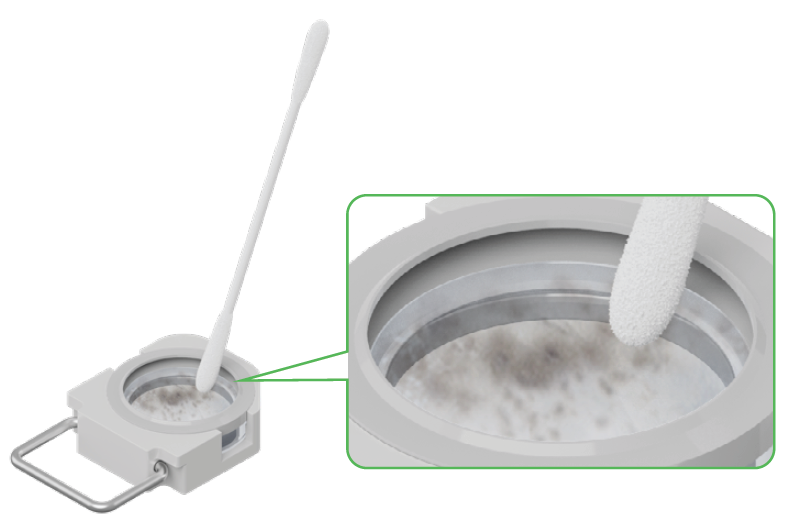
■ If the lens protector is burned or heavily dirty and uncleanable, replace it with a new one.
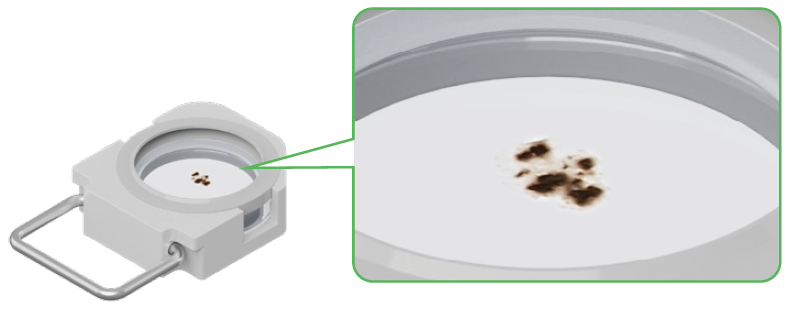
For the replacement guide, please refer to Clean or Replace the Lens Protector for xTool MetalFab Laser Welder.
Note: If the problem persists, go to the next step.
STEP 4: Adjust welding parameters
(1) Try Standard mode and use the default settings first.
On the touchscreen, select Standard mode > Clean. Select the material type and cleaning width according to the actual situation.
Then, start laser cleaning. The machine will automatically use the default laser settings based on your selection.
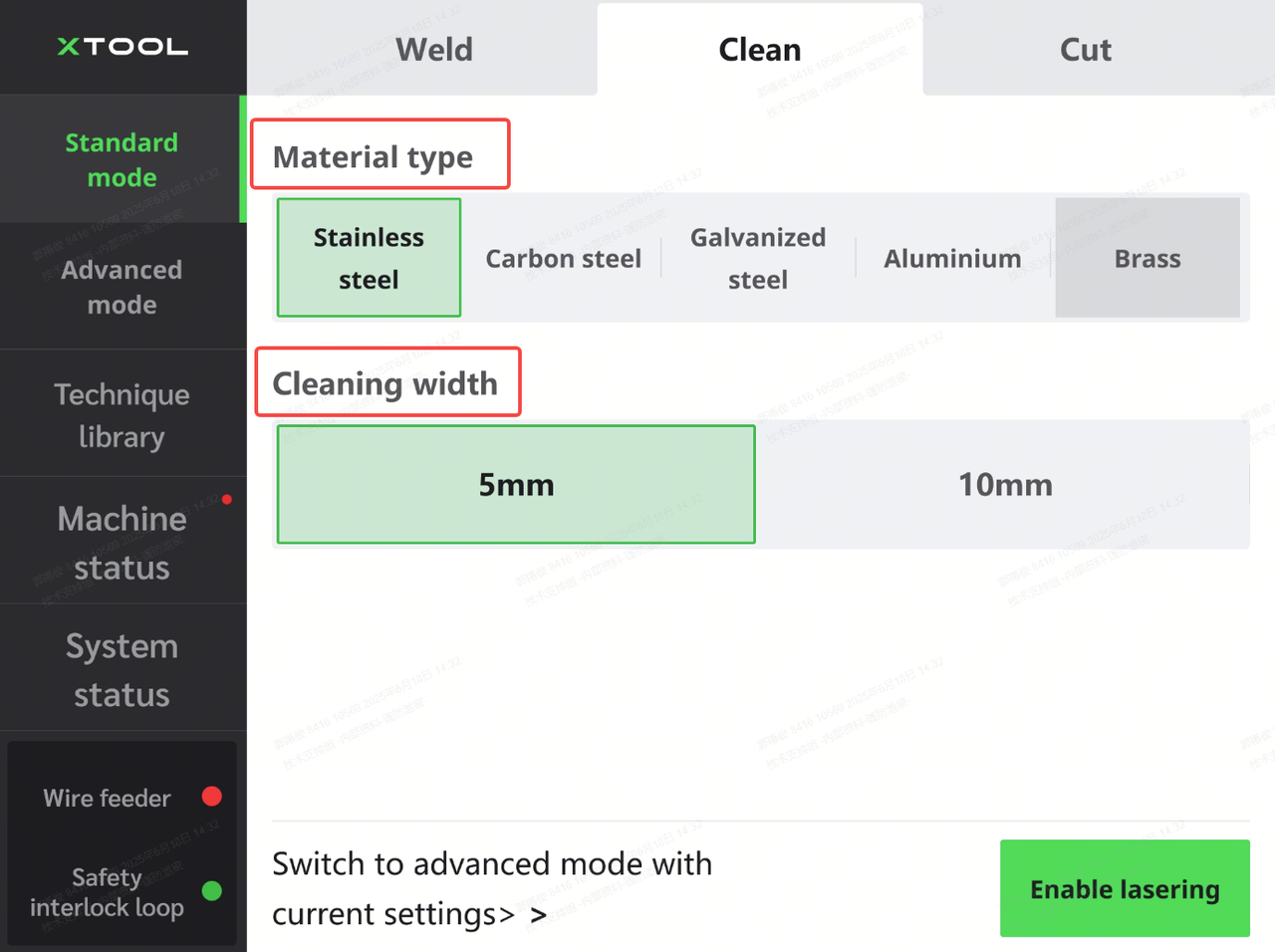
Note: If the problem persists, go to the next step.
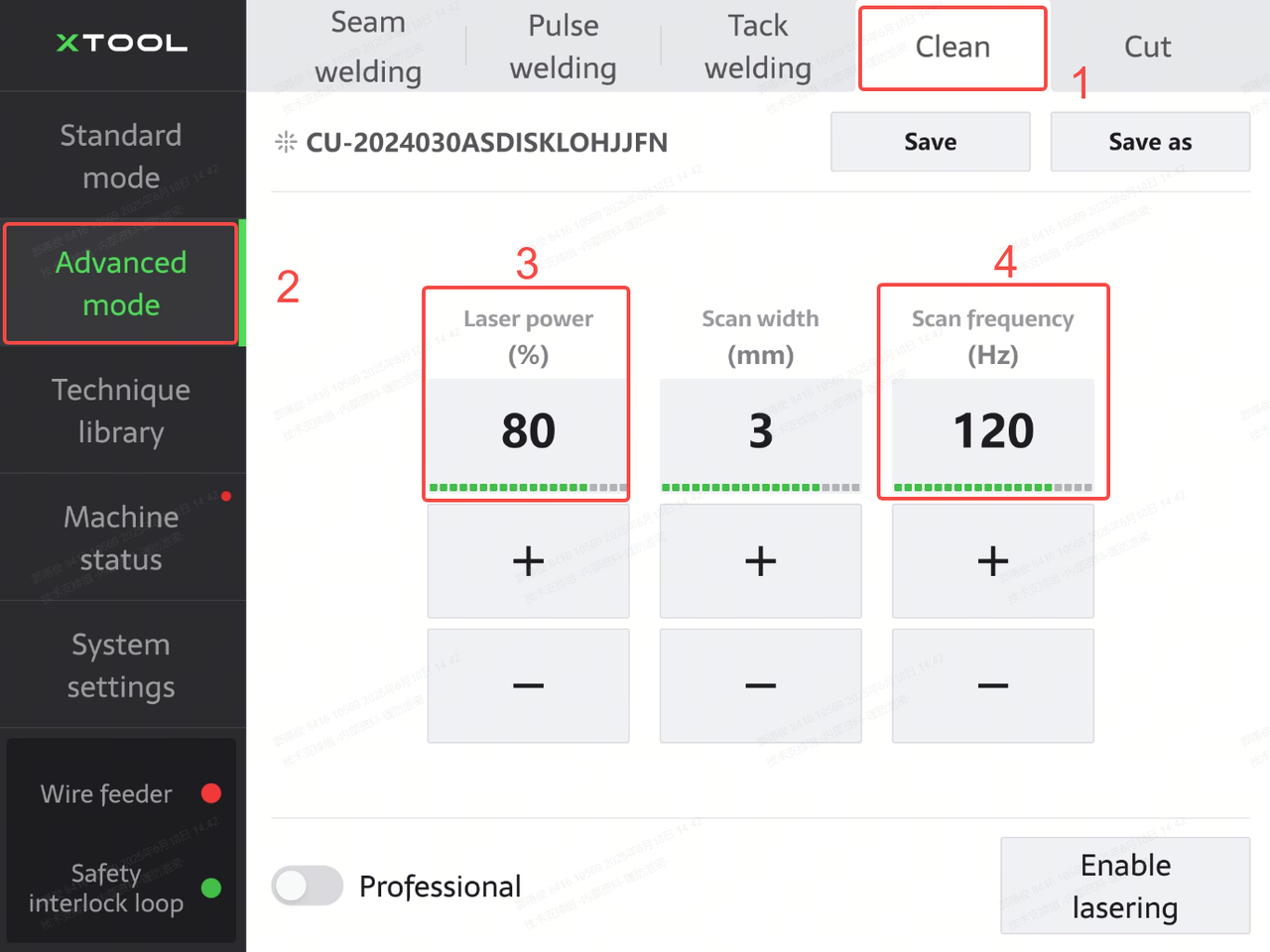
(2) Go to Advanced mode and adjust laser parameters.
On the touchscreen, tap Advanced mode > Clean. Then, decrease Laser power and increase Scan frequency.
Still experiencing issues?
Should the issue persist after completing the preceding steps, submit a ticket via the "Submit a Ticket" button in the "Help Ticket" section below. The standard response time for xTool Customer Service is one business day.
For a prompt resolution, please include the following details:
- Issue description: A detailed explanation of the observed problem.
- Video evidence: Attach a video demonstrating the issue, where applicable.
- Troubleshooting performed: Any troubleshooting steps you have already attempted, along with their results.
This information is crucial for xTool technical support engineers to provide timely assistance.
Documentation feedback
Help improve this content by providing feedback. If this content did not meet your requirements, select "No" in the "Was this page helpful?" section below. Include specific details about what was unclear or missing in the pop-up suggestion box. Feedback submissions are reviewed by xTool technical writers to enhance future documentation.

Services & Help
Learn & Education

Copyright © 2025 xTool All Rights Reserved.