
Introduction
To ensure the safe and optimal performance of your xTool OS1 Automatic Shaker Oven, please adhere to the following guidelines and best practices.
Safety precautions
- Unboxing: When unboxing the oven, please refer to the xTool unboxing video below. To prevent the machine from tipping over, thus causing damage or injury, only push the machine off its shipping pallet from the correct direction as demonstrated in the video.
- High Temperatures: The oven contains internal heating elements that reach very high temperatures during operation. DO NOT open the maintenance door while the oven is working or still hot to avoid a serious burn risk.
- Film Jams: If a film jam occurs, immediately pause the operation. Wait for the oven to cool down completely before opening the maintenance door to remove the jammed film. DO NOT attempt to continue processing with a jammed film.
Operating environment
- Temperature and Humidity: For best results, operate the oven in an environment with a temperature between 20°C to 30°C (68°F to 86°F) and a relative humidity between 45% to 60% RH.
- Direct Sunlight: Avoid using the oven in direct sunlight. Intense sunlight can interfere with the machine's internal sensors and may cause detection errors.
Setup & operation
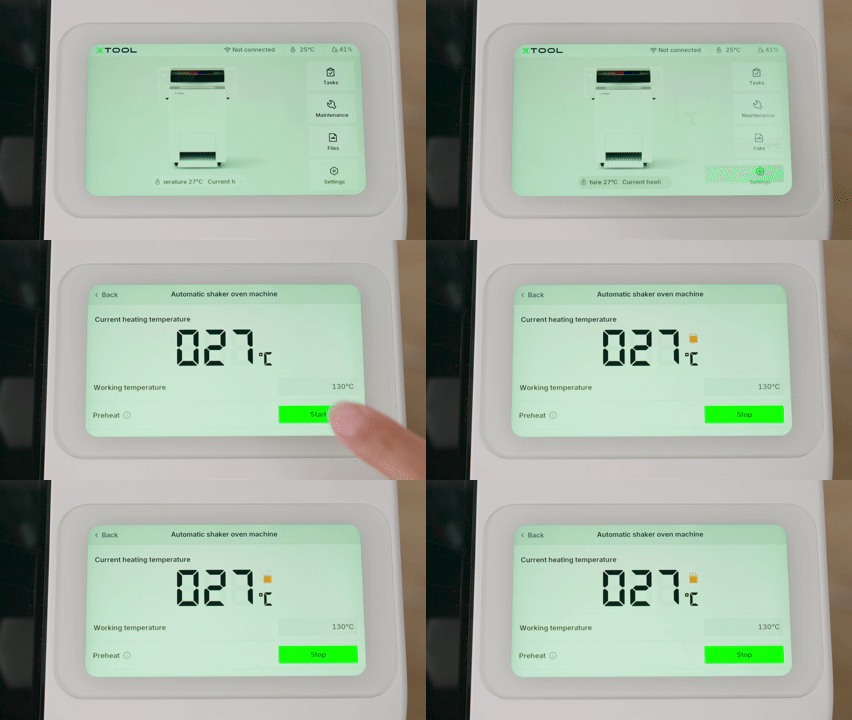
Preheating: Before starting a processing task, always preheat the oven. Begin processing only after the temperature stabilizes (fluctuation ≤ 2 °C).
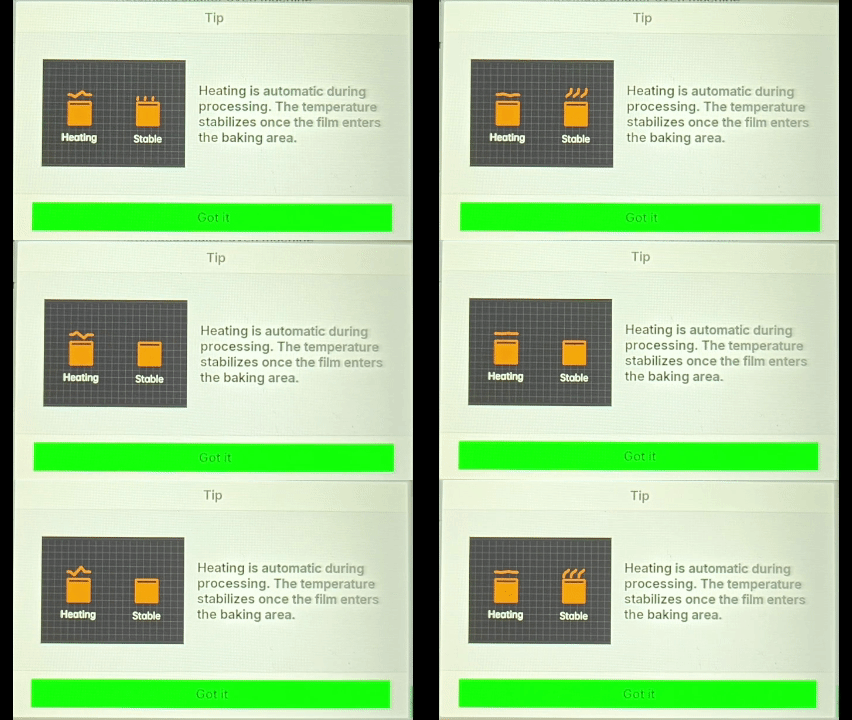
- Preheating Indicators:
- During preheating, a Tip message appears.
- Stable icon: Oven has reached the optimal processing temperature—ready to start.
- Heating icon: Temperature is still rising—wait until the icon changes to Stable.
 |  |
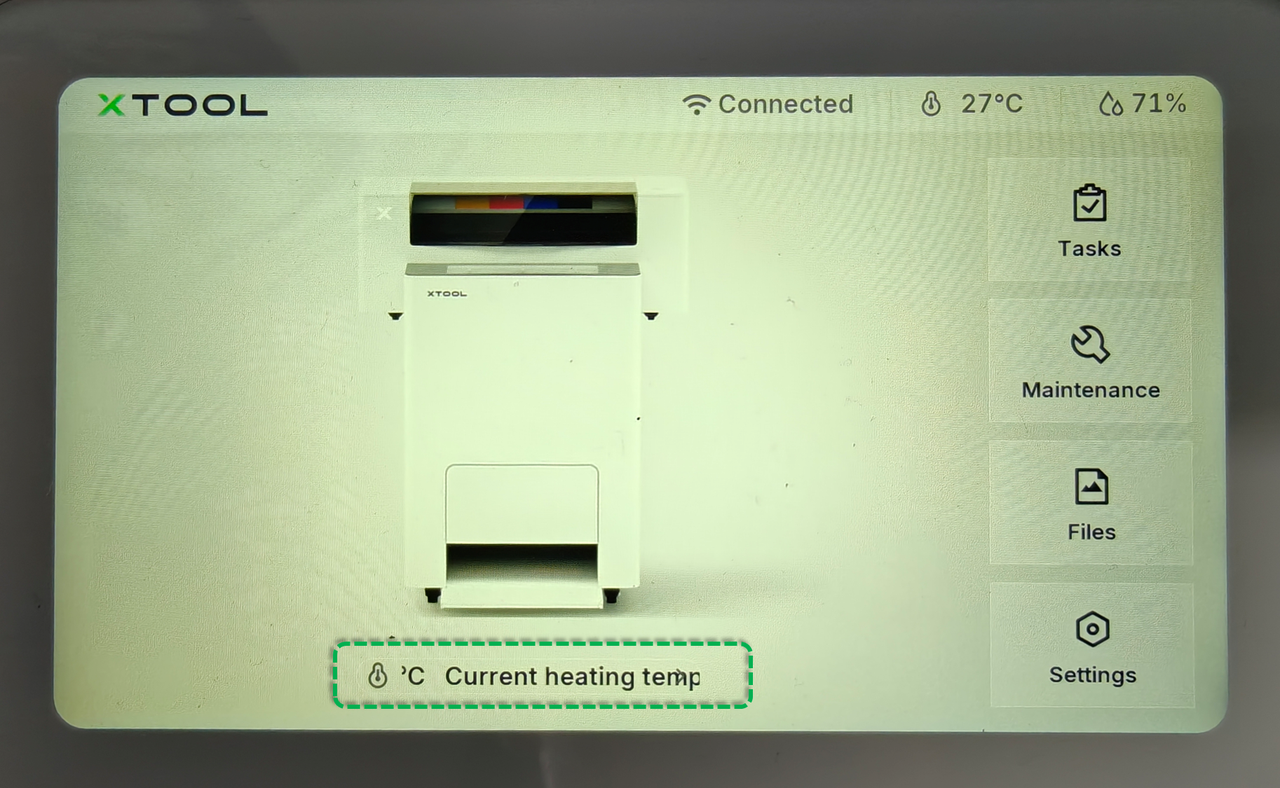
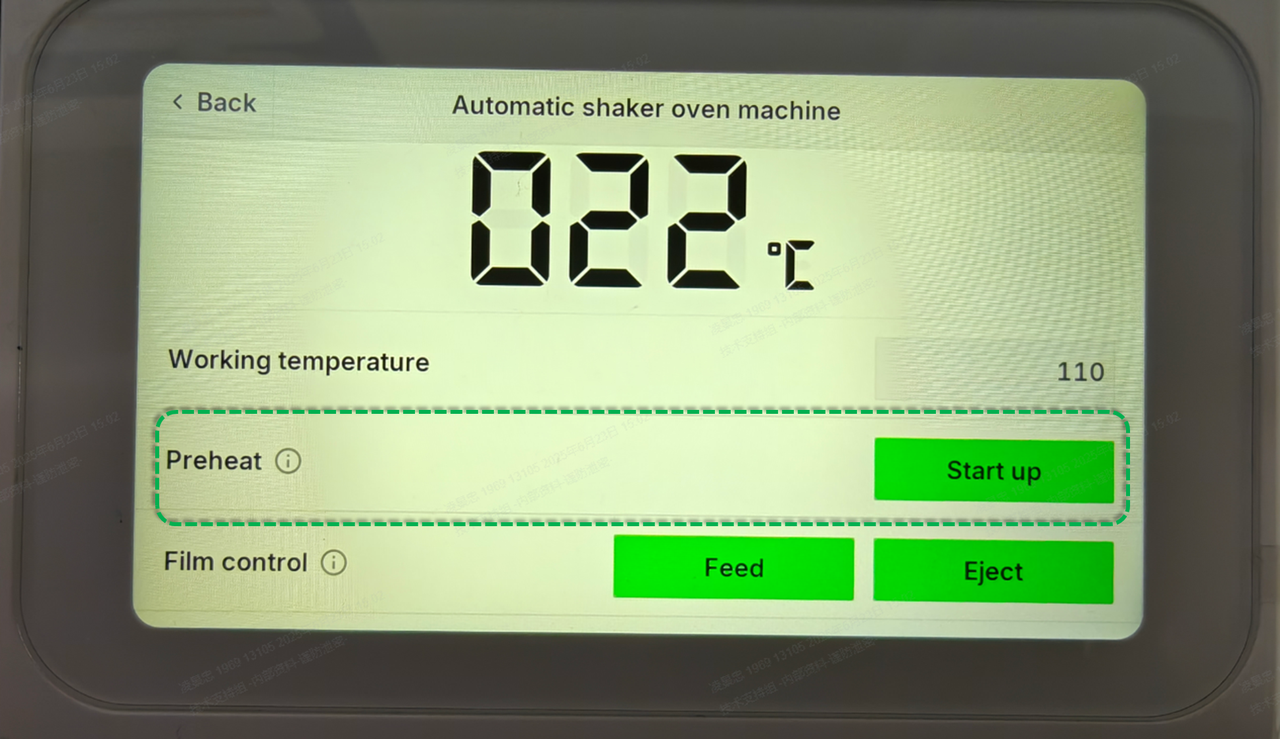
- How to Initiate Preheating
- On the control panel, tap the Current heating temperature icon at the bottom of the screen.
- In the Automatic shaker oven machine settings, locate Preheat.
- Tap Start up and follow the on-screen prompts to begin preheating.
 |  |
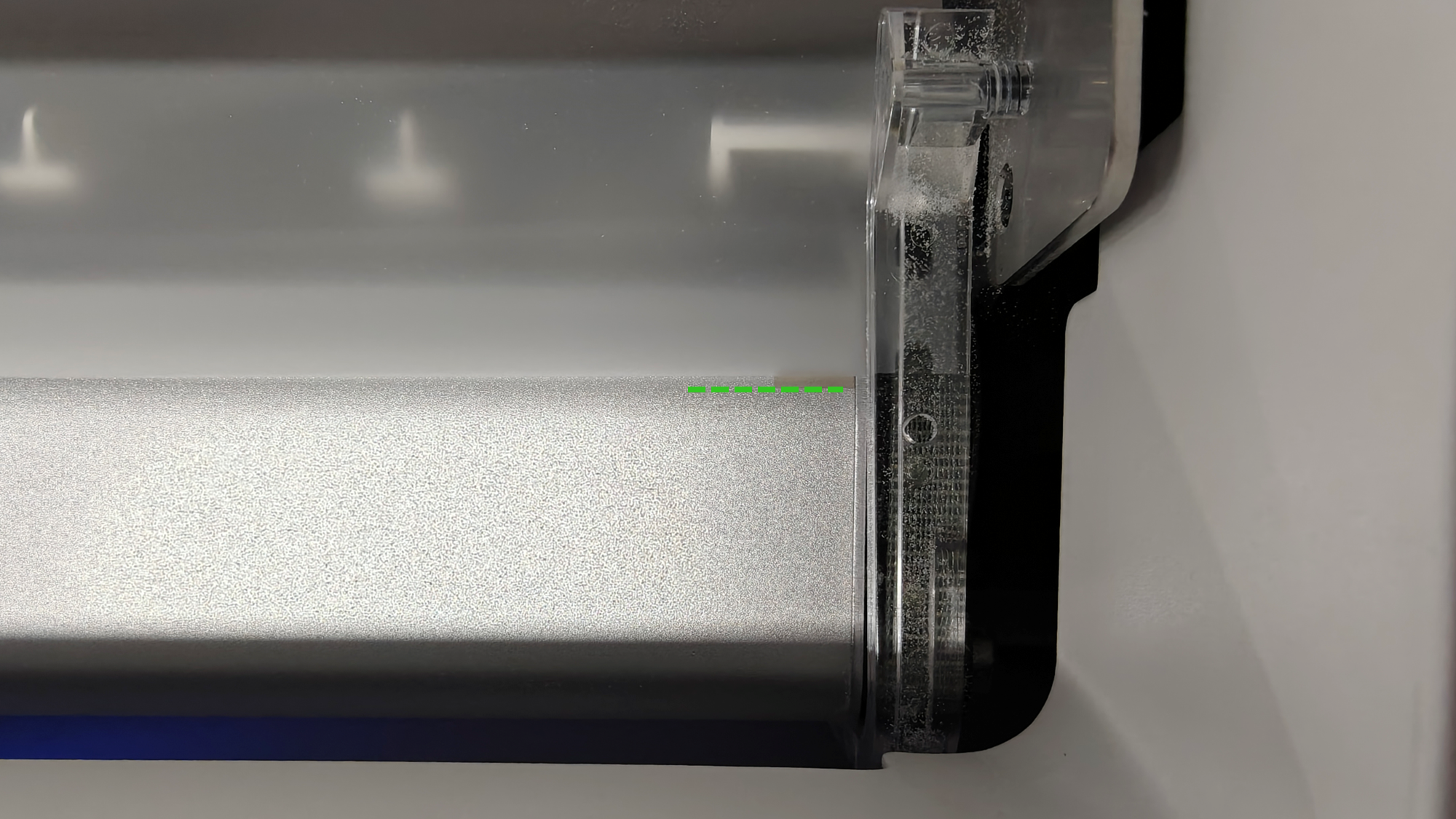
Alignment Calibration (When Linking with xTool Apparel Printer): When installing the printer and oven together, perform an Alignment Calibration. Ensure the leading edge of the PET film aligns with the designated horizontal line inside the oven before starting.
- How to Initiate Calibration
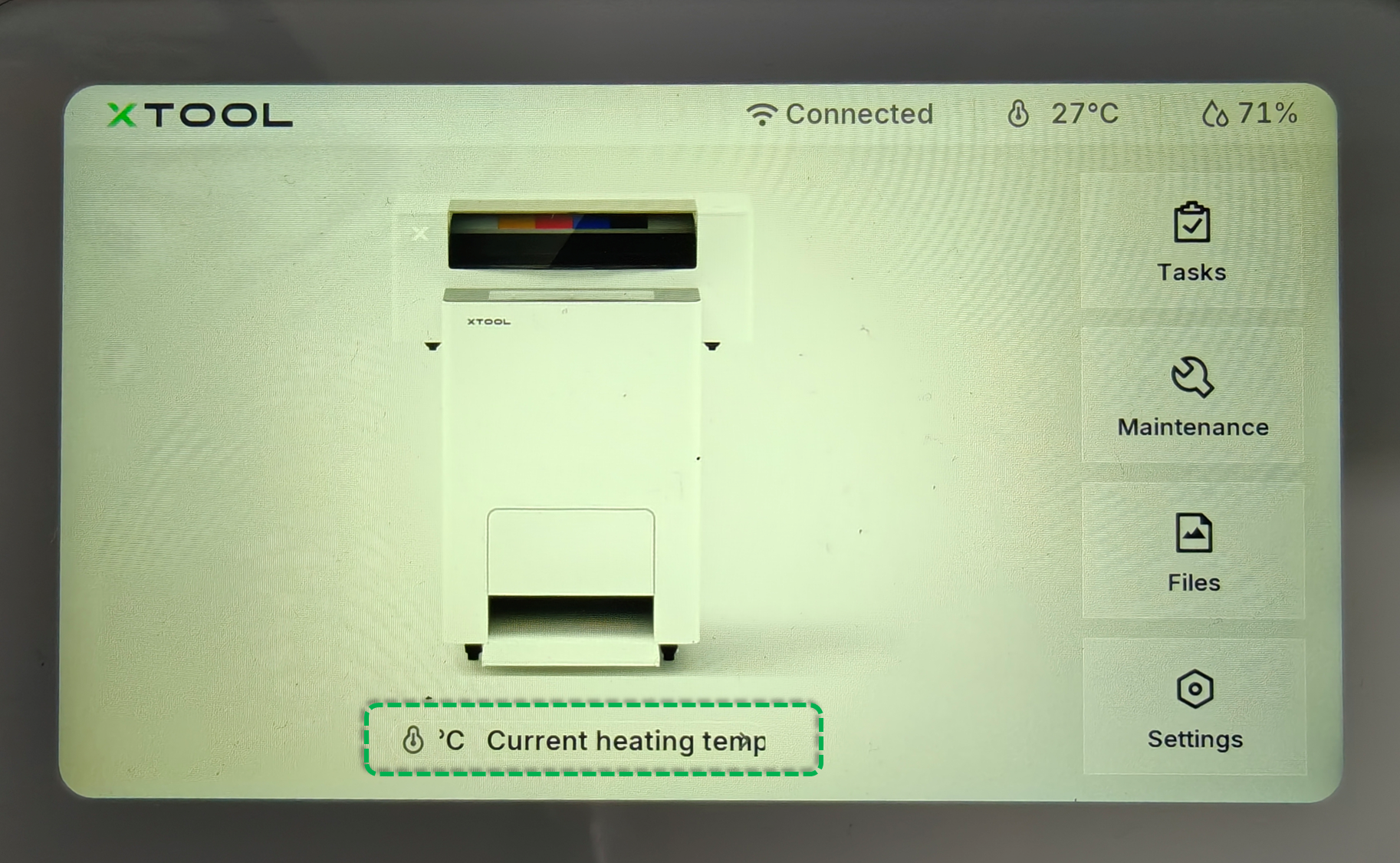
- On the control panel, tap the Current heating temperature icon at the bottom of the screen.
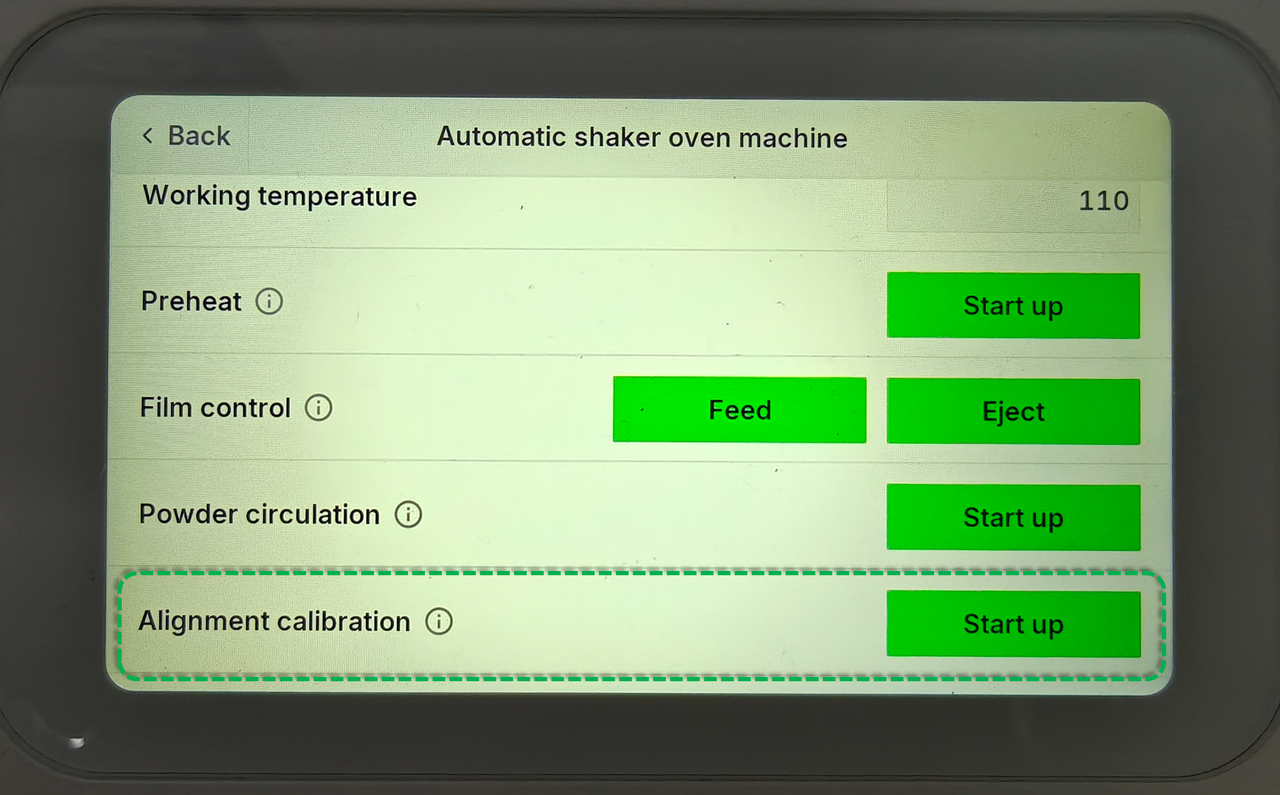
- In the Automatic shaker oven machine settings, locate Alignment calibration.
- Tap Start up and follow the on-screen prompts to begin preheating.
 |  |  |
Using with an Air Purifier:
- For optimal performance, use the oven with xTool SafetyPro™ AP2 Air Purifier. Set the purifier to Auto mode or Manual mode at Level 2.
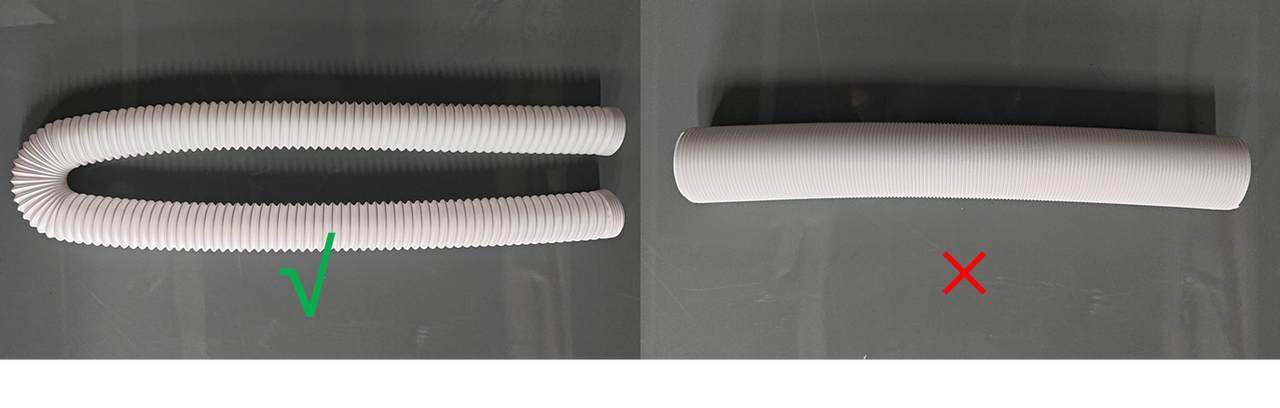
- When connecting the oven to any air purifier, ensure the exhaust pipe is fully extended. This prevents heat from accumulating in the pipe, which could cause it to deform over time.
Maintenance
- Regular Cleaning: To ensure consistent performance and longevity, clean your oven regularly. Please watch the xTool cleaning video for detailed instructions on how to properly maintain your machine.
- Video Guide: Routine Cleaning & Care for xTool OS1 Shaker Oven
Key operating tips summary
✅ Do:
- Maintain proper environmental conditions (temperature and humidity);
- Preheat the machine before use;
- Use recommended air purification systems;
- Fully extend exhaust tubes;
- Perform regular cleaning and maintenance;
- Allow cooling before accessing internal components;
- Follow proper device self-check procedures;
❌ Don't:
- Open the maintenance door during operation;
- Use in direct sunlight;
- Continue processing with film jams;
- Force the machine off the packaging in the wrong directions;
- Skip preheating procedures;
- Ignore temperature stabilization requirements;
Documentation feedback
Help improve this content by providing feedback. If this content did not meet your requirements, select "No" in the "Was this page helpful?" section below. Include specific details about what was unclear or missing in the pop-up suggestion box. Feedback submissions are reviewed by xTool technical writers to enhance future documentation.

