
Troubleshoot "Laser Head Collision" for xTool MetalFab CNC Cutter
Updated Jul 2,2025
Updated Jul 2,2025
Issue description
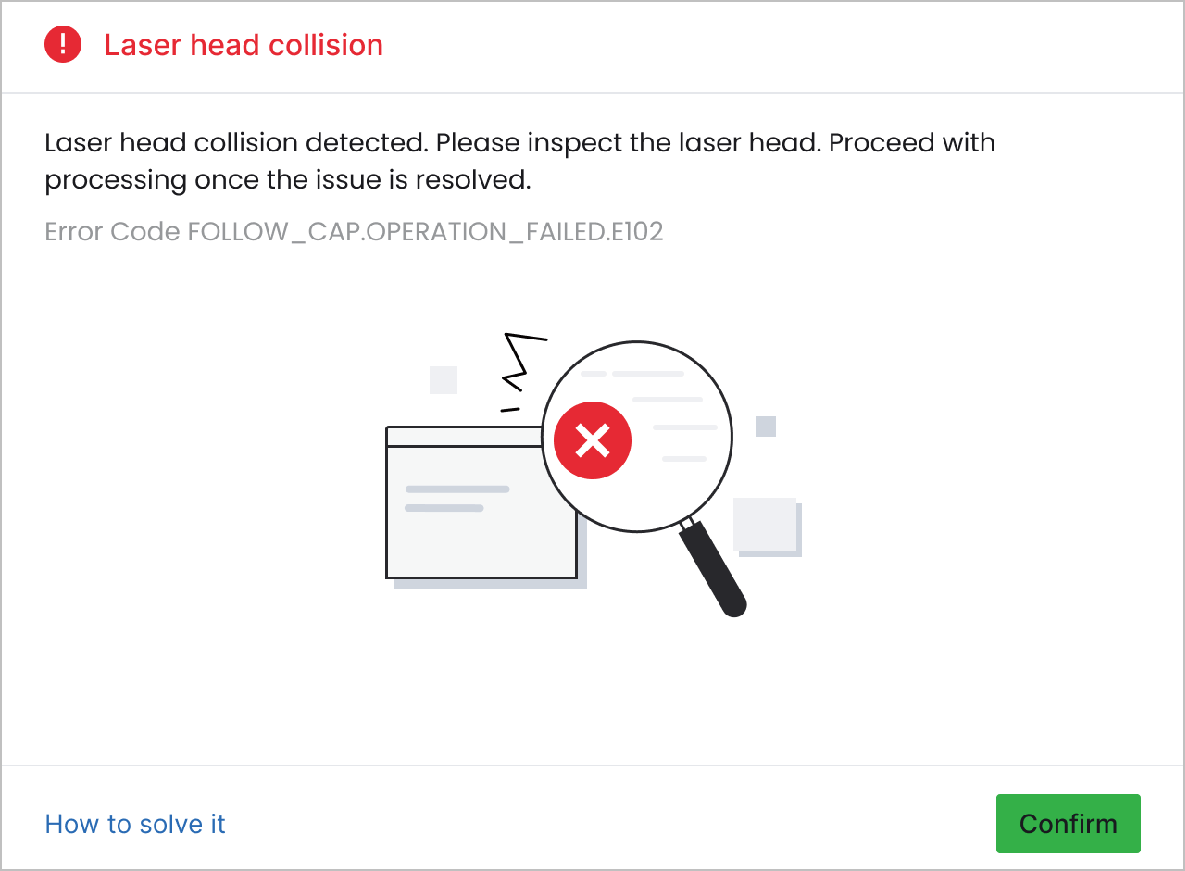
If you encounter a pop-up error message titled "Laser head collision" in XCS when using your MetalFab CNC Cutter to process materials, please follow this troubleshooting guide to resolve this issue.
Possible Causes
- Incomplete material penetration: The material is not fully cut through, causing laser-scorched surfaces which the cutting tip may collide with.
- Metal warping: Thermal deformation, poor flatness, or uncut sections lead to localized warping, resulting in cutting tip collisions.
- Improper distance from material: The cutting tip is set to be too close to the material, thus leading to collisions.
Troubleshooting procedure
Step 1: Check if the material is cut through
- During the processing, observe the spark conditions inside the machine to determine if the material is being cut through normally.
- If the sparks spread out from the bottom of the material, it means the material has been cut through.
- Otherwise, proceed to the next step.
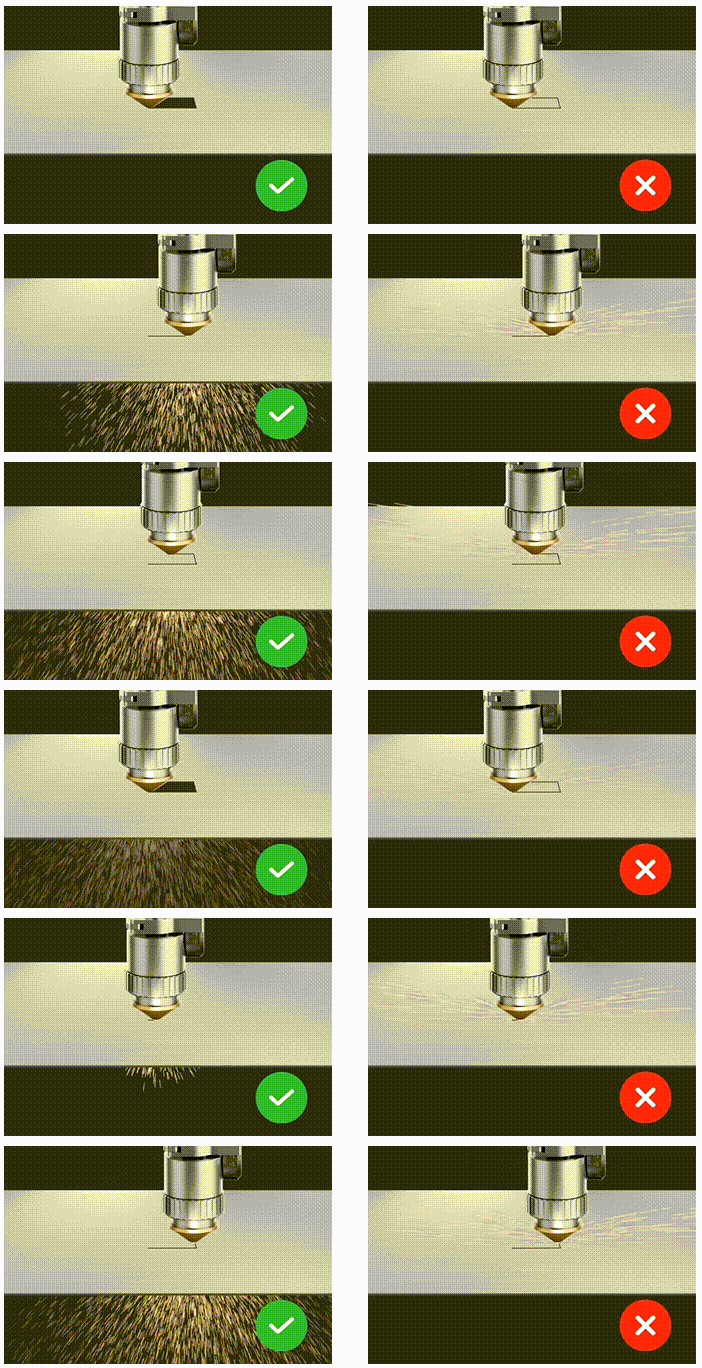
- If the material is not cut through, refer to Troubleshoot Incomplete Cutting with Recommended Parameters for xTool MetalFab CNC Cutter to ensure that the shielding gas, lens protector, laser focus position, and optical path meet the requirements.
- If the material is cut through but the issue persists, proceed to the next step.
Step 2: Check if the workpiece detaches naturally
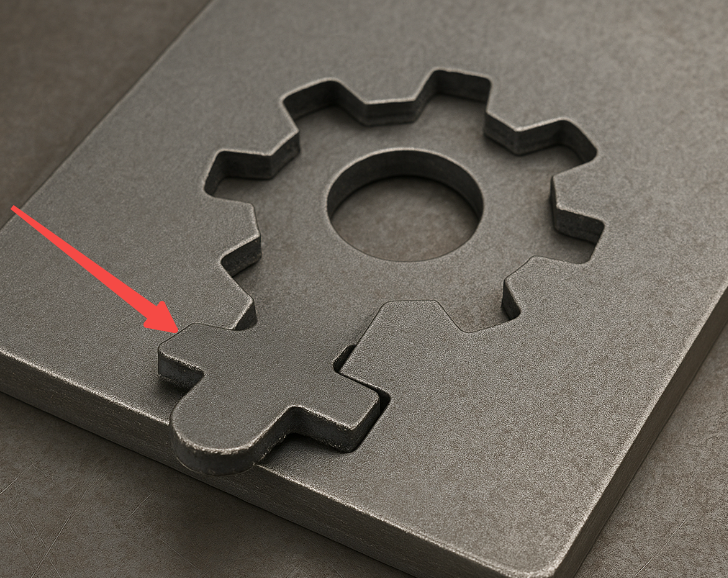
If the workpiece does not detach from the material, part of it may be warped and cause collisions with the cutting tip. To resolve this:
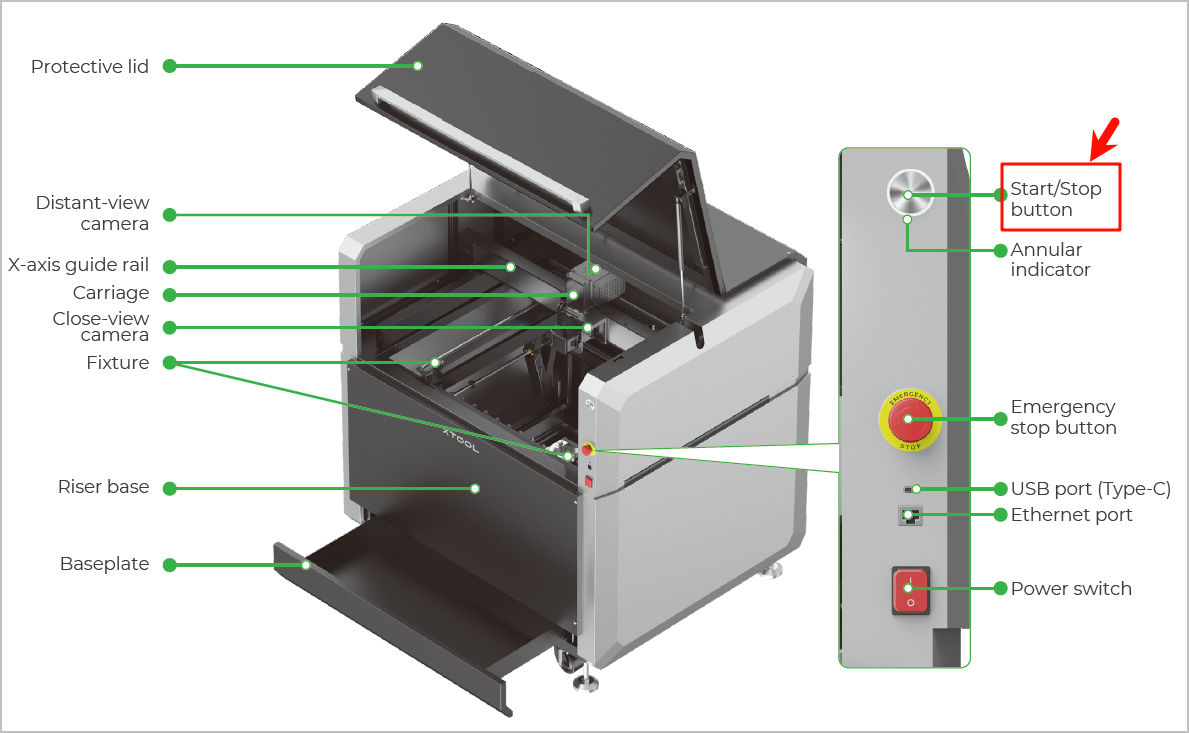
- Stop processing by pressing the start/stop button on the machine.
- Remove the workpiece based on the metal type and design complexity.
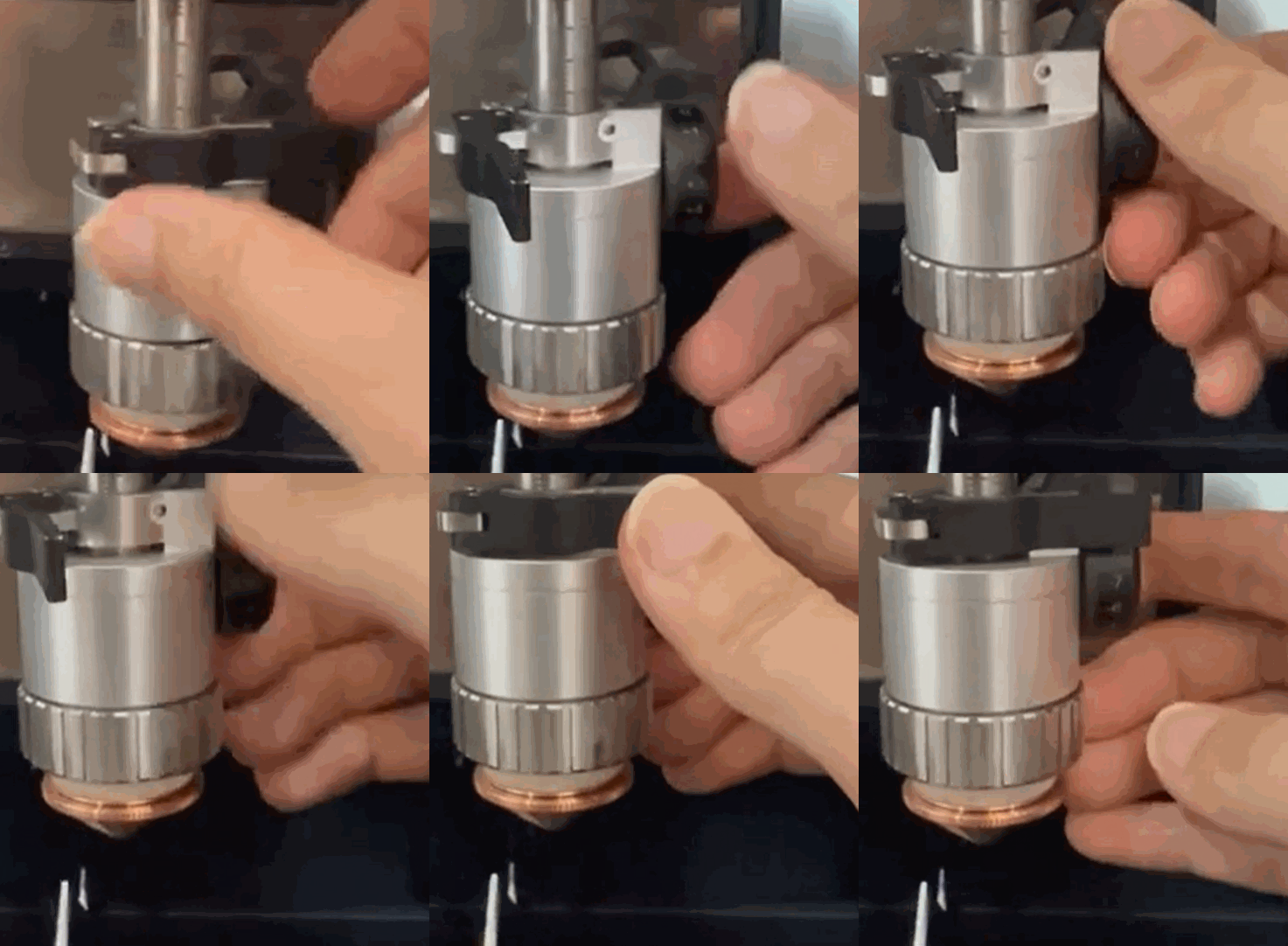
- For simple patterns on thin metals
- Rotate the right knob downward to raise the cutting tip
- For example, when cutting circles on 1 mm brass (with -2 defocus), try increasing the value to -3 or -4 if the material remains stuck despite full penetration.
Note: You may click here to watch the full video.
- For complex objects with multiple corners or reflective metals like brass and aluminum, you may use a plastic mallet to gently tap the workpiece until it detaches from the material.
Step 3: Adjust the distance between the cutting tip and the material
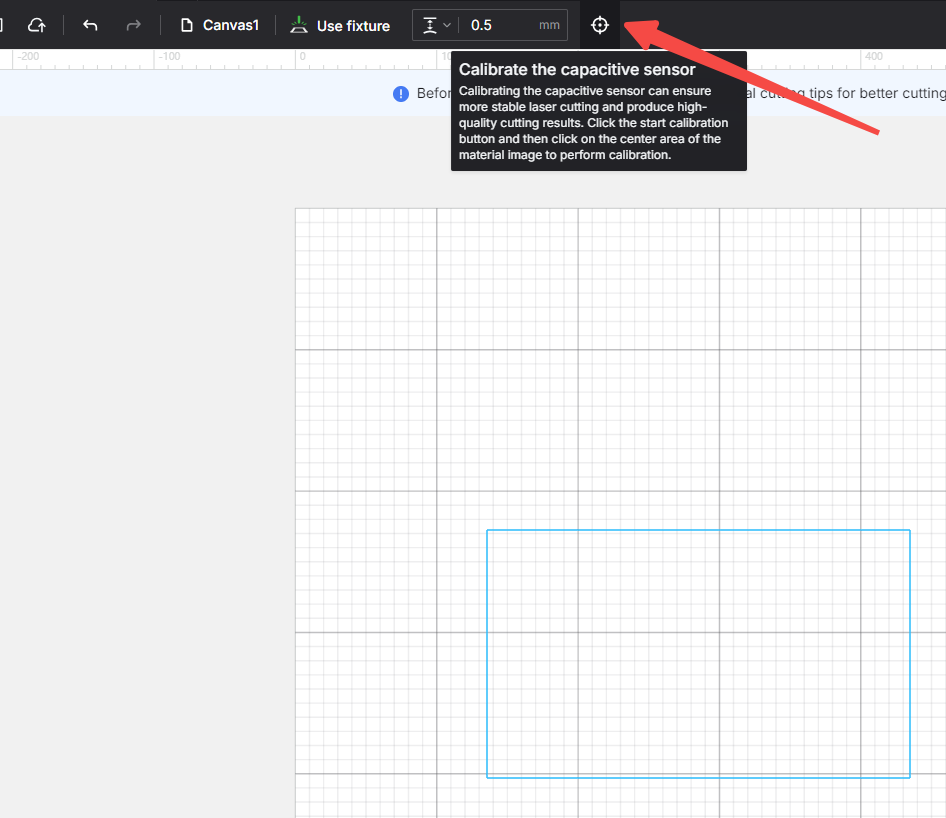
- When changing the material to be processed, please recalibrate the capacitive sensor to avoid cutting instability.
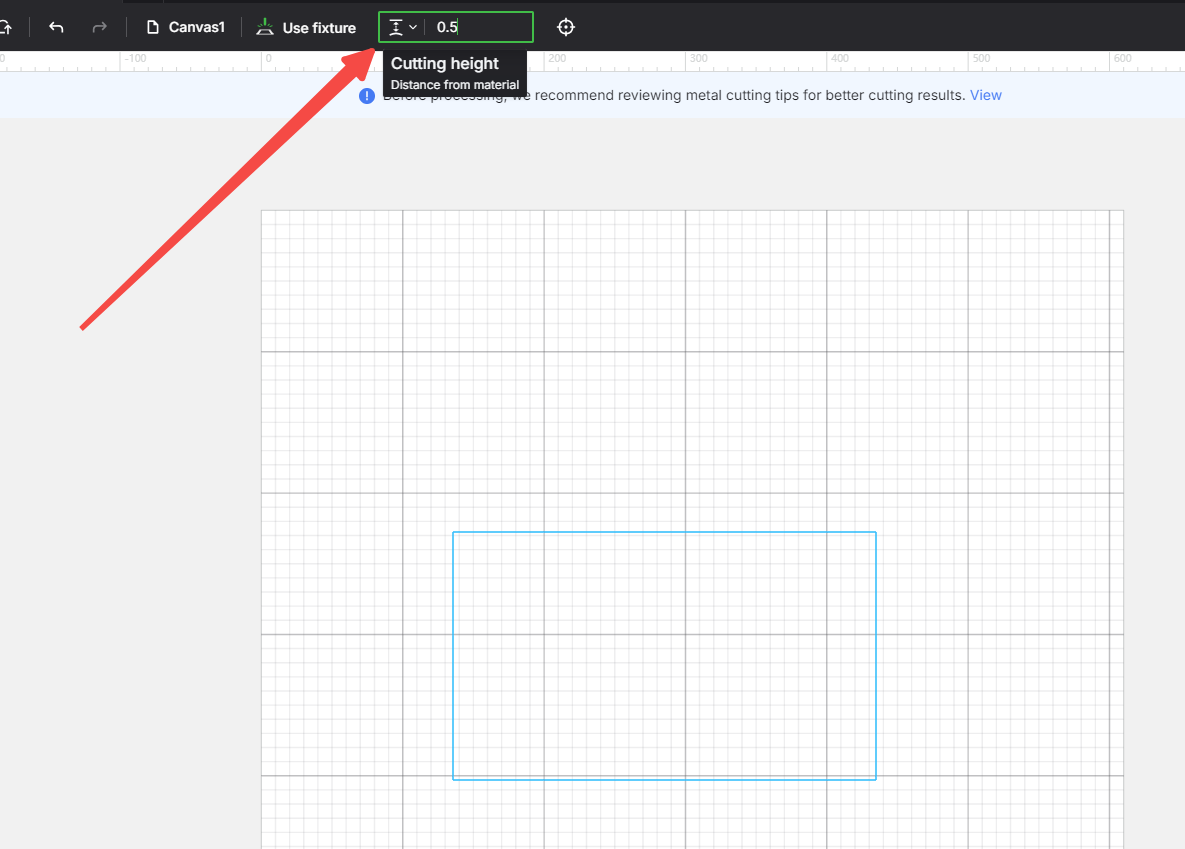
- For thin metals, slightly increase the Cutting height value to avoid severe workpiece deformation and spark spreading. For example, increase the value from 0.3 mm to 0.5 mm.
- If the issue persists, please prepare a video recording your troubleshooting process and results and contact xTool Customer Service for further assistance.
Help us improve
If this article or video doesn't effectively assist you in resolving the issue, please let us know by clicking the “No” button in the “Was this page helpful?” section below, and leave your feedback in the pop-up suggestion box. Our knowledge base team will review it and consider it for future updates.
Still need help?
If you need any human assistance, please create a ticket by clicking the “Submit a Ticket” button in the “Help Ticket” section below. Our service team will get back to you in 1 business day via E-mail.
Preview
Was this page helpful?
1 out of 2 found this helpful
Help Ticket
Use this help ticket to submit your issue. We will respond within 1 business day
Submit a Ticket 
