
Issue description
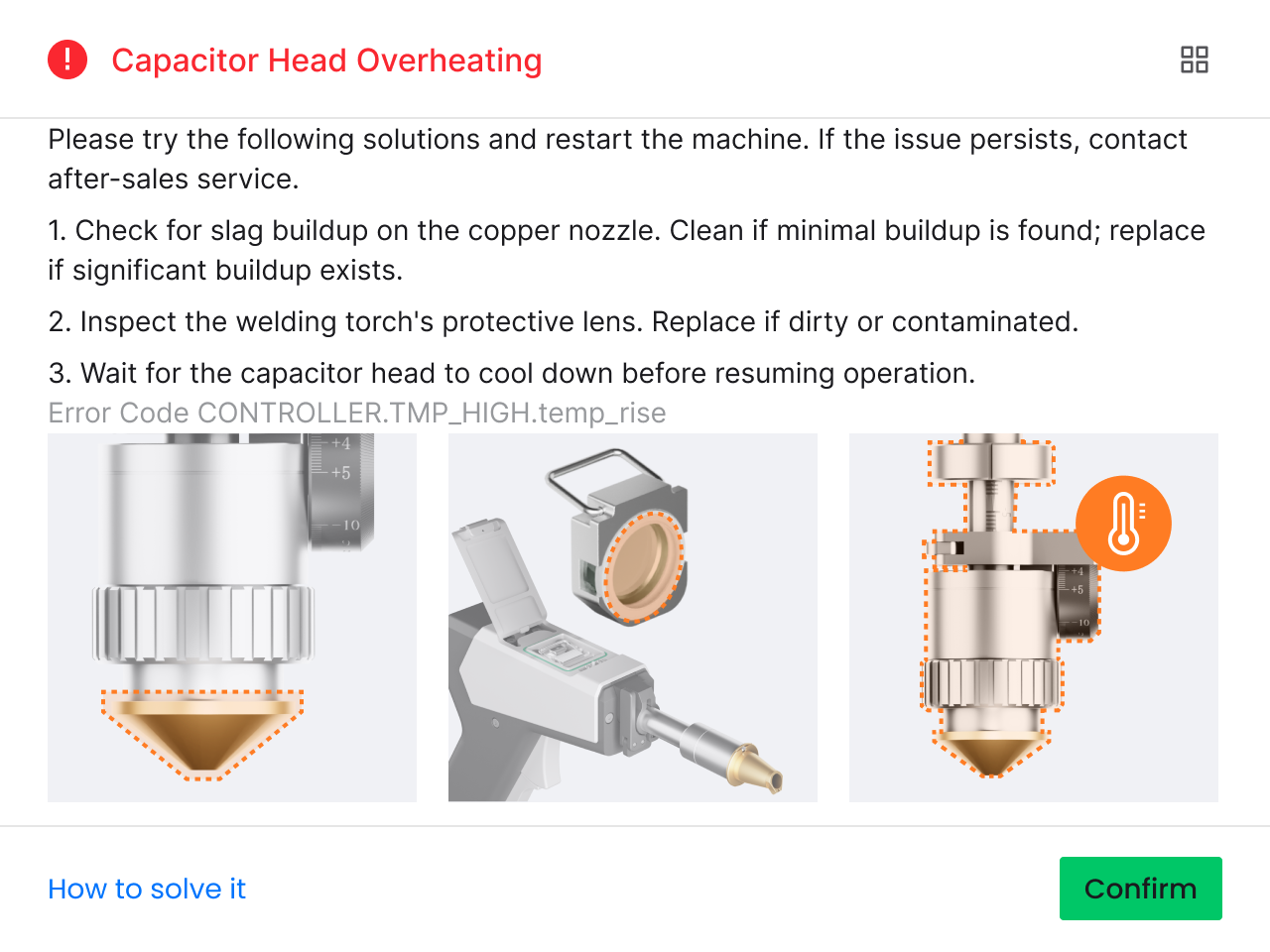
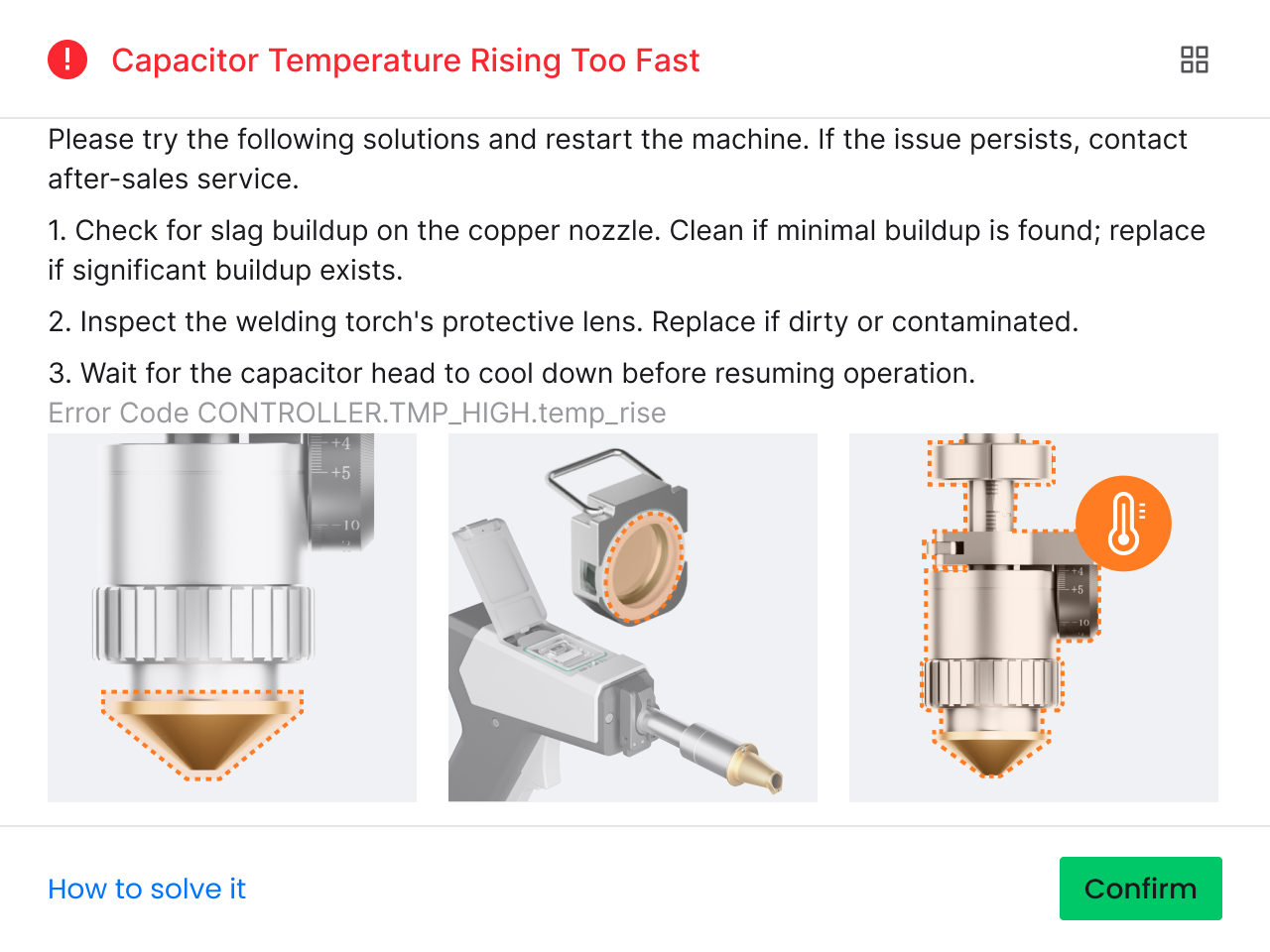
If you encounter a pop-up error message titled "Capacitor Head Overheating" or "Capacitor Temperature Rising Too Fast" in xTool software, please follow this troubleshooting guide to resolve this issue.
|
|
Possible Causes
- Improper lens: Using the cleaning lens during cutting or engraving of high-reflective materials causes laser reflection onto the inner wall of the nozzle or the welding head, which results in a sharp rise in temperature.
- Gas flow issues: Low pressure, nozzle blockage, or gas line leakage prevent effective slag removal, leading to heat accumulation in the cutting tip.
- Energy input imbalance: Excessive laser power coupled with slow cutting speed concentrates thermal energy in the cutting area, which then conducts back to the cutting tip.
- Nozzle deformation: Eroded or deformed nozzles disrupt the gas flow, causing localized cooling impairment in the cutting tip.
- Optical contamination: Contaminated lens protectors induce laser scattering, resulting in local heat buildup.
- Reflective material: When processing highly reflective substrates like aluminum, brass, and mirror-finished stainless steel, part of the laser is reflected back to the cutting tip, causing it to overheat.
Detailed procedure
Step 1: Check the firmware version
In xTool software, check whether the firmware version of xTool MetalFab Laser Welder is 40.70.013 or later and whether that of your xTool MetalFab CNC Cutter is 40.70.009.00.ht1 or later.
- If both requirements are met and the welding head light position has been calibrated but the issue persists, proceed to the next step.
- If not, follow the steps below to solve the issue.
- Upgrade the firmware to the latest version.
- Recalibrate the welding head light position.
- Start processing a material to verify whether the issue has been addressed.
Step 2: Check if the cleaning lens is mistakenly installed
There're two types of lens for the welding head: cleaning lens and lens protector.
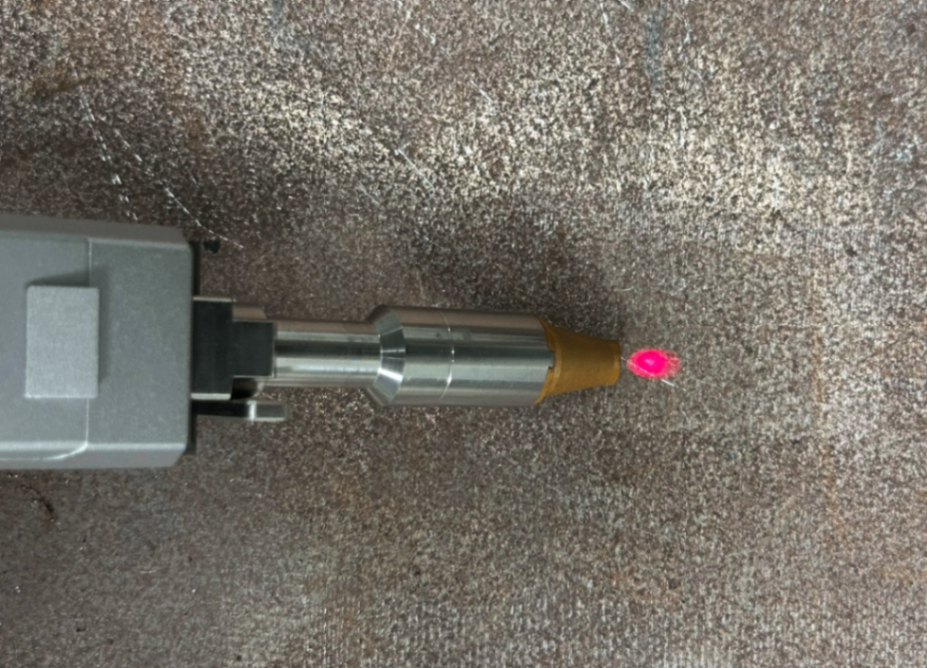
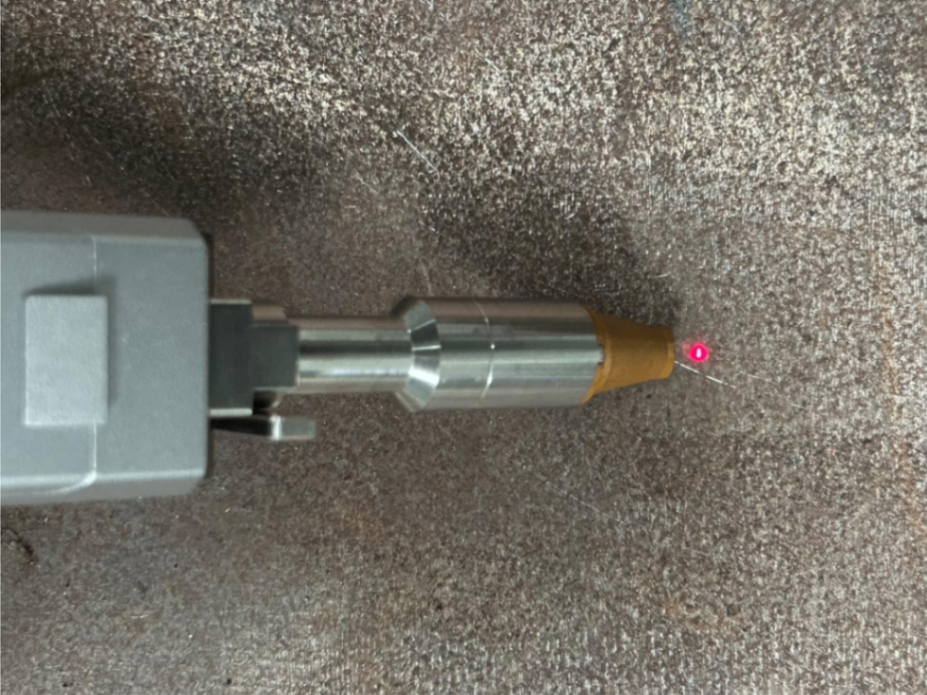
If the red spot emitted from the welding head is comparatively large and blurry, you may need to confirm whether the cleaning lens is installed. If yes, replace it with the lens protector.
The following table shows the red spot status using different nozzles and lens.
Using cleaning lens | Using lens protector | |
|---|---|---|
Welding nozzle |
|
|
SaveGas™ nozzle |
|
|
2 mm ordinary nozzle |
|
|
1 mm double-layer nozzle+extension tube |
|
|
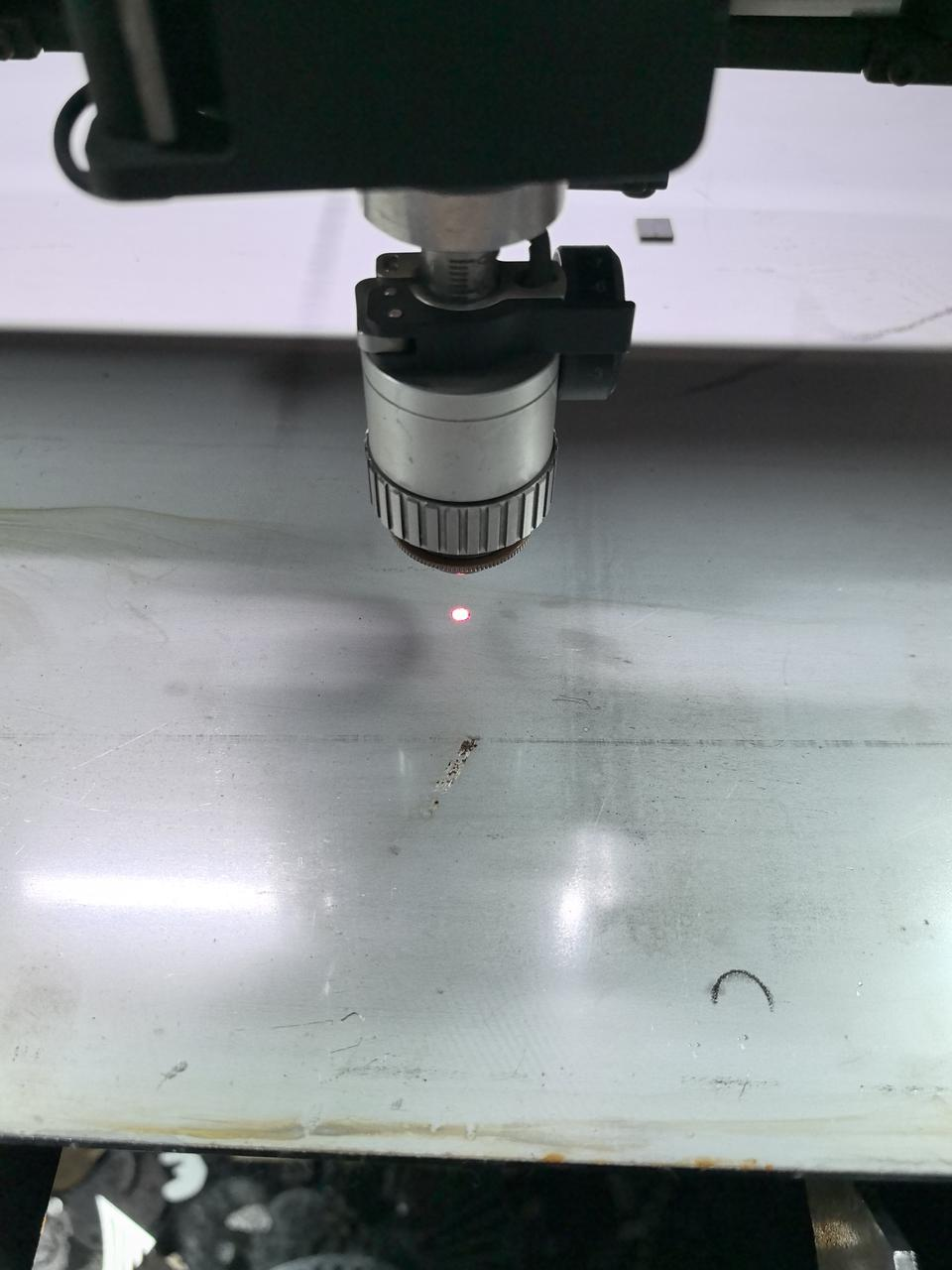
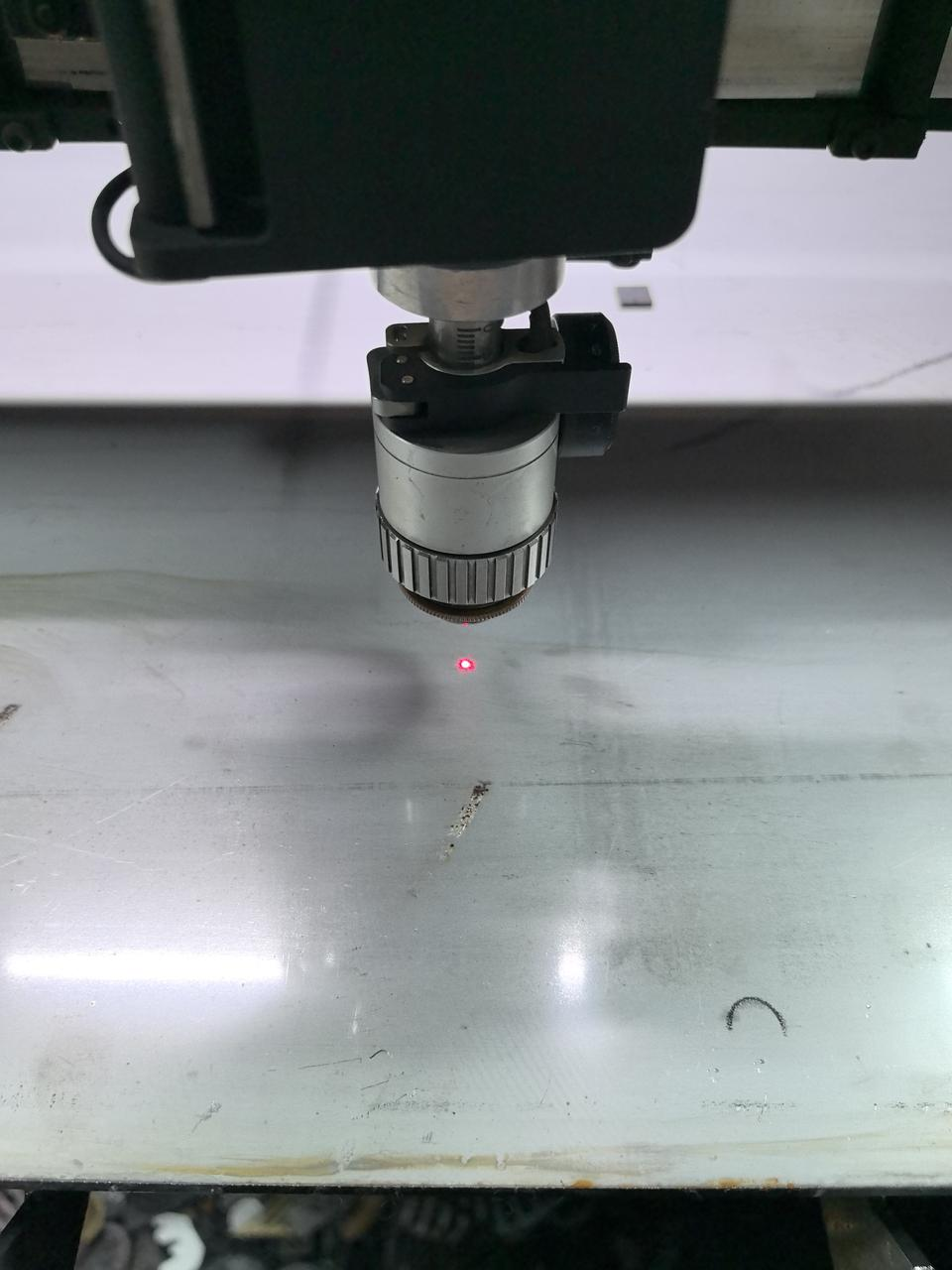
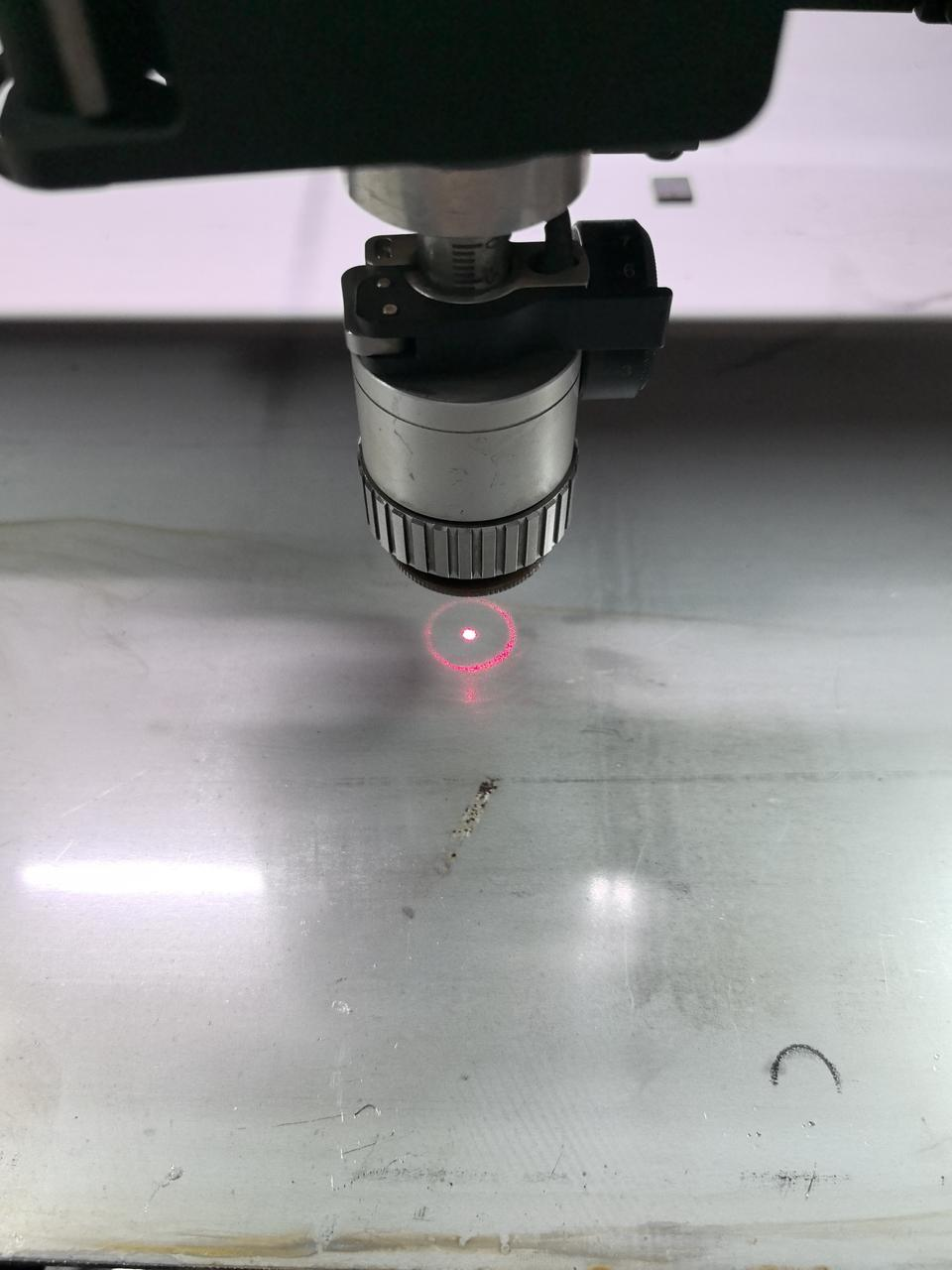
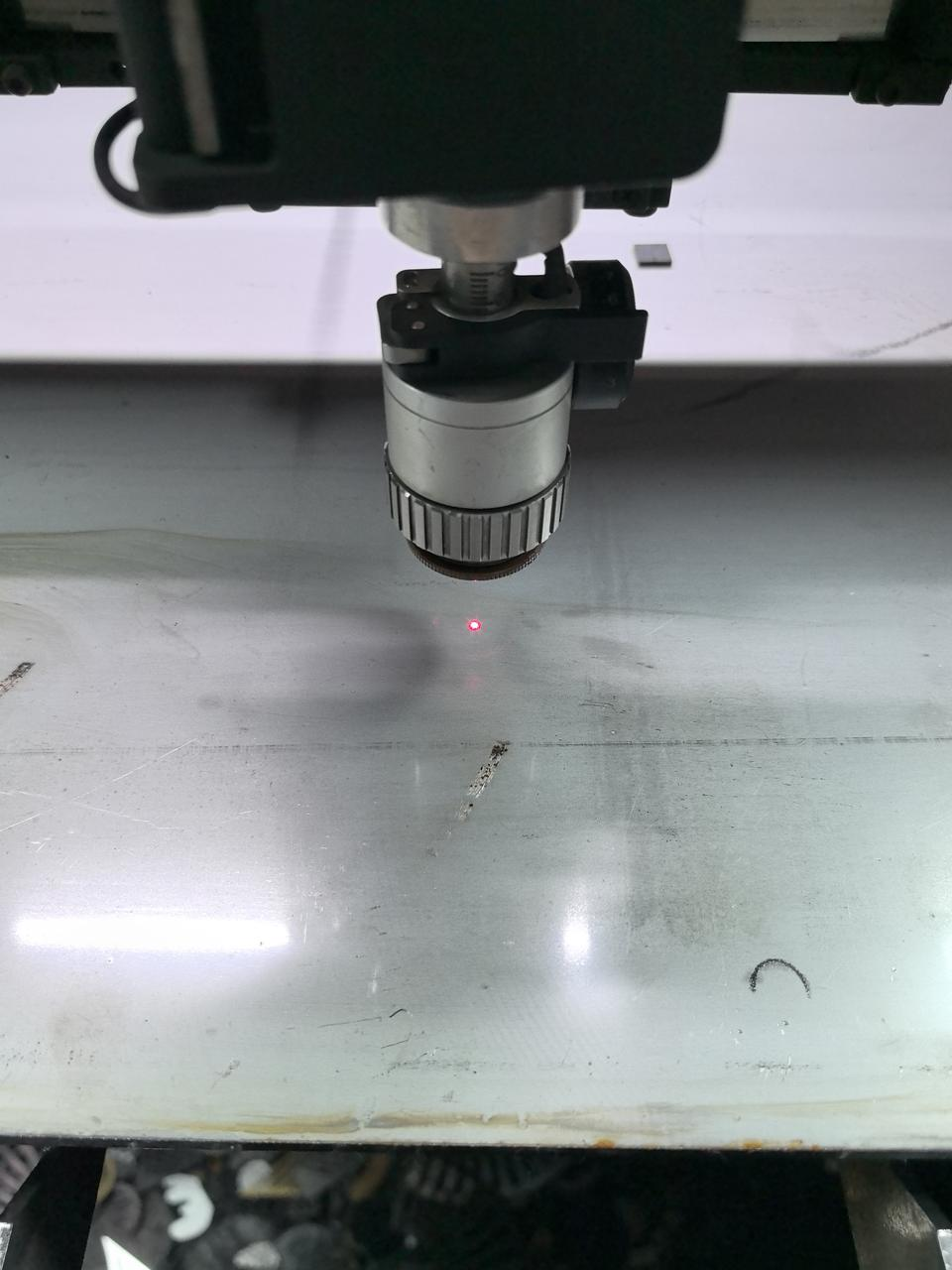
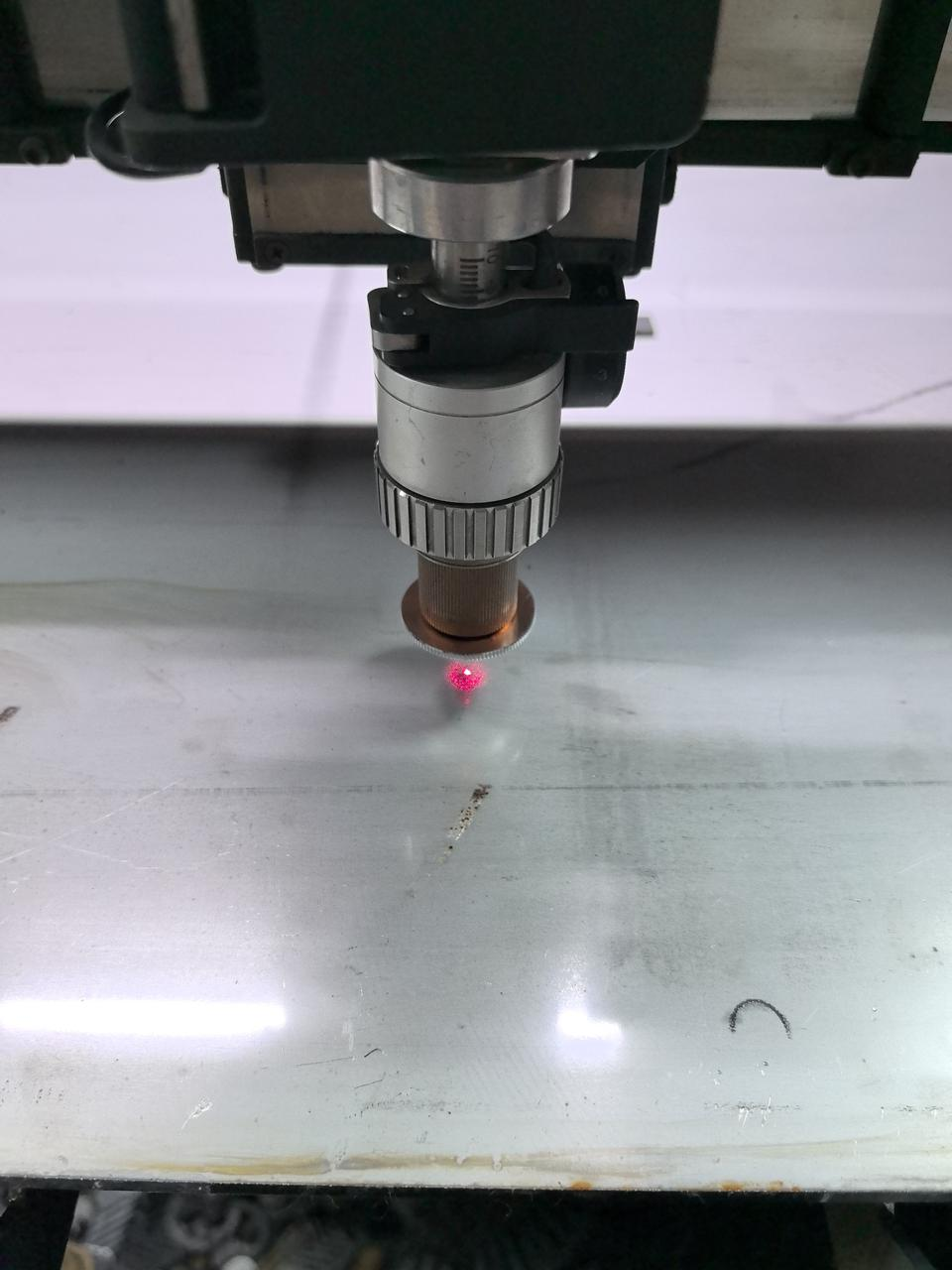
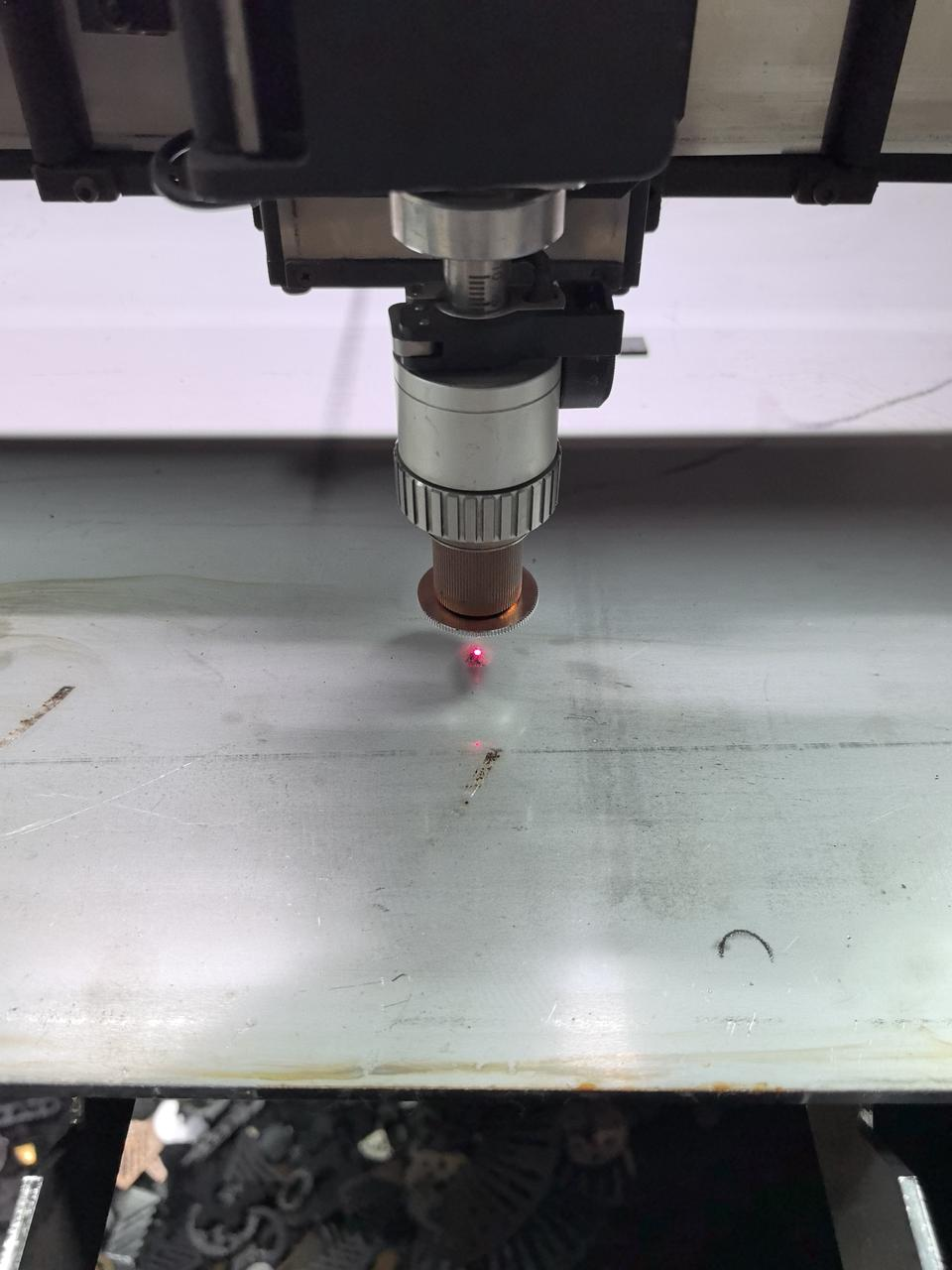
Note: When testing the red spot size with xTool MetalFab CNC Cutter, adjust the height of the welding head base along the z-axis based on the nozzle used.
- Height requirement for different nozzles:
- Down 40 mm: SaveGas™ nozzle, 2 mm ordinary nozzle
- Down 30 mm: 1 mm double-layer nozzle + extension tube
- Steps for adjusting the welding head base height:
- Click the Framing icon at the bottom right corner.
- Set Z-axis step distance (mm) to 10.
- Click the downward arrow beside the letter Z three times (down 30 mm) or four times (down 40 mm) as required.
If the lens protector, rather than the cleaning lens, is used and the issue persists, please proceed to the next step.
Step 3: Check if the material is cut through
- During the processing, observe the spark conditions inside the machine to determine if the material is being cut through normally.
- If the sparks spread out from the bottom of the material, it means the material has been cut through.
- Otherwise, proceed to the next step.
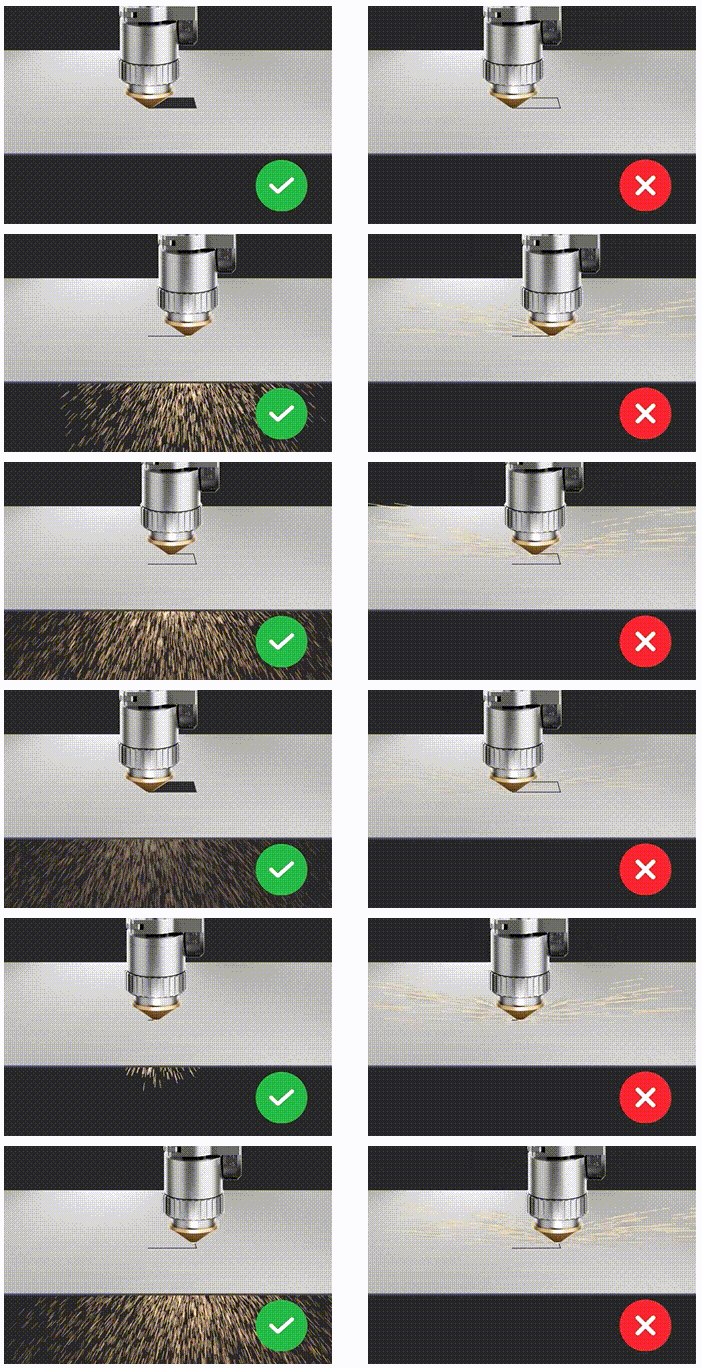
- If the material is not cut through, refer to Troubleshoot Incomplete Cutting with Recommended Parameters for xTool MetalFab CNC Cutter to ensure that the shielding gas, lens protector, laser focus position, and optical path meet the requirements.
- If the material is cut through but the issue persists, proceed to the next step.
Step 4: Allow the machine to cool naturally
- After prolonged processing of high-reflective materials (such as aluminum and brass), the cutting tip may accumulate a significant amount of heat. It is recommended to allow the machine to cool naturally for a while before continuing use.
- If the issue persists, please prepare a video recording your troubleshooting process and results and contact xTool Customer Service for further assistance.
Help us improve
If this article or video doesn't effectively assist you in resolving the issue, please let us know by clicking the “No” button in the “Was this page helpful?” section below, and leave your feedback in the pop-up suggestion box. Our knowledge base team will review it and consider it for future updates.
Still need help?
If you need any human assistance, please create a ticket by clicking the “Submit a Ticket” button in the “Help Ticket” section below. Our service team will get back to you in 1 business day via E-mail.

