
Issue description
xTool Apparel Printer starts the printing process, but the PET film fails to advance or feed through the printer as expected, preventing a successful print operation.
Please consult the following content for troubleshooting.
Possible causes
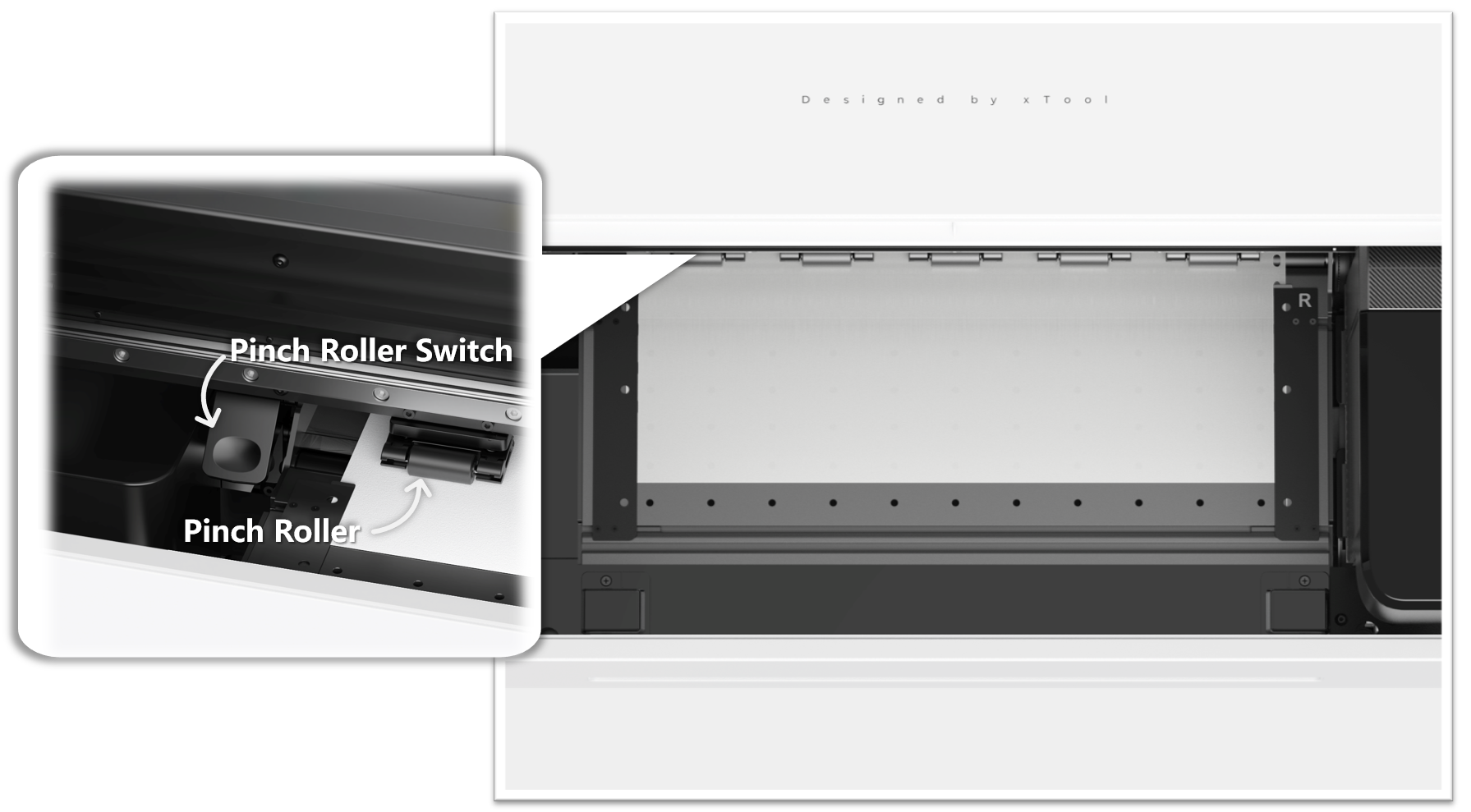
- The pinch roller switch is not toggled inwards, i.e., the engaged position.
- The pinch rollers are not applying adequate pressure to the film.
Troubleshooting procedure
Please follow these steps systematically to identify and resolve this issue.
STEP1: Check pinch roller switch
Ensure that the pinch roller switch is toggled inward to properly engage the rollers against the film in the correct position.
Diagnostic Steps:
- Locate the pinch roller switch inside your printer.
- Check if the switch has been pressed down completely.
- If the switch is not engaged:
- Press the switch down firmly until it clicks into position.
- Resume printing and observe film feeding.
- If the switch is already toggled inward:
- Proceed to the next step.
STEP2: Verify rollers installation
Improper pinch roller engagement due to assembly tolerance (not fully pressed down or making proper contact with the film) can prevent adequate film grip and feeding.
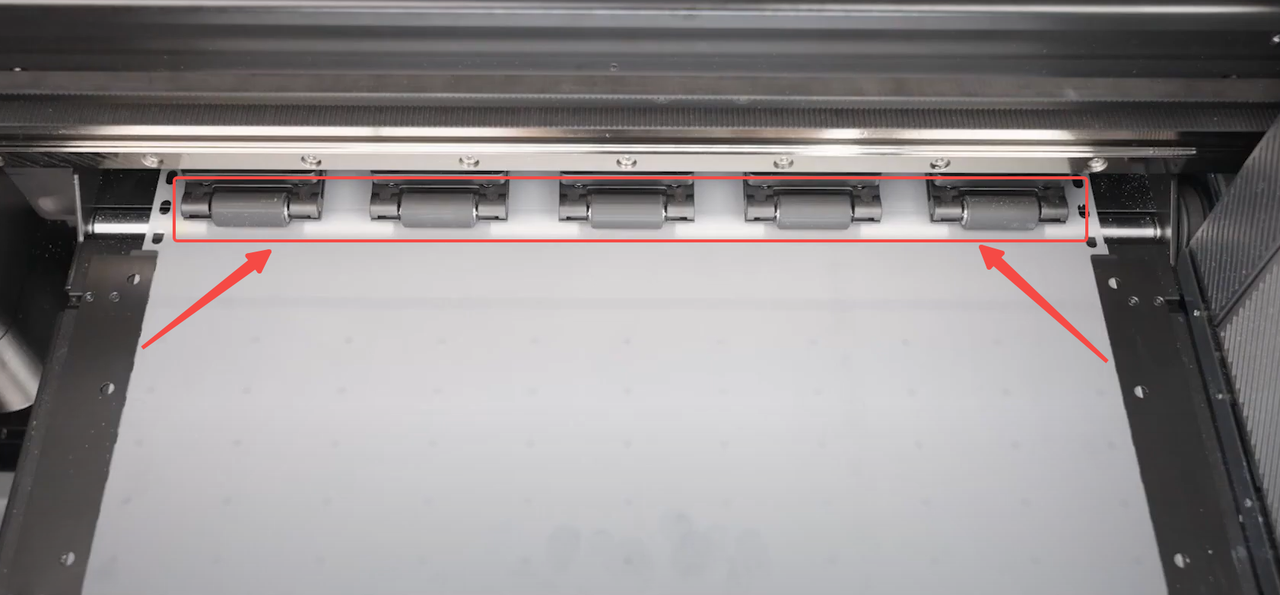
- Visually inspect the pressure rollers. Ensure they are making firm and even contact across the PET film.
- If you find that the switch has been pressed down but the rollers were not fully engaged:
- Carefully adjust the rollers by pressing them down completely and securely.
- If the pinch rollers appear to be correctly and firmly engaged, but the film still does not feed, proceed to Step 3.
STEP3: Device reboot
- Cancel any ongoing printing task (if any).
- Power off your xTool Apparel Printer.
- Wait for about 30 seconds.
- Power the printer back on.
- Attempt to print your task again.
If the Issue is Resolved After Restarting:
- If restarting the machine fixes the problem and it does not immediately recur, please proceed with your operation
- To help xTool improve future firmware and software, please consider exporting the device log and sending it to xTool Customer Support for analysis.
- To Export Device Log:
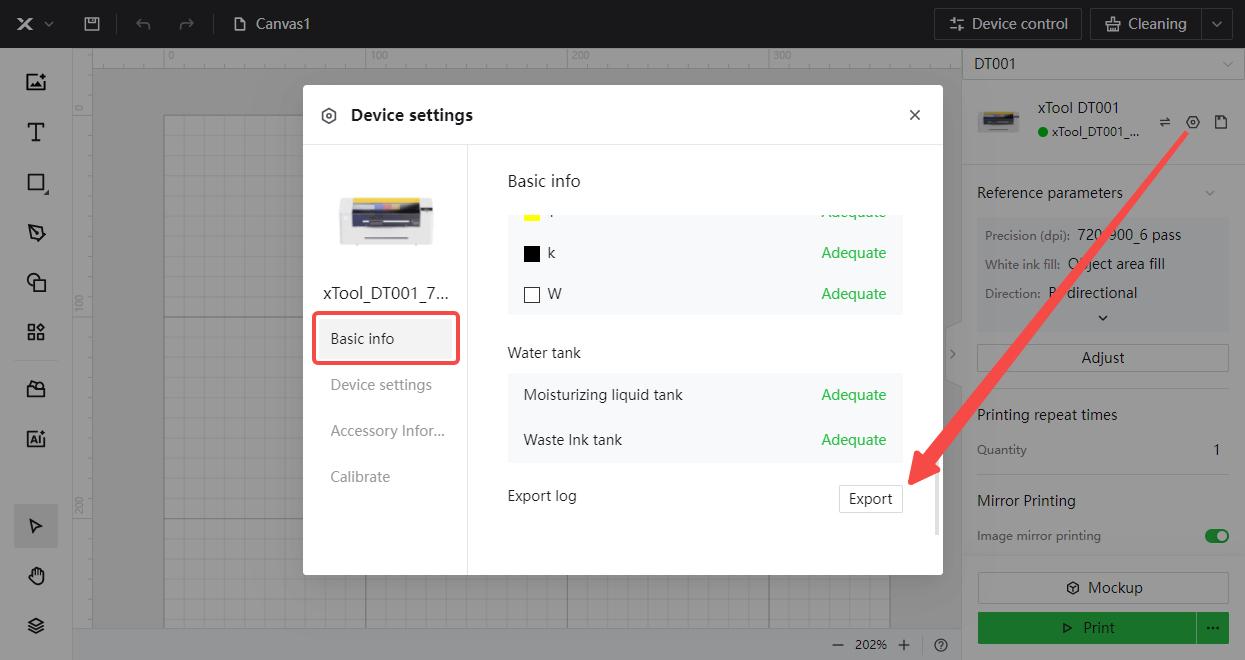
- In your xTool Creative Space software, locate the device settings indicated by a Gear icon.
- Navigate step-by-step: Device settings > Basic info > Export log.
- Click the "Export" button and follow any prompts to save the log file.
Still experiencing issues?
Should the issue persist after completing the preceding steps, submit a ticket via the "Submit a Ticket" button in the "Help Ticket" section below. The standard response time for xTool Customer Service is one business day.
For a prompt resolution, please include the following details:
- Issue Description: A detailed explanation of the observed problem.
- Video Evidence: Attach a video demonstrating the issue, where applicable.
- Troubleshooting Performed: Any troubleshooting steps you have already attempted, along with their results.
This information is crucial for xTool technical support engineers to provide timely assistance.
Documentation feedback
Help improve this content by providing feedback. If this content did not meet your requirements, select "No" in the "Was this page helpful?" section below. Include specific details about what was unclear or missing in the pop-up suggestion box. Feedback submissions are reviewed by xTool technical writers to enhance future documentation.

