
Download PDF files (multi-language)





List of items
|
|
|
|
Self-service kiosk | Power adapter | UAB-C cable | Stylus pen |
|
|
| |
Stylus pen tip | Quick start guide | Safety instructions |


Meet xTool Self-Service Kiosk Tablet
|
|
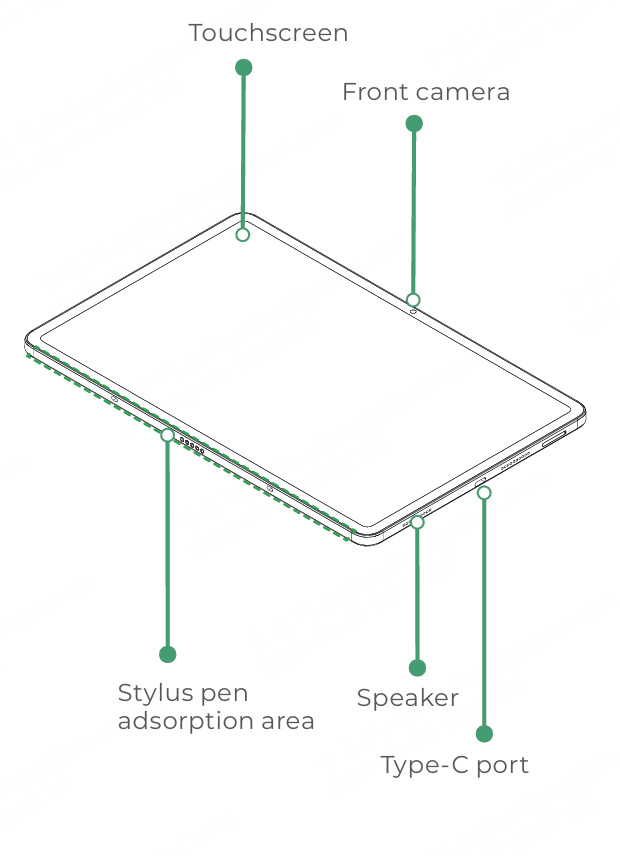
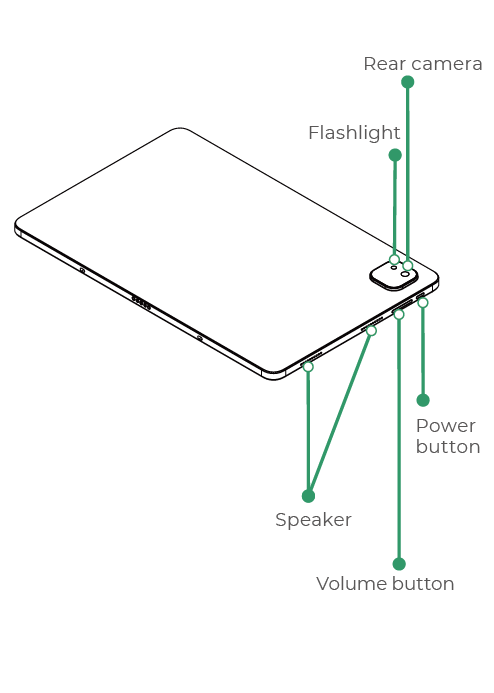
Use xTool Self-Service Kiosk Tablet
Note: xTool self-service kiosk tablet can be used with xTool F1 Ultra and xTool Retail Marker and the procudure is similar for both. This article uses xTool Retail Marker as an example. |
1. Connect to the power
(1) Connect the power supply to xTool Retail Marker and turn on the power switch.
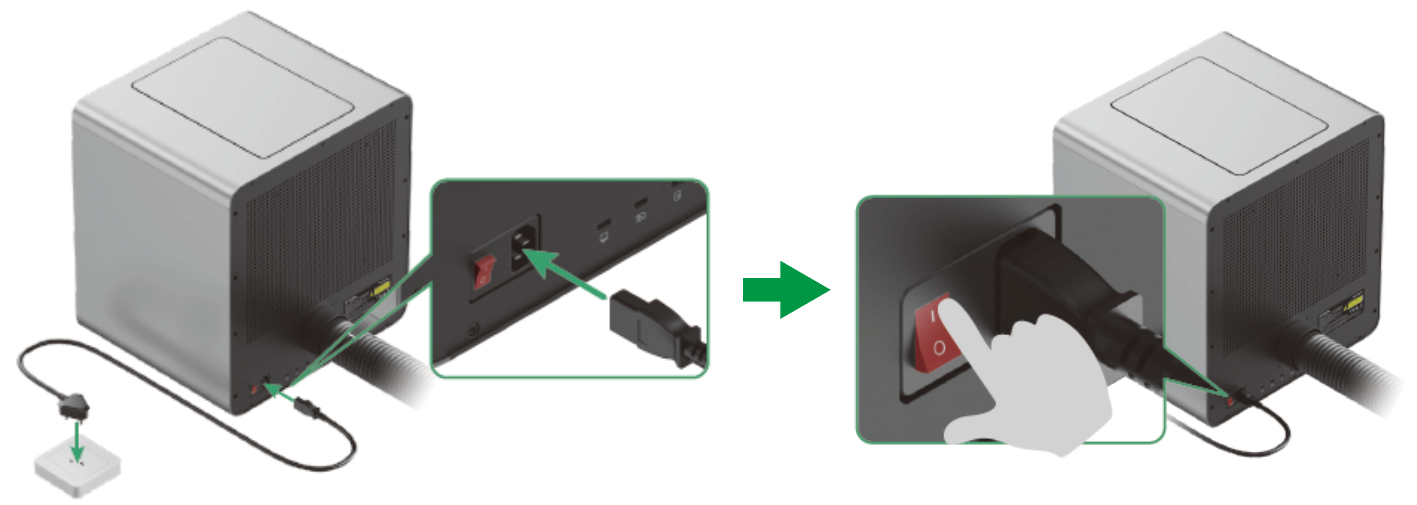
(2) Turn on xTool self-service kiosk.
2. Log in to Customthings
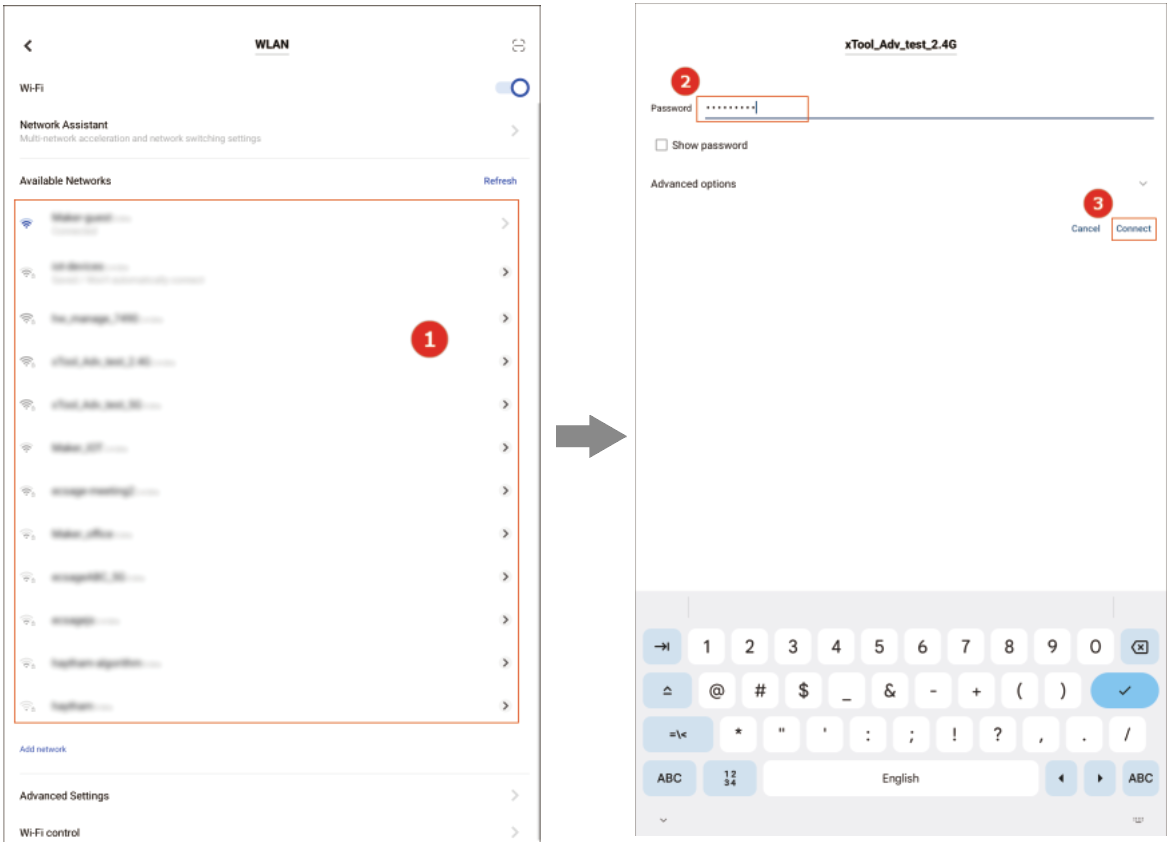
(1) On the self-service kiosk, tap GO TO CONNECT > select a Wi-Fi > enter the password > tap Connect. After connecting the network, go back to the login page.
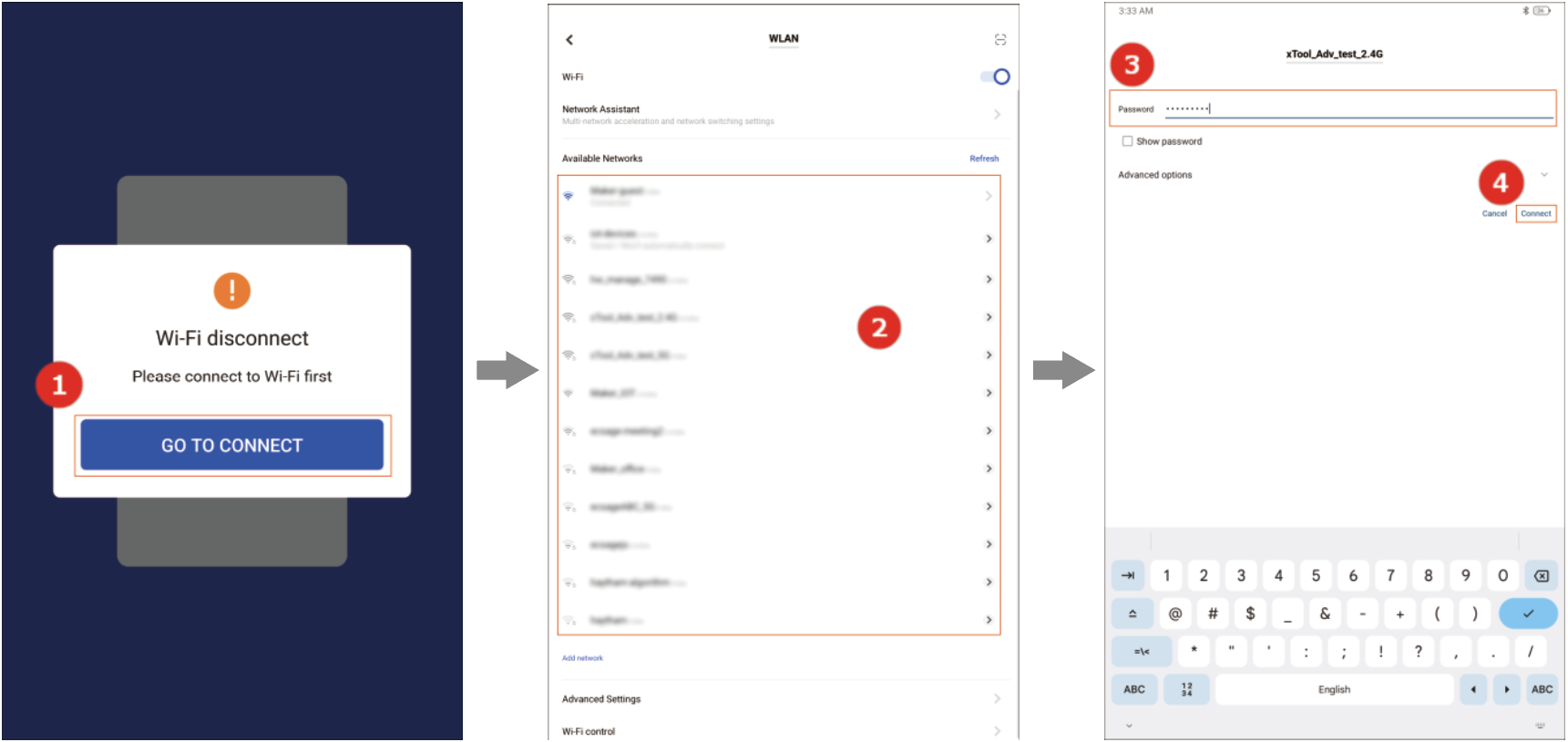
(2) Enter the username and password and tap Log In.
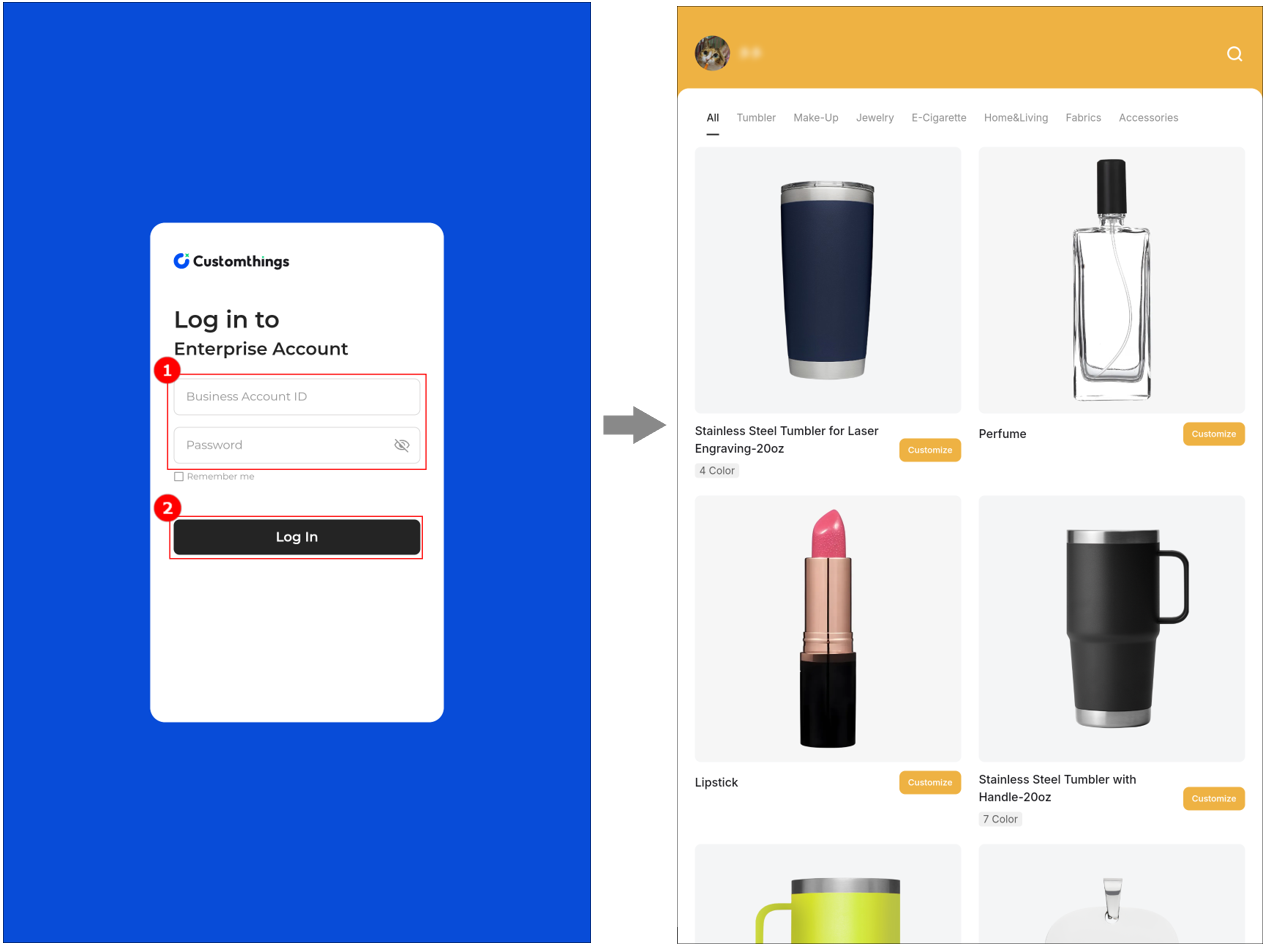
Note: The username and password are provided by the delivery manager. If you do not receive it, please contact the delivery manager. |
3. (Optional) Switch the Wi-Fi network
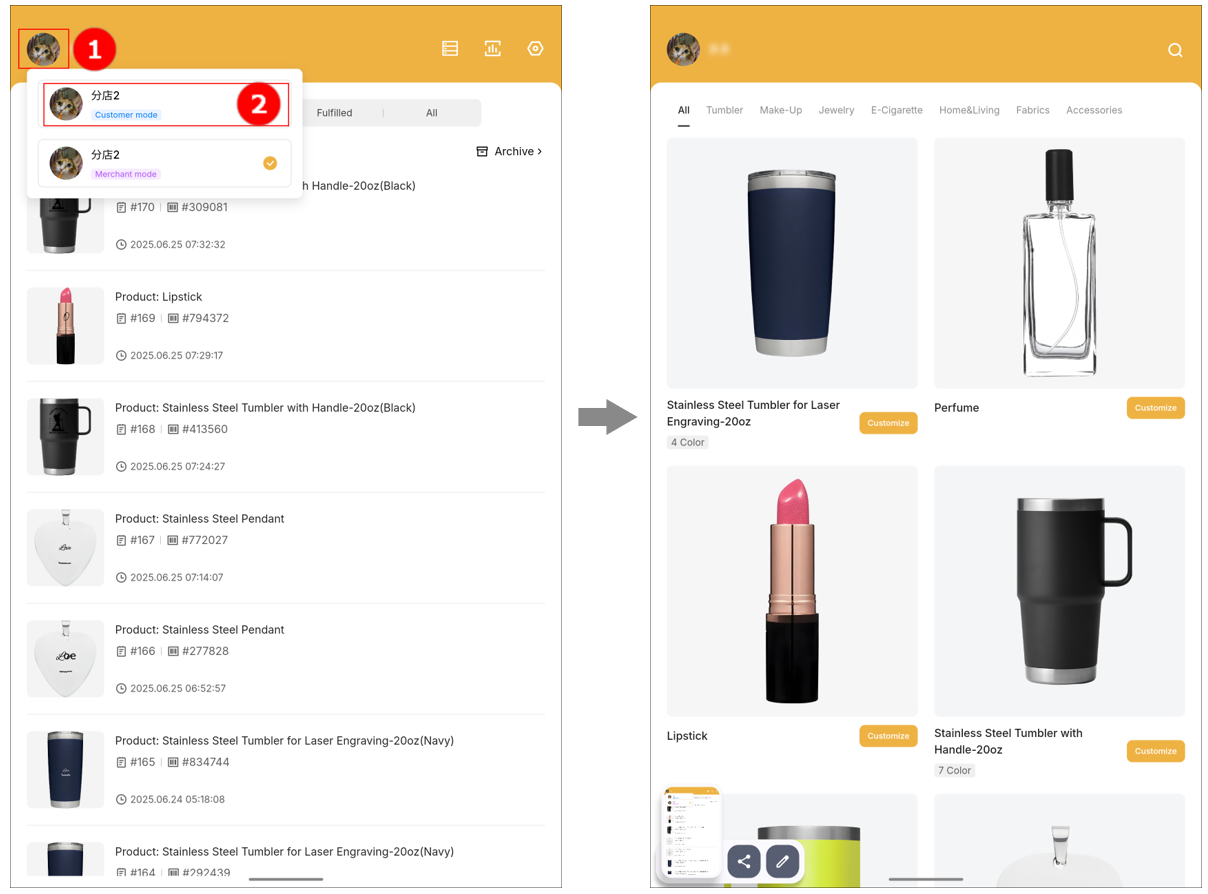
(1) On the homepage of Customthings, tap the profile in the upper-left corner and select Merchant mode.
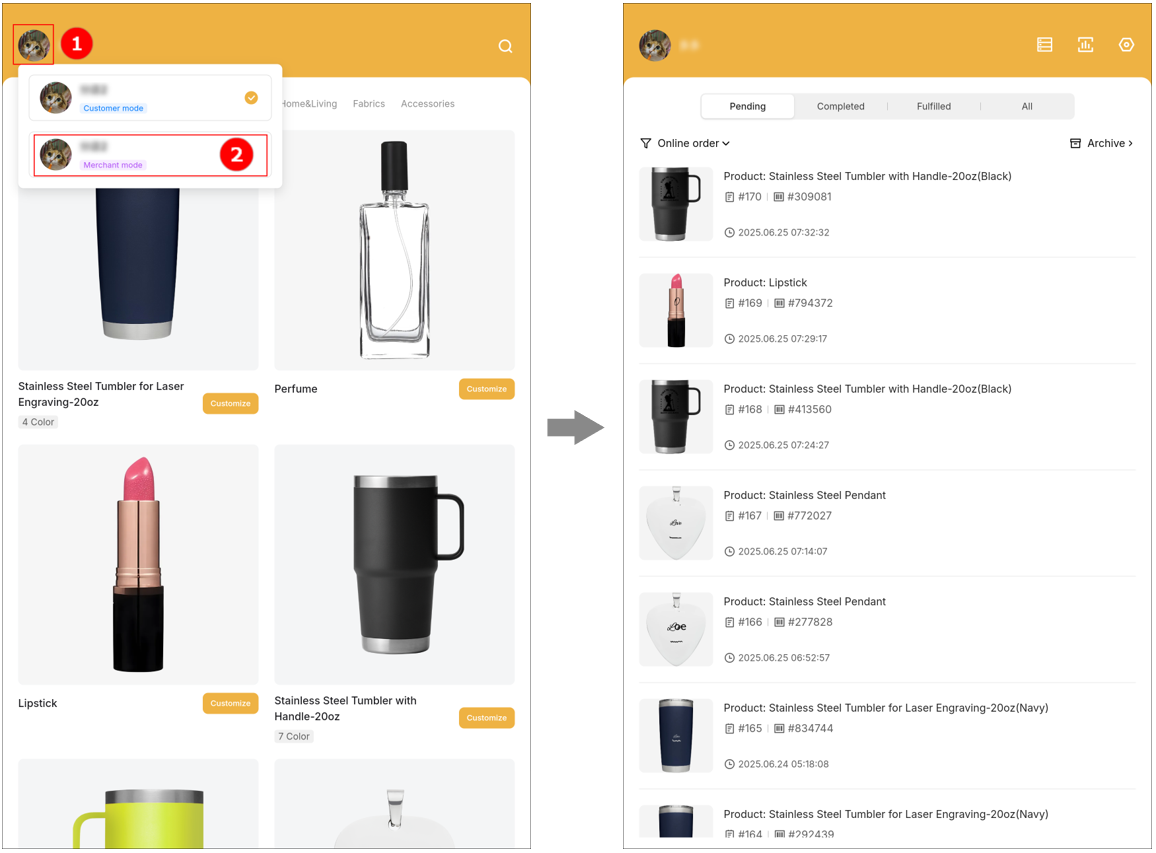
(2) Tap  in the upper-right corner and then tap WLAN.
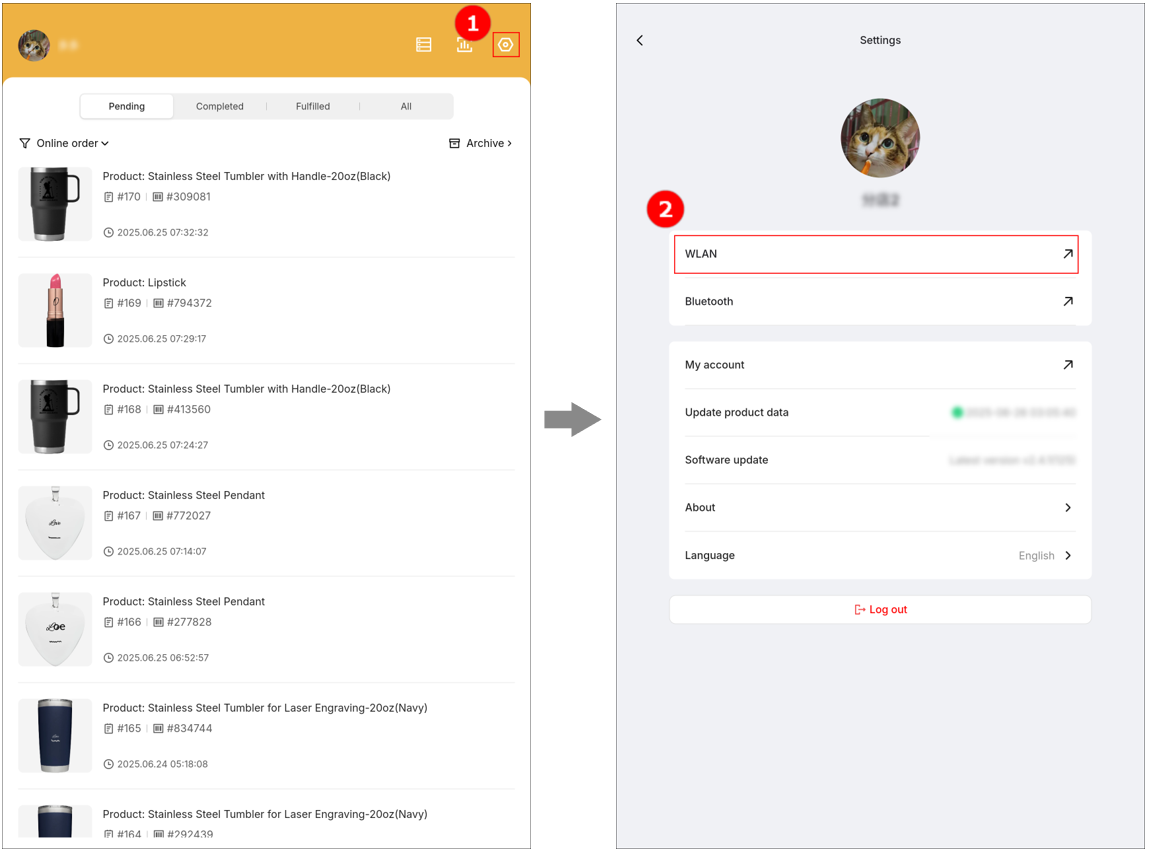
(3) Select a Wi-Fi name, enter the password, and tap Connect. Then, go back to the homepage of Customthings.
4. Add a device
(1) On the homepage of Customthings, tap  .
.
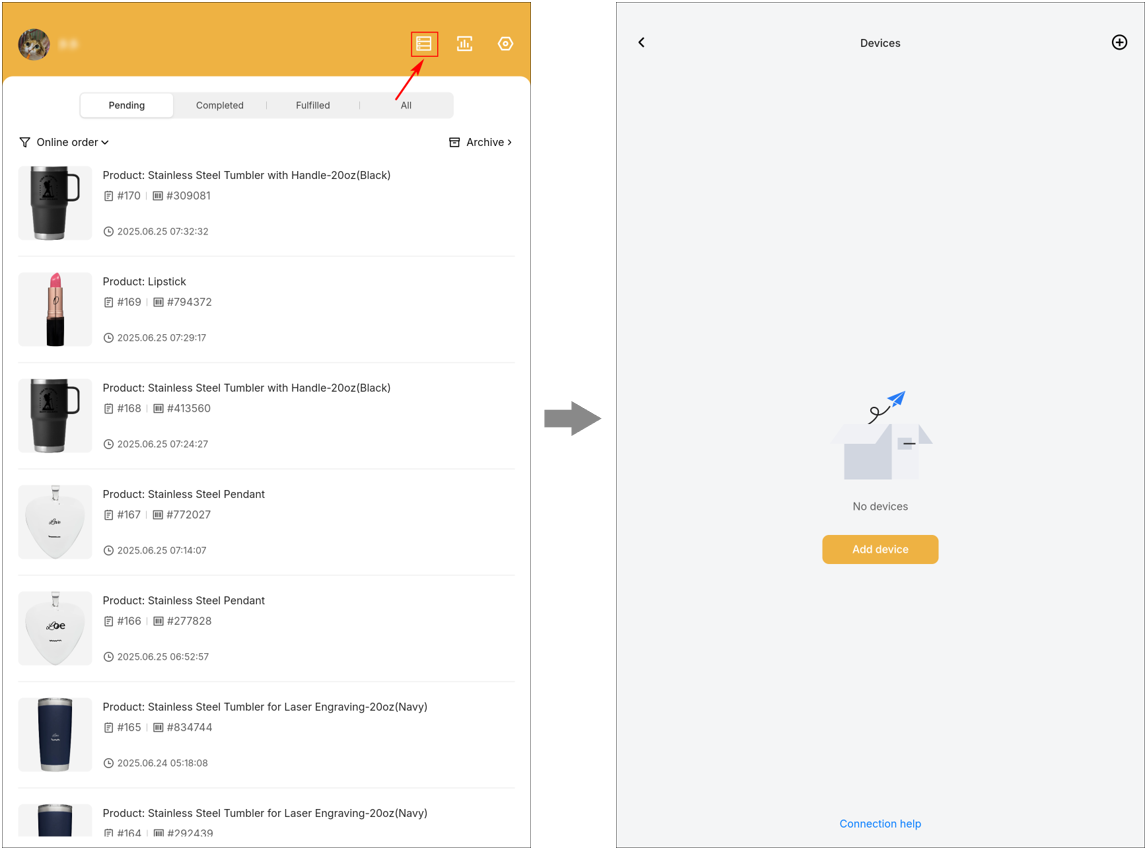
(2) Tap  in the upper-right corner. In the Add new device dialog box, select Retail Marker.
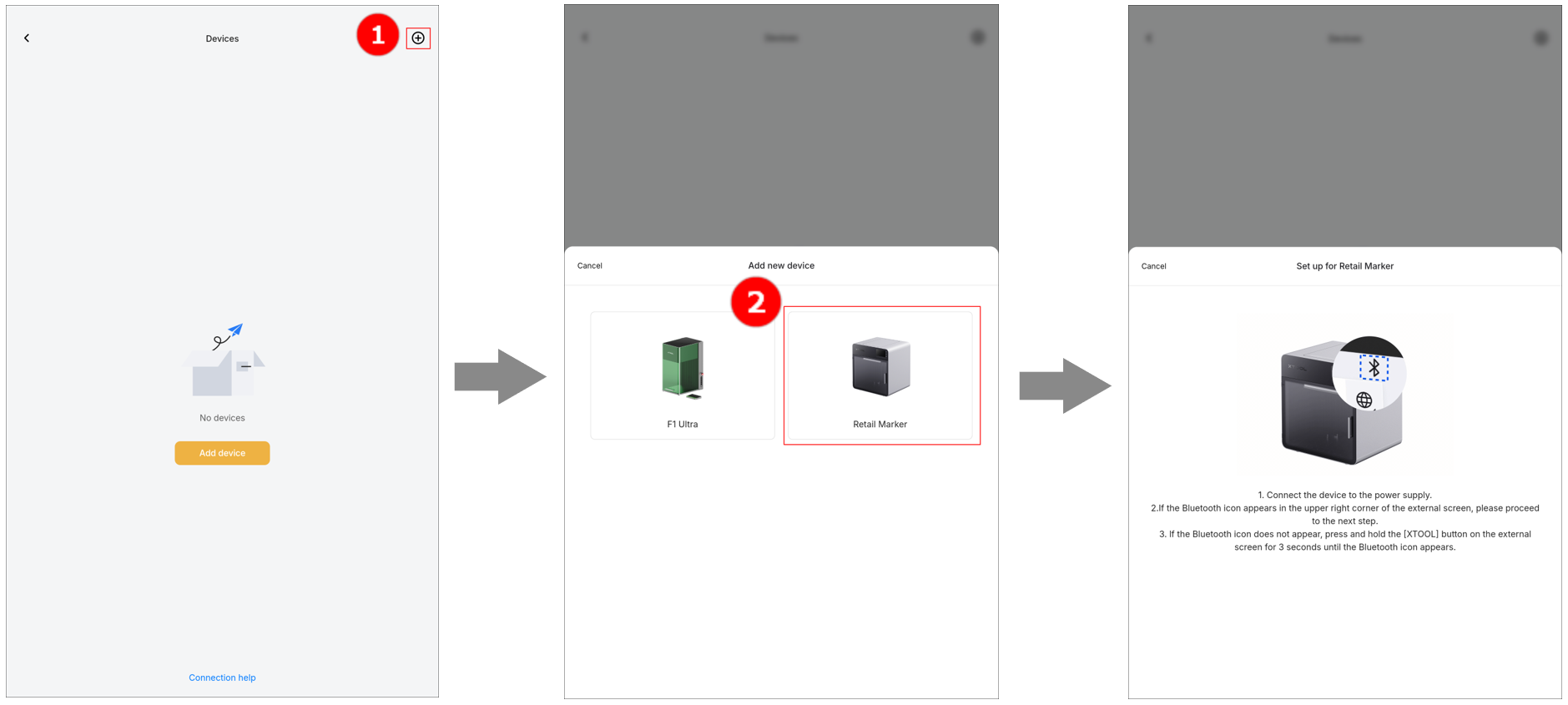
Note: During the connection, ensure that xTool Retail Marker is in Bluetooth mode only. If not, press and hold the start/stop button on the touchscreen controller to switch modes until the Bluetooth mark appears on the touchscreen controller and there is no AP mark. |
(3) In the Select public Wi-Fi dialog box, select the Wi-Fi that xTool self-service kiosk is connected to, enter the password, and tap Connect.
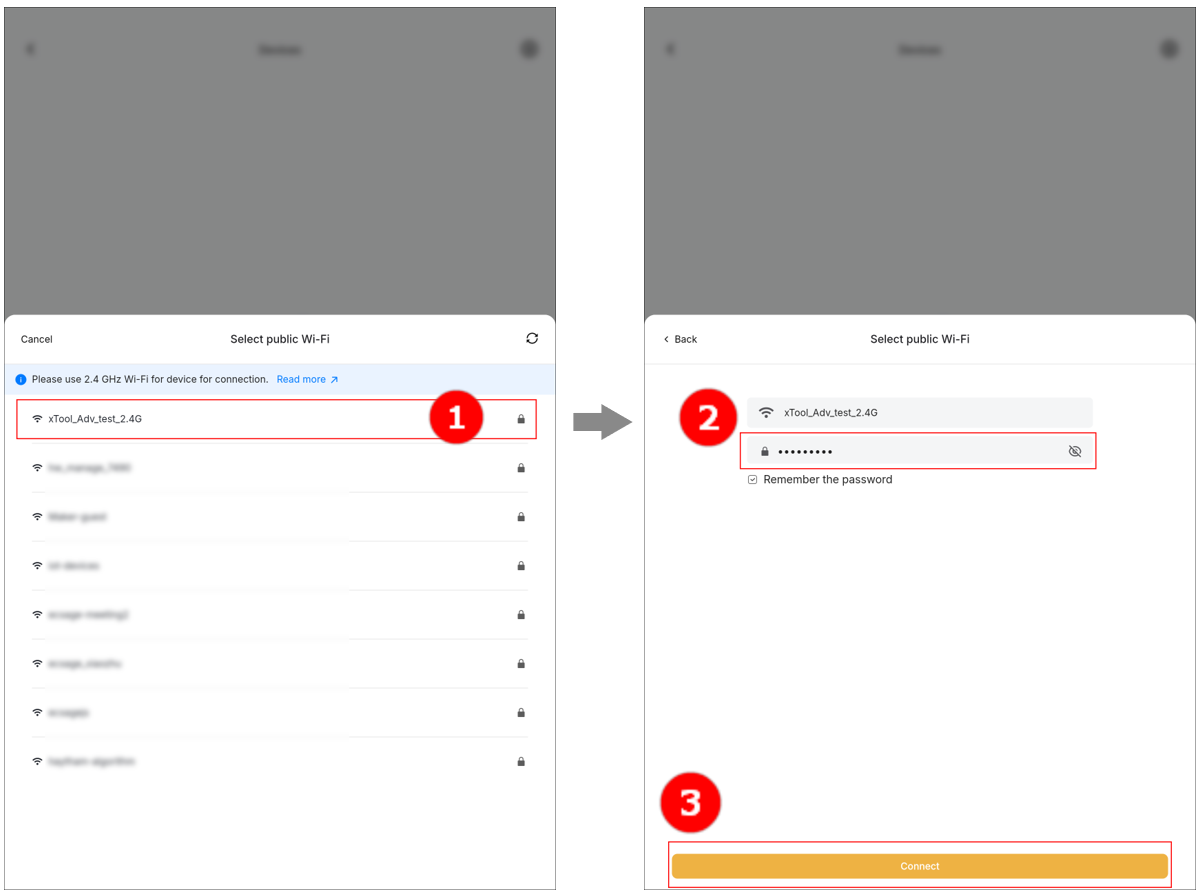
Note:
|


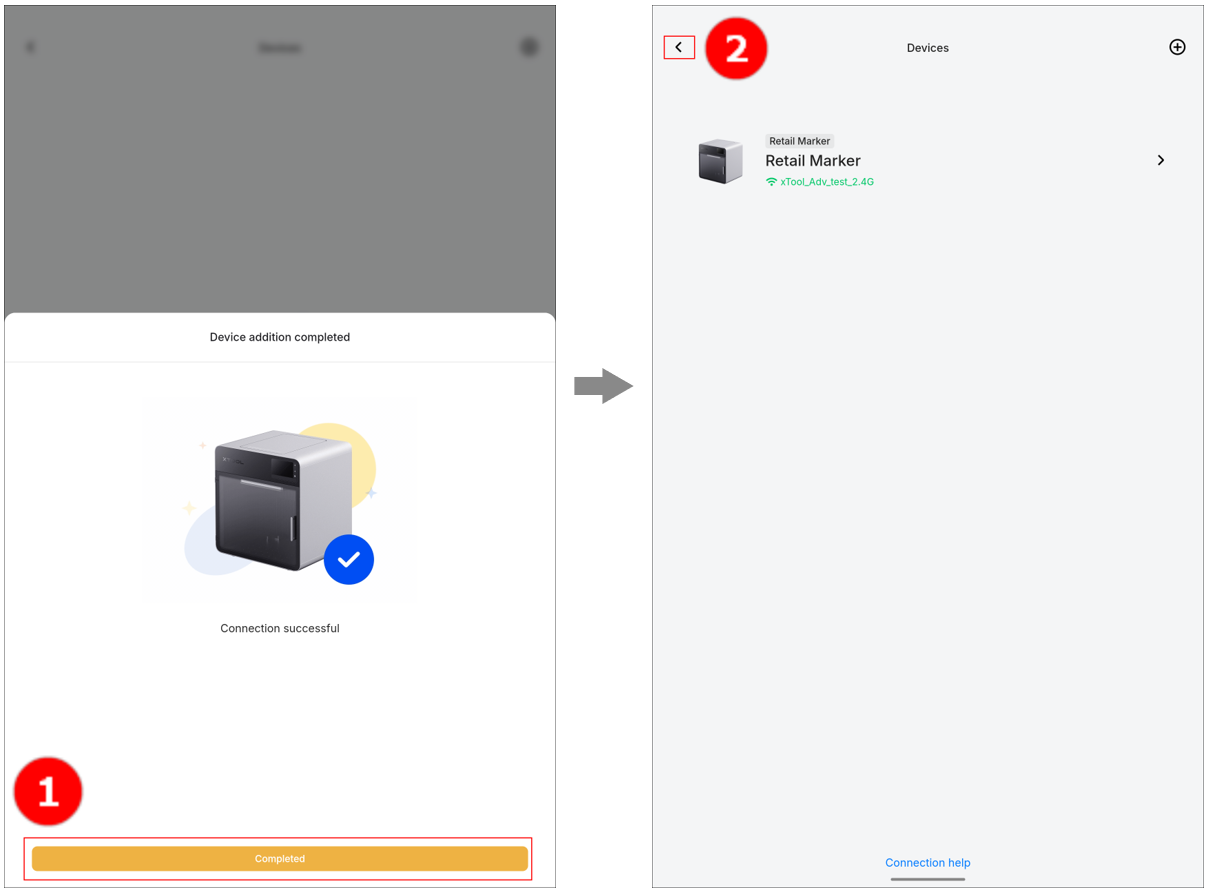
(4) Tap Completed. The device connected is displayed on the Devices page. Tap to return to the homepage.
5. Used with xTool Retail Marker for processing
(1) On the homepage of Customthings, tap the profile and select Customer mode.
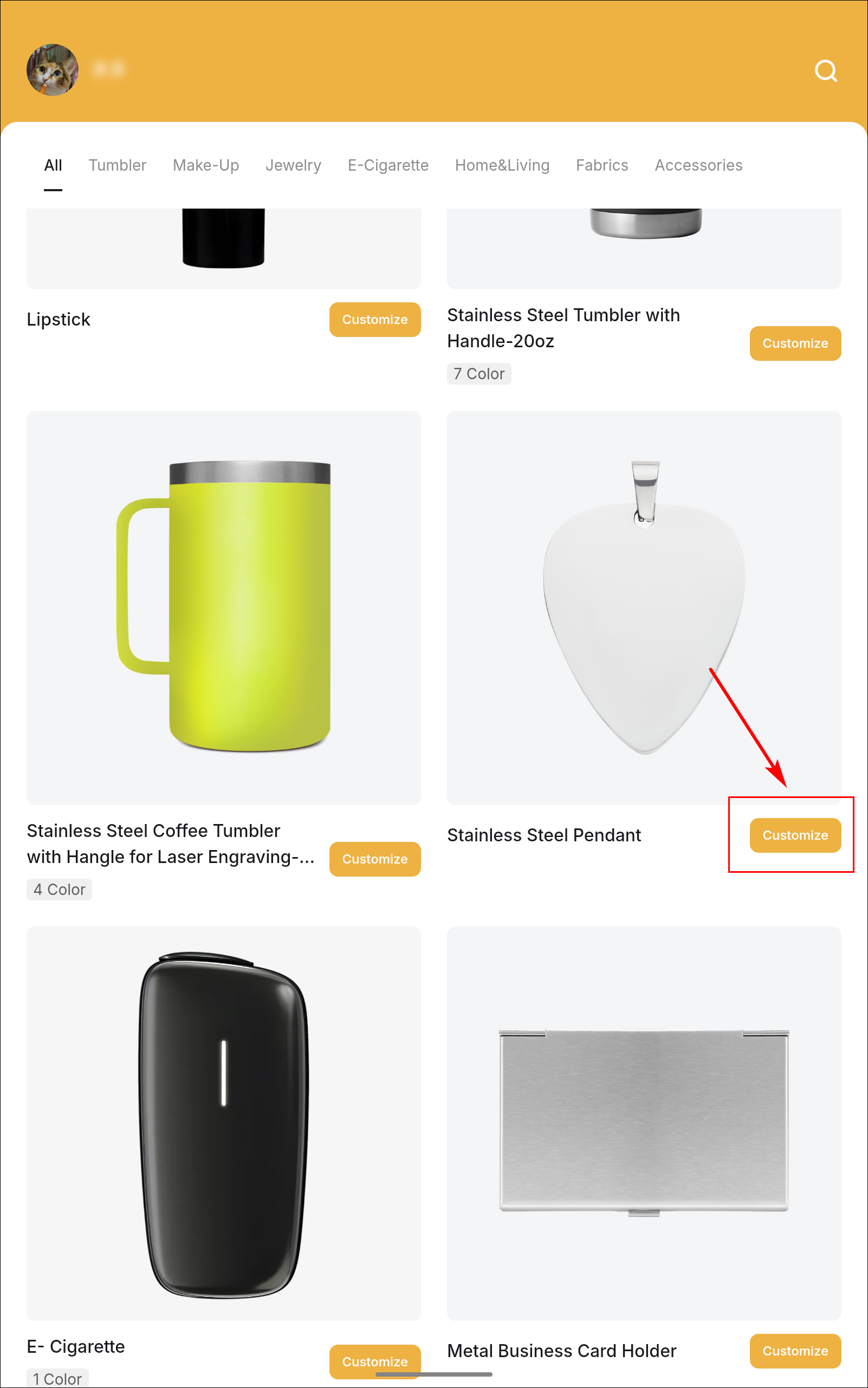
(2) Tap Customize under the target product type.
(3) Add customized elements.
Note: Customized elements vary from different product types. |
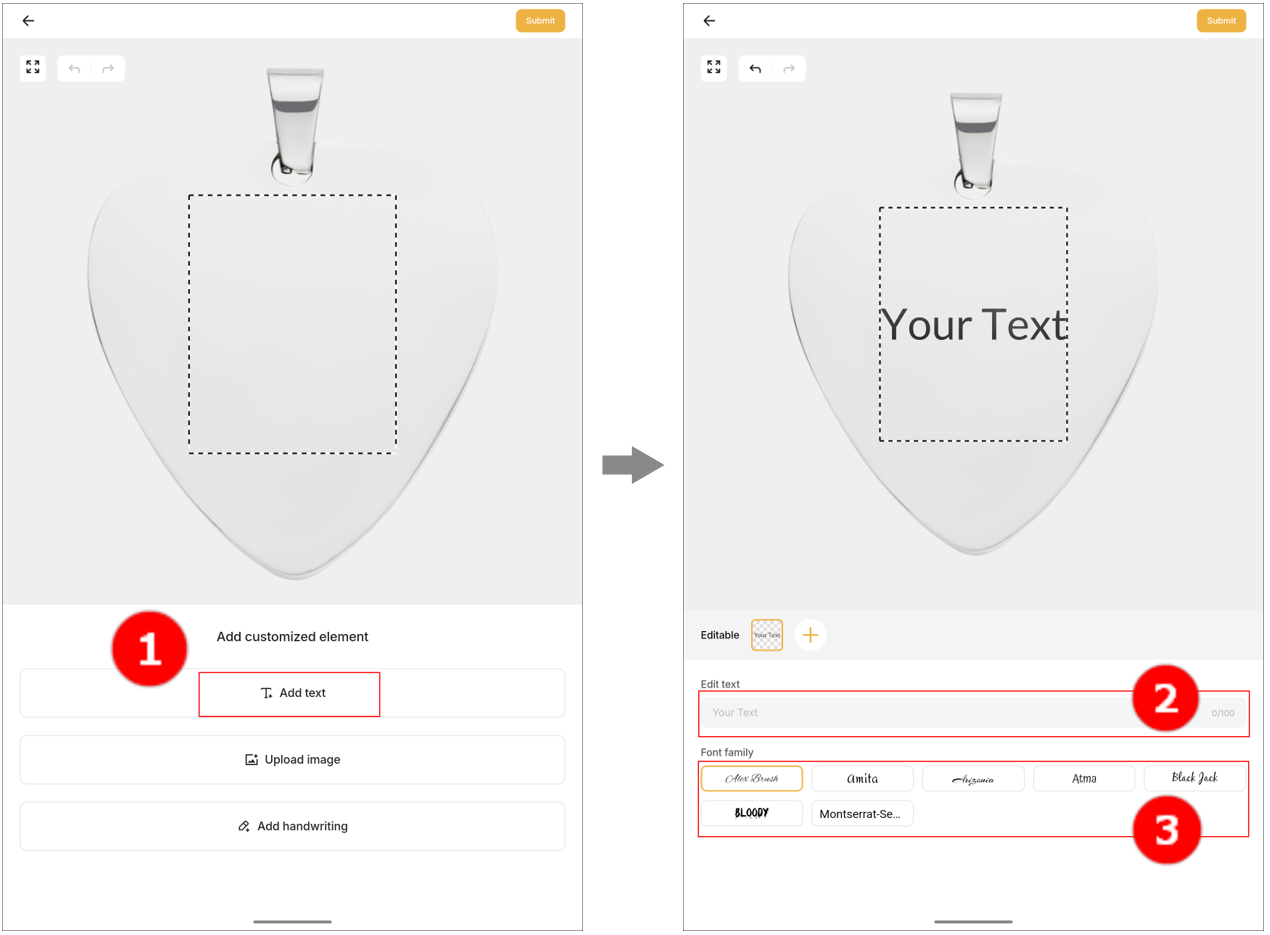
- Add text
Tap Add text, enter text in the text box, and select a font.
- Add images
You can scan the QR code or directly upload images.
- Scan to upload: Tap Upload image > Scan to upload, and scan the QR code to upload an image.
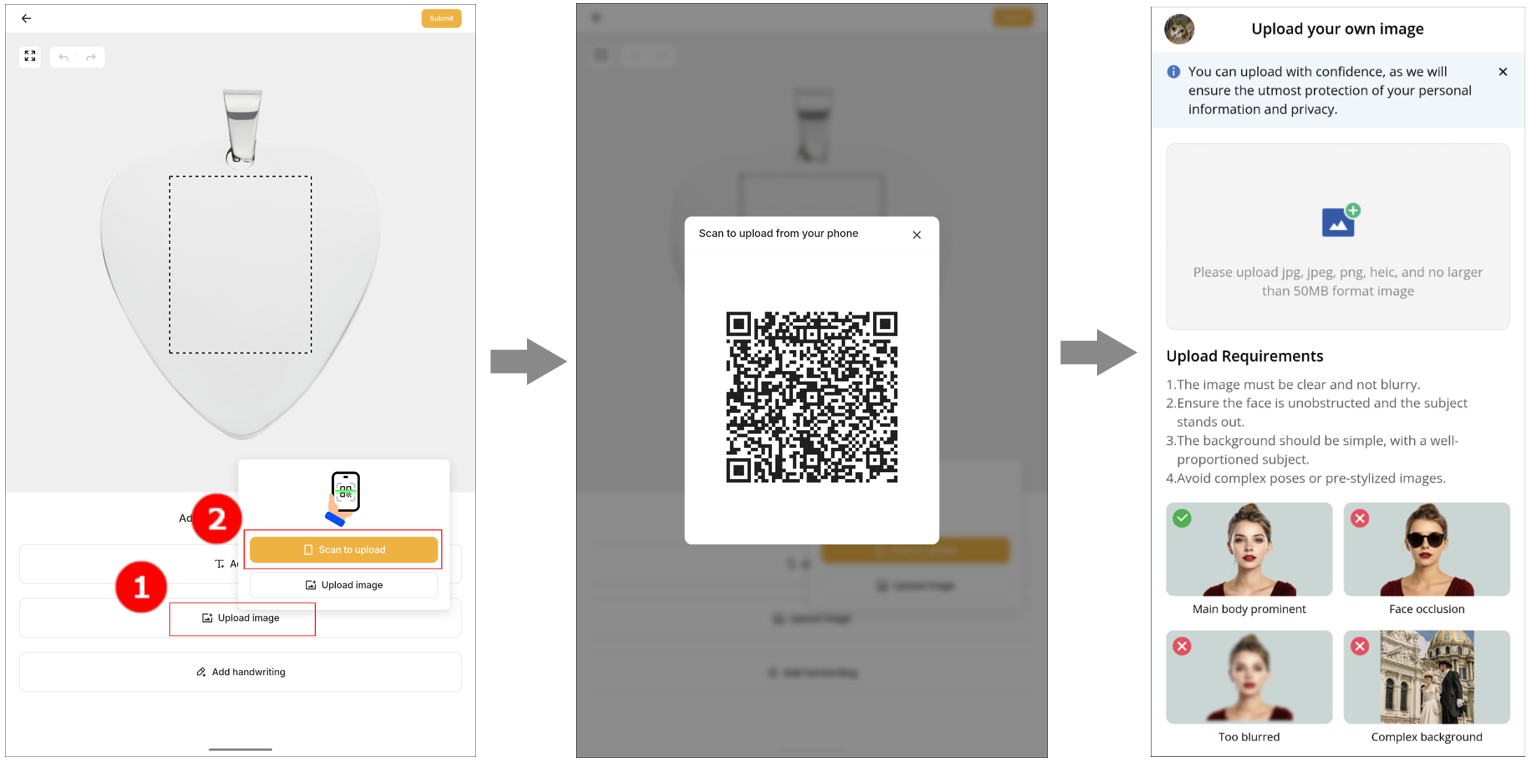
- Upload directly: Tap Upload image > Upload image > Upload Image. In the Recents dialog box, tap Camera to take a photo or directly select a photo.
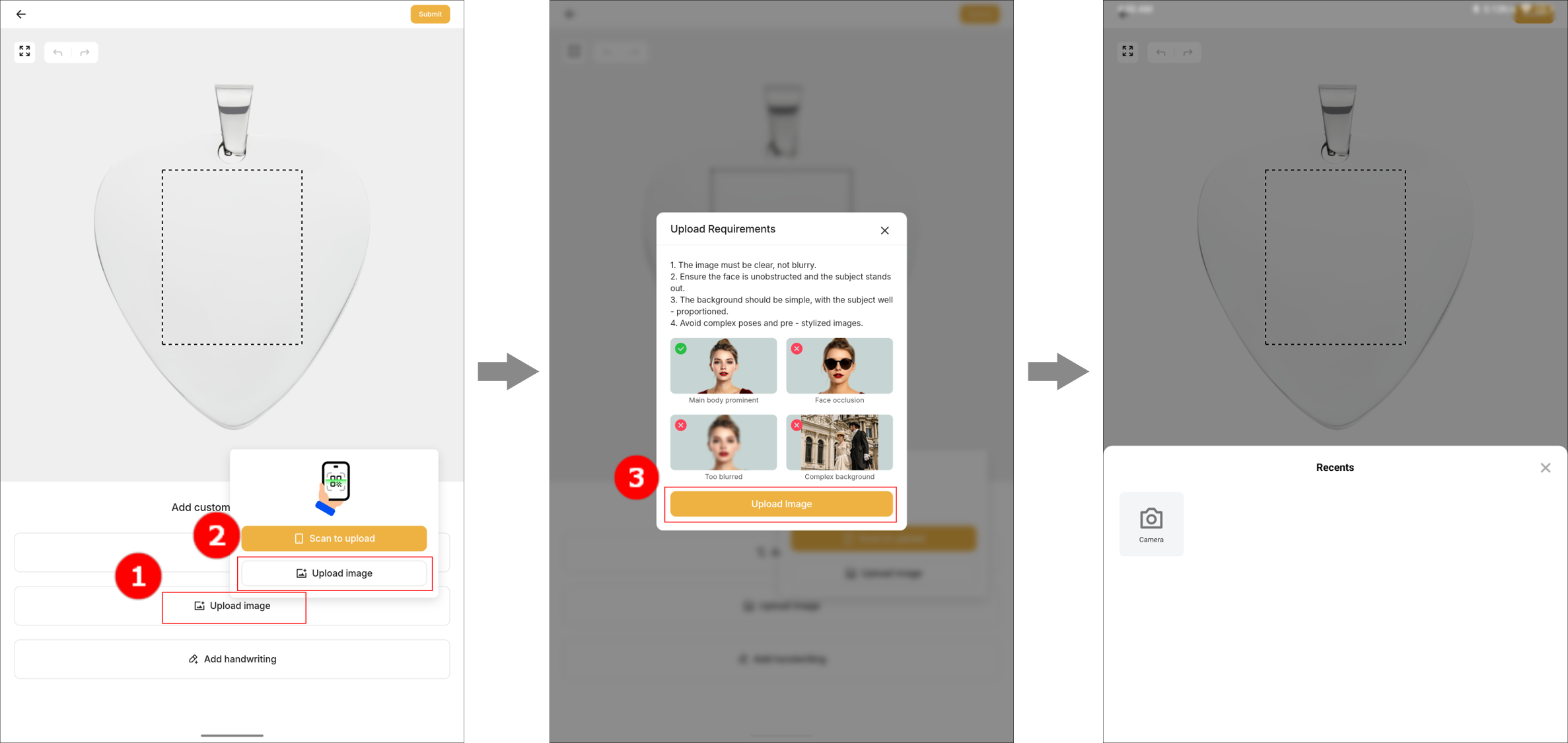
Note: Cropping, eraser erasing, color inversion, adjustment, and black and white conversion for uploaded images are supported. |
- Add graffiti
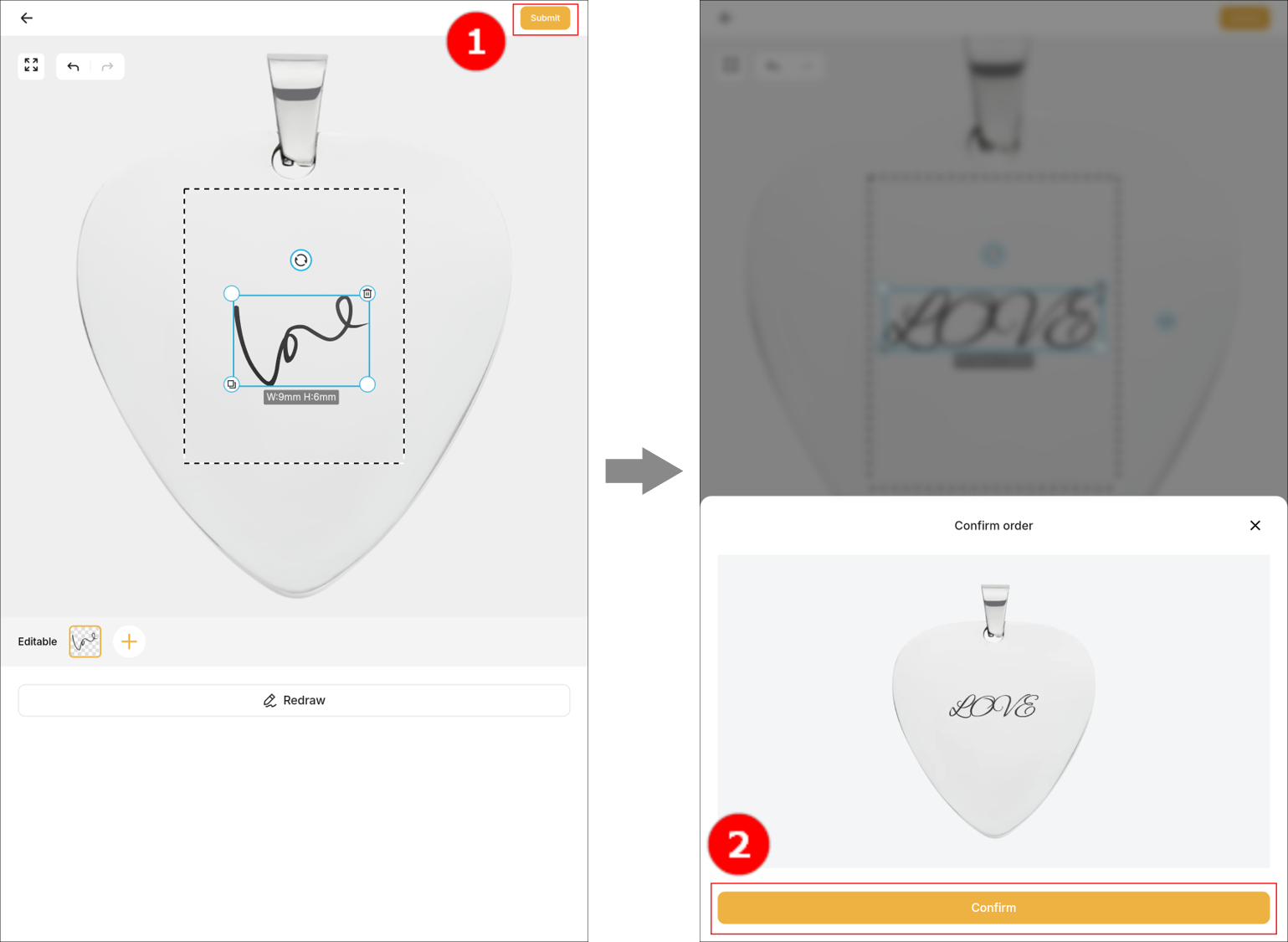
Tap Add handwriting and use the stylus pen to draw on the screen. After finishing the drawing, tap Save.
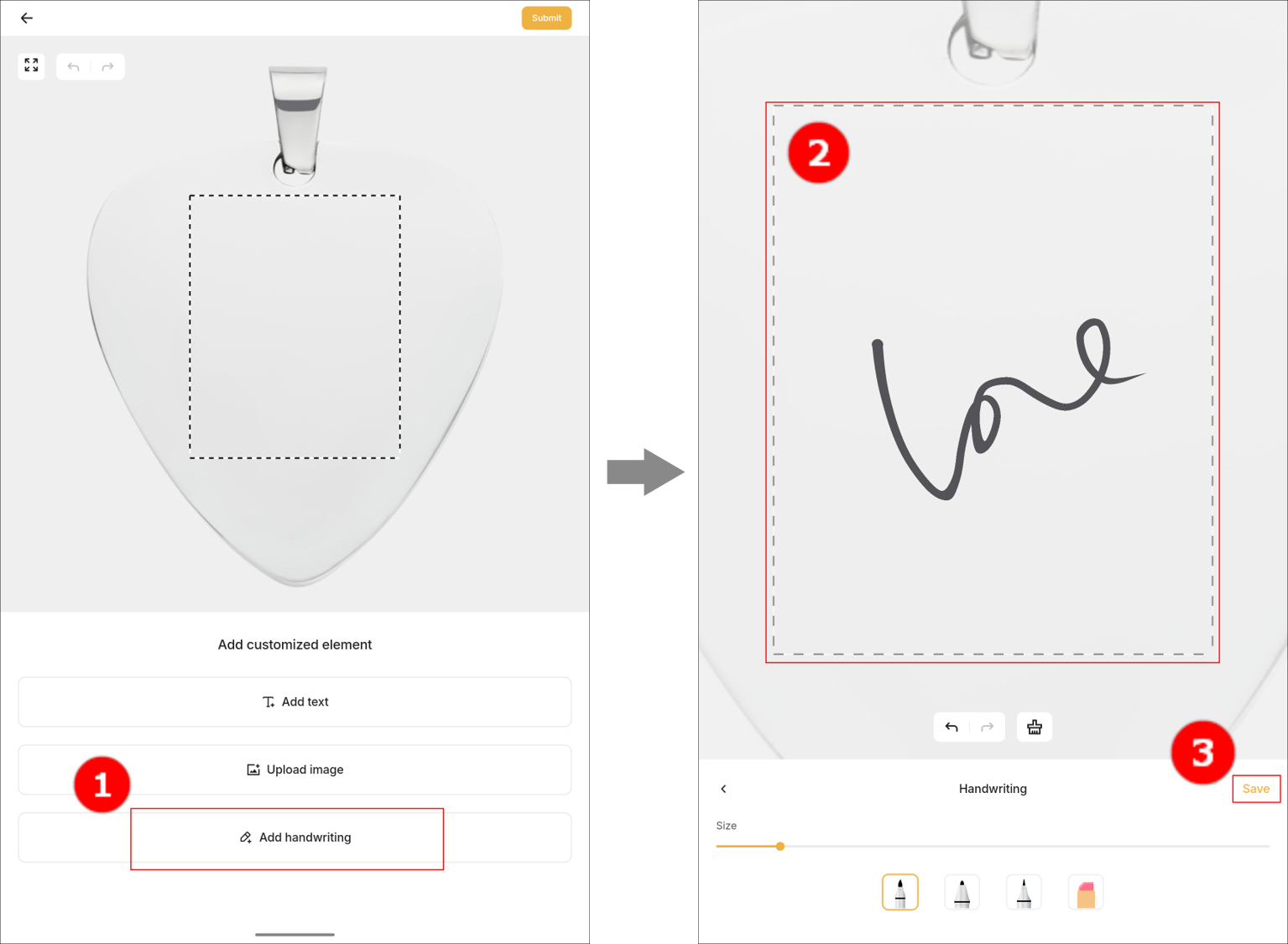
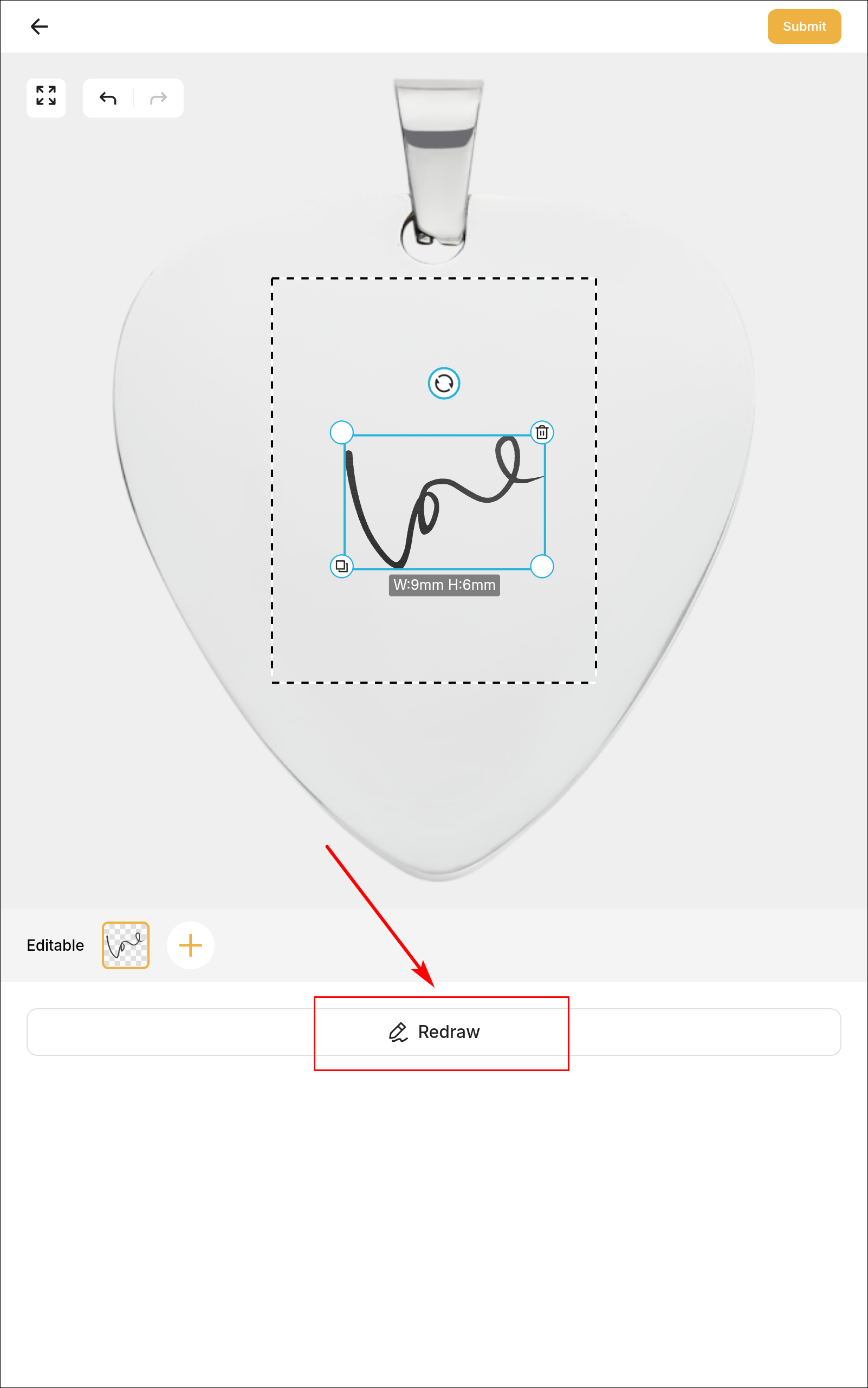
Note: If you are unsatisfied with the drawing, you can tap Redraw to redraw it.
|
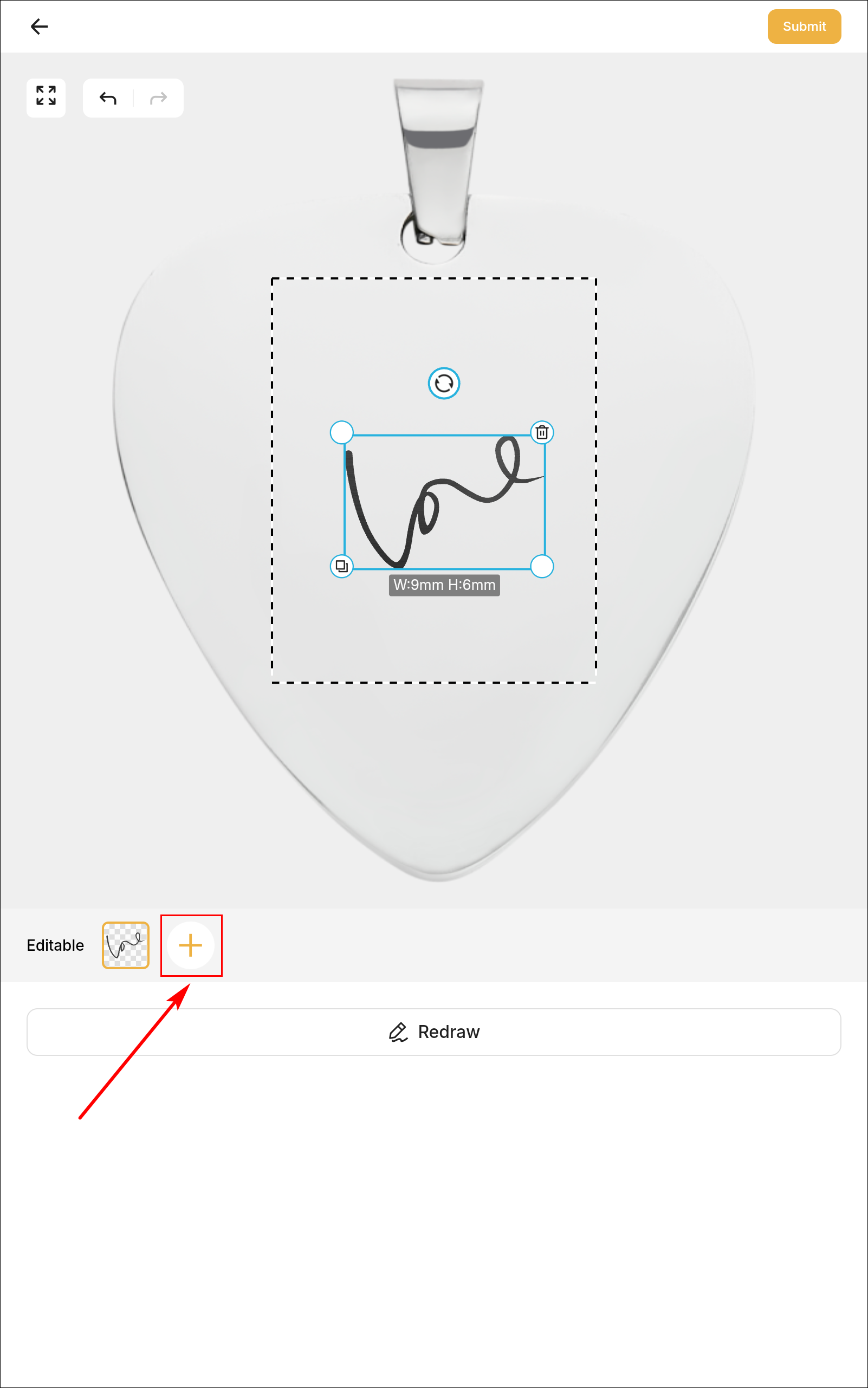
(4) (Optional) Tap to add more customized elements.
(5) Tap Submit in the upper-right corner. In the Confirm order dialog box, tap Confirm.
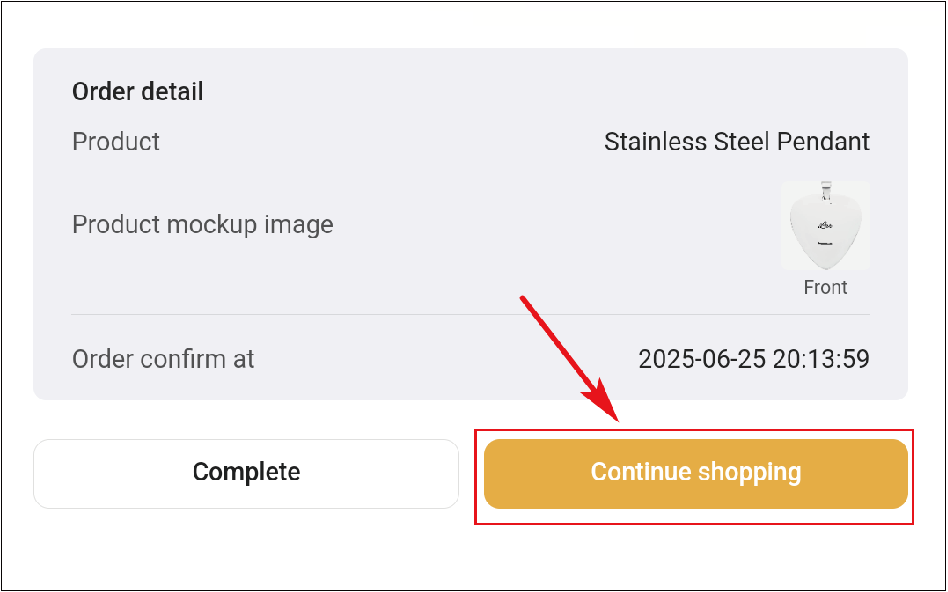
Note: If you want to customize a new product, tap Continue shopping.
|
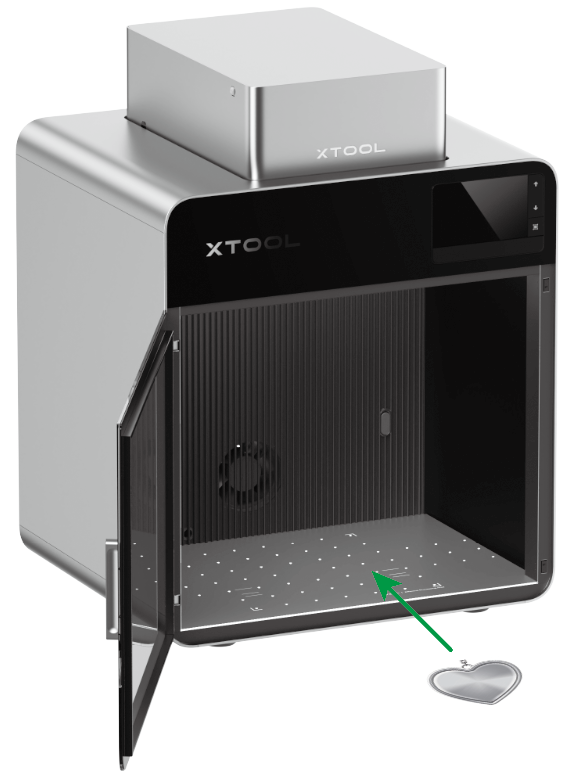
(6) Place the material to be processed into xTool Retail Marker.
(7) Tap Start processing and select the device. The device automatically captures the background and performs focus.
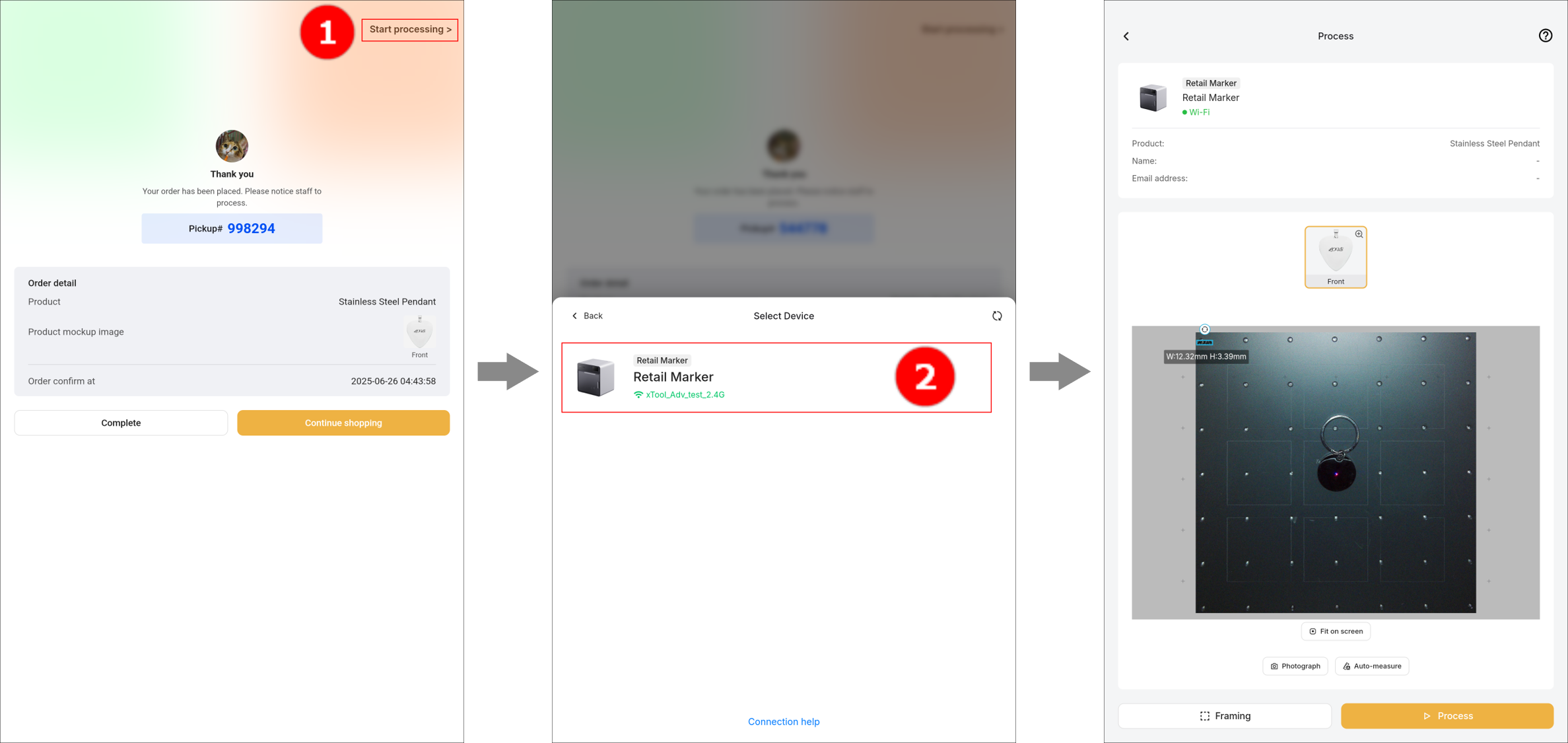
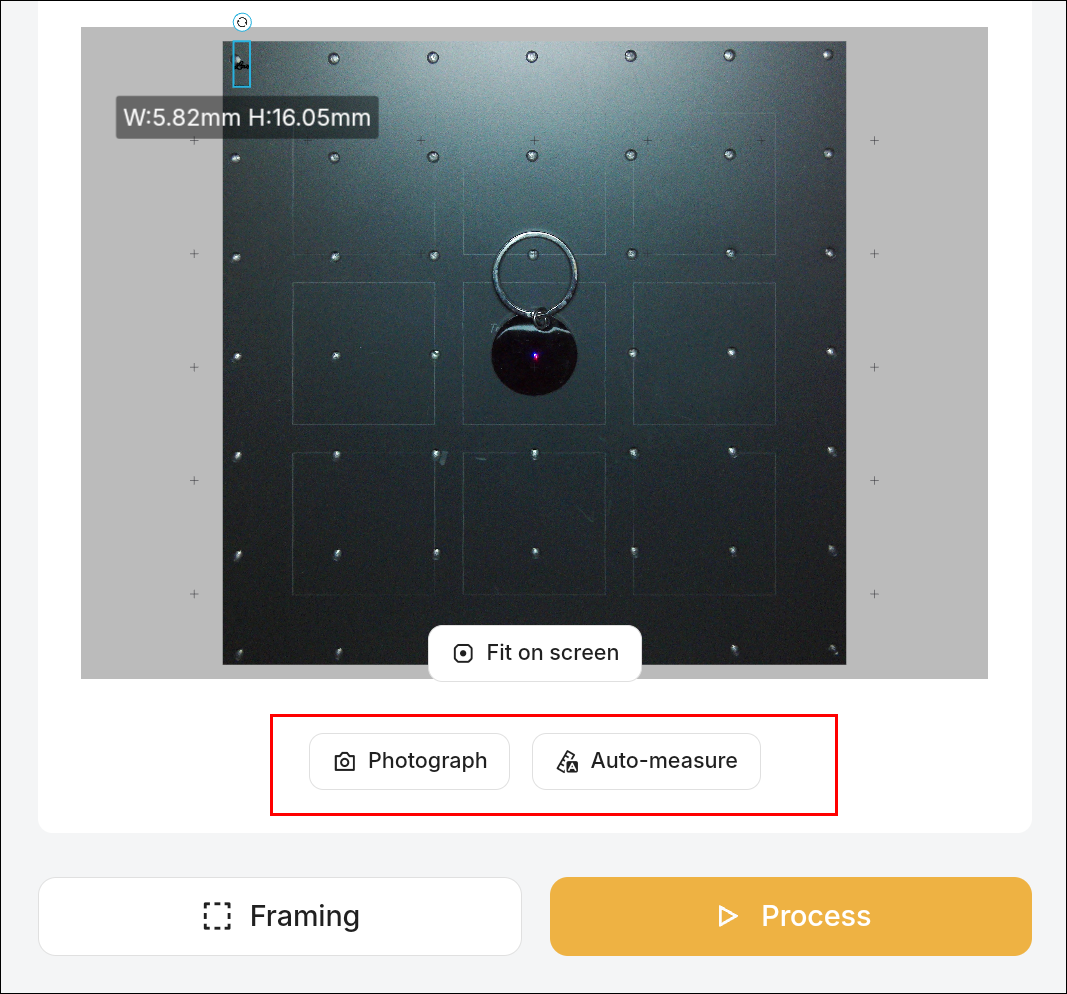
Note: If the device fails to capture the background or perform focus automatically, tap Photography or Auto-measure to capture the background or complete focus.
|
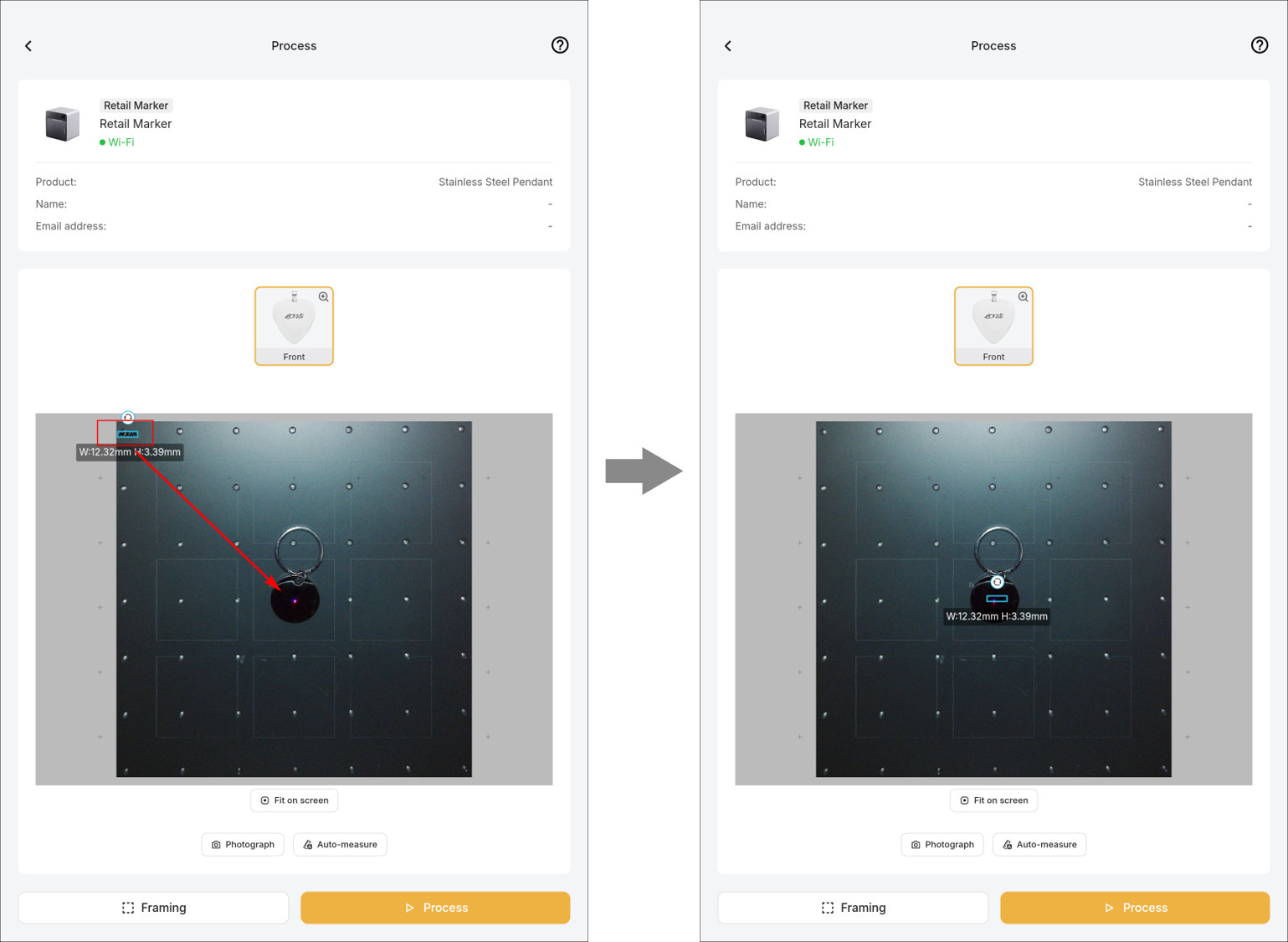
(8) Manually drag the elements to the desired position of the material to be processed.
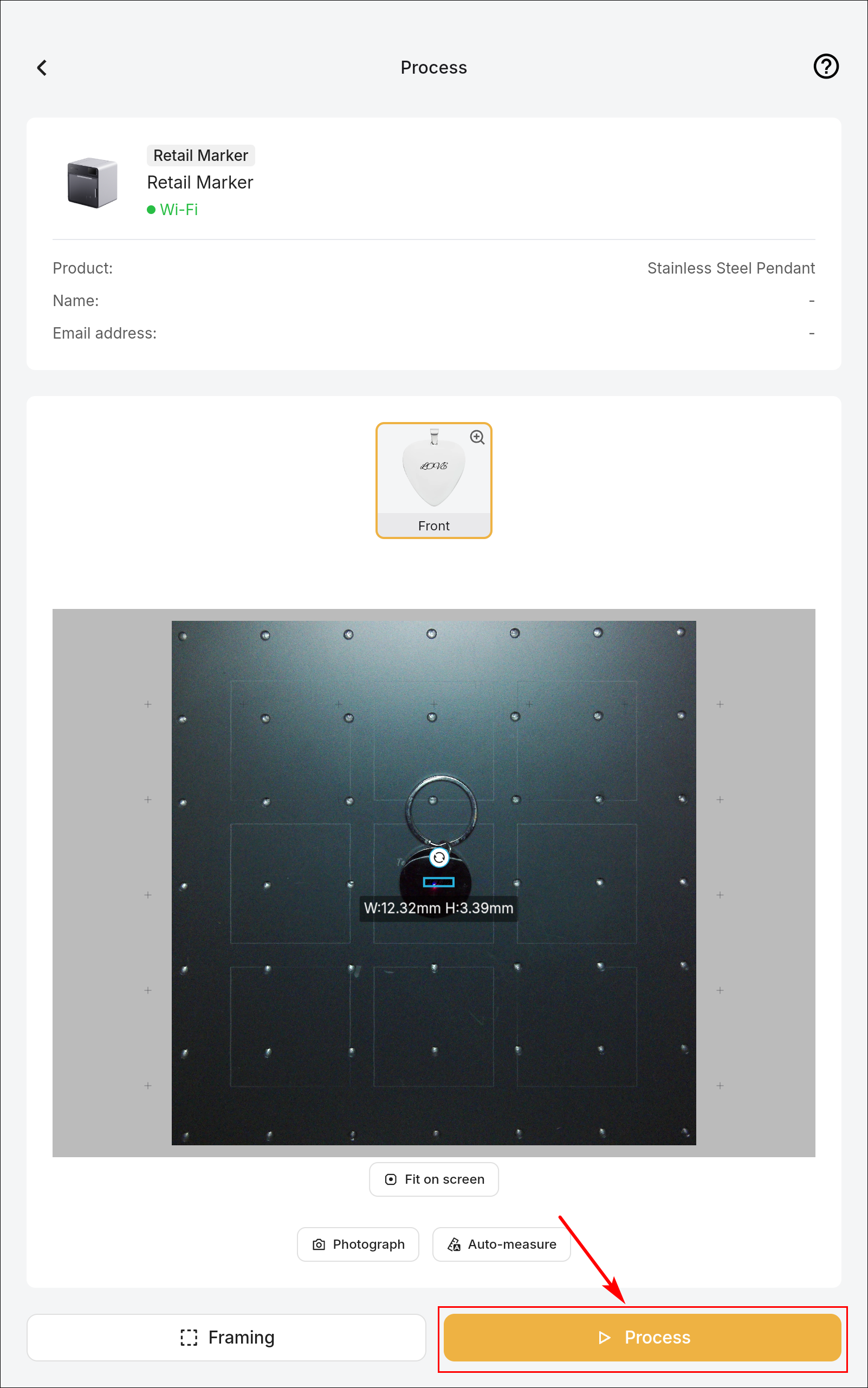
(9) Tap Process and the file is automatically delivered to xTool Retail Marker.
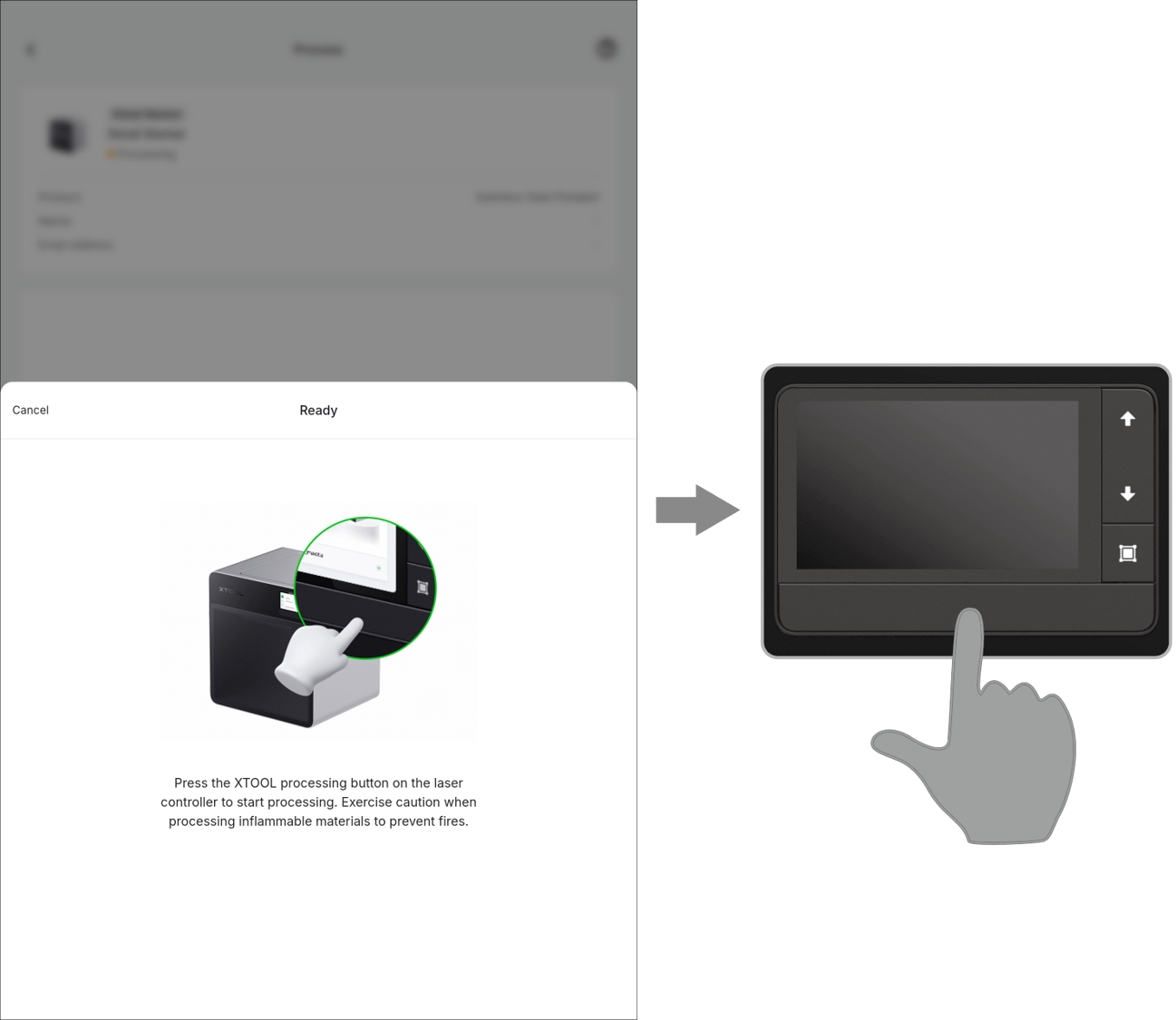
(10) After the Ready dialog box is displayed, press the start/stop button on the touchscreen controller to start processing.
(11) Wait for the processing to be completed.
Maintenance
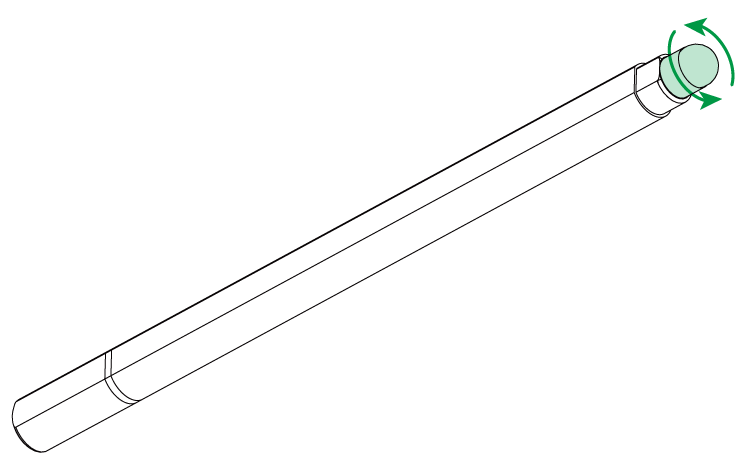
Replace the stylus pen
If the stylus pen becomes less sensitive, it is recommended that you replace its tip. Normally, the stylus pen tip should be replaced every three months.

Services & Help
Learn & Education

Copyright © 2025 xTool All Rights Reserved.