
Overview
The xTool S1 is compatible with two air assist systems:
- the Air Assist Set and
- the Air-Compress Assist.
This article addresses connection failures between the Air Assist Set and S1, specifically when the xTool Creative Space (XCS) fails to display or enable auto-adjustment options.
Issues description
When the Air Assist Set is in "Auto" mode, the XCS interface should display selectable air assist adjustment options, such as the one in the picture below:
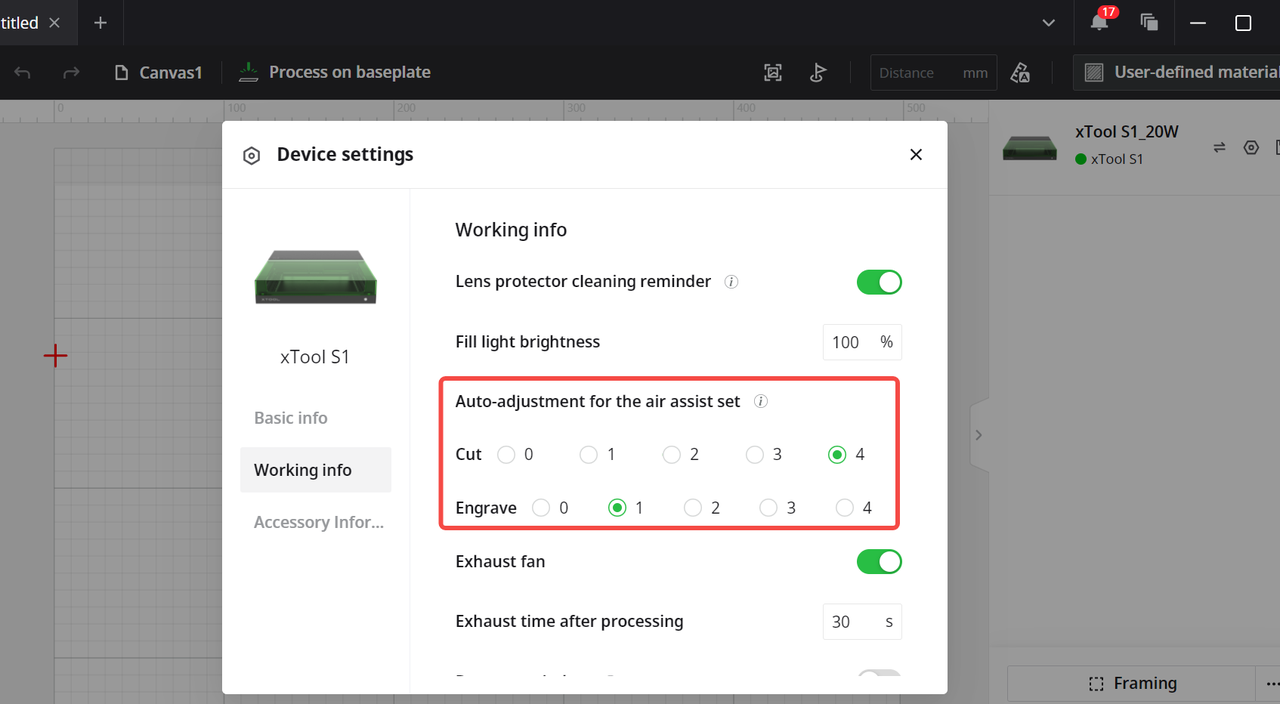
However, if a connection failure occurs, the XCS interface may exhibit one of the following symptoms:
- The air assist set adjustment options are not displayed.
- The air assist set adjustment options are displayed, but they are grayed out and unselectable.
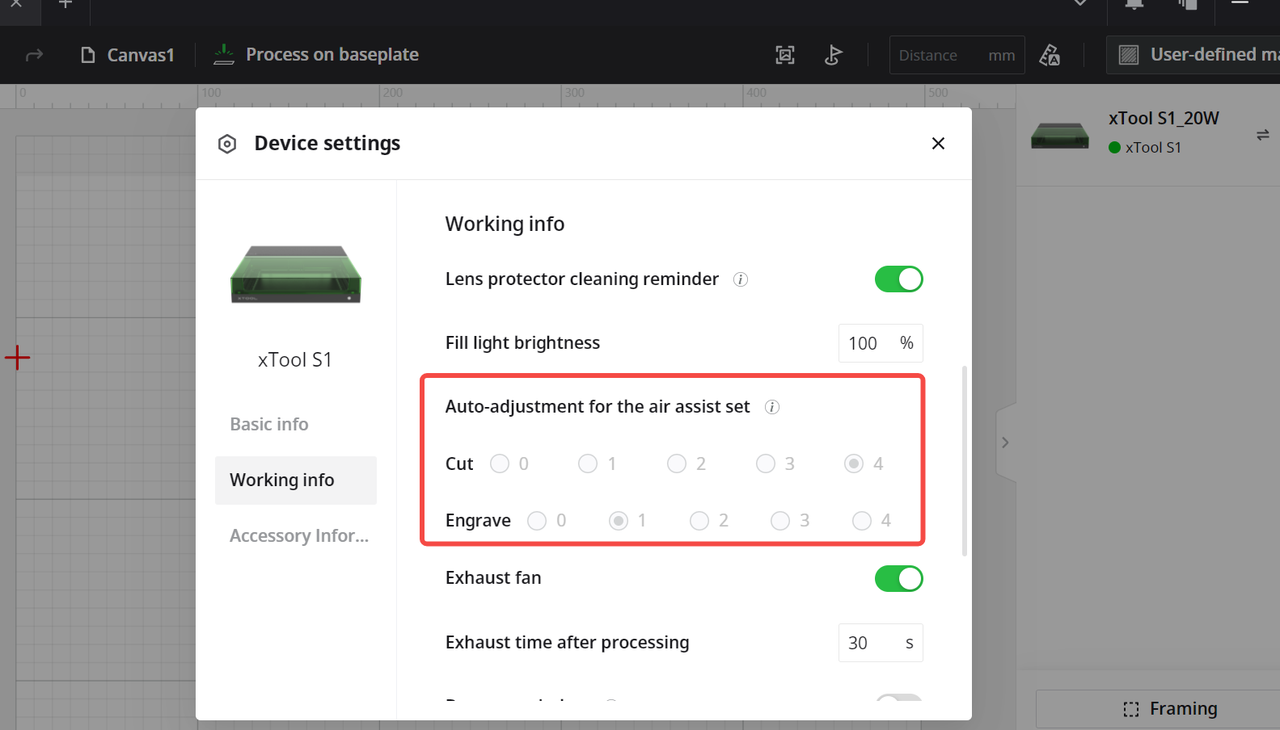
Possible cause
- Outdated S1 firmware version
- Air Assist Set connection cable issue
- Malfunction of the S1 main control board's accessory port board
- Air Assist Set malfunction
Troubleshooting procedure
#1 Update S1 firmware
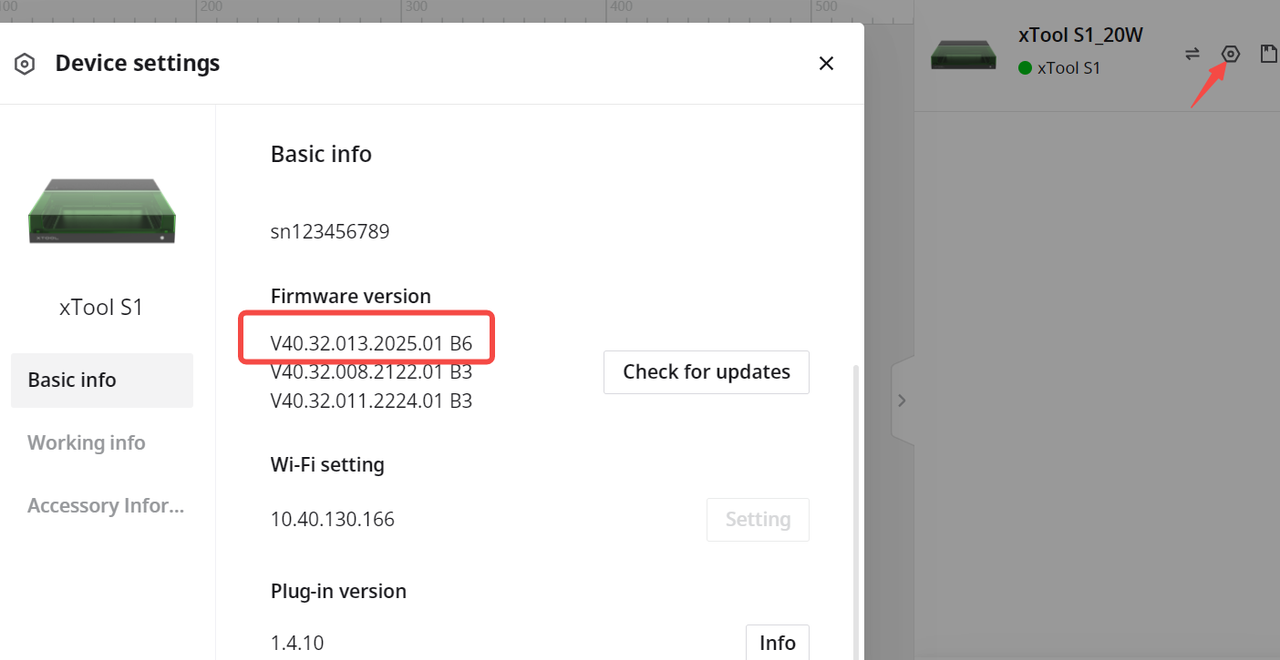
Ensure your S1 firmware is up to date. Firmware version 013 and later addresses this issue.
- Connect the S1 to your computer.
- Locate the gear icon in XCS.
- Navigate to Basic info and check your firmware version.
#2 Restart S1
- Power off S1.
- Ensure the Air Assist Set and S1 are properly connected.
- Power on S1 and observe if the issue is resolved after the restart.
#3 Request replacement
If the above steps do not resolve the issue, the issue may to do with the Air Assist Set cable, the main control board's port board or its connection cable. In this case, please contact the xTool official customer service by submitting a ticket on https://support.xtool.com/submit-ticket.
- Please make sure to select “Buy after-sales materials” under the After-Sales Issues section and give a detailed description of the problem and the troubleshooting steps you have taken.
- If you're able to include photos or videos, even better — they can greatly help our support team understand the issue and process your request more efficiently.
Still experiencing issues?
Should the issue persist after completing the preceding steps, submit a ticket via the "Submit a Ticket" button in the "Help Ticket" section below. The standard response time for xTool Customer Service is one business day.
For a prompt resolution, please include the following details:
- Issue Description: A detailed explanation of the observed problem.
- Video Evidence: Attach a video demonstrating the issue, where applicable.
- Troubleshooting Performed: Any troubleshooting steps you have already attempted, along with their results.
This information is crucial for xTool technical support engineers to provide timely assistance.
Documentation feedback
Help improve this content by providing feedback. If this content did not meet your requirements, select "No" in the "Was this page helpful?" section below. Include specific details about what was unclear or missing in the pop-up suggestion box. Feedback submissions are reviewed by xTool technical writers to enhance future documentation.

