Issue description
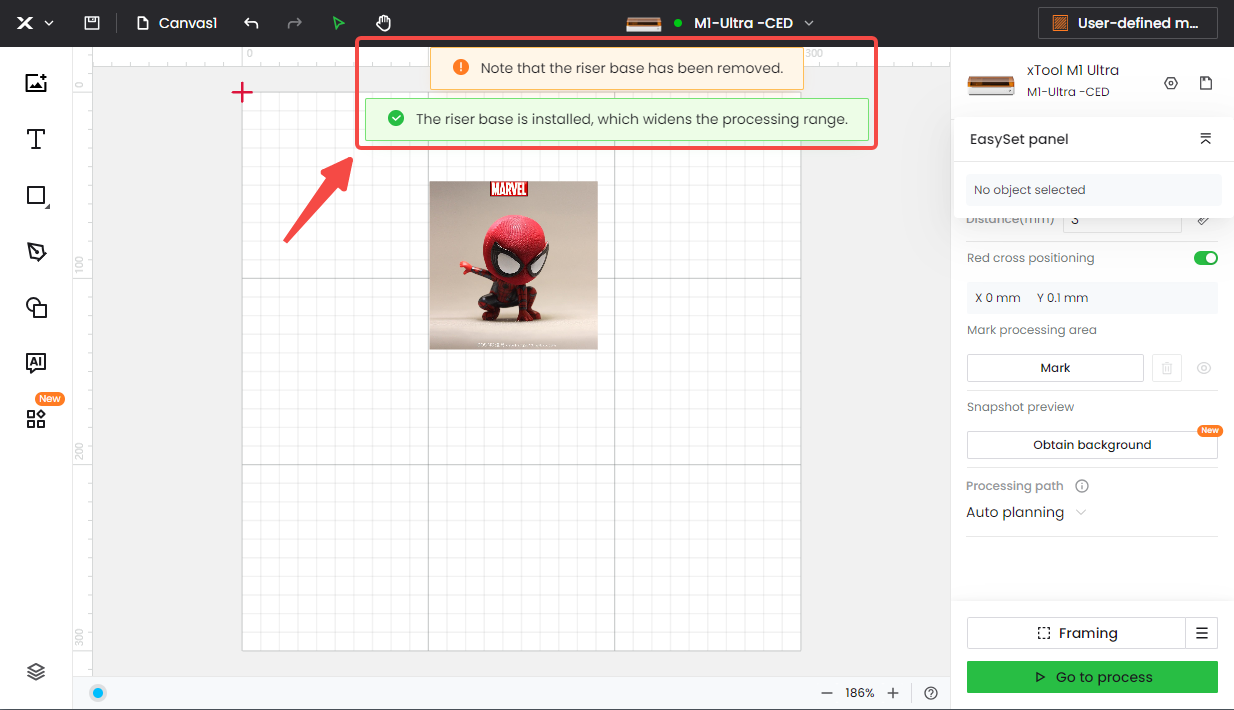
While using your xTool M1 Ultra, you unexpectedly see one or both of the following pop-up messages in the xTool Creative Space (XCS) software, even though you have not physically installed or removed the Riser Base accessory recently:
- "No Baseplate/Riser Base was detected. Please install it correctly."
This guide helps you troubleshoot this false detection message.
Possible causes
This message usually indicates a detection issue caused by:
- Base Plate: The standard base plate is not seated correctly inside the machine, or its detection sensor, i.e., the hall sensor, is malfunctioning. (This typically occurs when the error appears while only the base plate is installed, without the Riser Base.)
- Riser Base: The riser base accessory is not seated correctly under the machine, or its detection sensor/magnets are malfunctioning. (This typically occurs when the error appears while the riser base is installed, and the standard base plate has been removed.)
Scenario identification
The specific troubleshooting steps depend on your M1 Ultra's current physical setup. Please identify which scenario matches your configuration and follow the corresponding steps below:
- Scenario A: You are using the standard Baseplate inside M1 Ultra machine (the Riser Base accessory is not installed).
- Scenario B: You have removed the standard Baseplate and have M1 Ultra machine placed on top of the Riser Base accessory.
Troubleshooting
Please refer to the scenario corresponding to your current setup:
Scenario A: Standard baseplate installed
STEP1: Reseat the baseplate
Sometimes, the baseplate isn't seated correctly, affecting detection.
- Ensure the M1 Ultra is powered ON but not actively processing a task.
- Carefully lift the standard baseplate completely out of the machine's working area.
- Place the baseplate back firmly into its correct position inside the machine, ensuring it sits flat and level.
- Listen carefully: When the baseplate is correctly seated, you should hear a distinct beep sound from the machine.
- If you hear the beep: The issue might be resolved. Continue using the machine and monitor if the incorrect pop-ups reappear.
- If you do NOT hear a beep: Proceed to the next step.
STEP2: Check the hall sensor connections
- Safety First: Power OFF your M1 Ultra and unplug it from the power outlet.
- Carefully turn the machine upside down or place it securely on its side to access the main control board and other components.
- Watch Video Guide: Refer to the video tutorial below for removing the main control board shield.
- Remove the other two specific sensor covers indicated to access the baseplate hall sensor connectors.
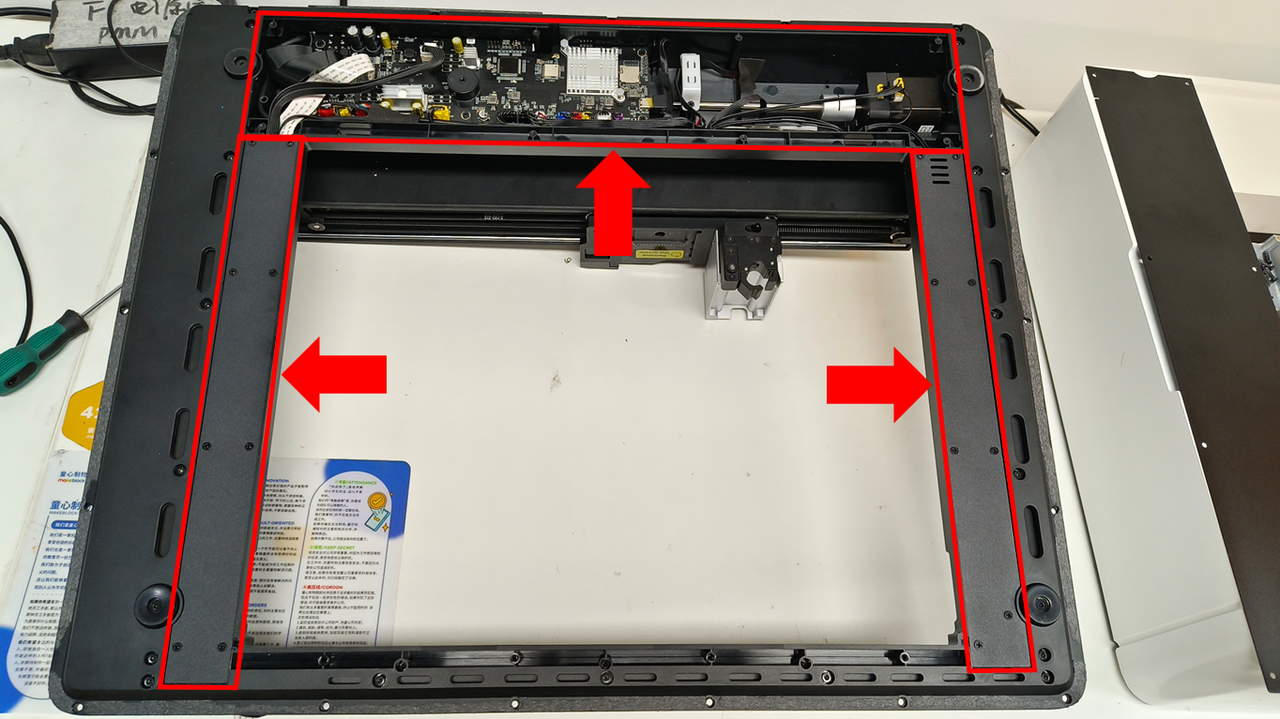
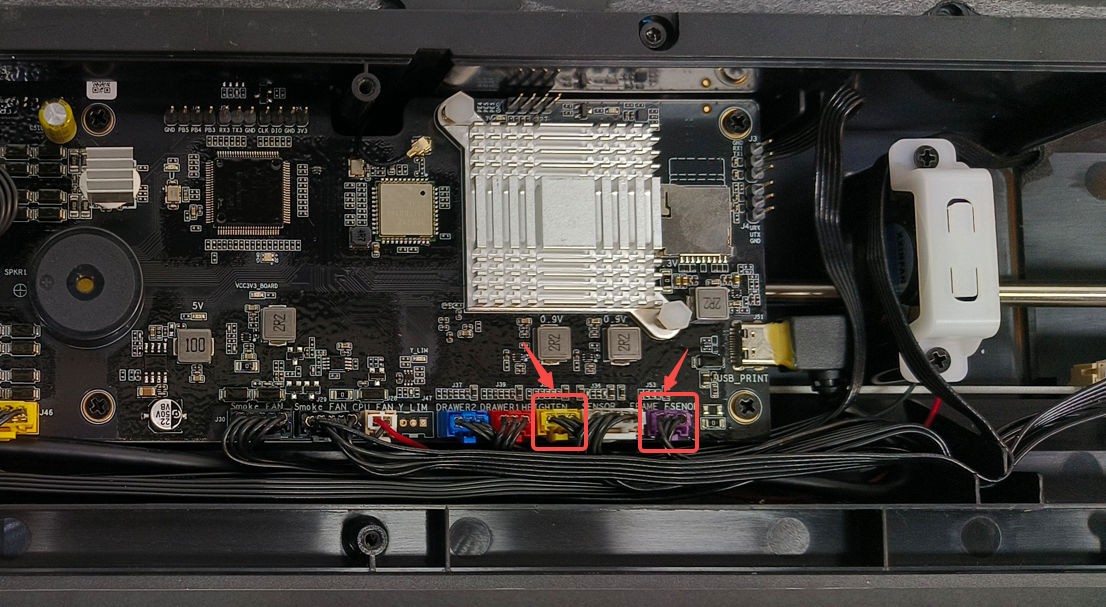
- Locate the Hall sensor connectors and visually inspect if the connectors are loose or partially unplugged.
- If they appear loose: Carefully unplug the connectors completely and replug them firmly, ensuring they seat fully.
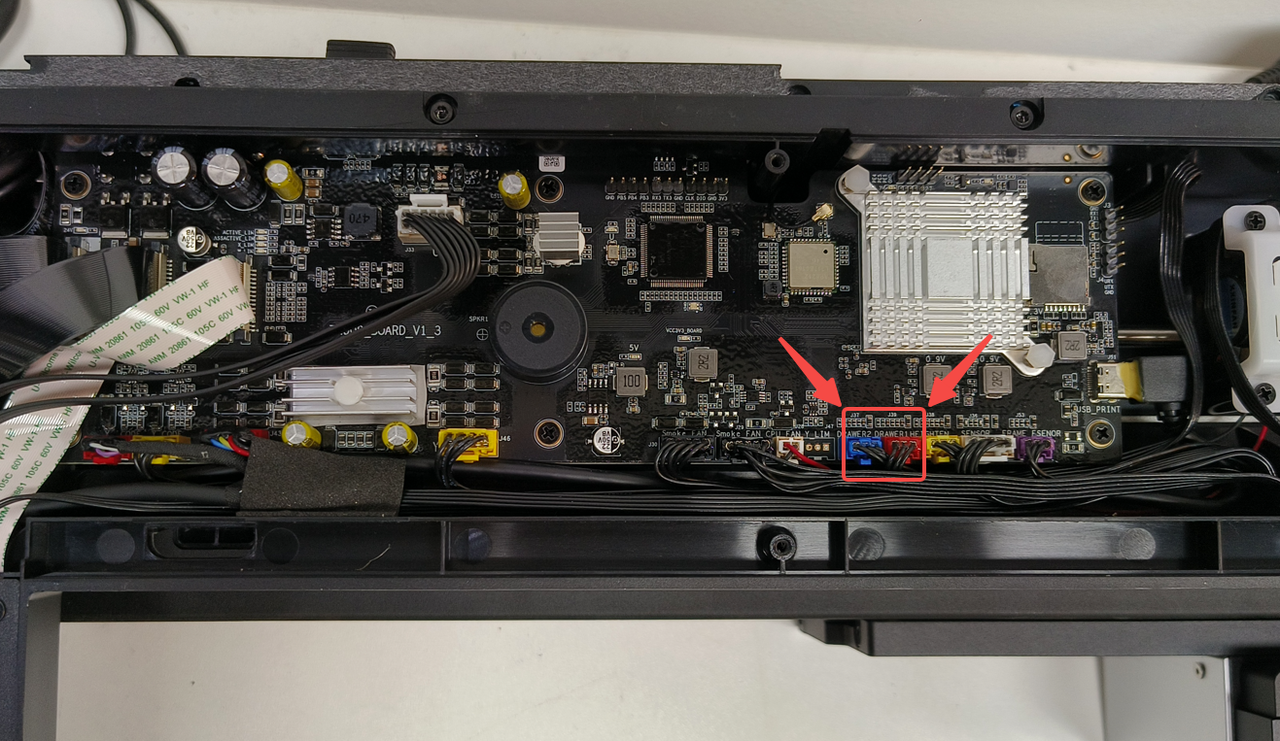 | 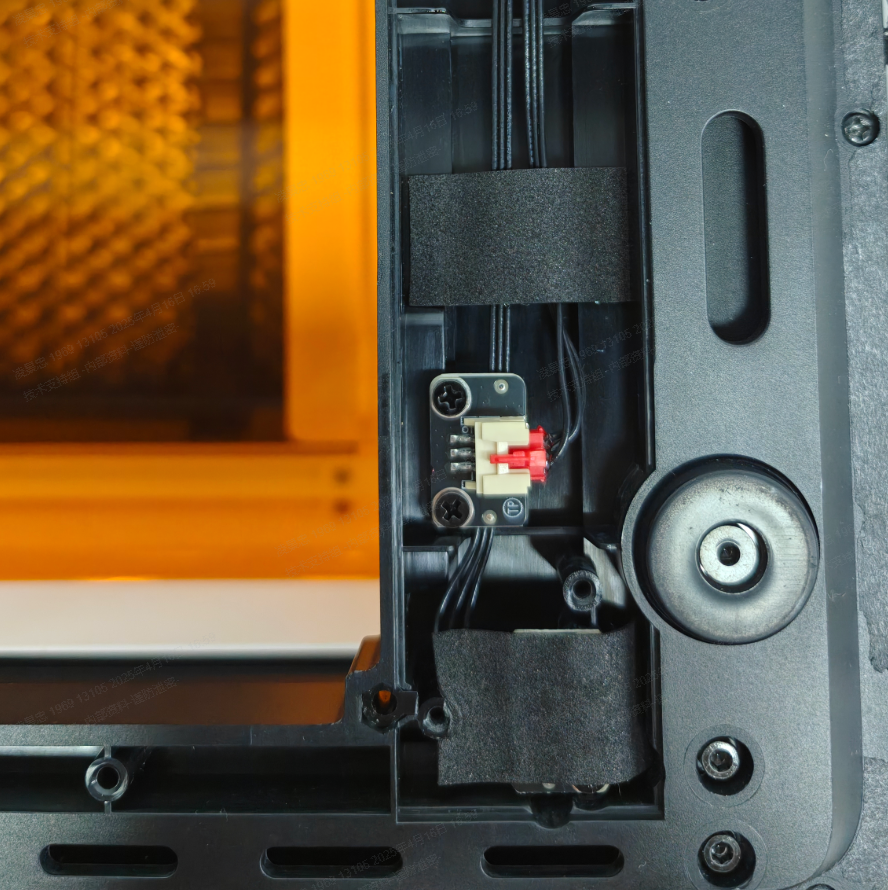 | 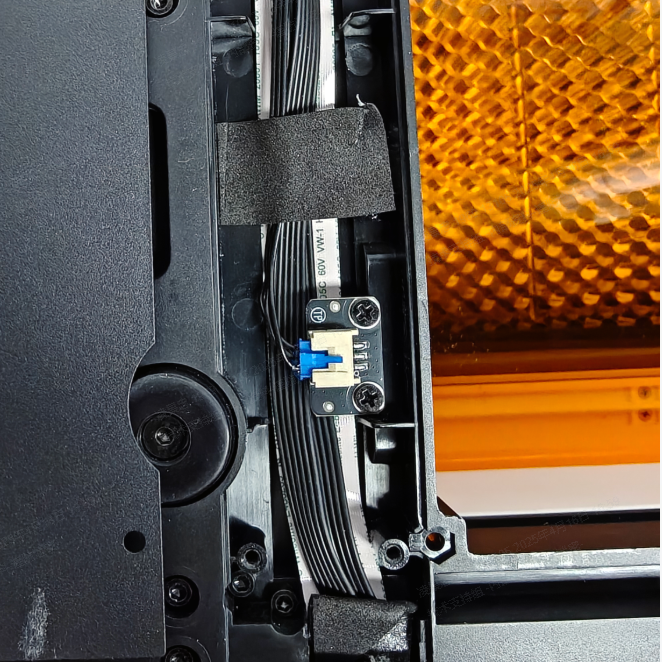 |
- Place the machine upright, plug it in, and power it ON.
- Test the connection by lifting the baseplate slightly and placing it back down. Listen for the beep.
- If you now hear the beep consistently: The connection issue is likely resolved.
- If you still do NOT hear a beep: Proceed to the next step.
STEP3: Replace the hall sensor
If reseating the baseplate and checking the sensor connection did not resolve the issue (still no beep sound), the Hall sensor for the baseplate may be glitching.
- Please proceed to the "Still experiencing issues?" section at the end of this guide for further assistance, potentially involving sensor replacement.
Scenario B: Riser Base installed
STEP1: Reseat the Riser Base
- Ensure your M1 Ultra is powered ON but not actively processing a task. If a job is running, cancel it first.
- Carefully lift the entire M1 Ultra machine vertically off the Riser Base accessory.
- Place the laser device back down firmly onto the Riser Base, ensuring it aligns correctly with grooves on the Riser Base surface.
- Listen and Observe: When the machine is correctly seated, you should hear a beep sound. Check the XCS software – it should now correctly recognize that the Riser Base is installed.
- Test by slightly lifting and lowering the machine on the Riser Base again, confirming the beep and correct XCS detection.
- If you hear the beep consistently and XCS detects correctly: The seating issue might be resolved. Monitor for unexpected pop-ups.
- If you do NOT hear a beep or XCS detection is still incorrect: Proceed to the next step.
STEP2: Check for magnets in the Riser Base
The Riser Base uses magnets for detection; ensure they are present.
- Carefully lift your M1 Ultra completely off the Riser Base and set the machine aside safely.
- Take a small magnet (like a refrigerator magnet or any known magnet).
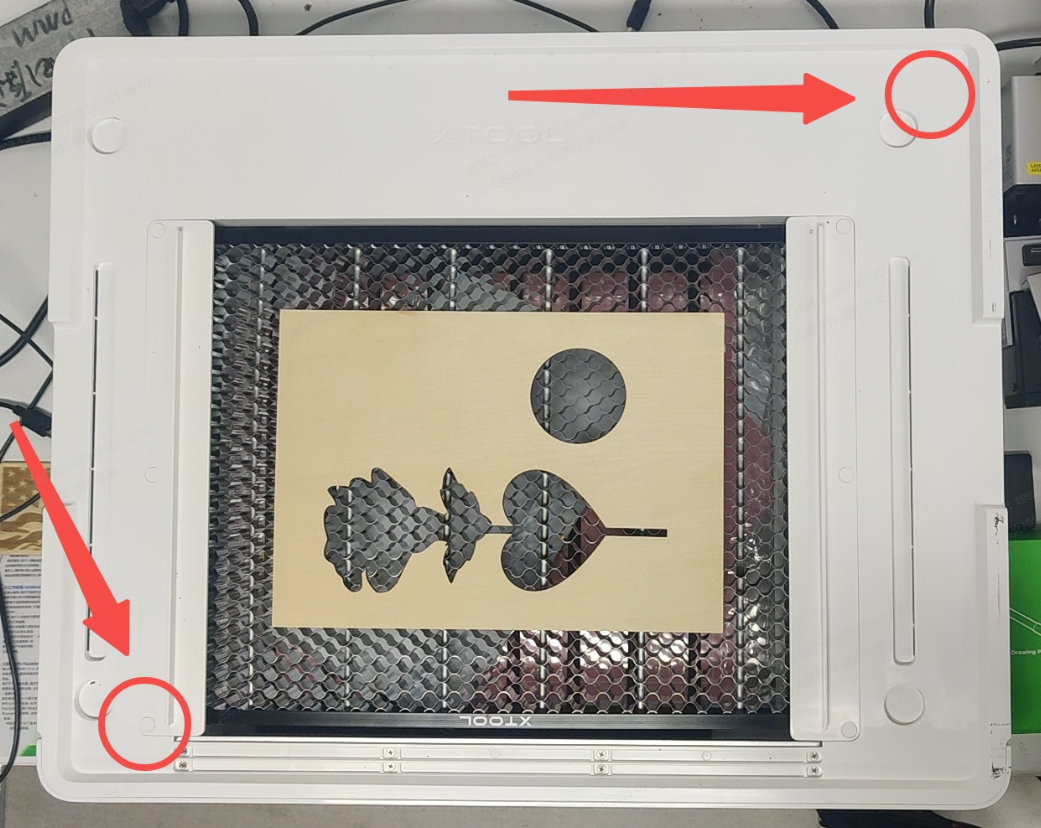
- Identify the two specific locations on the top surface of the Riser Base where M1 Ultra makes contact for detection. Refer to the image below for details.
- Hold your test magnet near these two locations.
- If your test magnet IS strongly attracted to both spots: The Riser Base magnets are present. Proceed to the next step.
- If your test magnet IS NOT attracted to one or both spots: The necessary magnet(s) may be missing or have fallen out. Proceed to the "Still experiencing issues?" section at the end of this guide for further assistance.
STEP3: Check the hall sensor connections
- Safety First: Power OFF your M1 Ultra and unplug it from the power outlet.
- Carefully turn the machine upside down or place it securely on its side to access the main control board and other components. Refer to the video tutorial below for more details.
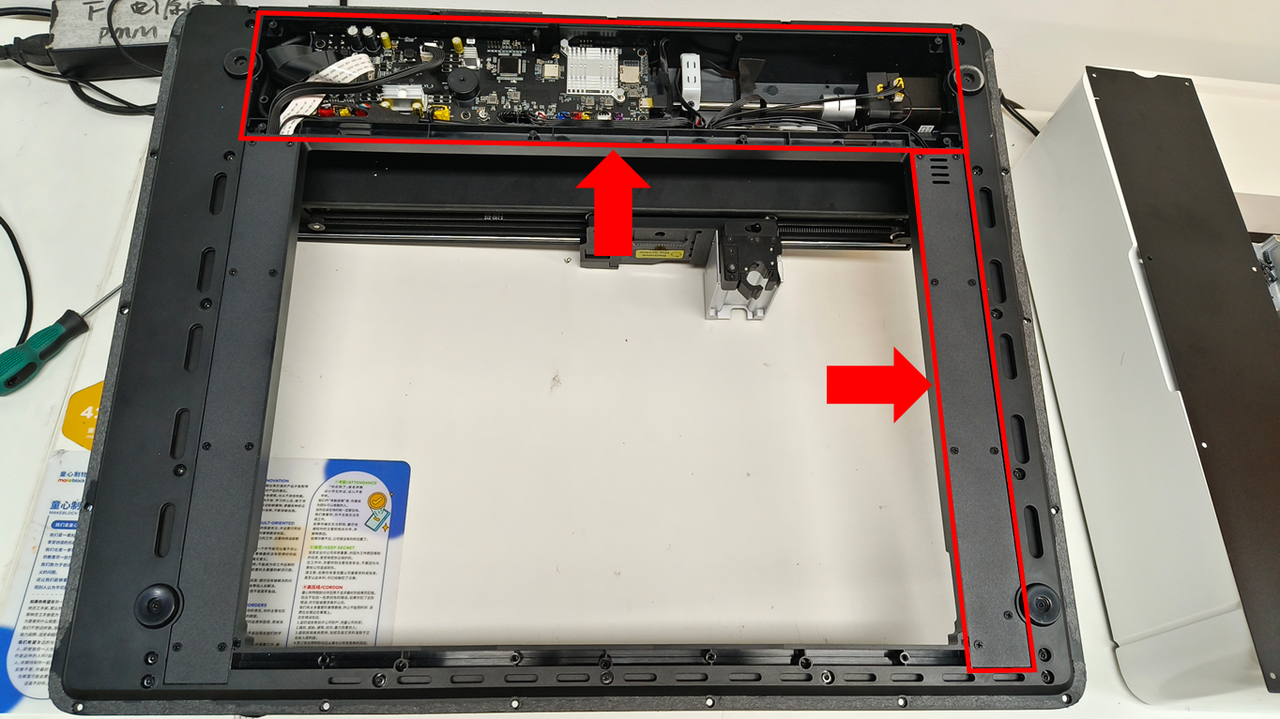
- Locate the Hall sensor connectors and visually inspect if the connectors are loose or partially unplugged.
- If they appear loose: Carefully unplug the connectors completely and replug them firmly, ensuring they seat fully.
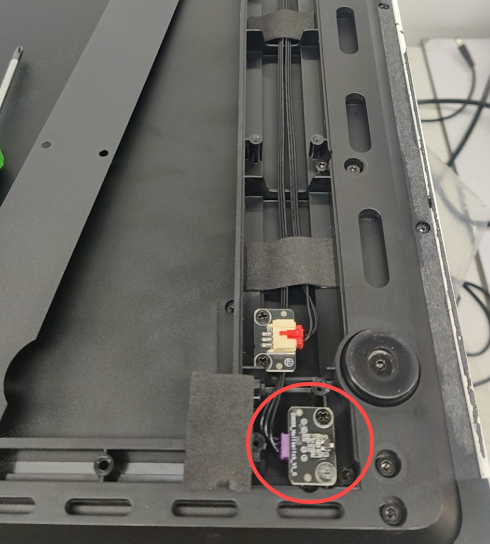 |  |
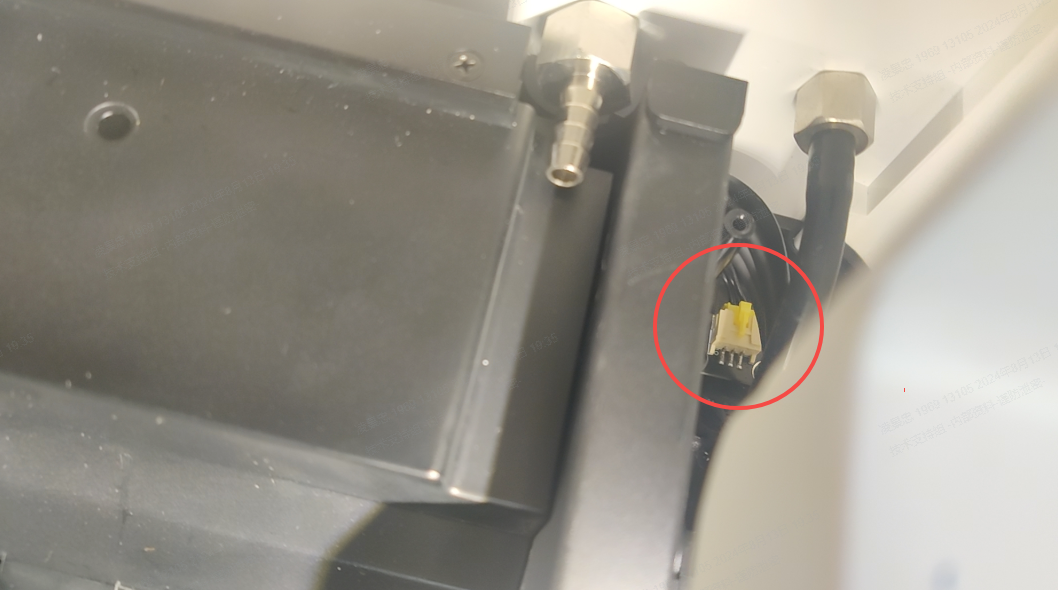
- Inspect the sensor connector near the tube fitting.
- Look inside your M1 Ultra, specifically in the top-right corner area. Locate the hall sensor connector typically found below the tube fitting.
- Visually inspect this internal connector. Does it appear loose or disconnected?
- If this internal connector appears loose, securely reconnect it.
- This may require partial disassembly of the machine's casing. Learn how to disassemble the casing at: Disassemble & Assemble the Casing for xTool M1 Ultra
- Reassemble and power on; test for the beep.
- If the beep sounds: Issue resolved.
- If still silent: Proceed to the next step.
STEP4: Replace the hall sensor
If the above steps did not resolve the issue (still no beep sound), the Hall sensors for Riser Base detection may be glitching.
- Please proceed to the "Still experiencing issues?" section at the end of this guide for further assistance, potentially involving sensor replacement.
Still experiencing issues?
Should the issue persist after completing the preceding steps, submit a ticket via the "Submit a Ticket" button in the "Help Ticket" section below. The standard response time for xTool Customer Service is one business day.
For a prompt resolution, please include the following details:
- Issue Description: A detailed explanation of the observed problem.
- Video Evidence: Attach a video demonstrating the issue, where applicable.
- Troubleshooting Performed: Any troubleshooting steps you have already attempted, along with their results.
This information is crucial for xTool technical support engineers to provide timely assistance.
Documentation feedback
Help improve this content by providing feedback. If this content did not meet your requirements, select "No" in the "Was this page helpful?" section below. Include specific details about what was unclear or missing in the pop-up suggestion box. Feedback submissions are reviewed by xTool technical writers to enhance future documentation.