
Issue description
During xTool Apparel Printer operation, you may receive an error message stating "Encoder strip recognition error" with "Error Code WORK_HEAD_MOVE_EXCEPTION". This message may appear as a pop-up window in the software or directly on LCD panel. The error indicates that the system is unable to correctly detect the encoder strip.
- Please follow these steps to identify and resolve the issue.
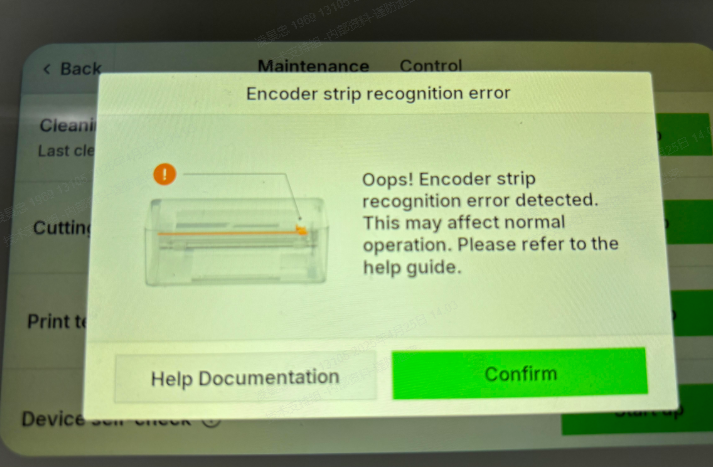
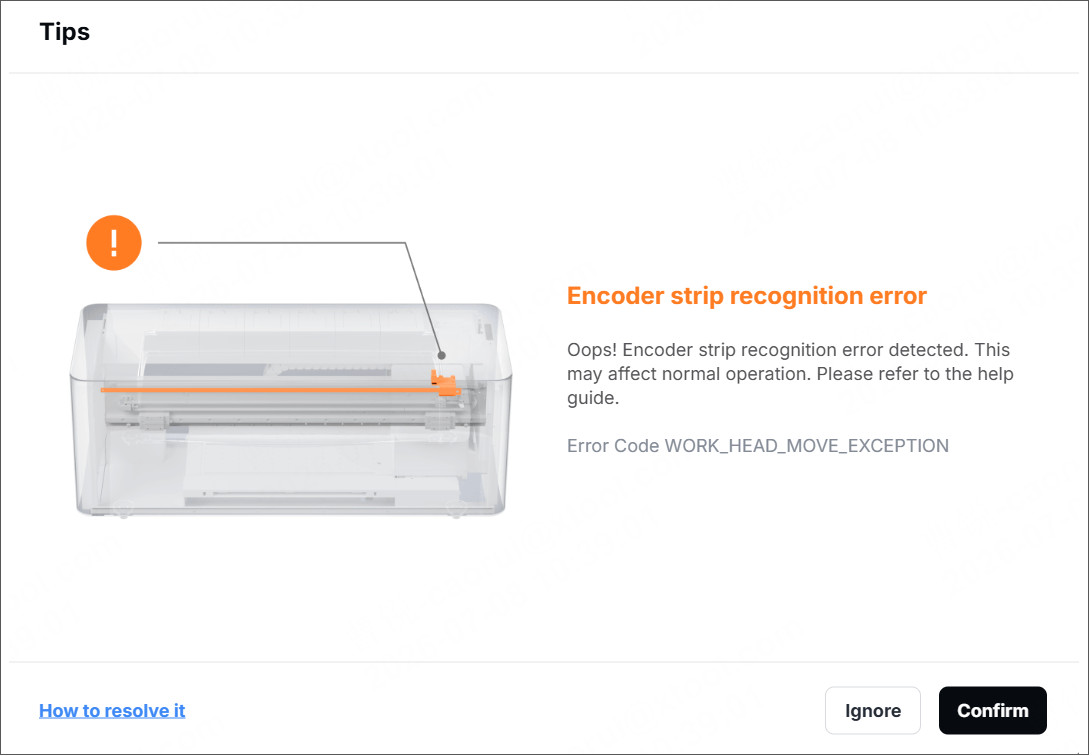
Possible causes
- The encoder strip has become detached or is misaligned from its correct position.
- The encoder strip is dirty (e.g., with dust, ink mist, or grease).
- The encoder strip is damaged (e.g., scratched, bent, or kinked) or has failed.
Troubleshooting procedure
Please identify which scenario applies to your situation.
Scenario A: Error occurs during first-time setup
If this error appears while you are setting up your device for the very first time:
- Complete the Initial Configuration
- Follow all on-screen prompts on the printer's LCD display to finish the first-time setup.
- Recalibrate the System
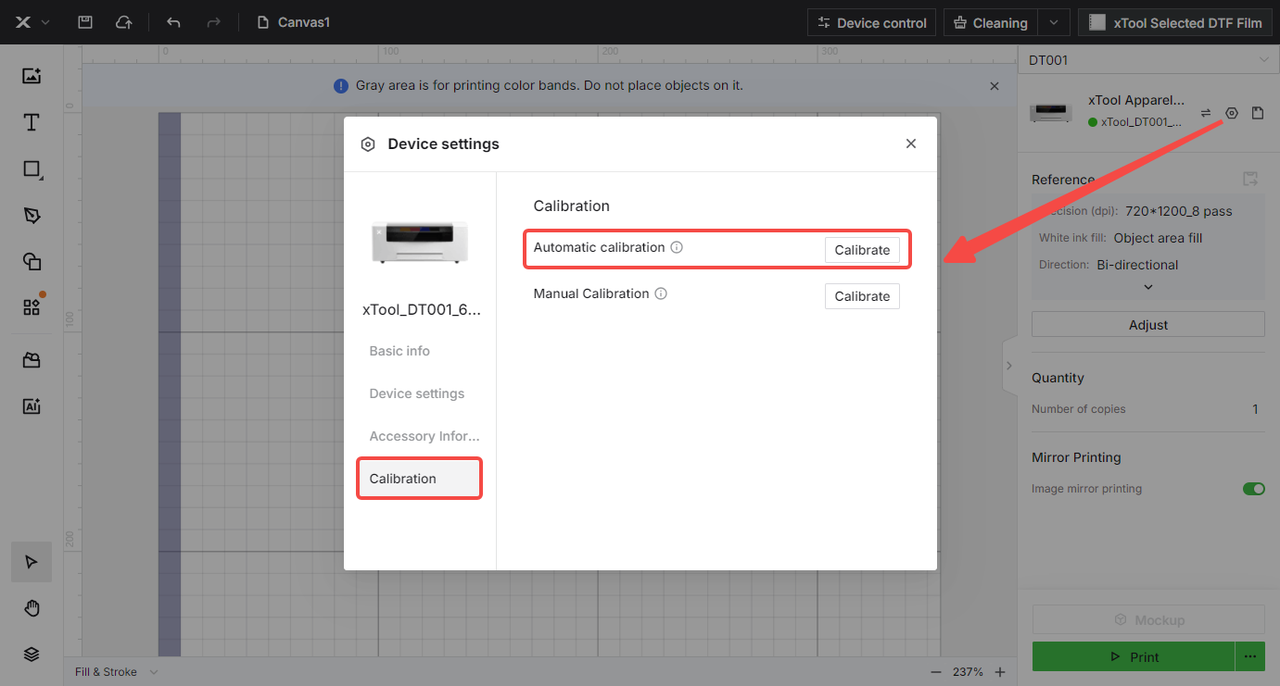
- In xTool software:
- Navigate to:
Device settings>Calibration>Automatic calibration - Follow the prompts to complete the calibration process. This recalibration after the initial setup often resolves encoder errors that occur during the setup phase.
- Navigate to:
- Test Operation
- Run a test operation to verify the error has been resolved.
Scenario B: Error occurs during regular use
STEP 1: Check encoder strip position
Required tool: Lint-free cloth
Inspect Strip Placement
- Gently slide the print carriage all the way to the left side of the printer.
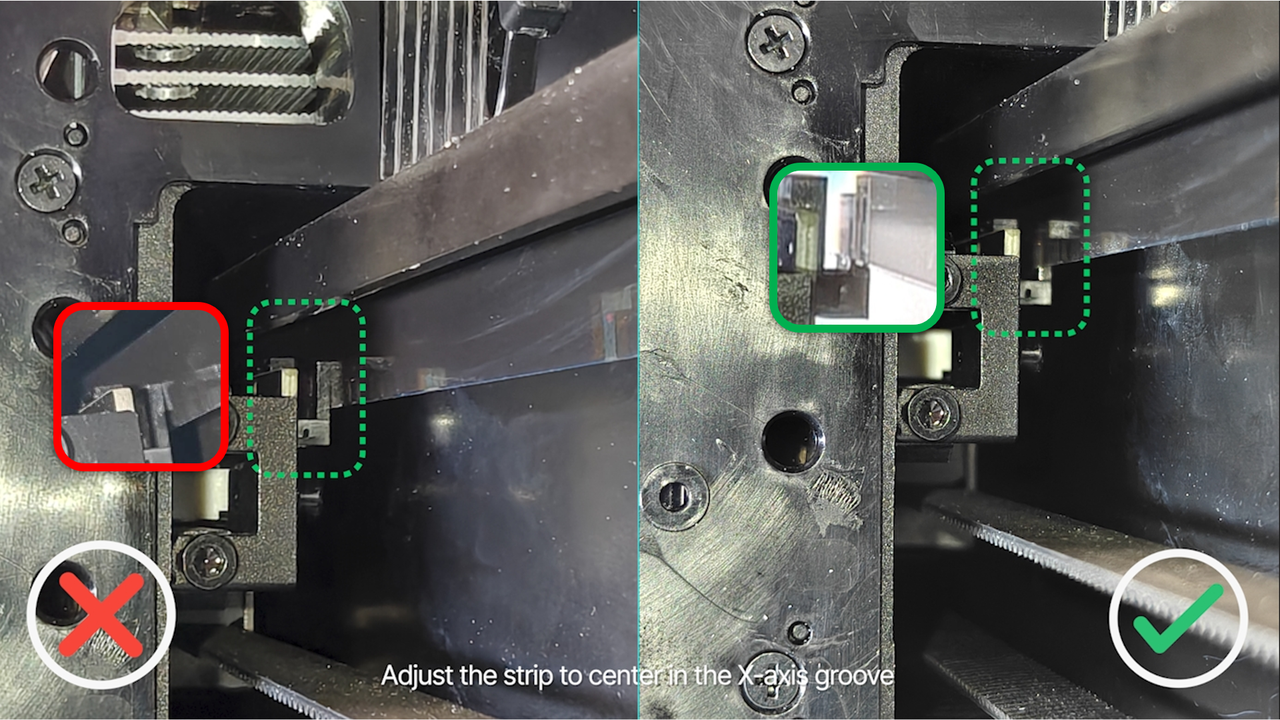
- Examine whether the encoder strip (a thin, semi-transparent plastic strip) at the back of the print carriage is properly seated in the groove beneath the X-axis rail.
Reposition if Necessary
- If the strip has detached or is out of position:
- Use a lint-free cloth to gently adjust the strip back into position.
- DO NOT touch the encoder strip with bare hands to avoid contamination.
- Reference video: Refer to the video tutorial below.
- Specific section: 1:09-1:42 minutes.
Check for Movement Issues
- Manually move the print carriage along the rail to check if the encoder strip stays in place during movement.
- If the strip derails during movement, refer to the "Still Experiencing Issues" section.
- If the strip remains properly positioned, proceed to Step 2.
STEP 2: Clean the encoder strip
Dust, ink mist, or smudges on the encoder strip can prevent the sensor from reading it correctly.
Required tools: Lint-free cloth, Anhydrous ethanol
Proper Cleaning Procedure
- Apply a small amount of alcohol to a clean, lint-free cloth.
- Gently wipe the encoder strip from side to side along its entire length. DO NOT apply excessive pressure.
- After cleaning, allow a moment for the alcohol to evaporate completely. Visually confirm the encoder strip is still correctly seated in its groove.
- Reference video: Refer to the video tutorial below to learn how to clean the encoder strip properly.
- Specific section: 1:09-1:42 minutes.
Verify Resolution
- Test the printer operation after cleaning.
- If the error persists, proceed to Step 3.
STEP 3: Replace the encoder strip
If the error persists after checking positioning and cleaning:
- The encoder strip may be damaged, bent, or otherwise failed.
- Replacement of the encoder strip is necessary.
- Follow the video tutorial to learn how to replace the encoder strip: Replace the Encoder Strip for xTool Apparel Printer
- Contact xTool Customer Service for assistance (see "Still experiencing issues" section).
Still experiencing issues?
Should the issue persist after completing the preceding steps, submit a ticket via the "Submit a Ticket" button in the "Help Ticket" section below. The standard response time for xTool Customer Service is one business day.
For a prompt resolution, please include the following details:
- Issue Description: A detailed explanation of the observed problem.
- Video Evidence: Attach a video demonstrating the issue, where applicable.
- Troubleshooting Performed: Any troubleshooting steps you have already attempted, along with their results.
This information is crucial for xTool technical support engineers to provide timely assistance.
Documentation feedback
Help improve this content by providing feedback. If this content did not meet your requirements, select "No" in the "Was this page helpful?" section below. Include specific details about what was unclear or missing in the pop-up suggestion box. Feedback submissions are reviewed by xTool technical writers to enhance future documentation.

