
Issue description
During the firmware upgrade process, the printer may fail to successfully update its firmware. Please follow these steps to identify and resolve the issue.
Possible causes
- Poor WiFi Connection: A weak or unstable WiFi signal can interrupt the firmware download.
- Sudden Disconnection: The device may lose its connection unexpectedly.
- Unexpected Power Loss: A power interruption during the upgrade will cause the process to fail.
Troubleshooting
STEP1: Check the printer's power status
- Ensure the printer remains powered on throughout the entire update process. The printer must have a stable power supply. Accidentally turning off or unplugging the printer mid-update will cause the firmware update to fail.
- Verify that the power cable is securely connected to both the printer and a working power outlet.
- If you are certain the printer maintained power during the failed attempt, proceed to the next step.
STEP2: Inspect network connectivity (Wi-Fi)
An unstable or weak Wi-Fi signal can interrupt the firmware download and cause the update to fail.
- Check Wi-Fi Signal Strength: Ensure your printer is connected to a Wi-Fi network with a strong and stable signal. If necessary, try moving your printer closer to your Wi-Fi router.
- Use Alternate Network: If your router’s signal is weak, try a mobile hotspot or a different wireless local area network (WLAN) with better throughput.
- If the issue persists, proceed to the next step.
STEP3: Switch to USB-wired upgrade
- To rule out Wi-Fi problems, connect your printer directly to your computer using a USB cable. Initiate the firmware update again through the xTool Creative Space software using this wired connection. This often provides a more stable connection for the update process.
- Original USB Cable Recommended: Always use the cable supplied with your printer; third-party cables may lack data wires or have poor shielding.
- Wired Firmware Update Procedure:
- In XCS, navigate to Device settings > Firmware Upgrade and select the Check for updates option.
- Follow on-screen prompts to download and apply the firmware over USB.
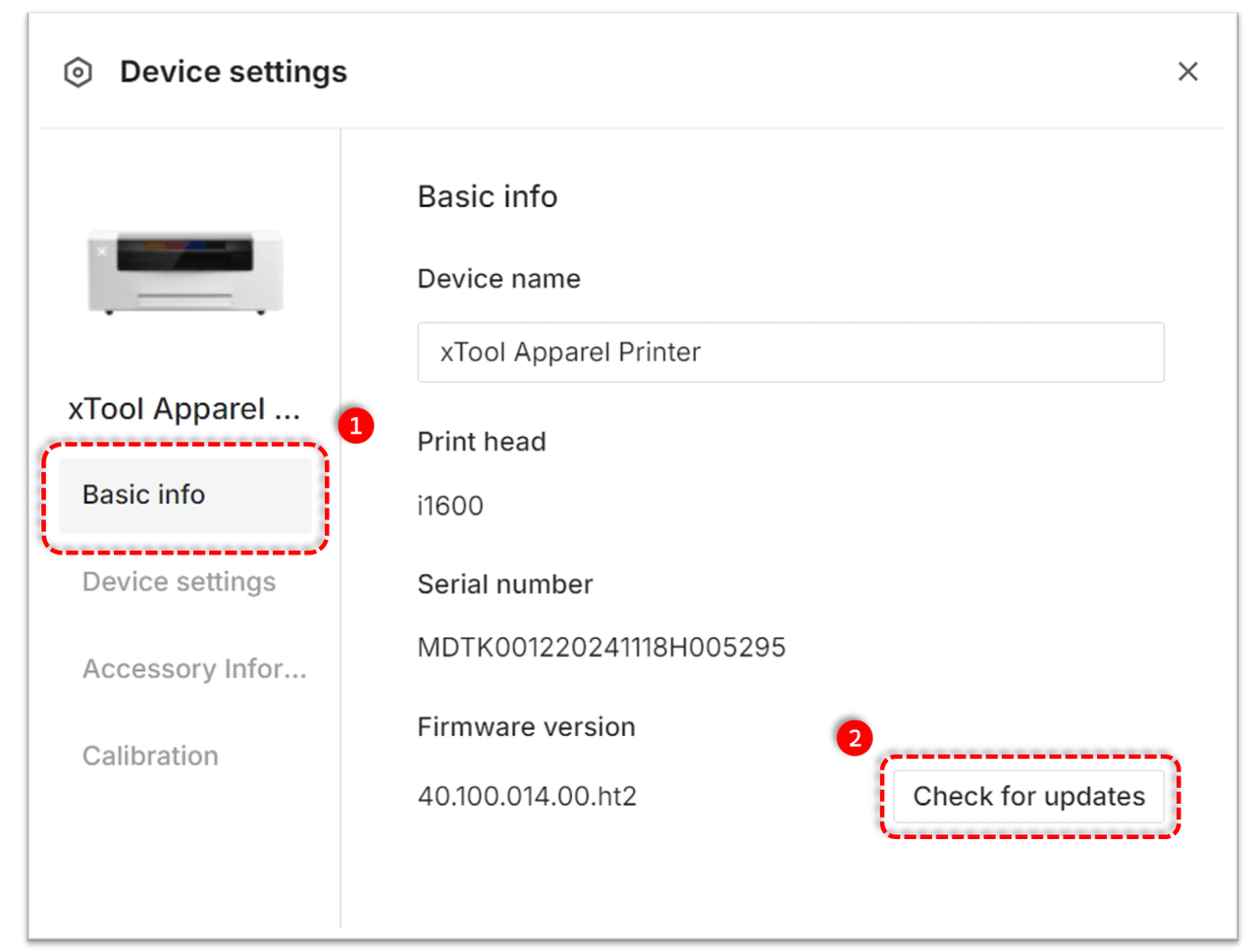
- Pause VPN/Firewall: Disable VPNs or firewall rules that could block XCS from reaching the firmware server.
If the firmware update still fails even after ensuring stable power (STEP1) and trying the update via Wi-Fi (STEP2) and a direct USB connection (STEP3), please proceed to the next section below.
Still experiencing issues?
Should the issue persist after completing the preceding steps, submit a ticket via the "Submit a Ticket" button in the "Help Ticket" section below. The standard response time for xTool Customer Service is one business day.
For a prompt resolution, please include the following details:
- Issue Description: A detailed explanation of the observed problem.
- Video Evidence: Attach a video demonstrating the issue, where applicable.
- Troubleshooting Performed: Any troubleshooting steps you have already attempted, along with their results.
This information is crucial for xTool technical support engineers to provide timely assistance.
Documentation feedback
Help improve this content by providing feedback. If this content did not meet your requirements, select "No" in the "Was this page helpful?" section below. Include specific details about what was unclear or missing in the pop-up suggestion box. Feedback submissions are reviewed by xTool technical writers to enhance future documentation.

