
Overview
This guide will help you troubleshoot issues when your P2S device fails to connect to the xTool Creative Space (XCS) software via USB.
It is divided into two parts:
- Device not detected: This section covers potential causes like USB cable problems, driver errors, VPN interference, security software conflicts, and macOS System Integrity Protection (SIP) issues.
- Device detected but fails to connect: This section focuses on troubleshooting XCS plugin-related issues and firmware discrepancies.
Prerequisites
- Windows/Mac Computer (with XCS installed)
- A two-in-one screwdriver (comes with the machine)
Preliminary check
Before diving into the troubleshooting steps, please ensure:
- the main control board's indicators are functioning correctly;
- If the indicators are not staying lit without flashing or blinking, contact our customer service team for assistance. (Click the chatbox in the lower right corner of this page, or use the email and phone information provided at the bottom of the page.)
- To check the main control board indicators, you will need to remove the left cover. Refer to the video guide Remove the Casing of xTool P2 Laser Engraver (from 2:38 to 3:36) for detailed instructions.

- the cable is plugged into the correct interface: the port located on the left side of the machine, rather than the accessory interface at the back.

Troubleshooting procedures
1. Device not detected

#1 USB cable issues
- Check if you're using the xTool-provided USB cable.
- Unplug and reconnect the USB cable at both ends to ensure a secure connection.
- Replace the USB cable with a new one that supports data transfer.
#2 Driver issue
- Open XCS and go to the New Project screen.
- Open the X drop-down options, go to Settings and select Developer mode to check if the drivers were properly installed.

#3 VPN interference
- Exit any active VPN software and restart XCS.
#4 Security software or firewall interference
- Temporarily disable any security software, firewalls, or permission management tools.
- Run XCS as administrator.
#5 macOS SIP (System Integrity Protection)
- This issue is rare but may prevent device detection on macOS system.
- Shut down the computer and boot into Recovery Mode (hold Command + R).

- Navigate to Utilities > Terminal.

- Type "csrutil disable" and press Enter.

- Restart the computer once you see "System Integrity Protection is Off."

#6 USB extension cable exception
- During the preliminary check, instructions were provided to remove the upper left cover. If this has not been completed yet, please refer to the video Remove the Casing of xTool P2 Laser Engraver (from 2:38 to 3:06) to access the main control board.
- Unplug the USB extension cable from the main control board.
- Connect the computer directly to the main control board (any port indicated by the green square in Image 1).

- If the connection is successful, the issue is likely with the extension cable, and replacing it should resolve the problem.
2. Device detected but fails to connect
#1 XCS plugin issue
- This issue may occur after a software update.
- For Windows users:
- Click X, go to Settings and select File Setting, choose debug in the drop down options and click Open.

- Locate the XCS directory and delete the exts folder.


- Restart XCS.
- Click X, go to Settings and select File Setting, choose debug in the drop down options and click Open.
- For macOS users:
The process is the same. In the logs folder, press Command + ↑ to move up a level, locate the exts folder, and delete it.
If the connection still doesn't work after performing the above steps, try the following additional troubleshooting steps.
1. If you are using a MacBook, please enable the following permissions, and then try to connect the device again.
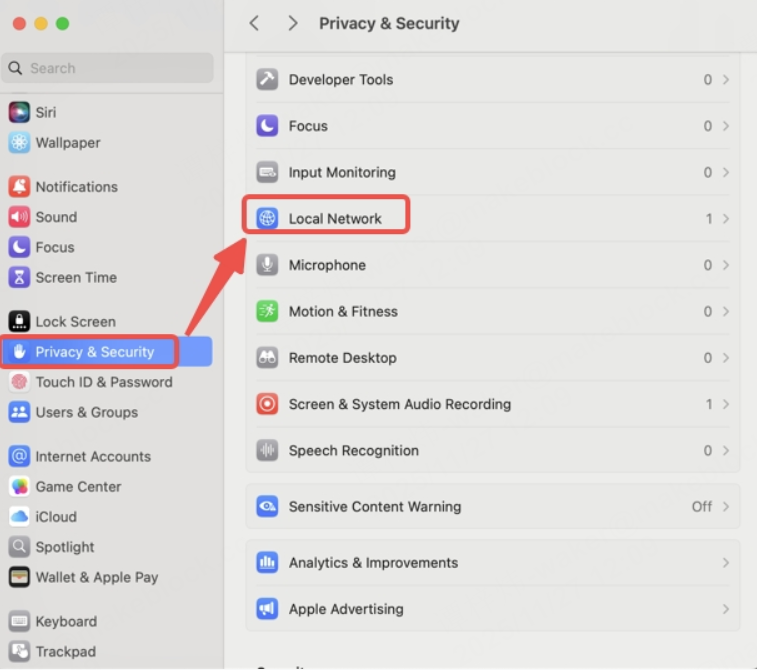
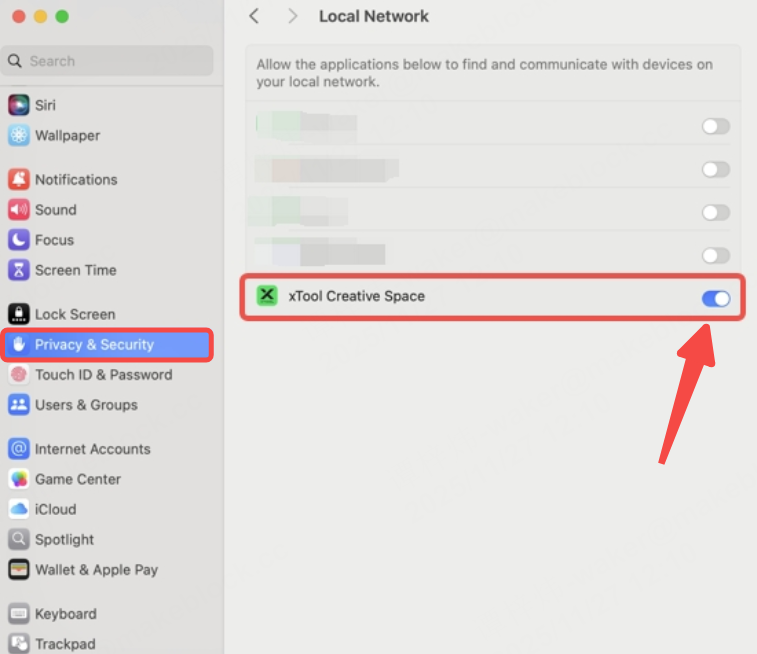
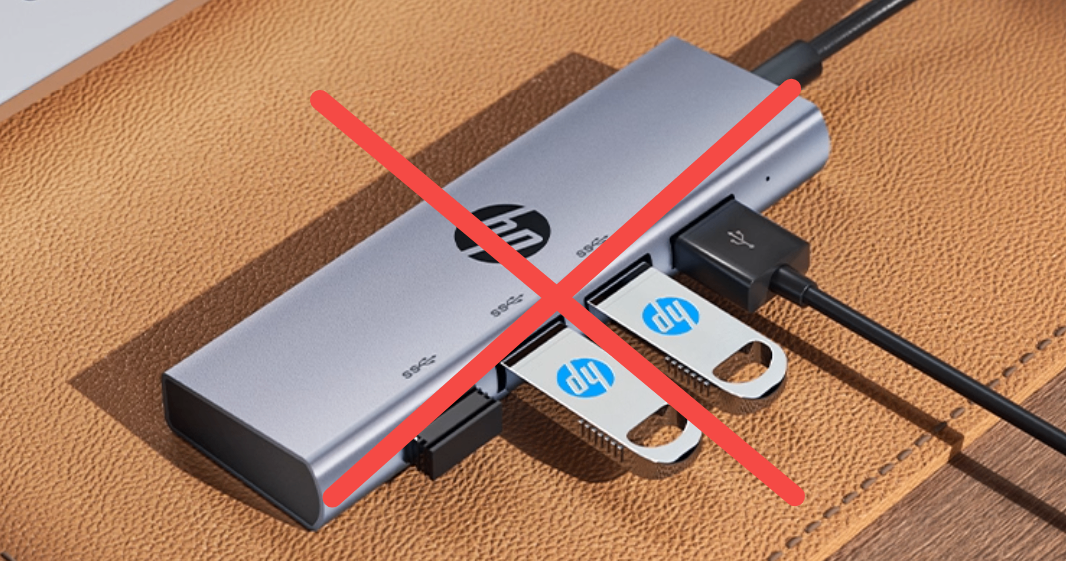
2. Change to a computer with a Windows system, and do not use a docking station. Try to connect the device again.
3. Connect the device and the computer via a USB cable. Copy a link according to your system and open it in a browser.
For macOS: http://201.234.4.1:8080/system?action=version_v2
For Windows: http://201.234.3.1:8080/system?action=version_v2
- If the message is as follows, it means both the USB cable and the main control board work properly.

- If there is no message shown, it means the main control board, USB cable, and USB extension cable on the main control board should be replaced.
4. Follow the steps to export two files and send them to xTool customer service via email.
(1) Go to Settings in the upper left corner.
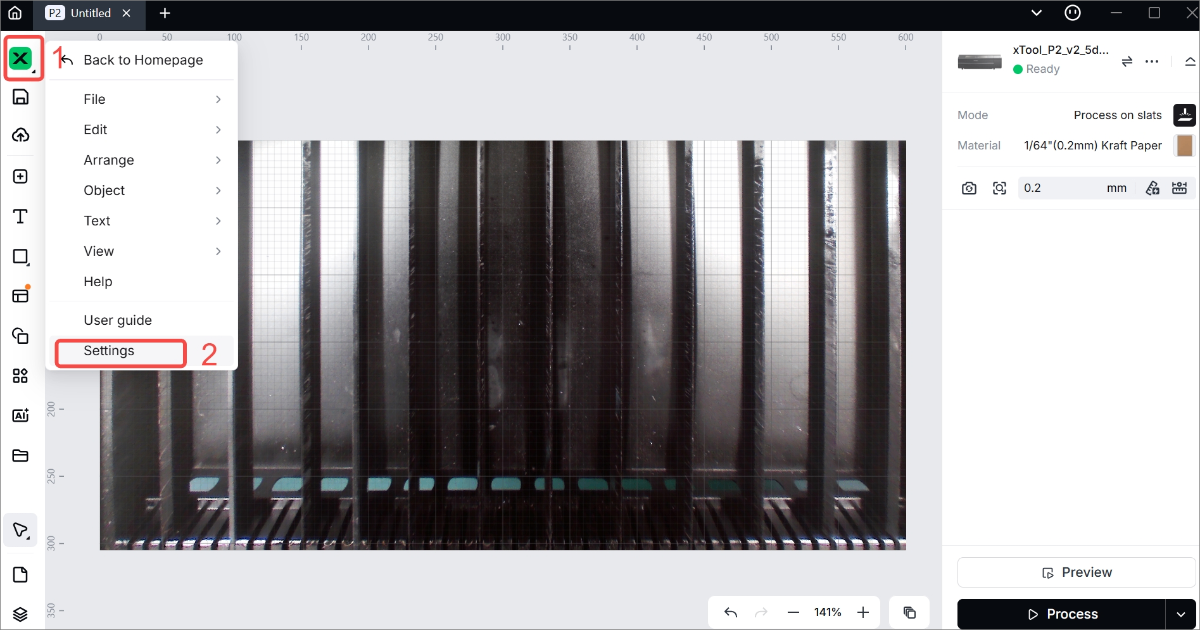
(2) Go to File Setting > Other Setting > Log level > debug. Click Open.
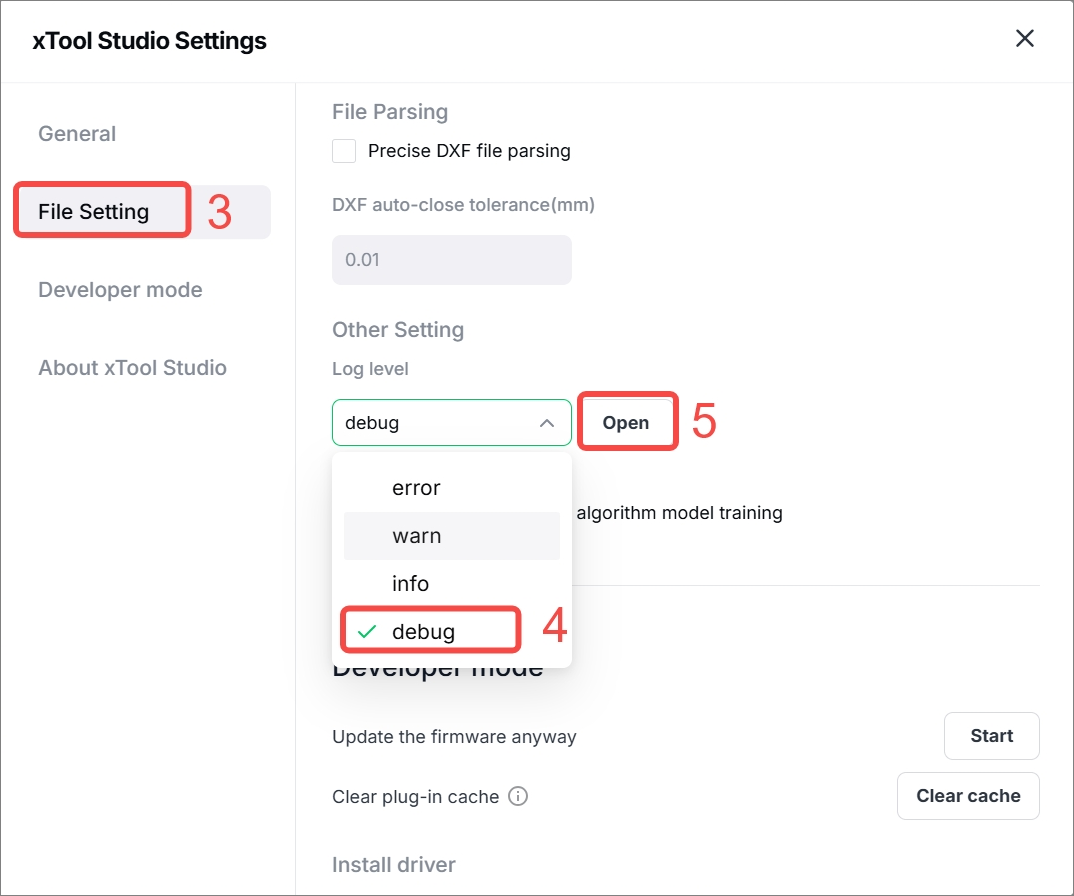
(3) Click Roaming in the path.
(4) Double click to open the file folder "xcs".
(5) Copy the file folder "logs" and the file "usedDevice.json" and send them to us via email.
Send the two files to support@xtool.com. In your email, provide a detailed description of the issue and list the troubleshooting methods you have already tried so that we can determine an appropriate solution as quickly as possible.
Still experiencing issues?
Should the issue persist after completing the preceding steps, submit a ticket via the "Submit a Ticket" button in the "Help Ticket" section below. The standard response time for xTool Customer Service is one business day.
For a prompt resolution, please include the following details:
- Issue description: A detailed explanation of the observed problem.
- Video evidence: Attach a video demonstrating the issue, where applicable.
- Troubleshooting performed: Any troubleshooting steps you have already attempted, along with their results.
This information is crucial for xTool technical support engineers to provide timely assistance.
Documentation feedback
Help improve this content by providing feedback. If this content did not meet your requirements, select "No" in the "Was this page helpful?" section below. Include specific details about what was unclear or missing in the pop-up suggestion box. Feedback submissions are reviewed by xTool technical writers to enhance future documentation.

Services & Help
Learn & Education

Copyright © 2025 xTool All Rights Reserved.