
Issue description
You have inserted the Bluetooth dongle into the extension port of the laser machine, but Air Purifier 2 (AP2) failed to connect to your laser machine.
- AP2 can connect to xTool P3, F2 Ultra series, F2, and Apparel Printer without using the Bluetooth dongle. For troubleshooting guides, refer to Resolve Bluetooth Connection Issues for AP2 (Bluetooth dongle not required).
- P2 and F1 cannot connect to AP2 via a Bluetooth dongle. Instead, please use AP2 under manual operation mode. For more information on selecting the optimal airflow level under manual operation, refer to How to Set the Optimal Airflow Level for AP2.
Possible causes
- Incompatible device model: The laser machine does not support Bluetooth connectivity.
- Improper Bluetooth dongle installation: The Bluetooth dongle is not securely connected.
- Excessive distance: The distance between AP2 and the laser machine exceeds the Bluetooth connection range.
- Damaged main control board interface: The connection port on the main control board of your laser device may be malfunctioning.
Troubleshooting
Step 1 Check compatibility
Ensure that your xTool laser machine supports Bluetooth connection with AP2. Compatible models include:
- S1
- F1 Ultra
- M1 Ultra
- P2S
If this does not resolve the issue, proceed to the next troubleshooting step.
Step 2 Check Bluetooth dongle connection
Ensure that the Bluetooth dongle is properly inserted into the appropriate port on the laser machine:
- Check that you are using the correct port on your laser machine (refer to the images below).
- Ensure that the dongle is firmly and fully seated in place.
- F1 Ultra
- S1
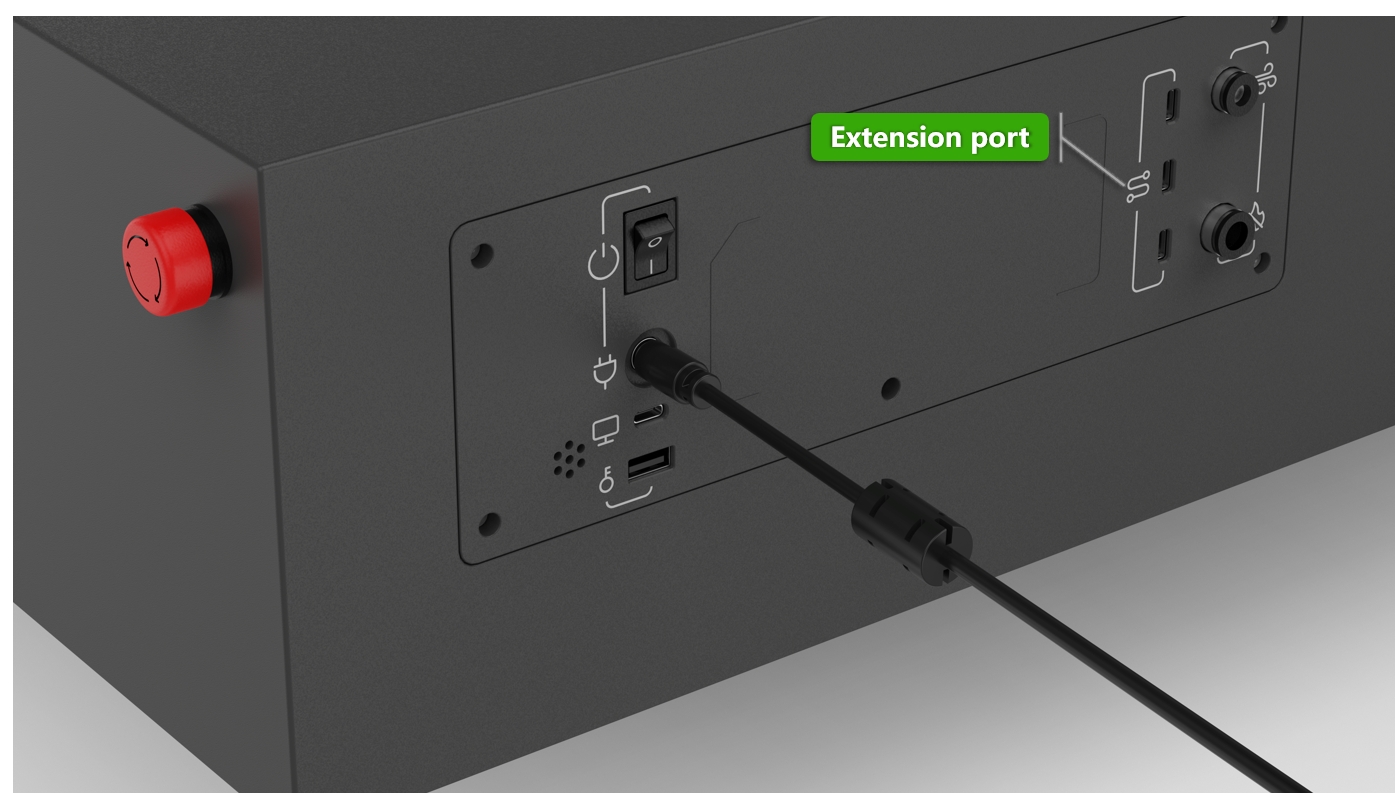
- M1 Ultra
- P2S
If the issue persists, proceed to the next step.
Step 3 Check the distance & Reconnect device
Ensure that the distance between your laser machine and AP2 is less than 5 m.
- If the distance is more than 5 m, Bluetooth communication degrades. Move AP2 within 5 m from the laser machine.
- After relocation, reattempt the wireless connection via the Bluetooth dongle. Refer to the tutorial for more on how to establish a Bluetooth connection with an xTool laser machine properly at: How to Connect an AP2 Wirelessly with your Machine
If none of these steps resolve the unexpected disconnection issue, the Bluetooth dongle may be malfunctioning. Please contact xTool Customer Service for further assistance.
Step 4 Cross test with a different port
- Test a different port: If your laser machine supports Bluetooth accessories and has multiple ports for Bluetooth functionality, try connecting the Bluetooth dongle to a different port to inspect if the issue persists.
- Identify port issues: If the issue persists, this may indicate the original port on the laser machine is faulty. Please contact xTool Customer Service for further assistance.
- If the issue persists, please contact xTool Customer Service at support@xtool.com. Include a detailed description of the issue and a list of the troubleshooting results you have already attempted for further assistance.
Still experiencing issues?
Should the issue persist after completing the preceding steps, submit a ticket via the "Submit a Ticket" button in the "Help Ticket" section below. The standard response time for xTool Customer Service is one business day.
For a prompt resolution, please include the following details:
- Issue Description: A detailed explanation of the observed problem.
- Video Evidence: Attach a video demonstrating the issue, where applicable.
- Troubleshooting Performed: Any troubleshooting steps you have already attempted, along with their results.
This information is crucial for xTool technical support engineers to provide timely assistance.
Documentation feedback
Help improve this content by providing feedback. If this content did not meet your requirements, select "No" in the "Was this page helpful?" section below. Include specific details about what was unclear or missing in the pop-up suggestion box. Feedback submissions are reviewed by xTool technical writers to enhance future documentation.

Services & Help
Learn & Education

Copyright © 2025 xTool All Rights Reserved.