xTool Creative Space (XCS) is an all-in-one software for graphic designing and editing, laser process setting, and machine controlling.
Download and connect to XCS
Minimum and recommended requirements for iPad
Item | Minimum configuration | Recommended configuration |
Processor | A10 | A12 or later |
Operating system | iPadOS 15 or later (except for iOS15.4.1, at which XCS may have exceptions) | |
RAM | 4 GB | 6 GB or more |
Storage | 32 GB | 64 GB or more |
- With the minimum configurations, all the functions of XCS can be used properly. When you import a complex image, however, XCS may fail to run smoothly.
- With the recommended configurations, XCS can run more smoothly when you import and edit a complex image, the software delay may be shorter, and the performance is better.
Download and install XCS
(1) Search for "xTool Creative Space" in App Store or Google Play, or visit xtool.com/software to download and install XCS.

(2) Open XCS. In the left panel, tap Settings and select the language you use.


Connect xTool P2S to XCS
(1) In the top-right corner of XCS, tap + Add project > Create project.


(2) On the top of the project editing page, tap Please connect a device.

Note: If you have connected an xTool device in XCS before, tap the device's name on the top of XCS, and select Connect.  |
(3) Tap WiFi > Configure Wi-Fi.

(4) Ensure that xTool P2S is turned on. Click P2S > Next.

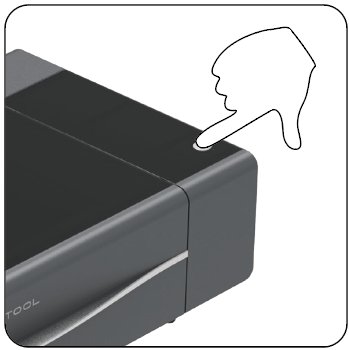
Press and hold the button on the device for a few seconds until the indicator turns yellow. Tap OK, next.

(5) Enter the Wi-Fi name and password, and click OK, next.

Click Go to connect device hotspot, then the page jumps to the Wi-Fi list, and select xTool_P2S.


(6) Go back to XCS. Tap Connection completed. The configuration is completed, and tap Go to connect.


(7) You can see your device name on the list. Tap it to connect it.
Set up xTool P2S in XCS
On the home screen, tap the icon  next to the device name to view the device information.


Process a material in XCS
1. Select the processing mode and material name
On the right side of XCS, select a processing mode. Here we use Process on slats as an example.

(2) Select the name of your material. Tap User-defined material on the right panel to select materials. If you can't find the name of your material, you can select User-defined material and click Confirm.


| 💡 Note: After you select a material on the material list or material library, the software will automatically set parameters for laser processing. The default settings apply to xTool materials. You can adjust the settings based on your needs. If you select User-defined material, you need to set the processing parameters by yourself. |
2. Place a material and design a processing object
(1) Place a material on the baseplate.
(2) Use the tools on the bottom to design processing objects on the material.

| 💡 Note: You can import images, insert shapes, enter text, draw vector graphics, and so on. For more information on how to use XCS to design objects, see Software Learning Center. |
3. Edit objects and set parameters
(1) Select objects on the canvas and set parameters for them.

(2) Click EasySet panel on the right panel, and you can set more parameters for the object.


(3) If you select the user-defined material, click  icon to measure the thickness of the material.

4. Start processing
(1) Click Process in the top right corner.

(2) On the top right corner of the software, click Start.

(3) Press the button on xTool P2S to start processing.