After you insert the Bluetooth dongle of the air purifier into the extension port of the xTool laser machine, you can view information about the inline fan on the xTool software and manually set the airflow level.
Note:
- One xTool laser machine supports only one Bluetooth dongle.
- When you use the inline fan with xTool laser machines with built-in Bluetooth, such as xTool P3, F2, F2 Ultra series, or OS1 Shaker Oven, you do not need to insert a Bluetooth dongle. The connection step is the same as Connect another Bluetooth accessory.
- The xTool software has iterated from XCS to xTool Studio. However, the operations of the inline fan on the software are roughly the same. This document uses the xTool Studio as an example.
Prerequisites
- You have downloaded xTool Studio on your computer and the version is v1.0 or above.
- You have connected the xTool machine to your computer properly.
- You have upgraded the firmware of your laser machine (xTool Studio > Device settings > Basic info > Check for updates).
View information about the inline fan
Step 1. Open xTool Studio and create a project.
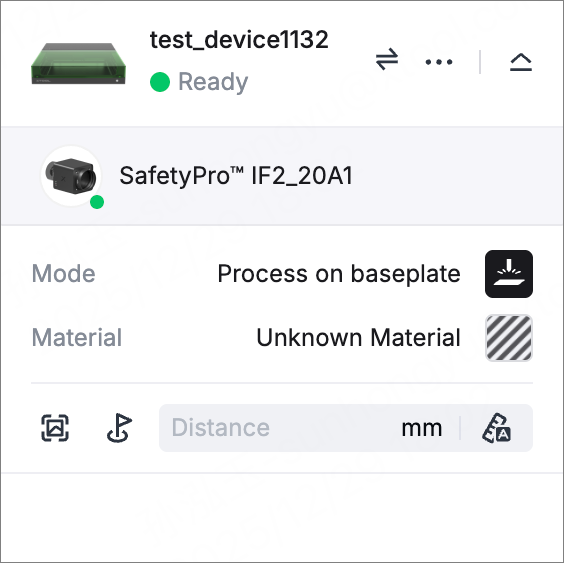
Step 2. On the right panel, select the inline fan you have connected.
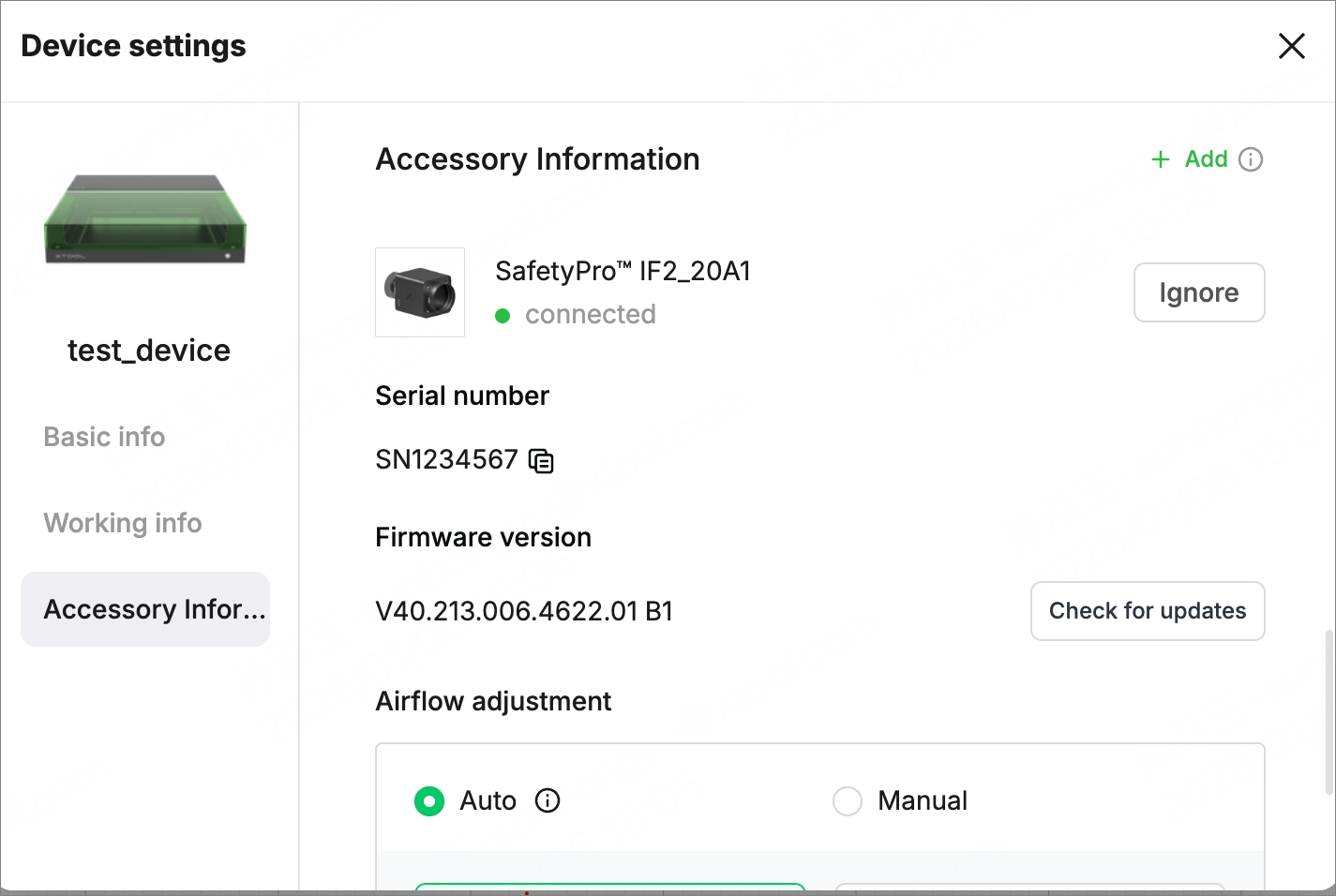
The Accessory Information page is displayed, showing details about the inline fan.
Operate the inline fan
Auto mode
In Auto mode, the inline fan can automatically adjust to the optimal fan speed for smoke exhaust. This mode comes in two sub-modes:
- Regular mode: The inline fan adjusts its speed based on the processing mode and material you select, providing optimal smoke exhaust.
- Quiet mode: The inline fan exhausts smoke at a reduced volume, lowering the noise level.
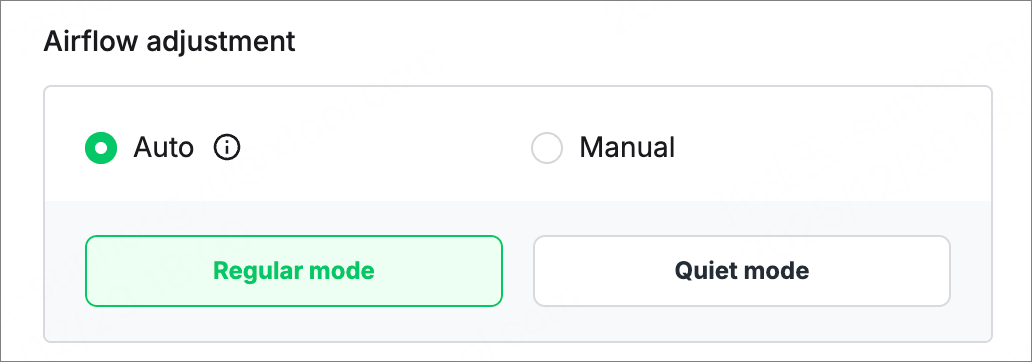
Time the inline fan continues to work: In Auto mode, you can set the fan to continue exhausting smoke for up to 600 seconds after processing is complete.

Manual mode
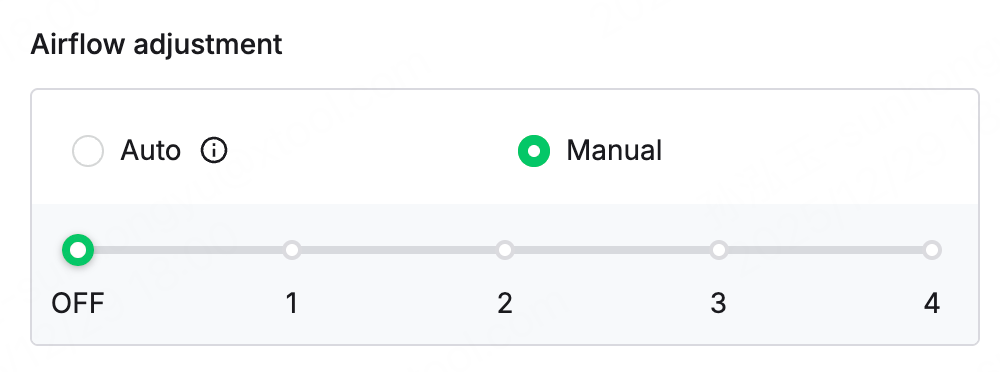
In Manual mode, you can set the airflow level as required.
Connect another Bluetooth accessory
xTool Studio supports connecting more than one Bluetooth accessory via the Bluetooth dongle. Assume that you have connected IF2 to xTool Studio via the Bluetooth dongle. To connect another accessory:
- Press and hold the power button of the inline fan for 5 seconds to enter the "Waiting for connection" mode. The wireless connection indicator will blink white.
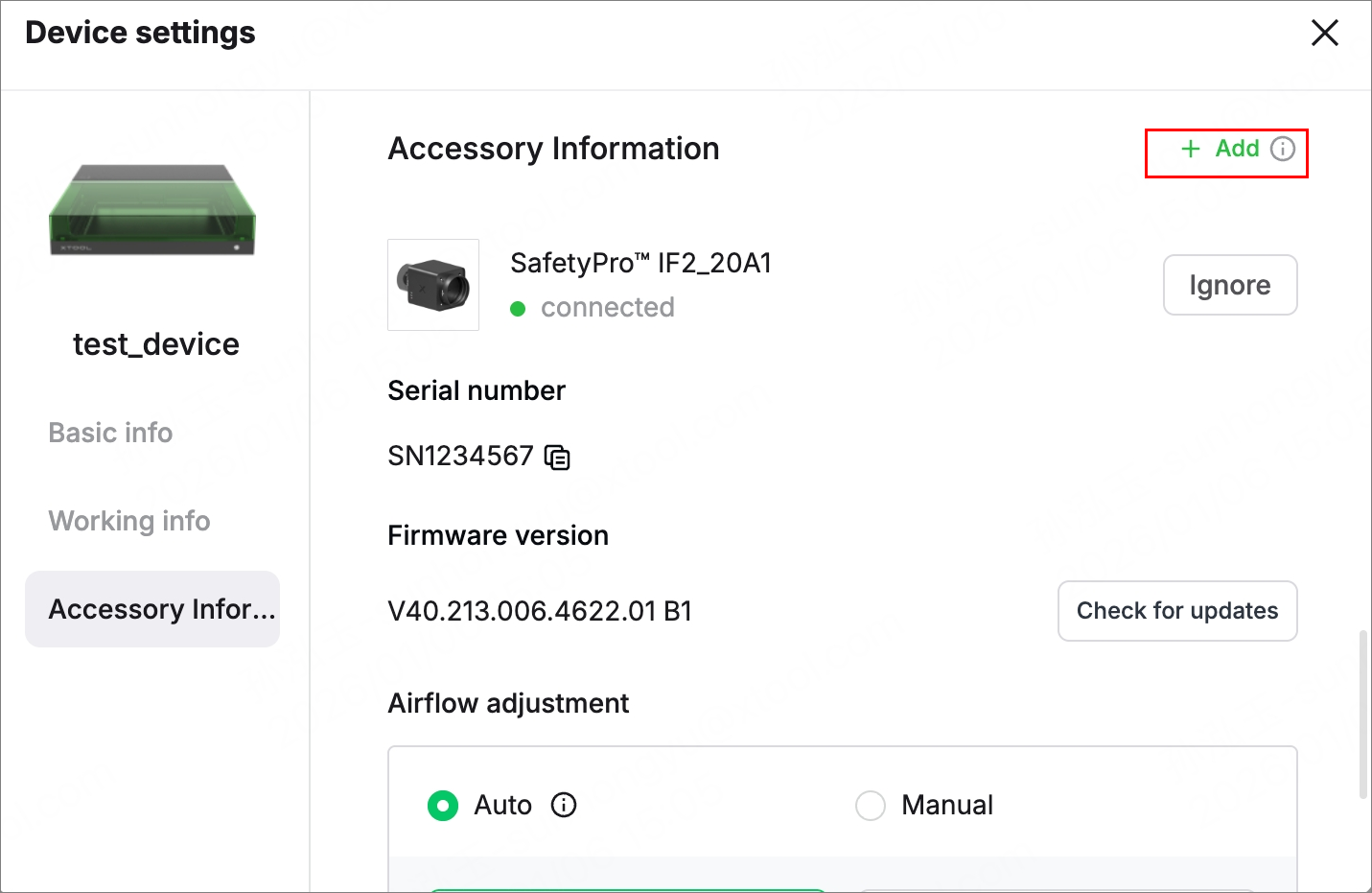
- On the Accessory Information page, click +Add. Ensure that the target accessory is close to the machine during the connection process.
Delete the inline fan
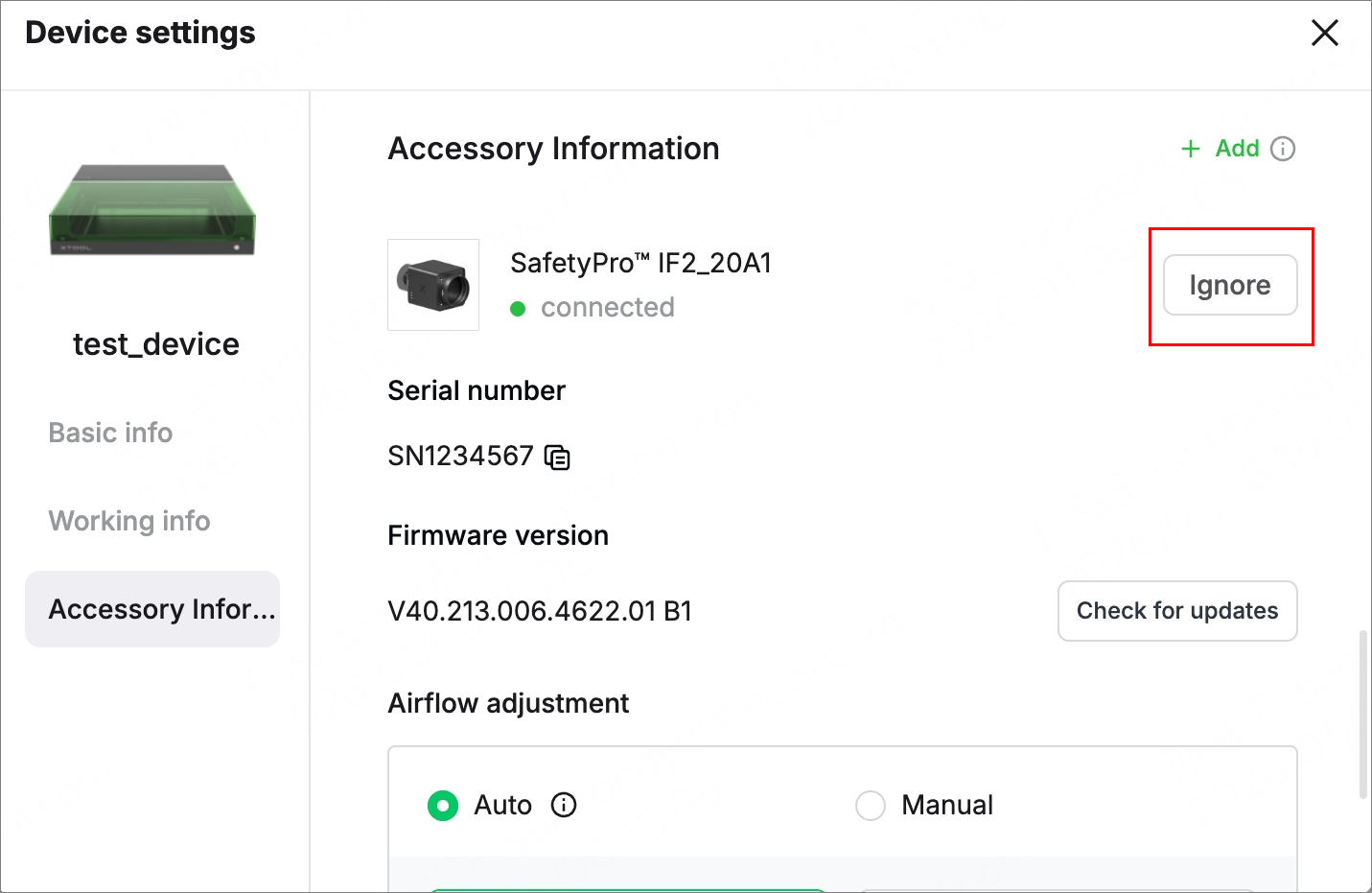
Click Ignore on the Accessory Information page. After being ignored, the inline fan will be deleted from the Accessory Information page.