
Note: If you are using xTool Studio, click here for the latest instructions on using the RA2/RA2 Pro with xTool S1.
You can use xTool S1 with the rotary attachment to process cylindrical materials. With Rotary Attachment 2 Pro, you can also process spherical and irregular materials.
*The usage of RA2 and RA2 Pro is the same.
This page describes how to use xTool S1 with the rotary attachment for processing.
Set up the rotary attachment
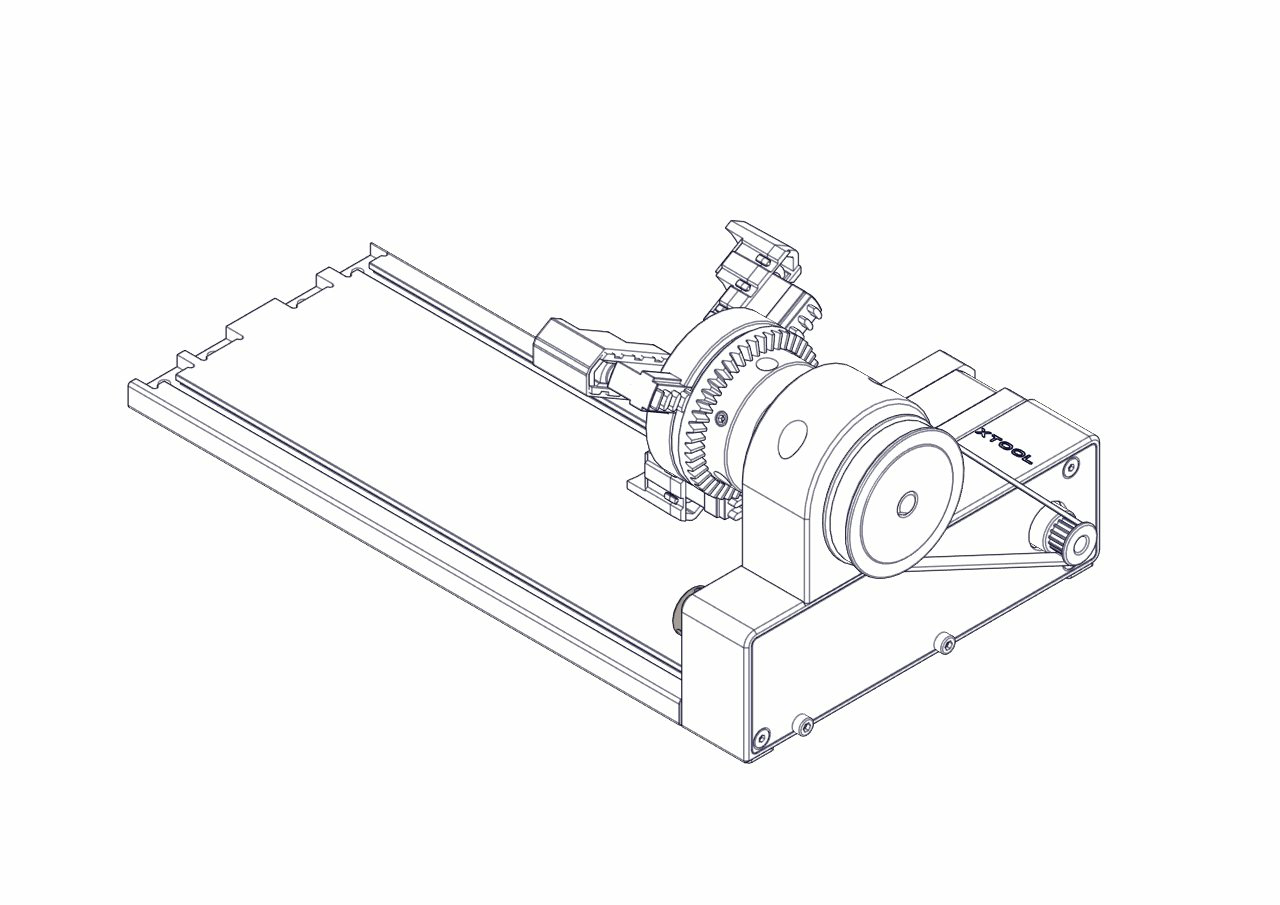
Rotary Attachment 2 Pro supports two working modes: Roller mode and Chuck mode. Rotary Attachment 1 and Rotary Attachment 2 support only the Roller mode.
Assemble and set up the rotary attachment based on your needs.
- If you use the Roller mode, you can set the rotary attachment to A, B, or C level.
Level A | Level B | Level C |
|
|
|
Diameter of material: 3 mm≤d≤50 mm | Diameter of material: 45 mm≤d≤60 mm | Diameter of material: d>60 mm |
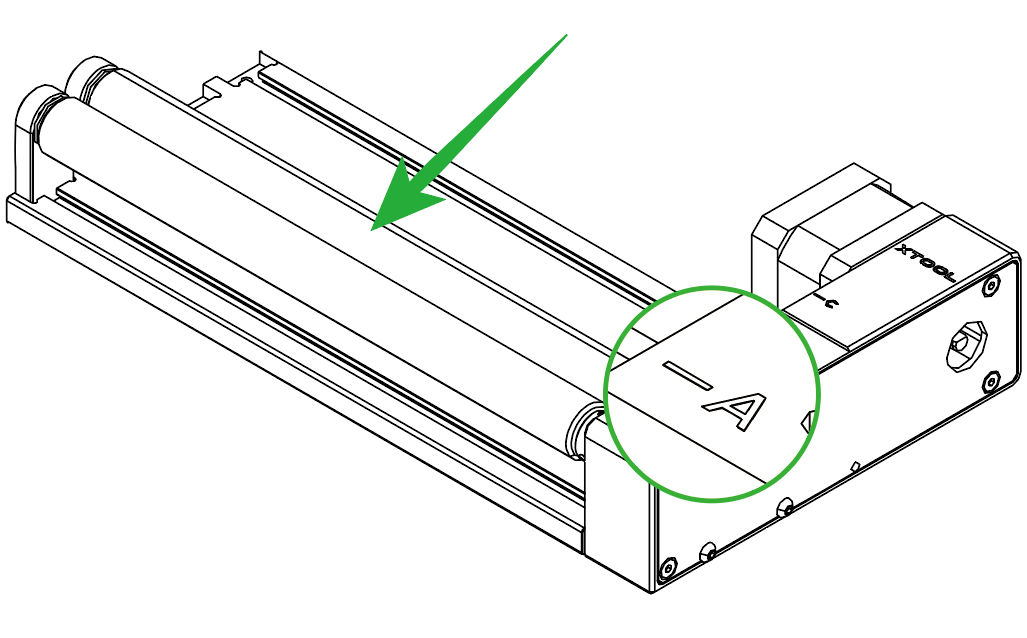
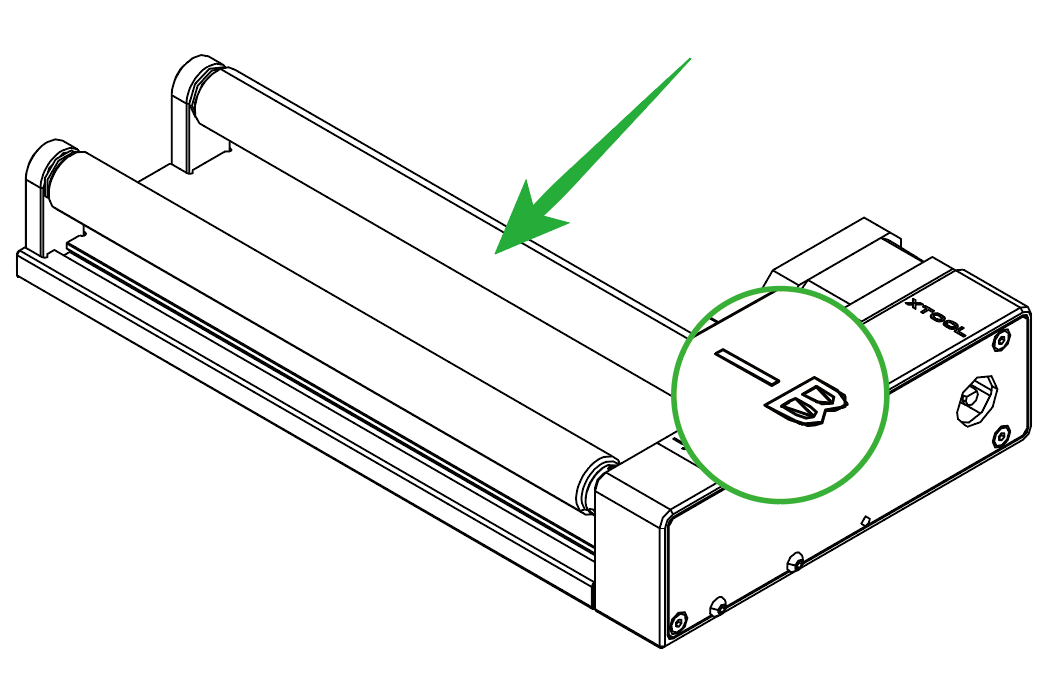
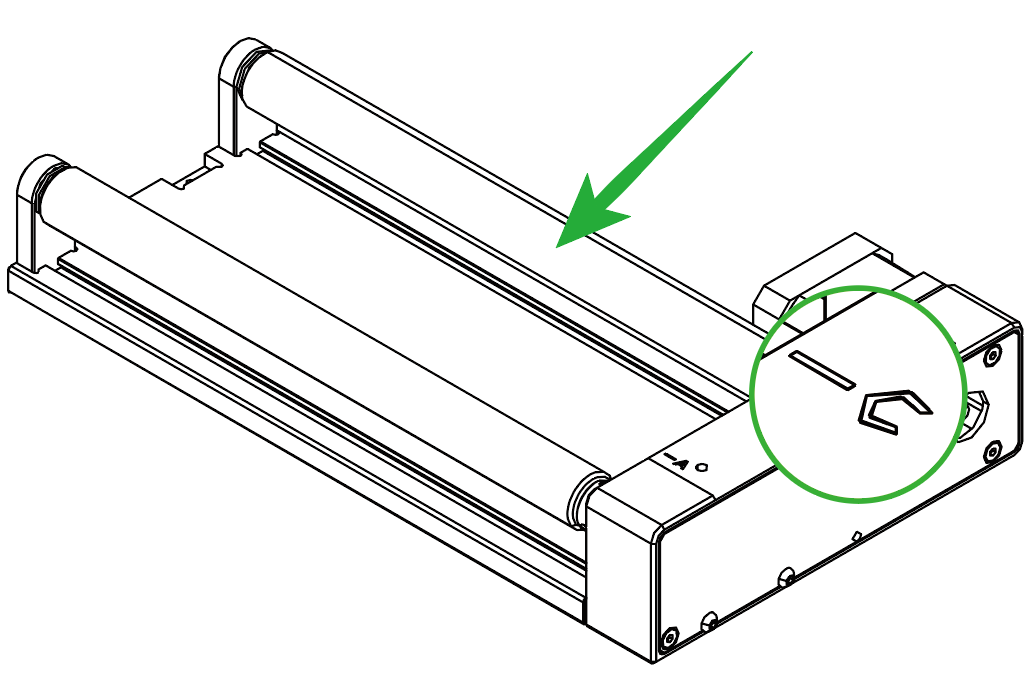
- If you use the Chuck mode, you can install jaw chuck components and jaw components based on your needs.
Connect the rotary attachment to xTool S1
For the riser base of the ordinary version
- Insert one end of the connection cable into the device connection port of the rotary attachment.
Note: If the connection cable included in the rotary attachment pack is incompatible with xTool S1, you need to purchase a compatible one.
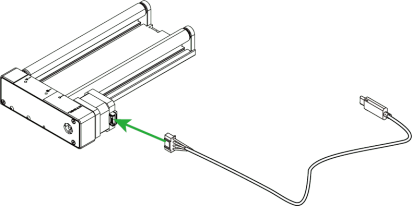
- Place the rotary attachment with the material in the processing area of xTool S1. Ensure that the long bottom edges of the rotary attachment are parallel to the front and rear bottom edges of xTool S1.

- Insert the other end of the connection cable into the extension port on the inner side of xTool S1's front panel.
Note: Turn off xTool S1 before connecting it with the rotary attachment.

For the riser base supporting conveyor feeder
- The riser base supporting conveyor feeder has four levels of height to place the baseplate. You need to determine the level to place the baseplate based on the size of the material.

The following table shows how to choose levels for different sizes of materials in different working modes.
The working mode of the rotary attachment | The material diameter | The level of the riser base |
Roller mode
| 3 mm ≤ D ≤ 60 mm |
|
4 mm ≤ D ≤ 72 mm |
| |
20 mm ≤ D ≤ 88 mm |
| |
50 mm ≤ D ≤ 106 mm |
| |
Chuck mode
| 4 mm ≤ D ≤ 82.2 mm |
|
14.2 mm ≤ D ≤ 100 mm |
|


- Insert one end of the connection cable into the device connection port of the rotary attachment.
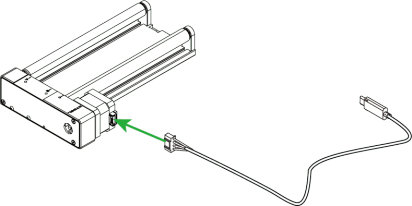
- Place the rotary attachment with the material in the processing area of xTool S1. Ensure that the long bottom edges of the rotary attachment are parallel to the front and rear bottom edges of xTool S1.

- Insert the other end of the connection cable into the extension port on the inner side of xTool S1's front panel.

Start processing a cylindrical material
1. Turn on xTool S1 and connect it to XCS
Turn on xTool S1 and connect it to XCS.
2. Place the material
If you use the roller mode of the rotary attachment, place the material on the rollers; If you use the chuck mode, fix the material on the chuck.

Note: If you use the riser base of the ordinary version, ensure that the top surface of the material is within the processing range of xTool S1. If it is too far away from the laser module, you need to use an object to raise the height of the rotary attachment.
3. Select the processing mode and material name
(1) On the top of XCS, click the name of the current processing mode, and then select the processing mode based on your need.

- Roller - Use rotary attachment
If you use the rotary attachment in Roller mode, select Roller - Use rotary attachment.
- Chuck - Use rotary attachment
If you use the rotary attachment in Chuck mode, select Chuck - Use rotary attachment.
(2) In the top-right corner, click User-defined material, select the name of the material you use, and click Confirm.

- If you can't find your material in the list, you can click More xTool materials to search among more materials in the Material EasySet Library.
- If you still can't find the name of your material, you can select User-defined material.
(3) Turn on or off Laser module position based on your need.

4. Set the laser focus
xTool S1 has a distance sensor, which can measure the distance between the laser module and the top material surface. You can also manually measure and calculate the distance between the laser module and the top material surface, and input the obtained values into XCS.
During processing, xTool S1 will perform auto-focus based on the Distance parameter.
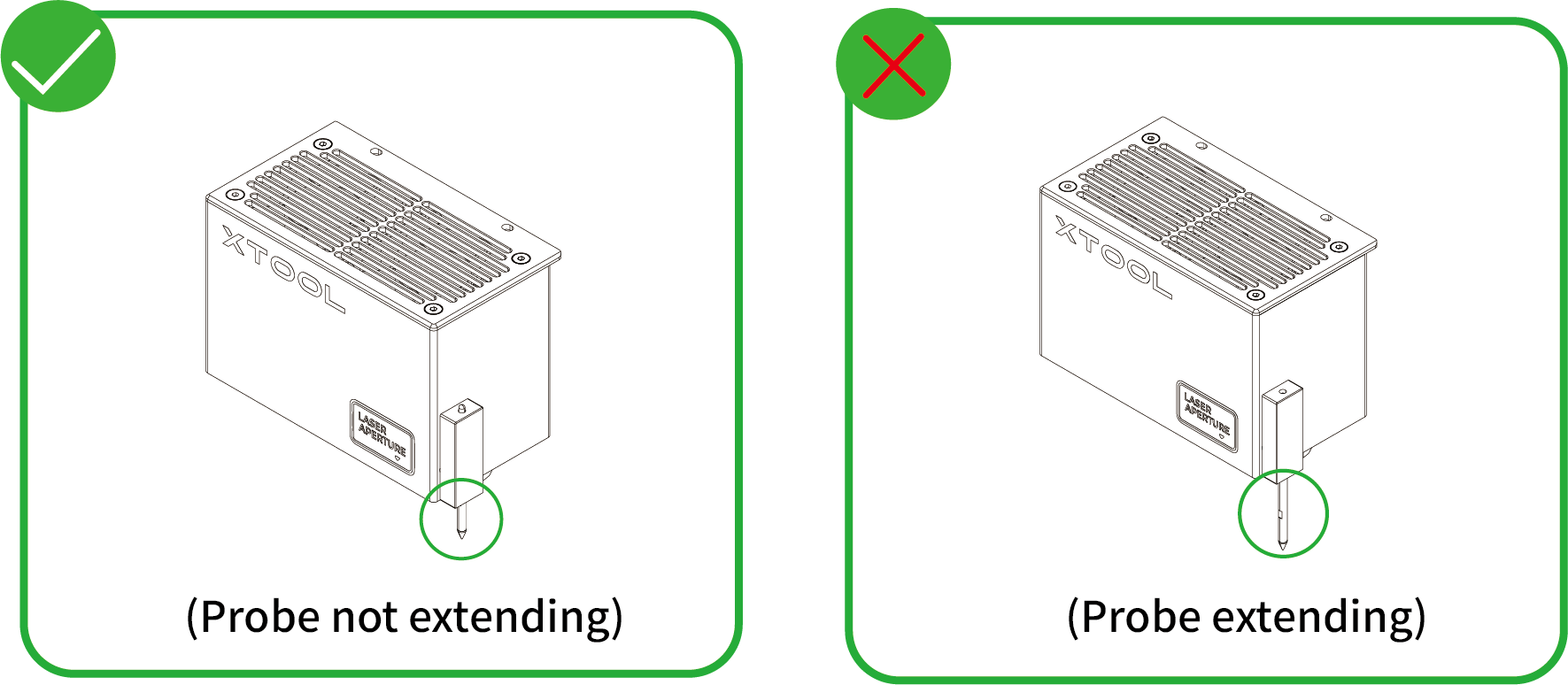
- Auto measure
(1) Move the laser module over the material. Ensure that the locating spot falls on the top surface of the material.

(2) In the top-right corner of XCS, click the Auto-measure icon , and xTool S1 will automatically measure the distance from the laser module to the material surface.

- Manual measure
(1) Use a ruler to measure the distance from the surface of the material to the top of the laser module.

(2) Subtract 100 mm (3.937 inches) from the measured value from step (1), and input the calculated value as Distance in the top-right corner of XCS.

5. Design objects for processing
(1) Use the tools to the left side of the canvas to create objects. You can import images, insert shapes, enter text, or draw vector graphics.

(2) Select the objects to further edit them using the tools above the canvas.

6. Set parameters for processing
Select objects on the canvas first. On the right side of XCS, set parameters for the selected objects.

You need to set parameters for every object. A missed object may fail to be processed.
The parameters that can be set for bitmap objects and vector objects are different. You can select multiple objects of the same type and set parameters for them at once.
- For a detailed explanation of each parameter, see Software Learning Center.
- For more information on parameter settings, see atomm.com/easyset.
7. Preview the processing area
You can preview the processing area on the material by framing. Framing means laser dots walk along the border of the processing objects on the material. Take the following steps to start framing:
(1) In the bottom-right corner of the software, click the icon next to the Framing button to set the speed for framing.

XY speed (mm/s): The moving speed of the laser module in X and Y directions.
XY distance (mm): The moving distance of the laser module with each tap on an XY arrow button.
Z distance (mm): The moving distance of the laser module with each tap on a Z arrow button.
(2) Close the lid of xTool S1, and then click Framing in the software. Press the button on xTool S1 to start framing. The laser spot will move along the boundary of the processing pattern on the material so that you can preview the processing area.

(3) After you confirm that the processing area is proper, click Framing completed in XCS. If the area is not ideal, you can adjust the material position or adjust the element positions in the software, and then preview the processing area again.

8. Start processing
(1) In the bottom-right corner of the software, click Go to process.

(2) Preview the processing pattern and path.
On the bottom-left corner, click the button, and XCS will show you the processing path.

(3) In the upper-right corner of XCS, click Start.

(4) Close the lid of xTool S1. Then, press the button on xTool S1 to start processing.


