
You can use xTool F1/F1 Lite with the rotary attachment to process cylindrical materials. With Rotary Attachment 2 Pro, you can also process spherical and irregular materials.
*The usage of RA2 and RA2 Pro is the same.
This page describes how to use xTool F1/F1 Lite with the rotary attachment for processing.
Set up the rotary attachment
Rotary Attachment 2 Pro supports two working modes: Roller mode and Chuck mode. Rotary Attachment 1 and Rotary Attachment 2 support only Roller mode.
Assemble and set up the rotary attachment based on your needs.
- If you use the Roller mode, you can set the rotary attachment to A, B, or C level.
Level A | Level B | Level C |
Diameter of material: 3 mm≤d≤50 mm | Diameter of material: 45 mm≤d≤60 mm | Diameter of material: d>60 mm |
- If you use the Chuck mode, you can install jaw chuck components and jaw components based on your need.
Note: For detailed information and instructions on how to use the rotary attachment, see User Manual for Rotary Attachment 2 (RA2).
Connect the rotary attachment to xTool F1/F1 Lite
- Use the connection cable to connect the rotary attachment with xTool F1/F1 Lite.
Note: If the connection cable included in the rotary attachment pack is incompatible with xTool F1/F1 Lite, you need to purchase a compatible one.
- Take out the removable baseplate and place it on the right side of the base of xTool F1/F1 Lite.
- Place the rotary attachment across the xTool F1/F1 Lite base and the removable baseplate. Depending on the working mode and level setting of your rotary attachment, align its front bottom edge to the corresponding marking lines on the xTool F1/F1 Lite base.
Note: There are three groups of marking lines on the base of xTool F1/F1 Lite.
- If you use the rotary attachment in Roller mode and set it to Level A, align its front bottom edge to Group 1 marking lines on the xTool F1/F1 Lite base.
- If you use the rotary attachment in Roller mode and set it to Level B, align its front bottom edge to Group 2 marking lines on the xTool F1/F1 Lite base.
- If you use the rotary attachment in Roller mode and set it to Level C or use the Chuck mode, align its front bottom edge to Group 3 marking lines on the xTool F1/F1 Lite base.
Start processing with XCS on your computer
1. Place the material
- If you use the rotary attachment in Roller mode, place the material between the two rollers.
- If you use the rotary attachment in Chuck mode, fix the material on the jaws.
2. Select the processing mode and material name
(1) On the right side of XCS, select Roller – Use rotary attachment or Chuck – Use rotary attachment.

If you select Chuck – Use rotary attachment, enter value for Perimeter or Diameter of the material.

(2) In the top-right corner, click User-defined material, select the name of your material, and click Confirm.

If you still can't find the name of your material, you can select User-defined material.
3. Set the laser focus
(1) Check whether the red and blue light spots are both on the top surface of the material. If not, follow the steps in "Connect the rotary attachment to xTool F1/F1 Lite" to readjust the position of the rotary attachment.
(2) Turn the knob to move the laser module up and down. When the red and blue light spots coincide, the focus is successfully set.
Note: If you turn the knob clockwise, the laser module will move up, and the red light spot will move toward the left. If you turn the knob counterclockwise, the laser module will move down, and the red light spot will move toward the right.
Note: When the bottom of the laser module reaches the highest point, stop turning the knob up.
4. Design objects for processing
(1) Use tools on the left side bar to create objects. You can import images, insert shapes, enter text, or draw vector graphics.

- The green line on the top of the canvas indicates the starting line of laser processing.
- XCS supports importing the following image formats: SVG, DXF, JPG, JPEG, PNG, BMP, etc.
(2) Select the objects to further edit them using the features above the canvas.

5. Set parameters for processing
Select objects on the canvas and set parameters for the selected objects on the right panel.

- You need to set parameters for every object. A missed object may fail to be processed.
- The parameters that can be set for bitmap objects and vector objects are different. You can select multiple objects of the same type and set parameters for them at once.
6. Preview the processing area
(1) At the bottom right corner of the software, click the icon next to the Framing button to set the parameters for framing.

(2) Click Framing in the software or press the framing button on xTool F1/F1 Lite to start framing.
The laser spot will move along the boundary of the processing pattern on the material so that you can preview the processing area.

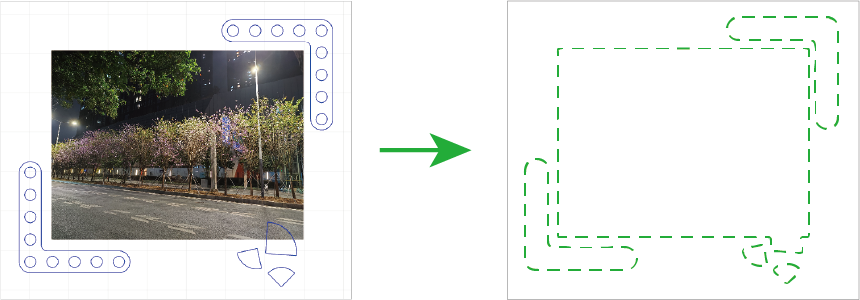
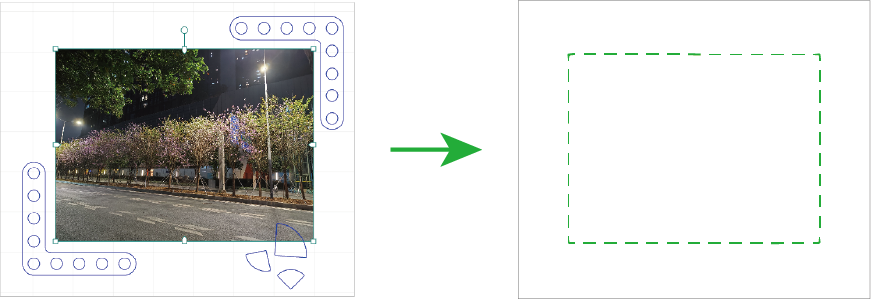
By default, xTool F1/F1 Lite performs framing for all the elements to be processed. To preview the boundary of one or more particular elements, you can select the elements on the canvas of XCS during framing. The laser spot will move along the boundary of the selected elements, as illustrated by the following pictures.
- Default framing:
- Selected elements framing:
If the area is not ideal, you can adjust the element positions in XCS during framing. xTool F1/F1 Lite will adjust the framing area accordingly, allowing you to preview the processing area in real time.
7. Start processing
The Infrared ray preheat feature is not available for xTool F1 Lite.
(1) On the bottom right corner of the software, click Go to process.

(2) Preview the processing pattern and path.
On the bottom-left corner, click the button, and XCS will show you the processing path.

(3) In the upper right corner of the software, click Start.

(4) Pull down the protective enclosure. Then, press the knob on xTool F1/F1 Lite to start processing.
Note: Before processing, pull down the protective enclosure and wear goggles that can shield laser beams of 455 nm and 1064 nm wavelengths.

