
You may choose to use keyboard shortcuts to help you use xTool Studio/xTool Creative Space (XCS) more easily. You can refer to the Hot Keys listed in this article.
Hot Keys List
Category | Action | Windows | macOS |
Insert | Image | Ctrl+I | ⌘ I |
Text | T | T | |
Line segment | L | L | |
Rectangle | R | R | |
Circle | C | C | |
Pen | P | P | |
Shape | I+Shift | I+⇧ | |
Perfect circle | C+Shift | C+⇧ | |
Square | R+Shift | R+⇧ | |
Vertical/horizontal line | L+Shift | L+⇧ | |
Edit | Undo | Ctrl+Z | ⌘ Z |
Redo | Ctrl+Shift+Z | ⇧ ⌘ Z | |
Copy | Ctrl+C | ⌘ C | |
Paste | Ctrl+V | ⌘ V | |
Duplicate | Ctrl+D | ⌘ D | |
Cut | Ctrl+X | ⌘ X | |
Delete | Backspace | ⌫ | |
Select all | Ctrl+A | ⌘ A | |
Stop drawing | ESC | ESC | |
Switch to mouse mode(when inserting shapes/drawing vectors) | V | V | |
Select/Deselect multiple items | Shift+box select/click | Shift+box select/click | |
Group | Ctrl+G | ⌘ G | |
Ungroup | Shift+Ctrl+G | ⇧ ⌘ G | |
Lock/Unlock | Alt+Ctrl+L | ⌥ ⌘ L | |
Show/Hide | Alt+Ctrl+H | ⌥ ⌘ H | |
Bring to front | ] | ] | |
Send to back | [ | [ | |
Bring forward | Ctrl+] | ⌘ ] | |
Send backward | Ctrl+[ | ⌘ [ | |
Turn on / Turn off Auto-Snap | Ctrl+R | ⌘ R | |
Unit | Ctrl+K | ⌘ K | |
In node editing mode, select all nodes in the current path. (When no nodes are selected, this action will select all nodes of the vector) | Ctrl+A | Command+A | |
Auto-simplify | Ctrl+L | ⌘ L | |
Align left | Ctrl+Shift+L | ⇧ ⌘ L | |
Align right | Ctrl+Shift+R | ⇧ ⌘ R | |
Horizontal align center | Ctrl+Shift+E | ⇧ ⌘ E | |
Align top | Ctrl+Shift+T | ⇧ ⌘ T | |
Vertical align center | Ctrl+Shift+M | ⇧ ⌘ M | |
Align bottom | Ctrl+Shift+B | ⇧ ⌘ B | |
Align center | Ctrl+Alt+Shift+M | ⌥ ⇧ ⌘ M | |
Distribute horizontally | Ctrl+Shift+H | ⇧ ⌘ H | |
Distribute vertically | Ctrl+Shift+V | ⇧ ⌘ V | |
Reflect horizontally | Shift+H | ⇧ H | |
Reflect vertically | Shift+V | ⇧ V | |
Union | Alt+Shift+U | ⌥ ⇧ U | |
Subtract | Alt+Shift+S | ⌥ ⇧ S | |
Intersect | Alt+Shift+I | ⌥ ⇧ I | |
Exclude | Alt+Shift+E | ⌥ ⇧ E | |
File | Create a new file | Ctrl+N | ⌘ N |
Open a file | Ctrl+O | ⌘ O | |
Close | Ctrl+W | ⌘ W | |
Save the file | Ctrl+S | Command+S | |
Save as | Ctrl+Shift+S | Command+Shift+S | |
Export as SVG | Alt+X | ⌥ X | |
Canvas Operation | Zoom in/out | Ctrl+Scrolling up/down or Crtl+[+/-] | ⌘+[+/-] |
Move the canvas right and left | ⇧+Scrolling up/down | / | |
Move the canvas up or down | Scrolling up/down | Scrolling up/down | |
Pan | Space+Click and drag | Space+Click and drag | |
Fit on screen | Ctrl+0 | ⌘+0 | |
Element Movement | Nudge the element 1 pixel at a time | Arrow keys | Arrow keys |
Nudge the element 10 pixels at a time | Shift+Arrow keys or Ctrl+Arrow keys | ⇧+Arrow keys or ⌘+Arrow keys | |
Panel Display | Open/Close the left panel | Shift+[ | ⇧ [ |
Open/Close the right panel | Shift+] | ⇧ ] | |
Bitmap Operation | Invert colors | Ctrl+F | ⌘ F |
Find Hot Keys in Settings
You can also find the page that describes shortcuts in the xTool Studio/XCS Settings.
xTool Studio
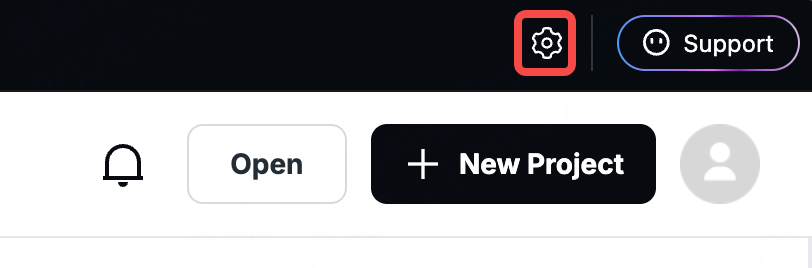
1. Settings on Top Bar.
2. Settings in canvas.
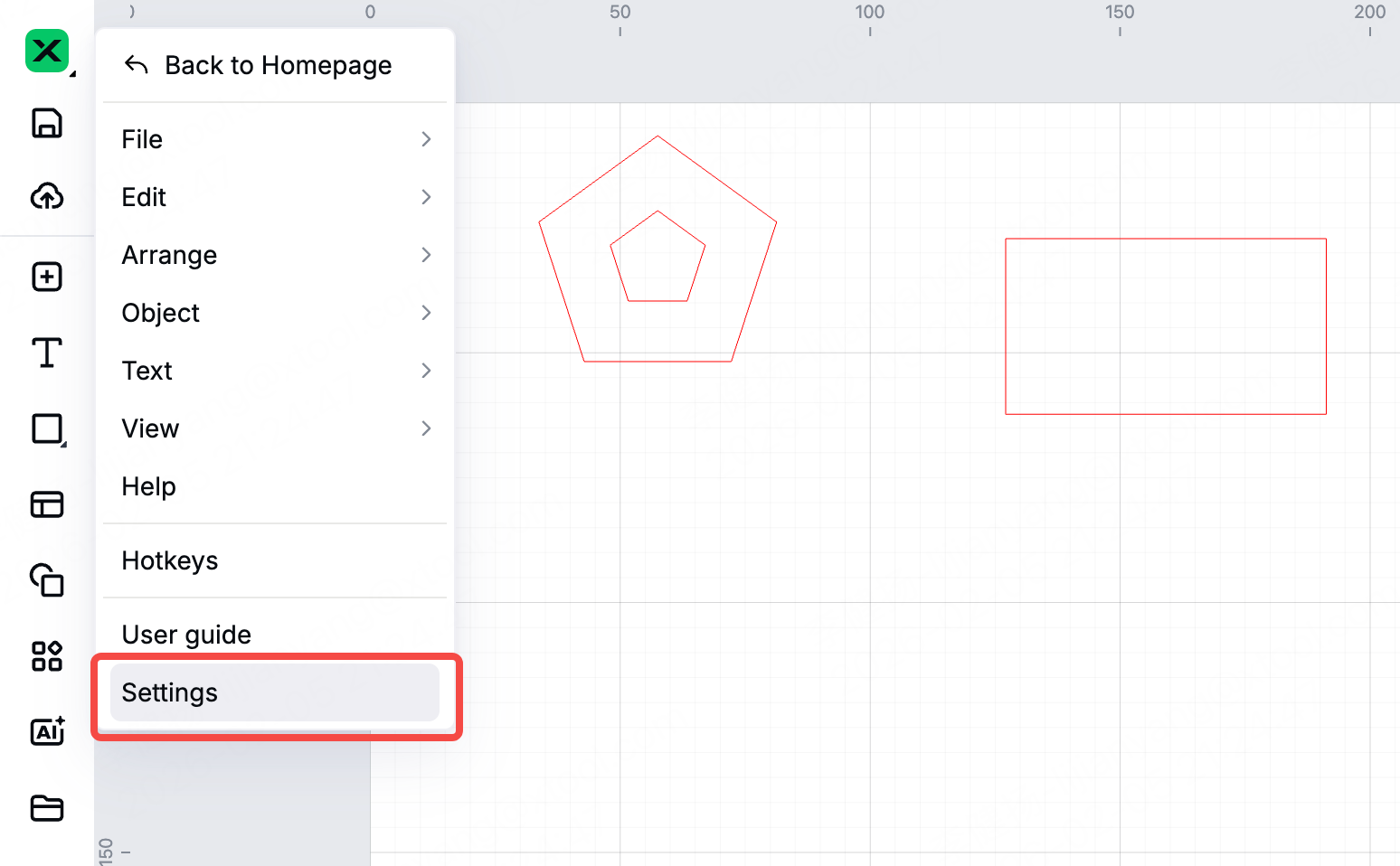
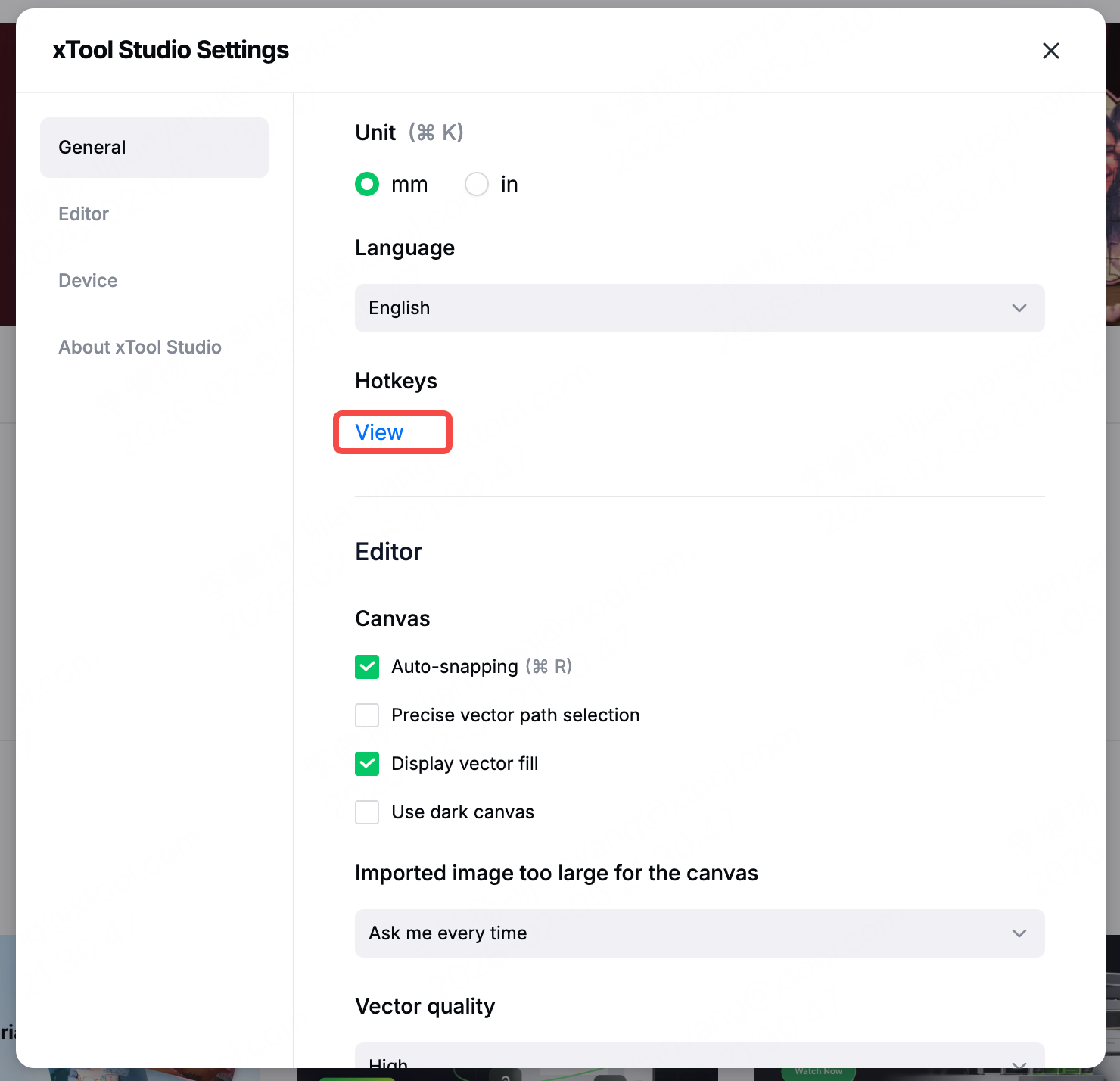
- Click to view hot keys.
xTool Creative Space
You can open the software settings window in either of the following ways:
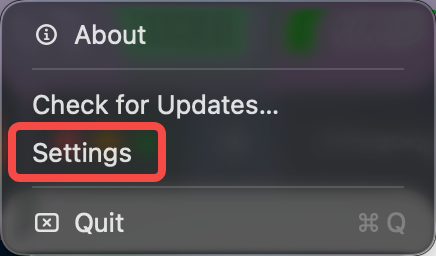
- On the homepage, choose Settings in the upper left corner of the main toolbar.
Windows:

macOS:
- On the project page, choose Settings from the upper left corner of the main menu.

- Click View next to the Hot Keys.


