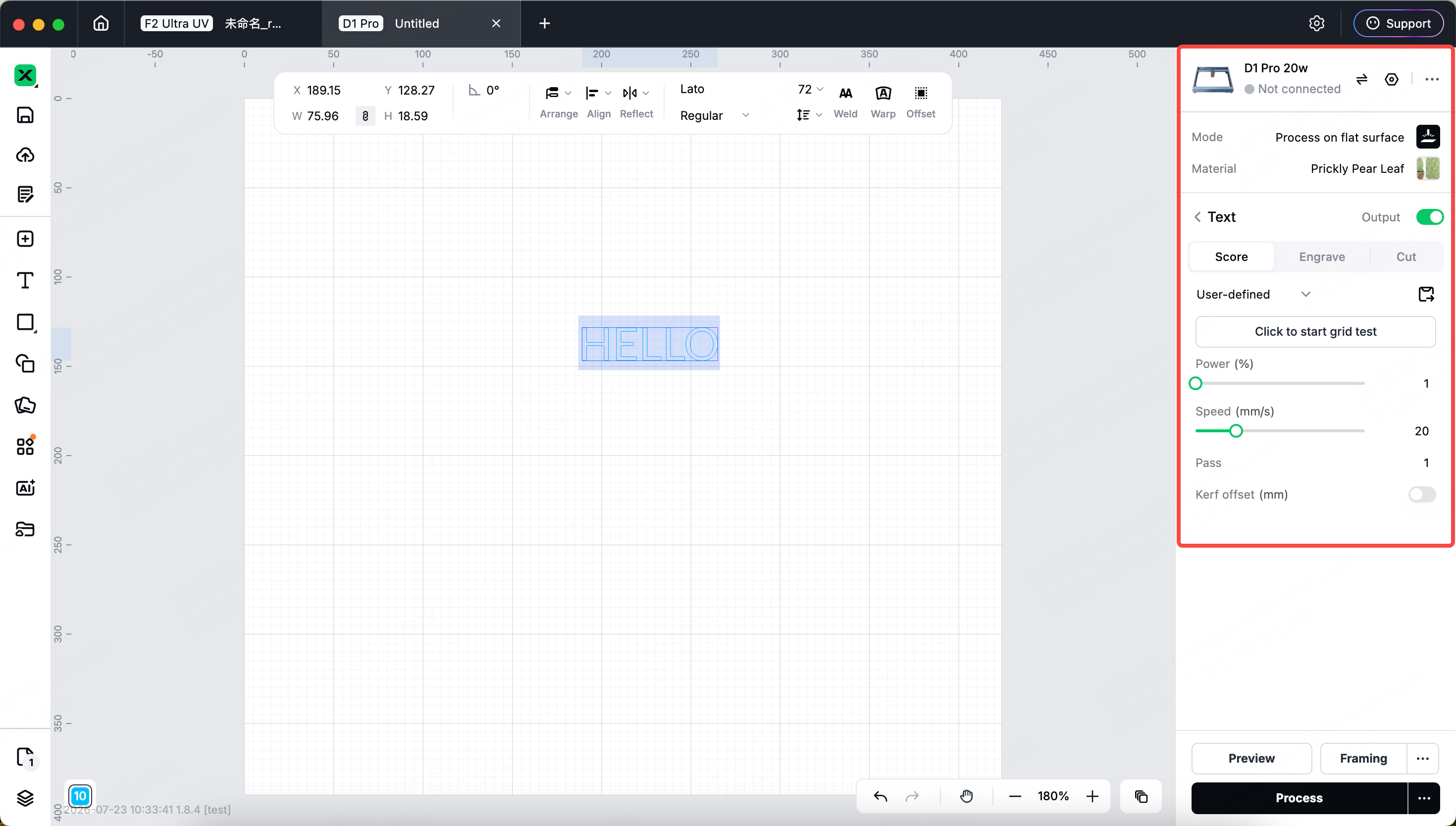
When using a device connected to xTool Creative Space (XCS) or xTool Studio, you need to set material parameters. Different parameters will produce different finished results. If you are using xTool-branded materials, we have preset recommended parameters for different materials based on the specific device and processing type you are using, so you can directly find the optimal parameters suitable for each material.
How to obtain the settings of material parameters:
There are mainly three methods to obtain parameter settings:
Method 1: Use the Materials Library in xTool Creative Space
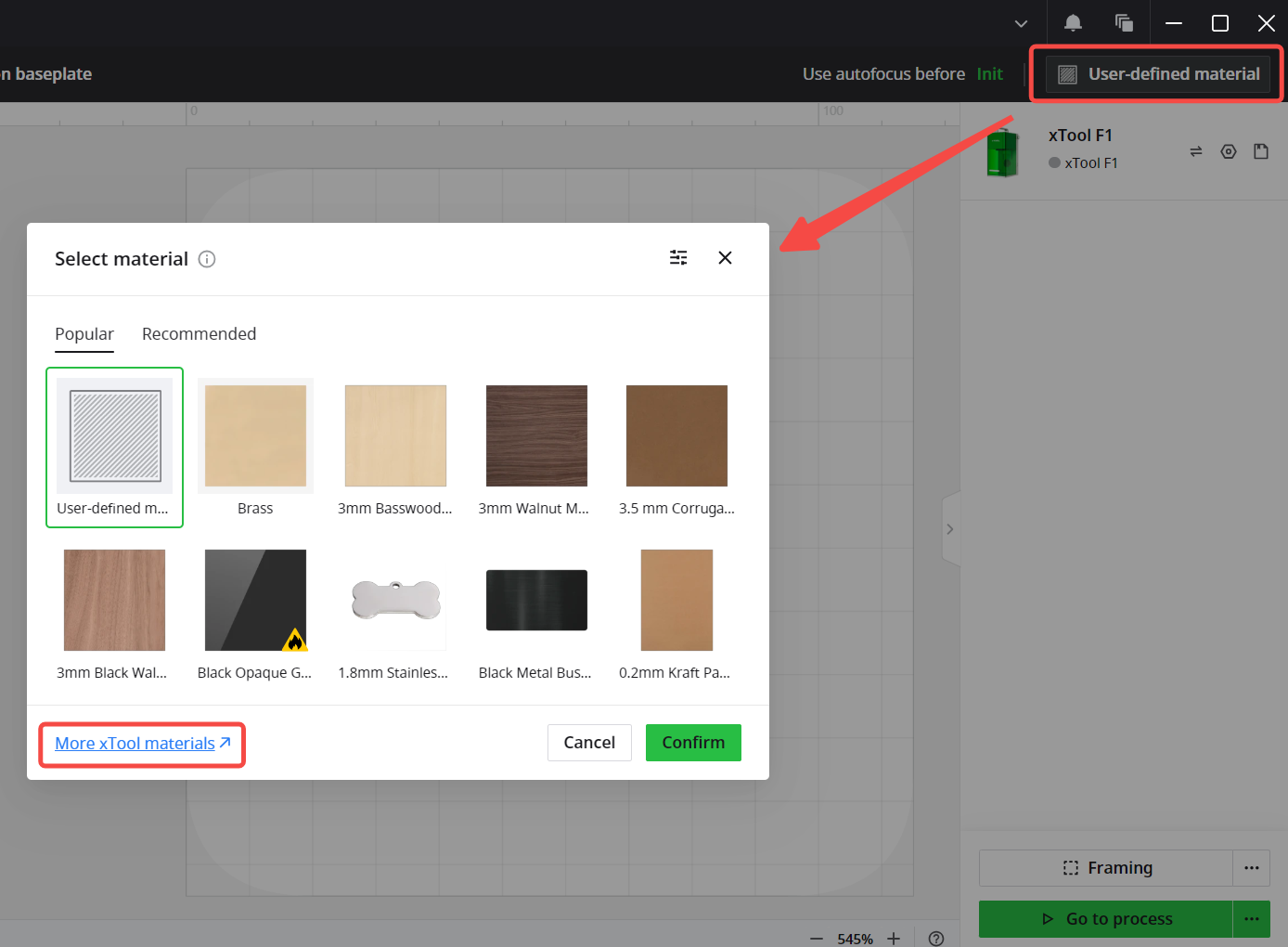
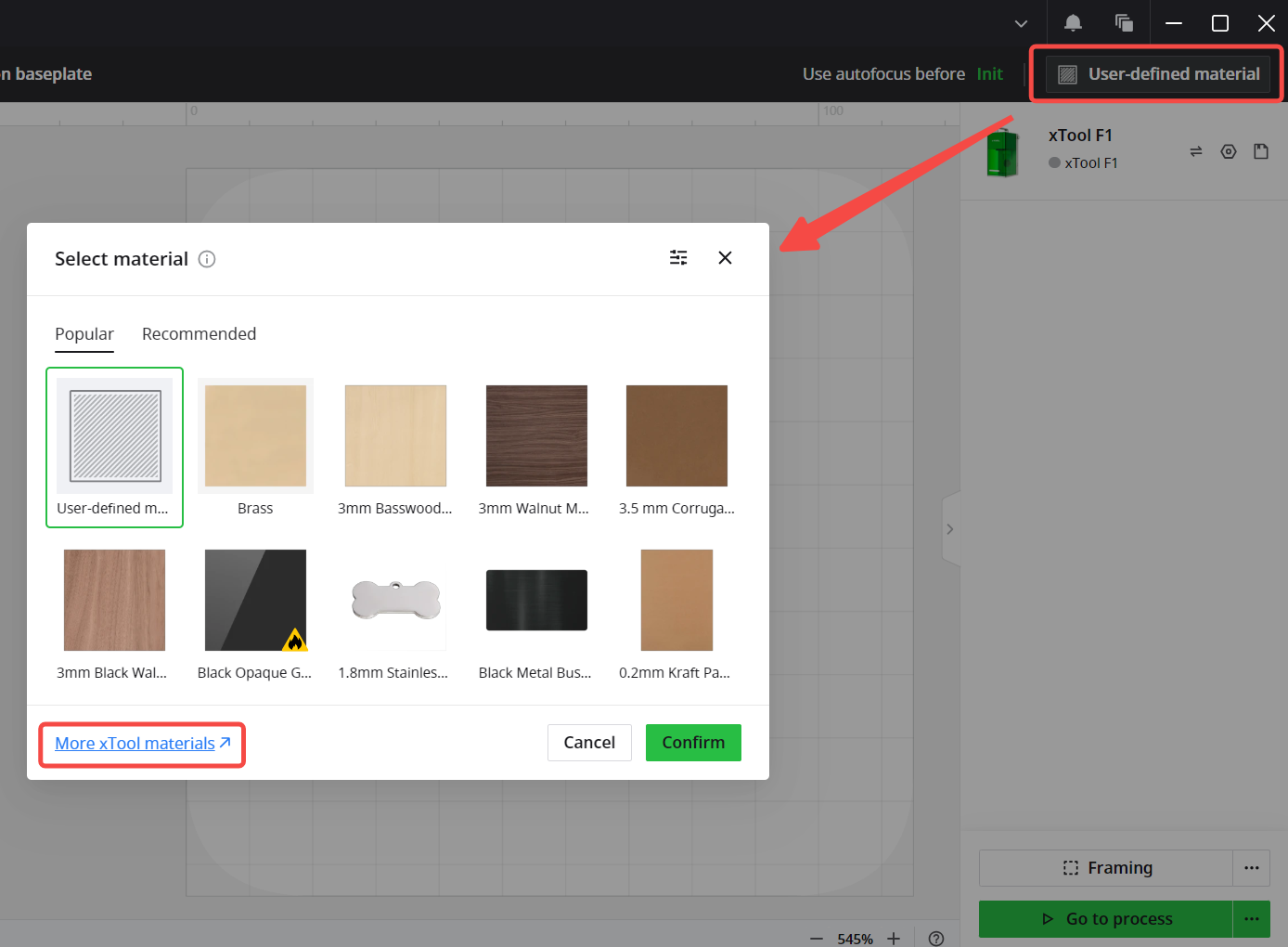
- In XCS 2.1 or later versions, click the [More Materials] button to access the embedded Materials Lab website (Figure 1).
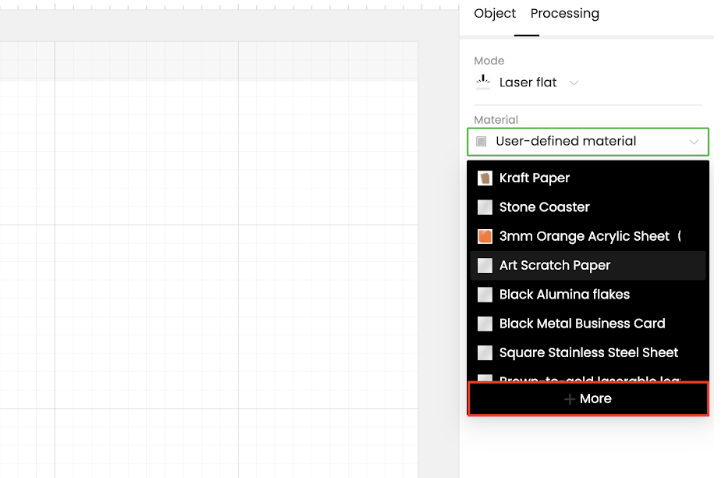
- In versions prior to XCS V2.0, click the [More] button to access the embedded Materials Lab website (Figure 2)
- Open your browser and go to the Materials Lab page on the Atomm website. Refer to Method 3 for detailed steps.
Method 2: Method for Studio Client to Obtain Material Parameters
Use the parameters recommended in the official materials
Select the material to be processed
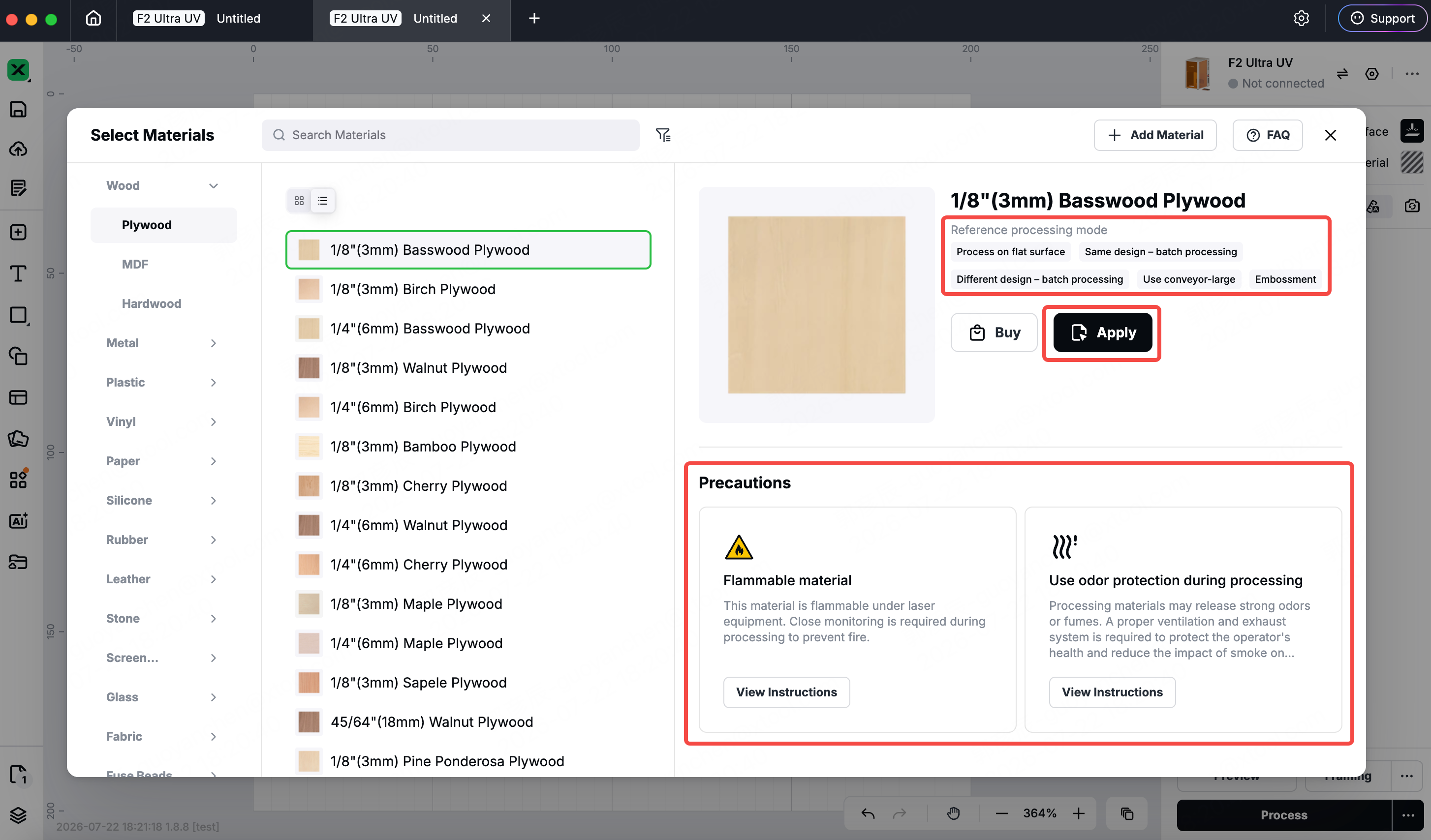
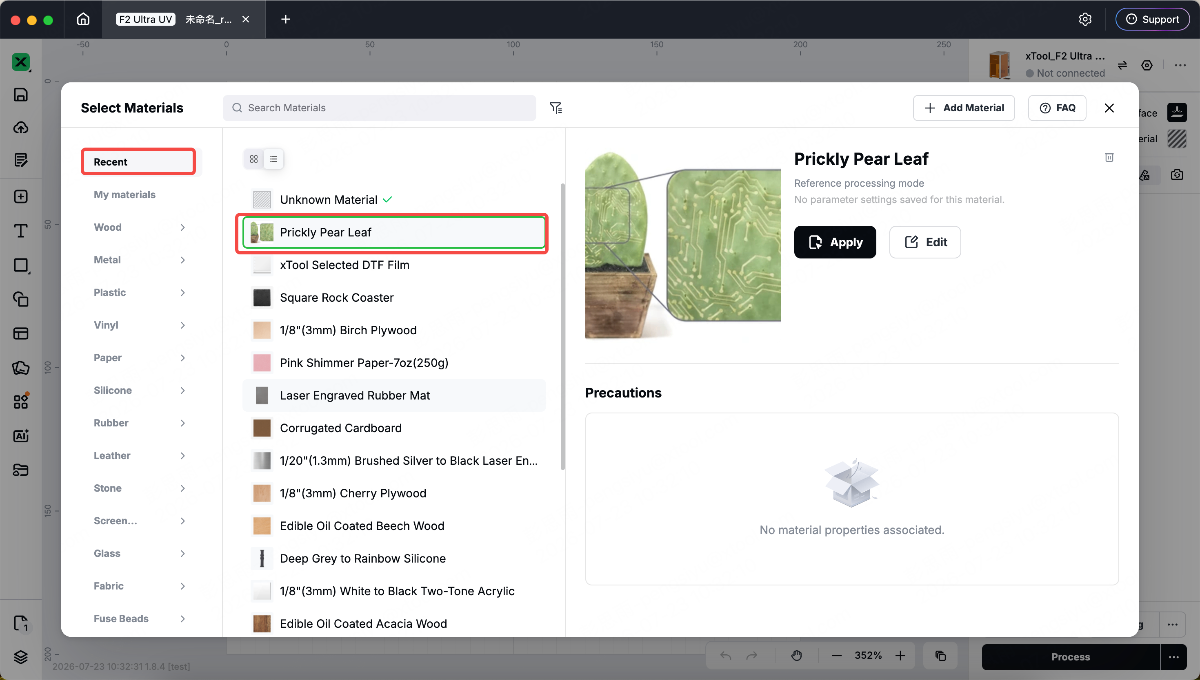
In the parameter panel on the right side of xTool Studio, click "Material" to open the "Select Material" panel.
Select the option that matches the material you actually use according to the material's category, name or thickness.
After selecting a material, you can view the following in the material details:
- Recommended Processing Mode: Displays the processing methods suitable for this material, such as surface processing, batch processing, or conveyor belt processing, etc.
- Processing Precautions: This section presents the potential safety risks and operational recommendations involved in the material processing, such as the material being flammable, possible generation of peculiar smell or smoke, etc.
It is recommended to carefully read the relevant precautions before processing, and ensure proper ventilation, fume extraction and safety protection in accordance with the guidelines.
Applied Materials
After confirming the material information, click "Apply".
Studio will apply this material to the current project and match the available recommended parameters based on the material information.
Select the recommended machining mode and machining type
After applying the material, please first select the processing mode recommended for that material, then choose the processing type to be executed, for example:
- cutting
- Sculpture
- bas-relief
- color engraving
The recommended parameters corresponding to different processing modes and processing types may vary. After completing the selection, you can view the applicable recommended parameter settings in the "Reference" area of the parameter panel on the right.
Select and apply the recommended parameters
Depending on the material processing outcome, Studio provides recommended parameters in the following two ways.
Recommended Parameter Settings
For materials with similar machining results under different parameters, Studio will directly provide recommended parameter settings.
Click the corresponding parameter settings to apply parameters such as power, speed, and processing times to the current object.
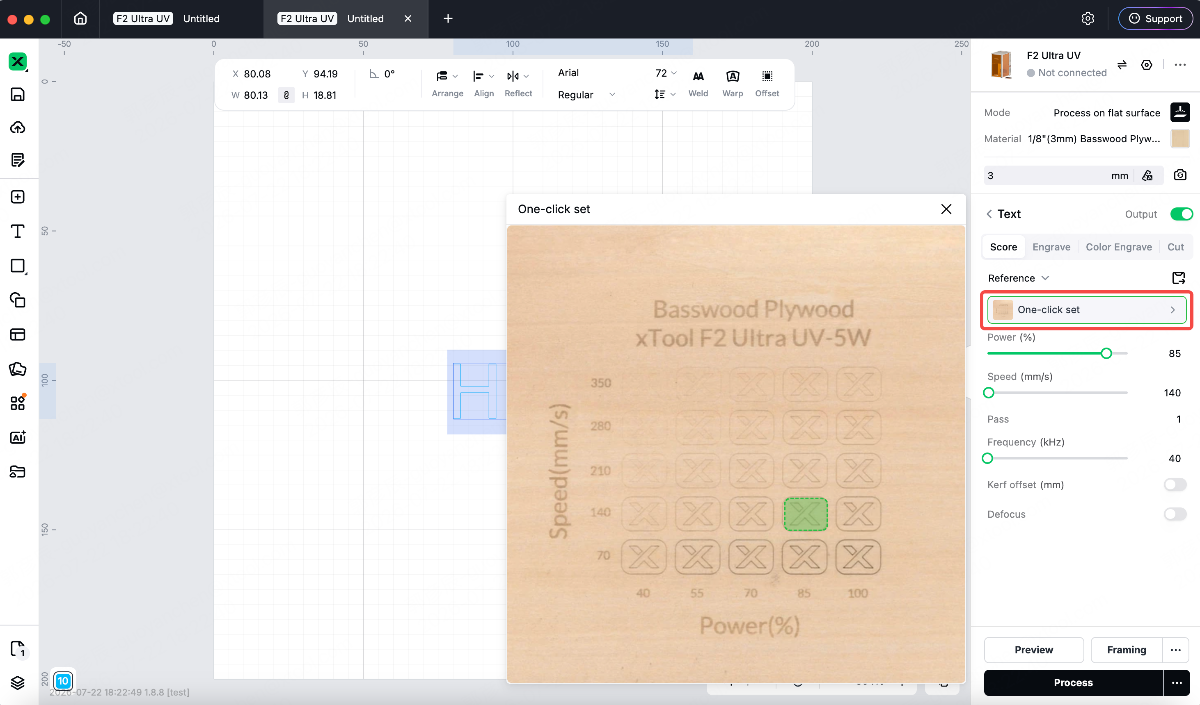
Parameter Effect Matrix
For materials with significant differences in machining effects under different parameters, Studio will provide a parameter effect matrix.
The matrix demonstrates the actual machining effects corresponding to combinations of parameters such as different power and speed. You can select the appropriate effect based on your desired color, depth or texture, and click the corresponding area in the matrix to apply this set of parameters with one click.
Use material parameters shared by other users
This feature is applicable to xTool Studio 1.8 and later versions.
In addition to using the officially recommended parameters, you can also find and use the material parameter settings shared by other users on the "Material Settings" page.
Open community material parameters
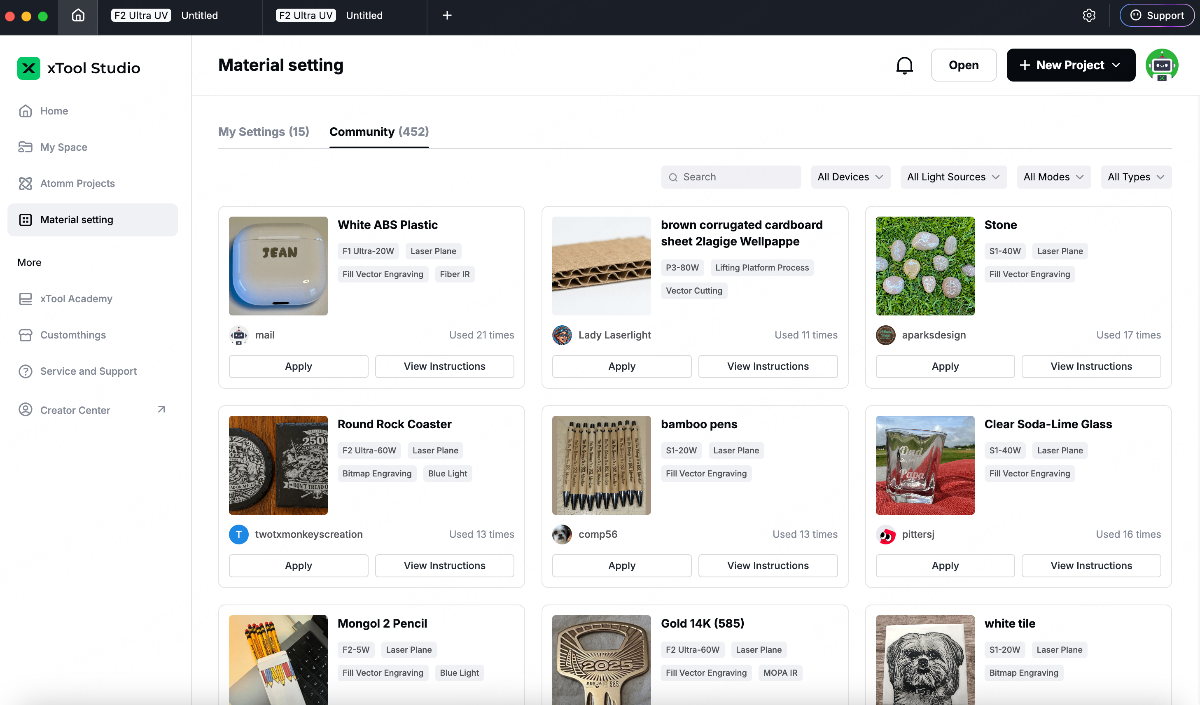
On the homepage of xTool Studio, go to Material setting, then select Community.
The community will display materials, processing effects and parameter settings shared by other users, including information such as the equipment used, processing mode, processing type and light source.
Search or Filter Parameter Settings
You can directly search for the material name, or filter according to the following criteria:
- equipment
- Light source or processing head
- Machining Mode
- Machining Type
It is recommended to prioritize parameter settings that match your own equipment, light sources, materials and processing methods, so as to obtain processing results closer to the displayed images.
Check the processing effect and usage instructions
Each parameter setting will display the corresponding machining renderings and relevant information. You can click View Instructions to learn more about the material information.
Apply parameters with one click
Once you find the processing effect that meets your requirements, click Apply to apply the parameter settings shared by that user to your project.
Method 3: Obtain material parameter settings using the browser's Materials Lab library
Access Method
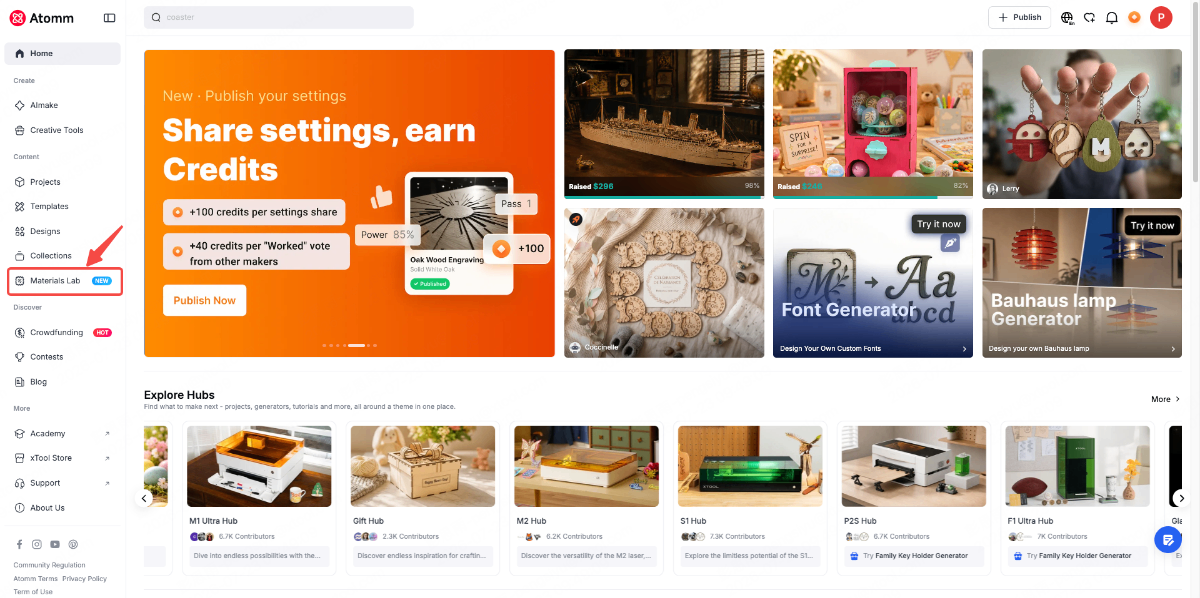
- Visit the Atomm websitehttps://www.atomm.com/, and click the Materials Lab page in the left navigation bar
- Directly access via the linkhttps://www.atomm.com/materials-labto visit the Materials Lab page
Page Introduction
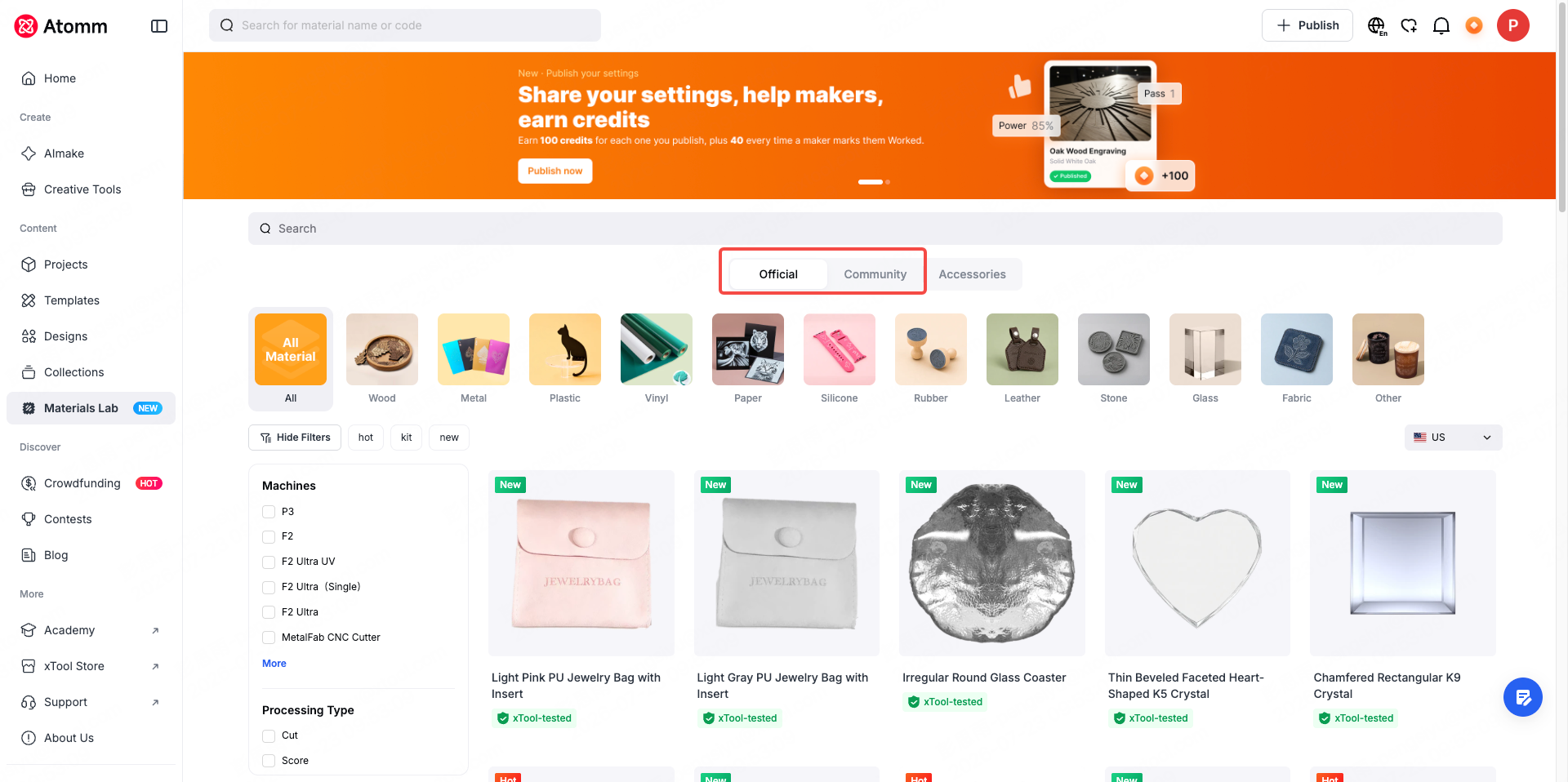
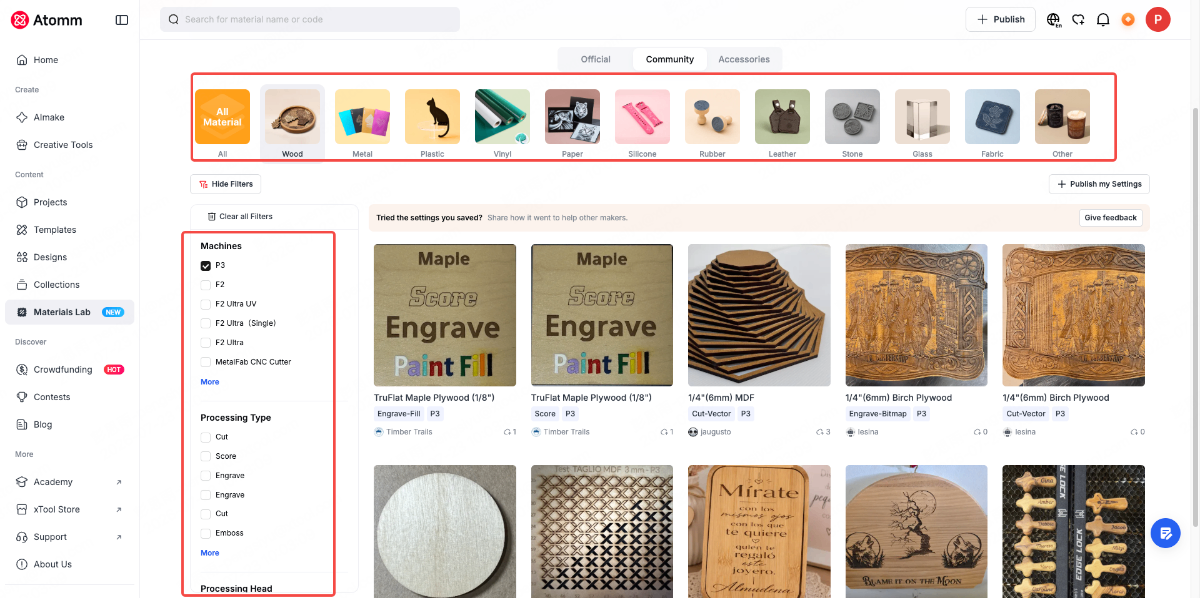
Enter the Materials Lab, and the page contains 3 tabs, as specified below:
- Official includes all official consumables and their corresponding parameters
- The Community section contains consumables tested and shared by users on their own, along with their corresponding parameters.
- Accessories contains various types of accessory tools (no parameters included)
Find Parameters - Filter & Search
You can filter consumable categories, machines, processing types, and processing heads via the filter options (Figure 1), and switching between the Official & Community filter options will not cause the filters to become invalid.
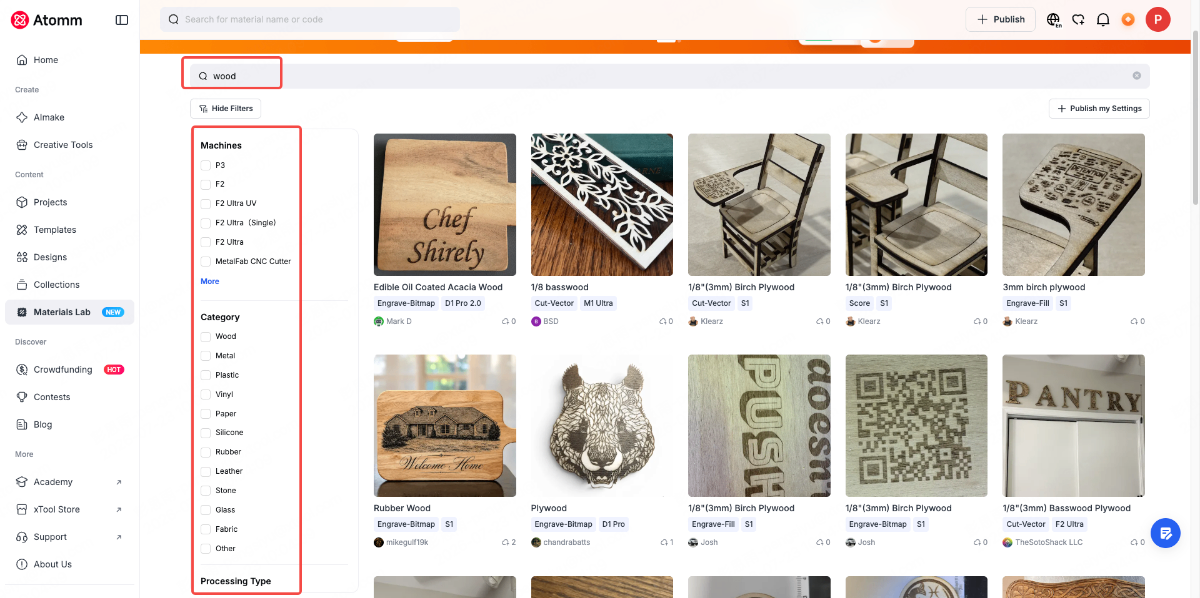
You can also search for consumables via the search box on this page (Figure 2), and filter the results on the search results page.
Save parameters on the detail page / use parameters directly
Click on any card to access the consumable parameter details page, where the official consumable parameter details page contains parameters for multiple models (Figure 1); the community consumable parameter details page contains parameters for a single model (Figure 2), and you can also view the valid/invalid verification statuses from other users
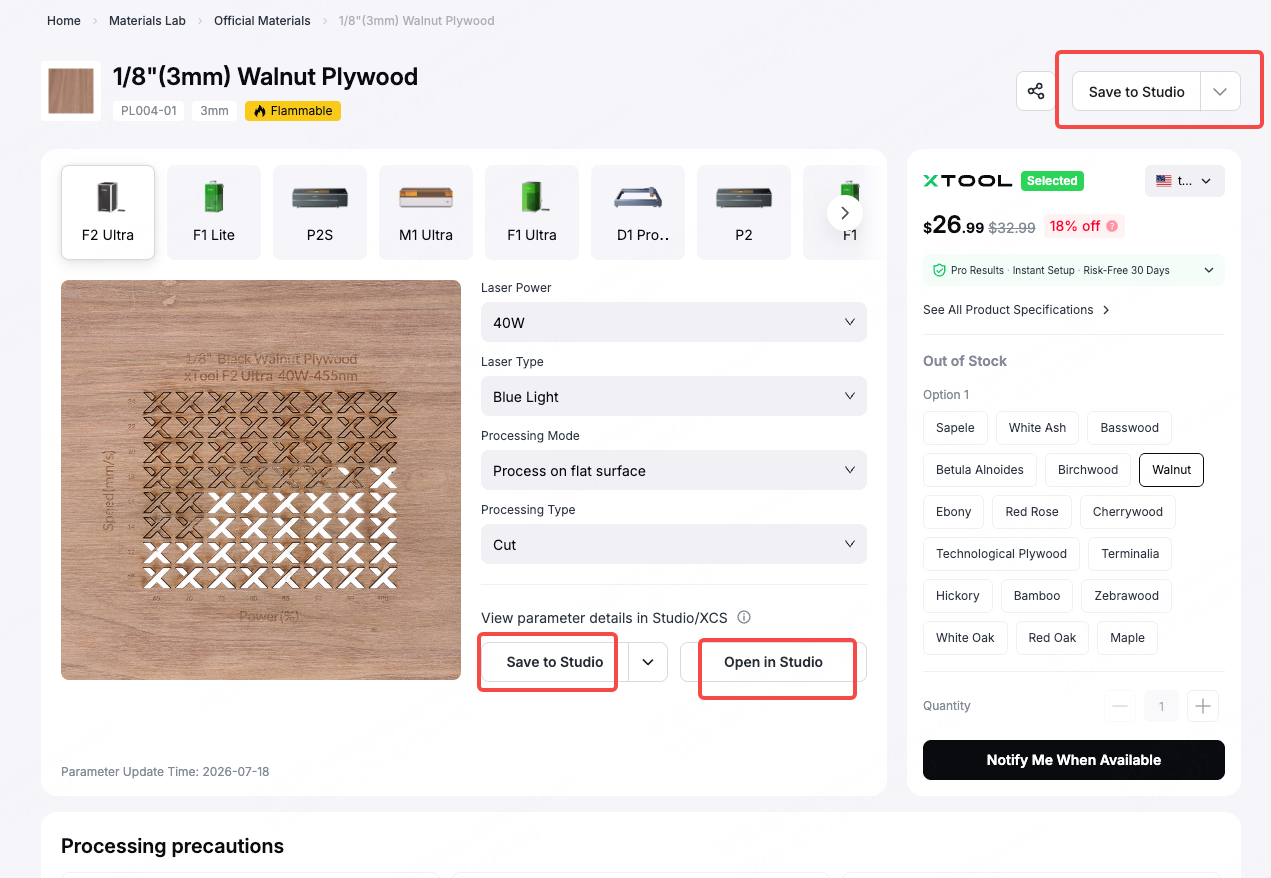
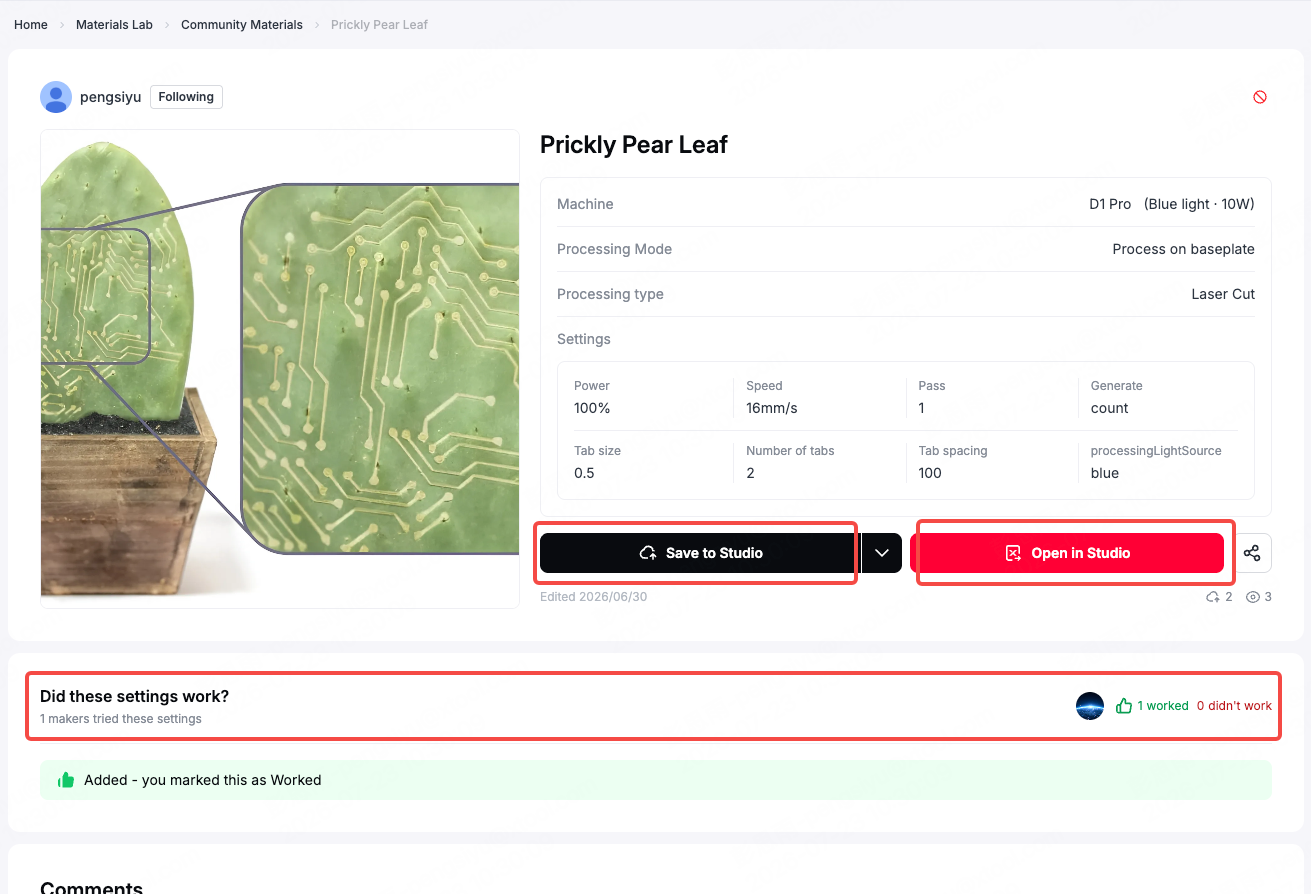
Click "save to xcs", and this material will be saved to the XCS parameter panel.
Click save to studio, and this material will be saved to the recent list in the studio parameter panel
Click "open in studio" to re-engage the Studio software and open a blank canvas; any object added to the canvas will have this parameter automatically configured (this feature is applicable to xTool Studio 1.8 and later versions)