
Connect and Set Up xTool S1 with xTool Studio
Connect xTool S1 to xTool Studio
xTool Studio is an all-in-one software for graphic designing and editing, laser process setting, and machine controlling.
Minimum and recommended PC requirements
Item | Minimum configuration | Recommended configuration |
|---|---|---|
Processor | Intel Core i5-6200U | Intel Core i5-11600 |
Operating system | Win 10 (64 bit) macOS 11 or later | |
RAM | 8 GB | 16 GB or more |
Display resolution | 1280 × 720 (pixels) | 1920 × 1080 (pixels) or higher |
Hard drive | 8 GB | 12 GB or more |
- With the minimum configurations, all the functions of xTool Studio can be used properly. When you import a complex image, such as an image larger than 50,000,000 pixels or an SVG image larger than 1 MB, however, xTool Studio may fail to run smoothly.
- With the recommended configurations, xTool Studio can run more smoothly when you import and edit a complex image, the software delay may be shorter, and the performance is better.
Download and install xTool Studio
(1) Download xTool Studio from xtool.com/pages/software.
(2) Double-click the software you've downloaded to install it.
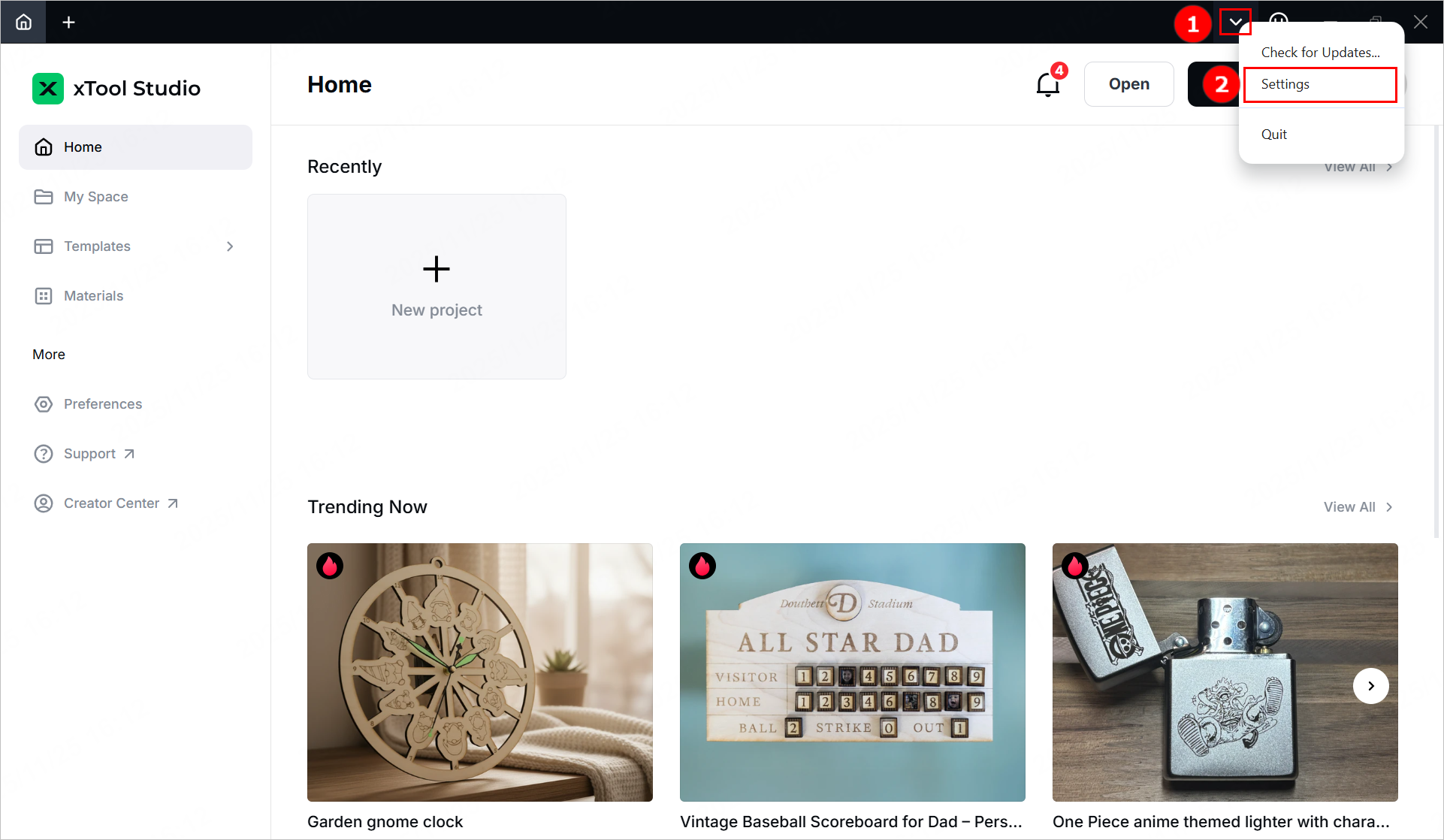
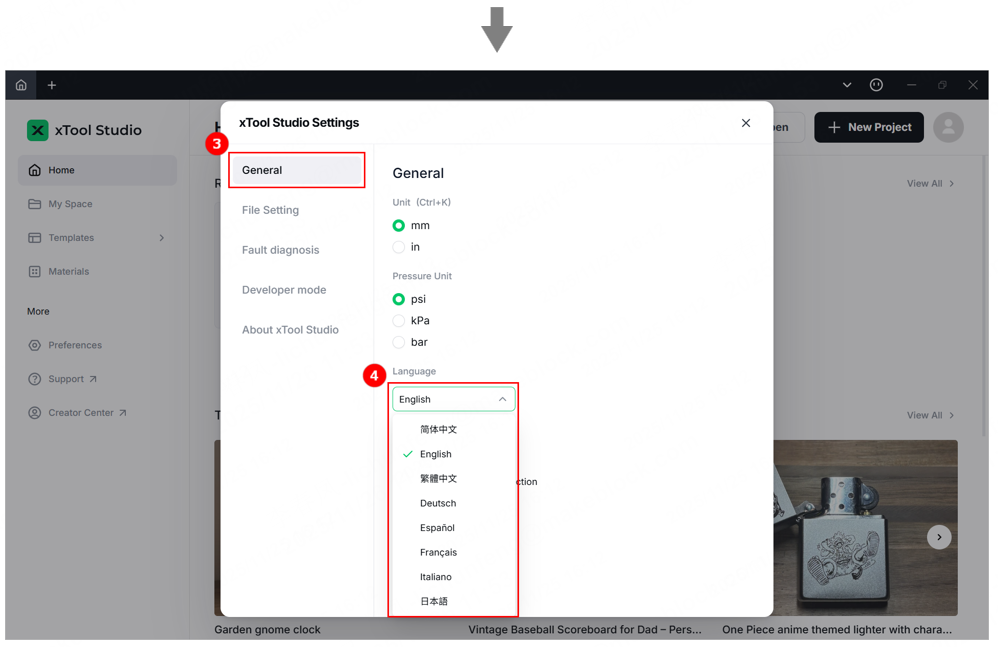
(3) Open xTool Studio. In the top-right corner, click the  icon > Settings, and set the language on the General tab page.
Connect xTool S1 to xTool Studio
USB connection
(1) Use the USB cable to connect xTool S1 to your computer.
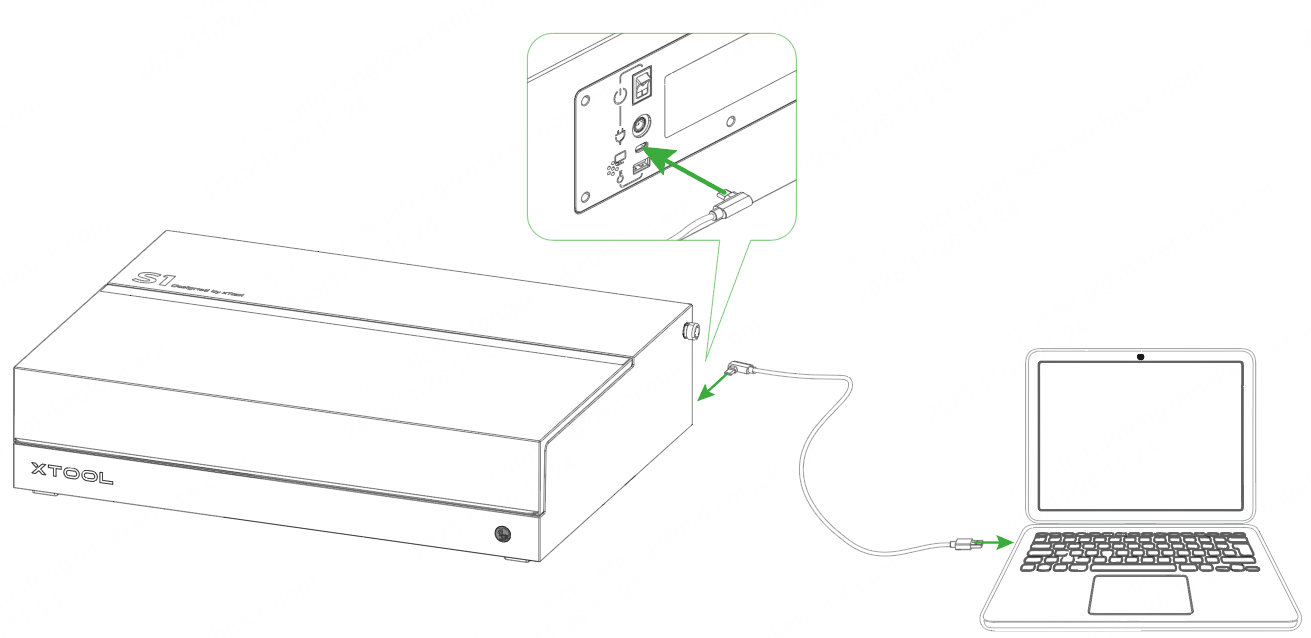
Note: If the provided USB cable is incompatible with your computer, you need to use an adapter, which is not included in the pack.
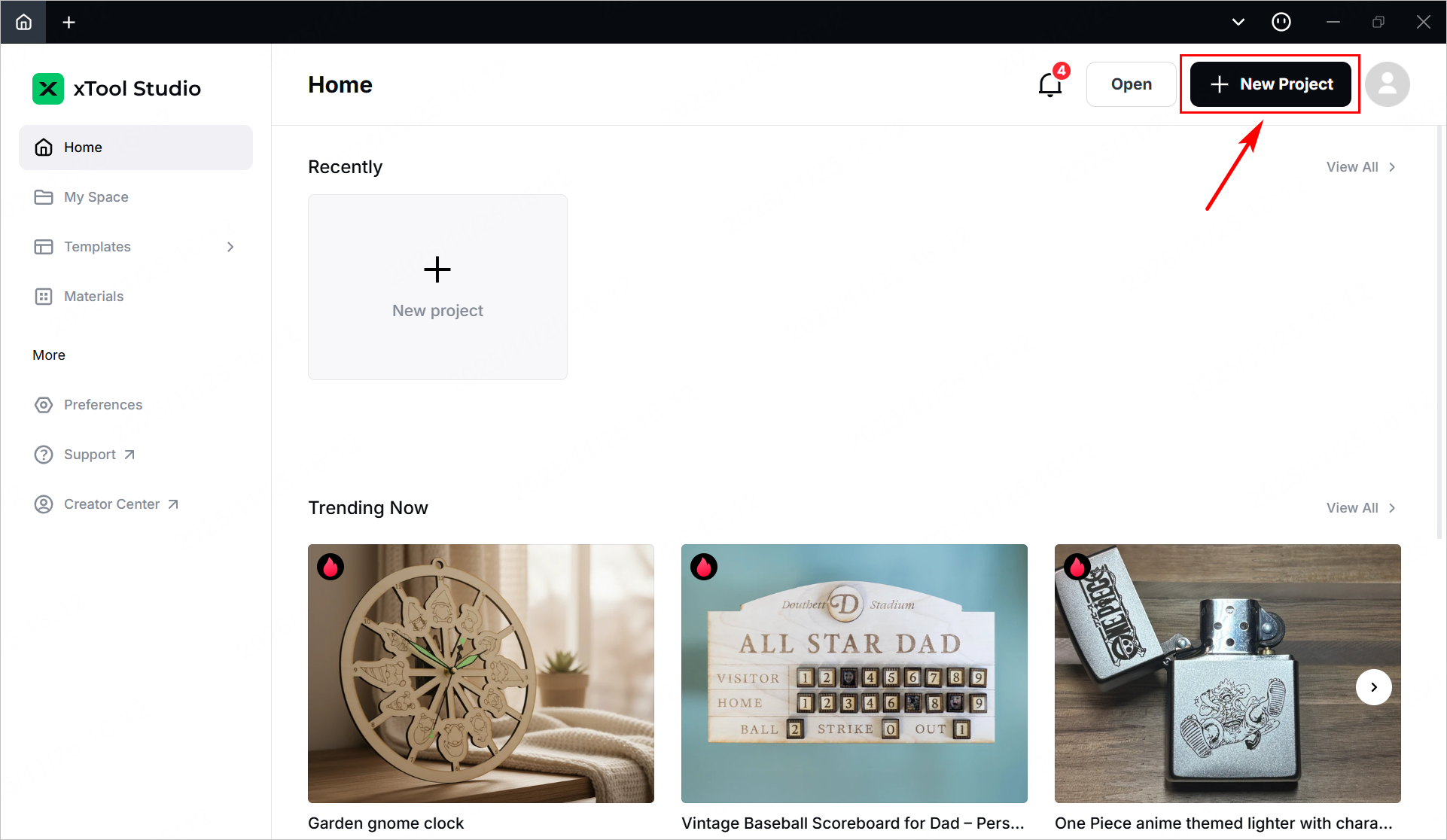
(2) Open xTool Studio on your computer. In the top-right corner of the software, click + New Project.
(3) In the right side of the page, click Select device.
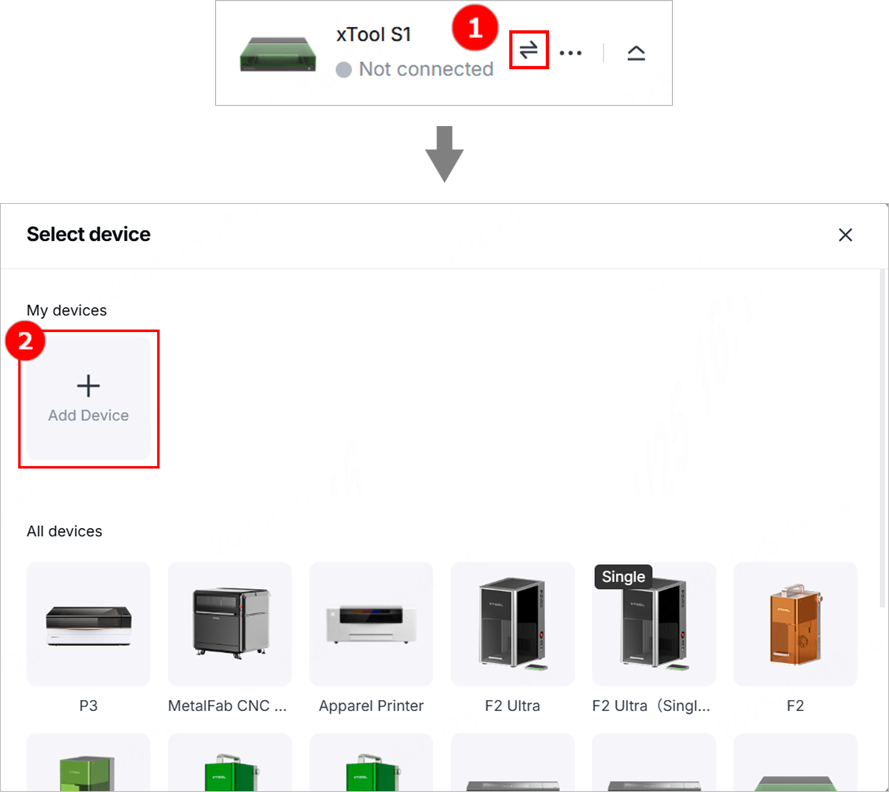
Note: If you have connected an xTool device in xTool Studio before, click the icon next to the device.
(4) On the pop-up window, click Add Device. Then, click the name of your device to connect to it.
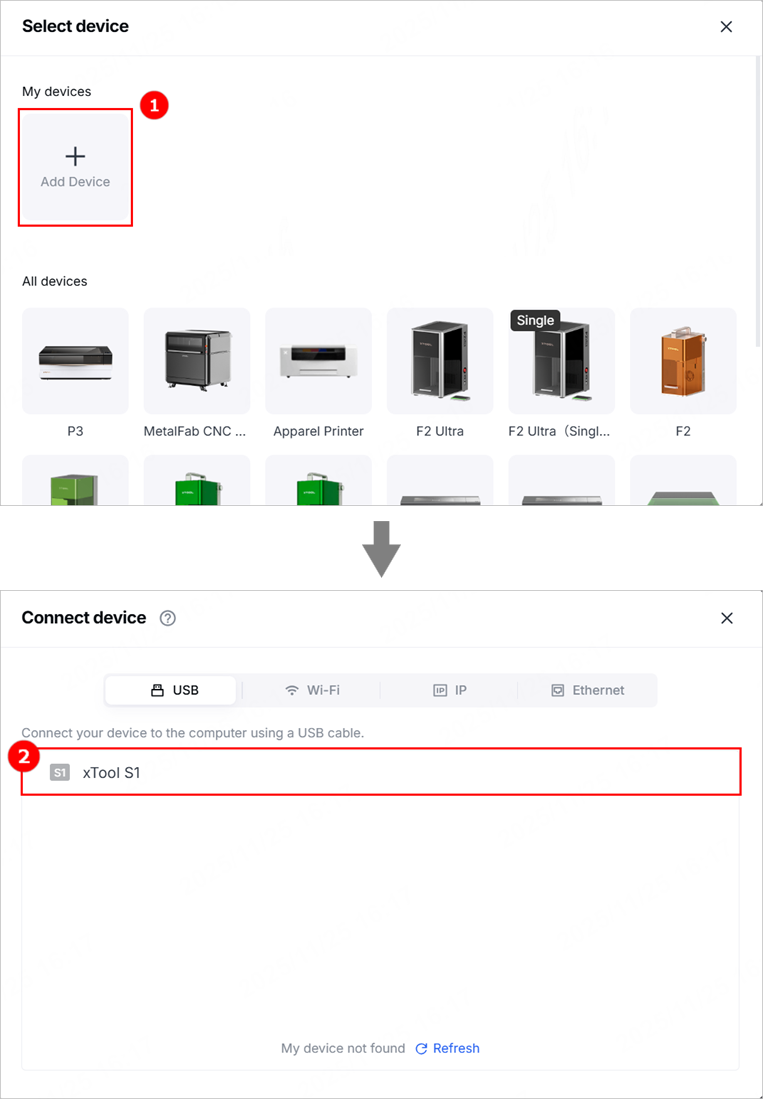
Note: After the device is connected, you can configure Wi-Fi for it so that you can connect it to xTool Studio through Wi-Fi next time.
Wi-Fi connection
(1) In the top-right corner of the software, click  > Device settings to enter the device settings page.
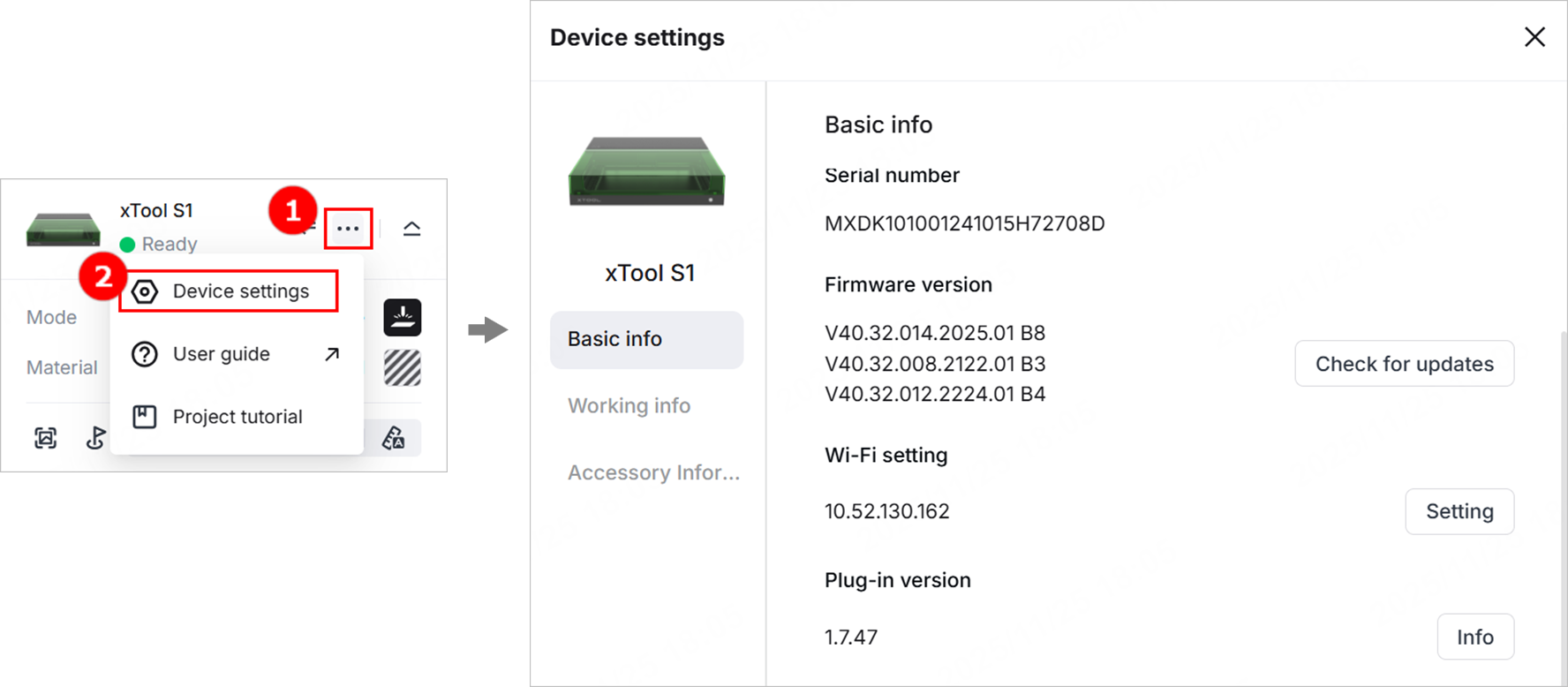
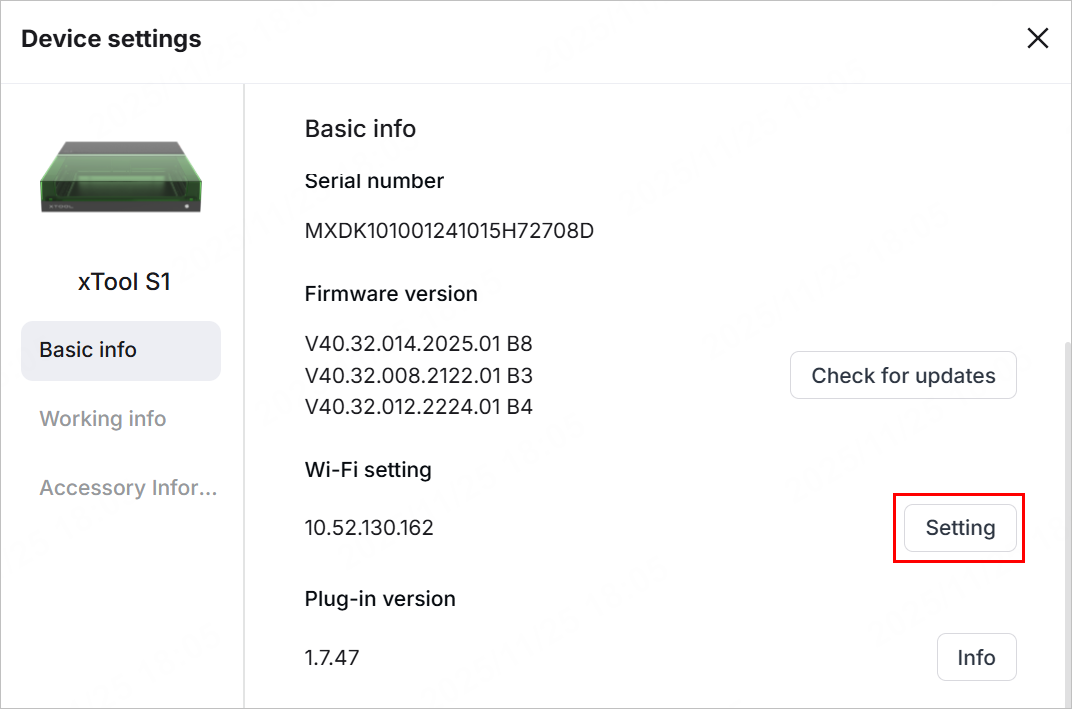
(2) On the Basic info tab page, click Setting for Wi-Fi setting.
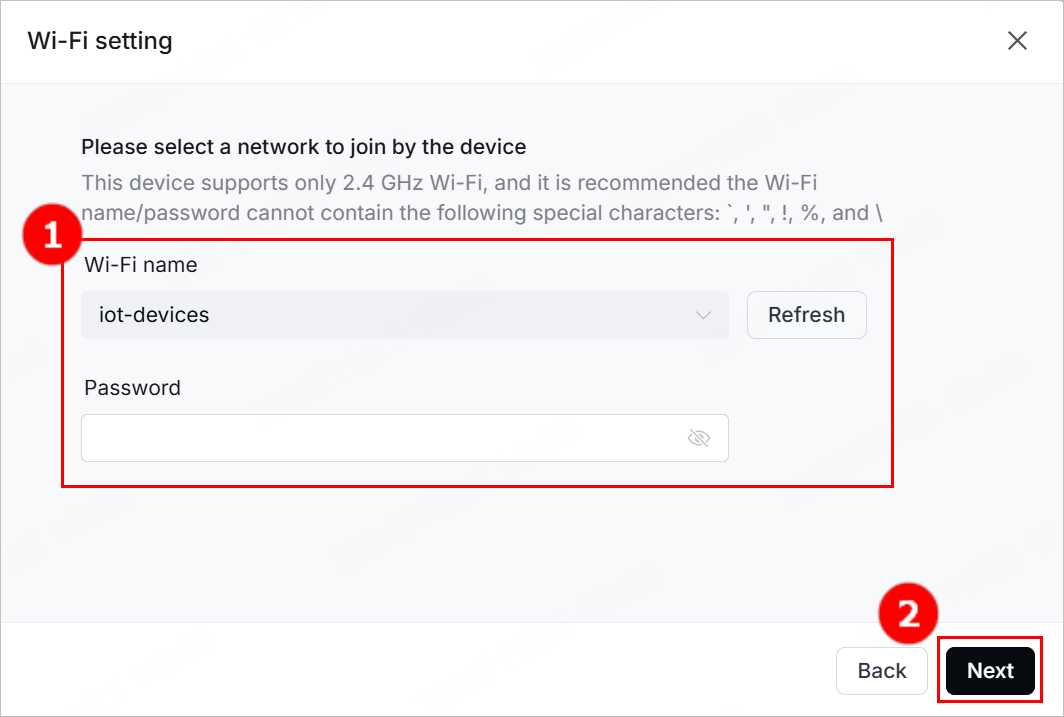
(3) In the Wi-Fi setting dialog box, select a Wi-Fi, enter the password, and click Next.
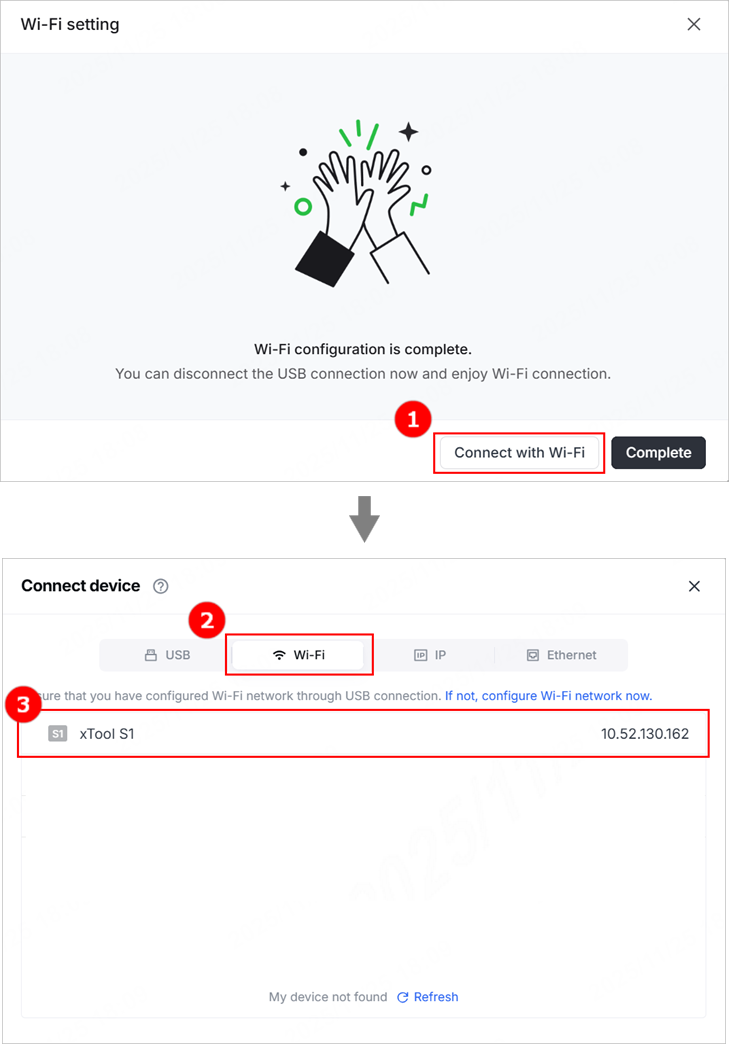
(4) Click Connect with Wi-Fi. In the Connect device dialog box, click Wi-Fi and select the device name to connect it. If you do not want to connect your device and the computer through Wi-Fi now, click Complete to close the dialog box.
Note: Ensure that your computer and xTool S1 are connected to the same network.
IP address connection
After your complete the Wi-Fi settings for xTool S1, an IP address is displayed under Wi-Fi setting on the device settings page. You can use the IP address to connect xTool S1 and the computer.
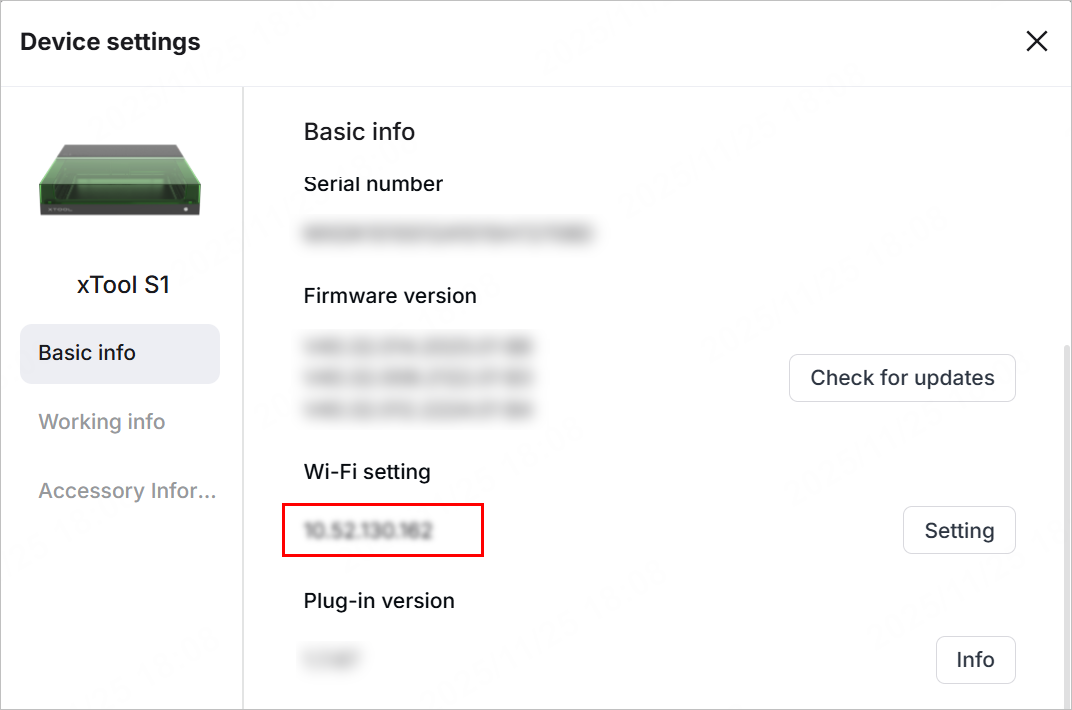
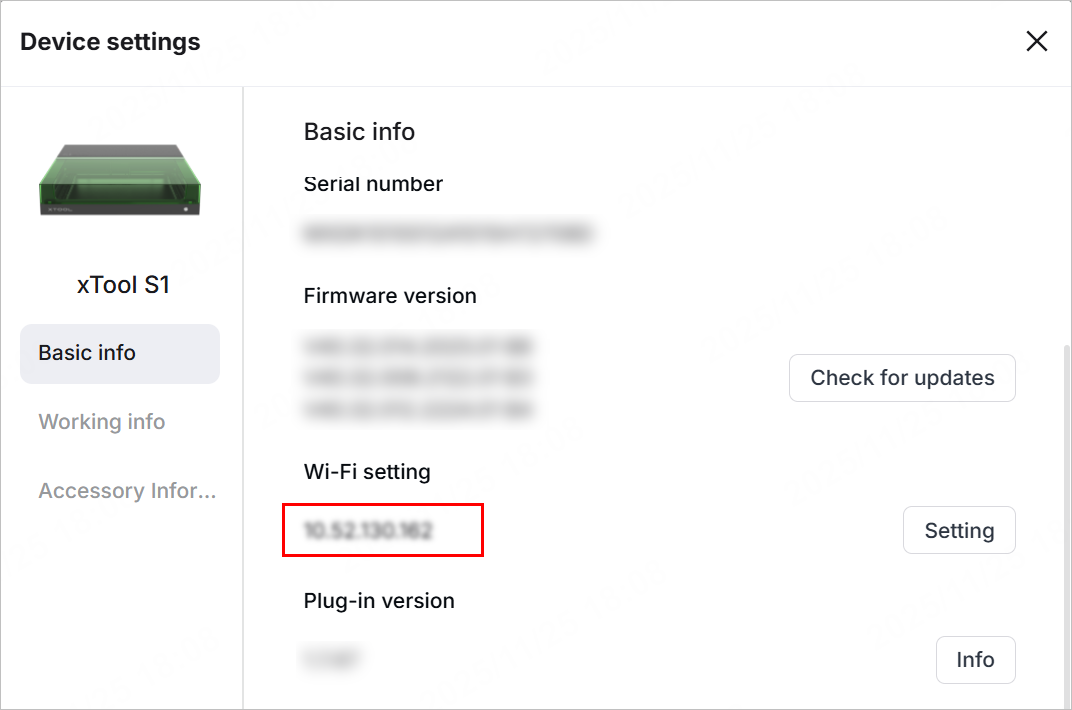
(1) In the top-right corner of the software, click > Device settings to enter the device settings page.
(2) Note down the IP address and return to the canvas page.
(3) On the canvas page, click  > Add Device.
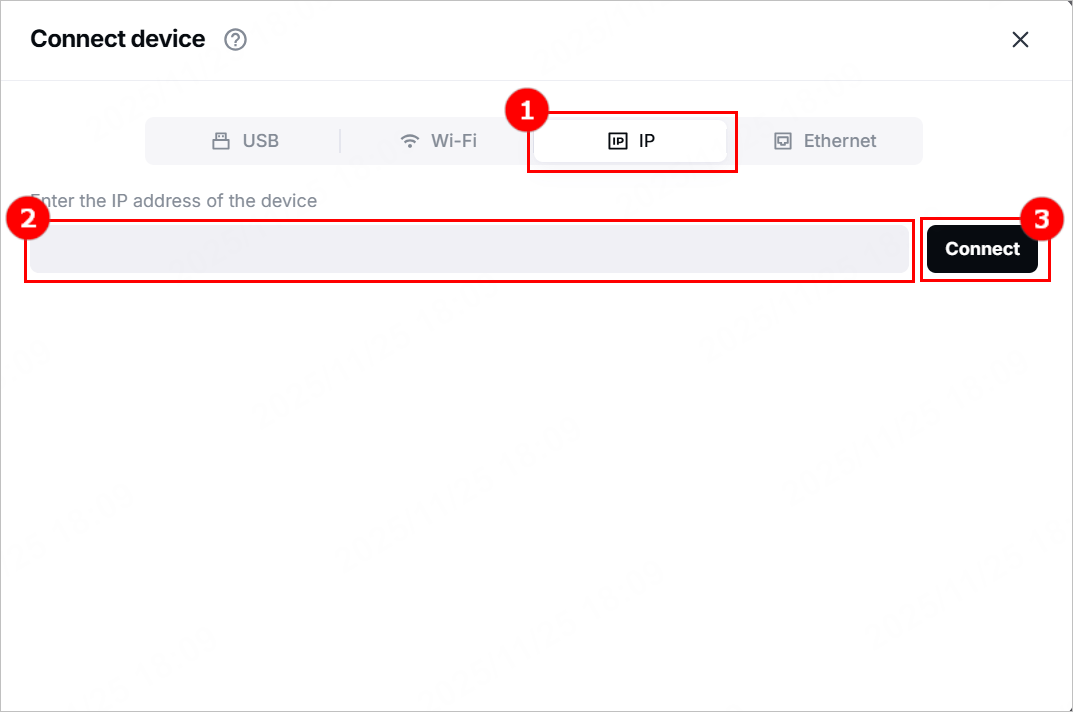
(4) In the Connect device dialog box, click IP, enter the IP address noted down in step (2), and click Connect.
Set up xTool S1 in xTool Studio
(1) In the top-right corner of the software, click the  icon > Device settings to enter the device settings page.
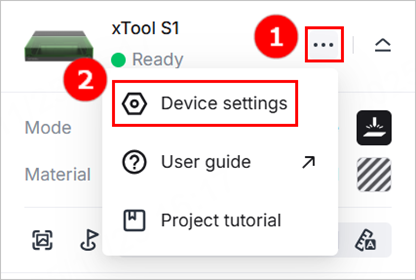
(2) In the Basic info tab, you can view the basic information of xTool S1 and modify some information.
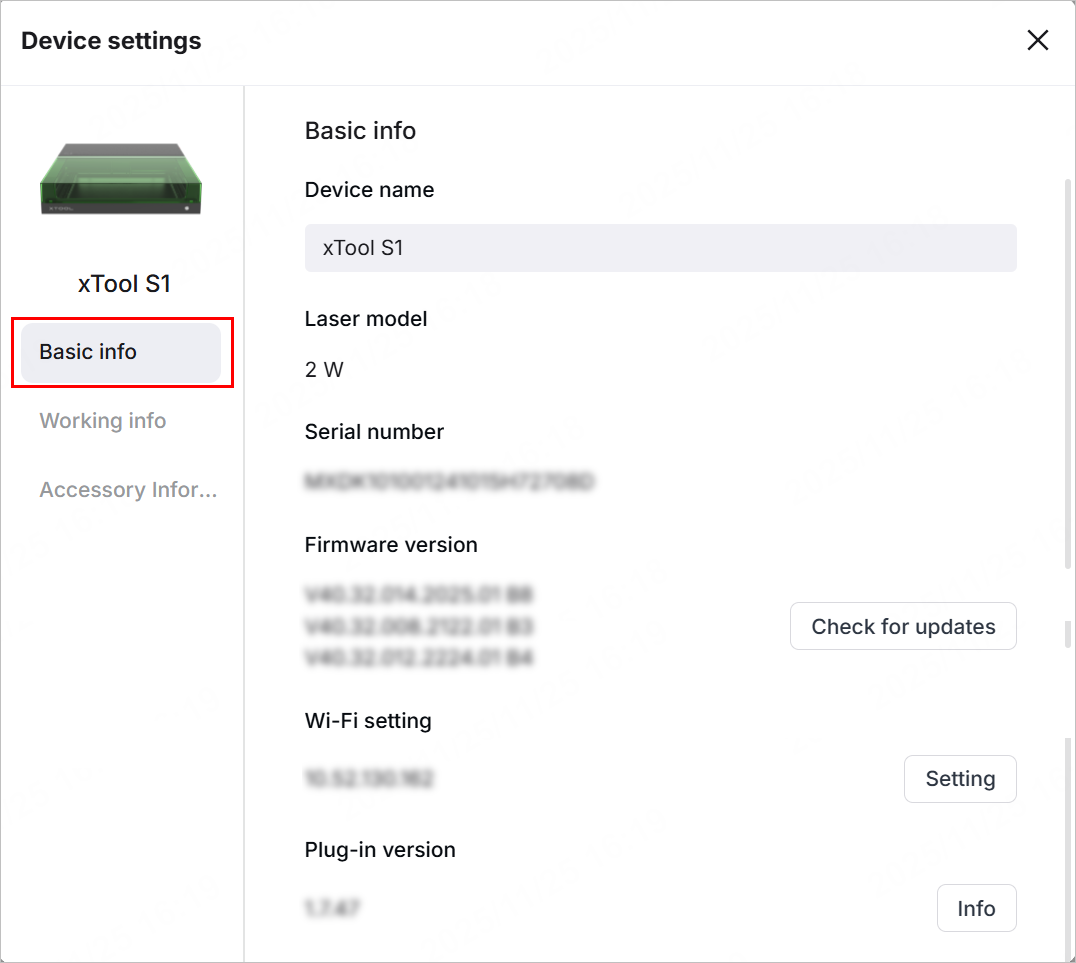
- Device name: Displays the name of the device. You can set a new name for it.
- Laser model: Displays the laser model of the device.
- Serial number: Displays the serial number of the device.
- Firmware version: Displays the firmware version of the device. You can click Check for updates and update the firmware if a new version is available.
- Wi-Fi setting: Connect the device to a Wi-Fi network.
- Plug-in version: Displays the plug-in version of the device. You can click Info to view detailed information.
(3) In the Working info tab, you can set up the device and export files as needed.
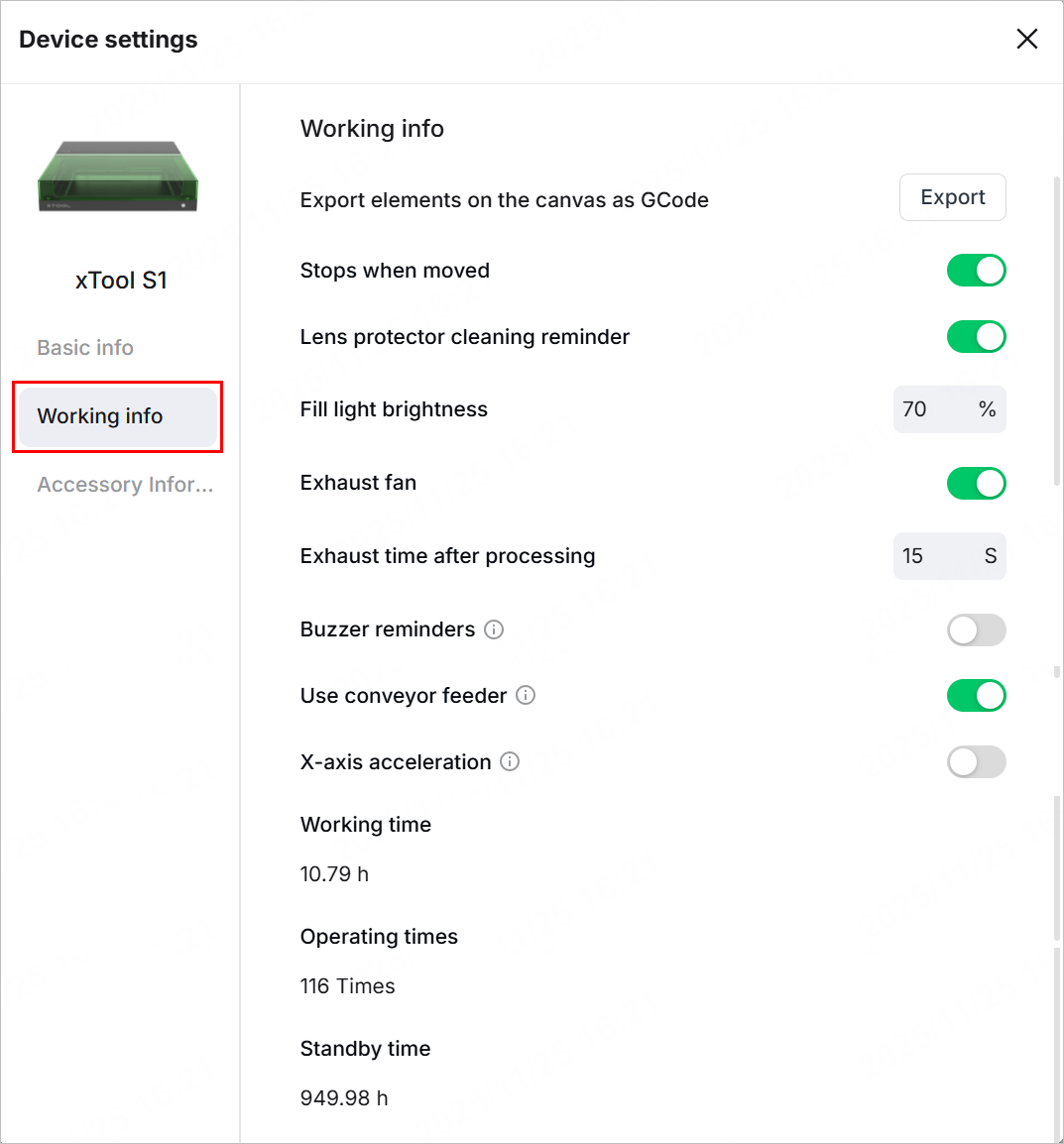
- Export elements on the canvas as GCode: You can click Export to to export the elements as a gcode file.
- Stops when moved: If enabled, the device will pause processing when it is moved or tilted during processing.
- Lens protector cleaning reminder: If enabled, the software will remind you to clean the lens protector at a proper interval.
- Fill light brightness: You can adjust the brightness of the fill light in the working area.
- Exhaust fan: If enabled, the fan will work to exhaust smoke during processing.
- Buzzer reminders: If enabled, the buzzer will make sounds when the device is ready for processing and the processing is complete.
- Use conveyor feeder: If you connect xTool S1 with the automatic conveyor feeder, enable this feature. After the processing is complete, the conveyer feeder will transfer the material back to its original position.
- X-axis acceleration: If enabled, xTool S1 will use a higher speed for processing.
- Working time: Displays the total working time of the device.
- Operating times: Displays the total operating times of the device.
- Standby time: Display the total standby time of the device.
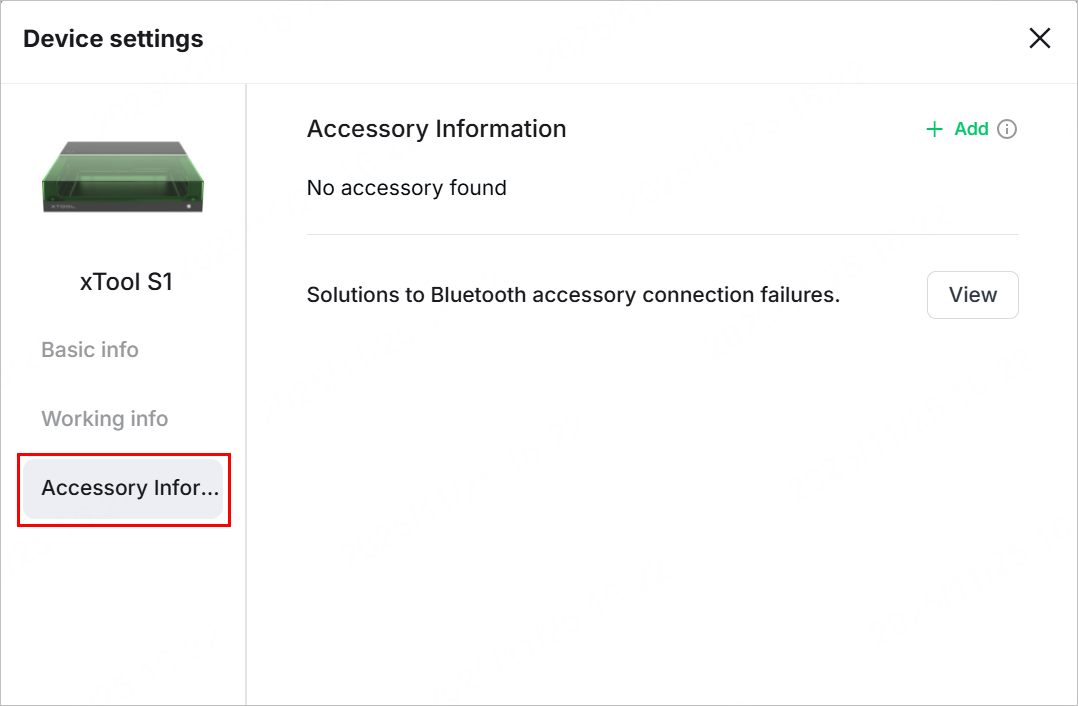
(4) In the Accessory Information tab, you can see the information of accessories connected to xTool S1. You can click + Add to add accessories.
Processing modes
xTool S1 supports 6 processing modes. You can select the desired mode for processing.
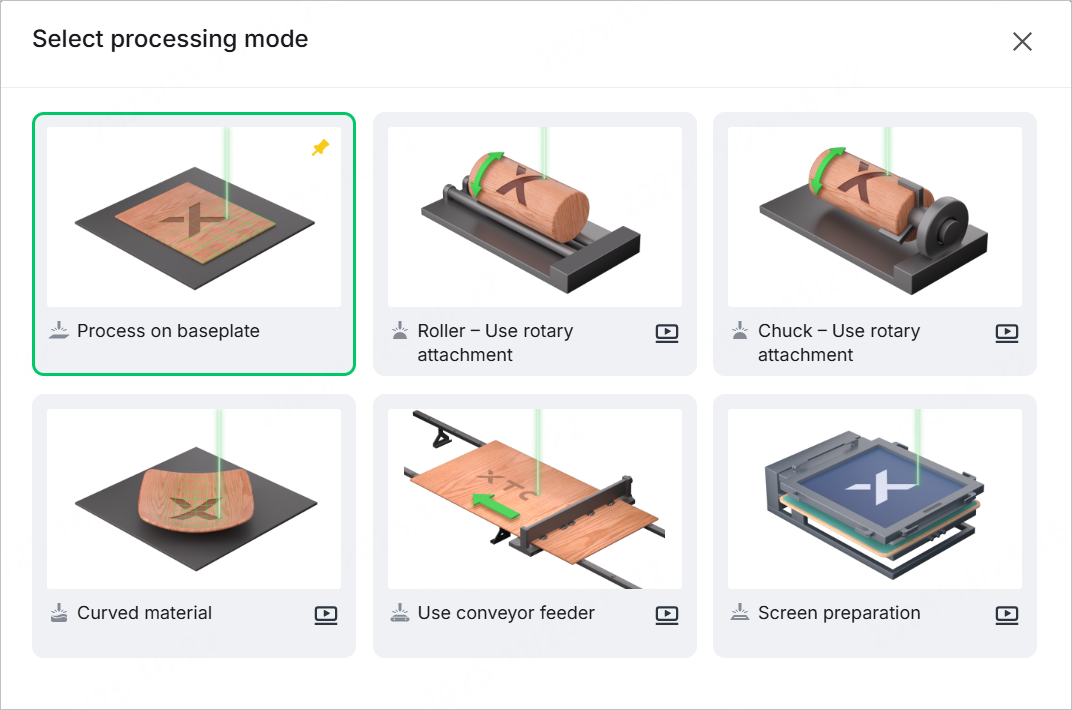
- Process on baseplate: Process materials with flat and smooth surfaces with the baseplate in place.
- Roller - Use rotary attachment: Use xTool S1 with the rotary attachment to process irregular cylindrical materials.
- Chuck - Use rotary attachment: Use xTool S1 with the rotary attachment to process cylindrical materials with rounded or non-rounded bases.
- Curved material: Process materials with curved and smooth surfaces.
- Use conveyor feeder: Use xTool S1 with the conveyor feeder to process long materials.
- Screen preparation: This mode is developed for xTool Screen Printer, used to engrave screens for printing.

