Process a Curved Material with xTool F2
Requirements on materials
- Use a material with a smooth surface and gentle curves that meet the requirements below.
- The angle between the tangent to the curve at any point and a horizontal line should be no more than 45 degrees.
- The distance between the highest and lowest points on the curved surface should be no more than 10 cm.
- Abrupt height change, sharp corners, and inward sloping are not supported.
- Do not use highly reflective materials.
xTool F2 measures curved surfaces based on optical principles. Excessive reflections from the material may cause inaccurate measurements.
Connect xTool F2 to xTool Studio
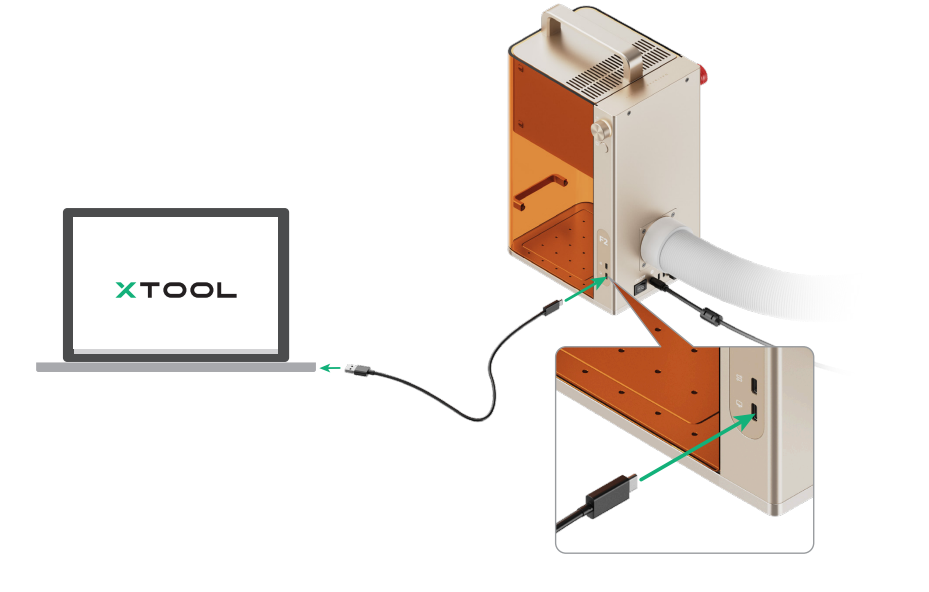
(1) Use the USB cable to connect xTool F2 to your computer.
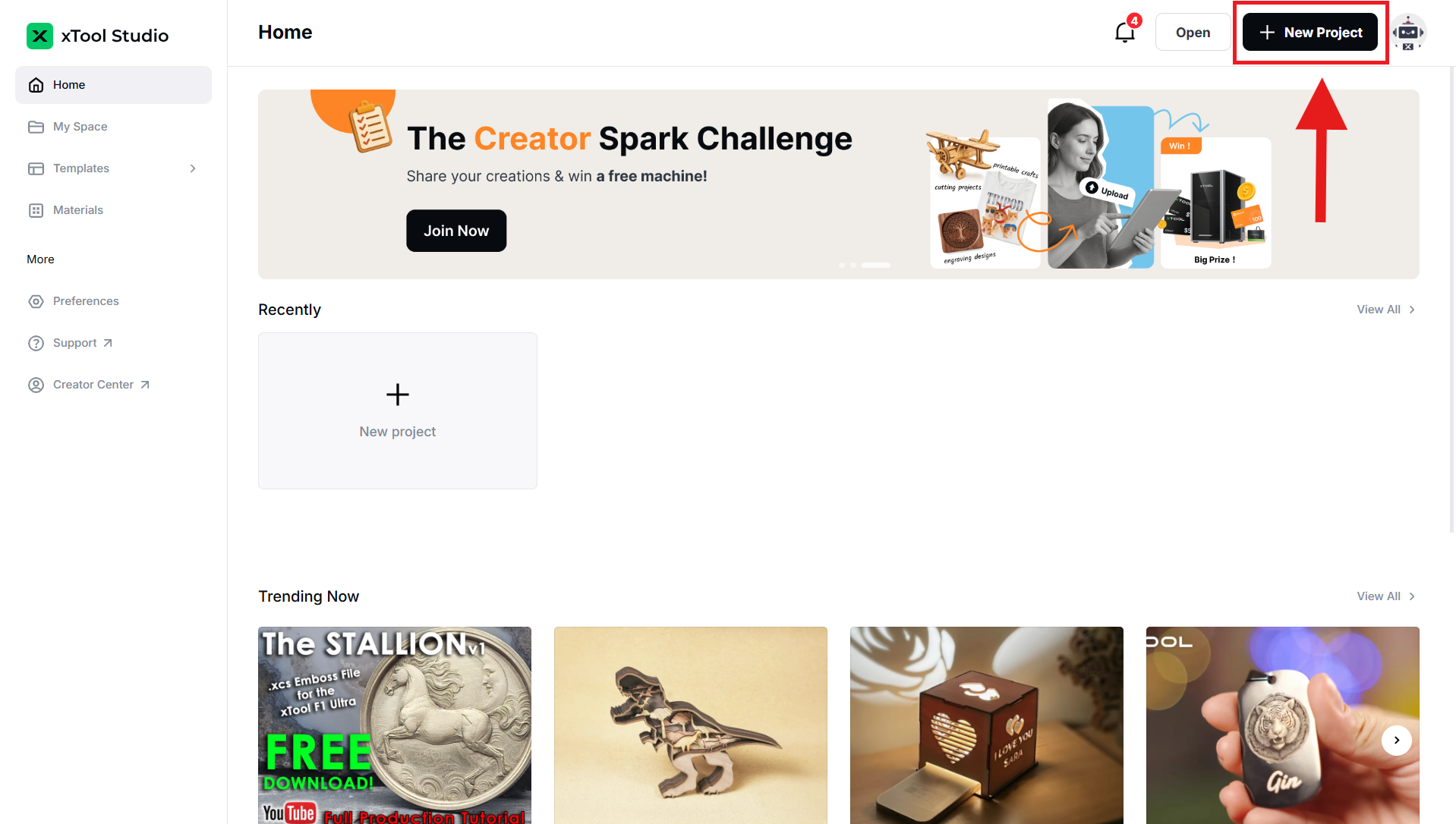
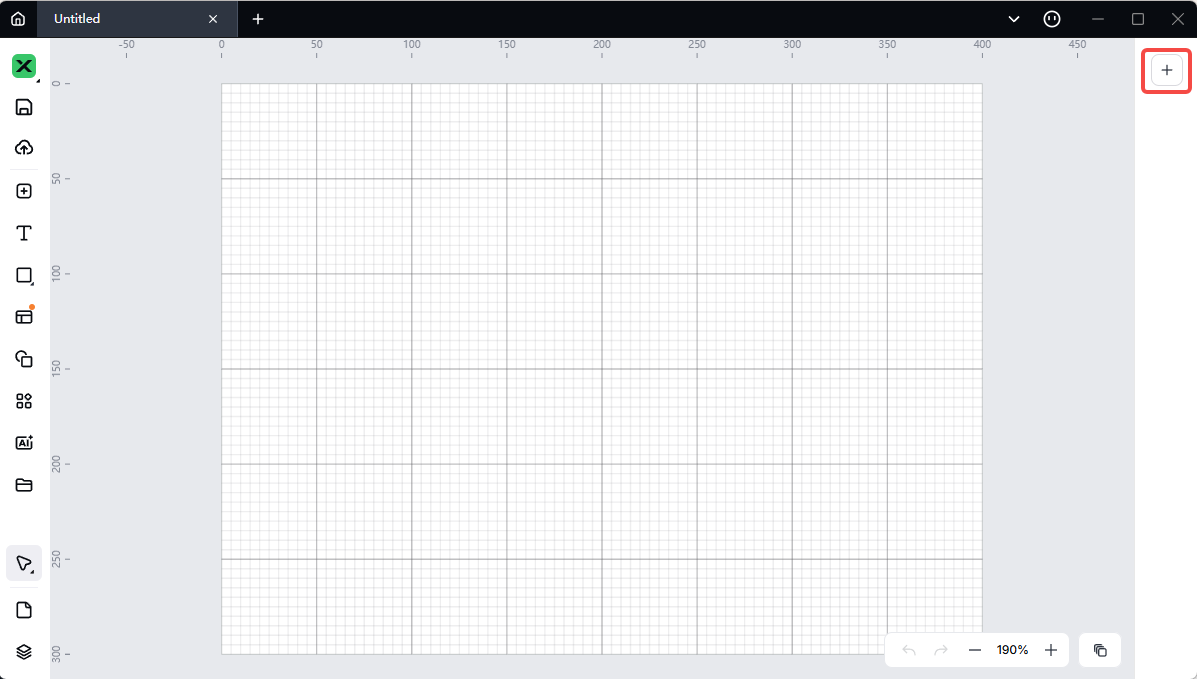
(2) Open xTool Studio on your computer. On the top-right corner of xTool Studio, click the + New project button.
(3) On the right side of the project editing page, click icon to add a d.
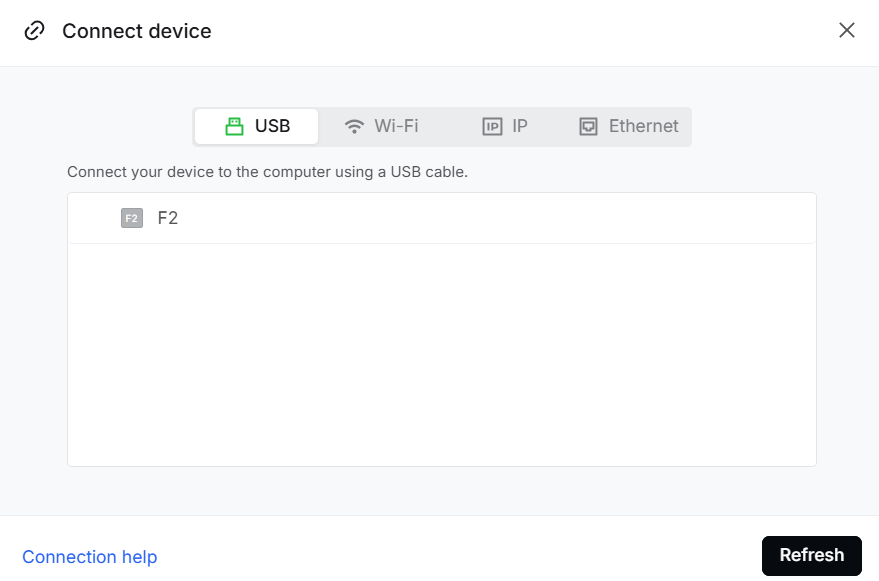
(4) On the pop-up window, click the name of your device to connect to it.
Start processing with xTool Studio on your computer
1. Select the processing mode
On the top of xTool Studio, click the name of the current processing mode, and then select Curved material.
2. Set the focus and select the processing area
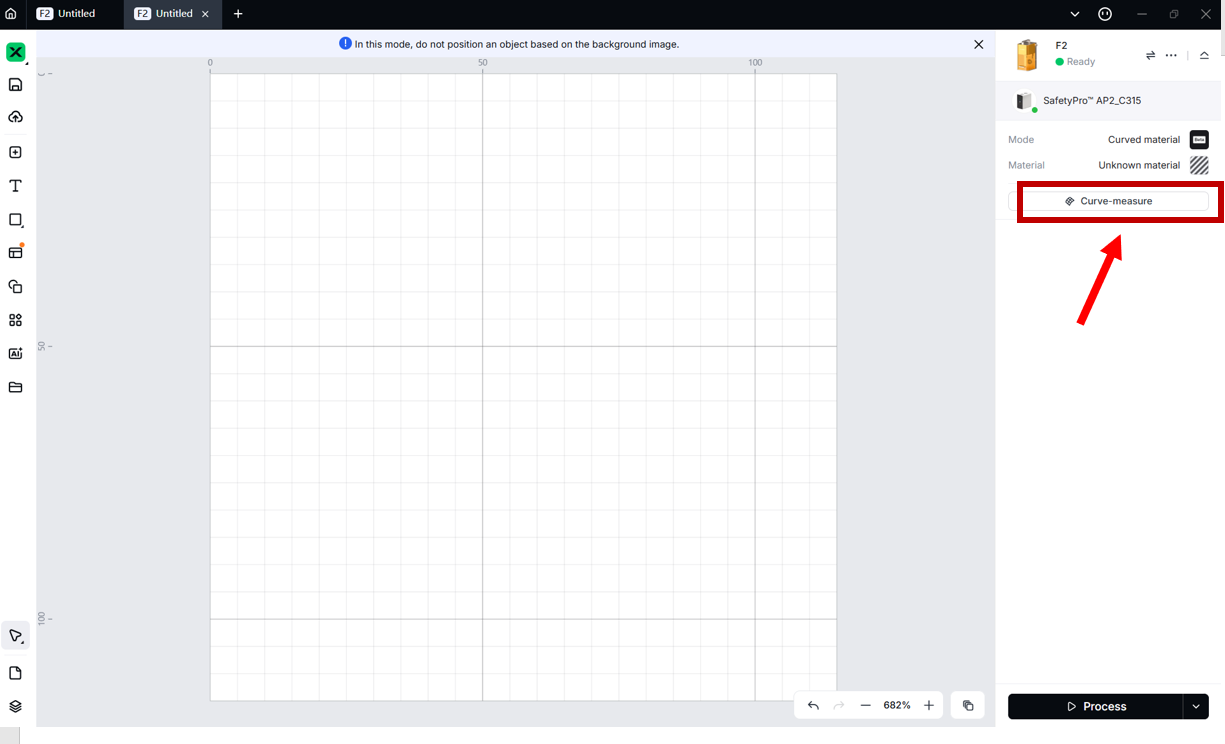
(1) On the right side of xTool Studio, click the Curve-measure button.
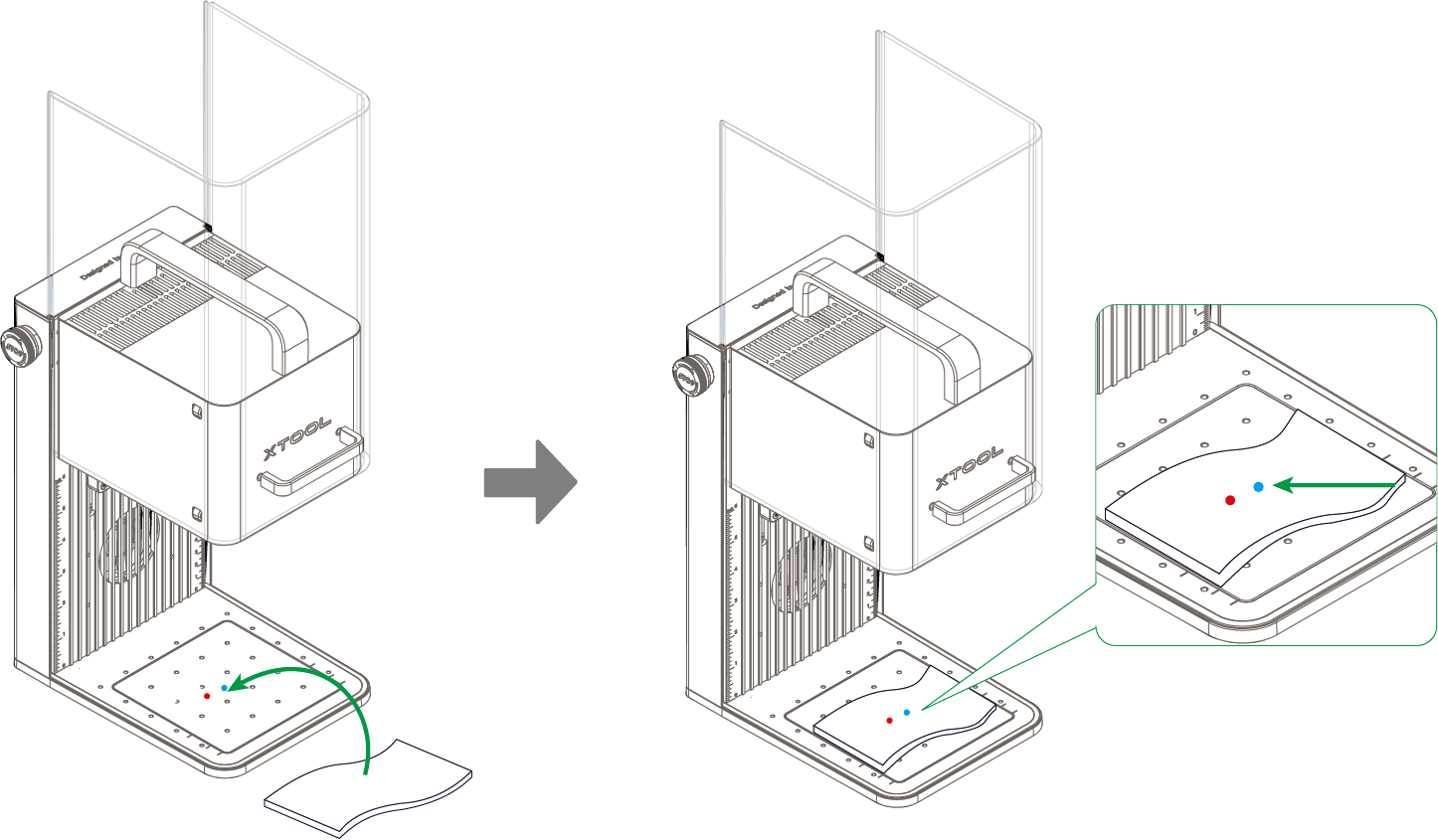
(2) Lift the protective enclosure, and place the material on the baseplate, allowing the blue light spot to fall in the center of the desired processing area.
(3) Hold down on the Up/Down button for laser module to lift or lower the laser module. When the red and blue light spots overlap to form a purple spot, the focus is successfully set.
Note: The blue light spot does not move. If the laser module moves up, the red light spot moves towards the left. If the laser module moves down, the red light spot moves towards the right.
(4) On xTool Studio, click Framing, and then you can see a blue rectangular projection, which indicates the target processing area.
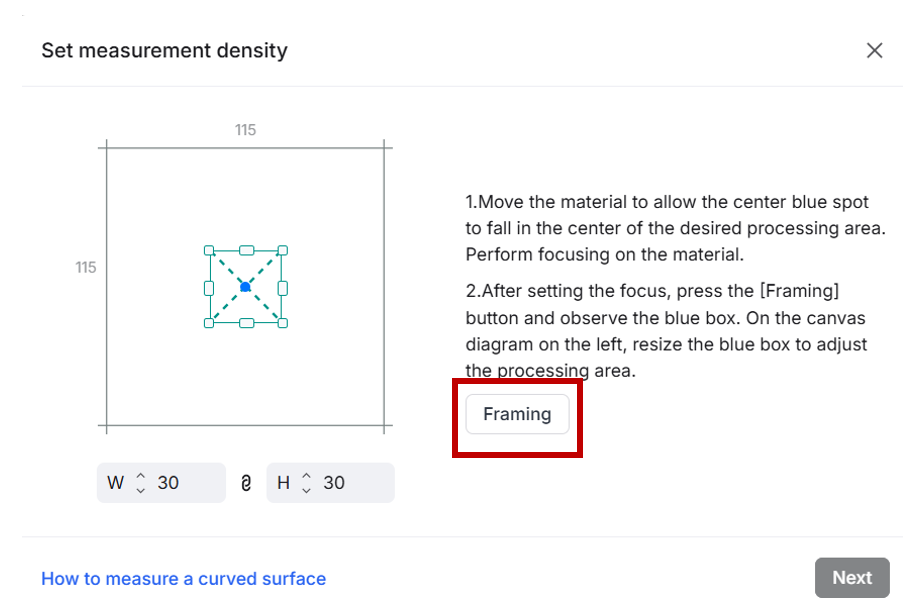
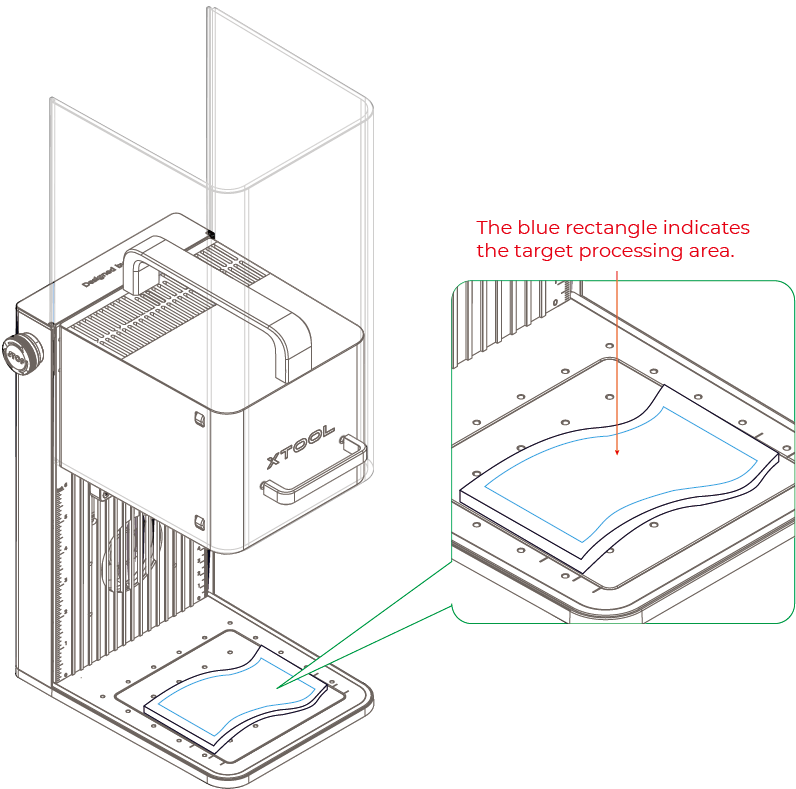
(5) In xTool Studio, drag the handles to resize the bounding box, so as to adjust the target processing area. After confirming the target processing area, click Next.
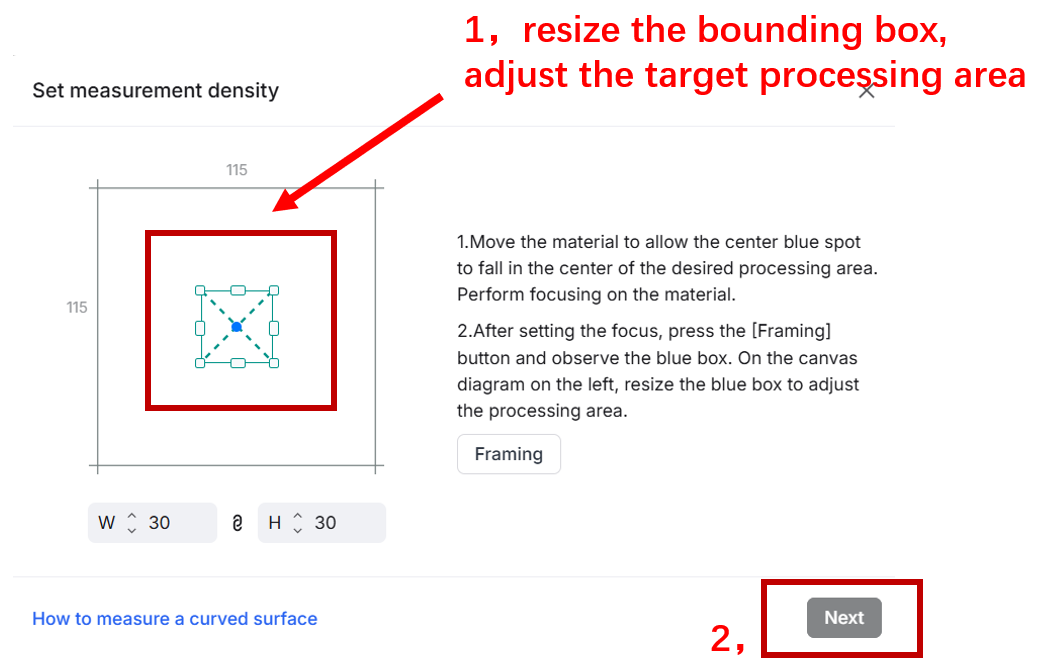
Note: By default, the width and height proportion is locked. You can unlock it by clicking the icon.

3. Set the measurement density
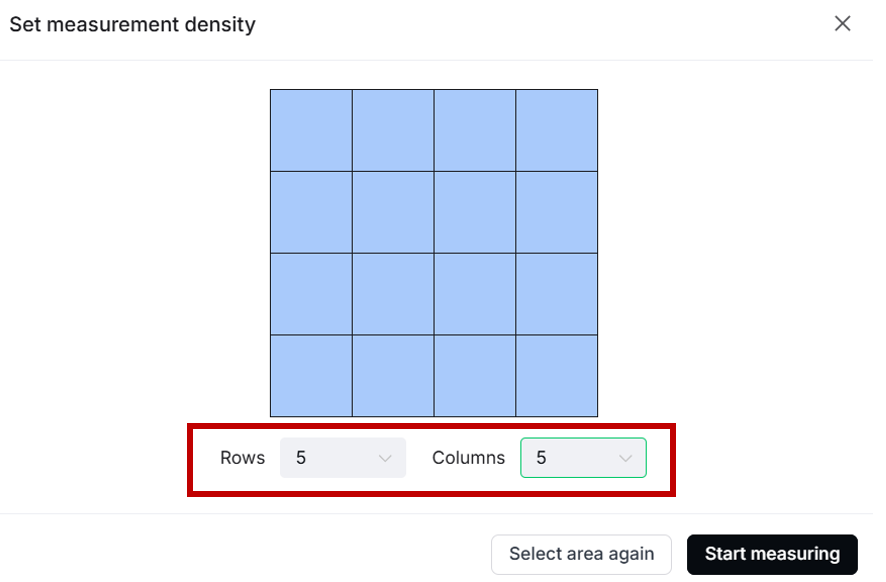
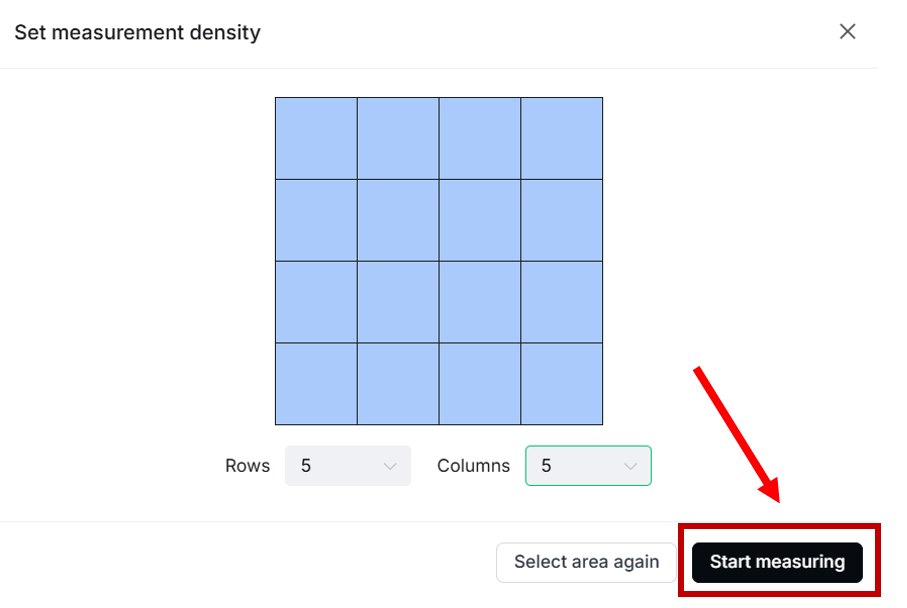
(1) xTool Studio provides recommended measurement density based on the size of the selected area. You can adjust the measurement density by changing the Rows and Columns.
 '
'
Note: The more rows and columns, the higher the measurement density, the more precise the model, but the longer the measurement time.
(2) Click Start measuring, and the device will measure the height of each point on the selected area. You can see the measurement progress on xTool Studio.
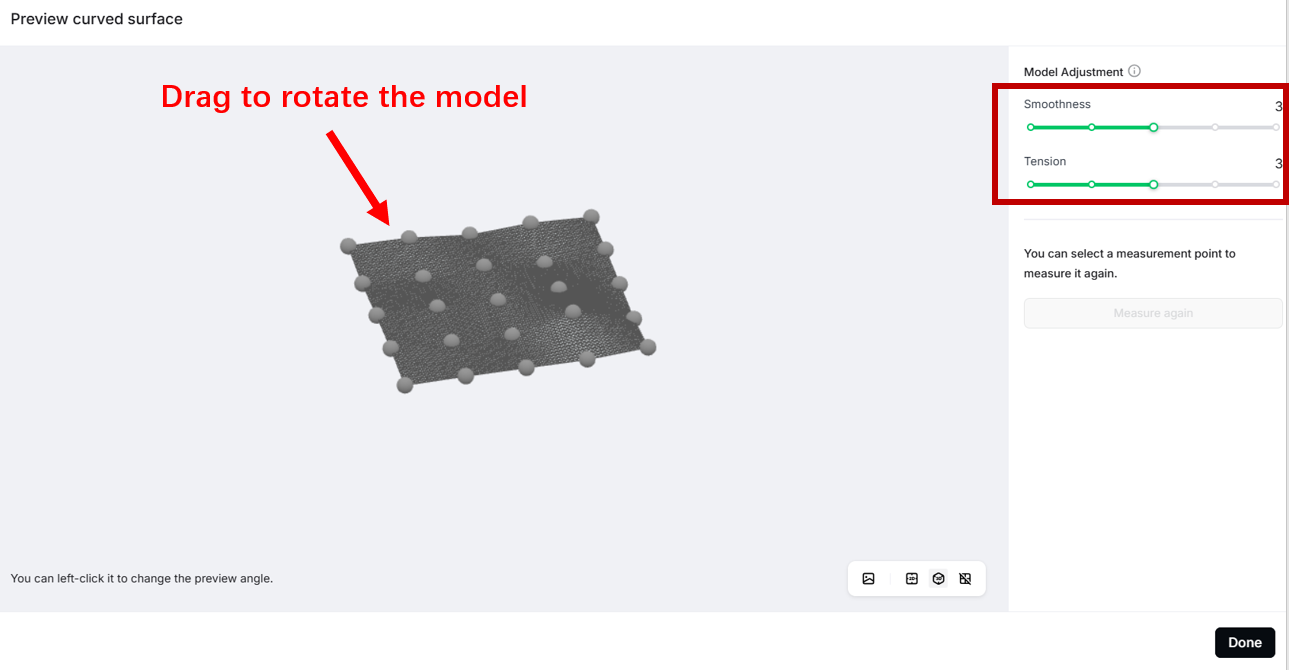
(3) After the measurement is complete, xTool Studio generates a 3D model.
- To rotate the model, drag it with the mouse.
- To adjust the model, change the Smoothness and Tension.
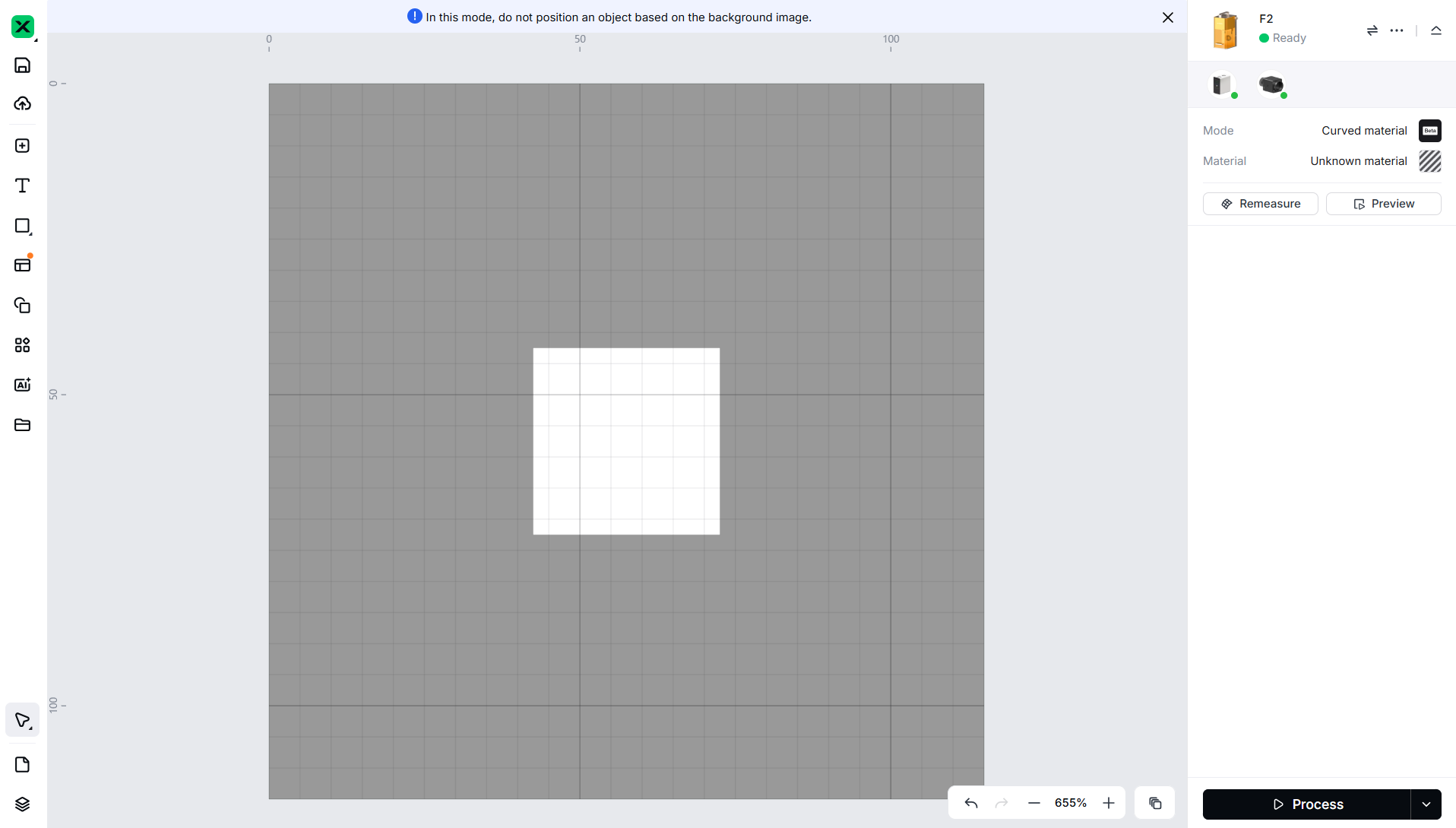
(4) Click Done. The selected and measured area is displayed normally on the canvas, while the other area becomes grey, which indicates a non-processing area.
4. Design objects and set processing parameters
(1) Use the tools to the left of the canvas to create objects on the canvas. You can import images, insert shapes, enter text, draw vector graphics, and so on.
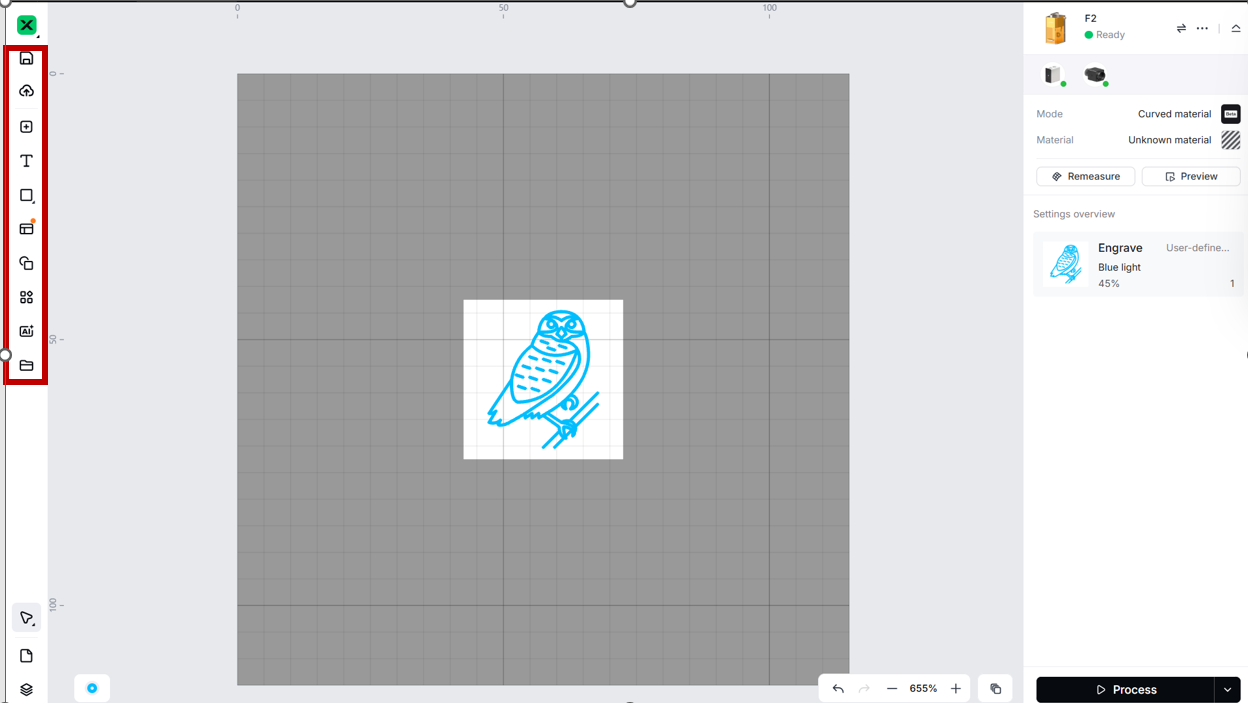
Note: For more information on how to use xTool Studio to design objects, see Software Learning Center.
(2) Select objects on the canvas. On the top of xTool Studio, you can use the tools to further edit the selected objects.
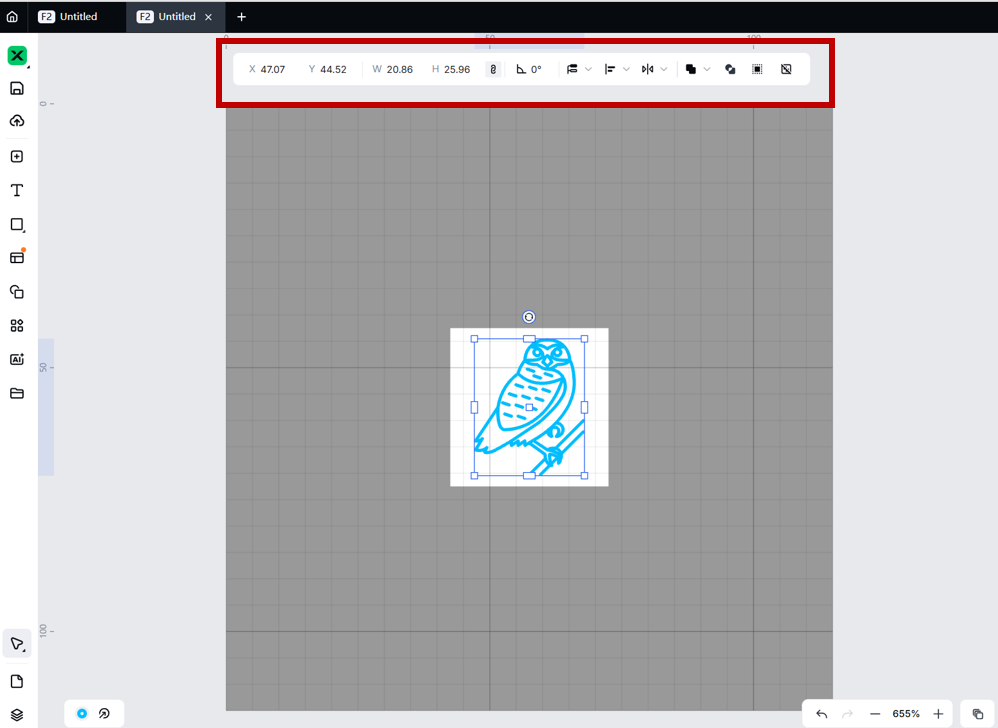
(3) Select objects on the canvas. On the right side of xTool Studio, set parameters for the selected objects.
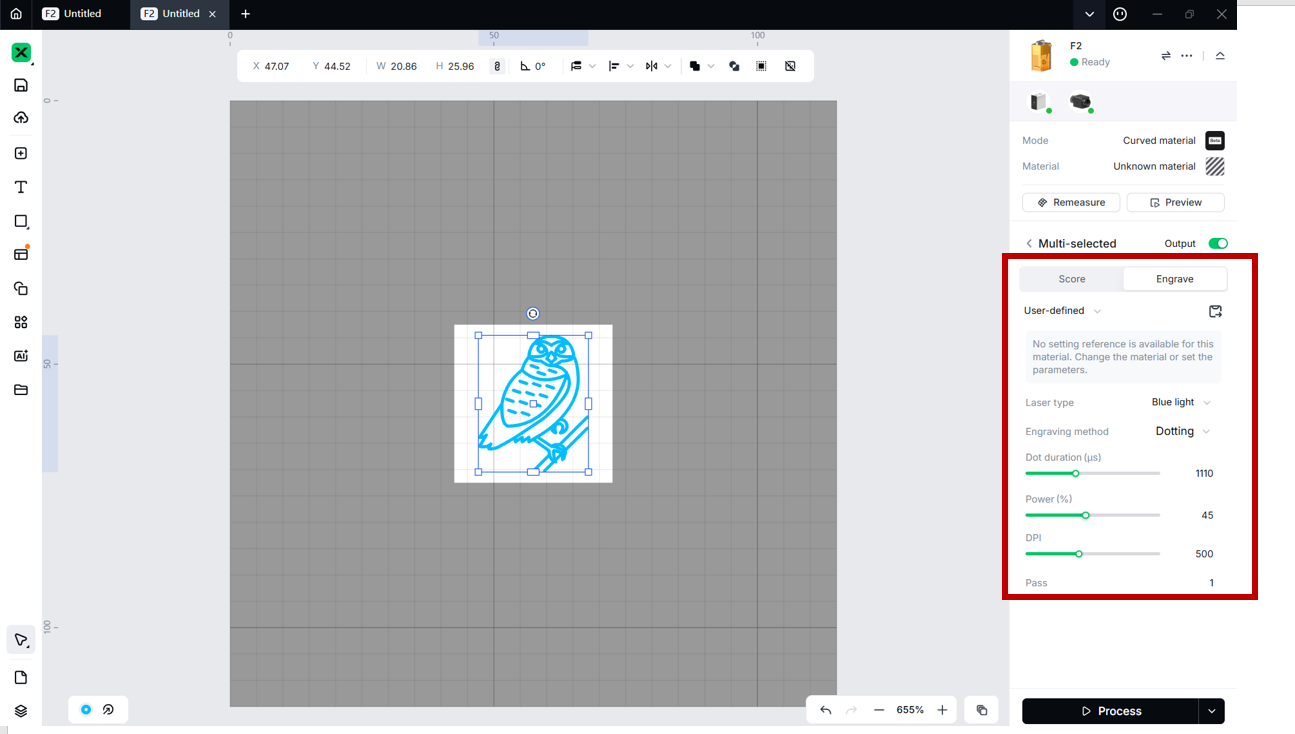
1. You need to set parameters for every object. A missed object may fail to be processed.
2. The parameters that can be set for bitmap objects and vector objects are different. You can select multiple objects of the same type and set parameters for them at once.
5. Start processing
(1) In the bottom-right corner of xTool Studio, click the  icon next to Process to set the processing path.
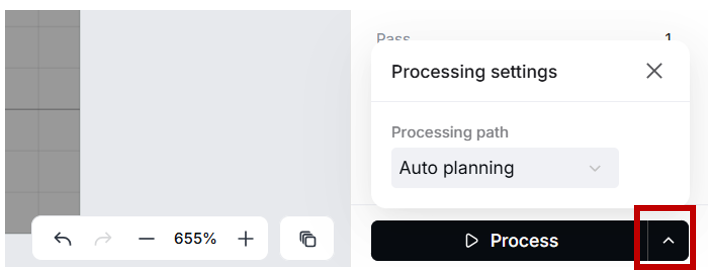
- Auto planning: xTool Studio automatically plans the processing path based on intelligent algorithms.
- By layer: The objects will be processed by the order of the layers.
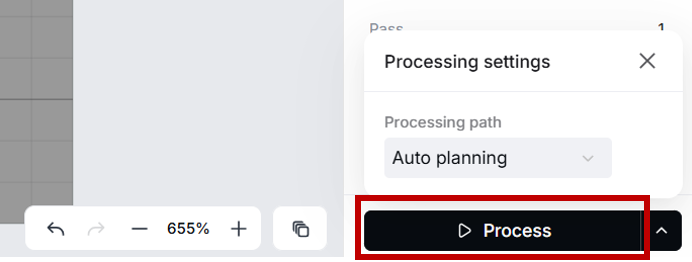
(2) In the bottom-right corner of xTool Studio, click Process.
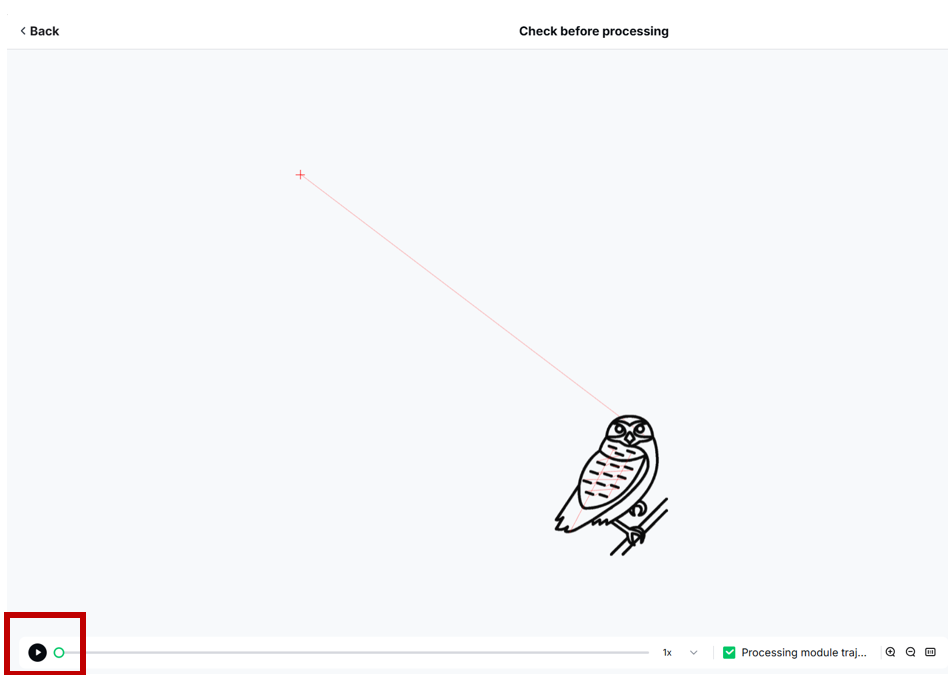
(3) Preview the processing pattern and path.
In the bottom-left corner, click the  button, and xTool Studio will show you the processing path.
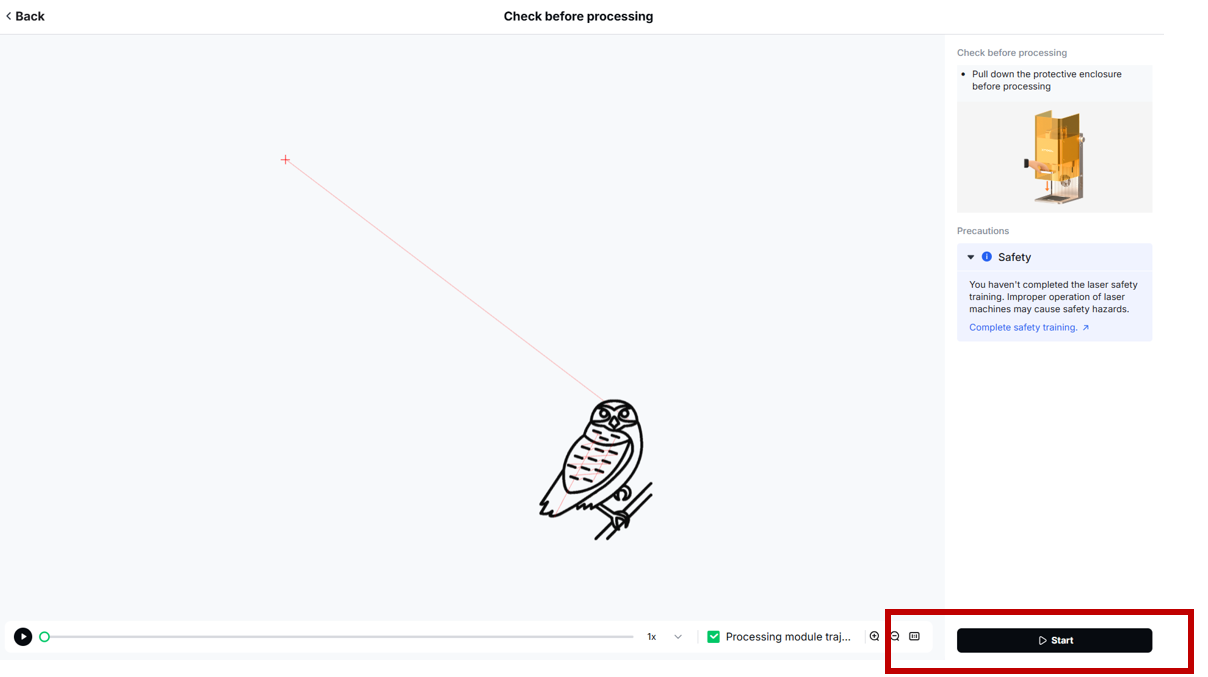
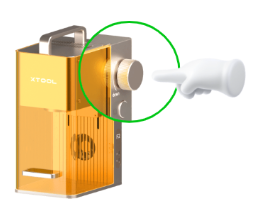
(4) Close the protective enclosure. In the upper right corner of the software, click Start. When the software shows “Ready”, press the XTOOL Start/Stop button to start processing.